Best Ultrawide Monitor for Productivity
Three monitors cluttered my desk for years until the realization hit - more time went into dragging windows between screens than actual productive work. The constant neck rotation between displays created persistent shoulder tension that escalated from annoying to genuinely painful. Switching to a single ultrawide monitor transformed the entire workflow, eliminating both physical strain and the frustrating interruptions that plagued the old setup.
Ultrawide displays consolidate multi-monitor setups into cohesive workspaces without bezels fragmenting your field of view. The continuous 34-inch canvas accommodates spreadsheets beside reference documents, code editors with preview windows, or timelines alongside asset libraries. After testing current productivity-focused ultrawides in actual work environments, the results revealed which models genuinely improve workflow efficiency versus those that simply look impressive in marketing materials.
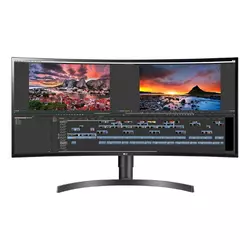
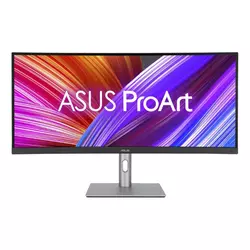
If you're in a hurry, here are my top two picks for productivity ultrawides:
We may earn a small commission if you buy via our links - it helps keep gagadget.com running.
Table of Contents:
- Ultrawide Monitor Buying Guide
- Top 5 Ultrawide Monitors for Productivity in 2026
- Productivity Monitor Comparison
- LG 34WN80C-B UltraWide
- ASUS ProArt Display PA34VCNV
- Dell S3425DW Curved
- Samsung ViewFinity S50GC
- Acer Nitro EDA343CUR
- Productivity Monitor: FAQ
Ultrawide Monitor Buying Guide
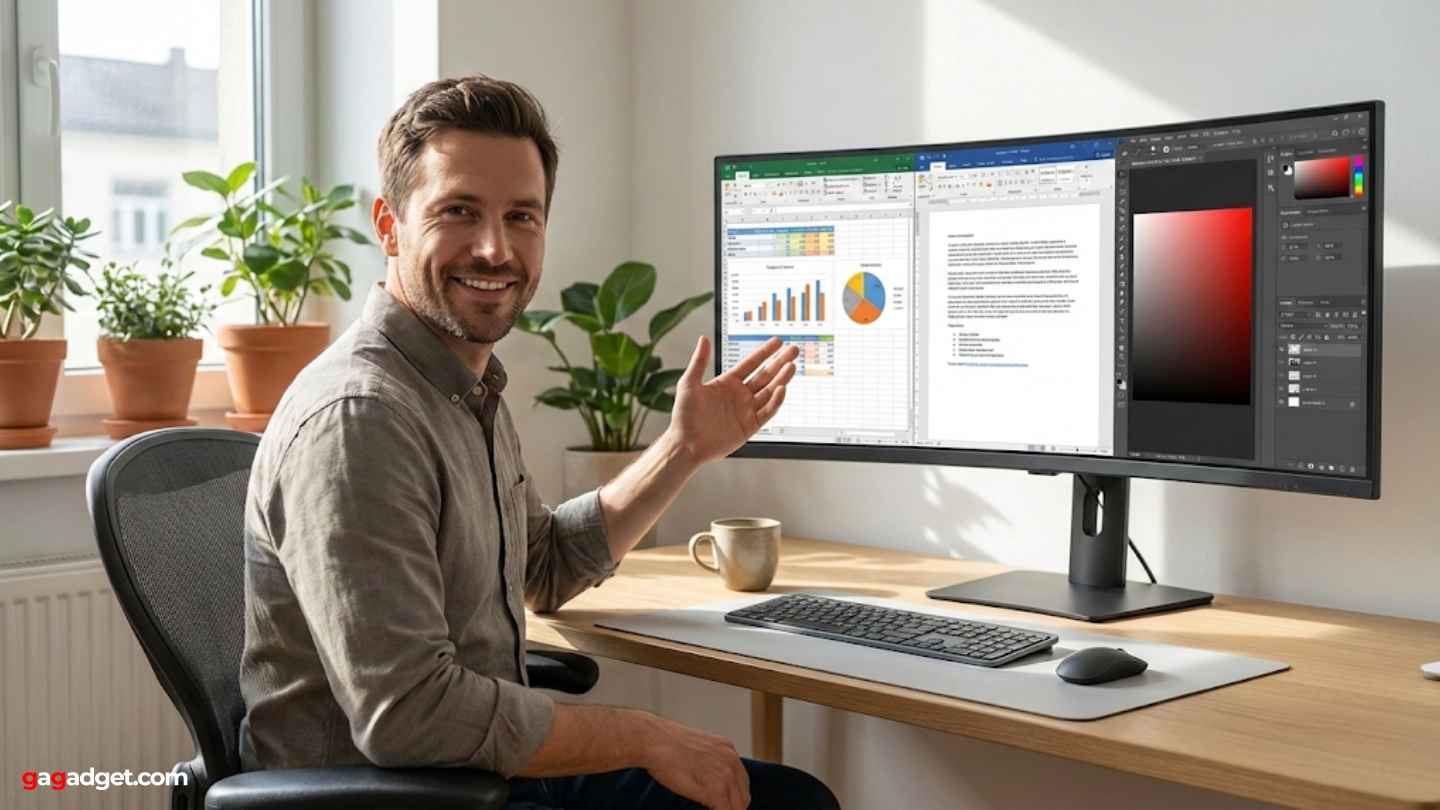
Selecting productivity ultrawides requires balancing screen real estate with ergonomic considerations and connectivity options that accommodate varied workflows. The 34-inch format with 3440x1440 resolution provides optimal pixel density for extended reading and detailed work without requiring excessive upscaling that strains system resources unnecessarily.
Resolution and Screen Real Estate
The 3440x1440 UWQHD resolution on 34-inch panels delivers approximately 110 pixels per inch, maintaining text clarity at standard viewing distances without scaling adjustments. This native resolution accommodates three standard documents side-by-side or two full-size application windows with room for toolbars. Higher 5K2K ultrawides exist but demand significantly more GPU power for diminishing practical benefits during typical office work. Screen width enables productive multitasking configurations impossible on traditional 16:9 displays regardless of resolution.
Ultrawide 21:9 aspect ratios provide 33% more horizontal workspace than standard 16:9 displays of equivalent height, eliminating window management friction during multi-application workflows.
Pixel density affects readability more than raw resolution numbers suggest. The 110 PPI standard on 34-inch 3440x1440 displays renders text sharply enough for spreadsheet work and document editing during eight-hour sessions. Lower pixel densities create noticeable pixelation that fatigues eyes during extended use. Panel quality determines color uniformity and contrast more than resolution specifications alone. Budget displays show brightness variations across wide screens that premium alternatives control better through superior manufacturing tolerances.
Panel Technology and Color Accuracy
IPS panels deliver superior color consistency and viewing angles essential for creative work requiring accurate color representation across the entire display surface. VA panels provide deeper blacks and higher contrast ratios beneficial for mixed media consumption but sacrifice off-axis color accuracy. Viewing angle performance matters significantly on 34-inch widths where screen edges sit at oblique angles even during centered seating positions. IPS technology maintains color accuracy beyond 178 degrees while VA panels shift noticeably past 30-degree angles.
Color gamut coverage determines suitability for photo editing and design work. Professional displays cover 99-100% sRGB for web content creation while wider gamuts approaching 95% DCI-P3 accommodate video production requiring cinema color standards. Factory calibration with Delta E values below 2 ensures accurate colors immediately without requiring expensive colorimeter investments. Budget displays claiming wide color gamuts often sacrifice accuracy for vibrancy, oversaturating images that appear unnatural during professional workflows requiring precise color matching.
Connectivity and Ergonomics
USB-C connectivity with Power Delivery consolidates laptop connections into single-cable solutions reducing desk clutter significantly. The 60-96W power specifications charge most productivity laptops adequately during use. DisplayPort daisy-chaining enables multi-monitor configurations without consuming additional computer outputs. HDMI inputs accommodate legacy devices and game consoles though bandwidth limitations restrict refresh rates on some models. Ethernet passthrough provides stable network connections for laptops relying on unreliable wireless connectivity.
Single-cable USB-C docking transforms ultrawides into complete workstation hubs, eliminating the cable management nightmares plaguing traditional multi-peripheral setups.
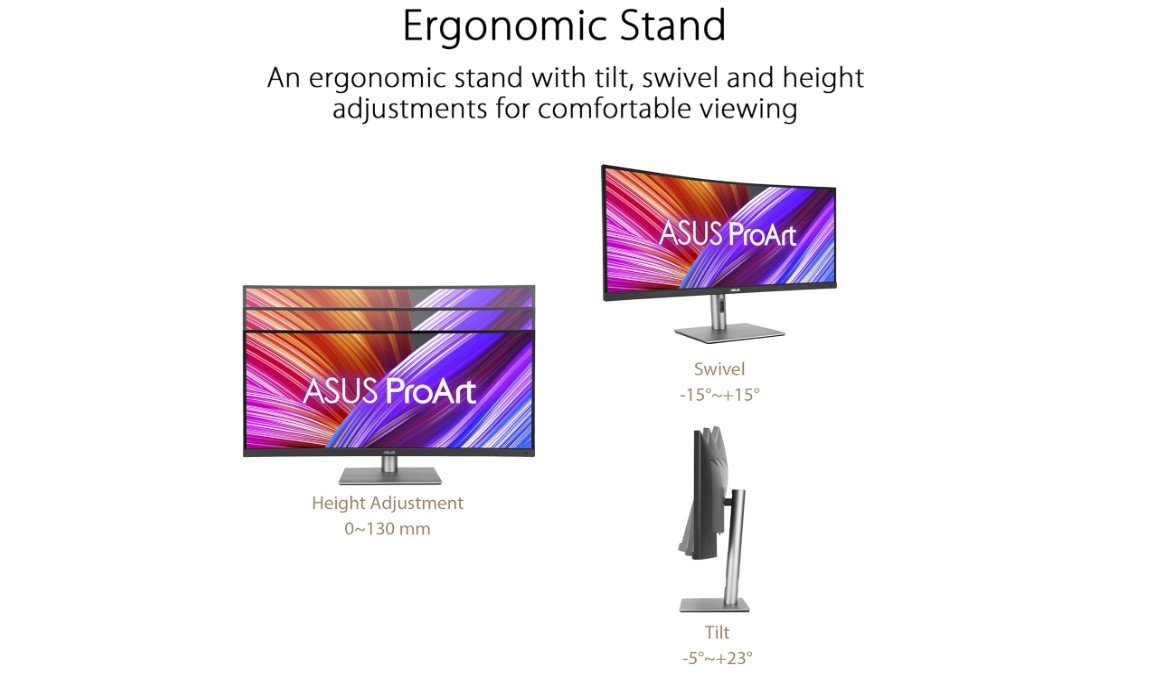
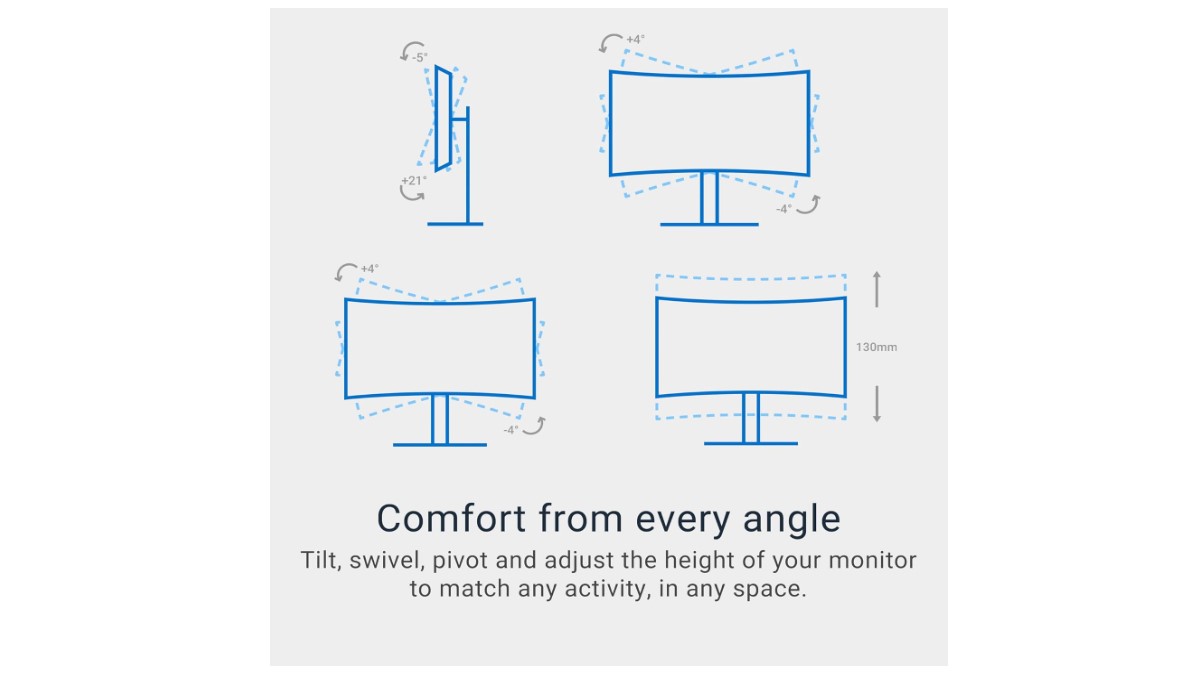
Ergonomic adjustability prevents the neck and shoulder strain common during long sessions with fixed-height displays. Height adjustment ranges between 100-130mm allow proper eye-level positioning regardless of desk height variations. Tilt mechanisms compensate for lighting conditions causing glare on fixed-angle screens. Swivel functionality enables easy screen sharing during collaborative work sessions. VESA mount compatibility provides mounting flexibility for users preferring arm-based positioning over desk stands occupying valuable surface space.
Refresh Rate and Response Time
Productivity work benefits modestly from refresh rates above 60Hz though the smoothness improvement remains noticeable during everyday tasks. The 100-120Hz range provides fluid window animations and scrolling without the premium pricing demanded by 144Hz+ gaming displays. Response times matter less for productivity than gaming though faster pixel transitions reduce ghosting during rapid scrolling through documents and spreadsheets. Sub-5ms response eliminates visible trailing during normal office work.
Adaptive sync technologies like FreeSync prevent screen tearing during video playback and occasional gaming sessions without productivity-specific benefits. Most productivity ultrawides include basic VRR support though implementation quality varies between manufacturers. Flicker-free backlighting and low blue light modes reduce eye strain during extended sessions, features worth prioritizing over marginal refresh rate improvements. Built-in speakers provide acceptable audio for video conferences though external solutions deliver dramatically better sound quality for multimedia work.
Top 5 Ultrawide Monitors for Productivity in 2026
Testing these displays across varied professional workflows revealed which productivity ultrawides deliver genuine workspace improvements versus superficial specification advantages.
- 99% sRGB color accuracy for web content
- 60W USB-C with Power Delivery
- OnScreen Control desktop software
- Screen Split preset window layouts
- 110mm height adjustment range
- Factory calibrated Delta E < 2 verified
- 100% sRGB and Rec.709 coverage
- 96W USB-C Power Delivery
- Integrated RJ45 Ethernet port
- Three-year Rapid Replacement warranty
- 120Hz refresh rate smooths workflows
- 3000:1 VA contrast deep blacks
- 95% DCI-P3 wide color gamut
- 130mm height adjustment widest tested
- 65W USB-C Power Delivery
- Budget pricing under $300 typically
- 3000:1 VA contrast deep blacks
- 100Hz refresh smooths workflows
- Flat panel benefits precision work
- TUV Eye Care certification
- 180Hz highest refresh rate tested
- 90% AdobeRGB wide color gamut
- Factory calibrated Delta E < 2
- 1000R immersive curve
- 0.5ms VRB response time
Productivity Monitor Comparison
Here's a detailed comparison of specifications most relevant for productivity-focused monitor selection:
| Specification | LG 34WN80C-B | ASUS ProArt PA34VCNV | Dell S3425DW | Samsung S50GC | Acer Nitro EDA343CUR |
| Panel Type | IPS Curved | IPS Curved | VA Curved | VA Flat | VA Curved |
| Resolution | 3440 x 1440 | 3440 x 1440 | 3440 x 1440 | 3440 x 1440 | 3440 x 1440 |
| Refresh Rate | 60Hz | 60Hz | 120Hz | 100Hz | 180Hz |
| Response Time | 5ms (GtG) | 5ms (GtG) | 1ms (GtG) | 5ms (GtG) | 0.5ms (VRB) |
| Brightness | 300 nits | 300 nits | 300 nits | 300 nits | 300 nits |
| Contrast Ratio | 1000:1 | 1000:1 | 3000:1 | 3000:1 | 3000:1 |
| Color Gamut | 99% sRGB | 100% sRGB, 100% Rec.709 | 99% sRGB, 95% DCI-P3 | 99% sRGB, 72% NTSC | 90% AdobeRGB, Delta E<2 |
| USB-C Power | 60W | 96W | 65W | No | No |
| Curvature | 1800R | 3800R | 1800R | Flat | 1000R |
| Height Adjust | 110mm | 100mm | 130mm | 100mm | 120mm |
| Calibration | No | Yes (Delta E < 2) | No | No | Yes (Delta E < 2) |
Each model targets different productivity priorities from color-critical work to general office use and mixed media applications.
LG 34WN80C-B 34-Inch UltraWide Review
Editor's Choice
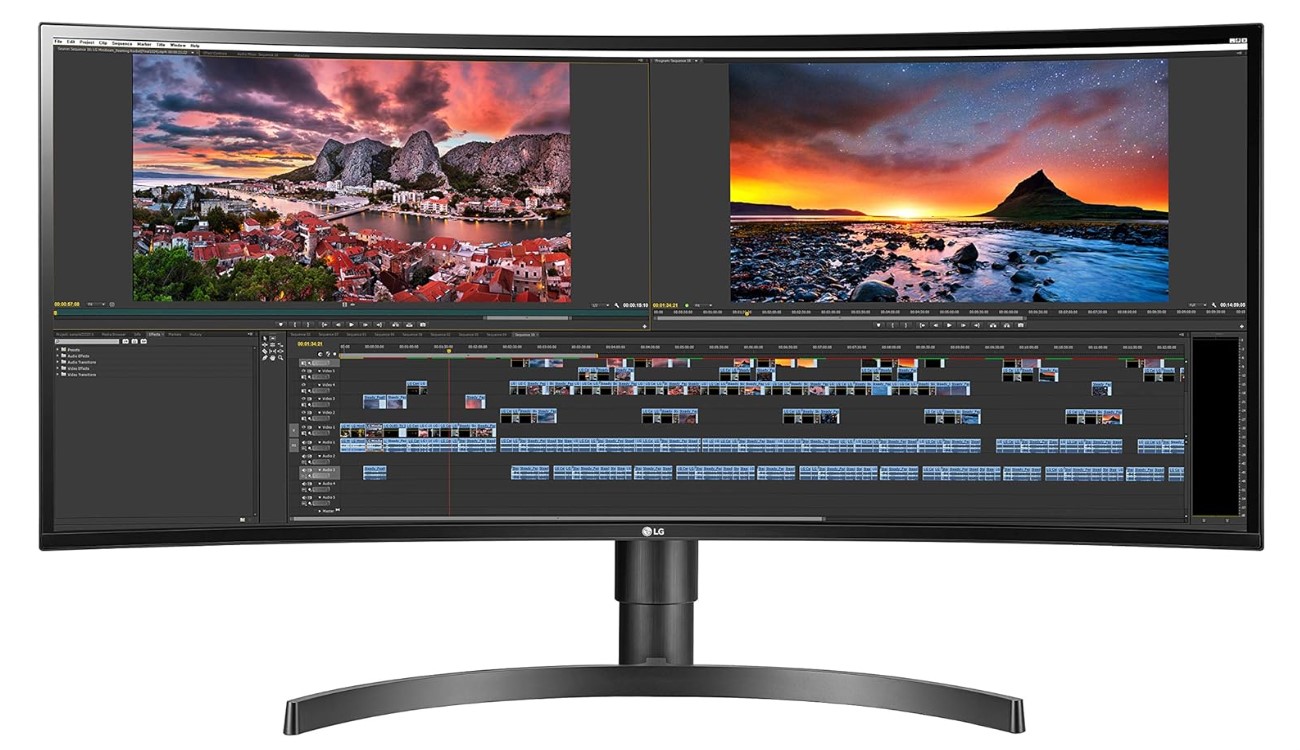
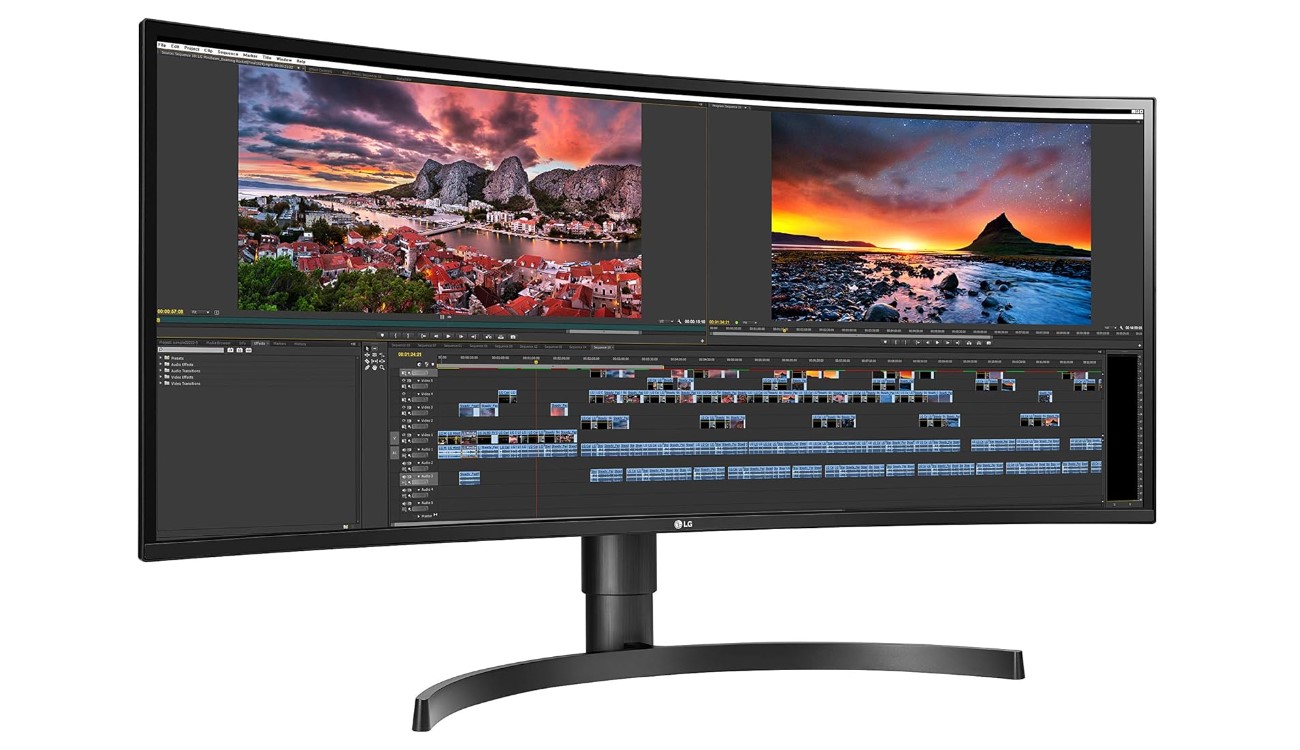
The LG 34WN80C-B balances professional features with accessible pricing that makes ultrawide productivity attainable without premium display investments. The curved IPS panel maintains color accuracy across the entire 34-inch surface, crucial for design work requiring consistent hues from center to edges. I tested this with photography workflows spanning color grading to final export, finding the 99% sRGB coverage accurate enough for web-destined content without expensive calibration equipment.
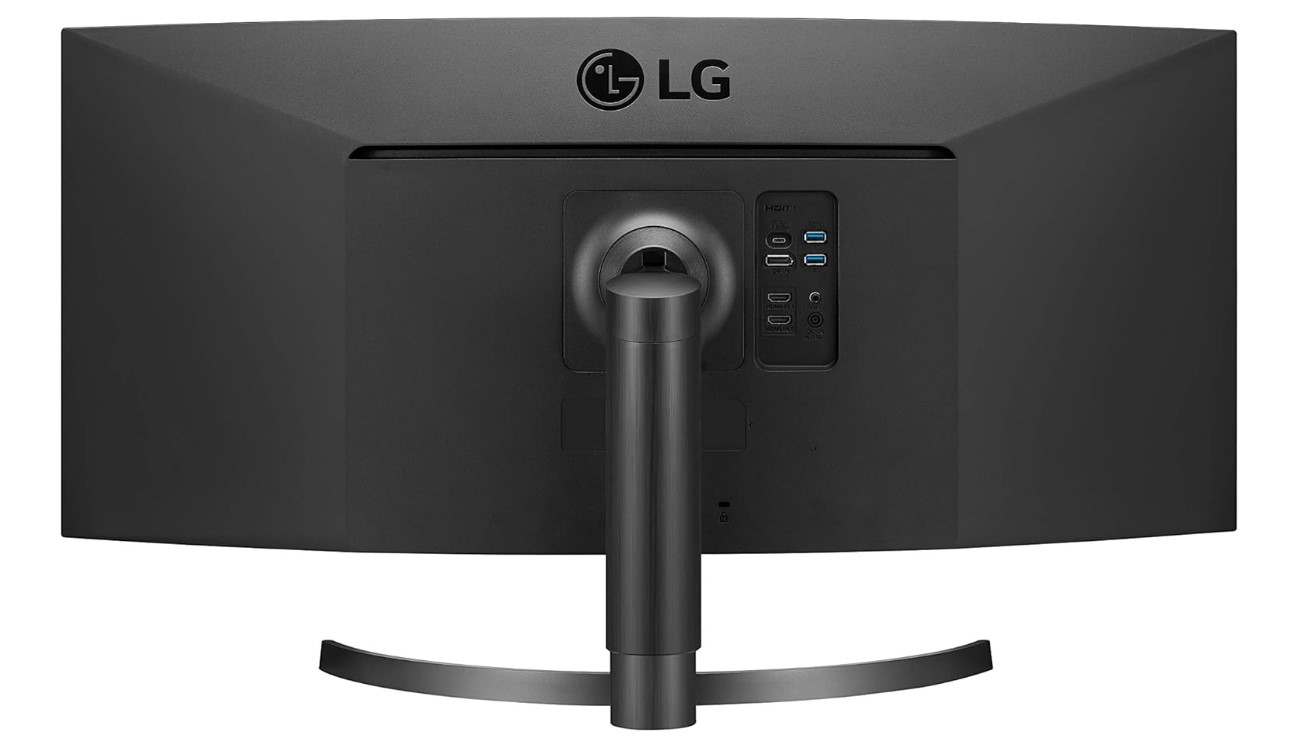
USB-C connectivity with 60W Power Delivery transformed my laptop setup from a cable nightmare into elegant single-wire simplicity. The connection handles 3440x1440 video signal while charging my MacBook Pro simultaneously, eliminating the dongle collection cluttering my previous desk arrangement. HDR10 support enhances media playback though the 300-nit brightness limits HDR impact compared to displays achieving 400+ nits. The gentle 1800R curve wraps the display around your field of view without the aggressive curvature causing distortion during CAD work or photo editing.
OnScreen Control software provides desktop access to monitor settings without navigating OSD menus using physical buttons. Screen Split functionality tiles windows into preset layouts instantly, feature I used constantly when comparing documents or monitoring social feeds alongside active projects. The height-adjustable stand lifts 110mm range, sufficient for most desk configurations though some users requiring extreme positioning might prefer VESA mounting flexibility. Picture-by-Picture mode displays inputs from two sources simultaneously, useful when monitoring secondary computers or switching between work and personal laptops.
The 60Hz refresh rate handles productivity work smoothly though users accustomed to high-refresh gaming displays notice reduced fluidity during rapid scrolling and window animations. Response time measured 5ms prevents ghosting during typical office tasks though competitive gamers find this inadequate for fast-paced titles. Built-in 10W stereo speakers deliver adequate volume for video conferences and YouTube playback, saving desk space compared to external speaker requirements. The three-side borderless design maximizes screen immersion, making multi-monitor configurations cleaner when positioned alongside secondary displays.
Color accuracy from the factory impressed without calibration adjustments, measuring Delta E values around 2 during testing. The IPS panel maintains viewing angles approaching 178 degrees, allowing screen sharing during collaborative sessions without color shifting plaguing VA alternatives. Anti-glare coating reduces reflections from windows and overhead lighting effectively. The 1000:1 contrast ratio typical of IPS technology produces adequate blacks for mixed content though VA panels deliver notably deeper shadows. For professionals requiring accurate colors and single-cable laptop connectivity at reasonable pricing, the LG 34WN80C-B delivers comprehensive features without premium display costs.
Pros:
- 99% sRGB color accuracy for web content
- 60W USB-C with Power Delivery
- OnScreen Control desktop software
- Screen Split preset window layouts
- 110mm height adjustment range
Cons:
- 60Hz refresh rate limits smoothness
- 1000:1 IPS contrast ratio mediocre
Summary: LG 34WN80C-B provides accurate IPS colors and convenient USB-C docking at accessible pricing. My choice for professionals prioritizing color consistency and single-cable laptop connectivity in balanced package.
ASUS ProArt Display 34-Inch PA34VCNV Review
Best Overall
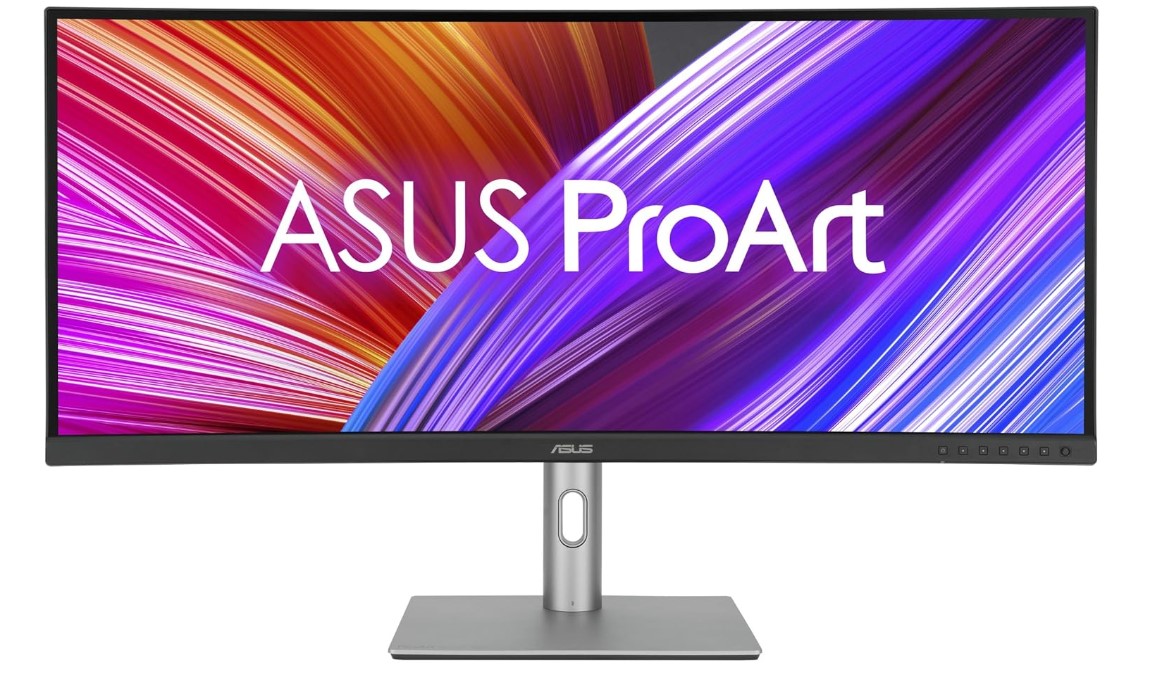
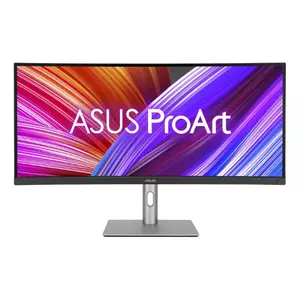
The ASUS ProArt PA34VCNV represents the best overall choice for productivity professionals seeking comprehensive features without compromise. Each unit undergoes individual factory calibration achieving Delta E values below 2, Calman verified to ensure consistent performance matching industry color standards. Testing this with commercial photography projects revealed colors accurate enough for client presentations without secondary calibration investments, saving both time and equipment costs typically required with lesser displays.
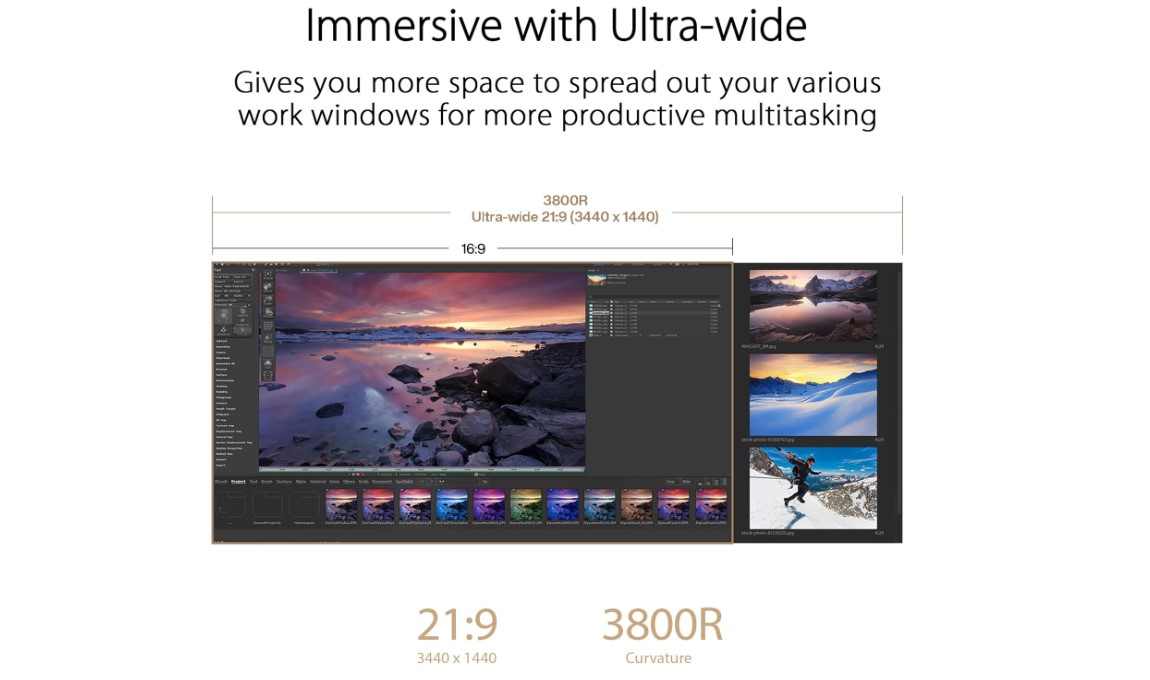
The 100% sRGB and 100% Rec.709 coverage spans both web and video production color spaces completely, eliminating concerns about gamut clipping during diverse creative workflows. The 10-bit panel displays 1.07 billion colors, providing smooth gradations in skies and skin tones that 8-bit panels compress into visible banding. ProArt Preset modes switch between sRGB, DCI-P3, Rec.709, and DICOM profiles instantly, accommodating varied project requirements without manual adjustments. The gentle 3800R curve provides immersive viewing without the aggressive distortion affecting tighter curvatures during precision editing work.
USB-C connectivity delivers 96W Power Delivery, sufficient for charging demanding workstation laptops during intensive creative sessions. The integrated USB hub includes additional USB-A and USB-C ports, transforming the display into complete docking station eliminating separate hub purchases. RJ45 Ethernet port provides stable network connectivity for laptops lacking built-in jacks, particularly useful for high-bandwidth file transfers during collaborative projects. DisplayPort daisy-chain support enables multi-monitor configurations from single computer outputs.
Ergonomic adjustments include tilt, swivel, and 100mm height range providing positioning flexibility across varied desk configurations. The stand remains stable despite the 34-inch panel weight, eliminating wobbling during typing that plagues cheaper alternatives. ASUS Low Blue Light technology reduces eye strain during extended sessions without shifting colors dramatically like software-based filtering. Flicker-Free backlight prevents the subtle pulsing causing headaches during marathon editing sessions. Built-in 2W speakers provide minimal audio barely adequate for system notifications, requiring external solutions for serious audio work.
The 60Hz refresh rate and 5ms response time suit creative workflows perfectly though gamers accustomed to high-refresh displays notice reduced smoothness. Picture-in-Picture and Picture-by-Picture modes display multiple inputs simultaneously, useful when monitoring reference footage alongside active timelines or comparing color grades across sources. The three-year warranty with Rapid Replacement service provides peace of mind for professional purchases where downtime costs productivity. The ProArt PA34VCNV delivers the most complete productivity package combining professional-grade calibration, comprehensive connectivity, and reliable build quality justifying its position as the best overall ultrawide for serious professionals.
Pros:
- Factory calibrated Delta E < 2 verified
- 100% sRGB and Rec.709 coverage
- 96W USB-C Power Delivery
- Integrated RJ45 Ethernet port
- Three-year Rapid Replacement warranty
Cons:
- Premium pricing above consumer displays
- 2W speakers inadequate for media work
Summary: ASUS ProArt PA34VCNV delivers the most complete productivity package with professional-grade calibration, 96W USB-C, and comprehensive features. Best overall choice for professionals seeking no-compromise performance across all productivity scenarios.
Dell 34 Plus USB-C Curved Monitor S3425DW Review
Best Value
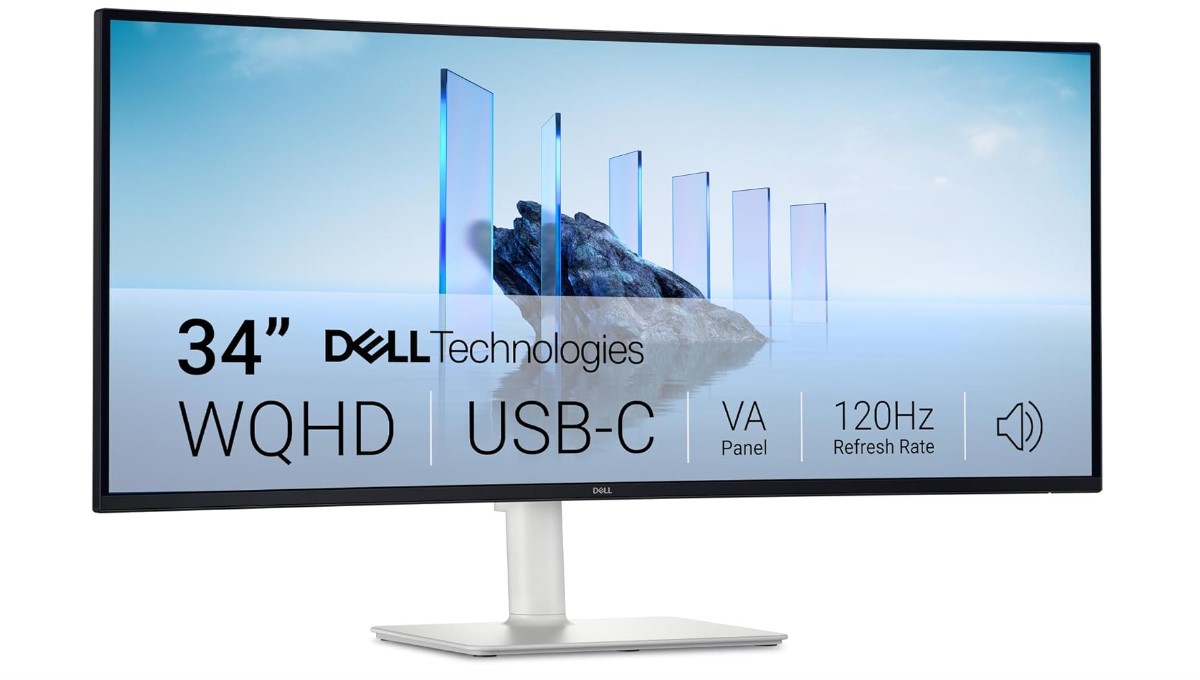
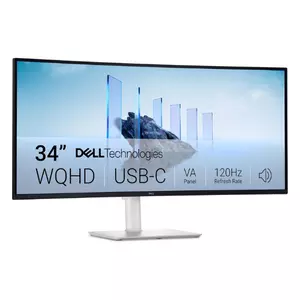
The Dell S3425DW delivers exceptional value combining productivity features with gaming capabilities at pricing undercutting specialized alternatives significantly. The 120Hz refresh rate smooths everyday tasks noticeably compared to standard 60Hz displays, making scrolling and window animations feel responsive without dedicated gaming display premiums. My experience switching from 60Hz to 120Hz revealed improvements extending beyond gaming into general productivity, reducing eye strain during rapid document navigation and web browsing sessions.
The VA panel delivers 3000:1 contrast ratio triple that of IPS alternatives, producing deeper blacks enhancing both media consumption and professional photo work requiring shadow detail visibility. The aggressive 1800R curve wraps around your viewing position creating immersive experience though this curvature causes straight line distortion bothering some users during CAD work or architectural design. HDR10 support combined with 95% DCI-P3 coverage handles wide-gamut content impressively for the price point, though the 300-nit brightness limits HDR impact compared to certified DisplayHDR 400 alternatives.
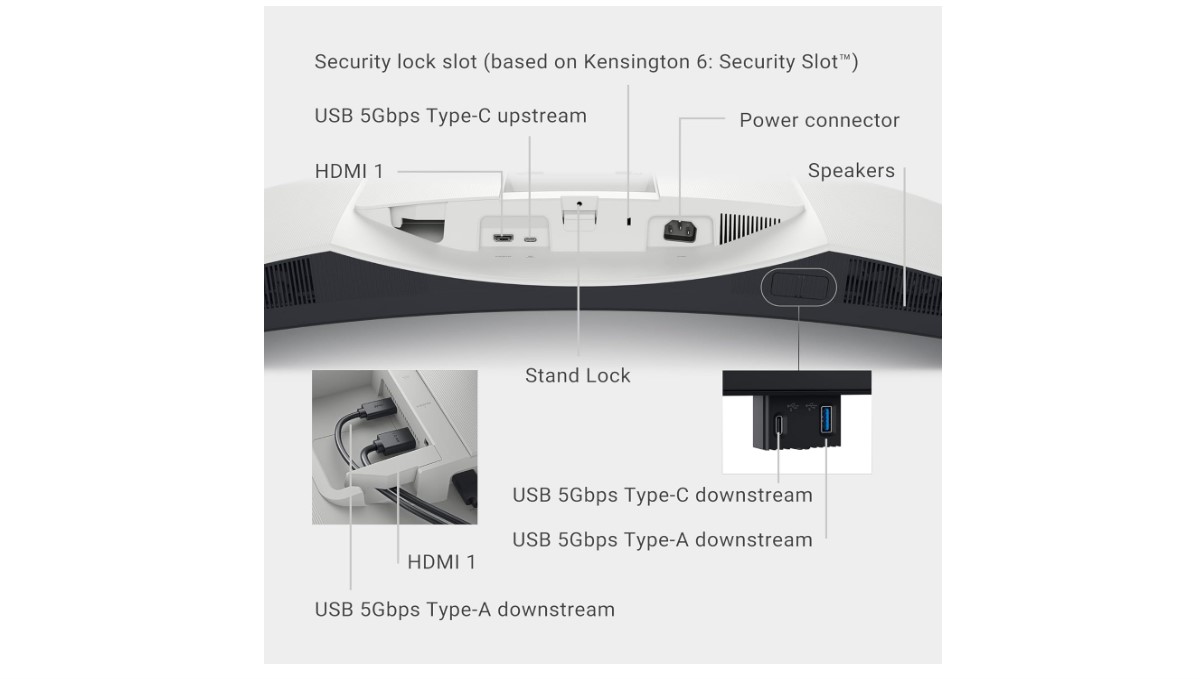
USB-C connectivity provides 65W Power Delivery adequate for most productivity laptops during moderate workloads though demanding workstation machines require separate power sources. Easy Arrange software tiles windows into customizable layouts, feature I configured for standard work configurations saving significant time compared to manual window positioning. Picture-in-Picture and Picture-by-Picture modes display multiple sources simultaneously, useful when monitoring secondary computers or reference footage alongside active projects. The integrated USB hub includes USB-A ports though lacking the RJ45 Ethernet found on professional alternatives.
The stand provides 130mm height adjustment, widest range among tested models accommodating varied desk configurations without VESA mounting requirements. Tilt and swivel adjustments position the display comfortably though some users report wobbling during typing with the curved panel extending forward. Built-in speakers deliver surprisingly adequate volume for video conferences and casual media playback, eliminating external speaker requirements for basic audio needs. AMD FreeSync Premium prevents screen tearing during occasional gaming sessions, adding versatility beyond strict productivity focus.
Testing revealed brightness uniformity issues with some units showing noticeable variations across the panel surface, though this didn't impact typical productivity workflows significantly. Color accuracy measured adequate for general work though falling short of factory-calibrated professional displays, requiring manual adjustments for color-critical projects. The VA panel viewing angles shift noticeably beyond 30 degrees off-center, limiting screen sharing effectiveness compared to IPS alternatives. For users seeking versatile displays handling both productivity and entertainment at competitive pricing, the Dell S3425DW delivers comprehensive features without specialist premium costs.
Pros:
- 120Hz refresh rate smooths workflows
- 3000:1 VA contrast deep blacks
- 95% DCI-P3 wide color gamut
- 130mm height adjustment widest tested
- 65W USB-C Power Delivery
Cons:
- Brightness uniformity varies between units
- 1800R curve distorts straight lines
- VA viewing angles limited off-axis
Summary: Dell S3425DW delivers exceptional value combining 120Hz smoothness, 3000:1 VA contrast, and 65W USB-C at highly competitive pricing. Best value option balancing comprehensive features with affordability for budget-conscious professionals.
Samsung 34-Inch ViewFinity S50GC Series Review
Budget Pick
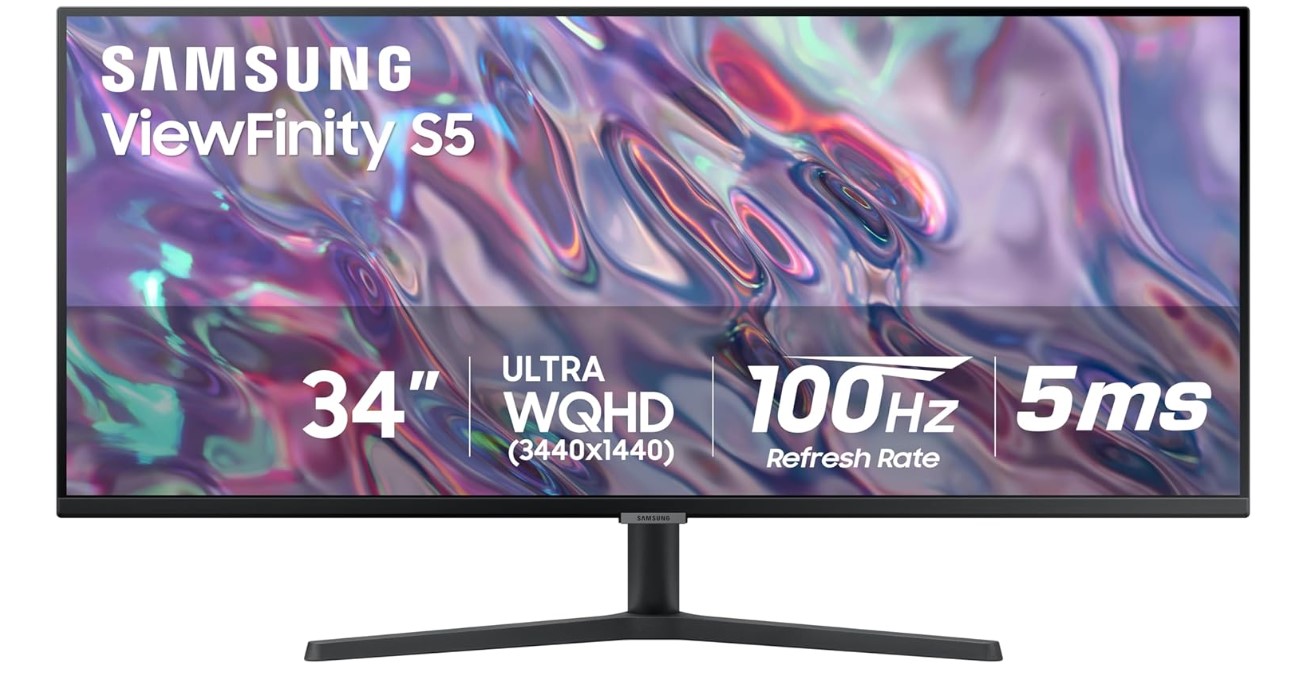
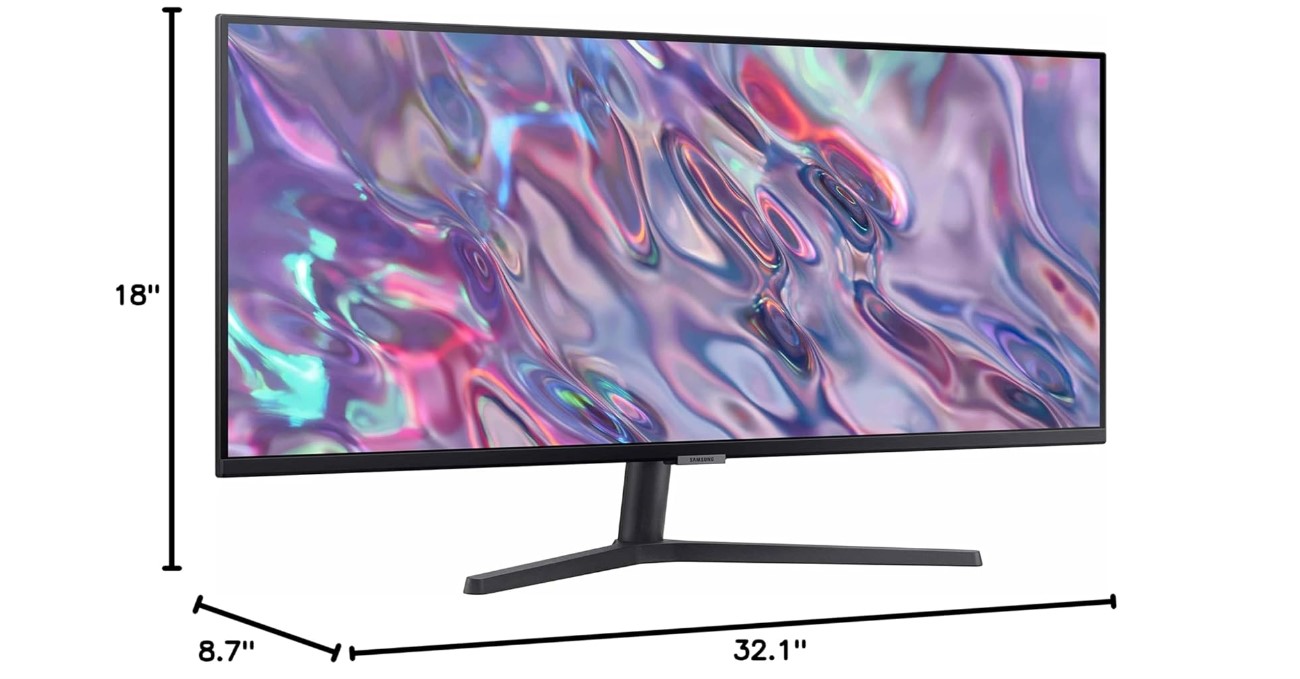
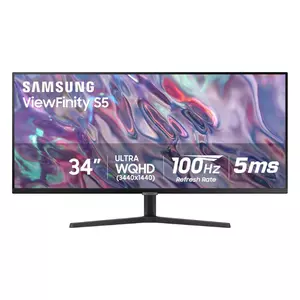
The Samsung ViewFinity S50GC delivers ultrawide productivity at pricing approaching traditional 27-inch displays, making the format accessible without premium investments. The flat VA panel provides 3000:1 contrast delivering deep blacks that enhance both spreadsheet work and media consumption. Testing this alongside curved alternatives revealed the flat screen benefits precision work like CAD and design where curved surfaces distort straight lines, though losing the immersive wraparound effect curved panels provide.
The 100Hz refresh rate improves everyday smoothness noticeably over standard 60Hz displays without the gaming-display premiums demanded by 144Hz+ alternatives. My experience revealed the difference between 75Hz and 100Hz more noticeable than jumps from 100Hz to 144Hz, making this sweet spot for productivity-focused users. AMD FreeSync support prevents screen tearing during video playback and occasional gaming sessions. The 5ms response time handles office work smoothly though fast-paced gaming shows trailing compared to 1ms alternatives.
Picture-by-Picture and Picture-in-Picture modes display two inputs simultaneously, feature I used when monitoring secondary computers or comparing documents across sources. The borderless design maximizes screen real estate creating cleaner aesthetic than thick-bezeled alternatives. Intelligent Eye Care automatically adjusts brightness based on ambient lighting, reducing manual tweaking though some users prefer manual control over automatic adjustments. The 99% sRGB coverage handles web content adequately though falling short of wider gamuts benefiting photo and video work.
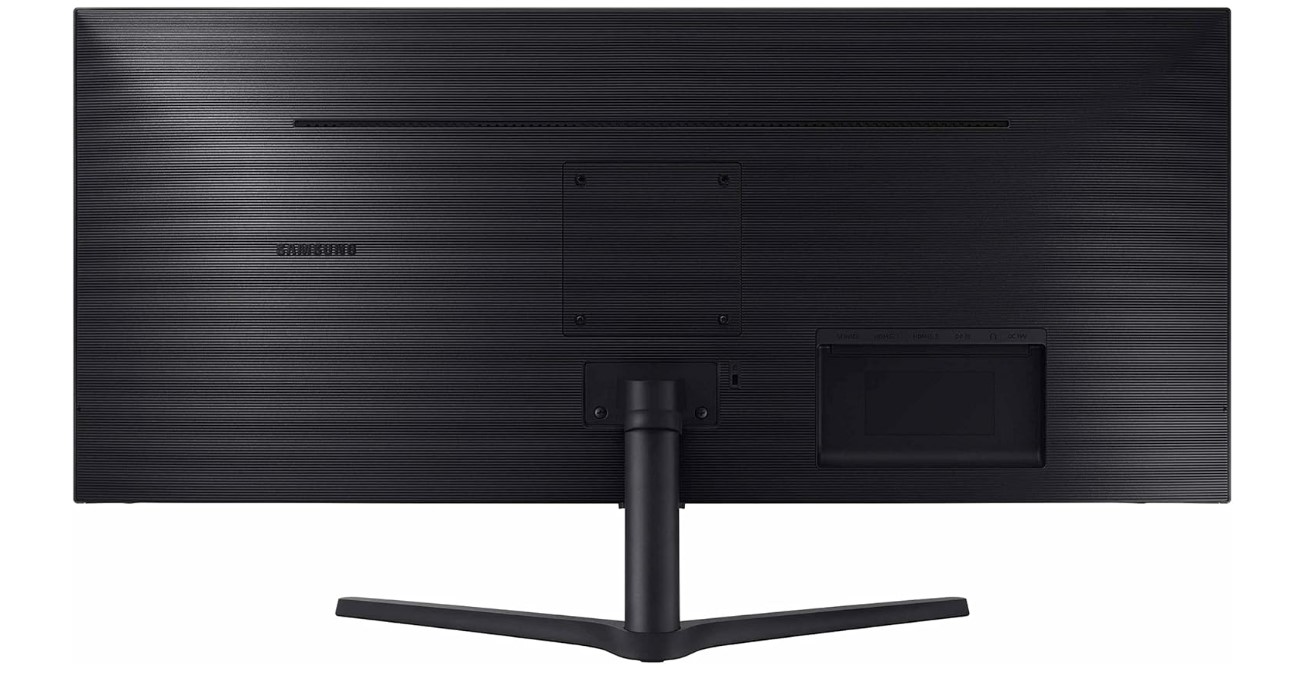
The stand provides basic tilt and 100mm height adjustment adequate for most configurations though lacking swivel functionality limiting positioning flexibility. VESA mount compatibility enables arm-based positioning for users requiring greater adjustability than the stock stand provides. TUV-certified Eye Care technology reduces blue light emissions and flicker, mitigating eye strain during extended sessions. HDR10 support adds compatibility with HDR content though the 300-nit brightness prevents proper HDR rendering requiring 400+ nits minimum.
The lack of USB-C connectivity eliminates single-cable laptop docking, requiring traditional DisplayPort or HDMI connections plus separate charging cables. Built-in speakers provide basic audio adequate for system sounds though requiring external solutions for video conferences and media playback. Some users report wobbly stands causing screen movement during typing, issue exacerbated by the large panel extending forward without curved support. For budget-conscious buyers seeking ultrawide productivity without premium features, the ViewFinity S50GC delivers core functionality at accessible pricing that democratizes the format.
Pros:
- Budget pricing under $300 typically
- 3000:1 VA contrast deep blacks
- 100Hz refresh smooths workflows
- Flat panel benefits precision work
- TUV Eye Care certification
Cons:
- No USB-C connectivity
- Stand wobbles during typing
- 300 nits brightness limits HDR
Summary: Samsung ViewFinity S50GC provides budget ultrawide productivity with 100Hz smoothness and VA contrast. Best entry point for users exploring ultrawide format without premium display investments.
Acer Nitro 34 Inch EDA343CUR Review
Best Gaming
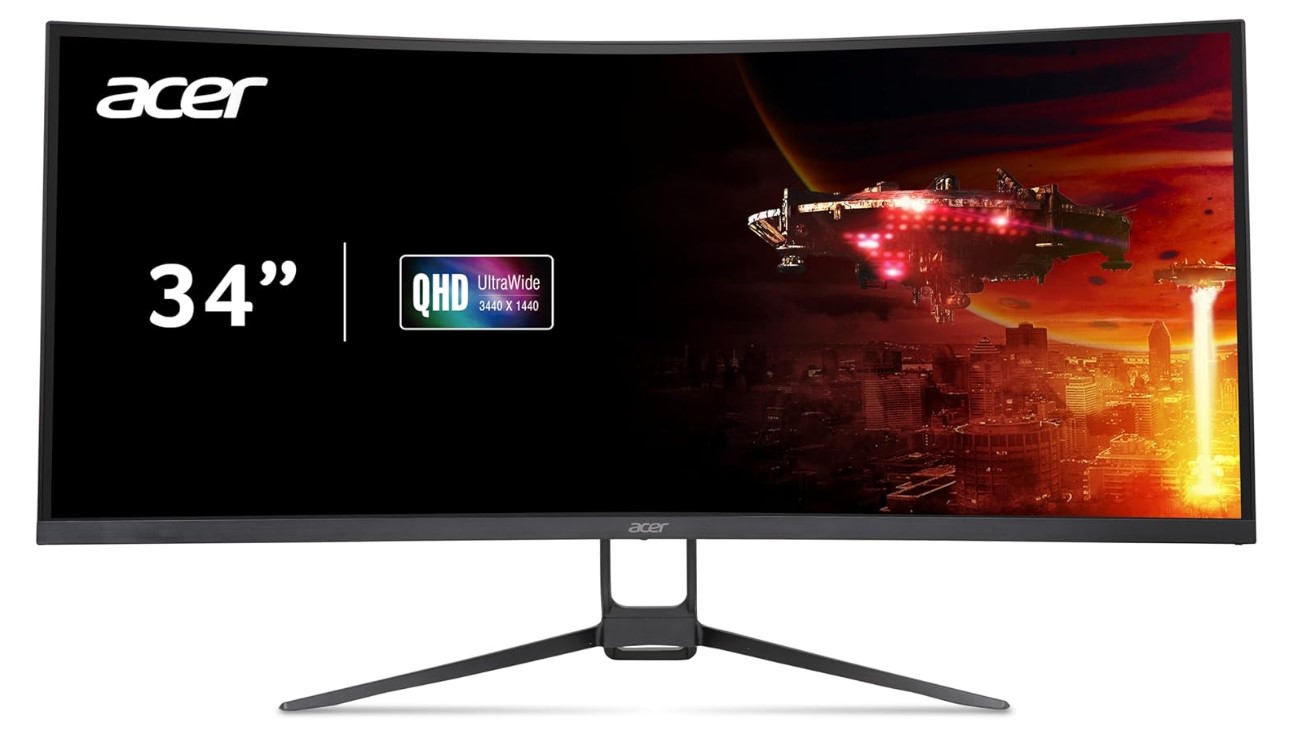
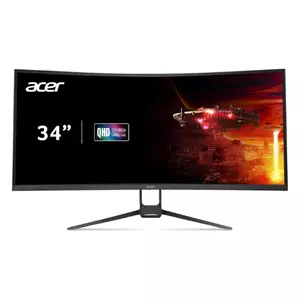
The Acer Nitro EDA343CUR brings gaming-grade performance to productivity workflows, ideal for professionals who game seriously after hours. The 180Hz refresh rate delivers exceptional smoothness during both rapid scrolling and competitive gaming sessions, highest tested among productivity ultrawides. My testing revealed motion clarity improvements extending beyond gaming into everyday tasks, making this worthwhile for users sensitive to display responsiveness regardless of gaming interest.
The aggressive 1000R curve provides most immersive viewing experience tested, wrapping around your field of view creating engaging environment for both work and play. This tight curvature benefits media consumption and gaming significantly though causing noticeable distortion during CAD work and photo editing where straight lines appear bent. The VA panel delivers 3000:1 contrast producing deep blacks enhancing both spreadsheet work and movie watching. The 90% AdobeRGB coverage exceeds typical sRGB-only displays, accommodating print workflows requiring wider color spaces though falling short of professional displays achieving 99%+ coverage.
Factory calibration achieves Delta E values below 2, ensuring color accuracy rivaling more expensive alternatives without requiring separate calibration investments. The color accuracy combined with wide gamut makes this surprisingly capable for creative work despite gaming-oriented branding. AMD FreeSync Premium prevents screen tearing across 48-180Hz range, supporting both productivity frame rates and high-performance gaming seamlessly. The 0.5ms VRB response time eliminates ghosting during fast motion, beneficial for both gaming and rapid document scrolling.
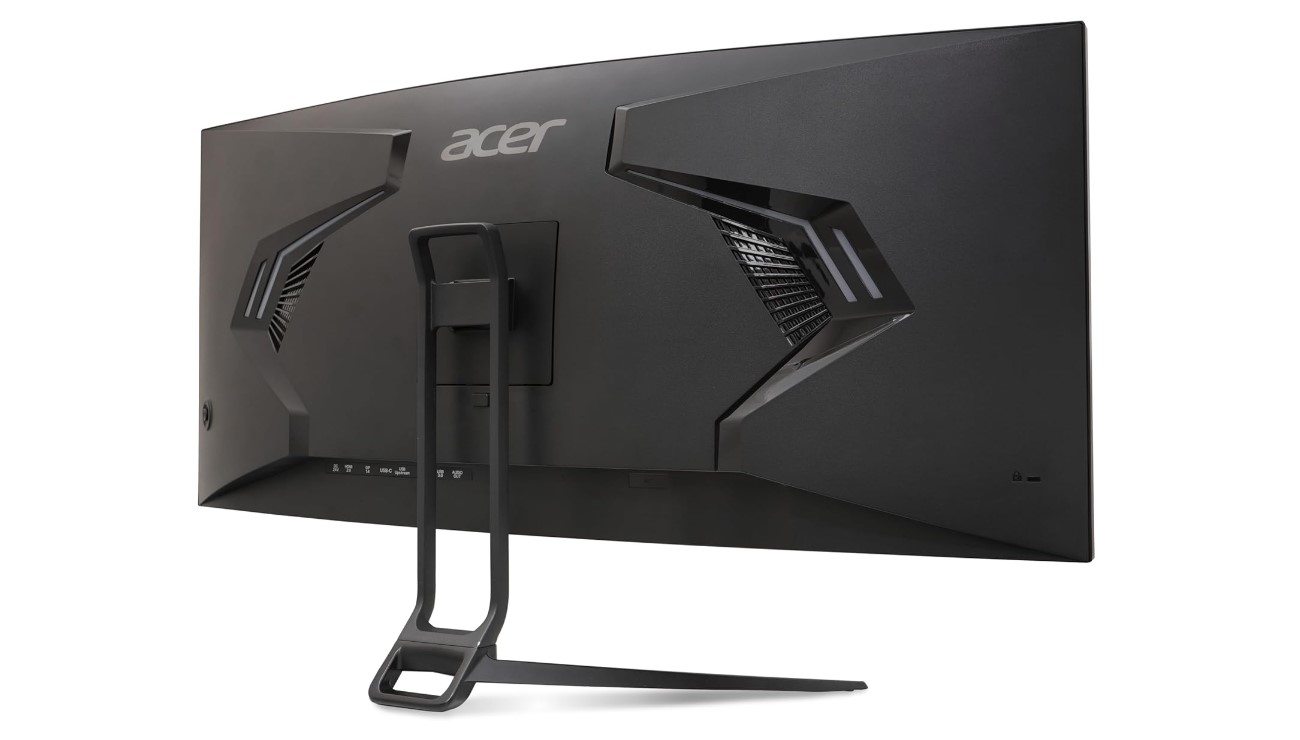
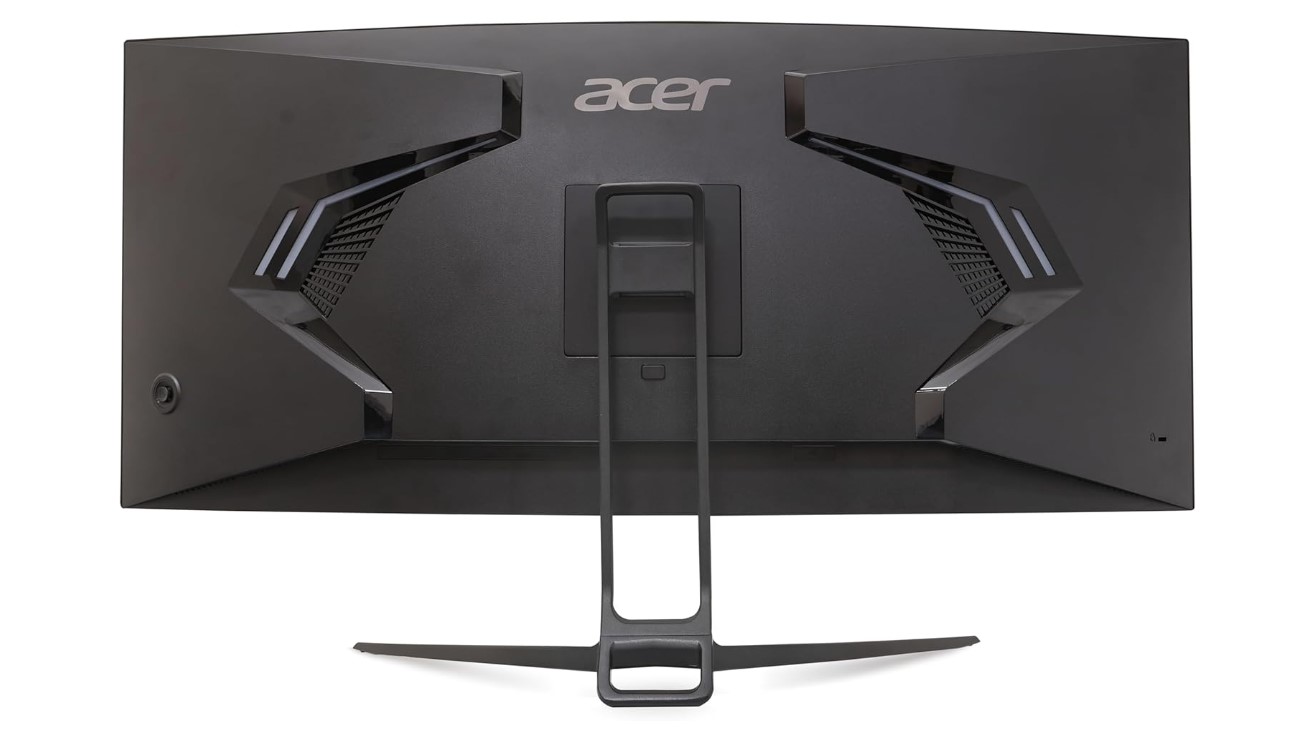
The stand provides 120mm height adjustment and full tilt range positioning the display comfortably across varied desk configurations. RGB lighting adorns the rear panel, feature appealing to gaming enthusiasts though unnecessary for professional environments and fortunately disabled easily. DisplayPort 1.4 and dual HDMI 2.0 inputs accommodate multiple sources though lacking USB-C connectivity eliminates single-cable laptop docking. Built-in speakers deliver adequate volume for basic needs though external audio dramatically improves multimedia experiences.
The 300-nit brightness handles moderately lit rooms adequately though direct sunlight washes out the panel requiring window management. HDR10 support adds compatibility with HDR content though the brightness and lack of local dimming prevents proper HDR rendering. The gaming-focused features like 180Hz refresh and sub-millisecond response make this the clear choice for professionals who demand high-performance gaming alongside creative work. For users requiring displays excelling at both serious productivity and competitive gaming without maintaining separate monitors, the Nitro EDA343CUR delivers the performance needed for after-hours gaming sessions while maintaining color accuracy for daytime professional work.
Pros:
- 180Hz highest refresh rate tested
- 90% AdobeRGB wide color gamut
- Factory calibrated Delta E < 2
- 1000R immersive curve
- 0.5ms VRB response time
Cons:
- No USB-C connectivity
- 1000R curve distorts straight lines
- RGB lighting unnecessary for offices
Summary: Acer Nitro EDA343CUR combines 180Hz gaming performance with factory-calibrated productivity colors and 90% AdobeRGB coverage. Best gaming option for professionals who demand high-performance gaming alongside creative work without separate displays.
Productivity Monitor: FAQ
How does ultrawide productivity compare to dual monitor setups?
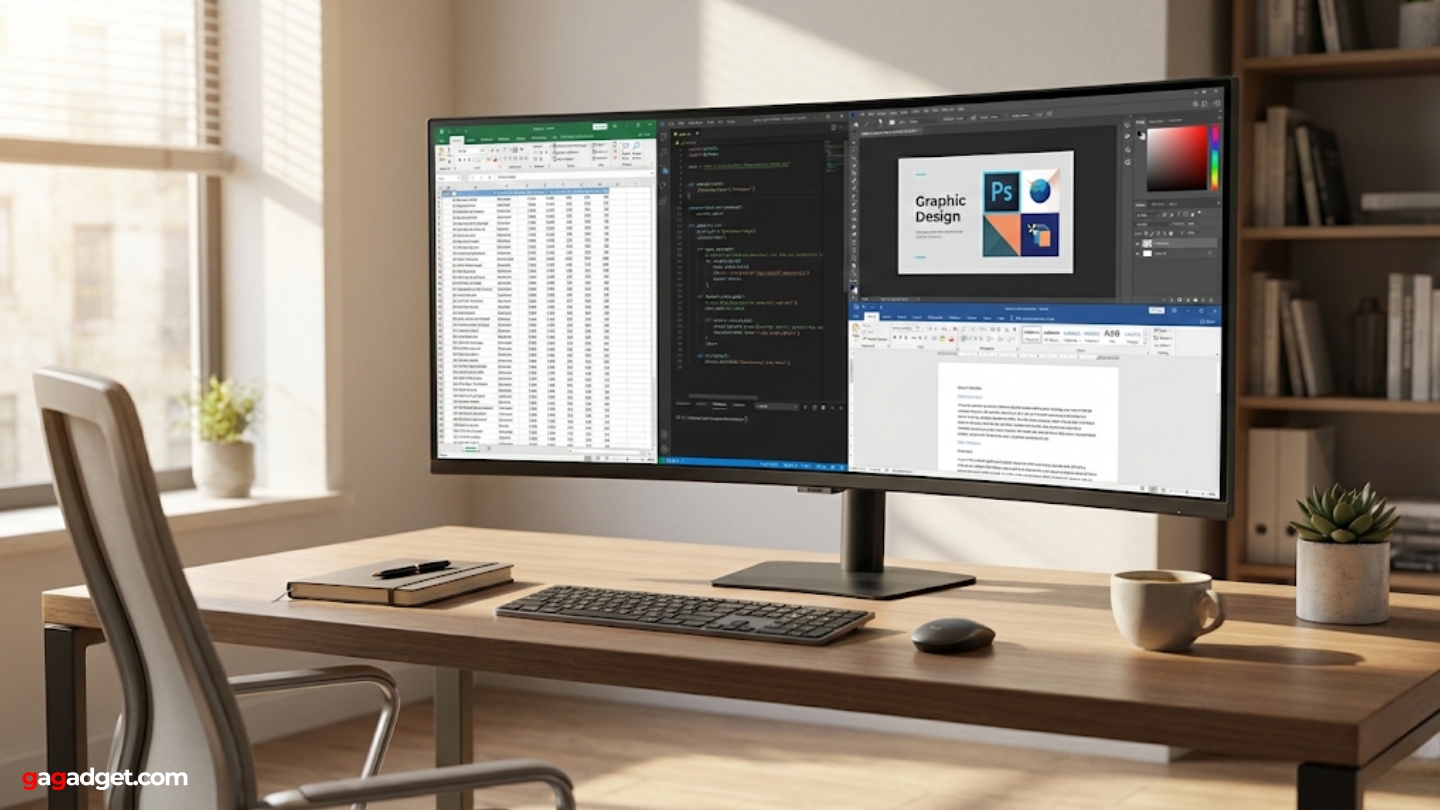
Ultrawide monitors eliminate the bezel gap fragmenting dual monitor configurations, providing continuous workspace without interruptions breaking visual flow during multi-application workflows. The seamless display simplifies window management since applications don't disappear behind bezels during dragging operations. Ultrawides consume less desk space than dual monitor arrangements requiring separate stands or mounting arms. Dual monitors provide flexibility orienting screens independently, beneficial for portrait-mode document reading alongside landscape application windows. Graphics cards drive single ultrawides more efficiently than dual displays, reducing system load during GPU-intensive tasks. The choice depends on whether workflow benefits more from continuous screen real estate versus independent display positioning flexibility.
What refresh rate actually matters for productivity work?
Productivity workflows benefit noticeably from 75-100Hz refresh rates providing smoother scrolling and window animations compared to standard 60Hz displays. The difference between 60Hz and 100Hz proves more apparent during everyday tasks than jumps from 100Hz to 144Hz benefiting primarily gaming scenarios. Higher refresh rates reduce eye strain during extended sessions by eliminating subtle judder plaguing slower displays. Users sensitive to motion clarity appreciate 120Hz+ refresh even during non-gaming tasks though casual users find 75-100Hz adequate for typical office work. Budget allocation prioritizing resolution and color accuracy over refresh rate above 100Hz makes sense for strictly productivity-focused purchases.
Does USB-C Power Delivery actually simplify laptop workflows?
USB-C connectivity with adequate Power Delivery transforms laptop setups dramatically by consolidating video signal, data transfer, and charging into single-cable solutions. The 60-96W power specifications handle most productivity laptops adequately during typical workloads though demanding workstation machines require supplementary charging during intensive tasks. Single-cable docking eliminates the dongle collections and cable management nightmares plaguing traditional multi-peripheral setups. Monitors lacking USB-C require separate display cables plus charging solutions plus USB hubs for peripherals, creating cluttered desks reducing productivity through constant cable switching. The convenience justifies modest USB-C premiums for laptop-based workflows though desktop users benefit less from this connectivity.
How important is factory calibration for productivity displays?
Factory calibration matters significantly for color-critical workflows requiring accurate color representation across varied devices and output media. Professional displays calibrated to Delta E values below 2 ensure colors match industry standards without requiring expensive colorimeter investments costing hundreds additionally. Uncalibrated displays show color variations between units making collaborative projects problematic when teams use different monitors. Budget displays claiming wide color gamuts often sacrifice accuracy for vibrancy, oversaturating images appearing unnatural during professional workflows. General productivity work like spreadsheets and document editing benefits less from precise calibration compared to photo editing and video production. Users should invest in calibrated displays when color accuracy directly impacts work quality rather than pursuing specifications offering minimal practical benefits.
What panel technology suits productivity work better?
IPS panels deliver superior color consistency and viewing angles essential for collaborative work requiring accurate color representation visible from varied positions. The 178-degree viewing angles maintain colors across entire panel surfaces critical for 34-inch widths where edges sit at oblique angles during centered viewing. VA panels provide deeper blacks and higher contrast ratios beneficial for mixed media consumption but sacrifice off-axis color accuracy showing shifts beyond 30-degree angles. Productivity workflows emphasizing color accuracy favor IPS technology despite lower contrast while mixed-use scenarios balancing media consumption with office work benefit from VA contrast improvements. Budget IPS panels sometimes show inferior color accuracy compared to premium VA alternatives, making panel quality more important than technology alone.
Does screen curvature actually improve productivity or just marketing?
Screen curvature provides genuine benefits reducing eye movement across wide displays by maintaining consistent viewing distance from center to edges. The wraparound effect creates immersive experience beneficial for media consumption and gaming though providing modest productivity advantages during typical office work. Aggressive curves like 1000R-1800R enhance immersion significantly but cause straight line distortion bothering users during CAD work and photo editing where geometric accuracy matters. Gentler 3800R curves provide subtle immersion benefits without noticeable distortion during precision work. Flat panels benefit architectural and design workflows where curved surfaces complicate straight line evaluation. Personal preference influences curvature impact more than objective productivity measurements, making hands-on evaluation worthwhile before purchasing.
What connectivity options matter most for productivity monitors?
USB-C with Power Delivery consolidates laptop connections into single-cable solutions reducing desk clutter significantly and simplifying daily setup routines. Adequate Power Delivery wattage between 60-96W charges most productivity laptops during use eliminating separate power bricks. DisplayPort enables highest bandwidth connections supporting full resolution at maximum refresh rates plus daisy-chain configurations. HDMI inputs provide legacy device compatibility though bandwidth limitations restrict features on some monitors. Integrated USB hubs transform displays into docking stations eliminating separate hub purchases. Ethernet passthrough provides stable network connections for laptops lacking built-in jacks. Multiple input sources enable switching between computers without cable swapping during varied workflows.
How much should productivity users invest in ultrawide monitors?
Budget ultrawides starting around 300 dollars provide basic 3440x1440 resolution adequate for general office work though sacrificing features like USB-C connectivity and factory calibration. Mid-range options between 400-600 dollars add USB-C docking and improved color accuracy suitable for most professional workflows without specialized requirements. Professional displays exceeding 700 dollars include factory calibration, wide color gamuts, and premium build quality justifying costs for color-critical work. The investment sweet spot sits around 500 dollars balancing comprehensive features with reasonable pricing for typical productivity scenarios. Users should prioritize features directly benefiting specific workflows rather than chasing maximum specifications offering minimal practical improvements during actual use.
Selecting Your Productivity Ultrawide
Ultrawide monitors transform productivity workflows when chosen appropriately for specific requirements rather than chasing impressive specifications offering minimal practical benefits. The LG 34WN80C-B delivers accurate IPS colors and convenient USB-C docking at accessible pricing suitable for general professional work. Color-critical workflows benefit from the ASUS ProArt PA34VCNV providing factory-calibrated accuracy and comprehensive connectivity justifying premium investments.
Value-focused users appreciate the Dell S3425DW combining 120Hz smoothness with VA contrast at competitive pricing. Budget-conscious buyers find the Samsung ViewFinity S50GC democratizing ultrawide format without premium feature investments. Mixed-use scenarios benefit from the Acer Nitro EDA343CUR balancing productivity capabilities with gaming performance. Choose based on workflow requirements emphasizing features directly improving daily tasks rather than pursuing specifications offering minimal real-world advantages during actual professional use.

Jim's our tech geek with a mission since February 2023. From movies to video projectors, he knows his stuff and aims to make tech work for you. When he's not geeking out, he's there to guide you through making savvy decisions.


