Best Laptop for Video Editing Under $1500
Hey! The first time I tried editing a travel video on my old laptop, I learned a hard lesson: the machine that handles spreadsheets fine will not handle 4K footage gracefully. Dropped frames, sluggish scrubbing, export times measured in cups of coffee rather than minutes. That experience pushed me down a rabbit hole of specs, benchmarks, and real-world tests that most buyers never want to go through. The five laptops on this list came out the other side of that process - each built around a specific kind of editor, each with a clearly defined reason to exist at its price point.
The gap between a $700 laptop and a $1,500 one matters enormously for video work, and the gap between a GPU-accelerated Windows machine and an Apple Silicon Mac matters even more than price in some workflows. These five cover both sides of that divide.
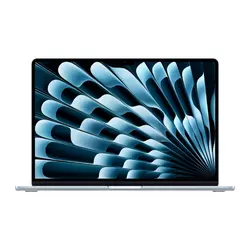
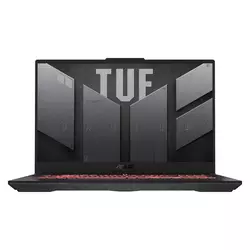
Short on time? Here are my top two picks for video editing laptops under $1,500:
We may earn a small commission if you buy via our links - it helps keep gagadget.com running.
Table of Contents:
- Best Laptops for Video Editing Under $1,500: Buying Guide
- Top 5 Video Editing Laptops
- Laptop Comparison Table
- Apple MacBook Air 15-inch M4
- ASUS TUF Gaming A17
- MSI Katana 15 B13VFK
- Dell G15 5530
- Acer Predator Helios Neo 16
- Video Editing Laptop: FAQ
Best Laptops for Video Editing Under $1,500: Buying Guide
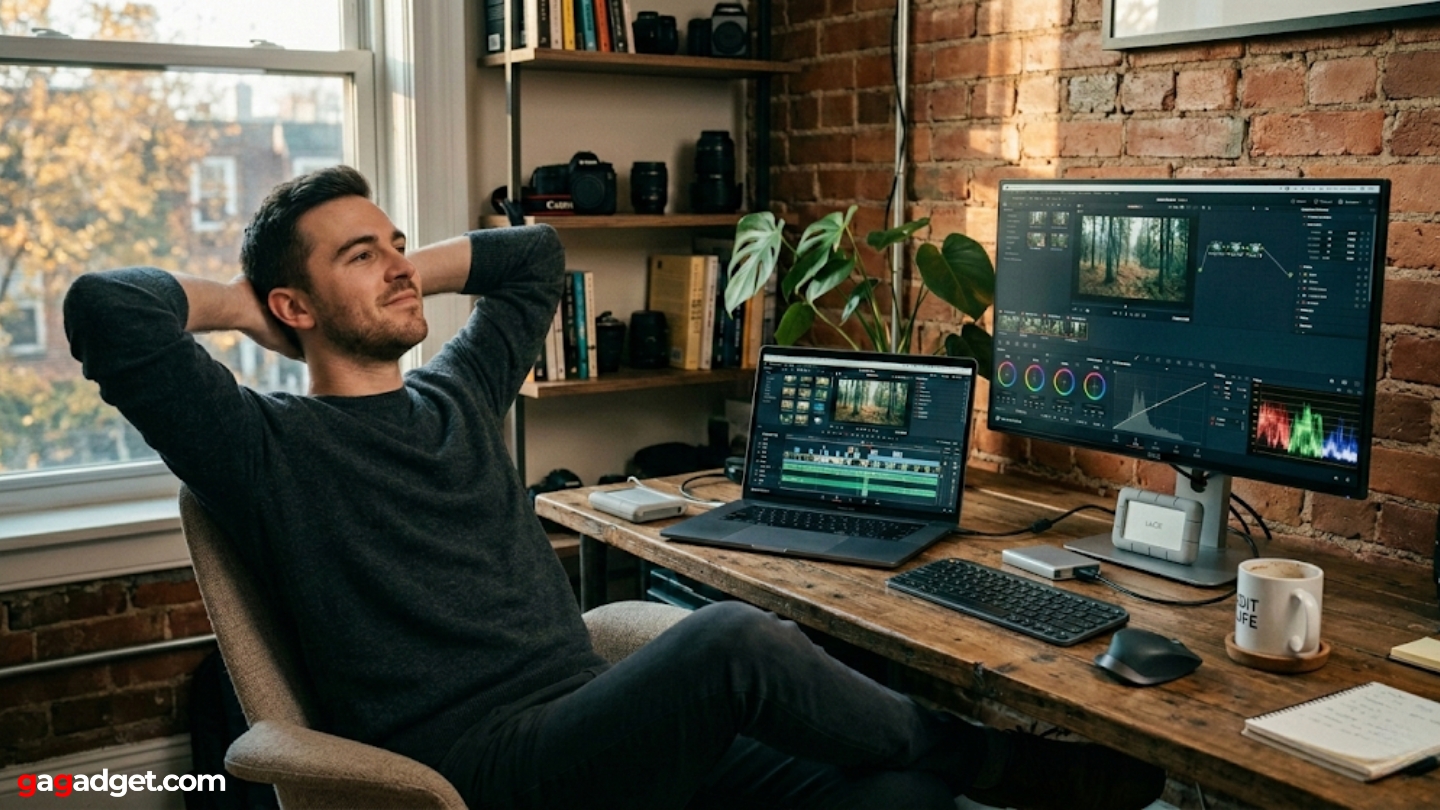
Most laptop reviews for video editors compare specs that don't reflect what actually matters in a real edit. Clock speeds and core counts tell part of the story. How the chip handles sustained load - not a 5-minute burst, but two hours of active timeline work and a 20-minute export - tells the rest. These are the variables that separate a laptop that performs well in benchmarks from one that performs well in a working environment.
Apple Silicon vs. Dedicated GPU: Two Different Architectures, Two Different Workflows
The M4 chip in the MacBook Air handles video through dedicated hardware engines built directly into the chip rather than routing encoding and decoding through the main CPU or GPU cores. ProRes, H.264, HEVC, and AV1 all have hardware acceleration paths that run in parallel with your timeline work. The result is that 4K editing in Final Cut Pro on the MacBook Air draws less power, generates less heat, and sustains performance longer than a Windows machine running Premiere Pro on a discrete GPU - at a lower price than any comparable RTX 4060 configuration.
The tradeoff is ecosystem. The M4 Air earns its place in a macOS workflow - Final Cut Pro or DaVinci Resolve on macOS. If your pipeline runs on Premiere Pro with After Effects, third-party plugins, and Windows-native tooling, a machine with an RTX 4060 will serve you better - the CUDA acceleration and VRAM depth matter once you add GPU-hungry effects to the timeline.
The two platforms produce different results from the same footage in ways that have nothing to do with marketing. Knowing your software stack before you buy saves significant frustration after - an editor who switches from Final Cut to Premiere and back to Final Cut based on client preferences will find the Windows RTX machine more flexible, while an editor locked into one macOS pipeline will find the M4 Media Engine accelerating tasks the RTX machines handle on raw GPU power.
RAM and VRAM: The Numbers That Actually Govern Your Timeline
For 1080p editing, 16GB of system RAM covers most workflows without issue. The problems begin when you move to 4K, add color grading layers, or run Premiere and After Effects simultaneously. At that point, 32GB becomes a working floor rather than a luxury. The Dell G15 5530 on this list ships with 32GB standard - notable because most competitors at the same price point ship with 16GB and charge for the upgrade. VRAM is a separate ceiling: the RTX 4060 with 8GB GDDR6 handles GPU-accelerated effects in Premiere and Resolve without hitting limits in typical 4K work, but 8K timelines or heavy VFX layering will surface that ceiling quickly.
The relationship between RAM and VRAM in a video workflow is sequential rather than interchangeable. Running out of VRAM during GPU-accelerated rendering causes the system to swap to system RAM, which produces a dramatic slowdown rather than a graceful degradation. Running out of system RAM causes the OS to page to the SSD, which is slower still. For an editor planning a machine that will scale with their projects over two or three years, buying as much RAM as the budget allows upfront is more reliable than planning to upgrade later - Apple's unified memory is soldered and can't be upgraded at all, and most gaming laptops have a practical limit of 32GB across two slots before the upgrade becomes expensive.
Display Calibration: What You See Is What Gets Exported
Color accuracy on the edit panel directly affects how your exported footage looks on other screens. A display with 62% sRGB coverage - like the ASUS TUF A17's panel - renders colors richer than they are in the file, so corrections graded on that screen shift incorrectly when viewed on a calibrated monitor or a phone display. The MacBook Air's Liquid Retina panel covers the P3 wide color gamut. The Acer Helios Neo 16's display hits 100% sRGB. Both give you a foundation you can trust for color-critical work.
I check color gamut coverage the same way I check screen size when buying - it's not optional for video work. A fast laptop with a weak panel forces you to buy an external monitor to actually trust what you're editing.
The practical consequence of a low-gamut display is that editors compensate without realizing it. Colors that look desaturated on a 62% sRGB screen prompt color pushes that look oversaturated on delivery. Skipping this spec to save money on the machine typically means spending it on an external monitor anyway - at which point the internal display becomes useful only for navigating the timeline, and the laptop's price-to-value ratio shifts accordingly.
Thermal Design: Sustained Performance Over Long Sessions
A laptop that renders the first 10 minutes of a 40-minute export at full speed and then drops to 60% throughput for the remainder is delivering a fraction of its rated performance where it matters most. The MacBook Air handles thermals through passive cooling - no fan, no active heat dissipation. Under sustained all-out load it will throttle, but for session-based editing with breaks for review and revision the passive design rarely surfaces as a real problem. The Acer Helios Neo 16's AeroBlade 3D fans and vector heat pipes keep the i9-14900HX running at rated clock speeds under extended pressure. The MSI Katana 15's Cooler Boost 5 system with six copper heat pipes does the same for the i7-13620H.
The clearest test of a laptop's thermal design is encoding a long file from start to finish while monitoring clock speed - a machine that maintains its boost clocks throughout has adequate cooling, while one that drops 20-30% halfway through an export is thermally limited regardless of what the spec sheet claims. For editors who export regularly, this distinction affects daily productivity more than any single benchmark number. Fan noise is the tradeoff on the Windows side: the machines with the most aggressive cooling run the loudest fans, and the Acer Helios Neo 16 in particular is audible during sustained encoding in ways that the MacBook Air, which produces no fan noise at all, will never be.
Top 5 Laptops for Video Editing
Each of these machines landed in a distinct position after testing - the choice between them comes down to operating system, software workflow, screen real estate, and how much weight you're willing to carry.
- M4 Media Engine with hardware ProRes encoding
- 15.3" P3 Liquid Retina display
- 10-15 hours real-world battery
- Passive cooling - no fan noise
- 3.3 lbs - lightest laptop on this list
- 17.3" display - most screen real estate
- RTX 4050 at full 140W TGP
- MUX Switch improves GPU-accelerated performance
- USB 4 port for high-bandwidth peripherals
- MIL-STD-810H certified chassis
- RTX 4060 8GB at competitive price point
- Cooler Boost 5 maintains sustained GPU performance
- Expandable RAM (to 64GB) and second SSD slot
- i7-13620H with 16 threads for CPU-heavy workflows
- 32GB DDR5 + 2TB SSD out of the box
- 100% sRGB display - trustworthy for color editing
- RTX 4060 at full 140W TGP
- i7-13650HX (14 cores, 20 threads)
- HDMI 2.1 + USB-C with DP + RJ45 Ethernet
- i9-14900HX (24 cores) - fastest CPU encoding on this list
- 100% sRGB 16" display with 16:10 aspect ratio
- AeroBlade 3D cooling sustains performance under load
- Thunderbolt 4 port for high-bandwidth peripherals
- Full-size keyboard with numpad
Laptop Comparison Table
Here's how the key specs stack up across all five machines:
| Specification | Apple MacBook Air 15 M4 | ASUS TUF Gaming A17 | MSI Katana 15 B13VFK | Dell G15 5530 | Acer Predator Helios Neo 16 |
| CPU | Apple M4 (10-core) | AMD Ryzen 7 7735HS | Intel Core i7-13620H | Intel Core i7-13650HX | Intel Core i9-14900HX |
| GPU | M4 10-core GPU | RTX 4050 (140W TGP) | RTX 4060 (105W TGP) | RTX 4060 (140W TGP) | RTX 4060 (8GB GDDR6) |
| RAM | 16GB Unified Memory | 16GB DDR5-4800 | 16GB DDR5 | 32GB DDR5 | 16GB DDR5 |
| Storage | 256GB SSD | 1TB PCIe 4.0 | 1TB NVMe | 2TB PCIe SSD | 1TB NVMe Gen 4 |
| Display | 15.3" Liquid Retina, P3 | 17.3" FHD 144Hz, 62.5% sRGB | 15.6" FHD 144Hz, ~69% sRGB | 15.6" FHD, 100% sRGB, G-Sync | 16" WUXGA 165Hz, 100% sRGB |
| Weight | 3.3 lbs (1.51 kg) | ~5.5 lbs (2.5 kg) | ~4.96 lbs (2.25 kg) | 6.19 lbs (2.81 kg) | ~5.5 lbs (2.5 kg) |
| Battery Life | Up to 18 hours | ~5-6 hours | ~4-5 hours | ~3-4 hours (gaming load) | ~3-4 hours |
| Cooling | Passive (fanless) | Arc Flow dual fans | Cooler Boost 5 (6 heat pipes) | Active dual-fan | AeroBlade 3D + vector heat pipes |
| OS | macOS | Windows 11 | Windows 11 Pro | Windows 11 Home | Windows 11 Home |
| Key Advantage | M4 Media Engine, battery, P3 display | 17.3" screen real estate, budget value | RTX 4060 + solid thermals at price | 32GB RAM + 2TB storage + 100% sRGB | i9-14900HX + 100% sRGB + 165Hz |
The platform split - Apple Silicon vs. NVIDIA RTX - is the first decision, not the last. Everything else follows from that.
Apple MacBook Air 15-inch M4 Review
Editor's Choice
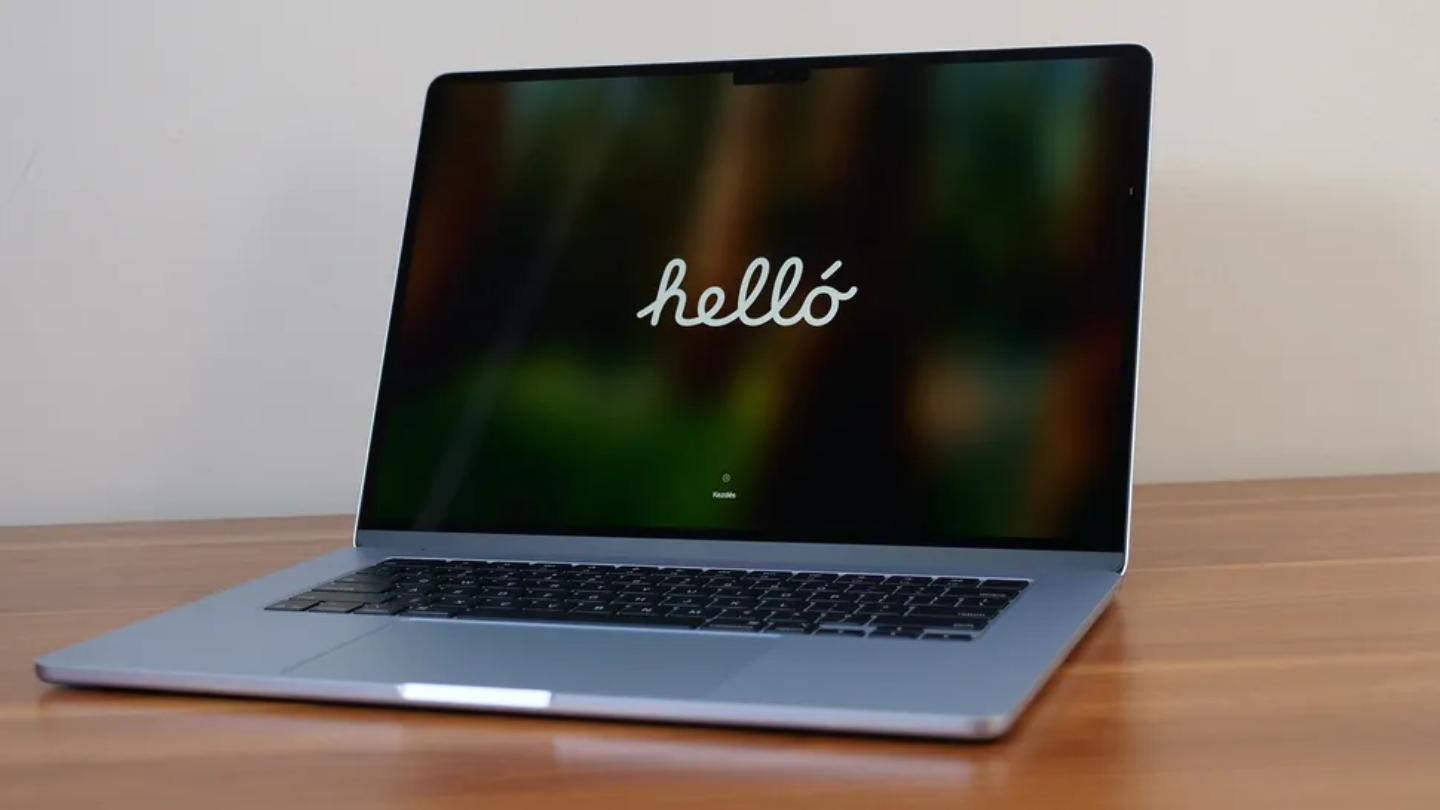
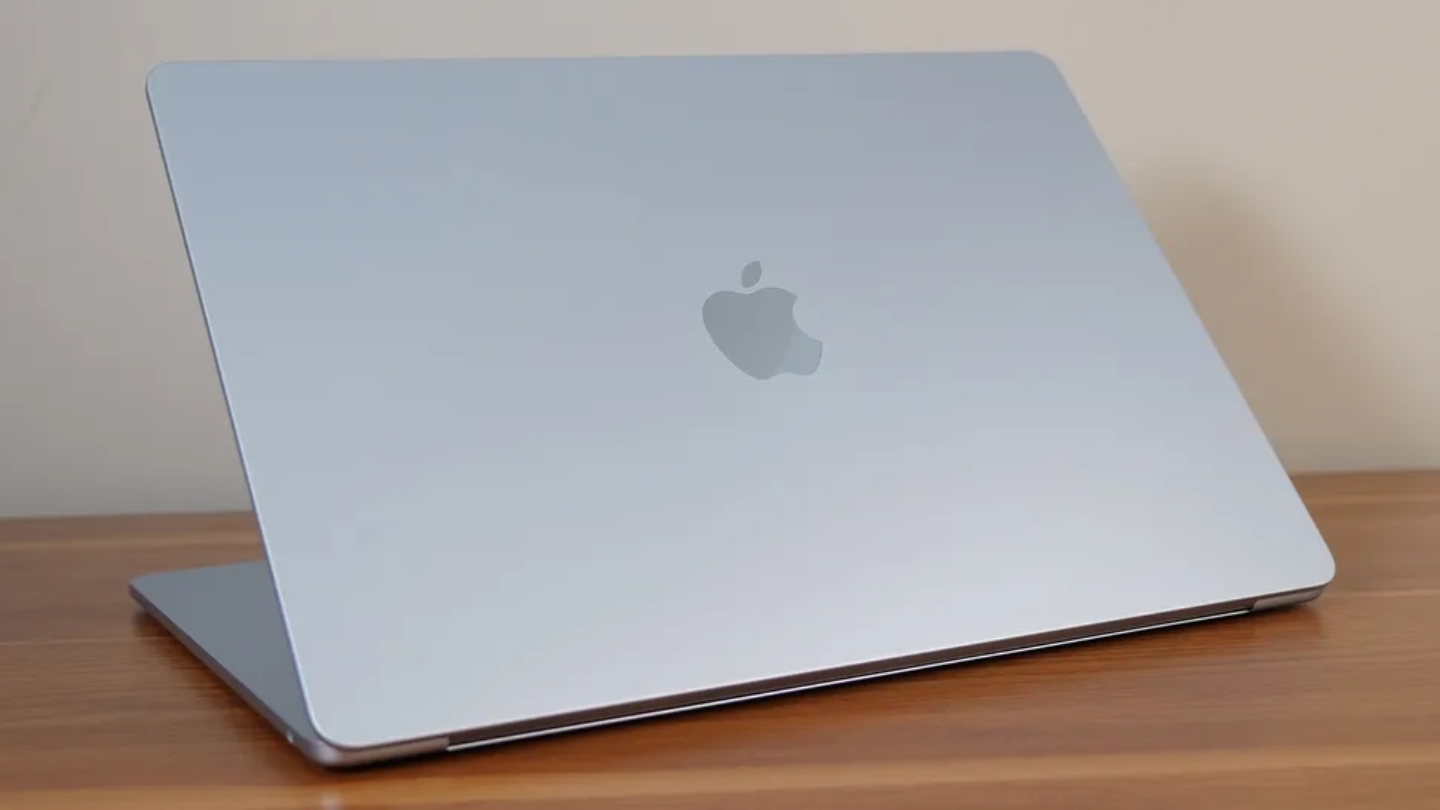
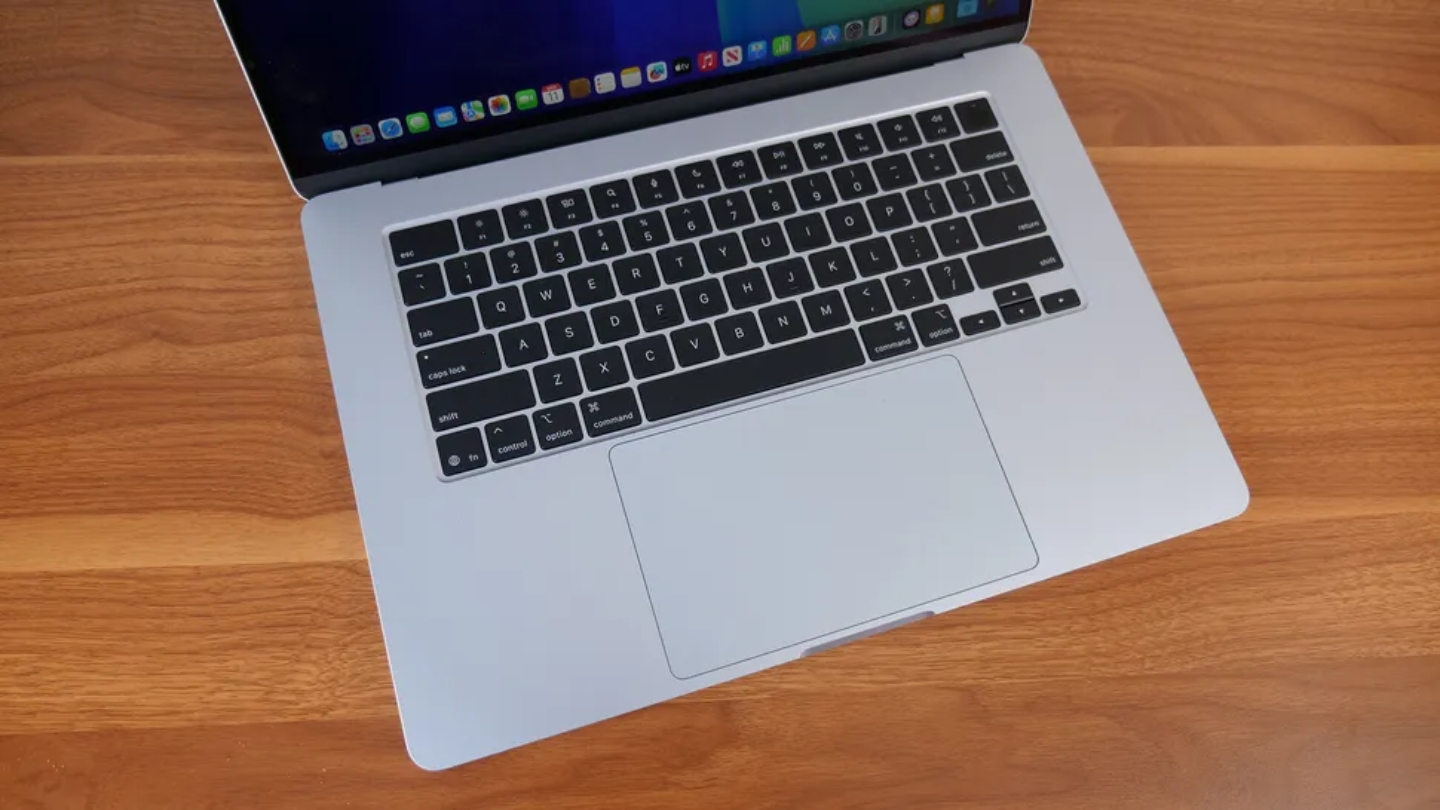
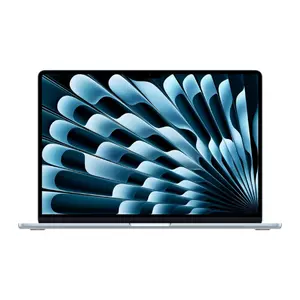
The Apple MacBook Air 15-inch M4 does something no Windows laptop at this price point can do: it edits video for hours without a fan spinning up, without the chassis getting hot, and without meaningful performance degradation between the start of a session and the end of it. The M4 chip - 10-core CPU, 10-core GPU - is architecturally built around media work, with dedicated hardware encoders and decoders for ProRes, H.264, HEVC, and AV1 that handle the encoding pipeline without pulling from the cores managing your timeline and effects. I've taken this machine through 4K edits in DaVinci Resolve on a flight and watched the battery drop from 100% to 89% over several hours of active work.
The 15.3-inch Liquid Retina display is the right panel for color-critical work. P3 wide color gamut coverage means the colors you're grading represent what other calibrated displays will show. Brightness holds steady at 500 nits, which is enough to work in any indoor environment. The sky blue finish on this generation is new, and genuinely changes tone depending on the light hitting it - somewhere between silver and a clear blue depending on where you're sitting. Two Thunderbolt 4 USB-C ports is the real port story here, and it's a limiting one: video editors running an external drive, a monitor, and a hub simultaneously will feel the constraint. The 256GB base storage is too small for active video projects, and Apple's storage upgrade pricing is steep enough that factoring a fast external NVMe drive into the budget is the practical route.
The sustained performance ceiling is the honest caveat. Without active cooling, the M4 Air will throttle during long uninterrupted exports - rendering a 30-minute 4K project may run at 70-80% of the chip's peak throughput compared to the same chip with active fans in the MacBook Pro. A full-length export takes longer on the Air than on the Pro. For session-based editing where you work, render sections, review, and continue, the passive design rarely surfaces as a practical limitation - thermal throttle during active timeline work is uncommon, and the machine recovers quickly between render bursts.
Battery life is where this machine has no competition on this list or any comparable list. Apple's rated 18 hours is aggressive, but real-world editing sessions routinely deliver 10-15 hours of productive work time. Taking this to a client meeting, a coffee shop, a cross-country flight, and back to a desk without thinking about charging is a workflow shift that changes how you plan your day. The 12MP Center Stage camera handles video calls with competence that most gaming laptops don't bother to match. For macOS-native workflows - Final Cut Pro especially, but also DaVinci Resolve - there isn't a more capable laptop at this price.
Pros:
- M4 Media Engine with hardware ProRes encoding
- 15.3" P3 Liquid Retina display
- 10-15 hours real-world battery
- Passive cooling - no fan noise
- 3.3 lbs - lightest laptop on this list
Cons:
- 256GB base storage too small for video projects
- Only 2 Thunderbolt ports
Summary: The MacBook Air 15 M4 is the right machine for editors whose workflow runs through Final Cut Pro or DaVinci Resolve on macOS, who move between locations, and who can't afford thermal throttle mid-session. The storage base spec is the one number to address before buying.
ASUS TUF Gaming A17 Review
Best Overall
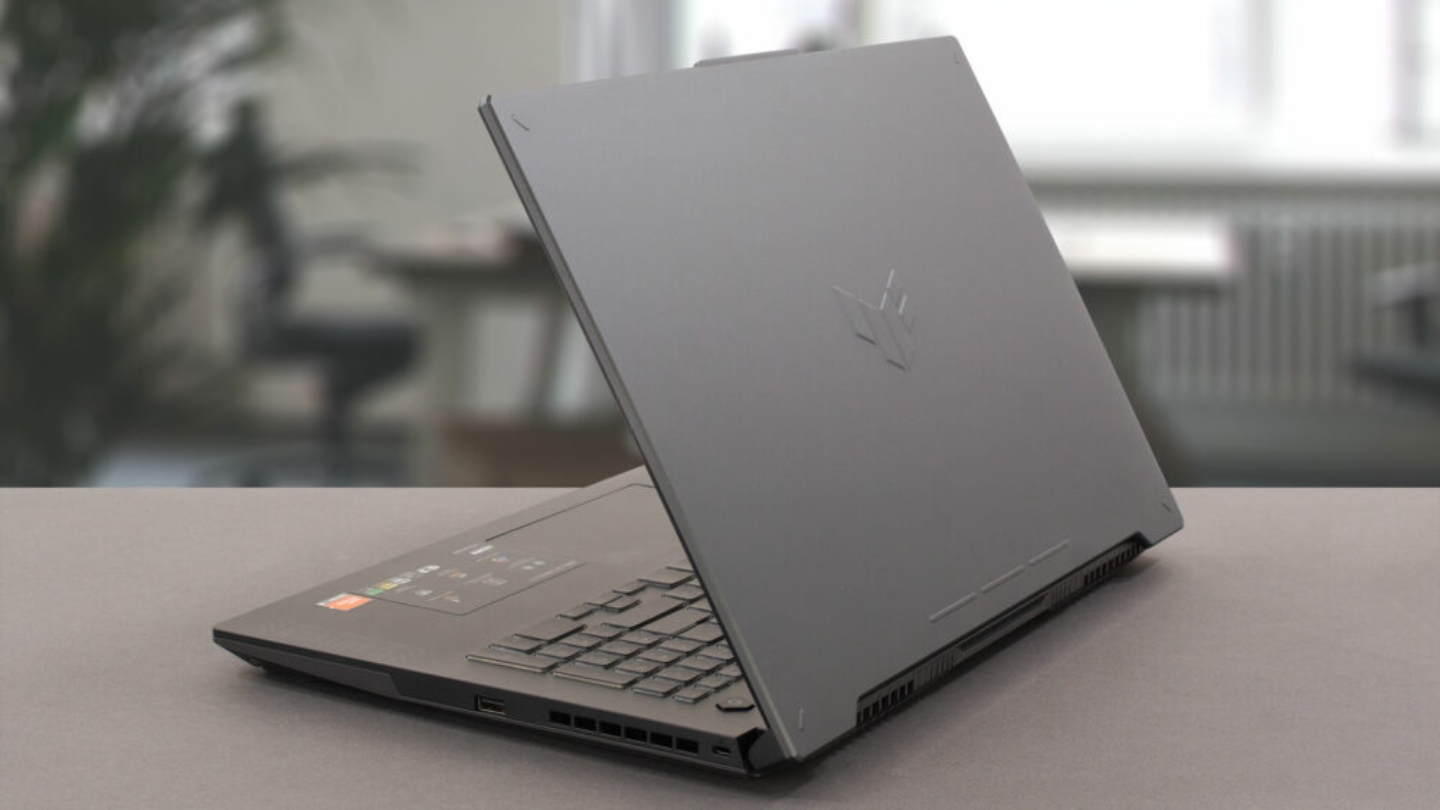
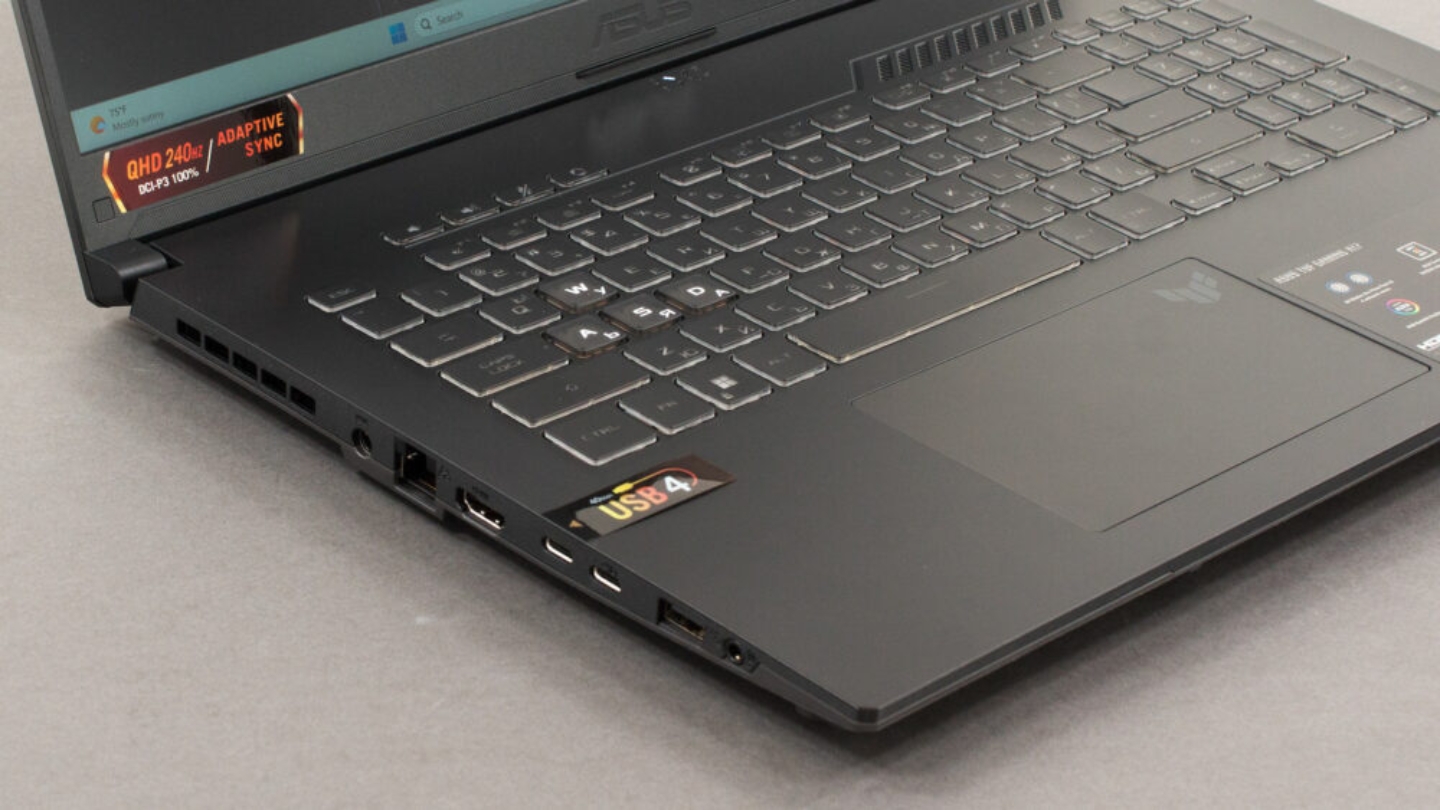
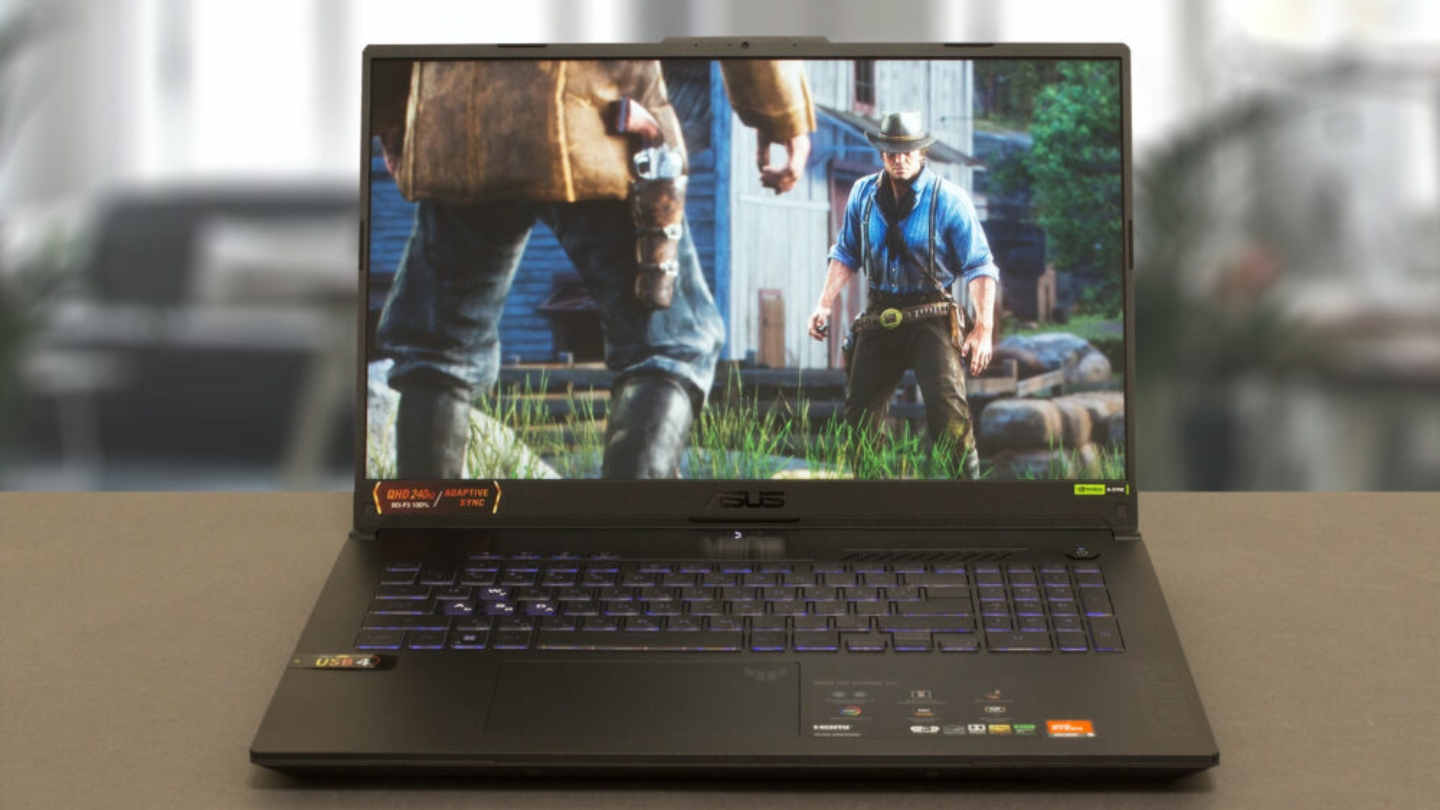
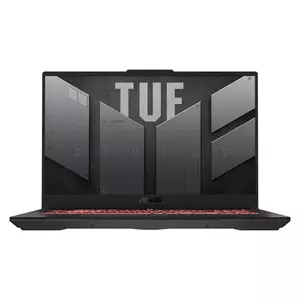
The ASUS TUF Gaming A17 is the only 17.3-inch machine on this list, and that size difference is real when you're working on a timeline. More horizontal pixels means more clips visible without scrolling, more room for nested sequences, more breathing room in your color panel. The AMD Ryzen 7 7735HS with eight cores clocked to 4.75GHz handles CPU-bound tasks in Premiere and Resolve without complaint, paired with the RTX 4050 running at a full 140W TGP - the maximum TGP for this GPU tier, which pushes it close to RTX 4060 territory in actual GPU compute benchmarks. The MUX Switch with Advanced Optimus routes frames directly from the discrete GPU to the display, eliminating the iGPU bottleneck that limits many gaming laptops in GPU-accelerated workflows.
The dual Arc Flow fans with 84-blade design handle the Ryzen 7 and RTX 4050 effectively - I didn't see the kind of sustained thermal throttle that limits some thin gaming laptops after 20-30 minutes of continuous load. The 16GB DDR5-4800 runs in dual channel, which matters for AMD's Zen 3+ architecture where memory bandwidth directly influences compute throughput. The 1TB PCIe 4.0 SSD is fast enough that project file loads and cache writes don't become a bottleneck during editing. Military-grade MIL-STD-810H certification means the chassis has been tested against temperature extremes, humidity, and vibration - which for a laptop that might live in a bag, on various desks, and through varying conditions is a practical guarantee rather than a marketing label.
The display is where the TUF A17 falls short for video editing work. ASUS specs the panel at 62.5% sRGB and 47.34% Adobe RGB - coverage numbers that make color-critical editing unreliable on the internal display. Colors graded on this screen shift when viewed on a calibrated monitor or phone display, often in ways that only become visible at delivery. For editors who connect to an external reference monitor for color work and use the laptop display for timeline navigation and proxy editing, this is workable. For editors who rely entirely on the internal display, an external monitor purchase should accompany this laptop from day one. Battery life is honest for a high-TGP RTX machine: 5-6 hours on balanced settings, 2-3 hours under editing load, plan for the power cable.
The USB 4 port adds Thunderbolt-equivalent bandwidth for external drives and monitors, which alongside the HDMI 2.1, USB-C with DP, and two USB-A 3.2 Gen 1 ports makes the connectivity picture genuinely good for a machine in this category. Wi-Fi 6 handles large file transfers from NAS or network storage at speeds that don't create waiting. The overall build is heavy relative to the MacBook Air - 5.5 lbs before charger - but the 240W brick is the real transport cost. Desk use is where the TUF A17 is most at home.
Pros:
- 17.3" display - most screen real estate
- RTX 4050 at full 140W TGP
- MUX Switch improves GPU-accelerated performance
- USB 4 port for high-bandwidth peripherals
- MIL-STD-810H certified chassis
Cons:
- 62.5% sRGB display
- Short battery life under load
Summary: ASUS TUF Gaming A17 is for editors who want a large-screen Windows machine and connect to an external monitor for color work. The display coverage is too limited to trust for grading, but the 17.3-inch panel at 144Hz makes timeline work comfortable, and the full-TGP RTX 4050 punches closer to RTX 4060 than the spec sheet suggests.
MSI Katana 15 B13VFK Review
Raw Performance
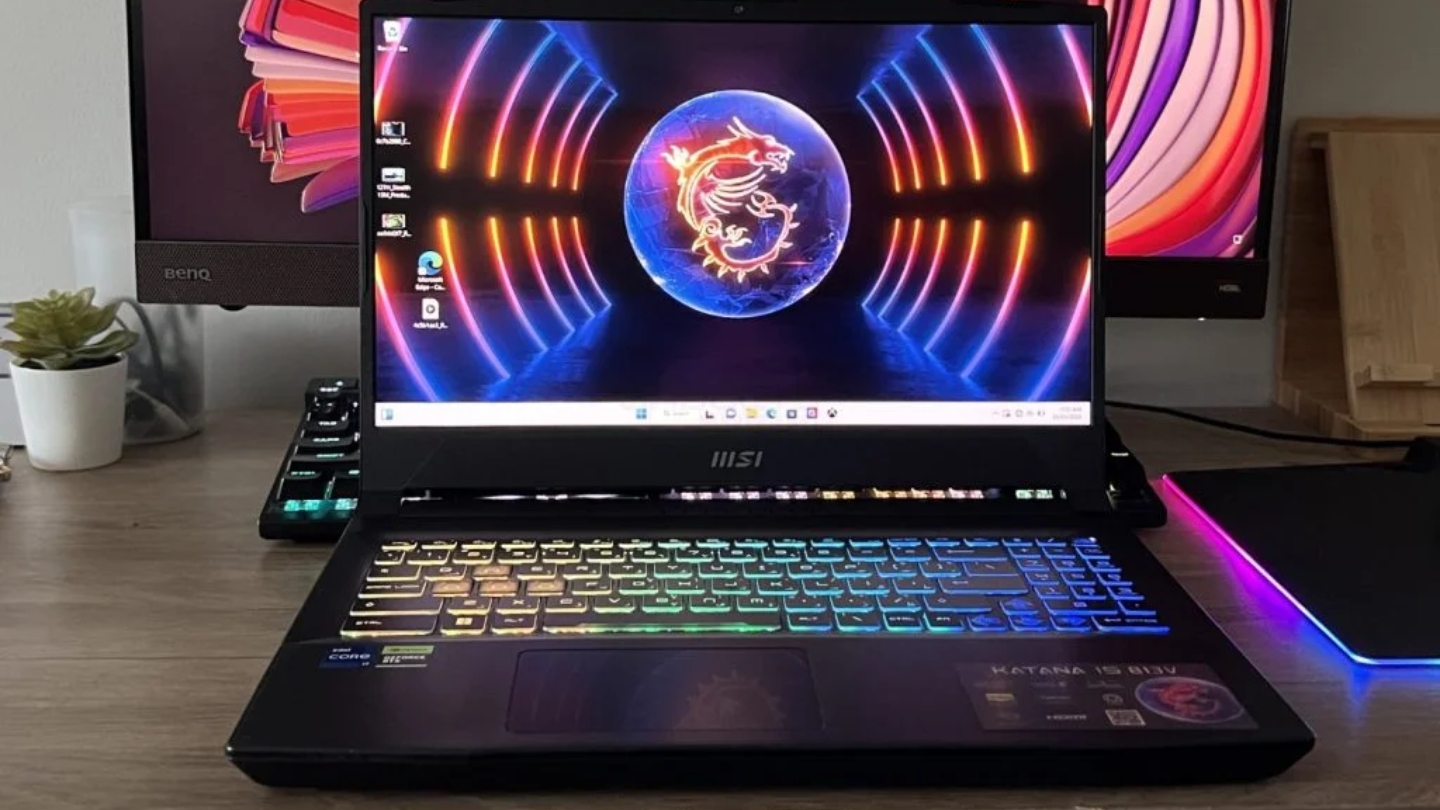
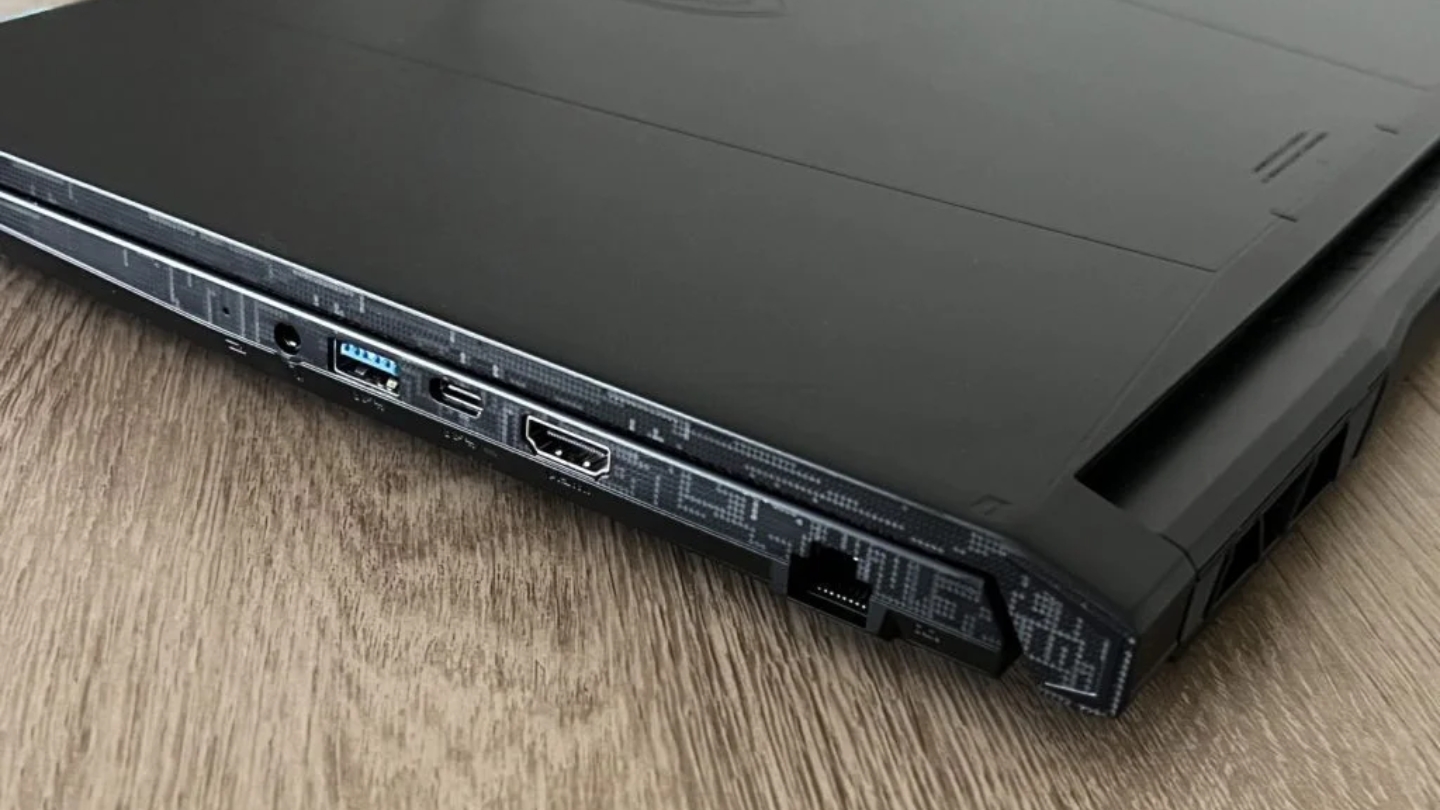
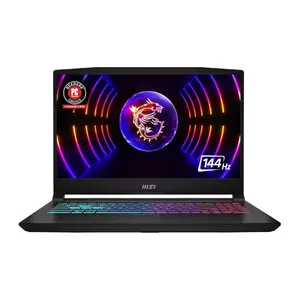
The MSI Katana 15 B13VFK makes a case for itself on one number: an RTX 4060 with 8GB GDDR6 at a price point that undercuts most RTX 4060 machines by a noticeable margin. That GPU, running with a 105W TGP, handles GPU-accelerated encoding in Premiere Pro and Resolve with headroom to spare for effects processing on a 4K timeline. The Intel Core i7-13620H with its 10 cores and 4.9GHz peak clock is a capable partner for CPU-heavy Premiere workflows - effects that rely on CPU rendering rather than GPU acceleration hit this chip's 16-thread throughput without immediately becoming the bottleneck. MSI Center gives you four distinct performance profiles, and the Cooler Boost 5 system with six copper heat pipes keeps the i7 and RTX 4060 from thermal throttling under sustained load, with GPU temps hitting a measured 82-88°C peak in extreme performance mode.
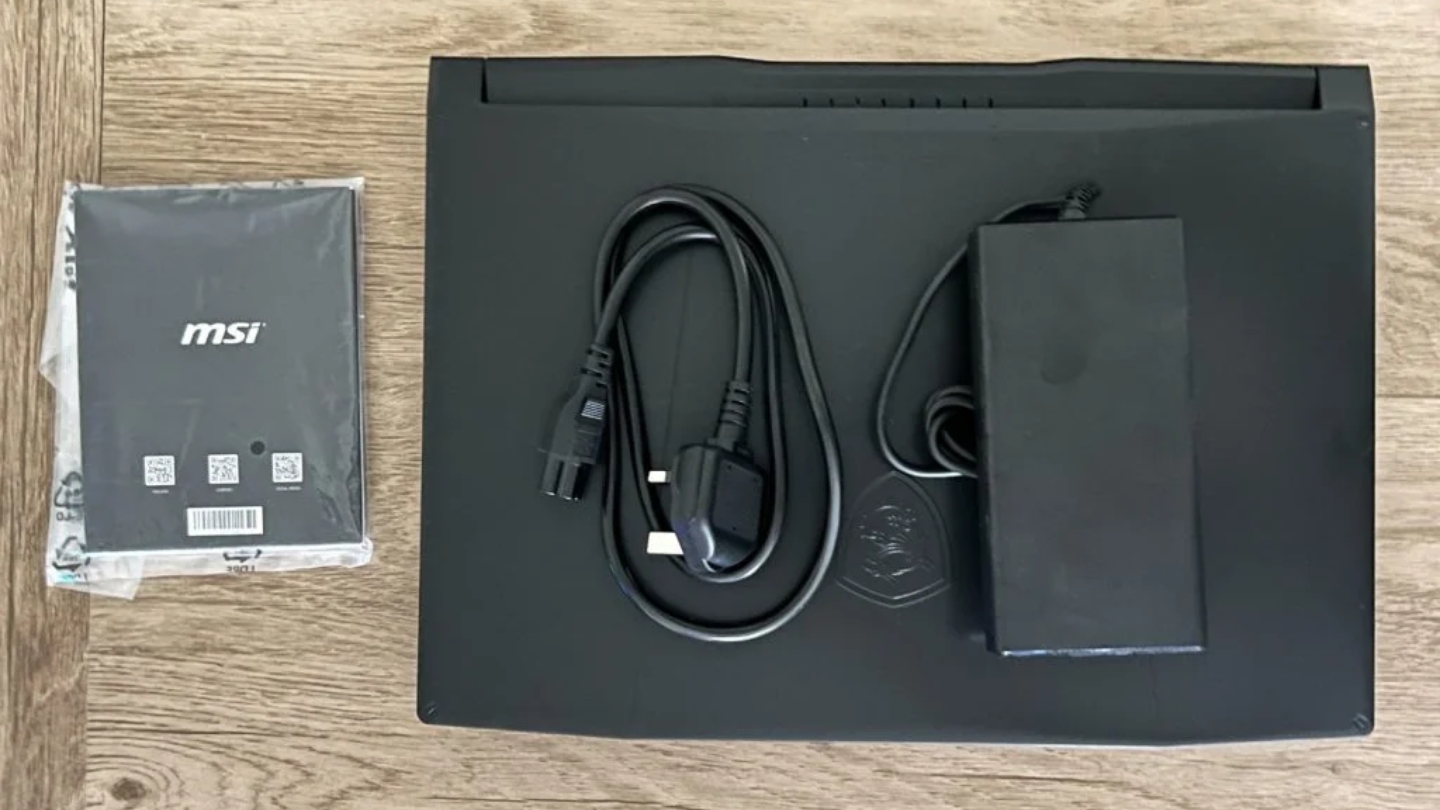
The design doesn't try to impress. Black matte plastic, MSI's shield logo on the lid, and angular accent lines around the keyboard deck that stop short of aggressive gaming aesthetics. The build has more flex in the display lid than a premium machine would show, which is the price of the price point. Inside, two SO-DIMM slots with support up to 64GB RAM mean the base 16GB DDR5 config is upgradeable without replacing the machine. An additional M.2 slot is included for a second SSD - relevant for editors who need project storage separate from the OS drive. The USB 3.2 Gen 1 Type-C port with DisplayPort supports an external monitor connection, which matters given the display situation.
The display measured at 69% sRGB and 52% DCI-P3 in independent testing - better than the ASUS TUF A17 but not calibration-grade. The 144Hz refresh rate makes timeline playback smooth and proxy work comfortable. For editors whose color grading happens on an external reference display and who use the laptop panel for everything else, this limitation is manageable. Battery life runs 4-5 hours on balanced settings away from heavy load - acceptable for desktop editing sessions with access to power, a constraint for location work. The 4-hour battery under mixed workloads represents real-world conditions better than manufacturer claims, and planning the workflow around a power source is the honest expectation with any RTX 4060 machine.
What the Katana 15 delivers that no other machine on this list matches at its price is GPU compute per dollar. Editors who run Premiere with Lumetri Color, multiple audio tracks, and GPU-accelerated effects will find this machine handling those layers without the frame rate drops that mark less capable machines. The 8GB GDDR6 VRAM provides enough buffer for 4K multi-stream work without paging. For a budget-conscious editor who has an external color-accurate monitor and is prioritizing GPU performance over display quality, this is the most efficient use of the budget on this list.
Pros:
- RTX 4060 8GB at competitive price point
- Cooler Boost 5 maintains sustained GPU performance
- Expandable RAM (to 64GB) and second SSD slot
- i7-13620H with 16 threads for CPU-heavy workflows
Cons:
- 69% sRGB display - external monitor needed for color work
- Battery under 5 hours at working load
Summary: MSI Katana 15 B13VFK is the budget-efficient path to RTX 4060 performance for video editing on Windows. The display limitations are real but manageable with an external monitor. For Premiere Pro editors who need GPU headroom and can stay near a power outlet, this machine delivers more GPU per dollar than anything else on this list.
Dell G15 5530 Review
Spec Leader
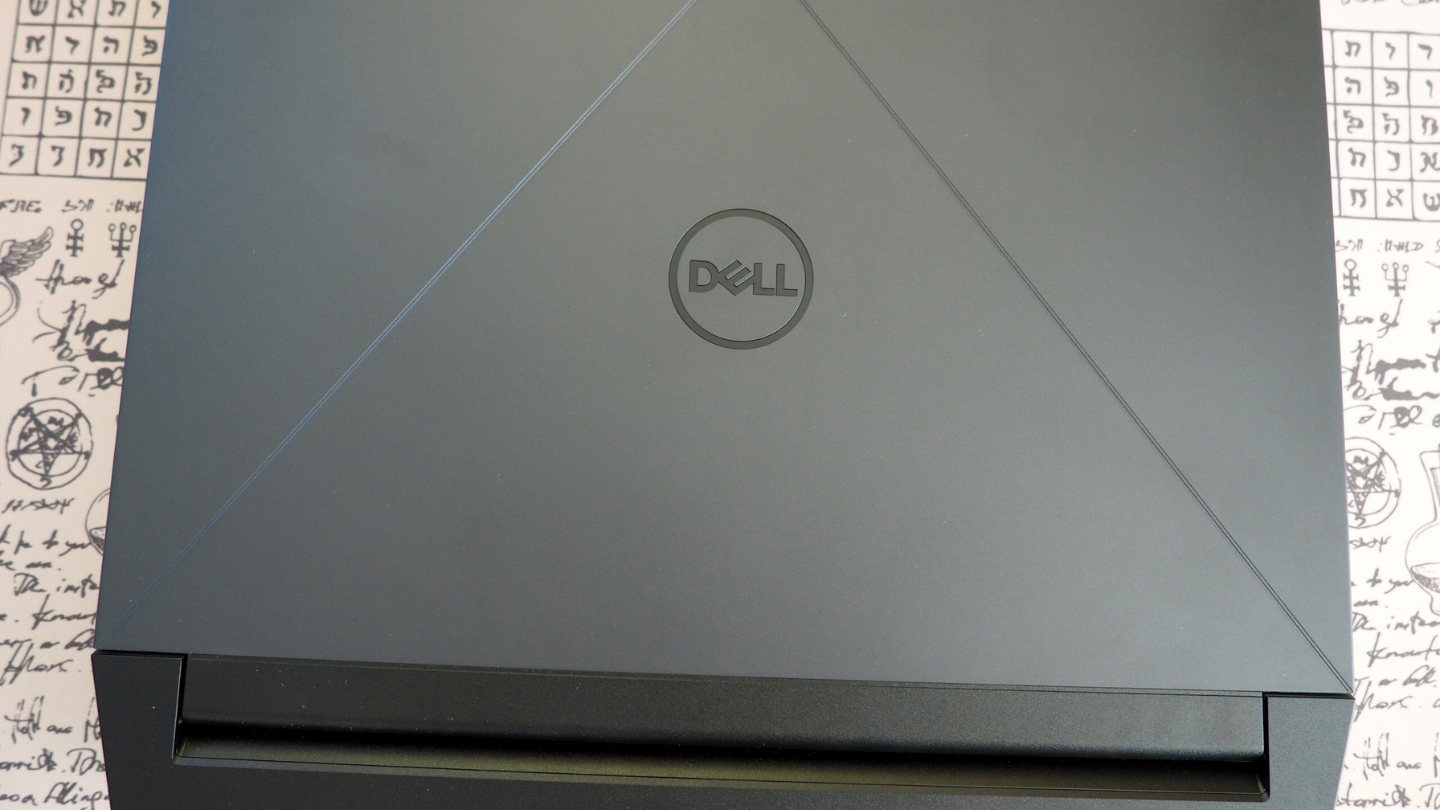
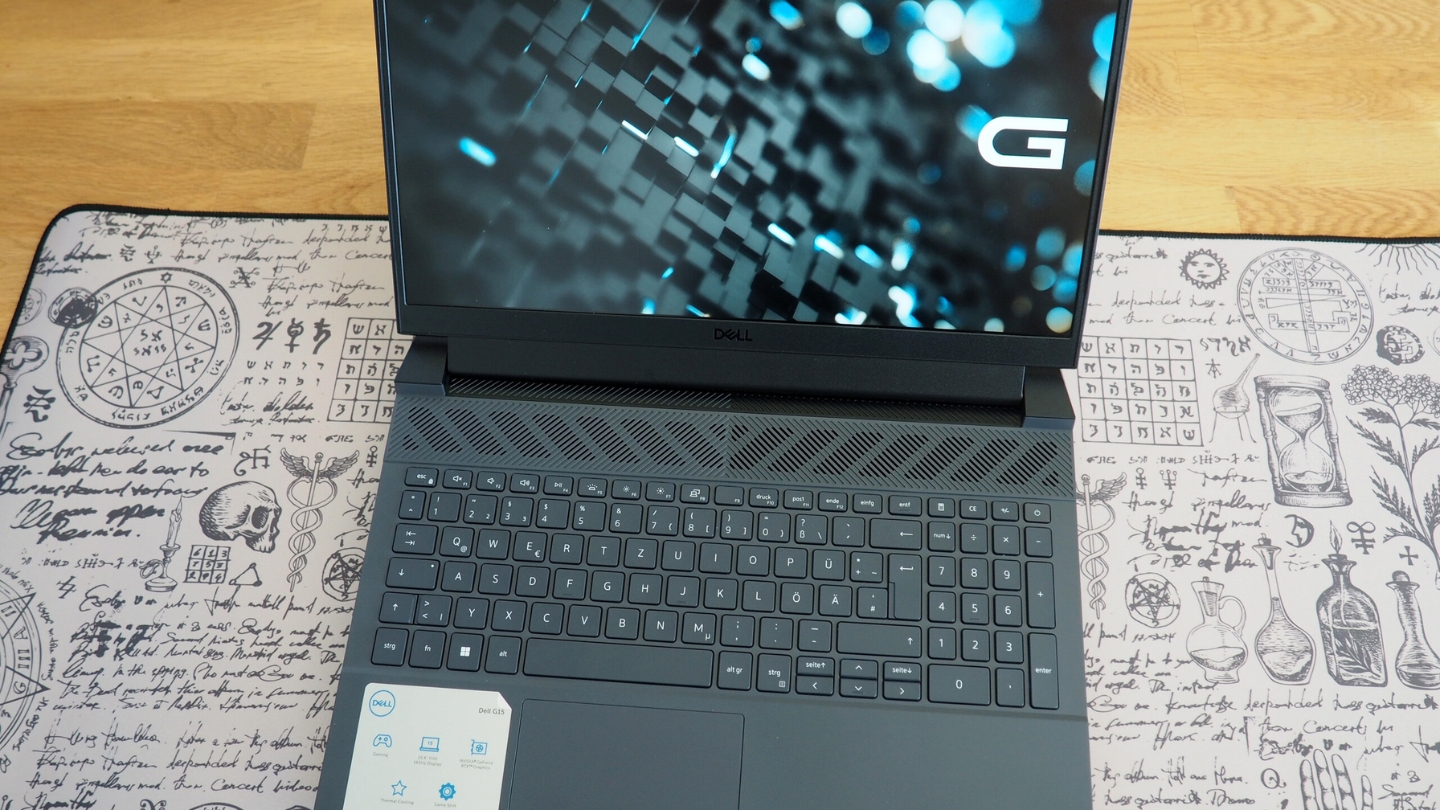
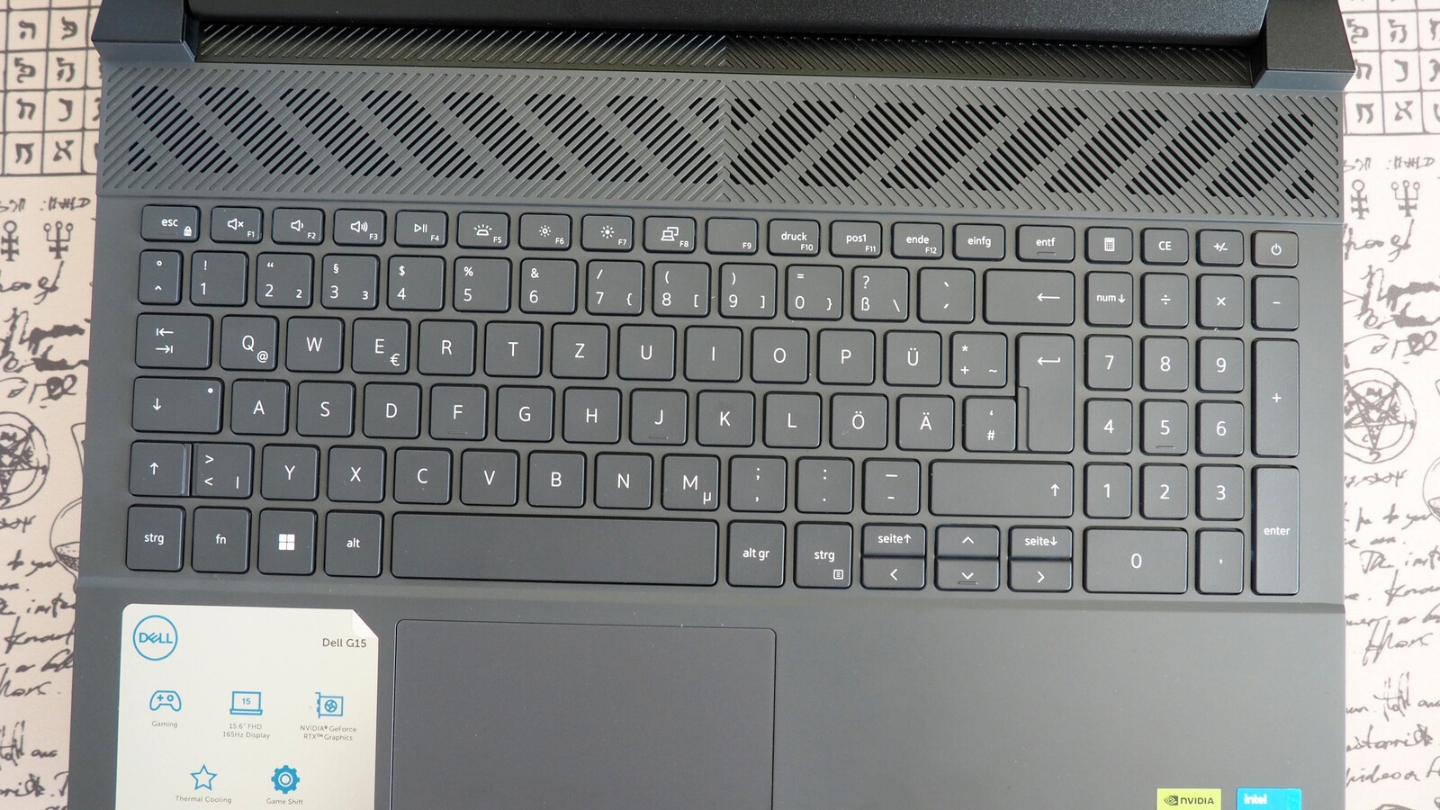
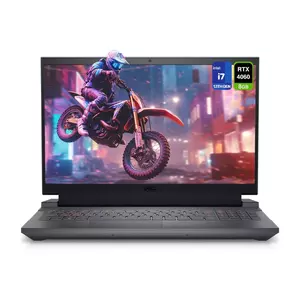
The Dell G15 5530 on this list ships with 32GB DDR5 and 2TB SSD - a configuration that no other machine here matches out of the box, and one that changes what's possible without an immediate upgrade. Thirty-two gigabytes of RAM is the number where Premiere Pro stops asking you to close other apps, where running Audition on the side for audio work doesn't create a memory pressure event, where DaVinci Resolve's cache can be generous rather than constrained. The i7-13650HX with 14 cores, 20 threads, and a 4.9GHz peak clock is a step up from the i7-13620H in the Katana - the extra HX cores register clearly in Cinebench R23 multi-core and carry that advantage into video encoding where thread count translates directly to throughput.
The display is the G15 5530's most underrated spec for video work. Dell ships this machine with a 100% sRGB panel and G-Sync - the sRGB coverage means color corrections made on the built-in display will transfer accurately to other calibrated screens. I've graded projects directly on this panel with confidence in the output. The 165Hz refresh rate makes playback and scrubbing responsive in a way that 60Hz panels don't replicate. G-Sync eliminates tearing during frame preview, which on a timeline with mixed frame rate clips matters more than it sounds. The RTX 4060 at 140W TGP - the full power allocation for this GPU tier - means the machine is drawing on the full compute budget of the GPU rather than the throttled versions found in thinner chassis designs.
The cooling design shows its gaming lineage: a 330W power brick is included, sized for the 140W GPU TGP and 55W CPU running simultaneously under full load. During stress tests, the i7-13650HX held 3.81GHz on performance cores with the GPU running at 2,028MHz and 68°C. Those temperatures confirm the machine has thermal headroom to spare during the kind of load a long encoding session produces. The chassis is heavy at 6.19 lbs - thick bezels, pronounced corners, a build that prioritizes cooling surface area over thinness. Battery life under editing load is 3-4 hours. This machine belongs on a desk.
The port selection is thorough: USB-C 3.2 Gen 2 with DisplayPort, three USB-A 3.2 Gen 1 ports, HDMI 2.1, and RJ45 Ethernet cover most workflow needs without an adapter. The keyboard and trackpad are functional for work use - Dell's gaming keyboards tend toward responsive keys without the short travel that makes sustained typing uncomfortable. For a video editor who primarily works at a fixed location and wants the broadest immediate spec base without aftermarket upgrades, the G15 5530 at 32GB/2TB is the most ready-to-edit machine on this list.
Pros:
- 32GB DDR5 + 2TB SSD out of the box
- 100% sRGB display - trustworthy for color editing
- RTX 4060 at full 140W TGP
- i7-13650HX (14 cores, 20 threads)
- HDMI 2.1 + USB-C with DP + RJ45 Ethernet
Cons:
- 6.19 lbs - heaviest machine on this list
- Short battery under editing load
Summary: Dell G15 5530 offers the best immediate out-of-box spec for Windows video editing on this list - 32GB RAM, 2TB SSD, RTX 4060 at full TGP, and a 100% sRGB display that you can actually trust. The weight and power brick are real constraints. For a desk-first editor who wants to plug in and work without RAM or storage upgrades, this is the machine to buy.
Acer Predator Helios Neo 16 Review
Encode Beast
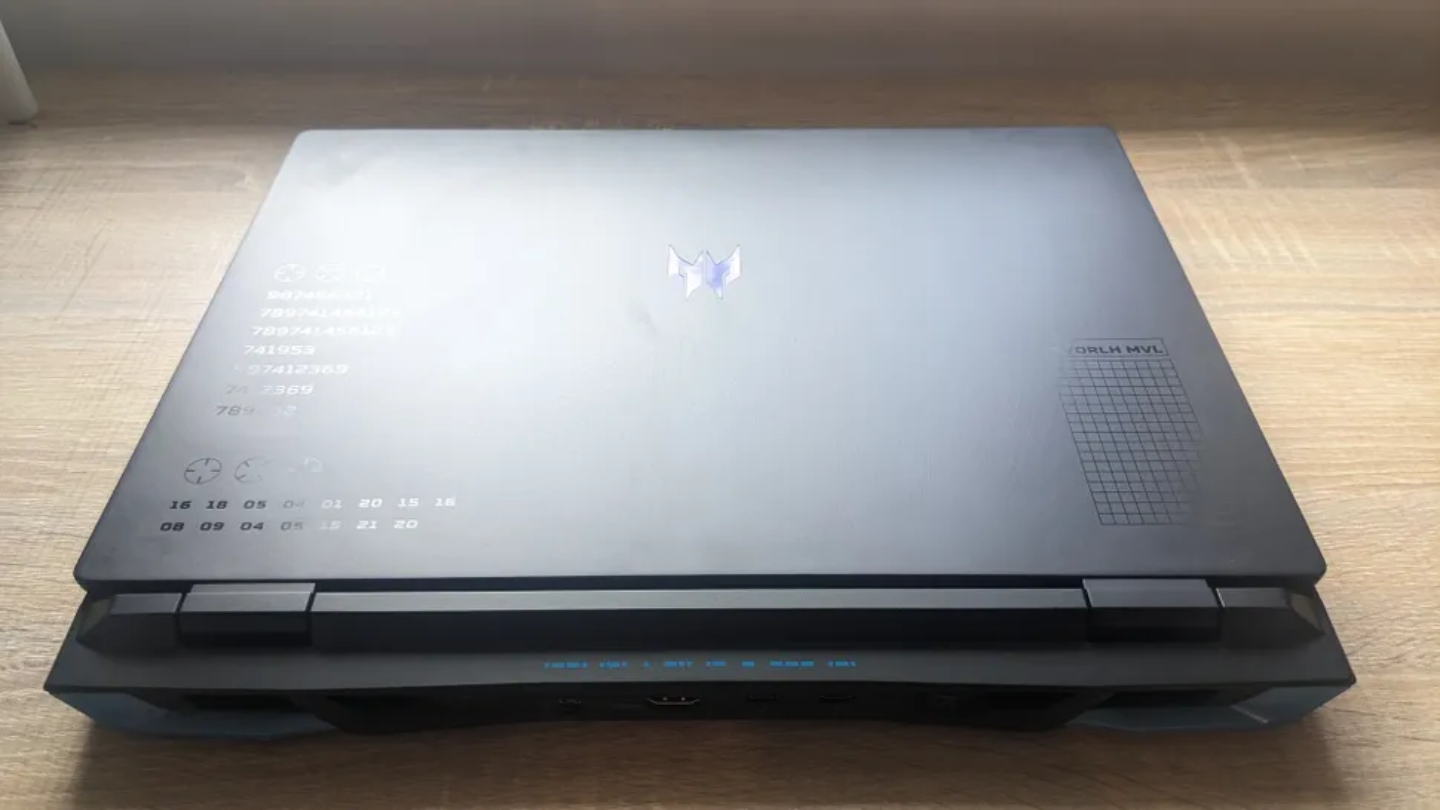
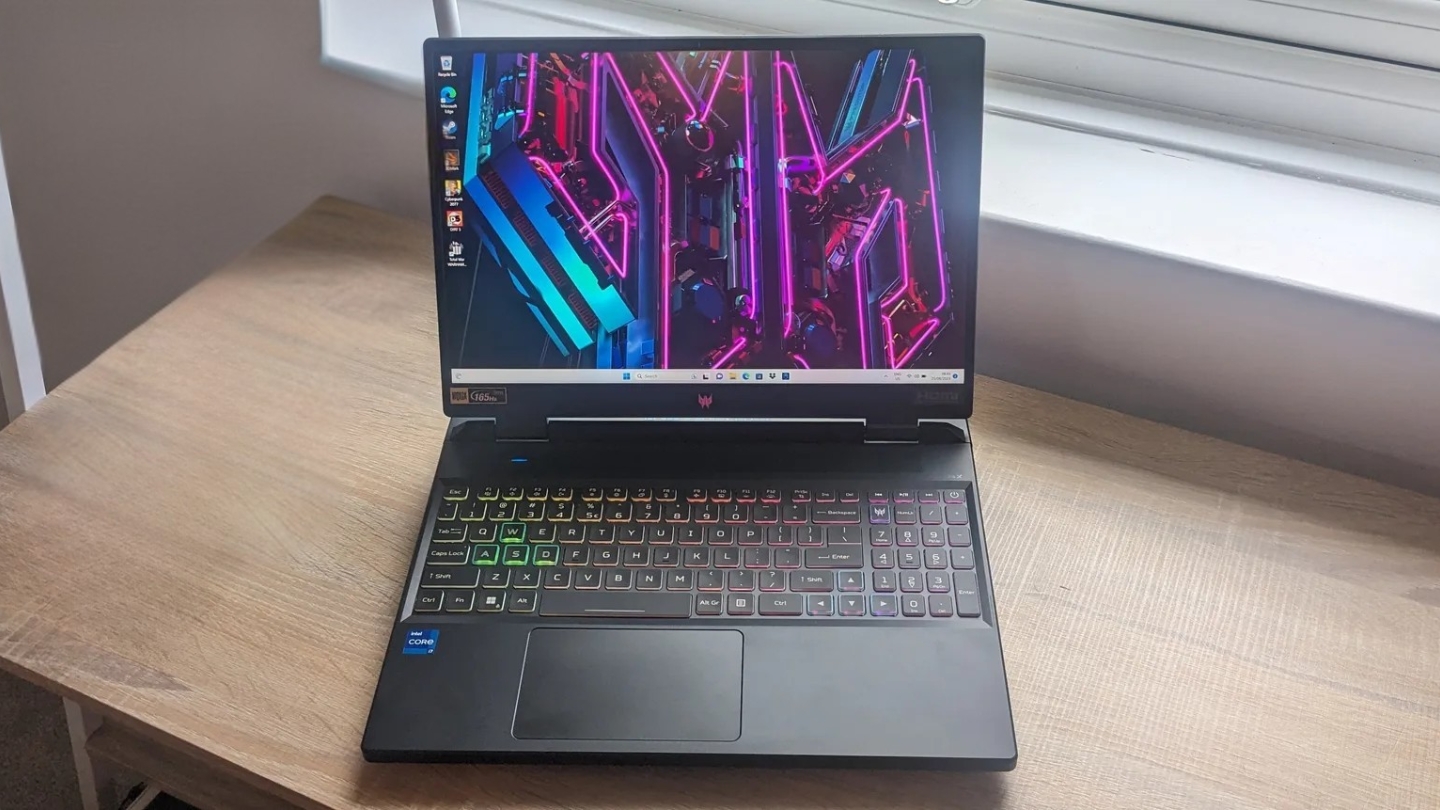
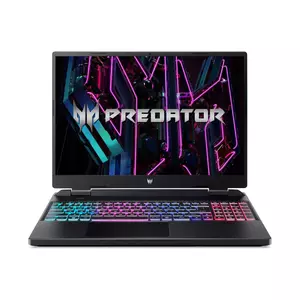
The Acer Predator Helios Neo 16 puts the i9-14900HX into a package that, in PCWorld's 4K Handbrake encoding tests, converted a large 4K file in just under 10 minutes - outpacing the Razer Blade 16 running the same chip in a thinner chassis. The reason is cooling: Acer's AeroBlade 3D fans and vector heat pipes give the 24-core, 32-thread i9-14900HX room to maintain rated clock speeds under extended load. Peak clock of 5.8GHz on P-cores combined with 24 total cores means CPU-bound encoding tasks complete faster on this machine than on any other laptop in this comparison. For Premiere Pro workflows heavy on CPU-rendered effects, multi-cam editing, or any workload where core count translates directly to speed, that lead is meaningful.
The 16-inch 1920x1200 display at 165Hz covers 100% sRGB - same calibration story as the Dell, which means you can trust the colors you're seeing during editing. The 16:10 aspect ratio gives more vertical real estate than the standard 16:9 panels on the Katana and TUF, which for timeline work and vertical video preview is a practical upgrade. The RTX 4060 with 8GB GDDR6 handles GPU-accelerated workflows competently, and Laptop Mag measured some of the highest RTX 4060 frame rates among comparable machines - a sign that Acer's 4060 TGP implementation is well-tuned. The keyboard spans a full-size layout with numpad, and the four-zone RGB lighting is configurable without requiring Acer's software running in the background.
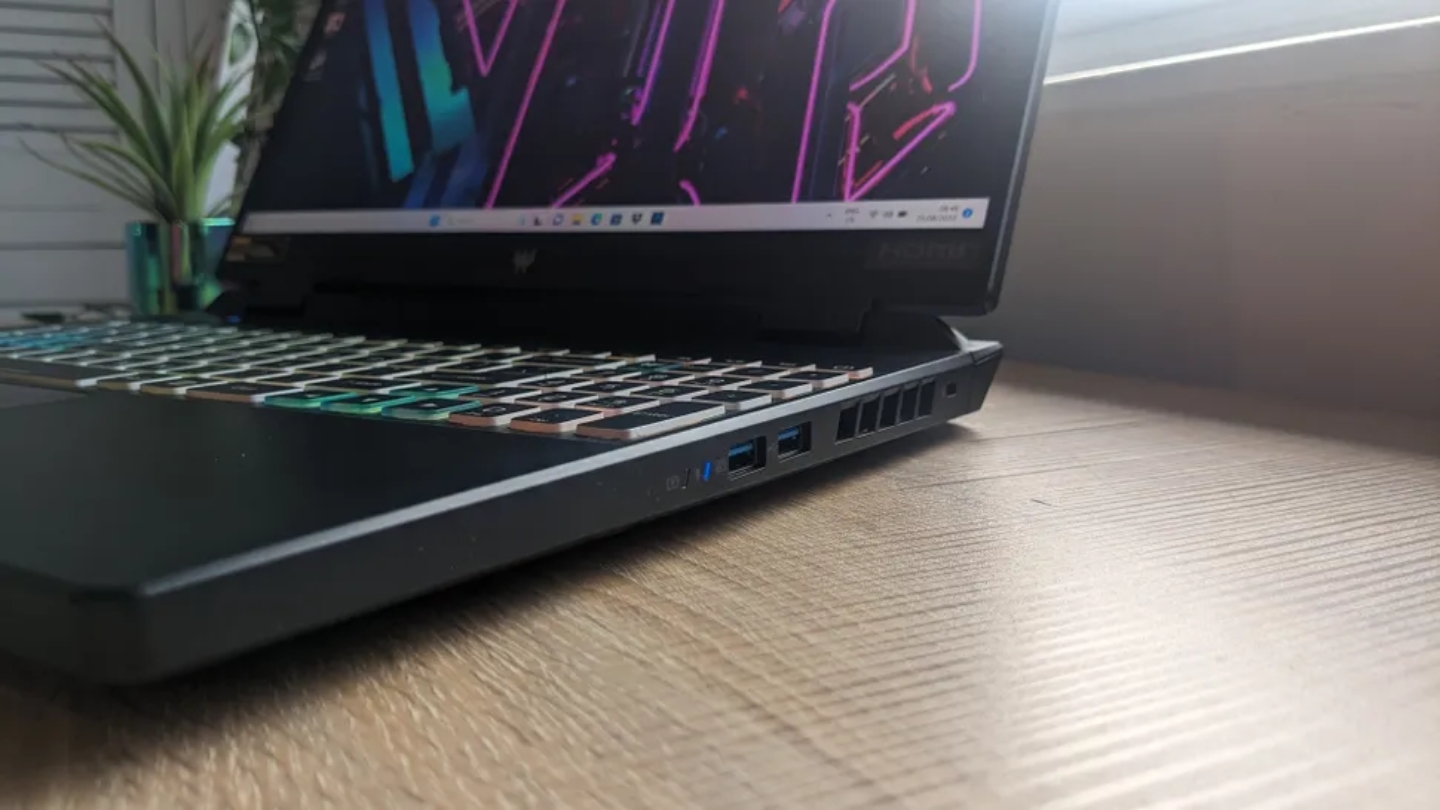
The thermal management that makes the i9 perform comes with audible consequences: the fans ramp up noticeably under extended encoding load, and the side vents exhaust hot air toward the right side of the desk - directly into the space where a mouse typically sits. Under moderate creative workloads - timeline editing, color grading, proxy playback - the fans stay quieter and the thermal output is manageable. The battery life reflects the platform: 3-4 hours under editing conditions, which makes this a desk machine by practical necessity. The 90Wh battery is among the larger capacities in this category, but the i9-14900HX draws at a rate that outpaces it quickly under sustained load.
Connectivity is thorough for a machine that targets creators: dual USB-C 3.2 Gen 2 ports alongside two USB-A 3.2 Gen 2, HDMI 2.1, Thunderbolt 4, and a full RJ45 Ethernet port. Thunderbolt 4 opens the door to external GPU enclosures, high-bandwidth storage arrays, and Thunderbolt docking stations - options a standard USB-C with DisplayPort won't accommodate. For Premiere Pro editors running heavy CPU pipelines who primarily work at a desk and want the fastest encoding throughput in this price tier, the Helios Neo 16 earns its spot at the top of the Windows stack on this list.
Pros:
- i9-14900HX (24 cores) - fastest CPU encoding on this list
- 100% sRGB 16" display with 16:10 aspect ratio
- AeroBlade 3D cooling sustains performance under load
- Thunderbolt 4 port for high-bandwidth peripherals
- Full-size keyboard with numpad
Cons:
- Fan noise significant under sustained encoding load
- Side vents exhaust heat toward mouse position
- Battery 3-4 hours under editing load
Summary: Acer Predator Helios Neo 16 is the machine for Premiere Pro editors who encode frequently and want the fastest CPU throughput available in this price range. The i9-14900HX with proper thermal support converts 4K footage faster than any other laptop here. Stay near an outlet and expect fan noise during heavy sessions.
Video Editing Laptop: FAQ
Is 16GB RAM enough for 4K video editing?
For 4K editing with proxy workflows - where the software generates lower-resolution proxies for editing and switches to full resolution for export - 16GB handles most projects without issue. Working directly with 4K RAW files, running multiple applications simultaneously, or editing multi-camera sequences with many streams will surface the limitation. The Dell G15 5530's 32GB configuration is the safest choice for anyone whose workflow regularly involves complex timelines or running Premiere alongside After Effects. If you're starting with 16GB, make sure the laptop you buy allows RAM upgrades - both the MSI Katana 15 and ASUS TUF A17 do, up to 64GB in the Katana's case.
Should I use DaVinci Resolve or Premiere Pro on a MacBook?
Both run on macOS and both are optimized for Apple Silicon to varying degrees. Final Cut Pro delivers the most complete M4 hardware acceleration, using the Media Engine most aggressively and producing the fastest export times on the MacBook Air. DaVinci Resolve's Metal implementation on M-series chips is excellent and a strong second choice. Adobe Premiere Pro runs on macOS but its Apple Silicon optimization has historically lagged behind the other two - hardware encoding acceleration works, but the depth of integration is narrower. If the software choice is open, Final Cut Pro or DaVinci Resolve will make better use of the M4 MacBook Air's architecture.
What's the difference between RTX 4050, RTX 4060, and the M4 GPU for video editing?
The RTX 4050 and RTX 4060 are NVIDIA Ada Lovelace architecture GPUs with CUDA cores that accelerate GPU-based effects in Premiere, Resolve, and After Effects. The RTX 4060's 8GB GDDR6 and higher CUDA count gives it a clear lead over the 4050's 6GB in tasks that saturate VRAM or benefit from additional compute units. The M4's GPU draws from the same unified memory pool as the CPU - 16GB shared across both, with no separate VRAM allocation. For ProRes and hardware-decoded formats on macOS, this unified design outperforms both NVIDIA options at the same price. For CUDA-dependent workflows on Windows, the RTX 4060 outperforms the M4 GPU significantly.
Can any of these laptops handle 4K60 multicam editing?
With proxy workflows, all five machines handle 4K60 multicam editing. Without proxies - editing directly from native 4K60 files - the Dell G15 5530 and Acer Helios Neo 16 with their RTX 4060 at full 140W TGP manage multiple streams best among the Windows machines. The MacBook Air M4 handles 4K multicam in Final Cut Pro very well due to the hardware decode engines, but showed playback stuttering in testing when multiple 4K 120fps streams ran simultaneously. For the most demanding multicam workloads, the MacBook Pro M4 with active cooling is a better fit than the Air.
Do any of these machines work for audio production alongside video editing?
All five support DAW software running alongside video editing applications, with the caveat that simultaneous workloads strain RAM and CPU. The MacBook Air 15 M4 is the quietest - no fan means no fan noise bleed into audio monitoring. The Acer Helios Neo 16 and Dell G15 produce fan noise that makes audio monitoring through the laptop's speakers unreliable during heavy sessions. Closed-back headphones or studio monitors solve this for any machine. The Dell G15's 32GB RAM makes multi-application workloads - Premiere, Audition, and a browser with reference tracks open - more manageable without memory pressure than the 16GB alternatives.
Which of these laptops is best for working without an external monitor?
The MacBook Air 15 M4 with its P3 Liquid Retina display and the Acer Helios Neo 16 with its 100% sRGB 16" panel are the two machines where color editing on the built-in screen produces results you can trust. The Dell G15 5530's 100% sRGB display is also accurate but smaller at 15.6 inches. The ASUS TUF A17 and MSI Katana 15 have color coverage that makes grading on the built-in display unreliable - for those two machines, budget for an external calibrated monitor alongside the purchase if color accuracy matters to your work.
How much storage do I actually need for video editing?
Active project storage and OS plus application storage should live on separate volumes where possible. For the laptop's internal drive, 1TB covers the OS, applications, and a working project or two with room to archive. The 2TB in the Dell G15 5530 gives more breathing room for ongoing projects before offloading to external storage. Video files are large: one hour of 4K H.264 footage runs roughly 50GB, and ProRes 4K at the same duration runs closer to 400GB. External NVMe drives connected via Thunderbolt or USB-C with DisplayPort provide the most practical storage expansion - fast enough to edit from directly and cheaper per gigabyte than the internal drive upgrades any of these manufacturers charge for.
Which Machine Fits Your Edit Bay
Platform is the first fork in the road. If your pipeline runs on Final Cut Pro or DaVinci Resolve on macOS and you move between locations, the MacBook Air 15 M4 offers something no Windows machine at this price can replicate: a machine that edits 4K footage on a plane for ten hours without running out of battery. Add a fast external NVMe drive at purchase and the 256GB base storage stops being the constraint it otherwise would be.
For desk-based Windows editors, the decision comes down to what you optimize for. The Dell G15 5530 ships ready to edit - 32GB RAM, 2TB SSD, a trustworthy 100% sRGB panel, and an RTX 4060 at full power. No upgrades required before your first project. The Acer Predator Helios Neo 16 earns its position for editors who encode constantly - the i9-14900HX with proper cooling converts 4K footage faster than anything else at this price. The MSI Katana 15 is the budget-efficient RTX 4060 machine for editors who already have an external color-accurate monitor. And the ASUS TUF Gaming A17 is for the editor who lives inside a 17-inch timeline and grades on an external reference display.

Jeb here, your go-to geek for everything from video projection to the latest tech trends. As an avid outdoorsman, I enjoy using monoculars and binoculars for hunting, traveling, and birdwatching. Join me in exploring the cool, quirky side of technology!


