Best Wireless Mouse for Productivity
The mouse I used for the first four years of my career was a wired optical relic I found in a desk drawer on my first day at the job. It worked. That was its only qualification. When I finally started paying attention to what my hand was doing for eight hours a day, I realized I'd been spending the equivalent of a monthly gym membership per year on ibuprofen and wrist braces. The mouse was the variable I'd never adjusted.
Five wireless mice across five different philosophies: a Logitech that has owned the productivity category for most of a decade, a Razer that brings gaming-grade sensor hardware into an ergonomic workday shell, an Apple that trades ergonomics entirely for gesture depth, a Kensington trackball that eliminates wrist movement at the source, and a Microsoft built around the single requirement of always being there when you need it. One of these matches how your hand actually spends its day.
Two mice to put on your shortlist right now if you need an answer fast:
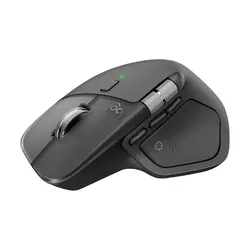
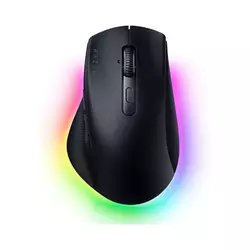
We may earn a small commission if you buy via our links - it helps keep gagadget.com running.
Table of Contents:
- Best Wireless Mouse for Productivity: Buying Guide
- Top 5 Wireless Mice for Productivity in 2026
- Wireless Productivity Mouse Comparison
- Logitech MX Master 4
- Razer Pro Click V2
- Apple Magic Mouse
- Kensington Expert Trackball
- Microsoft Modern Mobile Mouse
- Wireless Productivity Mouse: FAQ
Best Wireless Mouse for Productivity: Buying Guide

Choosing a wireless productivity mouse is less about raw sensor performance - that bar has been cleared by almost everything in this category - and more about what your hand is doing during eight-hour sessions and what your workflow requires from a device you touch more than any other piece of hardware on your desk. The meaningful variables are ergonomic shape, connection reliability, battery longevity, and whether the software layer the mouse depends on adds to your workflow or just adds friction.
Ergonomic Shape: What Fits and What Costs You Later
The shape of a mouse determines how much your hand, wrist, and forearm work during a session. A traditional flat mouse keeps the wrist pronated for hours - a posture that accumulates into strain that shows up months before you trace it to a peripheral. Right-handed sculpted mice like the Logitech MX Master 4 and Razer Pro Click V2 address this with a tilt toward a more neutral forearm position. Trackballs go further: the Kensington Expert eliminates wrist motion almost entirely, since you're moving a ball rather than a device. The Apple Magic Mouse sits at the opposite extreme - flat, ambidextrous, gesture-surface over everything else.
Hand size matters more than most reviews acknowledge. A large palm on a compact mouse forces fingers to hover, creating tension that builds over hours. Mice in the 120-130mm range suit medium to large hands. Compact travel mice work best for claw and fingertip grip, not full palm contact.
Grip style shapes the decision as much as ergonomics. Palm grip - full hand contact - needs a larger mouse with a pronounced arch. Claw grip works across a wider size range. The MX Master 4 and Pro Click V2 are both optimized for palm and claw; the Modern Mobile Mouse is a fingertip device that becomes uncomfortable in extended desk sessions for anyone used to resting their palm.
Connection Type: Bluetooth vs. 2.4GHz Dongle
The practical difference between Bluetooth and a 2.4GHz dongle matters depending on your setup. A dedicated receiver - Logitech's Bolt, Razer's HyperSpeed - delivers lower and more consistent latency, better suited for a stationary desk. Bluetooth saves a USB-A port and enables multi-device pairing without swapping hardware. The MX Master 4 and Pro Click V2 support both, while the Apple Magic Mouse and Microsoft Modern Mobile use Bluetooth only.
Logitech Flow extends multi-device support into file and clipboard transfer between paired computers. For anyone who runs a Mac and a Windows machine on the same desk, this removes the need for cloud storage or USB drives for routine content moves - a small thing that turns into a daily habit quickly.
Battery Life: Charged vs. Rechargeable vs. Replaceable
Battery architecture separates these mice along practical lines. The MX Master 4 rates at 70 days on a full charge, and USB-C fast charge gives three hours from a one-minute top-up. The Pro Click V2 rates at 3.5 months on Bluetooth with RGB off. The Modern Mobile runs on two AAA batteries for up to 12 months - zero charging overhead, at the cost of keeping spares around. The Apple Magic Mouse charges via USB-C, but the port on the underside means the device is unusable while it charges.
Manufacturer battery ratings assume Bluetooth, RGB off, and conservative polling. Real-world figures with a dongle and active features typically run 30-50% lower. The MX Master 4's one-minute fast charge makes this largely academic at a desk.
Port placement matters more than the spec sheet suggests. USB-C on the front or side - as on the Razer Pro Click V2 - means charging and working simultaneously. Apple's choice to put the port on the Magic Mouse's underside has drawn consistent criticism across every generation, and the 2024 USB-C update didn't change that geometry.
Scroll Wheels: Mechanical vs. MagSpeed vs. Trackball Ring
Scroll wheel quality affects productivity more directly than most people anticipate until they switch. A standard ratcheted wheel clicks through content one detent at a time - precise for line-by-line work, slow for long documents. Logitech's MagSpeed electromagnetic wheel shifts between ratcheted and free-spin modes: one flick traverses thousands of spreadsheet rows in under a second. The Razer Pro Click V2's tilt wheel adds left-right scrolling - horizontal navigation without a second wheel, useful for wide timelines and spreadsheets.
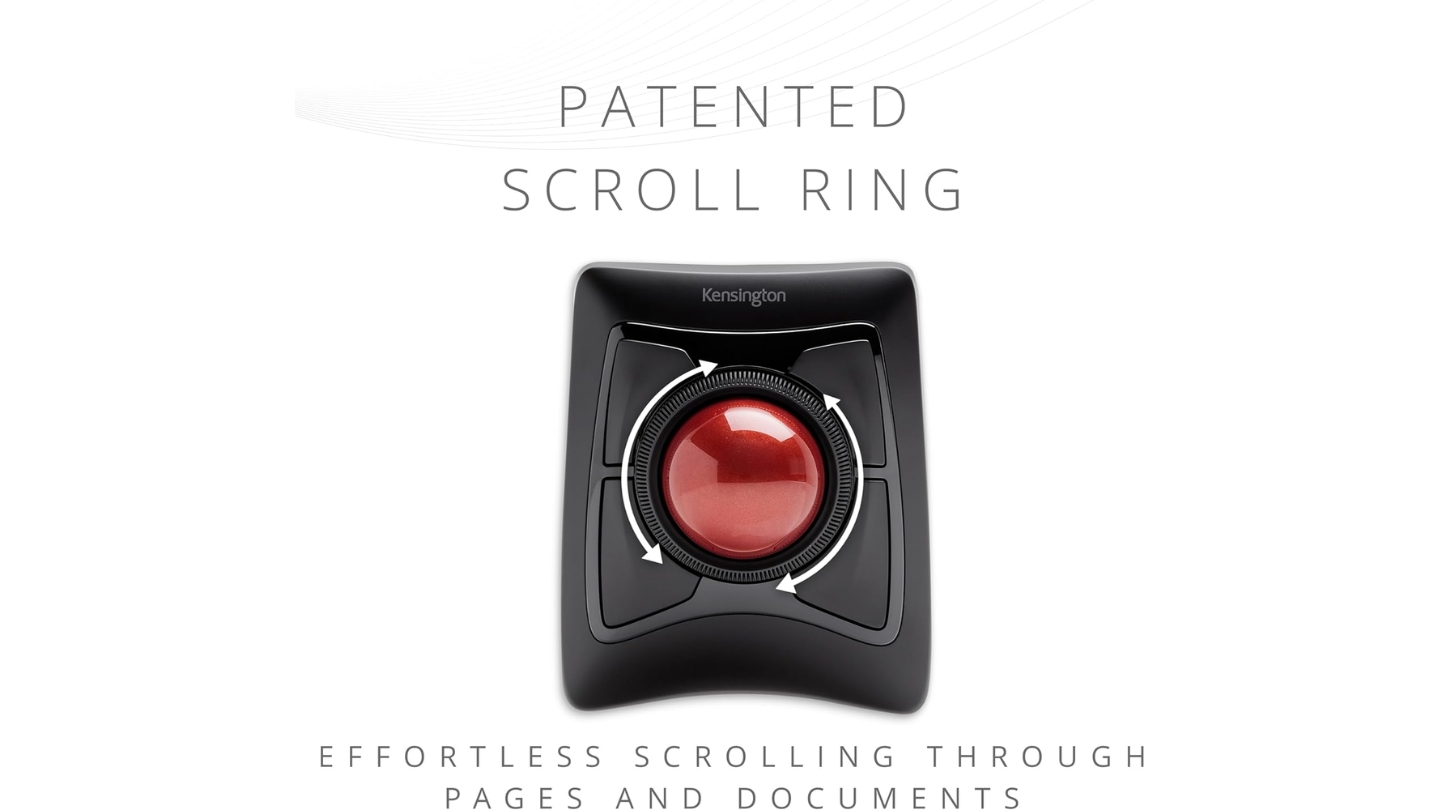
The Kensington Expert Wireless Trackball routes scrolling through its patented Scroll Ring - a ring around the ball operated by the ring finger, keeping the entire hand stationary during navigation. The Microsoft Modern Mobile Mouse uses a standard ratcheted wheel with no free-spin option. Each approach suits different workload paces: ratcheted for precision, free-spin for speed, the Scroll Ring for users who need to keep wrist movement minimal throughout.
Software: What You Get and What It Costs You
Every mouse here except the Apple Magic Mouse relies on dedicated software to unlock its full feature set. Logitech Options+ supports app-specific profiles, Smart Actions, AI text tools, and the Action Ring system. Razer Synapse handles the Pro Click V2's button mapping, DPI cycling, RGB, and profiles - more mature than earlier versions, though heavier on system resources. KensingtonWorks manages four-button customization and cursor speed, but Mac users need the USB dongle to access all features. The Modern Mobile Mouse uses native OS settings only - zero overhead, zero programmability beyond the default.
App-specific profiles multiply a mouse's value. Six buttons with one global profile gives six shortcuts. Six buttons with per-app profiles gives six shortcuts in every application. Options+ and Synapse both support this. KensingtonWorks supports it on Windows. The Magic Mouse doesn't.
Software overhead is worth factoring in for managed IT environments or minimal-footprint setups. Options+ and Synapse both run background processes to maintain profile switching. The Magic Mouse and Modern Mobile sidestep this entirely - the tradeoff being that OS-native settings offer a fraction of what dedicated software enables.
Top 5 Wireless Mice for Productivity in 2026
After extended desk sessions across different workload types - heavy browser use, spreadsheet navigation, code editing, document writing, and multi-monitor management - these five mice represent the full range of what wireless productivity hardware can actually do.
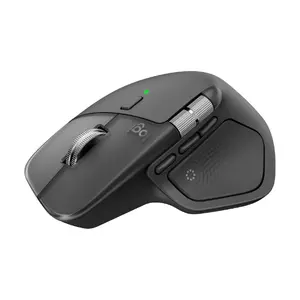
- MagSpeed electromagnetic scroll wheel
- Action Ring with haptic feedback
- 70-day battery with 1-minute USB-C fast charge
- Darkfield sensor tracks on glass
- Multi-device Easy-Switch
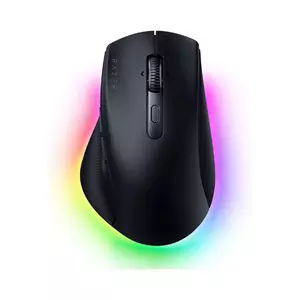
- Focus Pro 30,000 DPI sensor at 1,000Hz
- 106g - significantly lighter than MX Master 4
- HyperScroll tilt wheel with free-spin
- USB-C charging port on the front
- Multi-device support
- Full multi-touch surface
- 99g, compact profile
- Ambidextrous design
- USB-C with Bluetooth 5.3
- No software needed
- Eliminates wrist translation
- 55mm ball with DiamondEye sensor
- Patent Scroll Ring
- Ambidextrous layout
- AA batteries
- BlueTrack sensor
- 96g, slim profile
- AAA batteries rated at 12 months
- Bluetooth-only with no software required
- Multiple color options, ambidextrous shell
Wireless Productivity Mouse Comparison
Complete technical breakdown across all five mice:
| Specification | Logitech MX Master 4 | Razer Pro Click V2 | Apple Magic Mouse | Kensington Expert Trackball | Microsoft Modern Mobile |
| Sensor | Darkfield 8,000 DPI | Focus Pro Optical 30,000 DPI | 1,000 DPI Optical | DiamondEye Optical | BlueTrack |
| DPI Range | 200 - 8,000 | 100 - 30,000 | Fixed (not adjustable) | Adjustable via software | Fixed (not adjustable) |
| Connection | Bluetooth + Logi Bolt USB-C | Bluetooth + HyperSpeed 2.4GHz | Bluetooth only | Bluetooth + 2.4GHz USB | Bluetooth only |
| Battery Life | 70 days (built-in 650mAh) | ~3.5 months (Bluetooth, RGB off) | ~1 month (built-in) | AA batteries (no rating given) | Up to 12 months (2x AAA) |
| Charging | USB-C fast charge (1 min = 3 hrs) | USB-C, use while charging | USB-C (cannot use while charging) | Not rechargeable | Not rechargeable |
| Buttons | 8 programmable | 9 programmable | 2 (gesture surface) | 4 programmable | 2 + scroll wheel |
| Scroll | MagSpeed electromagnetic | HyperScroll tilt wheel | Touch surface gestures | Patent Scroll Ring | Standard ratcheted wheel |
| Weight | ~150g | ~106g | ~99g | ~396g | ~96g |
| Multi-Device | Yes (up to 3 devices, Easy-Switch) | Yes (up to 5 devices) | No | No | No |
| Haptic Feedback | Yes (Action Ring + gestures) | No | No | No | No |
| Software | Logi Options+ | Razer Synapse | macOS native | KensingtonWorks | None required |
| OS Compatibility | Windows, macOS, Linux, ChromeOS | Windows, macOS | macOS, iPadOS | Windows, macOS (dongle only for full software) | Windows, macOS |
| Hand Orientation | Right-handed | Right-handed | Ambidextrous | Ambidextrous | Ambidextrous |
Each mouse here reflects a different answer to the same question: what does your hand need for the next eight hours? The right answer depends on your grip, your workflow, and how much of your day involves switching between applications, navigating long documents, or moving between machines.
Logitech MX Master 4 Review
Editor's Choice
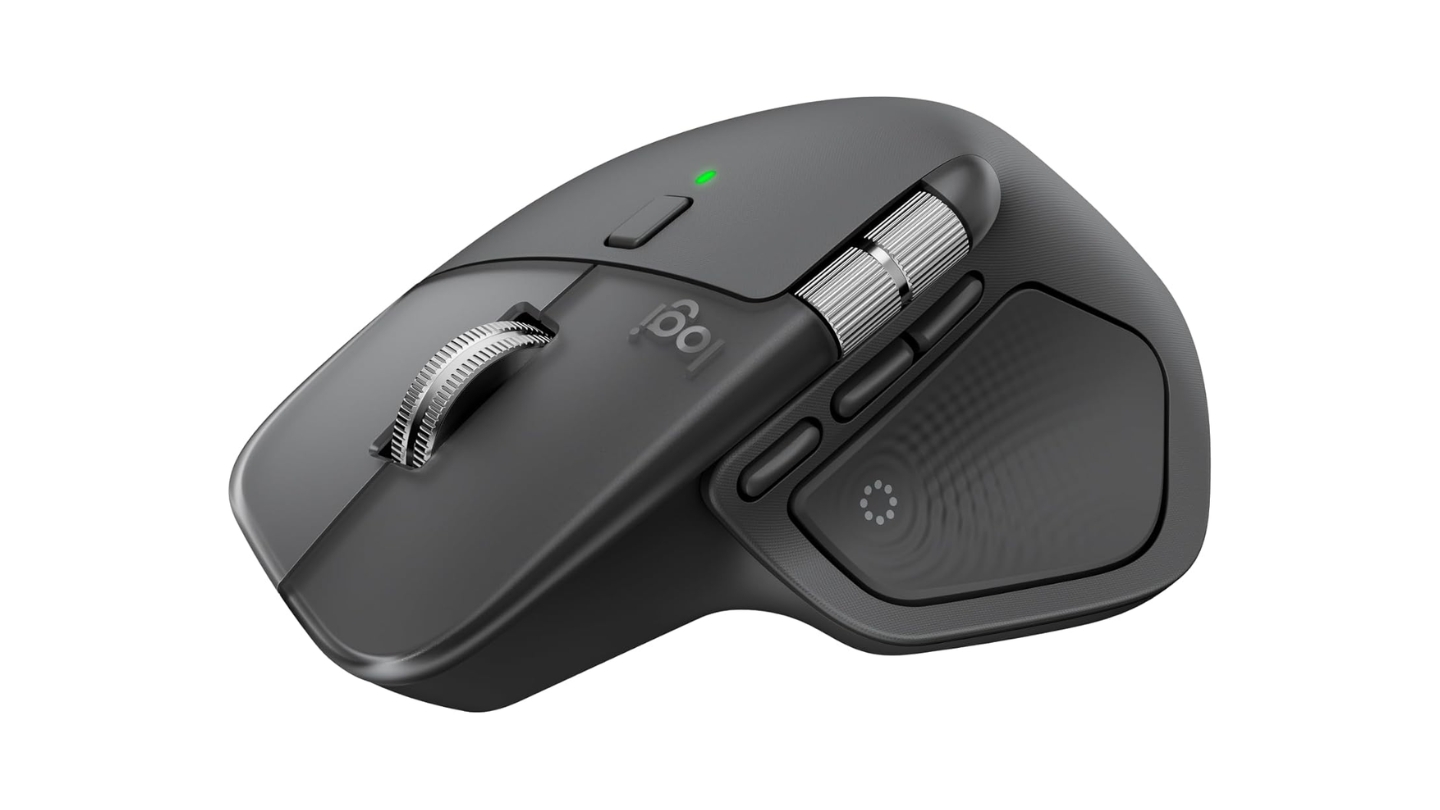
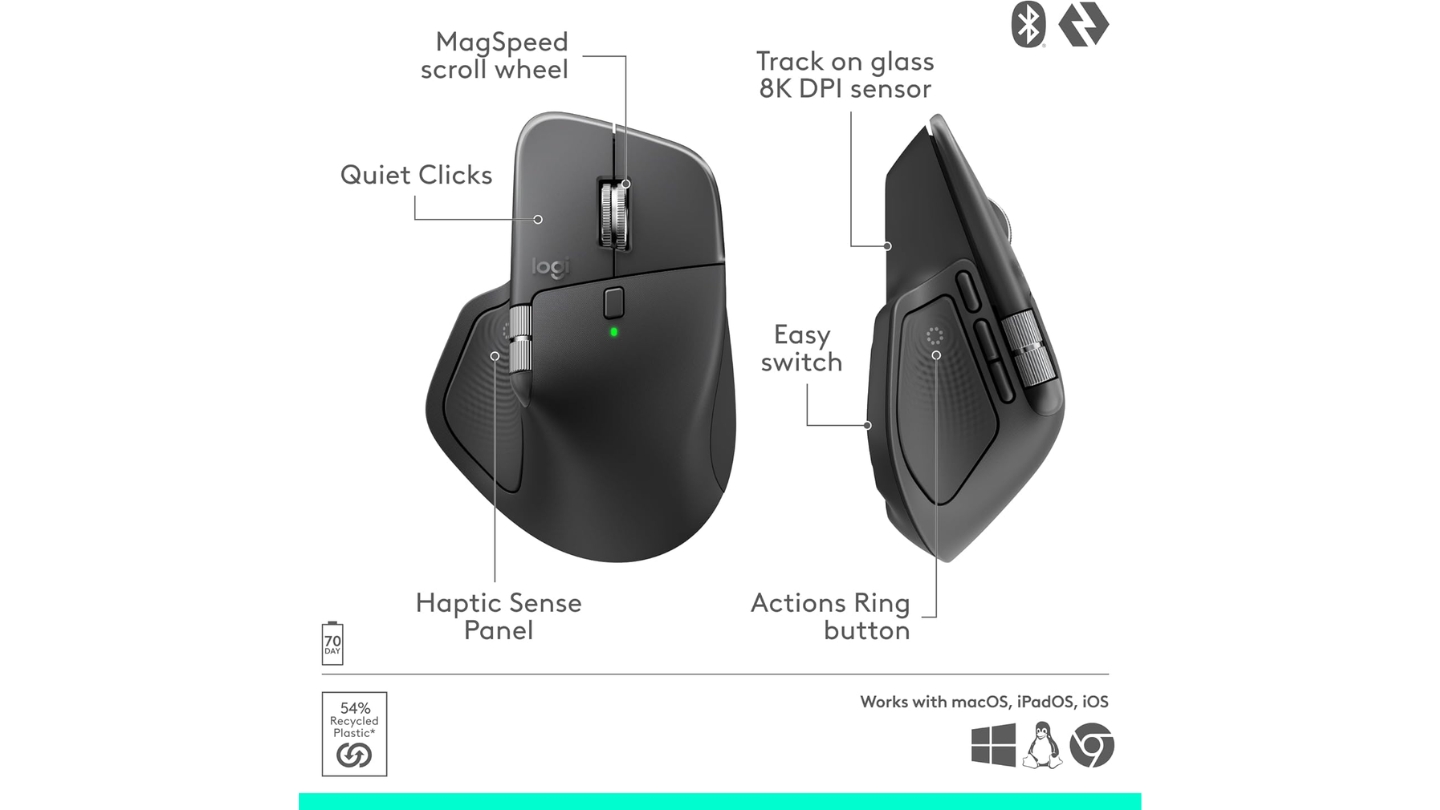
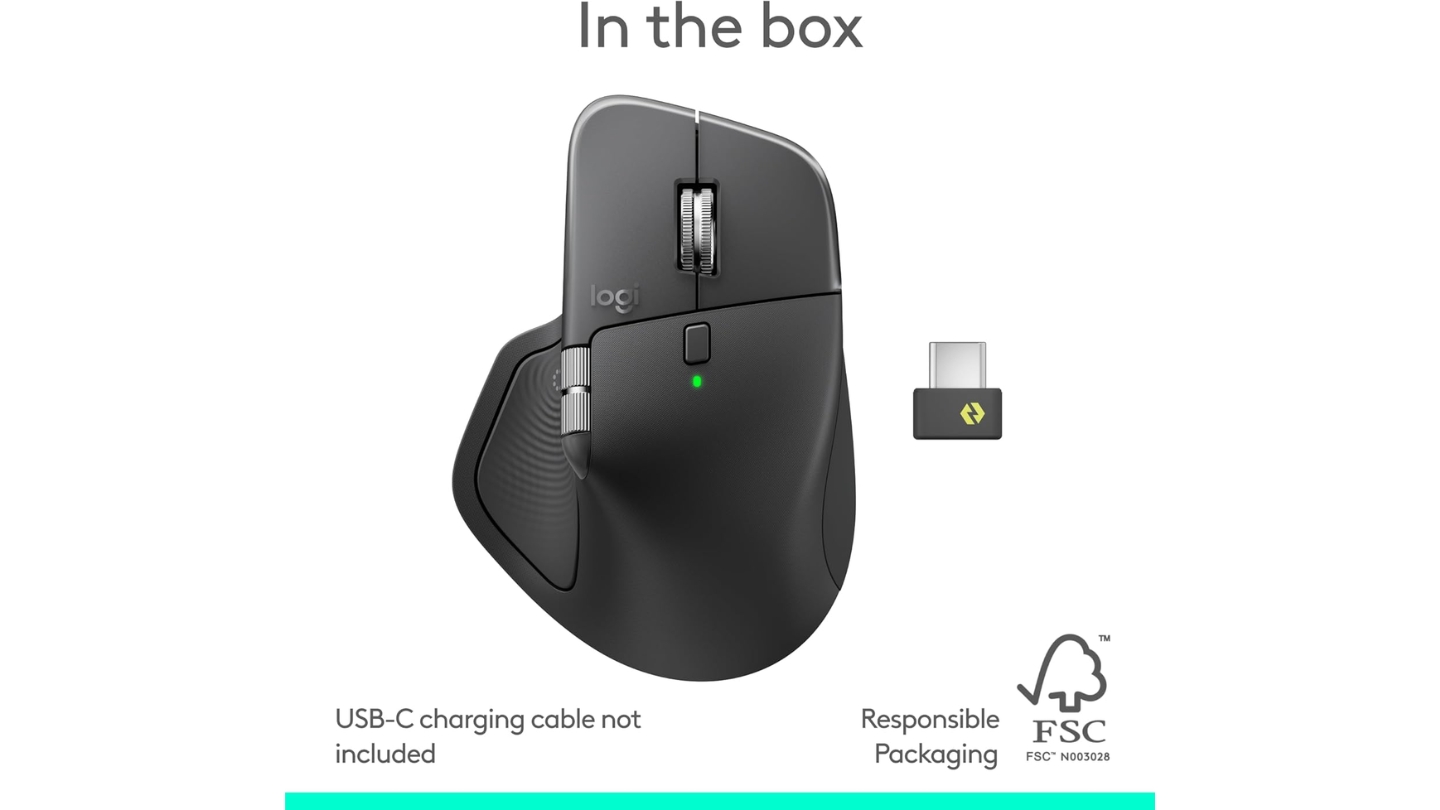
Ask anyone who's used the MagSpeed wheel on a previous MX Master why they keep buying into the line, and the answer is almost always the scroll wheel. On the Logitech MX Master 4, it's still the defining feature: one tap shifts it from precise ratcheted clicks into free-spin, where a single push covers thousands of spreadsheet rows in under a second. The muscle memory for switching modes mid-task takes about three days to build and then becomes invisible. The new addition this generation is the Action Ring - a radial shortcut menu on the thumb pad with configurable haptic feedback. Configured for Figma and the browser in my workflow, it collapsed four keyboard shortcuts into a single thumb movement I now reach for automatically.
The shell has been tightened in ways that matter over a long session. The thumb rest sits at a more natural angle than on the MX Master 3, primary click buttons are wider and easier to land without looking, and the rubberized panels have been replaced with matte plastic that resists wear and feels cleaner after hours of contact. The 8,000 DPI Darkfield sensor tracks on glass and virtually any surface. Easy-Switch pairs to three computers and Logitech Flow moves files and clipboard content between them without cloud storage - for anyone running a Mac and a Windows machine on the same desk, that alone changes daily logistics.
Battery life is rated at 70 days, and a one-minute USB-C top-up buys three hours - so even a depleted battery rarely interrupts a workday. The 125Hz polling rate is a deliberate trade-off to reach that runtime, and it's a reasonable one for everything short of pixel-precision design work. Logi Options+ handles app-specific profiles, Smart Actions, and AI text tools, and it's mature enough now that configuration time pays back quickly.
Three weeks in, the MX Master 4 does what the best productivity hardware does: it stops being something you think about. The haptics confirm actions without sound, the Action Ring routes shortcuts the fingers learn before the brain does, and the software depth is there when you want it and absent when you don't. The category has had a clear leader for years, and this generation doesn't change that.
Pros:
- MagSpeed electromagnetic scroll wheel
- Action Ring with haptic feedback
- 70-day battery with 1-minute USB-C fast charge
- Darkfield sensor tracks on glass
- Multi-device Easy-Switch
Cons:
- 150g weight and right-hand-only shell - too large for small hands
- 125Hz polling rate and full feature set require Logi Options+ installation
Summary: The Logitech MX Master 4 is the productivity mouse for desk workers who want the deepest feature set, the best scroll wheel in the category, and a software platform that grows with their workflow. Best for Windows and Mac users who work long sessions at a fixed desk and switch regularly between two or three paired devices.
Razer Pro Click V2 Review
Best Overall
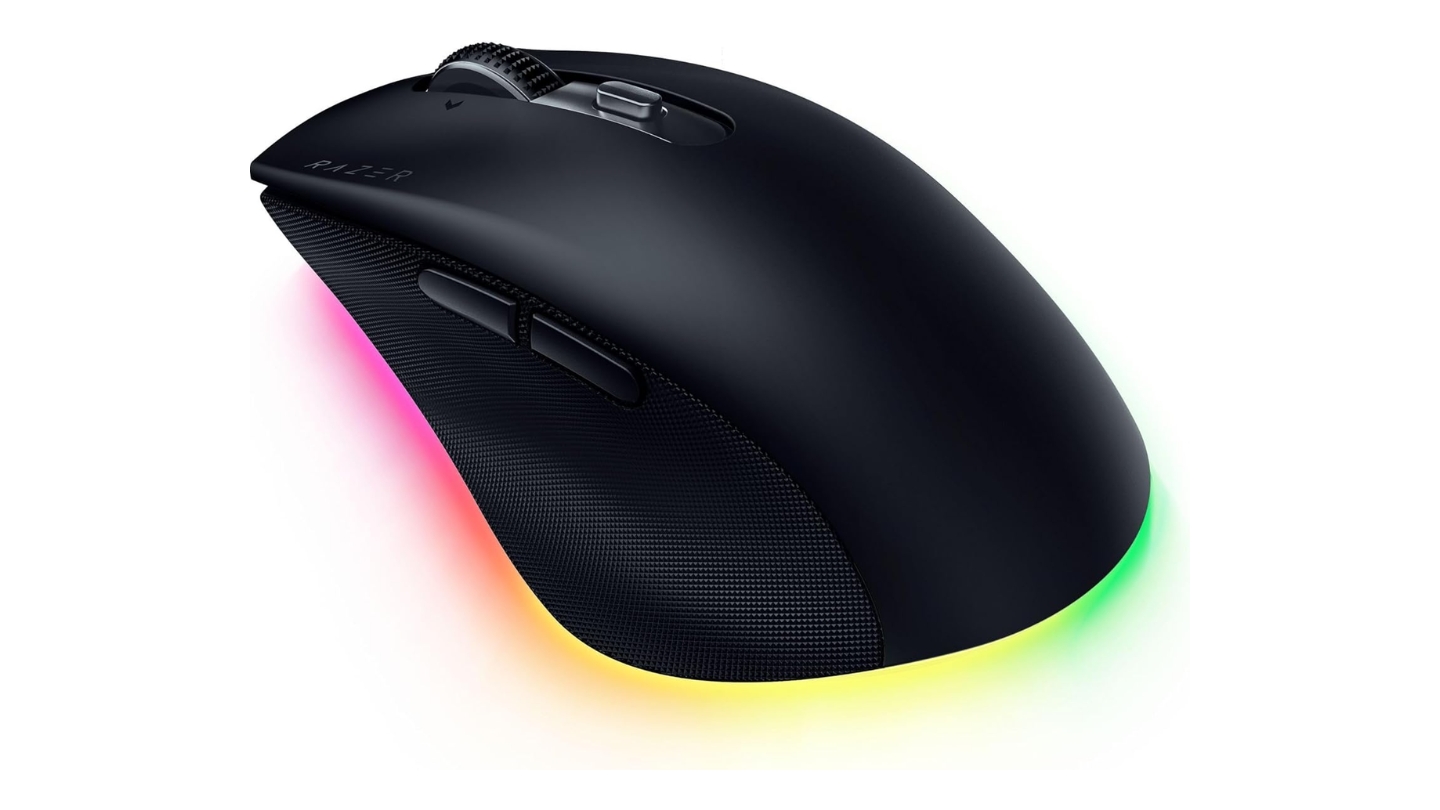
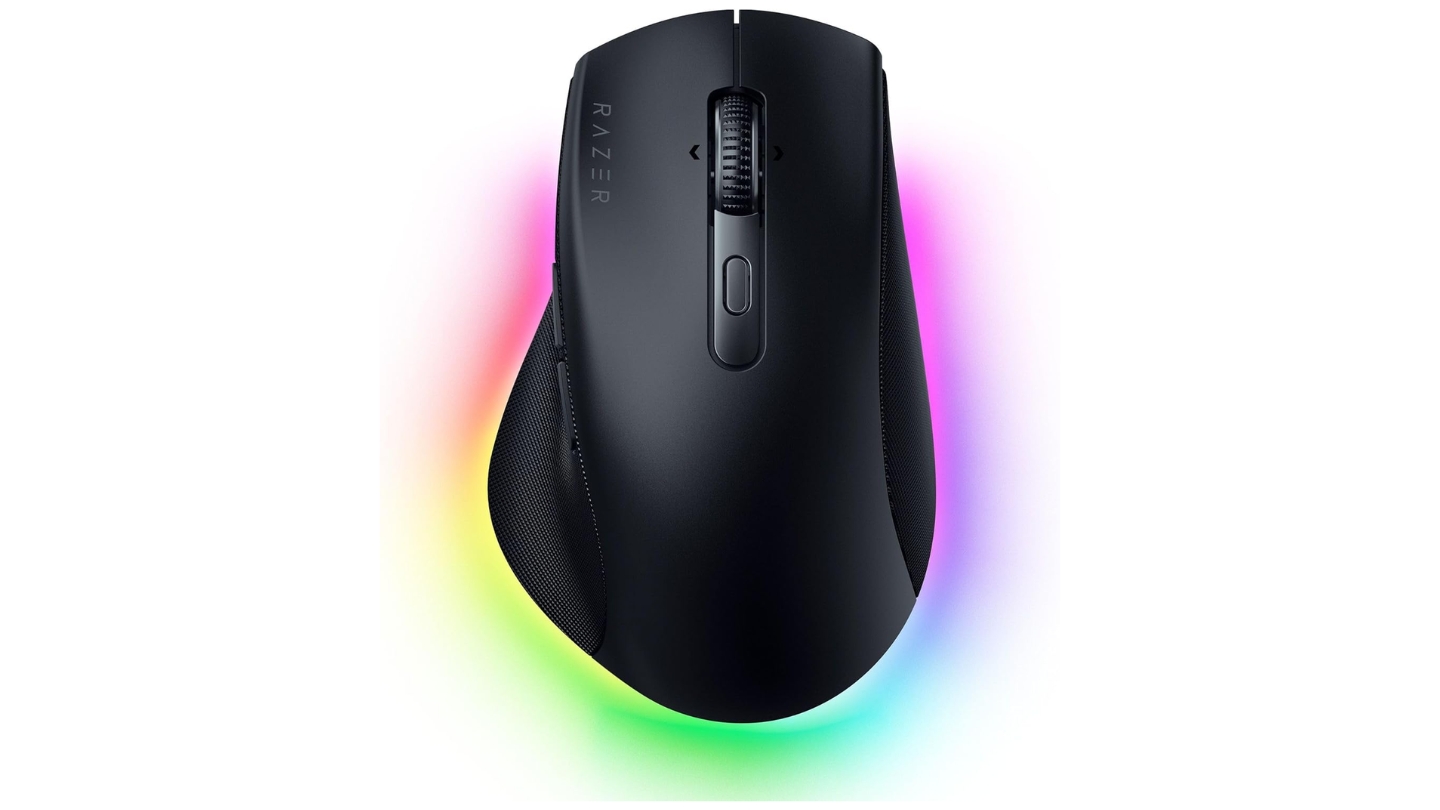
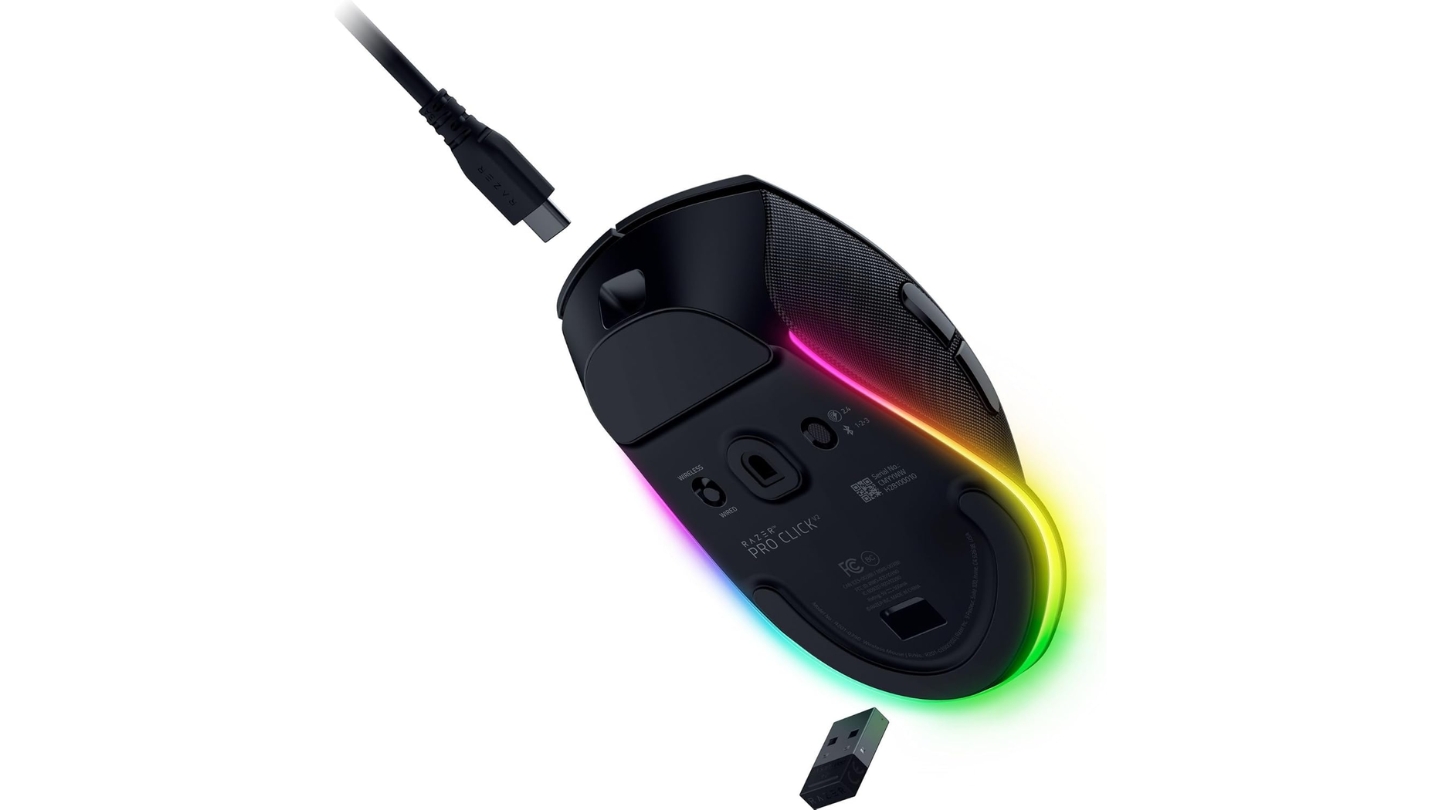
The premise of the Razer Pro Click V2 is that there's no real reason a productivity mouse shouldn't have a gaming-grade sensor. The Focus Pro 30,000 DPI optical at 1,000Hz polling is hardware borrowed directly from Razer's competitive lineup, sitting inside a right-handed ergonomic shell with a 30-degree tilt, full palm support, and a pronounced thumb rest. The result weighs 106g - 44g lighter than the MX Master 4 - and it doesn't feel like a compromise in either direction.
Where the cursor precision actually shows up is in extended design sessions and video timeline work. Tracking is linear with no smoothing, which means the cursor goes exactly where you push it at any DPI setting. For anyone who's spent time fighting prediction algorithms on cheaper mice, that consistency is immediately noticeable. The HyperScroll tilt wheel adds left-right scrolling for wide spreadsheets and Premiere timelines via physical tilt rather than a separate wheel. Nine programmable buttons with per-app profiles through Razer Synapse gives the mouse a different shortcut set in each application - and Synapse, while heavier on resources than Logi Options+, is more stable than it was two generations ago.
Battery is rated at 3.5 months on Bluetooth with RGB off. With the dongle and some RGB active, weekly charging is realistic - but the USB-C port is on the front of the mouse, so charging and working at the same time is always an option. Multi-device support covers five paired devices. The AI Prompt Master button routes directly to ChatGPT or Copilot - easy to ignore if that's not part of your workflow, and genuinely useful if it is.
Two weeks of daily use left one clear conclusion: this is the mouse for people whose job requires the cursor to land exactly where they intend, who've always assumed that level of precision meant using a gaming peripheral and accepting the aesthetic trade-off. The Pro Click V2 drops that assumption.
Pros:
- Focus Pro 30,000 DPI sensor at 1,000Hz
- 106g - significantly lighter than MX Master 4
- HyperScroll tilt wheel with free-spin
- USB-C charging port on the front
- Multi-device support
Cons:
- Razer Synapse requires installation - heavier software footprint than Options+
- Right-hand only, no ambidextrous option in this form factor
Summary: The Razer Pro Click V2 is the productivity mouse for users who want gaming-grade sensor performance in an ergonomic shell, at a lighter weight than the MX Master 4. Best for designers, editors, and data workers who spend meaningful time on precision cursor work and want multi-device flexibility alongside it.
Apple Magic Mouse Review
Gesture Master
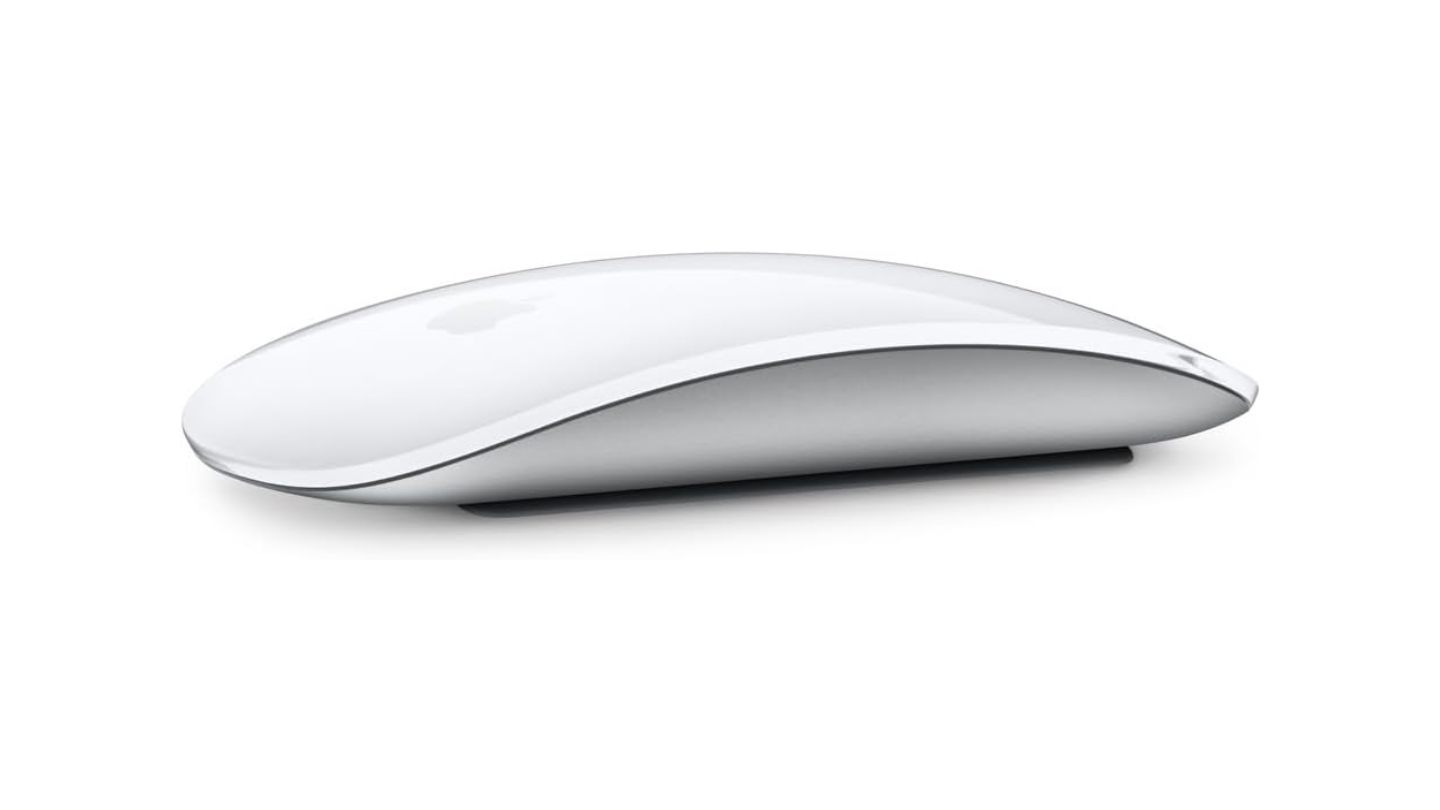
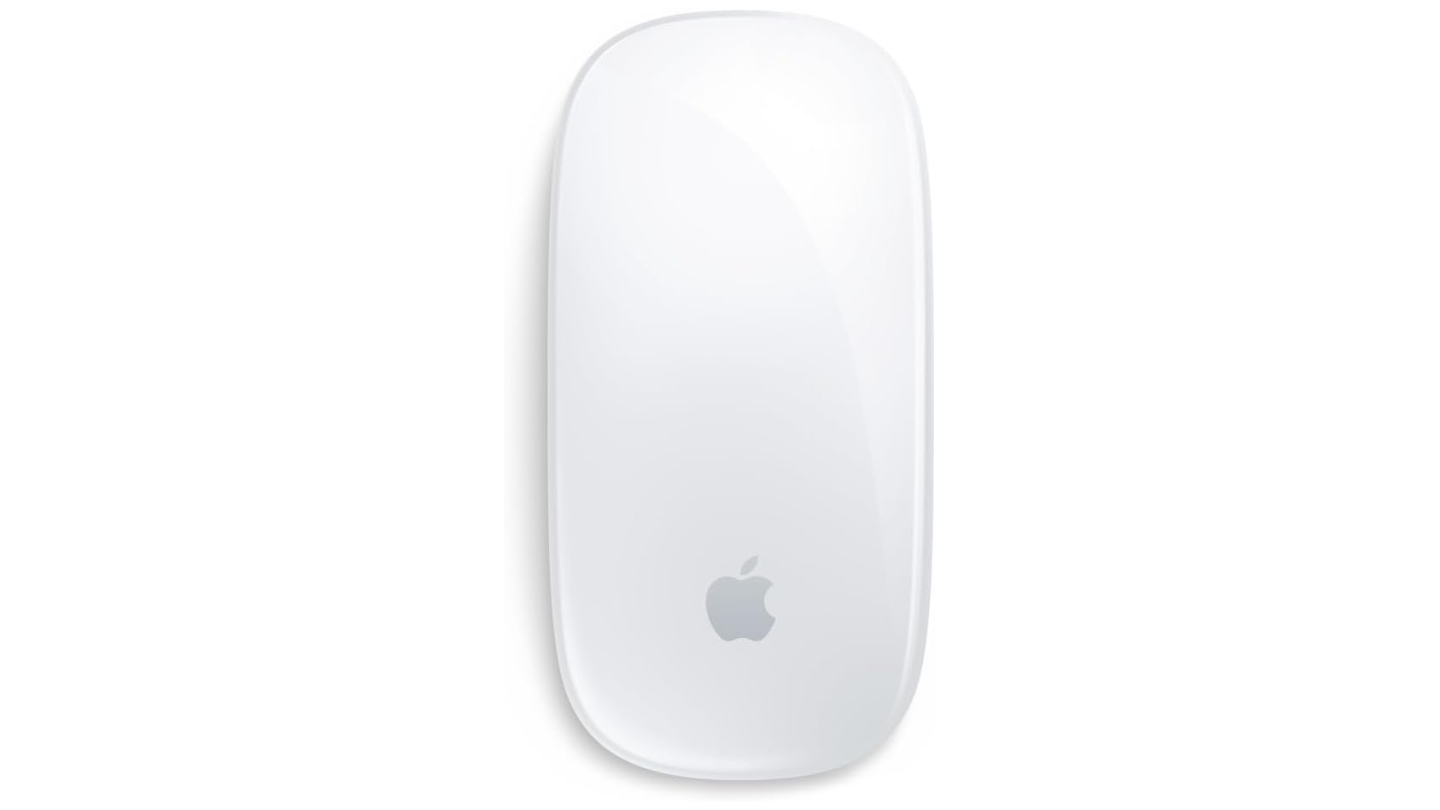
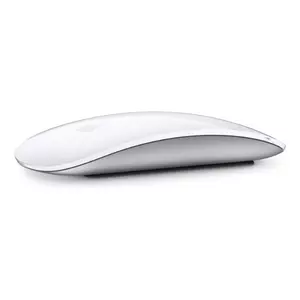
The Apple Magic Mouse is the only mouse in this roundup that asks you to give something up to use it. There's no scroll wheel, no side buttons, no ergonomic arch - just a flat glass surface that reads finger movement. In exchange, you get the deepest macOS gesture integration available on any mouse: Mission Control, full-screen swipes, natural scrolling in both axes with momentum, all handled through the same finger vocabulary as a MacBook trackpad. For Mac users who've built muscle memory around those gestures, the Magic Mouse is the one peripheral that carries them across surfaces.
The gesture experience is the reason people buy a third or fourth generation of a mouse they've owned for a decade despite its well-documented shortcomings. I tested it across two weeks of browser-heavy research and document work, and the two-finger horizontal swipe for Safari navigation - back, forward, without lifting off the surface - saved more reaching than I expected once the habit settled in. The 2024 update adds USB-C charging and Bluetooth 5.3. The 99g ambidextrous body travels easily and works natively with macOS gesture settings without any software installation.
The ergonomic cost is real and shouldn't be minimized. The profile tops out at roughly 21mm - the hand sits flat, there's no arch, no thumb rest. Fingertip grip users adapt. Palm grip users start to feel it within the first hour of a long session. For eight-hour desk workers, the physical accumulation over weeks is the reason most Magic Mouse reviews end with a caveat about secondary use rather than primary desk replacement.
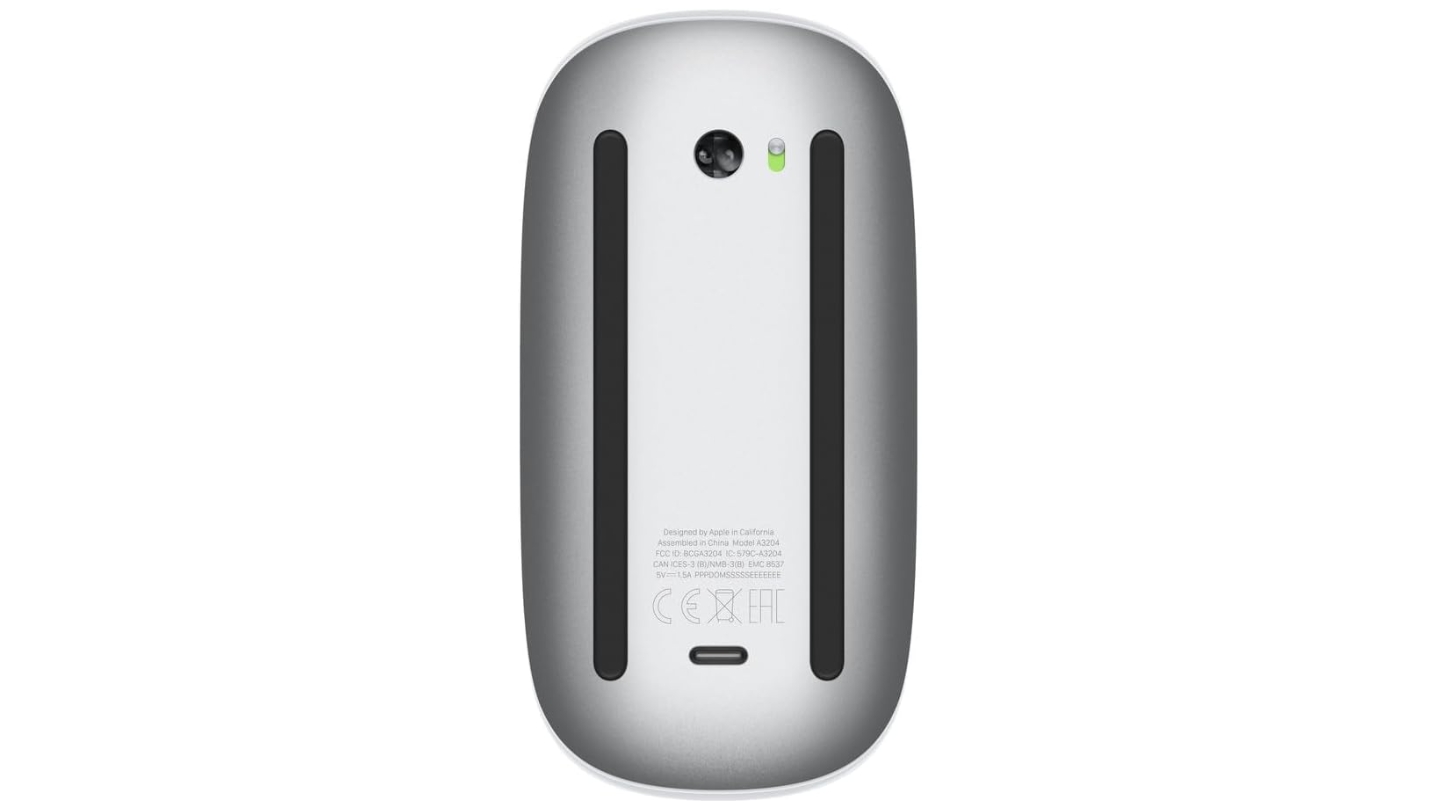
The charging port on the underside is the one decision that has defined this product's reputation more than any feature. It has to be flipped to charge and is unusable in that position - with about a month of battery life, that comes up regularly. On Windows it drops to basic cursor movement and two-button clicking. The Magic Mouse is an Apple ecosystem product, and it only makes full sense inside one.
Pros:
- Full multi-touch surface
- 99g, compact profile
- Ambidextrous design
- USB-C with Bluetooth 5.3
- No software needed
Cons:
- USB-C port on underside - cannot charge and use simultaneously
- Flat low-profile shape causes fatigue in long desk sessions for palm grip users
Summary: The Apple Magic Mouse is the right choice for Mac users whose workday runs through macOS-native applications and who value gesture-based navigation over ergonomic support. Best for light-to-moderate daily use, iPadOS workflows, and MacBook users who want gesture consistency between trackpad and mouse.
Kensington Expert Wireless Trackball Review
Desk Anchor
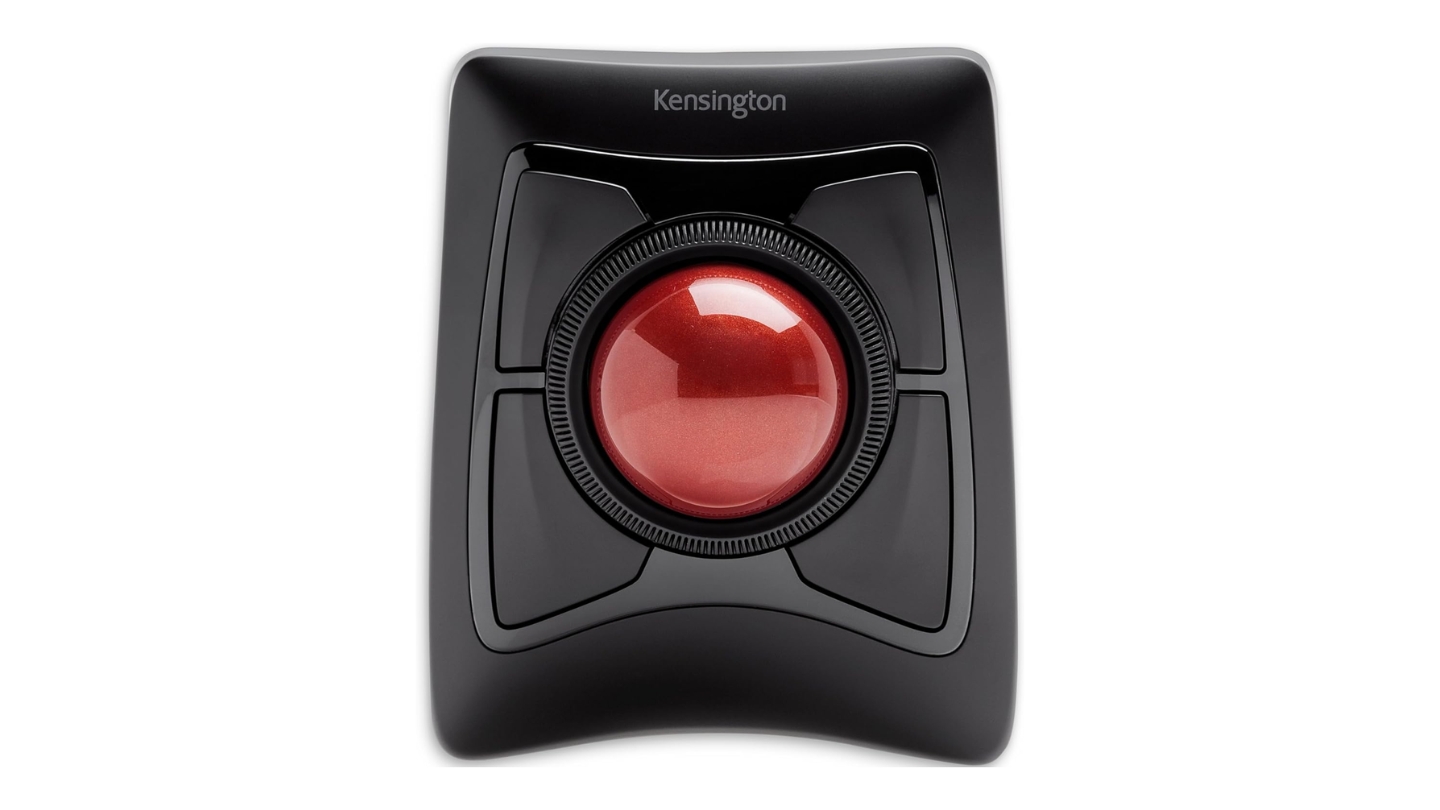
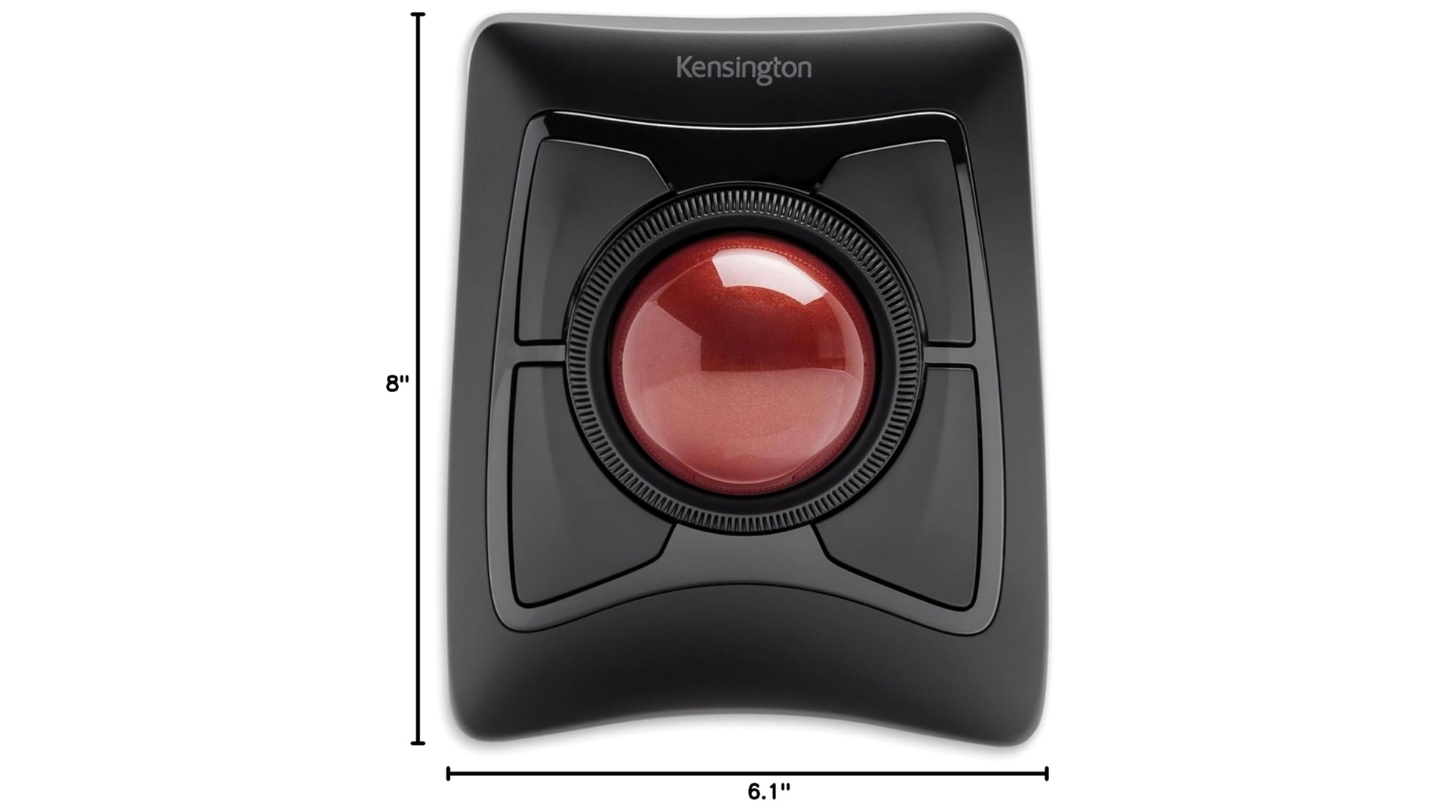
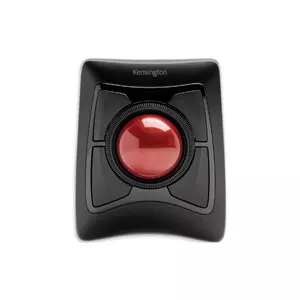
Most people who end up with the Kensington Expert Wireless Trackball on their desk didn't go looking for it - they arrived here after conventional mousing became physically uncomfortable. The device operates on a different principle than everything else in this roundup: you roll a 55mm ball with your fingers, the device stays planted on the desk, and the wrist translates nothing. For people managing repetitive strain injuries, recovering from wrist surgery, or simply accumulating enough hours at a desk that standard mousing has started to cost something by late afternoon, that difference is meaningful.
The DiamondEye sensor under the ball is accurate once calibrated through KensingtonWorks, and the Scroll Ring - a rotating collar around the trackball operated by the ring finger - handles vertical scrolling without any hand movement. Four large buttons in an ambidextrous layout are all programmable on Windows, though Mac users need the USB dongle to access software customization. The wrist rest in the box is a genuine addition. Expect one to two weeks before cursor control feels natural after switching from a conventional mouse - for RSI users, physical relief tends to arrive before accuracy does.
At 396g it doesn't move during fast ball movements, which is useful, and it doesn't leave the desk, which rules out travel entirely. Battery runs on AA cells, six months to a year typically. Worth noting for units from late 2023 onward: the mouse wakes on button click rather than ball movement, and that wake click registers in the OS - occasionally landing on something unintended after a long stretch of keyboard-only work. Scroll Ring smoothness varies by unit and smooths out with use.
Four weeks on a daily desk confirmed what the trackball community has maintained for a long time: the absence of wrist movement across a surface is a genuine ergonomic shift, not just an ergonomic theory. For audio engineers, data analysts, CAD users, and anyone at the point where a conventional mouse is adding a physical cost to the workday - this changes that.
Pros:
- Eliminates wrist translation
- 55mm ball with DiamondEye sensor
- Patent Scroll Ring
- Ambidextrous layout
- AA batteries
Cons:
- 396g and fixed desk footprint - not portable
- Wake-up click registers in OS, Scroll Ring smoothness varies by unit
Summary: The Kensington Expert Wireless Trackball is the right pick for desk workers managing wrist discomfort or RSI, audio and video professionals who need precise control without surface movement, and users who spend the workday at a single fixed workstation. Best for anyone who has reached the point where a conventional mouse is adding physical cost to the workday.
Microsoft Modern Mobile Mouse Review
Travel Ready
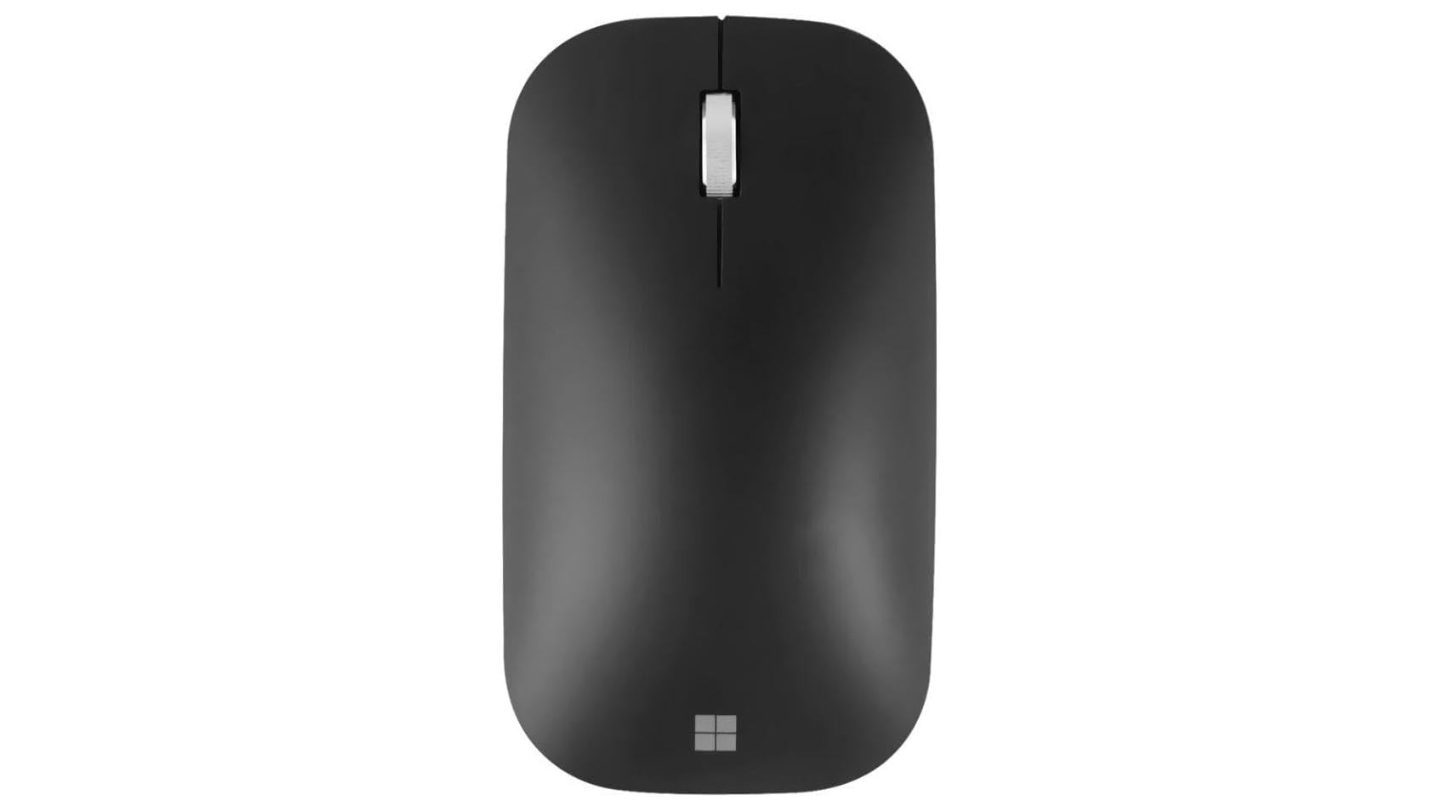
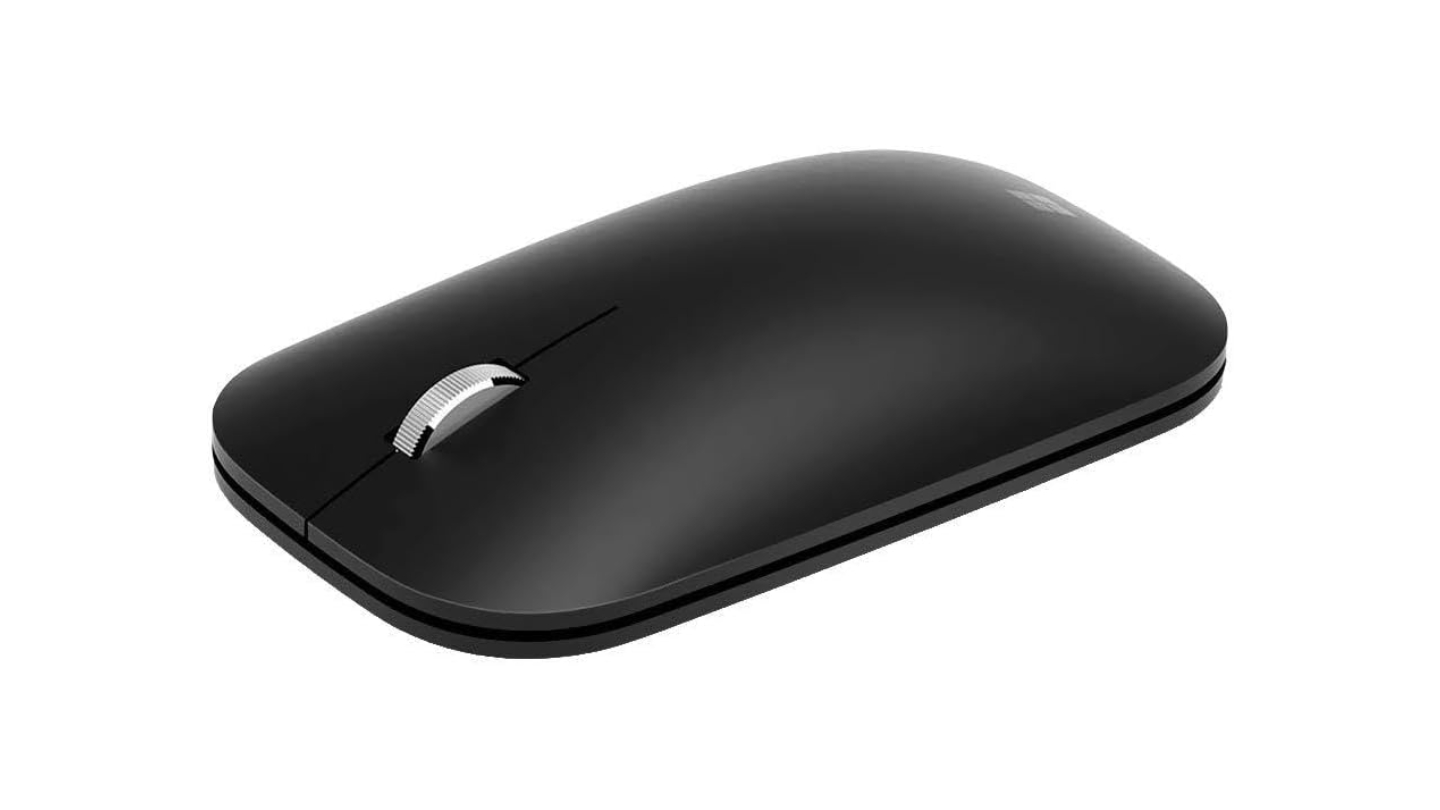
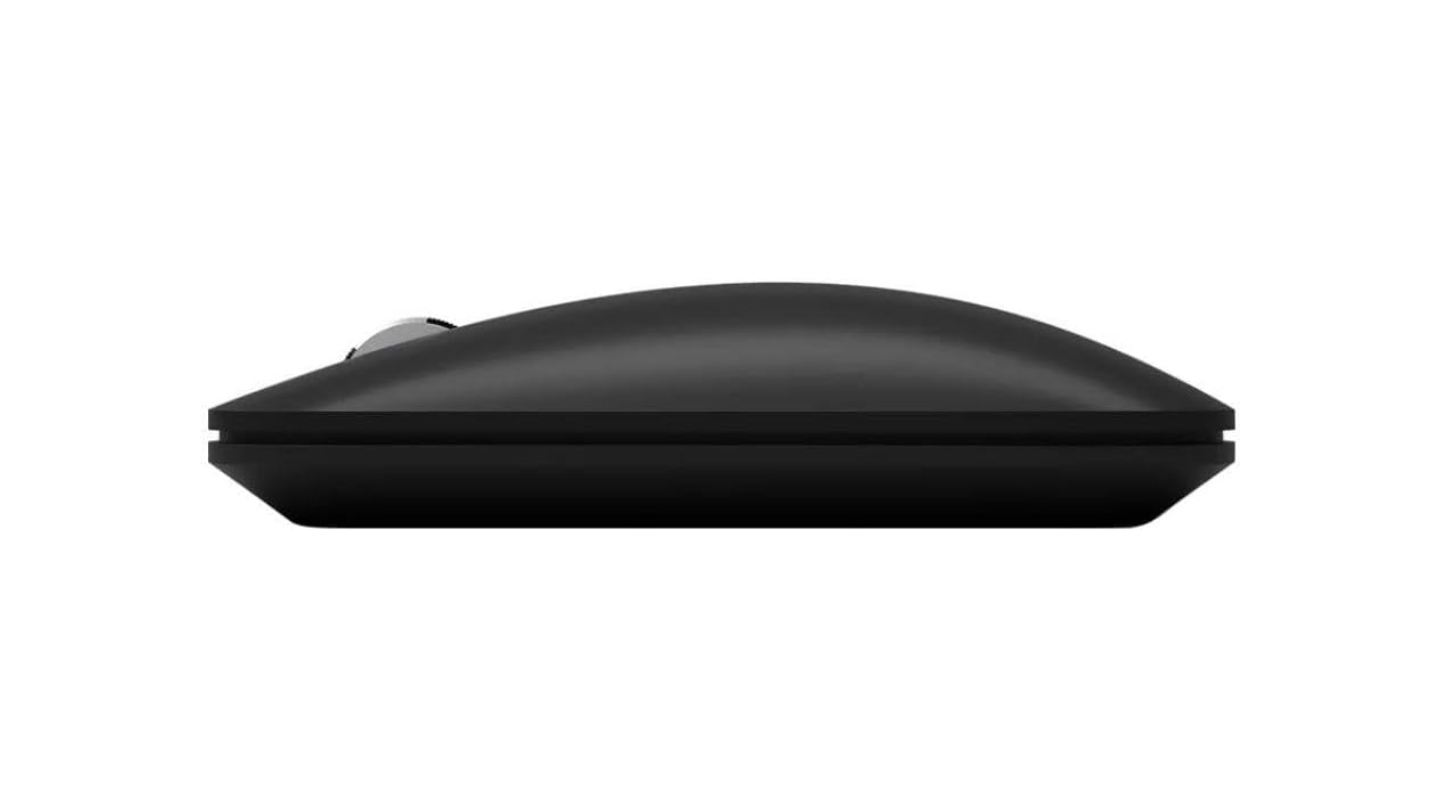
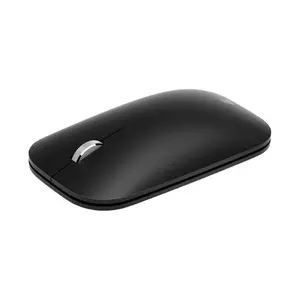
Three days before a work trip is not the moment to realize your primary mouse is tied to a USB-A dongle your laptop doesn't have. The Microsoft Modern Mobile Mouse exists to avoid that situation. Bluetooth only, no dongle, no software to install, two AAA batteries for up to 12 months. It pairs to a new machine in under a minute and fits in a jacket pocket. The entire value proposition is the absence of overhead.
BlueTrack handles surfaces that trip up standard optical sensors - fabric, carpet, marble, wood grain, the kinds of irregular textures that appear on hotel desks and conference room tables without a mouse pad. The 96g ambidextrous shell works for fingertip and claw grip and handles two to three hours comfortably. There are no side buttons, no DPI adjustment, no app-specific profiles - the feature set is exactly as minimal as the use case requires, and that's deliberate rather than a shortcut.
Available in multiple colors, which is practical in shared environments where identifying your peripheral quickly matters. Bluetooth 4.2 connects cleanly to Windows and macOS one device at a time. The flat low profile that makes it pocketable is also the reason palm grip users start to feel it past the two-hour mark - the form factor has a ceiling, and extended desk use is above it.
A week through airports, hotel rooms, and co-working spaces made the case without ambiguity. This mouse doesn't try to be a primary desk tool - it tries to be ready every time you need it somewhere that isn't your desk, and it is. Paired with a full-featured mouse at a fixed setup, it fills a real gap in a travel kit without asking anything of you.
Pros:
- BlueTrack sensor
- 96g, slim profile
- AAA batteries rated at 12 months
- Bluetooth-only with no software required
- Multiple color options, ambidextrous shell
Cons:
- Flat low-profile causes hand fatigue in sessions longer than 2-3 hours
- No side buttons, no DPI control, no multi-device pairing
Summary: The Microsoft Modern Mobile Mouse is the right tool for professionals who need a wireless mouse that travels without friction, works on any surface, and requires no setup overhead. Best as a dedicated travel mouse paired with a more capable primary device for desk use, or as a plug-and-play option for light workloads on the road.
Wireless Productivity Mouse: FAQ
These are the questions that come up most when people are narrowing down a wireless productivity mouse. Each one reflects a real decision point that changes which device makes sense.
Is 125Hz polling rate actually a problem for productivity work?
For most desk-based productivity tasks, 125Hz is sufficient. Document navigation, browser use, spreadsheet work, and most creative applications don't expose the polling rate difference in daily operation. Higher polling rates matter for pixel-precise cursor placement at high DPI - detailed design work, frame-accurate video editing, technical illustration. The MX Master 4 runs at 125Hz deliberately to sustain 70-day battery life. The Razer Pro Click V2 at 1,000Hz is the answer for users whose workday runs through that kind of precision work.
Does a wireless mouse introduce lag compared to a wired mouse?
With a quality 2.4GHz dongle, the practical lag difference between wireless and wired is below what most users can detect during productivity work. Logitech's Bolt and Razer's HyperSpeed both achieve latency under 1ms - indistinguishable from wired in document navigation and application switching. Bluetooth introduces slightly higher and more variable latency, which is imperceptible for most office tasks but can show as minor cursor stutter in high wireless congestion. For any productivity workload short of competitive gaming, the Bluetooth connections on these mice are fully adequate.
What's the actual benefit of multi-device mouse support?
Multi-device support changes daily logistics more than it sounds on paper. Without it, moving from a laptop to a desktop means re-pairing via Bluetooth or swapping a dongle - friction that happens multiple times per day. With Easy-Switch, the mouse follows your attention across machines at a button press. Logitech Flow extends this further: file and clipboard transfer between paired computers, which for the specific case of moving content between a Mac and a Windows machine on the same desk removes a cloud storage dependency from daily use.
Is a trackball actually easier on the wrists, or is that just perception?
The biomechanical argument is sound: eliminating wrist translation reduces the repetitive lateral motion that accumulates into overuse injuries over years of mousing. Users who switch after developing RSI-related symptoms consistently report reduced discomfort within the first two weeks - typically before cursor accuracy has fully recovered. For users without existing wrist pain, the trackball is a preventative measure. Whether the one-to-two-week adjustment is worth the long-term ergonomic benefit depends on how many hours per day the mouse is in use.
Which of these mice works best across both Mac and Windows?
The Logitech MX Master 4 is the strongest cross-platform performer here. Logi Options+ runs on Windows, macOS, Linux, and ChromeOS, and Easy-Switch enables simultaneous pairing to a Mac and a Windows machine with Flow handling file transfer between them. The Razer Pro Click V2 supports Windows and macOS, with Synapse running better on Windows than Mac. The Apple Magic Mouse degrades to basic cursor movement on Windows - it's a macOS product. The Kensington Expert Wireless Trackball works across platforms but KensingtonWorks customization requires the USB dongle on Mac. The Microsoft Modern Mobile Mouse works on any Bluetooth OS without software, which is its cross-platform strength at the cost of customization.
What should I look for in a wireless mouse if I work from coffee shops and co-working spaces?
Surface versatility and connection reliability matter most in unpredictable environments. BlueTrack on the Microsoft Modern Mobile Mouse handles fabric, marble, wood grain, and irregular textures that trip up standard optical sensors. For users who need more features while staying portable, the Razer Pro Click V2 at 106g is the lightest full-featured mouse in this roundup, with solid Bluetooth range in crowded spaces. Replaceable batteries in the Modern Mobile and Kensington mean no dead mouse from a forgotten charger, and the MX Master 4's one-minute fast charge is a practical fallback when a USB-C cable is available.
The Right Mouse for the Right Day
Five wireless mice that each answer a different version of the same question. The Logitech MX Master 4 is what I'd recommend to most desk workers - the MagSpeed wheel and Action Ring change how you move through a workday in ways that are visible within the first week, and the software depth in Options+ rewards users who invest time in configuring it. For designers and video editors who want the ergonomic shell with better raw sensor performance, the Razer Pro Click V2 is the argument - 1,000Hz and 30K DPI in a form factor that weighs 44g less than the Logitech.
Mac users who've built their workflow around trackpad gestures and want a mouse that carries that same language should try the Apple Magic Mouse with the honest acknowledgment that the charging port placement is a genuine inconvenience for heavy users. The Kensington Expert Wireless Trackball is for the person who has reached the point where a conventional mouse is adding physical cost to the workday - the ergonomic case for it is solid and the learning curve is shorter than most people expect. And when the desk is a hotel room and the mouse has to fit in a jacket pocket, the Microsoft Modern Mobile Mouse is the one that asks nothing of you except to point and click.
Know how your hand spends its day, and the right mouse in this group becomes obvious.

Meet James, our go-to tech guru and seasoned reviewer. His sharp attention to detail and love for gadgets drive his deep dives into the newest tech waves. James's insightful analysis and real zest for breakthroughs have earned him a solid reputation in the tech world.


