Why Is CarPlay Not Working?
CarPlay stops working the same way most tech fails: not dramatically, but at the worst possible moment. One drive it connects instantly, the next the head unit shows a blank screen, fails to detect the iPhone, or connects for thirty seconds before dropping. The problem is hard to diagnose quickly because five distinct failure points produce the same symptom. A cable that carries power but not data, a Siri setting disabled after an iOS update, a Screen Time restriction nobody remembers enabling, a VPN running in the background, and a car head unit that needs a firmware update all look identical from the driver's seat.
The section below treats carplay adapter ranking as a diagnostic process rather than a list of things to try. Each fix targets a specific cause. Starting with the right one cuts the time from blank screen to working CarPlay from an hour to a few minutes.
Where CarPlay Problems Actually Start
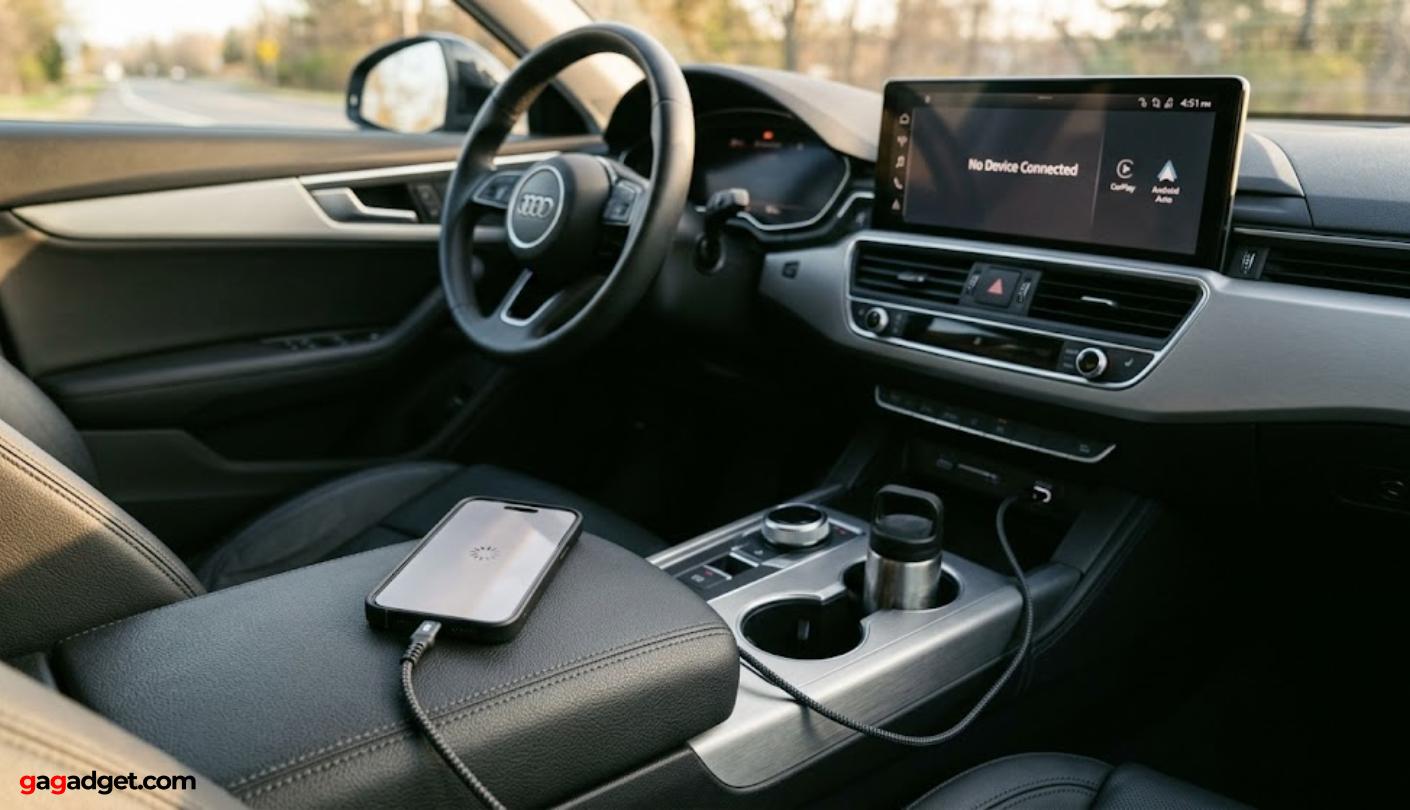
The most common wired CarPlay failure is a cable that charges the phone but cannot transfer data. Many USB cables, especially cheap third-party options sold without the MFi certification, are built for power only and lack the internal wiring required for data. The phone charges normally, the charging indicator appears, and nothing else happens. Because the cable appears to work, drivers move on to increasingly complex software fixes while the actual cause sits in the center console. Switching to a cable that explicitly states data transfer support is the fastest way to rule out this cause before touching any settings.
The USB port itself is the second hardware cause. Many vehicles have multiple USB ports, and not all of them support data transfer. Ports positioned for rear passengers, or labeled for charging only, will power an iPhone without initiating CarPlay. GM vehicles in particular route CarPlay through one specific front port, and plugging into any other results in charging without a connection. The fix takes three seconds: try a different port.
After cable and port, the problem moves to iOS itself. iOS 18 introduced two bugs that hit a large number of users. A VPN running in the background, even one that appears disconnected in its own app, can block the handshake between the iPhone and the car's infotainment system. Turning the VPN off completely, not just toggling the server off, resolves this in most cases. The second iOS 18 change was setting the default Private Wi-Fi Address to rotating, which disrupts wireless CarPlay - including setups running through adapters like the Carlinkit 5.0 - because the car cannot reliably identify the iPhone's network address between sessions.
iPhone Settings That Block CarPlay
CarPlay requires Siri to be enabled. This is a system dependency, not a preference. If Siri is off, CarPlay either refuses to connect or connects but fails to respond to voice commands and drops unpredictably. After any major iOS update, it takes ten seconds to check Settings - Siri and Search and confirm "Listen for Hey Siri" and "Allow Siri When Locked" are both active. The locked-screen toggle is the one most often disabled without the user noticing, because iOS resets it silently during some updates.
Screen Time restrictions are the other cause that goes unnoticed. When Content and Privacy Restrictions are active, CarPlay can be blocked at the app-permission level with no error message. The path is Settings - Screen Time - Content and Privacy Restrictions - Allowed Apps. If CarPlay does not appear as enabled there, the connection will fail regardless of cable quality or car model. This issue became more common after iOS 17 and iOS 18 changed how Restrictions applied to system features rather than just third-party apps.
Two additional toggles are worth checking in the same pass. "Allow CarPlay While Locked" must be on under Settings - General - CarPlay - your car's name, otherwise the system cannot initialize when the phone screen goes dark after the driver sets it down. Airplane Mode being active, even toggled briefly during a flight and not turned back off, disables both Bluetooth and Wi-Fi simultaneously, which cuts wireless CarPlay entirely and prevents the wired handshake from completing on some head unit firmware versions.
Wired vs Wireless: Where the Fix Differs
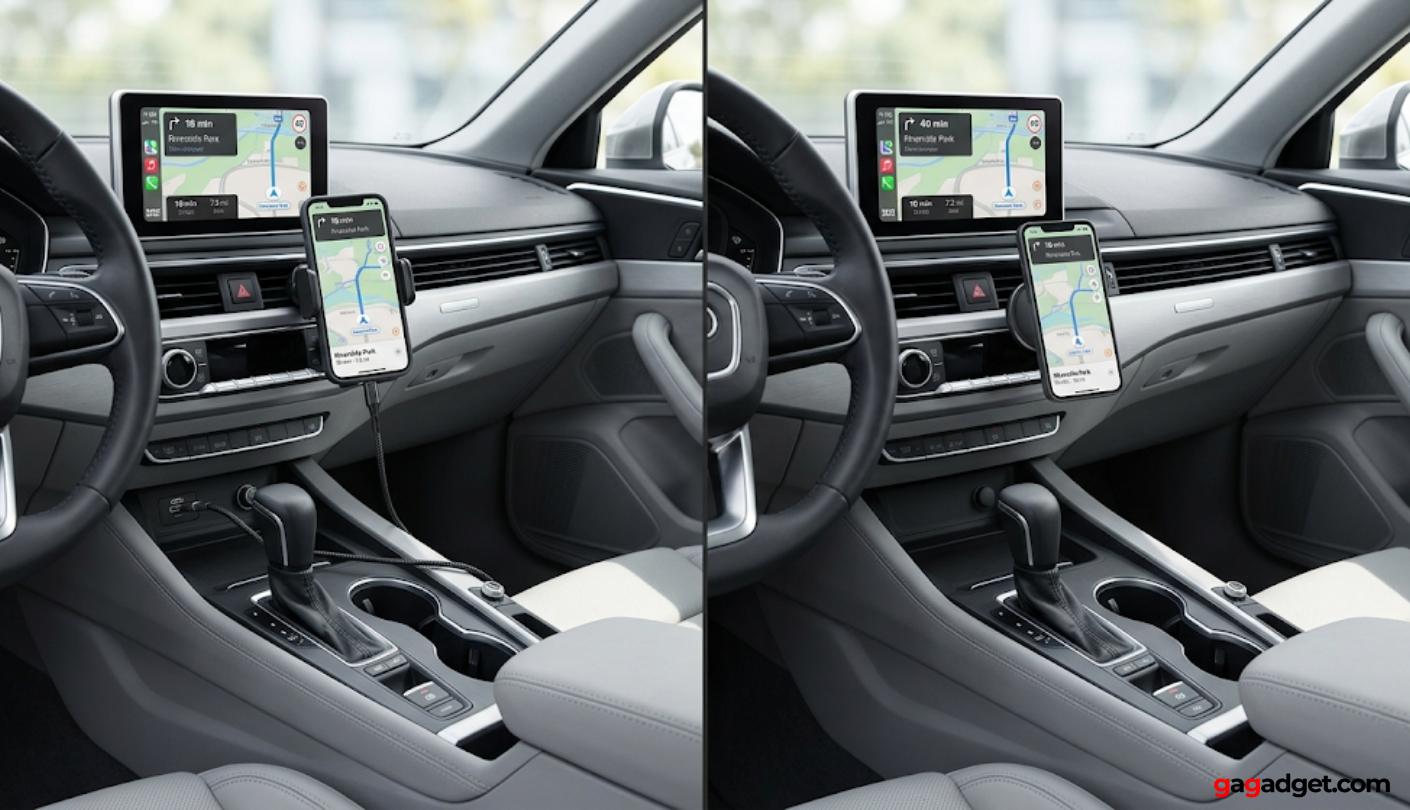
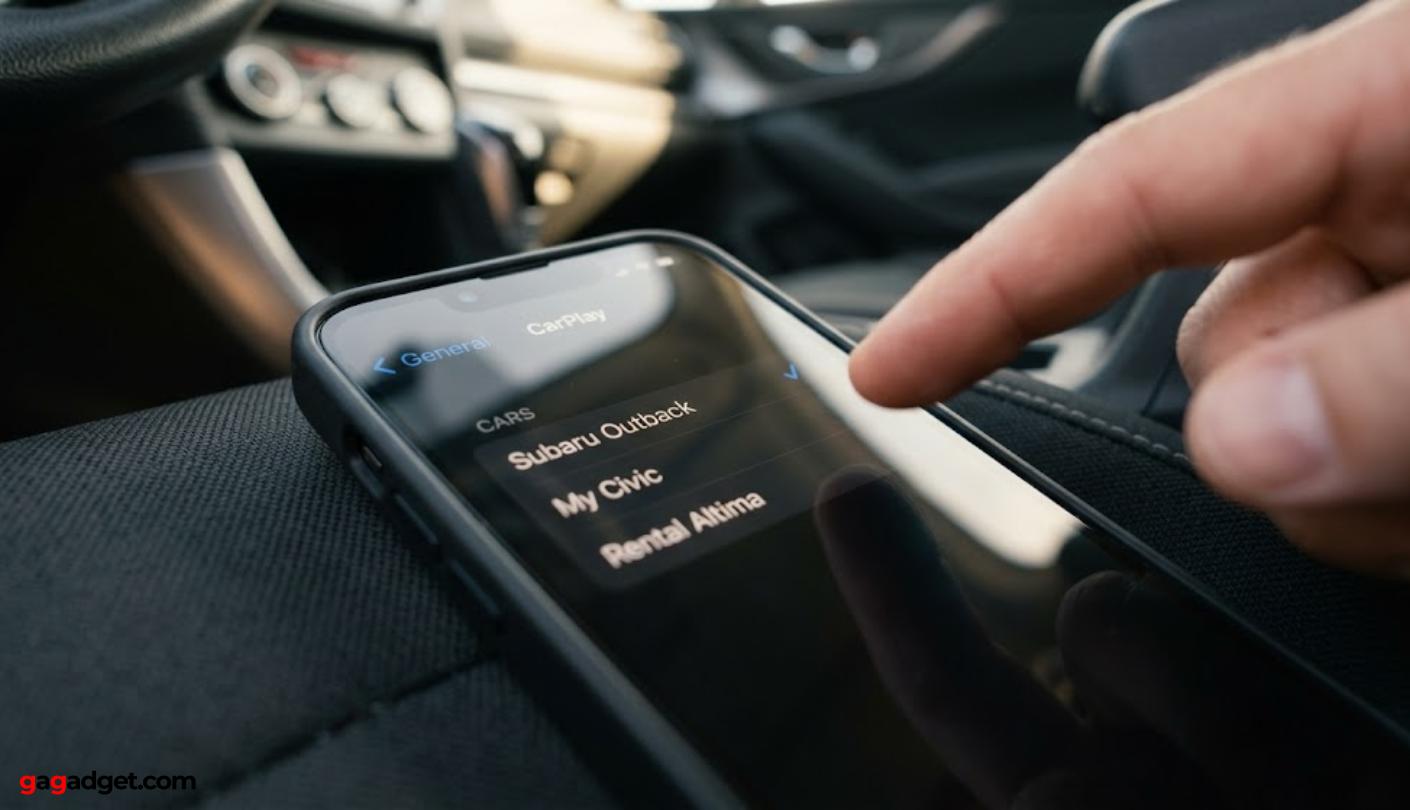
Wired CarPlay failure almost always starts with the cable or port. If swapping to a known-good data cable and a different USB port does not restore the connection, the next step is to forget the car entirely. Go to Settings - General - CarPlay, tap the car's name, and select "Forget This Car." On the car side, delete the iPhone from the paired Bluetooth devices list. Reconnecting from scratch resets the permission certificates that CarPlay uses to authenticate, and this resolves a large share of wired failures that persist after a cable swap. Drivers who find themselves repeating this reset cycle often switch to a dedicated wireless adapter like the OTTOCAST U2-AIR Pro, which eliminates the wired connection entirely and auto-reconnects every time the car starts.
Wireless CarPlay uses a two-step process that wired does not: Bluetooth handles the initial pairing handshake, then the system switches to a direct Wi-Fi link for data transfer. Both must be active and stable. If only one is functioning, wireless CarPlay connects partially then drops. The iOS 18-specific fix is to go to Settings - Wi-Fi, find the car's network, tap the info icon, and set Private Wi-Fi Address to "Fixed" rather than "Rotating." This prevents the iPhone from presenting a different MAC address each session, which the car's system reads as an unknown device every time.
For persistent wireless failures after those steps, a full reset of the car's infotainment system, rather than just turning the engine off and on, clears cached connection data that blocks new pairings. On Honda models this is done by holding the power button on the head unit. Ford Sync 4A has a dedicated reset option in the system settings menu. The procedure varies by manufacturer, and checking the car's manual or the brand's support page for the specific reset path is faster than guessing through menus.
Symptom, Cause, and Fix at a Glance
The table below maps the most common CarPlay symptoms to their likely cause and the fastest confirmed fix, ordered by how often each scenario appears in Apple's support forums and user reports.
| Symptom | Most Likely Cause | Fix | Connection Type |
|---|---|---|---|
| Phone charges but CarPlay does not start | Charge-only USB cable with no data wiring | Replace with an MFi-certified cable. Confirm the new cable transfers files to a computer before testing CarPlay. | Wired only |
| CarPlay worked yesterday, blank screen today | Siri disabled after iOS update or Screen Time restriction | Enable "Allow Siri When Locked" in Settings - Siri and Search. Check Settings - Screen Time - Allowed Apps. | Both |
| Wireless CarPlay connects then immediately drops | Private Wi-Fi Address set to rotating (iOS 18 default) | Settings - Wi-Fi - car's network - set Private Wi-Fi Address to Fixed. Restart both devices. | Wireless only |
| CarPlay refuses to connect after iOS update | VPN app running in background | Fully disable the VPN app, not just the server. Some apps require force-quitting to stop background processes. | Both |
| CarPlay connects but drops when screen locks | "Allow CarPlay While Locked" disabled | Settings - General - CarPlay - tap car name - toggle "Allow CarPlay While Locked" on. | Both |
| CarPlay never appears in the car menu | Wrong USB port (charge-only) or CarPlay restricted in Screen Time | Try every USB port in the car. Check Settings - Screen Time - Content and Privacy Restrictions - Allowed Apps. | Wired only |
One escalation path the table does not cover: if none of these fixes work, the car's head unit firmware may be outdated. GM, Ford, and Honda have all released infotainment firmware updates that fix CarPlay compatibility with iOS 17 and 18. These updates are not delivered over the air on most vehicles. Checking the manufacturer's support page or visiting a dealership is the right next step when all iPhone-side fixes have been tried.
Who Runs Into These Problems Most
CarPlay failures are not random. They concentrate in identifiable groups, and knowing which one applies narrows the likely cause before any settings are changed.
- Anyone who just updated to a new iOS version. iOS 18 introduced the VPN interference bug and changed the Private Wi-Fi Address default to rotating. Apple's own support forum thread on this issue reached over 400 replies within the first month of the release, making it one of the most-reported CarPlay regressions in recent history. Checking those two settings is the right first step after any major iOS update that breaks an existing connection.
- New iPhone buyers who switched from Lightning to USB-C. iPhone 15 and 16 buyers are the group most likely to grab a USB-C cable from a drawer and assume it works for CarPlay. Roughly half of all USB-C cables sold by third-party sellers are charge-only with no data wiring, and the phone charges normally through all of them - nothing distinguishes the broken setup from a working one until CarPlay refuses to launch.
- Devices with Screen Time or managed profiles. Restrictions set up for a different purpose, limiting a teenager's screen time or managing a work device, occasionally carry over to a new phone setup and block CarPlay with no error message. This is the failure mode that generates the most "I've tried everything" posts on Apple's community forums, because most people never think to look in Screen Time when a car connection stops working.
- Owners of vehicles from 2017 to 2020 whose head unit firmware has not been updated. Mazda, Honda, and GM owners have been among the most vocal groups reporting complete wireless CarPlay failure after iOS 17 and 18, specifically because factory firmware from that era was never patched for newer iOS handshake requirements. A dealership update is the only fix.
CarPlay Troubleshooting FAQ
Why does CarPlay show a black screen after connecting?
A black screen after connecting points to a cable problem or a head unit handshake failure in most cases. Test with a confirmed data cable first, then go to Settings - General - CarPlay, forget the car, and reconnect from scratch. Delete the iPhone from the car's Bluetooth paired devices list before re-pairing. This resets authentication on both ends and resolves persistent black screen issues in most cases where the cable is confirmed good. Drivers who hit this repeatedly on a car shared between multiple users often switch to the AAWireless Two+, which handles multi-device switching via a physical button and removes the wired connection as a failure point entirely.
Why did CarPlay stop working after an iOS 18 update?
iOS 18 introduced two specific issues. First, any active VPN, including apps that appear to be off, can block the CarPlay connection at the network layer. Fully disabling the VPN app and force-quitting it before connecting is the fix. Second, iOS 18 set the Private Wi-Fi Address to "Rotating" by default, causing the car's system to see a different device each session. Setting it to "Fixed" under Settings - Wi-Fi - the car's network resolves wireless failures caused by this change. Apple's support page confirms both issues.
Does Siri need to be on for CarPlay to work?
Yes. CarPlay requires Siri at the system level - "Listen for Hey Siri" and "Allow Siri When Locked" both need to be on under Settings - Siri and Search. Without "Allow Siri When Locked" specifically, CarPlay often fails to initialize when the iPhone screen is off, which is the typical state during a drive. iOS updates reset this toggle silently on some devices. If CarPlay was working and stopped after an update with no other obvious change, this setting is worth checking before anything else.
CarPlay connects wirelessly but keeps disconnecting - what is wrong?
Repeated wireless disconnections after initial connection point to one of three causes: the Private Wi-Fi Address is set to Rotating rather than Fixed, Bluetooth and Wi-Fi are competing over an unstable connection in the car environment, or the car's Bluetooth stack has too many paired devices and is dropping the iPhone's priority. The Private Wi-Fi fix is the fastest to check. If that does not hold, forget the car in both the iPhone's CarPlay settings and Bluetooth list, restart both devices fully, and re-pair. Limiting the car's paired Bluetooth devices to the active phone and removing old entries also reduces handshake conflicts on vehicles that cap the paired device count.
Making the CarPlay Decision
The pattern behind CarPlay failures is consistent enough that the fix is usually found before the second attempt. A charge-only cable and a reset Siri permission together account for most of what drivers report. The iOS 18-specific issues, VPN interference and the rotating Wi-Fi address, are newer additions to that list but follow the same logic: the problem is almost always a setting or a cable, not the hardware itself.
The cases that genuinely require a dealership visit, outdated head unit firmware on vehicles from 2017 to 2020, are real but uncommon. Most drivers with a firmware-related problem have already worked through the iPhone-side checklist and come up empty. That sequence matters: confirming the phone is not the issue first makes the dealership conversation shorter and the diagnosis faster. CarPlay breaking and staying broken after a clean re-pair and a confirmed data cable is the signal that the problem lives in the car, not the phone.

Jim's our tech geek with a mission since February 2023. From movies to video projectors, he knows his stuff and aims to make tech work for you. When he's not geeking out, he's there to guide you through making savvy decisions.


