What to Look For in the Best Webcams for Streaming on a Budget
My first stream went out through a laptop camera, and I had no idea how rough it looked until a friend sent me a screenshot with the caption "are you broadcasting from 2009". The picture was soft, my face was orange on one side and grey on the other, and every time I leaned forward the whole frame hunted for focus like it had lost me. I bought a proper camera the next week. The upgrade cost less than a decent mouse, and it changed how the channel looked more than any lighting tweak I made that year.
Cheap cameras have moved on a lot since then. The five sitting on my desk this month cover a range that would have been mid-priced gear not long ago, including one that shoots at a frame rate you normally only find on far pricier gear. They also hide their compromises in different places, and one of them has a headline number you cannot use until you install a desktop app and dig two menus down. That kind of detail never makes the product photo, so it is where I want to start.
Here are my two top picks for the best webcams for streaming on a budget:
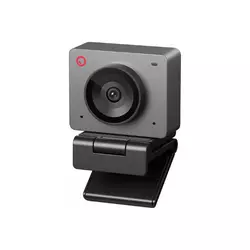
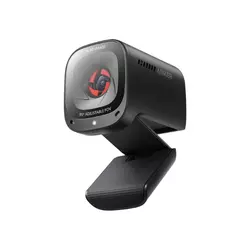
Table of Contents:
- Budget Streaming Webcam: Buying Guide
- Top 5 Webcams for Streaming on a Budget
- Budget Streaming Webcams: Comparison
- OBSBOT Meet SE
- Anker PowerConf C200
- Logitech Brio 100
- NexiGo N930AF
- EMEET C960 2025
- Streaming Webcams on a Budget: FAQ
Budget Streaming Webcam: Buying Guide
Webcam listings sell you two things, resolution and a brand name, and neither one predicts how you will look on stream. Five other factors do, and each of them costs the manufacturer money in a way that a bigger number on the box does not. Here is what to weigh up, in the order that changed my own picture the most.
Frame Rate Matters More Than You Think
Almost every cheap camera runs at 30 frames per second, and for a talking head that is fine. Start moving and the difference shows up fast. Lean back in your chair at 30fps and your face smears for a fraction of a second before it settles, which reads as cheap even to viewers who could not name what they are seeing. At 60fps and above, movement stays crisp, gestures land properly, and your camera stops looking like a security feed pasted into the corner of a game.
Frame rate is the one spec here that people notice without being told what to look for. Everything else gets judged consciously, and motion gets judged by instinct.
Only one camera here goes past 30fps, and it goes a long way past. I would not call high frame rate essential for a chat channel or a podcast setup, and I would call it close to essential if you play anything with your hands in shot or you talk with your whole body, which most of us do without noticing. Bear in mind that your streaming software has to be set to match, since a camera capable of 100fps feeding into a 30fps canvas throws most of those frames straight in the bin.
Why 1080p Is Usually the Ceiling Worth Paying For
Twitch and most other platforms squeeze your stream into a bitrate budget, and a camera feed sharing that budget with a game is already the poor relation. Feed in more pixels than the encoder can afford and it does not make you sharper, it just spreads the same data thinner and hands you blocky artefacts whenever you move. One camera here shoots at 1440p, which is lovely for recorded video and for calls, and pointless in a live scene scaled down to a corner box.
What actually decides sharpness at 1080p is the lens and the processing behind it, and that is where the money goes on these cameras. All five talk to your computer through the standard UVC protocol, so every one of them shows up in OBS without a driver, and none of them needs anything installed to produce a picture. I keep my own camera scene at 1080p and spend the saved bitrate on the game, which is the trade almost every streamer should make.
Light Beats Megapixels Every Single Time
A webcam sensor is tiny. The chips in this lineup measure a fraction of an inch across, so they collect very little light, and when light runs short the camera compensates by cranking gain, which is the polite word for adding grain. This is why a cheap camera in a bright room can look better than a pricey one in a dim room. It is also why the sensor size and aperture buried in a spec sheet tell you more about your evening streams than the resolution printed on the front of the box.
The single cheapest upgrade to any camera on this page is a lamp placed slightly to one side of your face, above eye level, bounced off a wall. It will do more for your picture than swapping any one of these cameras for another.
Two of these five make specific low-light claims and back them with hardware, a large-pixel stacked sensor in one case and a wide aperture with a five-megapixel chip in the other. The rest lean on automatic exposure correction, which brightens your face and flattens everything behind you. I stream at night from a room with one overhead bulb, so this section is the one I personally read first, and the difference between the best and worst performer here after dark is not subtle.
The Microphone You Get for Free
Every camera here has a microphone, and none of them will beat a separate mic on a boom arm. That is not the question worth asking. The question is whether the built-in one is good enough to start with, because plenty of people begin streaming with what came in the box and upgrade audio later, once the channel has proved it deserves the spend.
Counts and pickup patterns vary more than you would expect. Two of these cameras carry a pair of microphones with noise reduction and a stated pickup range in metres, one lets you switch between a narrow pattern for solo work and a wide one for a room with several people in it, and the others carry a single mic aimed at video calls rather than broadcast. I used a webcam mic exclusively for my first six months and nobody complained, though I did learn to keep my mechanical keyboard off the same desk surface.
Where the Camera Sits, and How It Gets There
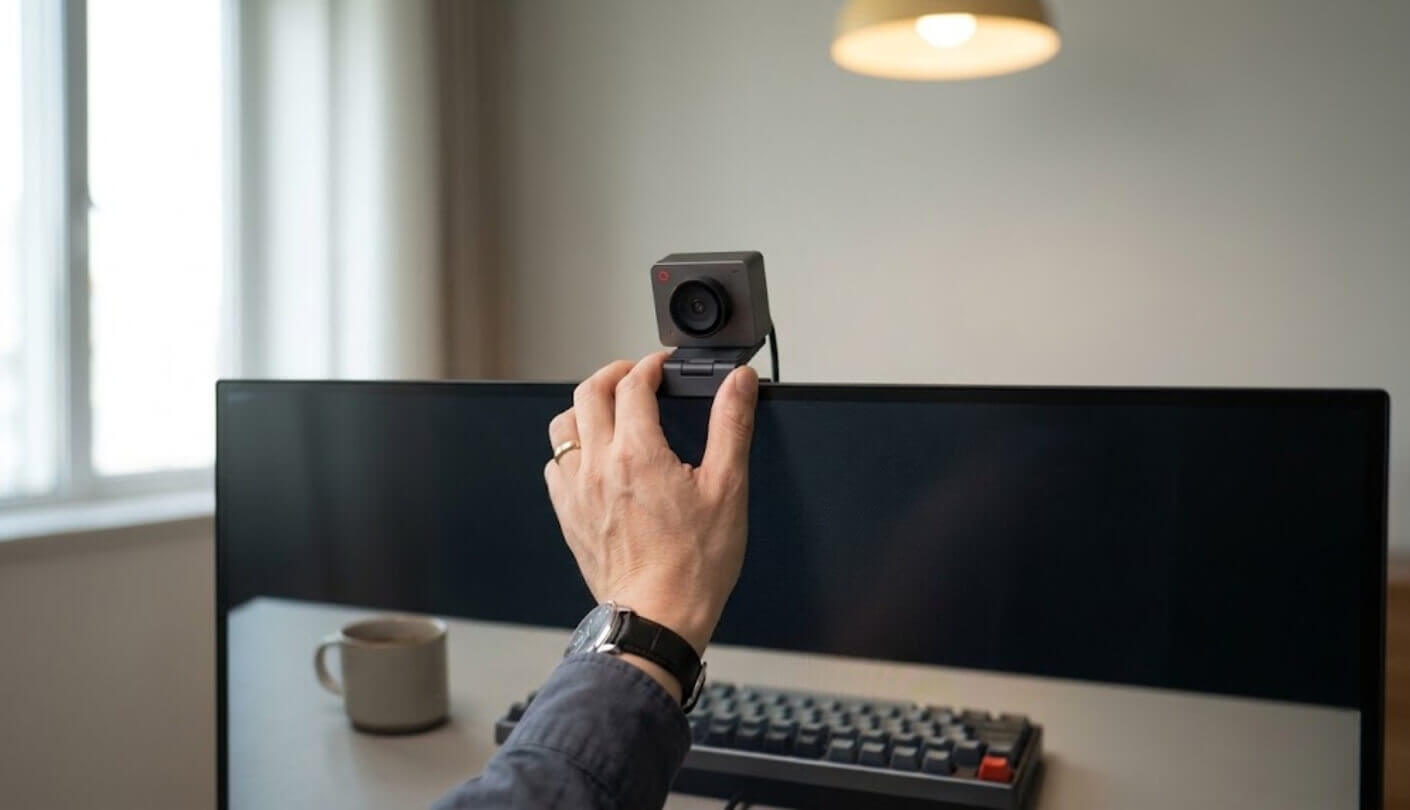
Mounting sounds boring until your monitor has a curved back and the clip will not grip it. Every camera here folds into a clip that hangs over a screen, and three of them add a quarter-inch tripod thread underneath, which matters more than it sounds. A thread means you can put the camera on a small desk tripod at eye level rather than perching it above a monitor and shooting down at your forehead. Camera height is the most common mistake I see on small channels, and it is free to fix.
Cable type is worth ten seconds of attention as well. Two of these cameras use a detachable cable into a USB-C socket on the body, which means a failed cable costs you a couple of pounds instead of a whole camera.
Think about reach too. A camera on a laptop lid sits wherever the laptop sits, but a camera on a tripod behind your desk may be two metres from the machine, and a short fixed cable will decide the argument for you. My own setup runs the camera on a tripod arm off to the left of the monitor, angled back at my chair, which took a longer cable and about fifteen minutes of fiddling to get right.
Top 5 Webcams for Streaming on a Budget
Five cameras, five very different ideas of what a streamer needs. I looked at how each one handles motion, what happens to the picture when the sun goes down, whether the microphone is usable on day one, and what each brand quietly left out to hit its price. The last question is the interesting one, because none of these companies is losing money on you.
- 100fps Recording Mode
- Best Low-Light Picture
- AI Framing Modes
- Gesture Zoom Control
- Weighs 33.2 Grams
- Two AI Mics
- Selectable Pickup Pattern
- Three View Angles
- 1440p Resolution Option
- Tripod Thread Included
- Narrow 58-Degree Crop
- Nothing To Configure
- Integrated Sliding Shutter
- Two-Metre Attached Cable
- Recycled Plastic Build
- Focuses From 7cm
- Autofocus Can Lock
- Deep Manual Controls
- Balanced 74-Degree View
- Works Without Software
- Wide 90-Degree Lens
- Dual Omnidirectional Mics
- Rotating Head Mount
- USB-C Adapter Supplied
- Linux And Android Support
Budget Streaming Webcams: Comparison
The numbers that actually differ, stripped of marketing language:
| Specification | OBSBOT Meet SE | Anker PowerConf C200 | Logitech Brio 100 | NexiGo N930AF | EMEET C960 2025 |
| Maximum Resolution | 1920 by 1080 | 2560 by 1440 | 1920 by 1080 | 1920 by 1080 | 1920 by 1080 |
| Frame Rate at 1080p | Up to 100fps, 60fps without the app | 30fps | 30fps | 30fps | 30fps |
| Diagonal Field of View | 78 degrees, fixed | 65, 78 or 95 degrees, software selectable | 58 degrees, fixed | 74 degrees, fixed | 90 degrees, fixed |
| Focus | Phase detection autofocus | Autofocus, 15cm to 3m | Fixed focus | Autofocus from 7cm, can be switched off | Fixed focus, 30cm to 3m |
| Built-In Microphones | One, with noise reduction | Two, with AI noise cancellation | One, omnidirectional | One, with noise reduction | Two, omnidirectional |
| Framing Tools | AI auto framing and gesture control | Three manual view angles | None | None | None |
| Connection | USB-C socket on camera, detachable cable | USB-C socket on camera, detachable cable | Attached USB-A cable, 2m | Attached USB-A cable | USB-A cable with USB-C adapter, 1.5m |
| Privacy Cover | Magnetic cap over the lens | Built-in sliding shutter | Built-in sliding shutter | Cover attached with adhesive tape | Flip-over cover on the body |
| Standout Extra | Hand gestures control zoom and framing | Switchable narrow or wide mic pickup | Certified carbon neutral by Logitech | Autofocus can be locked manually | Head rotates 90 degrees on a 180-degree base |
Two rows deserve a second look. The frame rate line splits the group cleanly, and the OBSBOT figure comes with a condition attached that I unpack in its review below. The field of view line is the one people get wrong most often, because wider is not better when you are the only thing on camera, and a 90-degree lens will include the laundry pile that a 58-degree lens would have cropped out entirely.
OBSBOT Meet SE Review
Editor's Choice
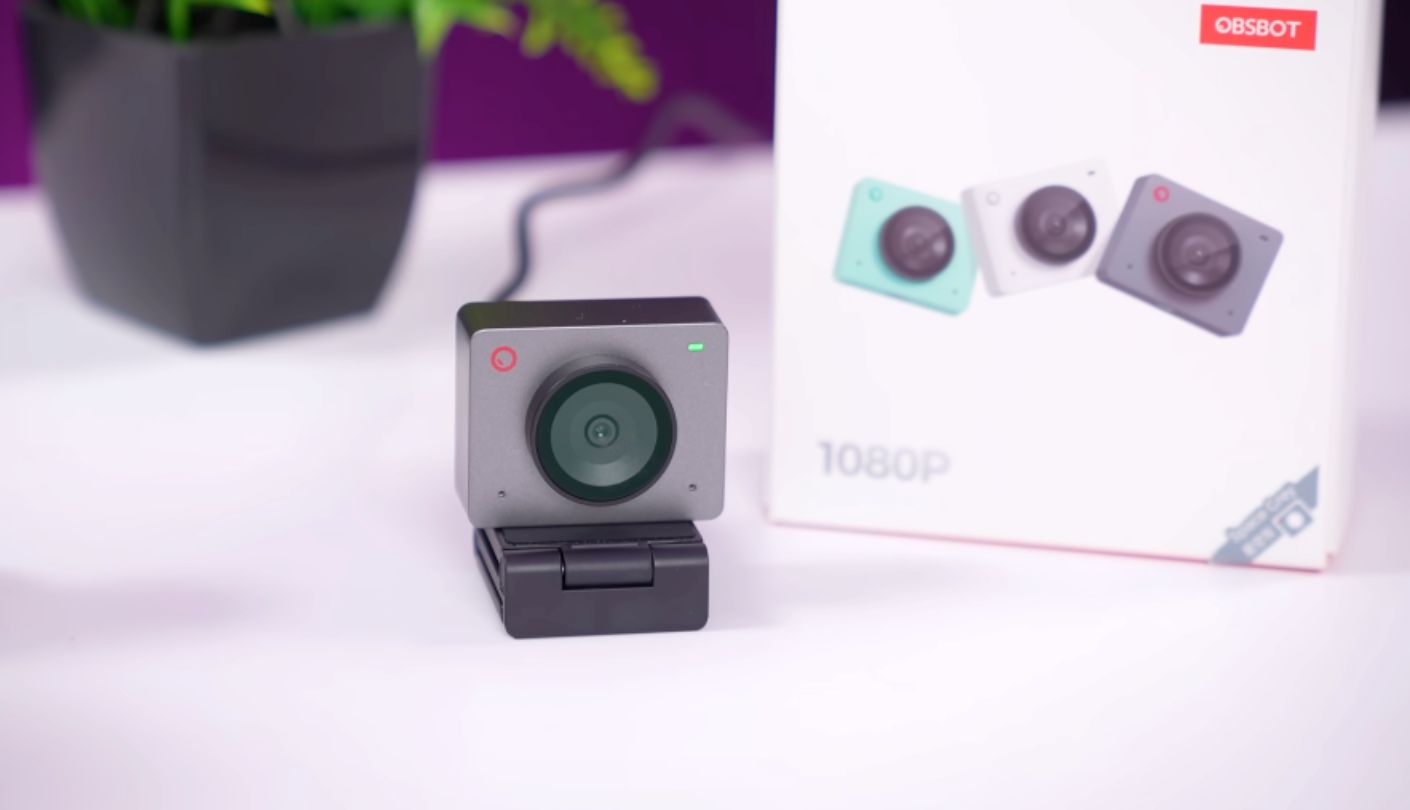
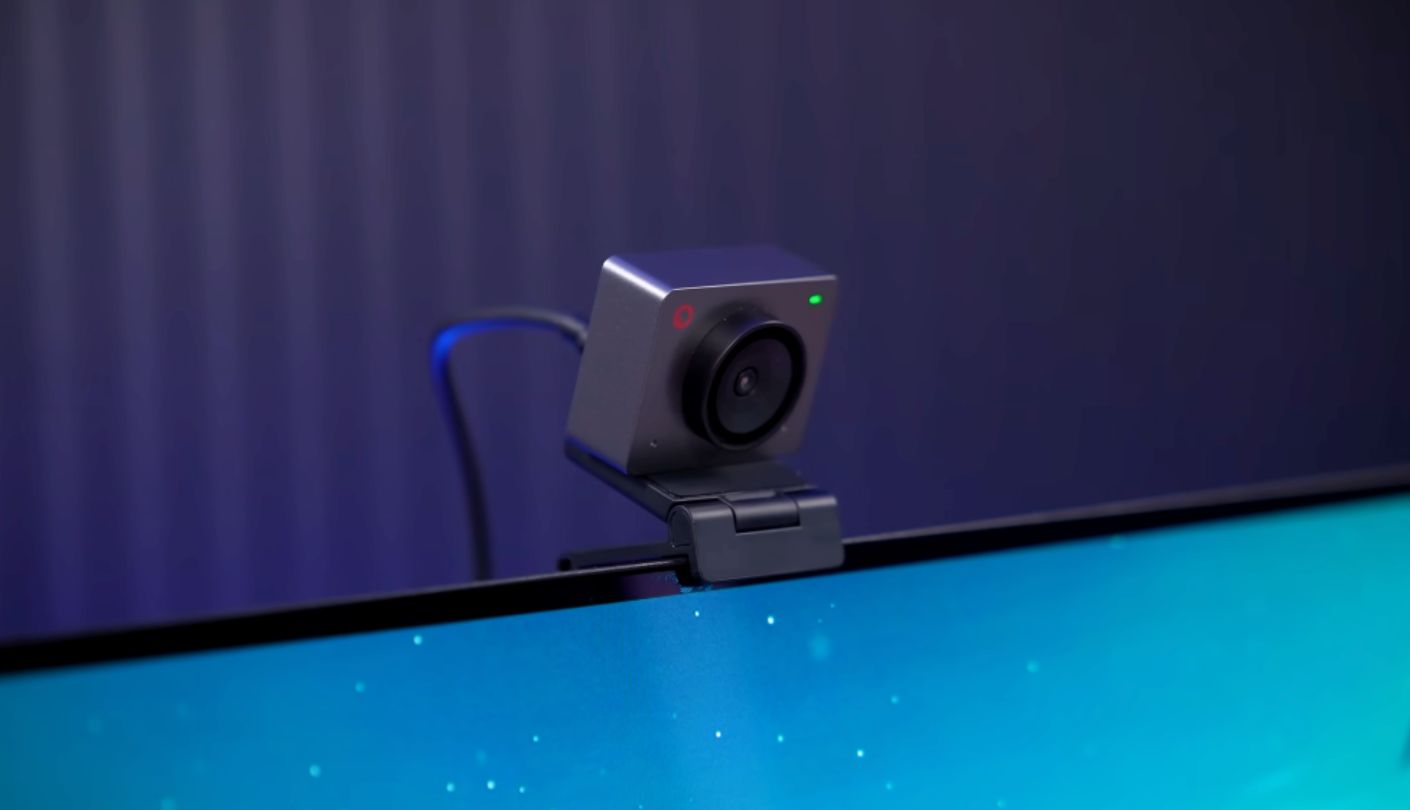
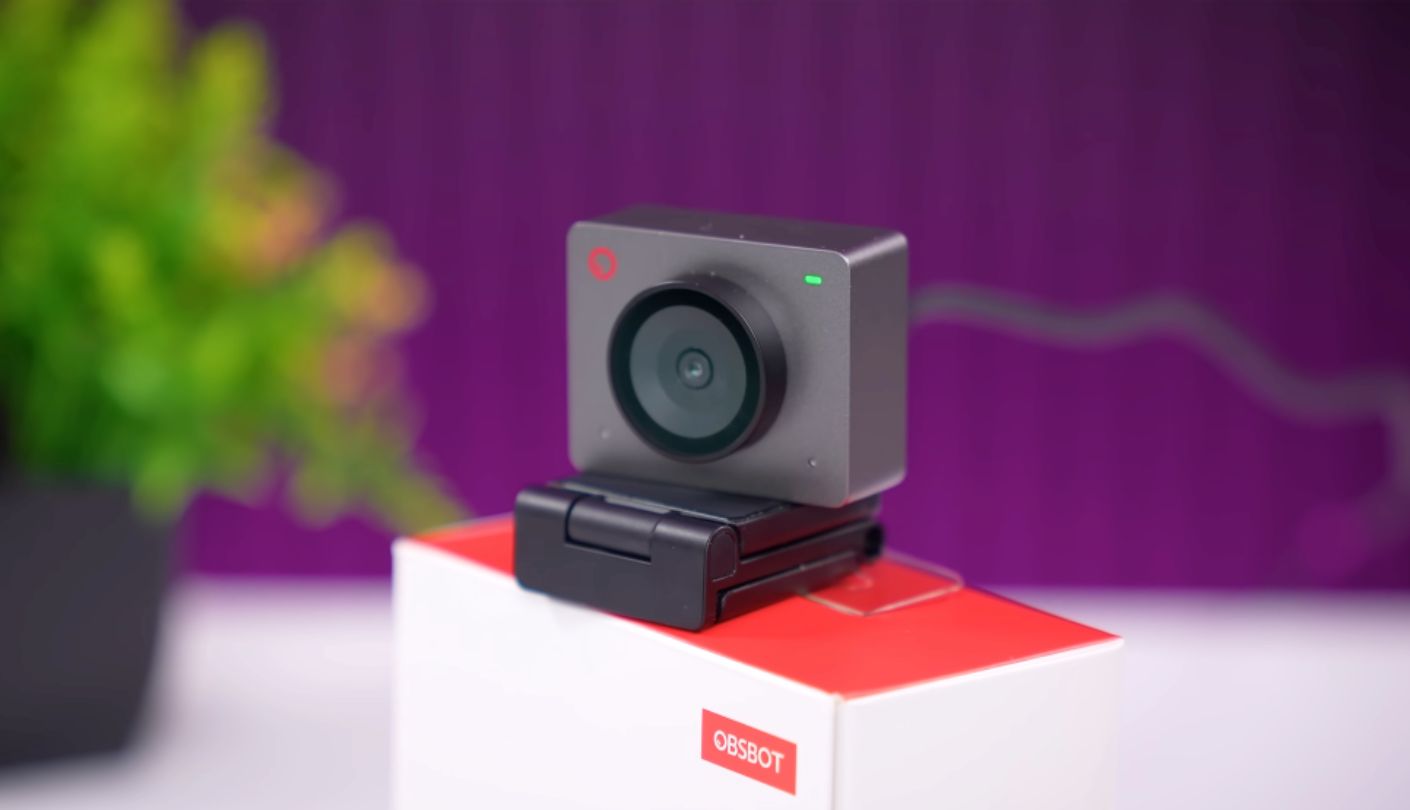
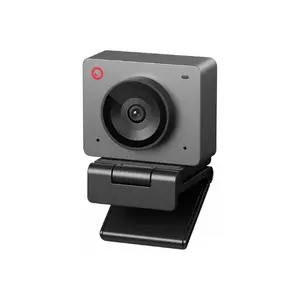
One hundred frames per second, from a camera that weighs about as much as a AA battery and a half. That is the headline, and the OBSBOT Meet SE earns it with hardware rather than a firmware trick, using a stacked backside-illuminated sensor with large 2.9-micron pixels and dual native ISO. Nothing else in this lineup runs at more than 30fps. Put the two side by side while you talk with your hands and the gap is obvious in about four seconds.
Now the condition, because OBSBOT does mention it and buries it in a bullet point. To get 100fps you have to install OBSBOT Center, open the More Output Options menu and turn the mode on, and at least one buyer bought the camera assuming the number applied straight out of the box. Plugged in raw, you get a very good 1080p60 feed, which is still double what everything else here manages. It works, the software is small, and I would rather have the option behind a menu than not have it at all.
The sensor is a 1/2.8-inch chip behind an f/1.8 lens with a 78-degree view, and the low-light behaviour is the best of these five by a comfortable margin. Staggered HDR runs up to 1080p60 and pulls back the blown-out window behind me that other cameras give up on. Colours land close to accurate without me touching a slider. The AI framing crops within a 4x zoom range to keep you centred, with group, close-up and upper-body modes plus a portrait orientation for vertical clips, and gesture control lets you lock the frame or zoom with a hand signal instead of reaching behind the monitor.
The physical side is charming. It measures 45 by 36 by 22mm and weighs 33.2 grams, ships with a magnetic mount, a privacy cap that snaps onto the lens, a five-foot USB-C cable and a USB-A adapter for older machines. The microphone is a single unit with noise reduction, and it is the weakest element by far, fine for a call and thin for a broadcast. OBSBOT Center adds background blur, beauty mode and a sleep timer, and the camera covers Windows 10 or later and macOS 11 or later with a one-year warranty.
My pick goes here because motion is the thing viewers feel and this is the only camera in the lineup that gets it right. Everything else it does well, the low-light handling and the framing modes and the tiny footprint, would make it a strong contender at 30fps anyway. Get a separate microphone eventually, install the app once, set your streaming canvas to 60 and forget about it. For a channel where you move, this is the upgrade with the biggest visible payoff.
Pros:
- 100fps Recording Mode
- Best Low-Light Picture
- AI Framing Modes
- Gesture Zoom Control
- Weighs 33.2 Grams
Cons:
- App Needed For 100fps
- Single Weak Mic
Summary: Anyone building a gaming channel should start here, since smooth motion is what separates a stream from a video call. Podcasters who sit still and talk will find most of that money going to waste.
Anker PowerConf C200 Review
Best Overall
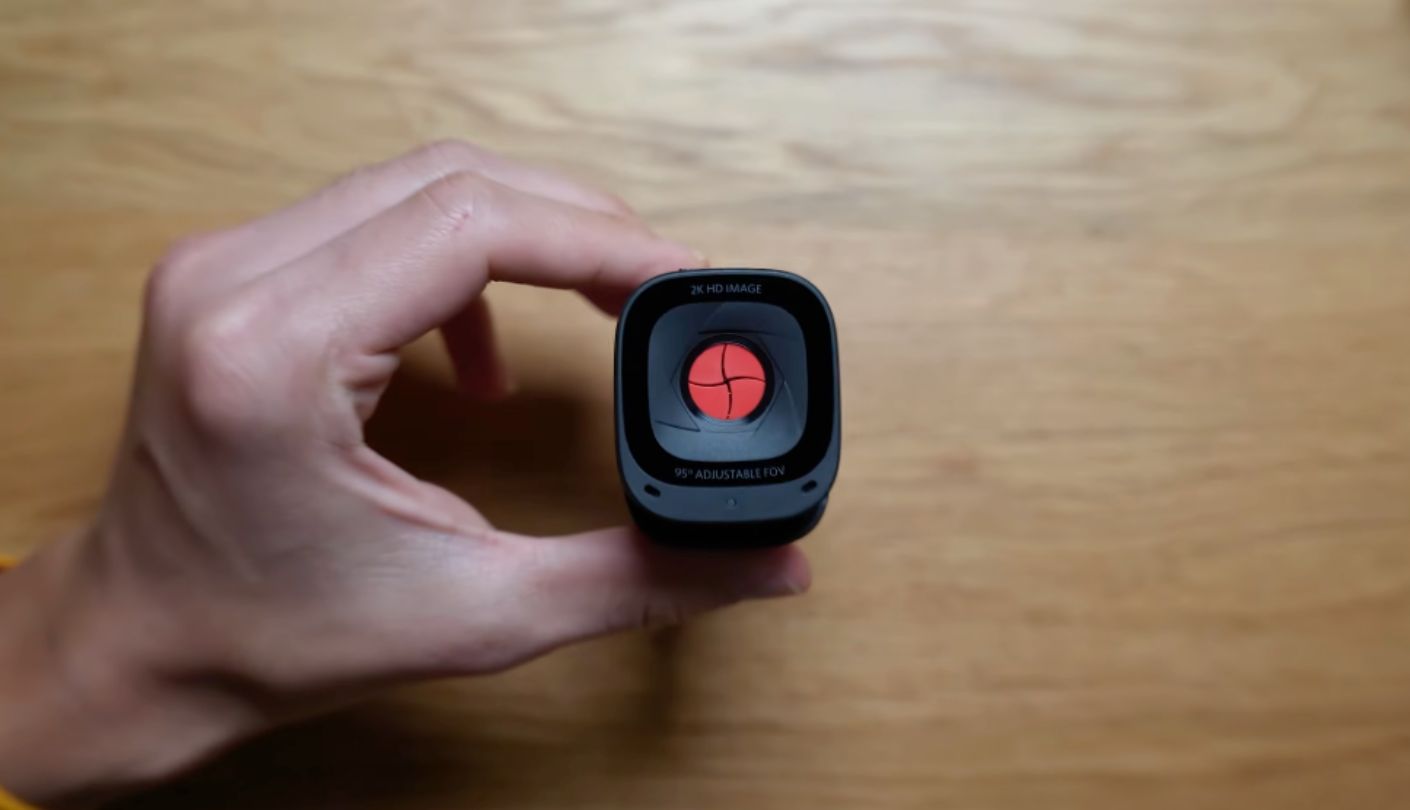
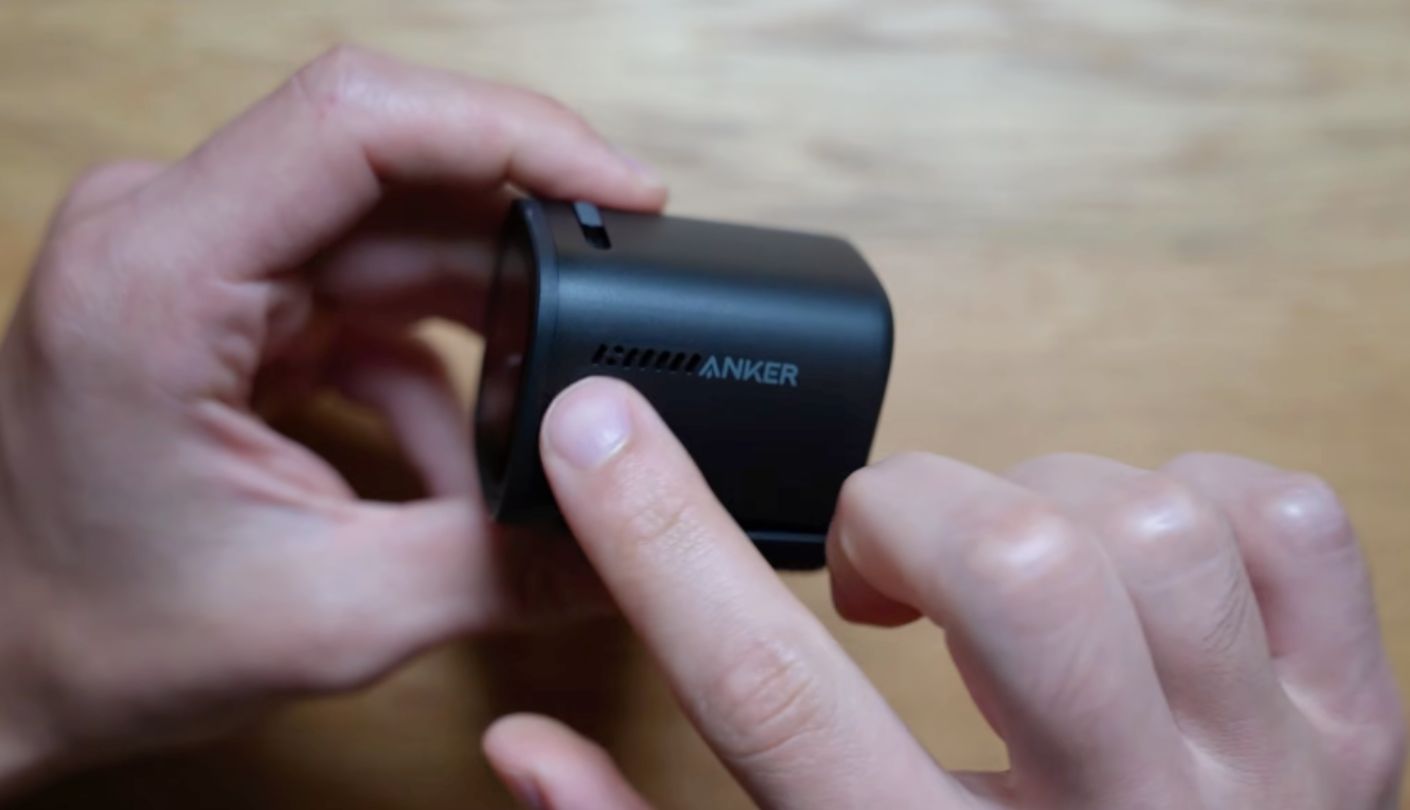
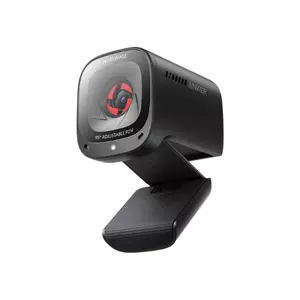
What if the smartest thing in a cheap camera turned out to be its microphone? The Anker PowerConf C200 carries two of them with AI noise cancellation, and you can choose whether they listen in a narrow 90-degree cone straight ahead or a 180-degree spread across the room. Anker built its name on conference audio before it built webcams, and this is the camera among these five where you would happily go live on day one without buying a mic at all.
The picture backs it up. A five-megapixel 1/2.7-inch sensor sits behind an f/2.0 lens, which is a bigger chip and a wider opening than most cameras at this level get, and it shows after dark. Maximum resolution is 2560 by 1440, and the field of view switches between 65, 78 and 95 degrees inside the AnkerWork app, which is the most useful software feature in this lineup because it lets one camera suit a tight solo shot and a two-person sofa without moving anything. Autofocus works from 15cm out to three metres, so holding up a controller or a keycap actually resolves.
The catch is the frame rate. Everything this camera does, it does at 30fps, whether you shoot 1440p or drop to 720p, and there is no 60fps option hiding anywhere in the app. Anker built this for meetings, and meetings run at 30 or lower. If you are a talking-head streamer that limit will never bother you, and if you are mid-match in a shooter it will look exactly like what it is.
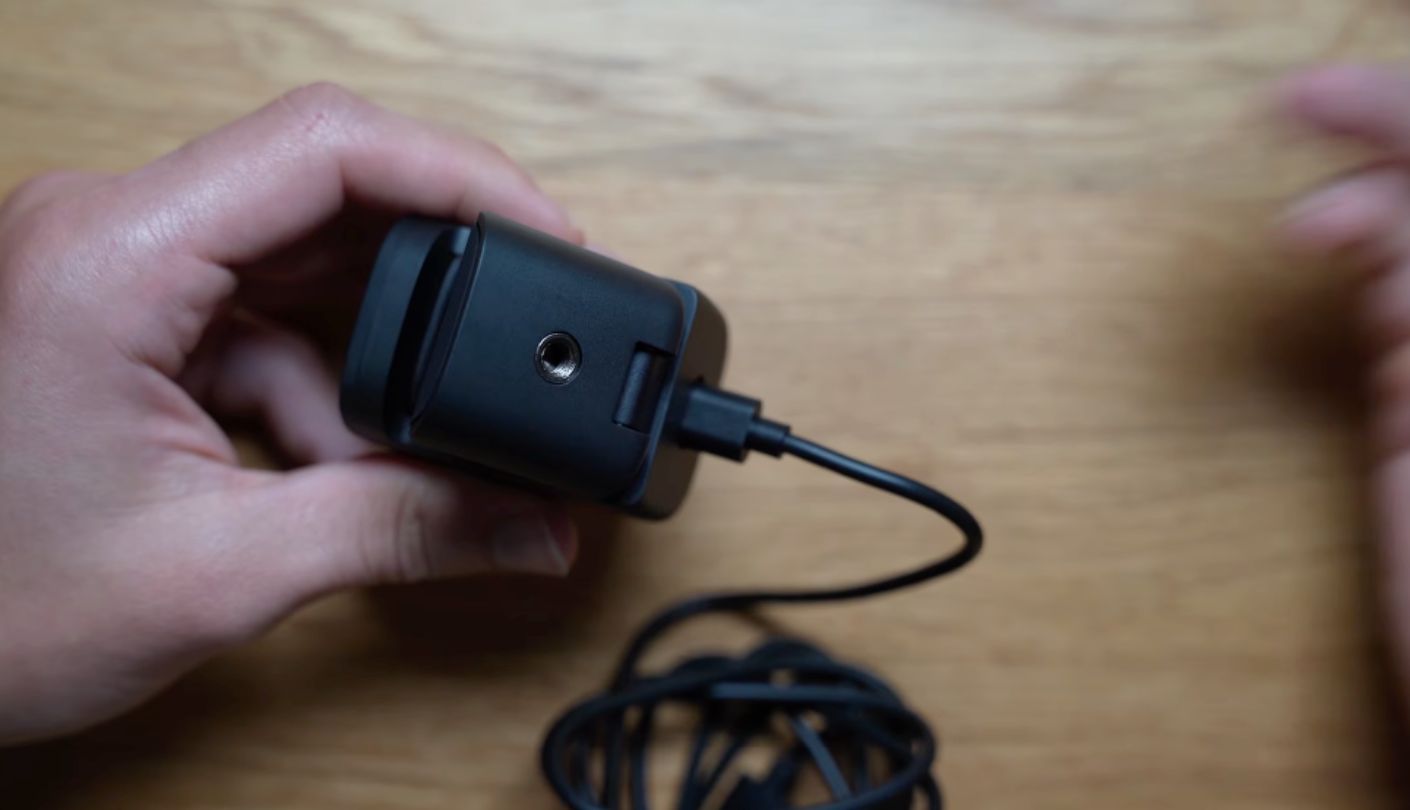
Build quality is a small pleasure. It is a squat box, 2.4 by 2 by 1.6 inches and under three ounces, with a sliding privacy shutter built into the top edge that cuts the camera off rather than just blocking it, a clip that folds flat and a quarter-inch tripod thread underneath. The cable is detachable into a USB-C socket on the back and terminates in USB-A, so a chewed cable is a cheap fix. There is no swivel, and the AnkerWork app handles anti-flicker, image sliders, horizontal flip and the pickup pattern. One thing to watch on the product page: the listing runs the C200 together with Anker's conference speaker hardware, so check the variant you select is the camera rather than a speakerphone.
Nothing else here asks so little of the rest of your setup. The audio is ready, the low-light picture is ready, the framing options cover most rooms, and the whole thing takes about ninety seconds to set up. It gives up motion smoothness to get there, which is a fair trade for the majority of people reading this, and an unacceptable one for the minority who game on camera.
Pros:
- Two AI Mics
- Selectable Pickup Pattern
- Three View Angles
- 1440p Resolution Option
- Tripod Thread Included
Cons:
- Locked To 30fps
- No Swivel Adjustment
Summary: Chat streamers, teachers and podcasters get a complete kit in one box and can skip the microphone purchase entirely. Fast-paced gaming content is where the 30fps ceiling turns from irrelevant to obvious.
Logitech Brio 100 Review
Tightest Framing
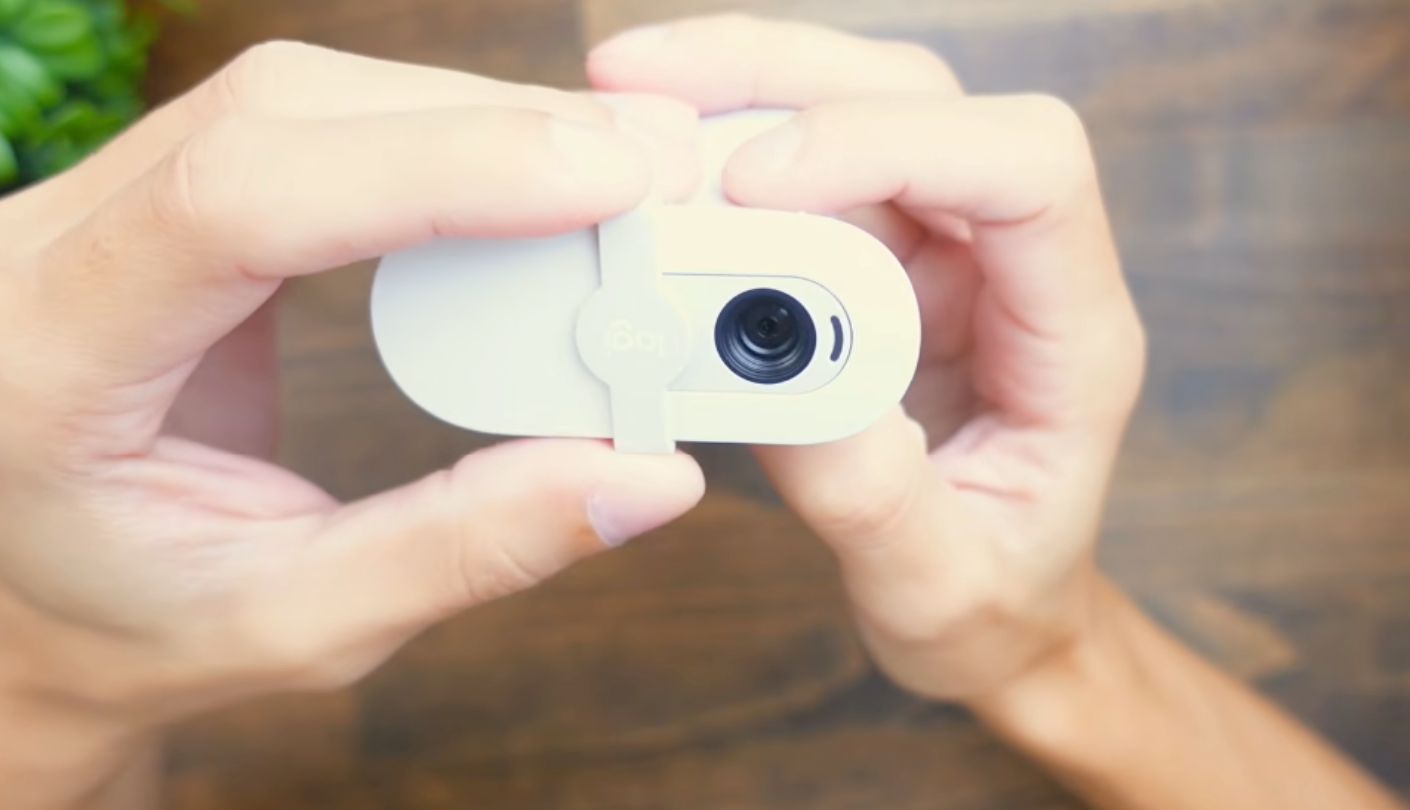
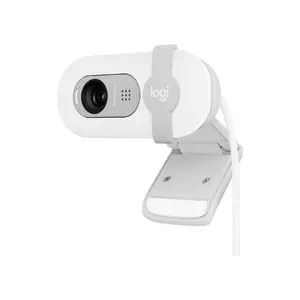
I went into this expecting the Logitech to be the boring one, and I was half right. The Logitech Brio 100 has the shortest spec sheet on the page and the fewest ways to go wrong, which turns out to be a legitimate feature when you are already juggling OBS scenes, audio routing and a game that keeps crashing. It shoots 1080p at 30fps through a two-megapixel sensor and a plastic fixed-focus lens, and that is close to the whole story.
Its one distinctive trait is the 58-degree field of view, the narrowest here by a wide margin. That sounds like a limitation until you consider what most of us are actually broadcasting from, which is a corner of a bedroom with a drying rack in it. A tight lens crops your background down to a slim band behind your head, so a single tidy shelf is enough set dressing. On the 90-degree EMEET, that same room needs actual tidying. I have used narrow framing to hide a genuinely chaotic office for months.
Fixed focus is the price of the simplicity. Sit within a normal arm's-length range of the screen and you are sharp, hold a phone up close to show something and it stays soft. RightLight auto-light balance lifts brightness by up to 50 percent compared with Logitech's older C270, which helps in a gloomy room and cannot invent detail that the sensor never captured. In evening light this is the grainiest picture of the five after the NexiGo, and in daylight it looks perfectly respectable.
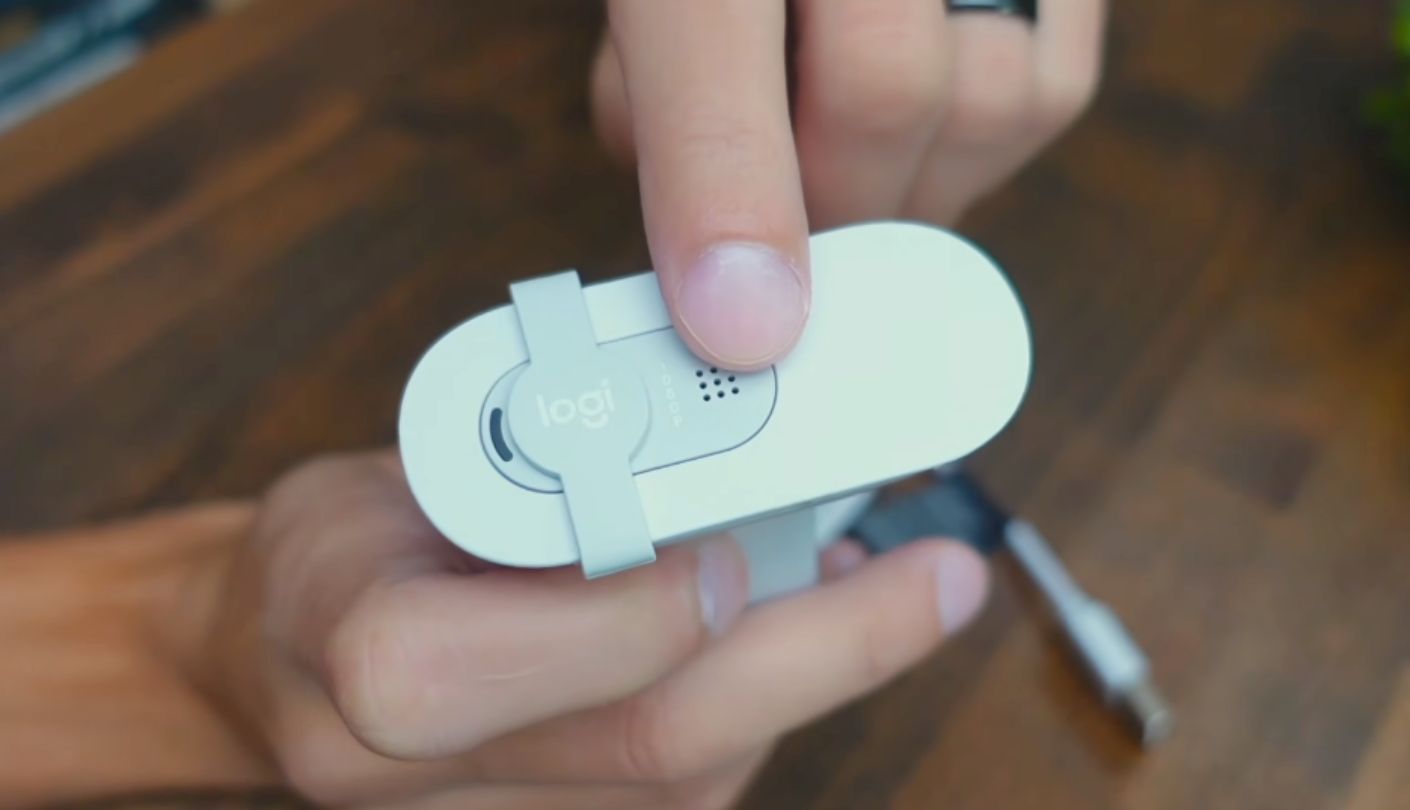
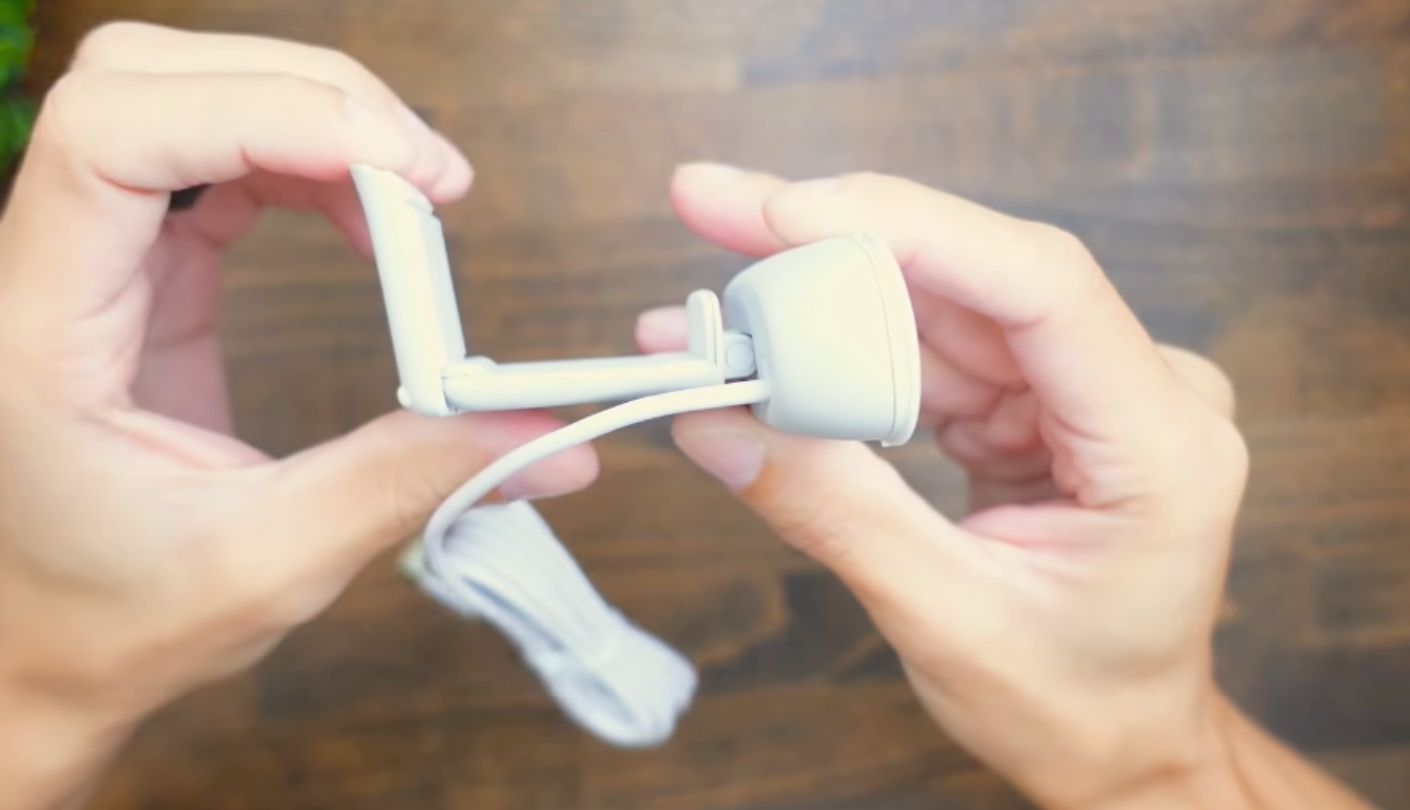
Practical details are a mixed bag. You get an integrated sliding shutter, a two-metre USB-A cable wired permanently into the body, a clip and no tripod thread at all, so the camera lives on top of a screen and nowhere else. It weighs 75 grams, measures roughly 73 by 67 by 32mm, runs on Windows, macOS and ChromeOS, uses at least 34 percent post-consumer recycled plastic and carries Logitech's carbon neutral certification plus a one-year warranty. The single omnidirectional microphone picks up a voice from about three feet, which is call quality rather than stream quality.
Who is it for? Somebody streaming a few hours a week from a laptop, who wants to plug in a camera and then never think about it again, and there is no shame at all in being that person. The moment you want a tripod, a wider shot, a sharper close-up or a smoother frame rate, you have outgrown it, and everything else here is waiting.
Pros:
- Narrow 58-Degree Crop
- Nothing To Configure
- Integrated Sliding Shutter
- Two-Metre Attached Cable
- Recycled Plastic Build
Cons:
- Focus Cannot Adjust
- Clip Mounting Only
Summary: Small rooms and cluttered backgrounds are where the tight lens quietly does you a favour every single broadcast. Anybody planning to show objects to the camera should look at the NexiGo instead.
NexiGo N930AF Review
Closest Focus
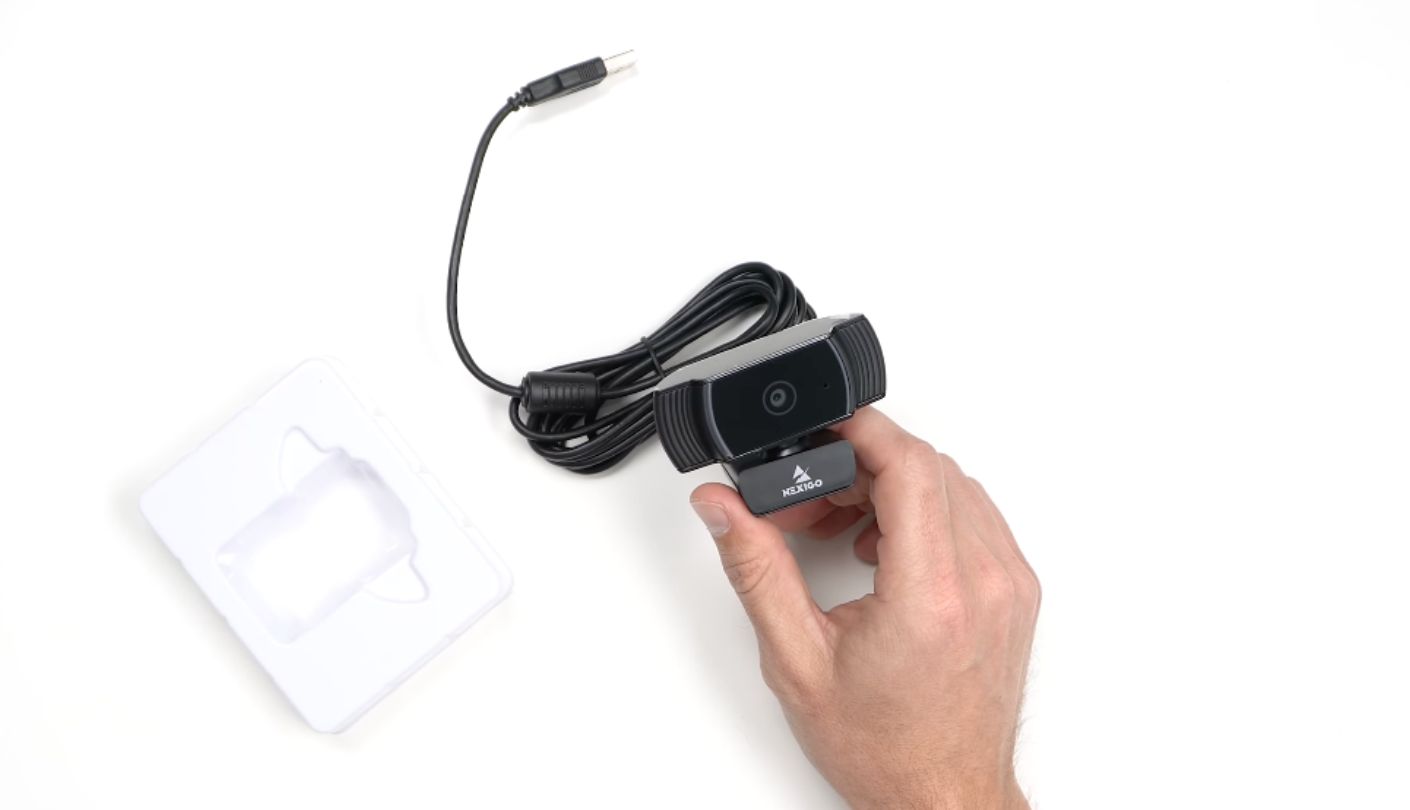
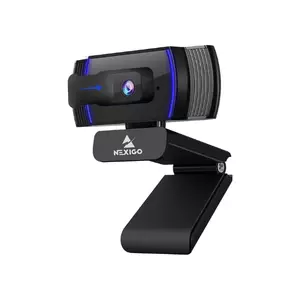
A mate of mine runs a small channel where he builds mechanical keyboards on camera, and he went through three cheap webcams before landing on this one. The problem was always the same: hold a switch up to show the crowd, watch the camera give up and blur it into a beige smudge. The NexiGo N930AF focuses down to about 7cm from the lens, closer than anything else here, and that one number is why it lives on his desk now.
The autofocus does something else clever too, and it is the sort of feature usually reserved for cameras with much bigger price tags. You can switch it off. Lock the focus where you want it and the camera stops hunting every time something crosses the frame, which is the single most annoying webcam behaviour on a live stream. Combined with the exposure and white balance controls that NexiGo exposes to OBS, this is the most manually adjustable camera in the lineup, and streamers who like tinkering will find more to play with here than anywhere else on the page.
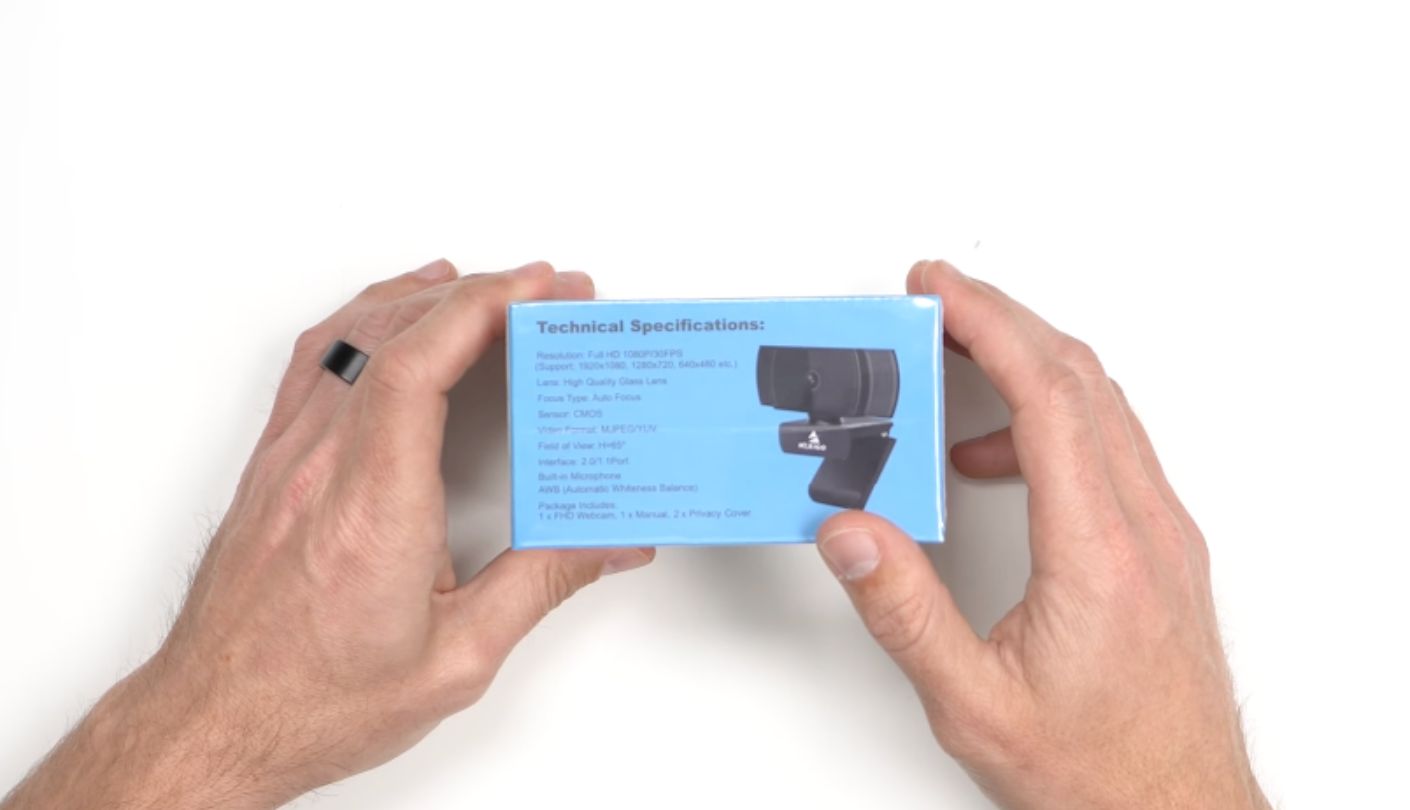
Base specs are modest. A 1/2.7-inch two-megapixel sensor shoots 1080p at 30fps with a 74-degree diagonal view, 67 degrees horizontally, which sits between the tight Logitech and the wide EMEET and frames one person at a desk sensibly. Image quality is where the savings show, and I want to be straight about it. Independent testing found the picture soft with noticeable grain in anything short of bright light, plus an odd exposure habit where the camera picks one bright spot on a wall and lets everything around it fall away. Under good lighting it is fine. Under one overhead bulb it is the weakest picture in this lineup.
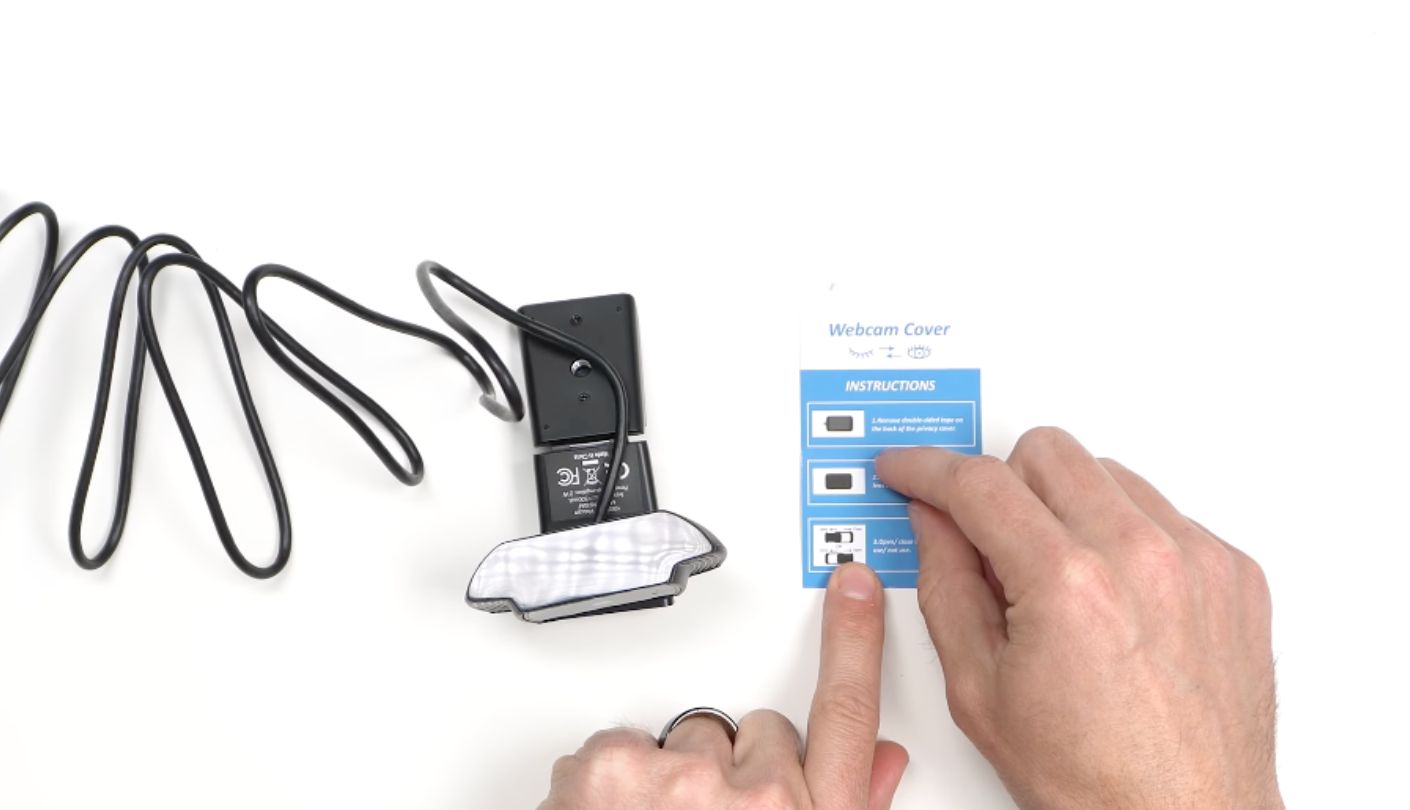
Everything else is plain in a way I do not mind. It is plug and play on Windows, macOS and Chrome OS, works with OBS and XSplit without ceremony, and carries a single noise-reduction microphone that is adequate for talking and nothing more. The privacy cover is the one design choice I would change, since it is a separate plastic slide you attach over the lens with adhesive tape rather than a shutter built into the body, which feels exactly as premium as it sounds.
Craft channels, repair videos, unboxings, card openings, anything where you hold an object up and want people to see the detail on it: that is the job this camera does better than four pricier rivals. Light the room properly and the softness stops mattering. Skip it if your face is the only thing in frame, because then you are paying for a close-focus trick you will never use.
Pros:
- Focuses From 7cm
- Autofocus Can Lock
- Deep Manual Controls
- Balanced 74-Degree View
- Works Without Software
Cons:
- Grainy Under Dim Light
- Stick-On Lens Cover
Summary: Hobby channels that put objects in front of the lens get a close-up ability the rest of this lineup cannot match. Anyone streaming at night without lights should read the picture quality paragraph twice before ordering.
EMEET C960 2025 Review
Widest View
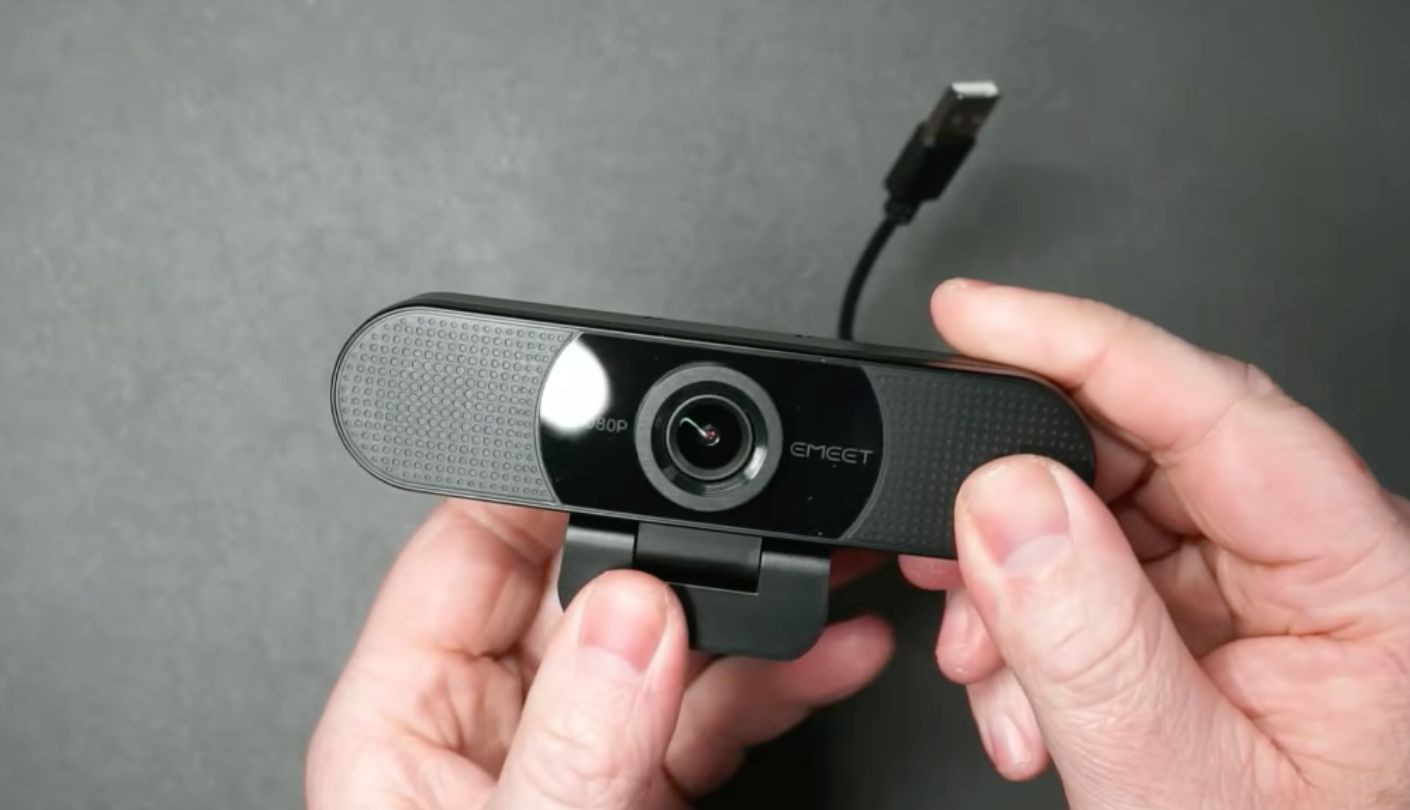
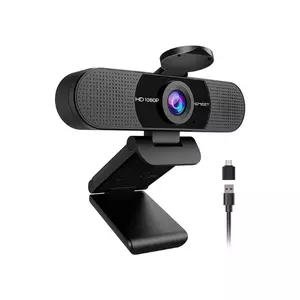
Where the Logitech shows a slim slice of your room, the EMEET C960 2025 shows most of it. The 90-degree lens is the widest on this page, and the difference is not marginal. Two people fit on a sofa without shuffling together, a desk setup appears with its keyboard and mug and monitor arm intact, and a whiteboard behind you stays legible. For co-op streams, couples podcasting, or anyone who wants their space to be part of the show, that width is the entire reason to choose it.
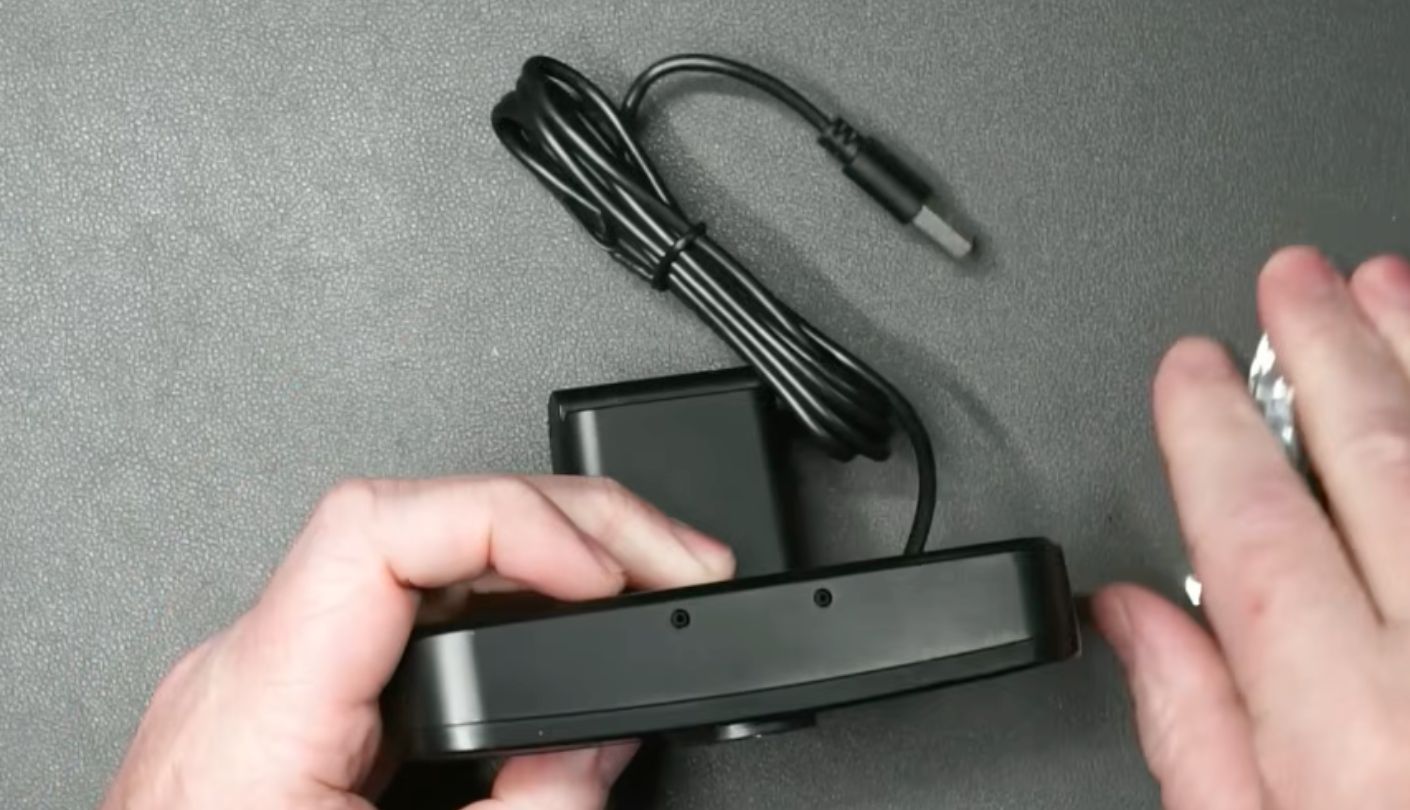
Underneath sits a straightforward 1080p 30fps camera with a five-layer anti-glare lens and fixed focus that holds sharpness from roughly 30cm out to three metres, which covers every sensible seating position at a desk. Auto light correction handles exposure without input. The 2025 revision updates the connector rather than the optics, adding a USB-C adapter alongside the USB-A plug on the end of the 1.5-metre cable, so it works with a modern laptop that has no full-size ports left.
Audio is stronger than the price suggests. Two omnidirectional microphones with noise reduction and echo cancellation pick up voices out to about 2.5 metres, which is the second-best microphone setup here and pairs naturally with the wide lens, since a camera built to show two people should hear two people. There are no speakers in the body, and EMEET says so plainly on the listing rather than letting buyers find out on a call.
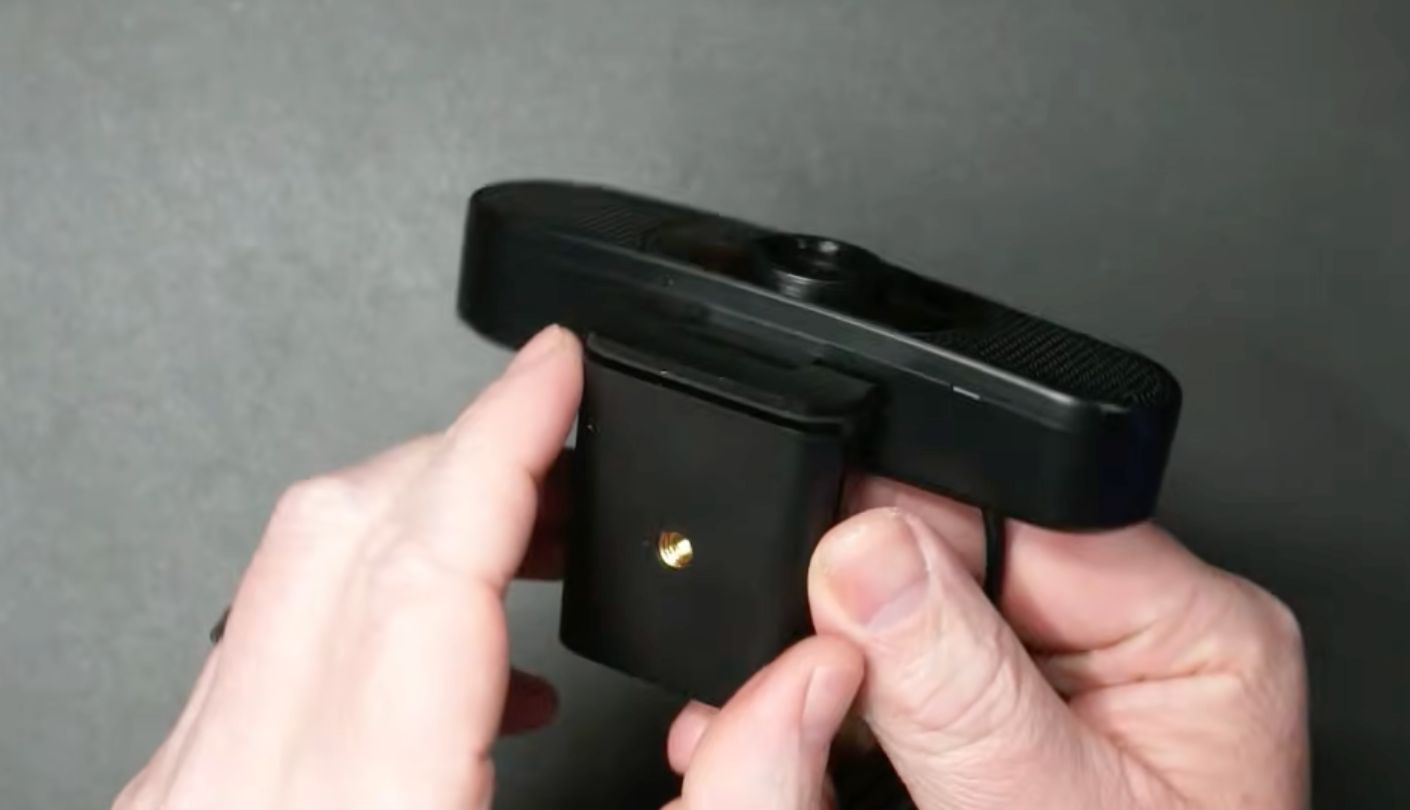
Mounting is the quiet win. The base folds through 180 degrees and the head rotates 90 degrees on top of it, so you can lay the camera flat on a desk, clip it to a monitor or angle it off to one side at a guest, and a quarter-inch tripod thread underneath opens up proper stands. EMEETLINK, the desktop app, handles brightness, contrast, sharpness, saturation, white balance and anti-flicker, and none of it is required to get a picture. Compatibility stretches to Windows, macOS, Linux and Android TV, which is broader coverage than anything else here offers.
The room decides this one. A wide lens flatters an interesting space and punishes a messy one, and there is no software crop to save you, so be honest about what is behind your chair before you click buy. If the answer is a tidy corner, a bandmate, a workbench or a co-host, this gives you the most usable frame of the five for the least fuss. If the answer is a bedroom door and a pile of washing, buy the Logitech and thank me later.
Pros:
- Wide 90-Degree Lens
- Dual Omnidirectional Mics
- Rotating Head Mount
- USB-C Adapter Supplied
- Linux And Android Support
Cons:
- Fixed Focal Range
- Shows Everything Behind You
Summary: Two-person shows and workshop setups gain the most, because the frame stops forcing everyone into a huddle. Solo streamers in small flats will spend their first hour wishing the lens were narrower.
Streaming Webcams on a Budget: FAQ
Do I need a 4K webcam to stream properly?
No, and in most cases it would make your stream look worse. Streaming platforms cap how much data your broadcast can use, and your camera shares that budget with whatever else is on screen. Sending a 4K feed into a small corner box eats bitrate that the game needs and gains you nothing a viewer can see. Shoot 1080p, spend the difference on lighting, and your picture will beat somebody streaming 4K through the same connection.
Why do nearly all cheap webcams stop at 30 frames per second?
Because they were designed for video calls, where 30fps is the norm and higher frame rates would waste bandwidth on a conference bridge. Doubling the frame rate means a faster sensor readout and more processing inside the camera, both of which cost money that a meeting camera cannot justify. The OBSBOT here is the exception because it was aimed at creators from the start, and it charges a little more for the privilege.
Is a built-in webcam microphone good enough to start a channel?
For talking, yes, especially the twin-microphone setups on the Anker and the EMEET. What you lose is warmth and presence, since a small mic a metre from your mouth picks up the room as much as your voice. Viewers forgive an average picture much faster than average audio, so a separate microphone is usually the first upgrade worth making once you know you will keep streaming. Start with what is in the box and let the channel tell you when it matters.
How do I stop my webcam looking grainy in the evening?
Add light before you change anything else. Grain appears when the sensor is short of photons and the camera compensates by amplifying the signal, so more light in the room directly means less noise in the picture. One lamp bounced off a wall to the side of your face does most of the work, and a cheap desk light with a diffuser does the rest. Turning your monitor brightness up also helps more than people expect.
Does autofocus matter if I sit in the same spot the whole time?
Less than you would think, which is why fixed-focus cameras like the Brio 100 and the C960 hold up fine for a static talking head. It starts to matter when you lean in, hold something up or move around your room, since a fixed lens has a distance range and anything outside it turns soft. Autofocus that hunts mid-stream is its own annoyance, which is why the NexiGo letting you lock focus manually is a nicer solution than either extreme.
Can I use one of these with a Nintendo Switch 2 or a console?
The Switch 2 accepts standard USB cameras for its chat feature, and several of these cameras list compatibility with it directly. Sony and Microsoft consoles are stricter and generally expect their own hardware. For streaming a console properly you are going to run the gameplay through a capture card into a computer anyway, and at that point the camera plugs into the computer like any other, so console compatibility stops being a question.
Do I have to install the manufacturer's software?
Not to get a picture. Every camera here follows the USB video standard, so your operating system and OBS both recognise it as soon as you plug it in. The apps unlock extras: OBSBOT Center is required for the 100fps mode and the AI framing, AnkerWork is required to switch the Anker between its three view angles, and EMEETLINK adjusts image sliders on the EMEET. If those features are why you bought the camera, the app is not optional.
Where should the camera actually sit on my desk?
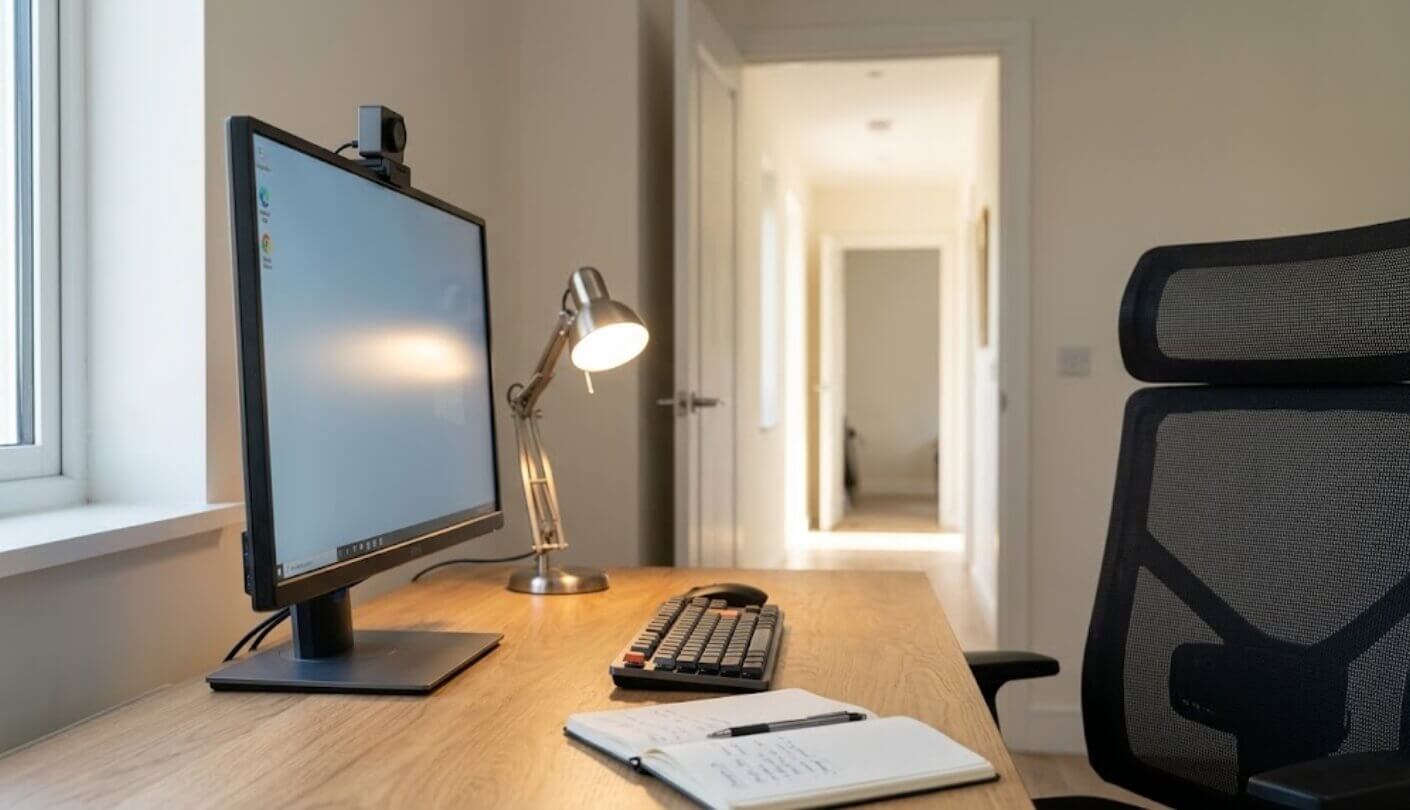
At eye level or a touch above, angled slightly down, roughly an arm's length away. Perching a camera on top of a tall monitor and shooting down at your forehead is the most common setup mistake, and it makes everyone look tired. A quarter-inch tripod thread, which the OBSBOT, Anker and EMEET all have, lets you use a small desk tripod and place the camera properly. If your camera clips only, raising the whole monitor is the cheaper fix.
The Two Things I Would Sort Out First
Work out whether you move on camera before you spend anything. If you play games with your hands in shot, gesture while you talk or lean around your chair, frame rate is the spec that will change how your stream looks, and only one camera here goes beyond 30fps. If you mostly sit and speak, that money is better spent on audio and a lamp, and any of the other four will hold up nicely.
After that it comes down to how much of your room you want people to see, which is a question about your space rather than about the cameras. Narrow lenses hide a lot, wide lenses invite everyone in, and the middle ground suits most solo desks. None of these five is a bad camera, and every one of them will make your laptop webcam look like a webcam from 2009, which is exactly the reaction I was going for when I bought my first one.

Jim's our tech geek with a mission since February 2023. From movies to video projectors, he knows his stuff and aims to make tech work for you. When he's not geeking out, he's there to guide you through making savvy decisions.


