What to Look For in the Best Ultrawide Monitors under $400
There is a specific moment that happens the first time somebody sits down in front of a 34-inch ultrawide. They lean back slightly. Then they open a second window next to the first one, realise it fits, and go quiet for a second. I have watched my mum do it with a spreadsheet and a friend do it with a racing game, and the reaction is identical either way. The screen stops being a window you look into and starts being a desk you work on.
The good news is that this stopped being expensive. Five 34-inch curved ultrawides now land under four hundred, all of them running 3440 by 1440 pixels, all of them fast enough for games, and all of them using the same broad panel family. What separates them is a handful of details that never make it to the front of the listing, including one that quietly caps a monitor's refresh rate depending on which cable you reach for. That one caught me out, so I want to make sure it does not catch you.
Here are my two top picks for the best ultrawide monitors under $400:
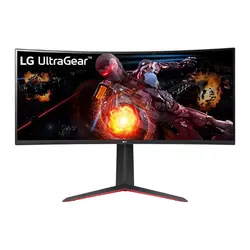
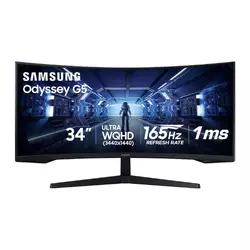
Table of Contents:
- Ultrawide Monitors under $400: Buying Guide
- Top 5 Ultrawide Monitors under $400
- Ultrawide Monitors under 400: Comparison
- LG UltraGear 34GP63A-B
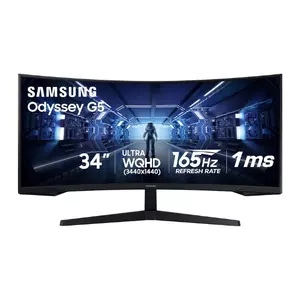
- Samsung Odyssey G5 34"
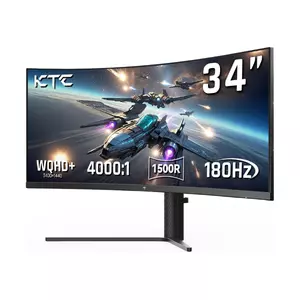
- KTC H34S5
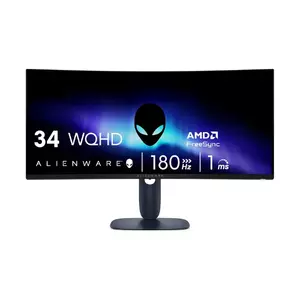
- Alienware AW3425DWM
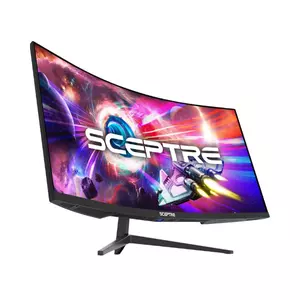
- Sceptre C345B-QUT168
- Ultrawide Monitor under $400: FAQ
Ultrawide Monitors under $400: Buying Guide
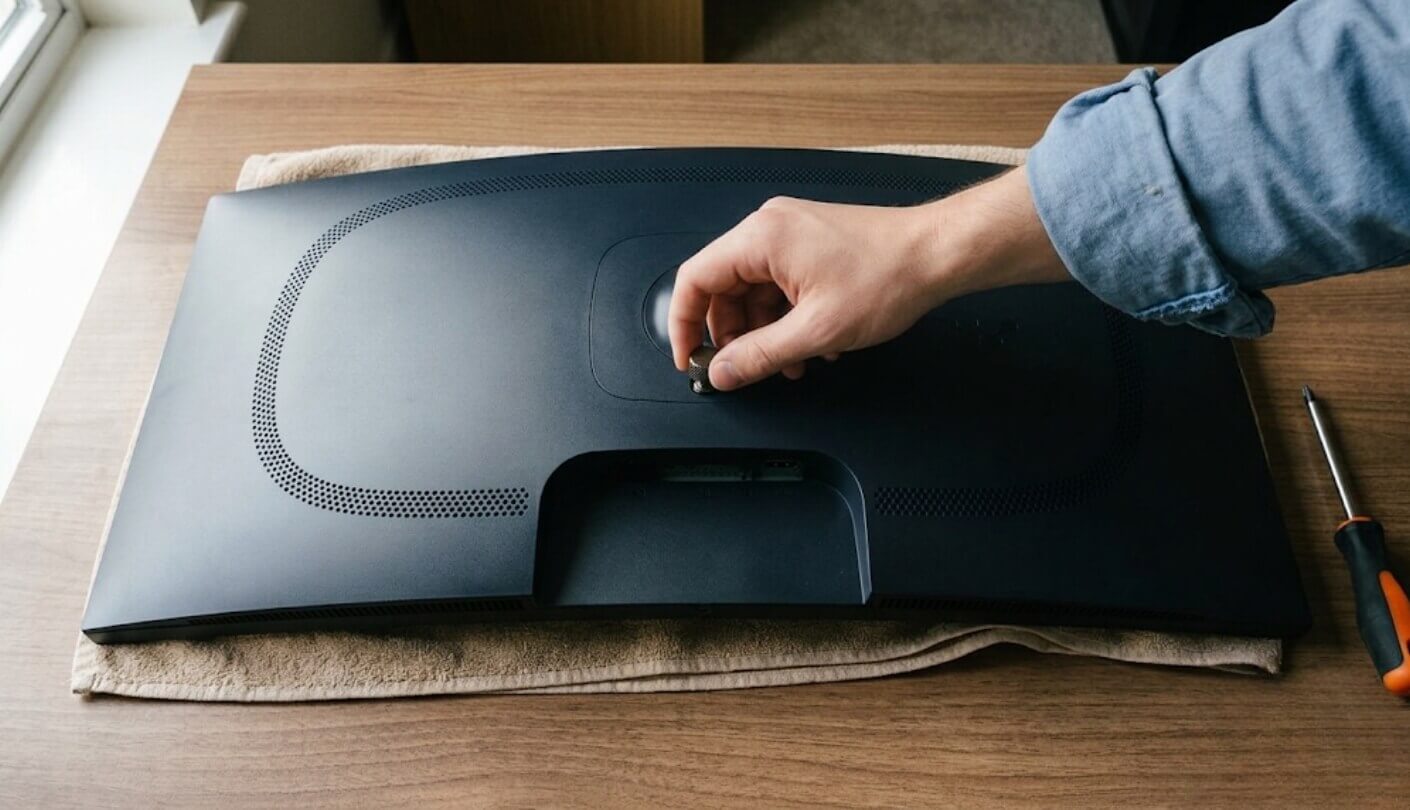
Monitor listings are a wall of numbers, and most of them are there to fill space. Five of those numbers change how the thing feels on your desk, so let me walk through each one in plain language before we get to the individual screens.
What 3440 by 1440 Actually Feels Like
A normal monitor is 16:9. An ultrawide is 21:9, which works out to roughly a third more horizontal space at the same height. In practice that means two full-size windows side by side with nothing overlapping, or a video timeline where you can see the whole edit, or a game where the stuff in your peripheral vision is actually on the screen instead of cropped off. Every monitor here runs the same 3440 by 1440 resolution, so this part is identical across all five.
Height is the thing people forget. A 34-inch ultrawide is exactly as tall as a 27-inch 16:9 monitor, so you gain width and nothing else, which is wonderful for spreadsheets and less useful if what you wanted was a bigger picture overall.
Compared with running two separate monitors, you lose the ability to fullscreen something on one half, and you gain the absence of a bezel down the middle of your view. I moved from two screens to one ultrawide about three years ago and have not gone back, though I know people who tried it and missed the split. Windows and macOS both have snapping tools that make the halves behave like separate displays, which covers most of the gap.
Curve Numbers, Translated
You will see 1000R, 1500R and 1800R on these listings, and the code is simpler than it looks. Imagine the screen kept curving until it closed into a full circle. That number is the radius of the circle in millimetres, so a 1000R screen would form a circle one metre across and an 1800R screen a much bigger one. Smaller number, tighter wrap. The figure tells you nothing about picture quality, only about shape, so do not read a steeper curve as a better screen.
Which one you want depends on how close you sit. A steep 1000R curve feels immersive at arm's length and slightly odd if you sit far back, while 1800R is gentle enough that most people stop noticing it entirely after a day. My own desk is shallow and I like the aggressive curve, but I would not tell anyone that steeper is objectively better, because it genuinely is not. Three of these five sit at 1500R, the comfortable middle ground and the reason it has become the default.
Every Screen Here Uses a VA Panel
This is not a coincidence, it is what the budget buys. VA panels give you deep blacks and high contrast, usually three to four thousand to one, against roughly a thousand to one on the IPS panels used in pricier monitors. In a dark room watching a film or crawling through a dungeon, that difference is immediately visible and very much in VA's favour. It is the reason a cheap VA screen can look more cinematic than a pricier IPS one, which surprises people who assume more money always means a better image.
The trade is viewing angles and dark-scene response. Sit off to one side and colours wash out sooner than they would on IPS, and fast movement in very dark areas can leave a faint trail behind it, which people call black smearing.
How much any of that bothers you is personal. I notice smearing in horror games and never in anything else, and I sit dead centre so the angles have never come up. If you share your screen with someone sitting beside you, or you edit photos for a living, this is the paragraph to reread. For everyone else, the contrast is worth the compromise, and the overdrive tuning on newer panels has improved enough that the smearing complaints you find in older forum threads no longer describe what you get today.
The Cable You Use Changes the Refresh Rate
Here is the detail I promised, and it is the single most common reason someone buys a fast monitor and never sees the speed. On the LG, the two HDMI ports cannot carry the full 3440 by 1440 image at 160Hz. Independent testing puts them at 85Hz at full resolution, so DisplayPort is the only way to get what you paid for. The Sceptre is upfront about a similar split in its own product name, offering 180Hz through DisplayPort and 165Hz through HDMI.
None of this is a defect, it is bandwidth. Older HDMI versions simply cannot push that many pixels that many times per second. What it does mean is that a DisplayPort cable belongs in the box you order, and that plugging a console into HDMI will cap you lower than the listing suggests. Check your graphics card has a spare DisplayPort output before you order, because plenty of laptops do not have one at all and will need an adapter.
The Stand Is Worth More Attention Than It Gets
A 34-inch monitor weighs a fair bit and sits close to your face, so a stand that only tilts is a real limitation. Height adjustment matters most, because the top of the screen wants to be roughly at eye level, and a monitor stuck too low will give you a sore neck within a week. Swivel and pivot are nice extras, and pivot on an ultrawide is mostly theoretical unless you enjoy a very tall column of spreadsheet.
Four of these five let you adjust height, and one is tilt-only, which is the sort of thing you discover after the box is open. Every model here takes a standard VESA mount, so a cheap monitor arm solves the problem permanently if you would rather not pay for a fancier stand.
Measure your desk depth too. These screens are around 31 inches wide and curved, so they eat more space than the number suggests, and sitting closer than about two feet makes the edges hard to take in without turning your head. My desk is a shade under two and a half feet deep and that feels about right to me, though I know people who sit closer and love it. Measure before you buy, not after, because a monitor that does not fit is an expensive thing to repackage.
Top 5 Ultrawide Monitors under $400
Five screens, one resolution, five quite different sets of compromises. I looked at how each one handles motion, what you can plug into it, whether the stand does its job, and above all what each brand chose to cut in order to land under the same price ceiling. That last question tells you more than any of the others.
- Usable 7W Speakers
- 110mm Height Adjustment
- 3,000 To 1 Contrast
- Light Matte Coating
- OnScreen Control Software
- Steep 1000R Wrap
- Very Low Input Lag
- Strong Dark-Room Contrast
- Proven Mature Panel
- FreeSync Premium Certified
- 4,000 To 1 Contrast
- Four Video Inputs
- Full Stand Adjustment
- PIP And PBP Modes
- Three-Year Warranty
- Built-In USB Hub
- DisplayHDR 400 Certified
- HDMI 2.1 Inputs
- Advanced Exchange Warranty
- Compact Stand Base
- Two DisplayPort Inputs
- Built-In Speakers
- Honest Refresh Labelling
- 99% sRGB Coverage
- Lowest Price Here
Ultrawide Monitors under 400: Comparison
The specifications worth comparing, with the marketing removed:
| Specification | LG UltraGear 34GP63A-B | Samsung Odyssey G5 | KTC H34S5 | Alienware AW3425DWM | Sceptre C345B-QUT168 |
| Refresh Rate | 160Hz | 165Hz | 180Hz | 180Hz | 180Hz via DisplayPort, 165Hz via HDMI |
| Curvature | 1800R, gentlest here | 1000R, steepest here | 1500R | 1500R | 1500R |
| Panel Type | VA | VA | VA | VA | VA |
| Video Inputs | Two HDMI 2.0, one DisplayPort 1.4 | One HDMI 2.0, one DisplayPort 1.4 | Two HDMI 2.0, two DisplayPort 1.4 | Two HDMI 2.1, one DisplayPort 1.4 | Two HDMI, two DisplayPort |
| Adaptive Sync | AMD FreeSync Premium | AMD FreeSync Premium | Adaptive Sync, FreeSync and G-Sync compatible | AMD FreeSync Premium and VESA AdaptiveSync | AMD FreeSync Premium |
| USB Data Ports | None | None | None | Two USB-A at 5Gbps plus USB-B upstream | None |
| Rated Contrast | 3,000 to 1 | 2,500 to 1 | 4,000 to 1 | 3,000 to 1 | Not published by Sceptre |
| VESA Mount | 100 by 100mm | 75 by 75mm | 100 by 100mm | 100 by 100mm | 75 by 75mm adapter included |
| Standout Extra | Two 7W MaxxAudio speakers | Deepest wrap of the five | Four inputs with PIP and PBP | Only model with a USB hub | Two DisplayPorts plus speakers |
The contrast line has a hole in it, because Sceptre does not publish a figure for this model while the other four do, so treat that cell as unknown instead of low. Look hard at the video inputs line as well. It decides whether a console, a work laptop and a desktop can all stay plugged in at once, and the Samsung with its single HDMI and single DisplayPort is the tightest of the group by a clear margin.
LG UltraGear 34GP63A-B Review
Editor's Choice
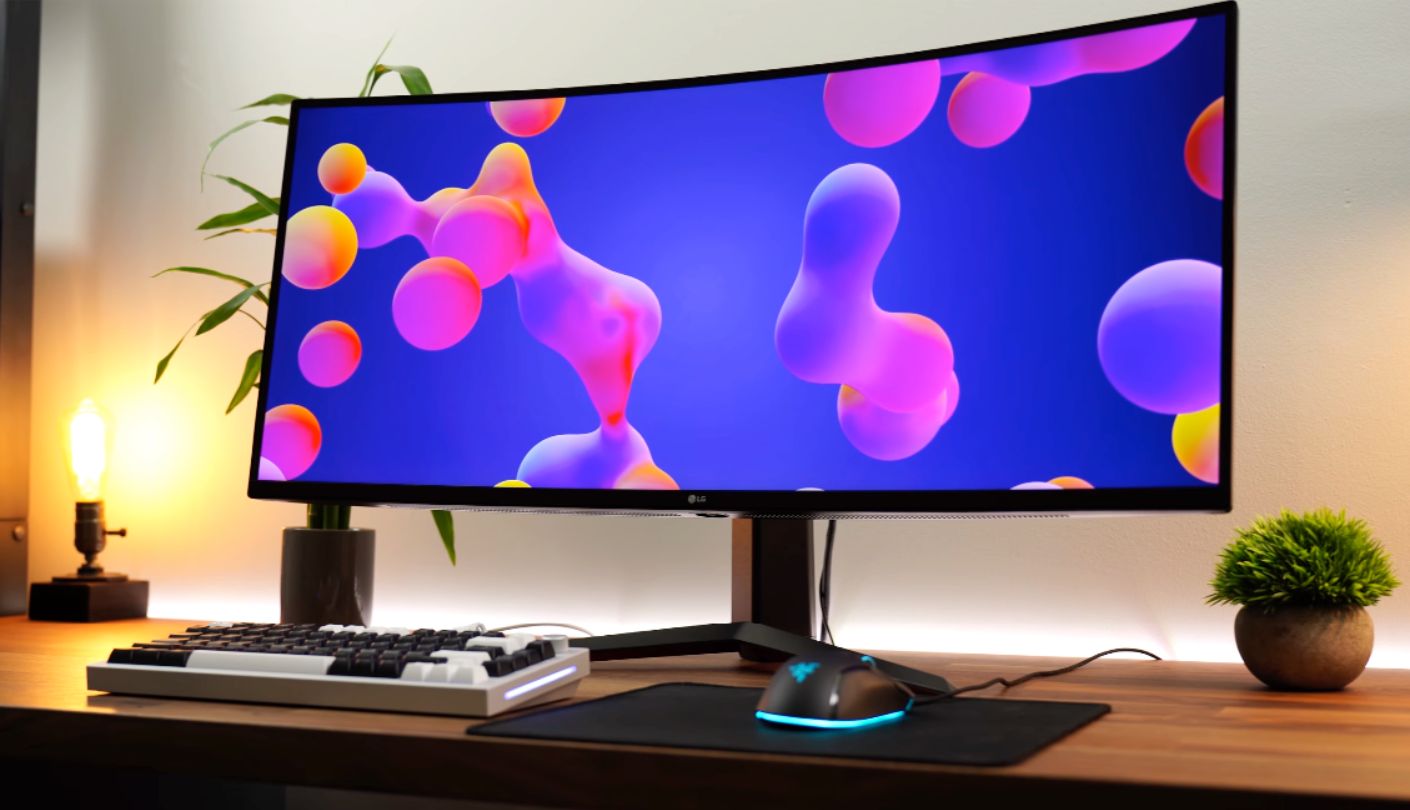
How much is a pair of decent built-in speakers worth to you? On most monitors the honest answer is nothing, because monitor speakers are usually terrible. The LG UltraGear 34GP63A-B fits two 7W drivers tuned with MaxxAudio, and they are the only pair on this list I would happily use for a video call or background music without reaching for headphones. Small feature, daily payoff, and I did not expect to care about it as much as I do.
The panel is a 34-inch VA running 3440 by 1440 at 160Hz, with a gentle 1800R curve, 99% sRGB coverage, 300 nits of brightness and a rated 3,000 to 1 contrast. That last number is the one doing the heavy lifting: blacks look properly black instead of dark grey, which is what makes a VA panel worth choosing over a similarly priced IPS. Input lag measures around 4ms, which is far below the threshold where anybody notices, and there is a 1ms motion blur reduction mode that strobes the backlight for sharper movement at the cost of some brightness.
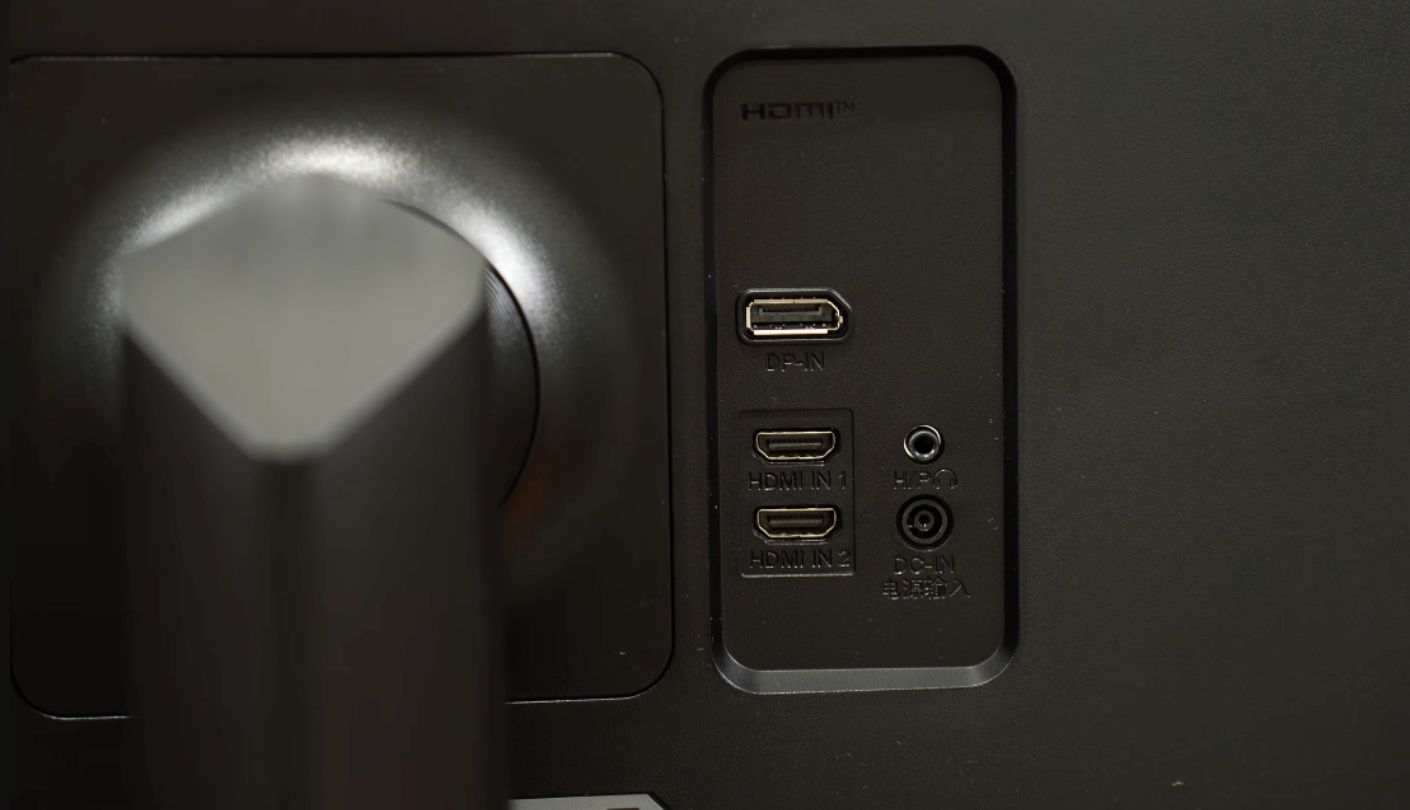
Now the catch, and I want to be direct about it because LG is not. The two HDMI ports cannot carry 3440 by 1440 at 160Hz. Independent testing found them limited to 85Hz at full resolution, or 120Hz if you drop down to 2560 by 1440. DisplayPort is the only input that gives you the advertised refresh rate, so if your PC has just one DisplayPort output and you also want a console attached, that console is going to run at a lower refresh rate. It is not a fault, and it is not exactly hidden either, but it lives in a specification table nobody reads.
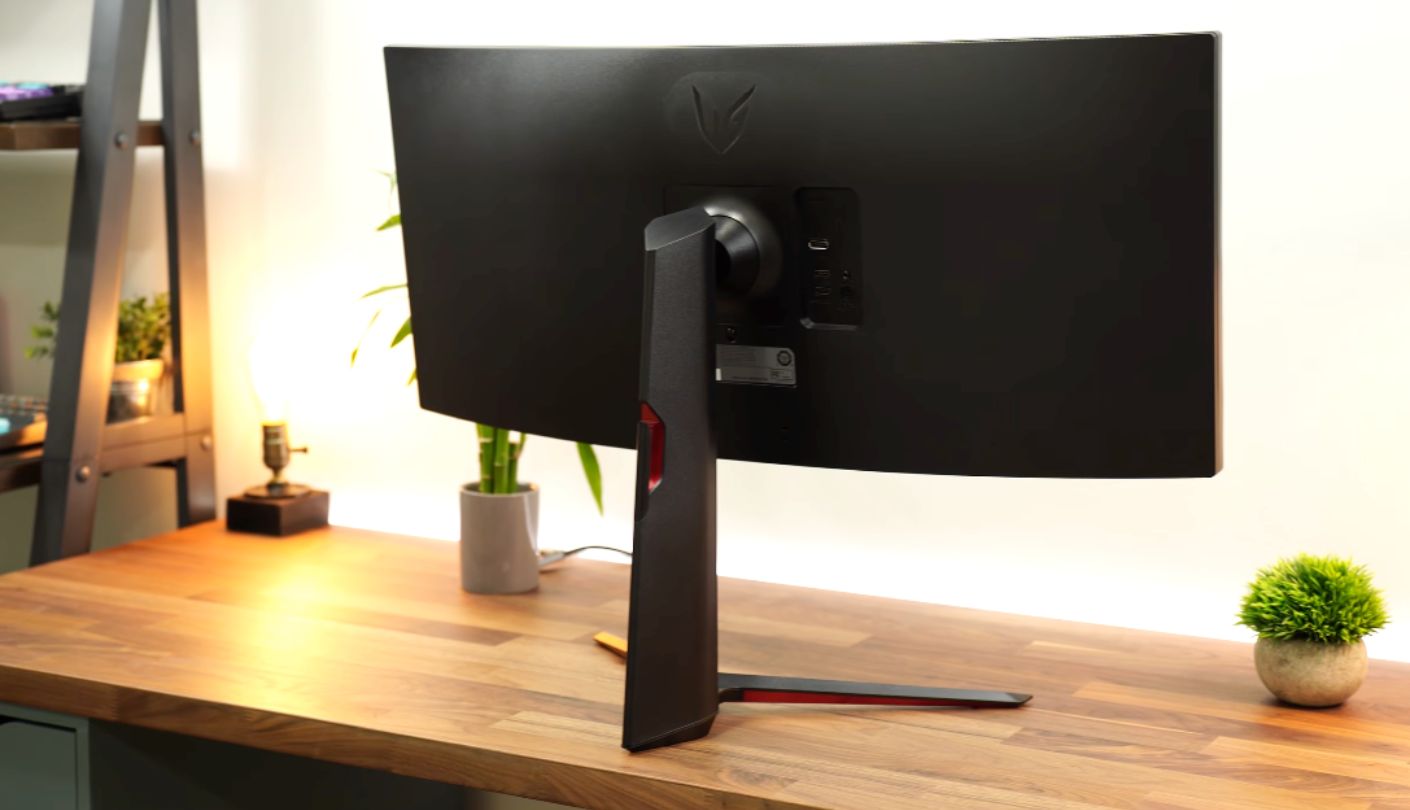
Everything else is quietly sensible. The stand gives you 110mm of height adjustment plus tilt, the mount is a standard 100 by 100mm VESA pattern, and the anti-glare coating is light enough that text stays crisp and never turns grainy. LG's OnScreen Control software lets you split the screen into zones and adjust settings from Windows instead of poking at a joystick behind the panel, which is genuinely nicer than it sounds.
My top pick goes here because nothing about it nags at you. The speakers save you a purchase, the stand goes where you want it, the coating is kind to text, and the contrast makes films look properly good in a dark room. Buy a DisplayPort cable with it, plug that in, and the one real limitation stops being a limitation at all. For a first ultrawide, or for a machine that does work in the day and games at night, this is the least fussy option of the five.
Pros:
- Usable 7W Speakers
- 110mm Height Adjustment
- 3,000 To 1 Contrast
- Light Matte Coating
- OnScreen Control Software
Cons:
- HDMI Capped At 85Hz
- Slowest Refresh Here
Summary: Day-to-day comfort is what this screen is selling, from the speakers to the stand to how text renders on it. Competitive players will want one of the 180Hz options below and should feel no guilt about skipping it.
Samsung Odyssey G5 34" Review
Best Overall
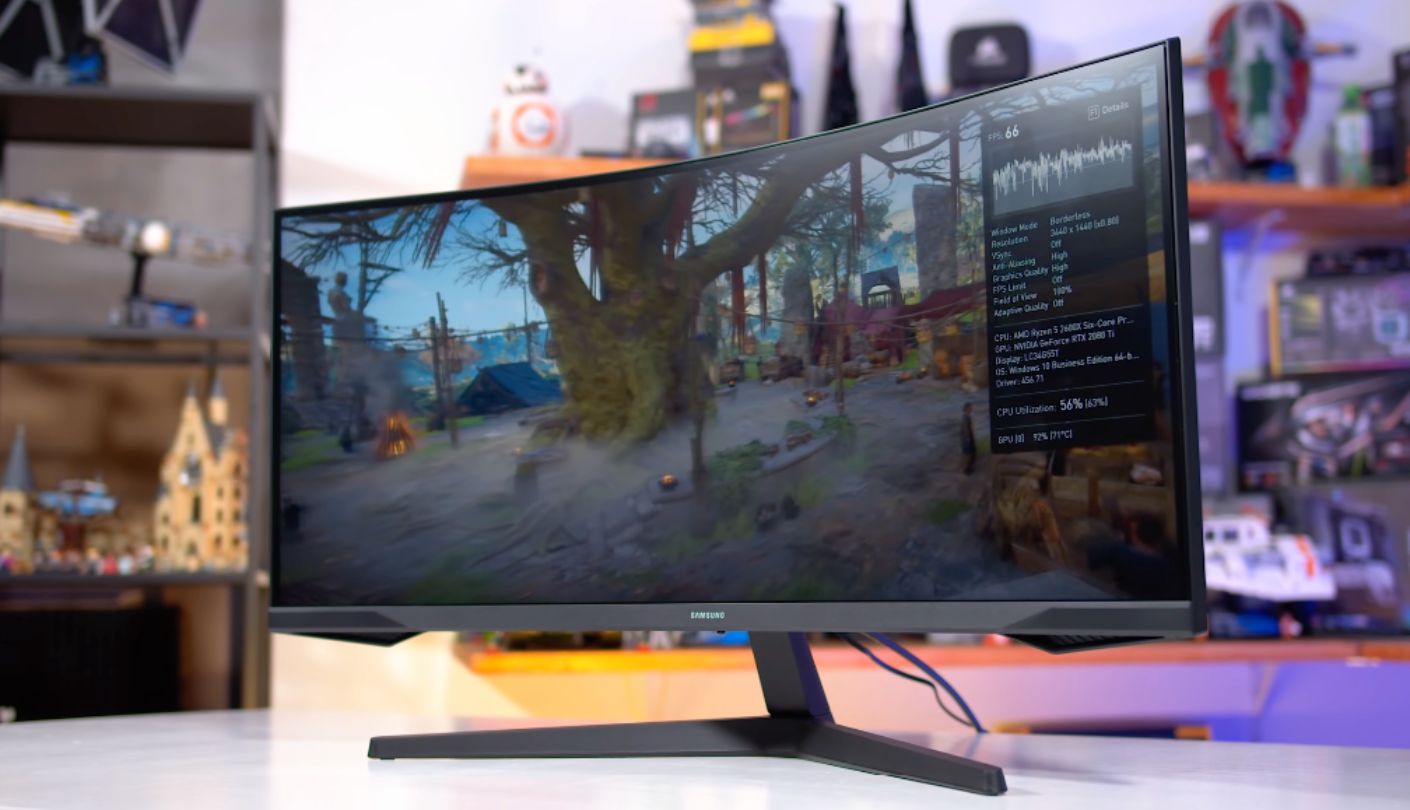
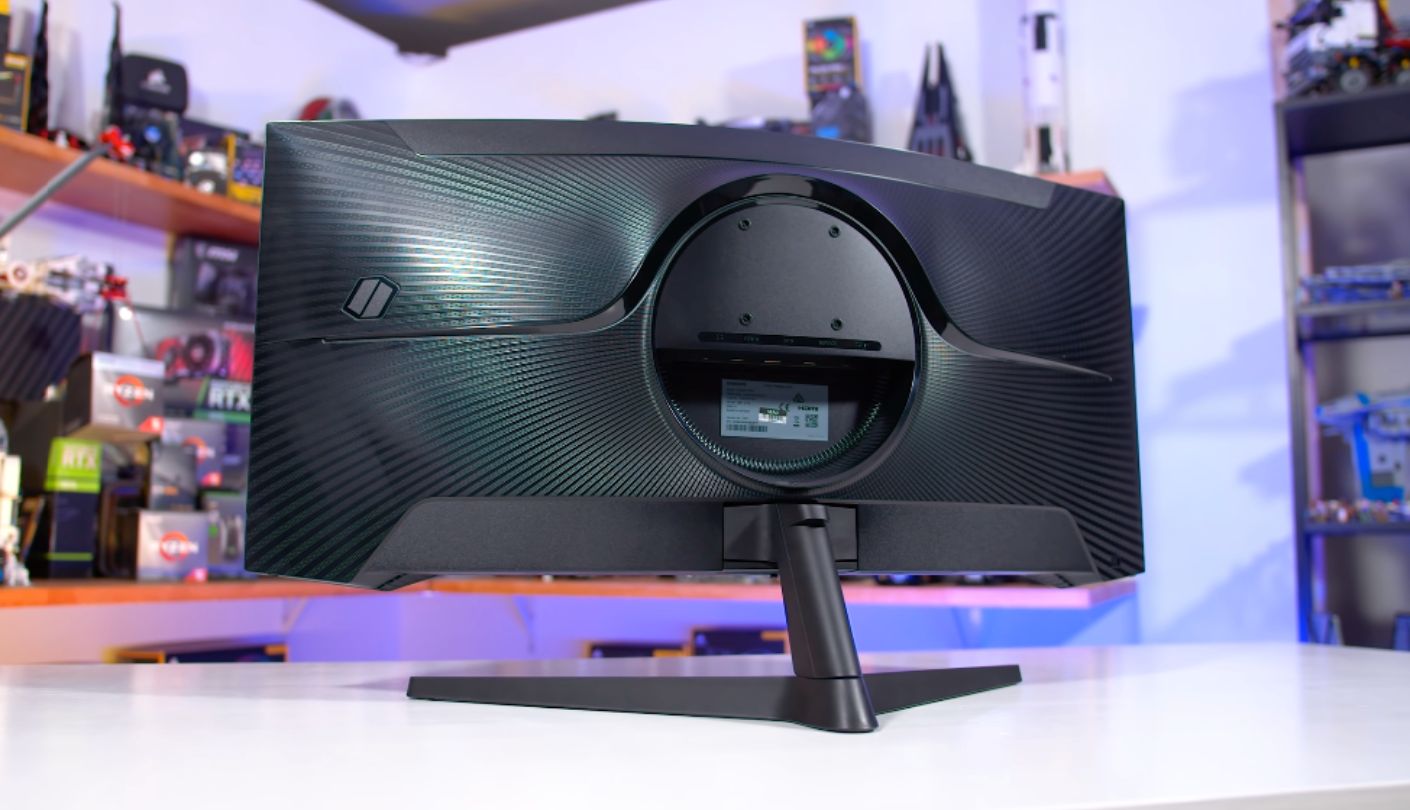
Four of these five monitors have a curve you forget about. The Samsung Odyssey G5 has one you feel. Its 1000R panel is the steepest wrap in this group by a long way, curving nearly twice as hard as the LG, and the effect at a normal desk distance is that the edges of the screen point back toward your eyes instead of away from them. In a driving game or a flight sim it is the closest thing to a cockpit you will get for this money.
Underneath the curve sits a well-sorted 34-inch VA panel at 3440 by 1440 and 165Hz, with FreeSync Premium and a rated 2,500 to 1 contrast. Independent testing rates it as a strong choice for dark-room gaming specifically, thanks to that contrast, and input lag measures extremely low in normal use. There is one caveat worth knowing from the same testing: certain settings combinations have been found to raise input lag and stop variable refresh rate working, so it is worth checking your firmware is current when the box arrives.
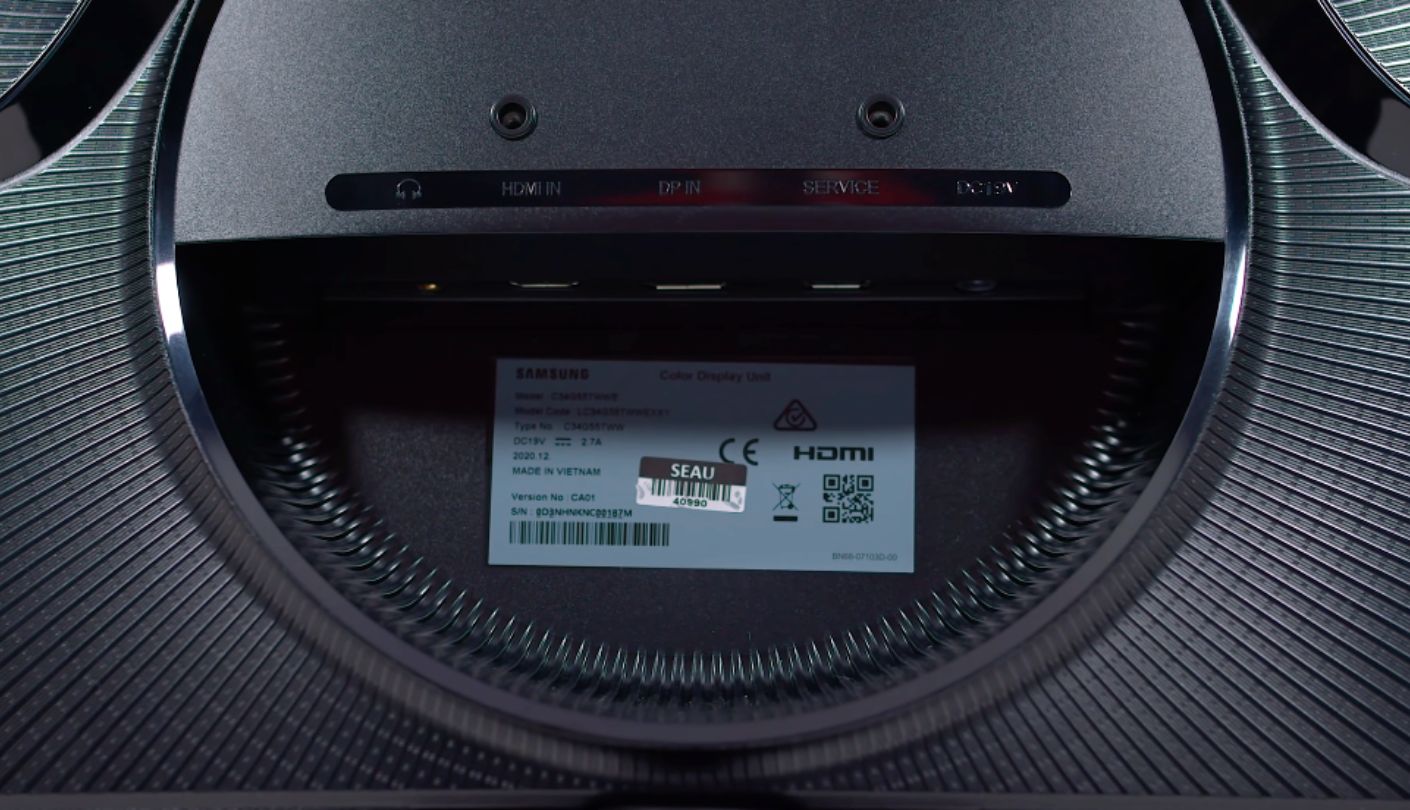
Connectivity is where Samsung got stingy. You get one HDMI 2.0 and one DisplayPort 1.4 and nothing else, no USB hub, no speakers, just a headphone jack. For a desktop plus one console that is fine. For anyone juggling a work laptop as well, you are reaching behind the monitor to swap cables, and after the third time you will start pricing up an HDMI switch.
The stand is the other place to look before buying. It tilts and does nothing else, so screen height is fixed by whatever your desk gives you, and there is no swivel to angle it toward a second chair. The VESA pattern is the smaller 75 by 75mm size, which most monitor arms still support but worth checking against yours. Viewing angles are narrow even by VA standards, so this is not a screen for two people watching together.
It takes best overall because the picture is the point and the picture is excellent. That 1000R wrap is a genuine feature and not a spec-sheet flourish, the contrast makes dark games look properly moody, and the panel has been in the market long enough that its quirks are all documented. Budget for a monitor arm, accept the two inputs, and you get the most immersive screen here.
Pros:
- Steep 1000R Wrap
- Very Low Input Lag
- Strong Dark-Room Contrast
- Proven Mature Panel
- FreeSync Premium Certified
Cons:
- Tilt-Only Stand
- Just Two Inputs
Summary: Racing and flight sim players are the obvious audience, since nothing else here wraps around you like this does. Anyone who needs three devices plugged in at once should stop reading and scroll down to the KTC.
KTC H34S5 Review
Contrast King
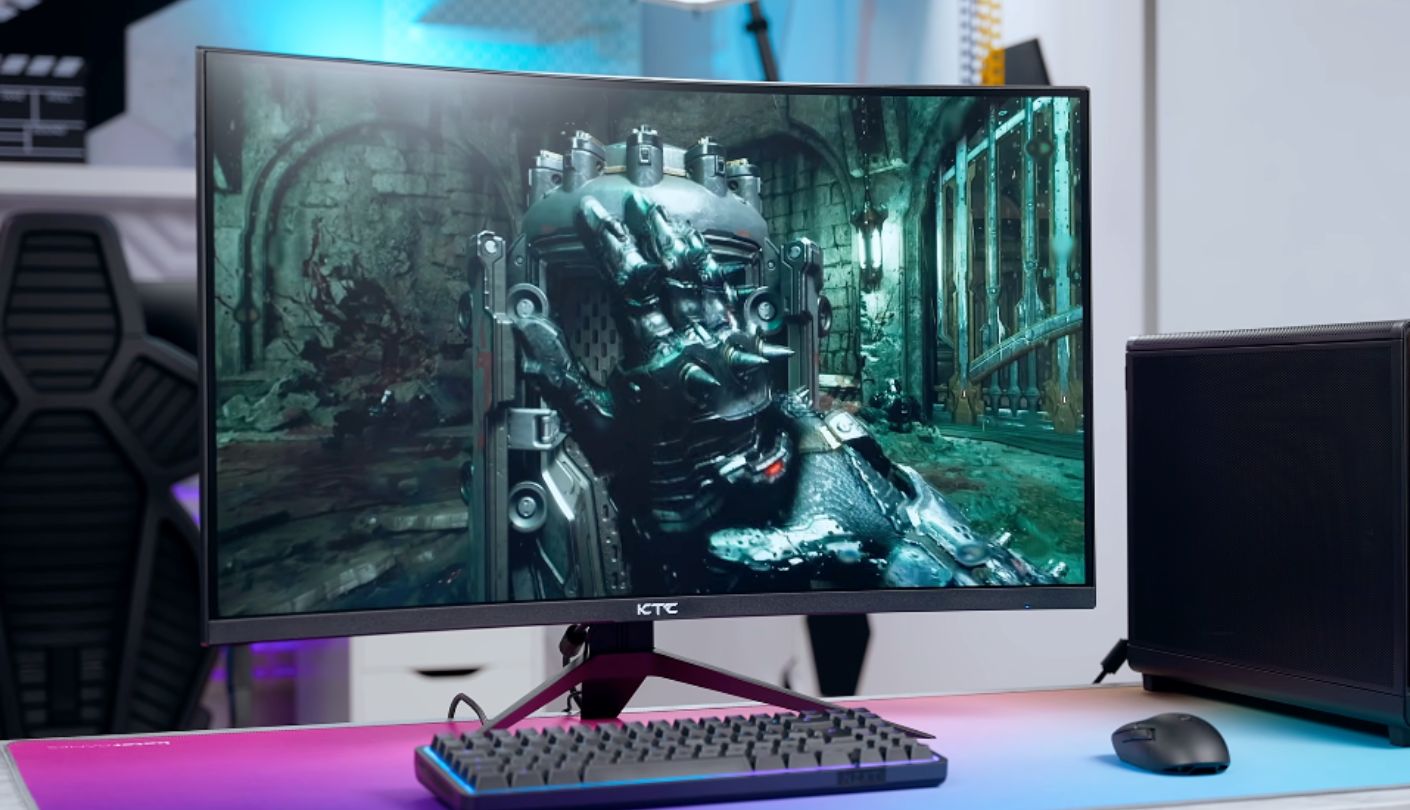
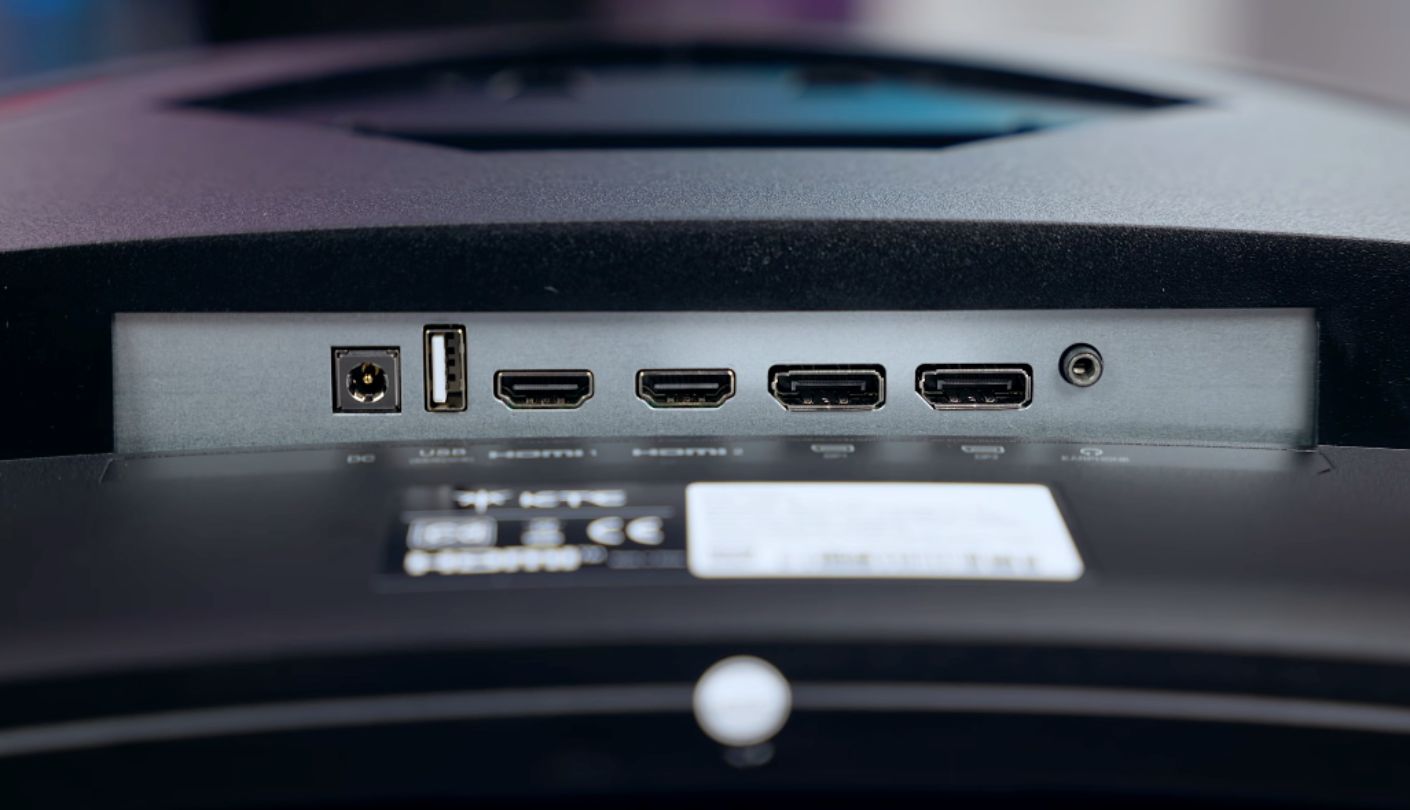
A friend of mine bought one of these on a whim last year, mostly because he had never heard of the brand and wanted to see what would happen. He has since sent me three unprompted messages about how good it looks in dark scenes. The KTC H34S5 has the highest rated contrast of these five at 4,000 to 1, and in a dim room that is the number you feel first.
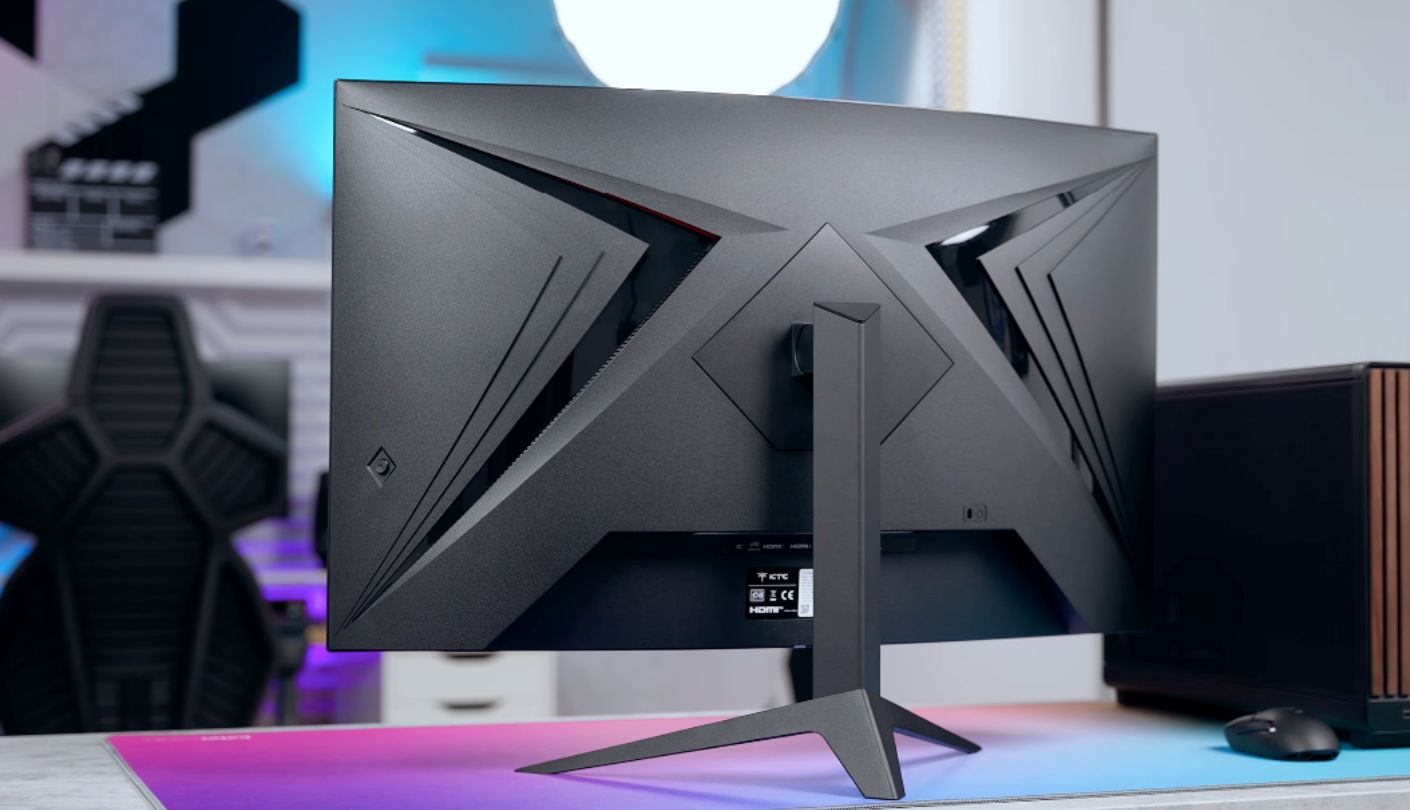
The rest of the sheet holds up too. It runs 3440 by 1440 at 180Hz on a 1500R VA panel, with roughly 90% DCI-P3 coverage measured in testing, 300 nits of brightness and dithered 10-bit colour. Four video inputs is the most generous count in this comparison, two HDMI 2.0 and two DisplayPort 1.4, and picture-in-picture plus picture-by-picture modes let you show two of those sources on screen at once. The stand handles tilt, swivel, height and pivot, and KTC backs the whole thing with a three-year warranty.
One thing to watch on the listing, because it tripped me up. This product page has carried both the older H34S18S and the newer H34S5, and they are not the same monitor. The H34S18S runs 165Hz, the H34S5 runs 180Hz with an added sRGB mode and a slightly better panel. Check which model number is on the variant you select, and trust that over the page title, and if the listing shows 165Hz anywhere, you are looking at the older one.
What you give up is brand familiarity and everything that comes with it. KTC has no showroom presence, service is handled by email, and if something goes wrong you cannot walk into a shop. Reviewers have found the panel and overdrive tuning genuinely good for the money, so the risk sits with support and not with quality, and a three-year warranty is a reasonable answer to that concern.
If I were building a desk on a budget and did not care whose logo was on the bezel, this is the one I would order. It has the deepest contrast, the most inputs, the fullest stand adjustment and the joint-highest refresh rate, which is a strange combination of wins for the least famous name on the list. The catch is entirely about who you call when something breaks, and plenty of people will decide that is a fine trade. Just double-check which variant lands in your basket.
Pros:
- 4,000 To 1 Contrast
- Four Video Inputs
- Full Stand Adjustment
- PIP And PBP Modes
- Three-Year Warranty
Cons:
- Confusing Listing Variants
- Email-Only Support
Summary: Spec-for-spec this is the most monitor per pound in the group, and the reviews back that up, not only the marketing. The unknown is what happens in year two, which is a real question and not a reason to dismiss it.
Alienware AW3425DWM Review
Built-In Hub
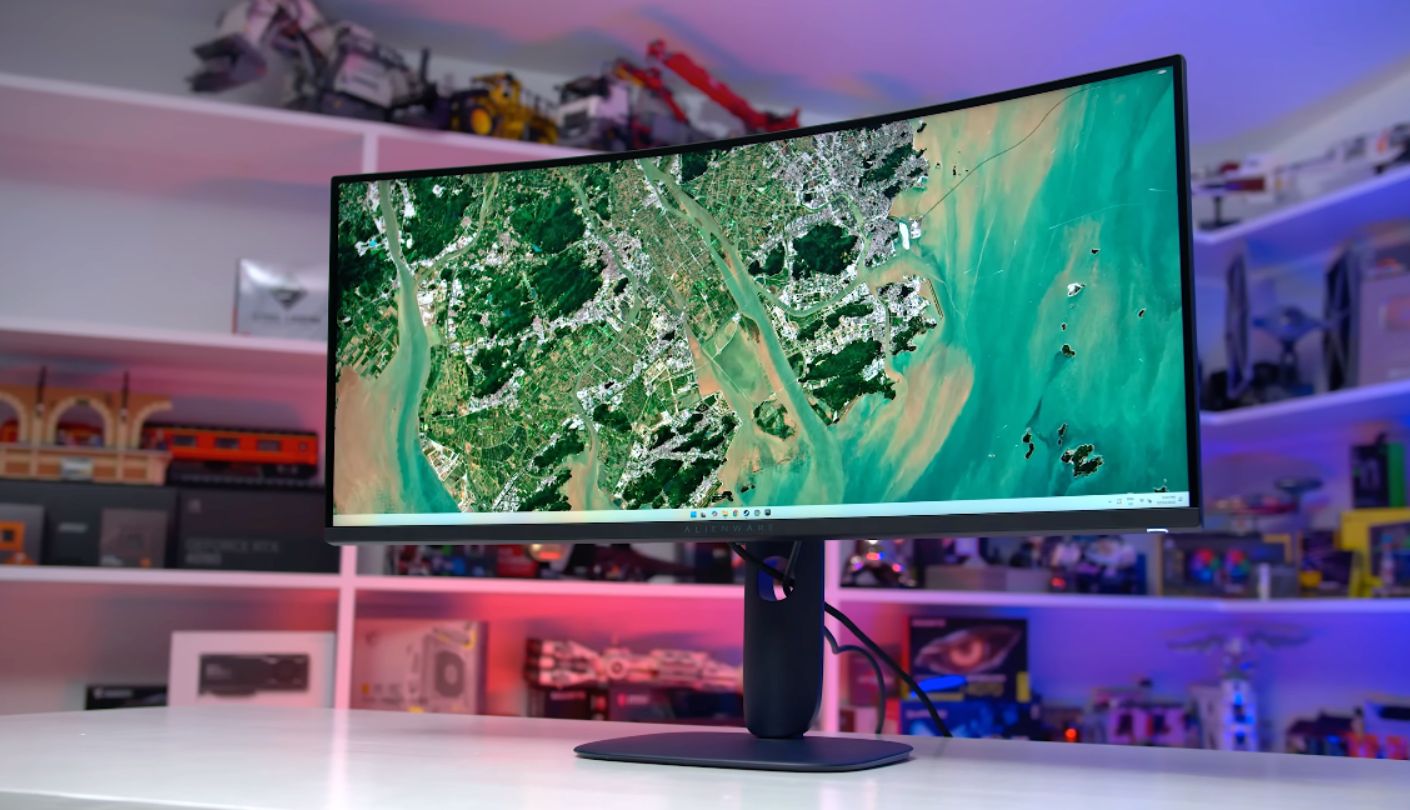
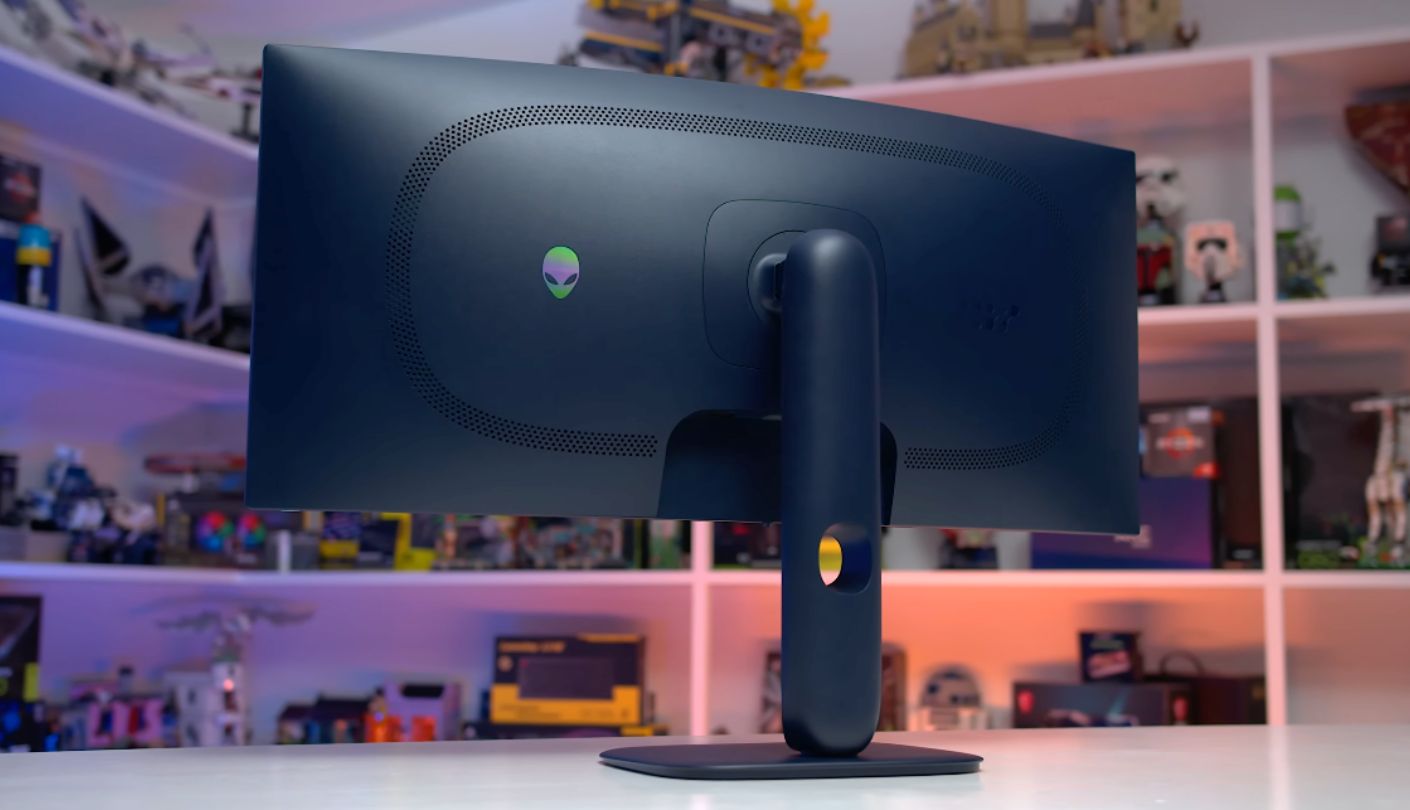
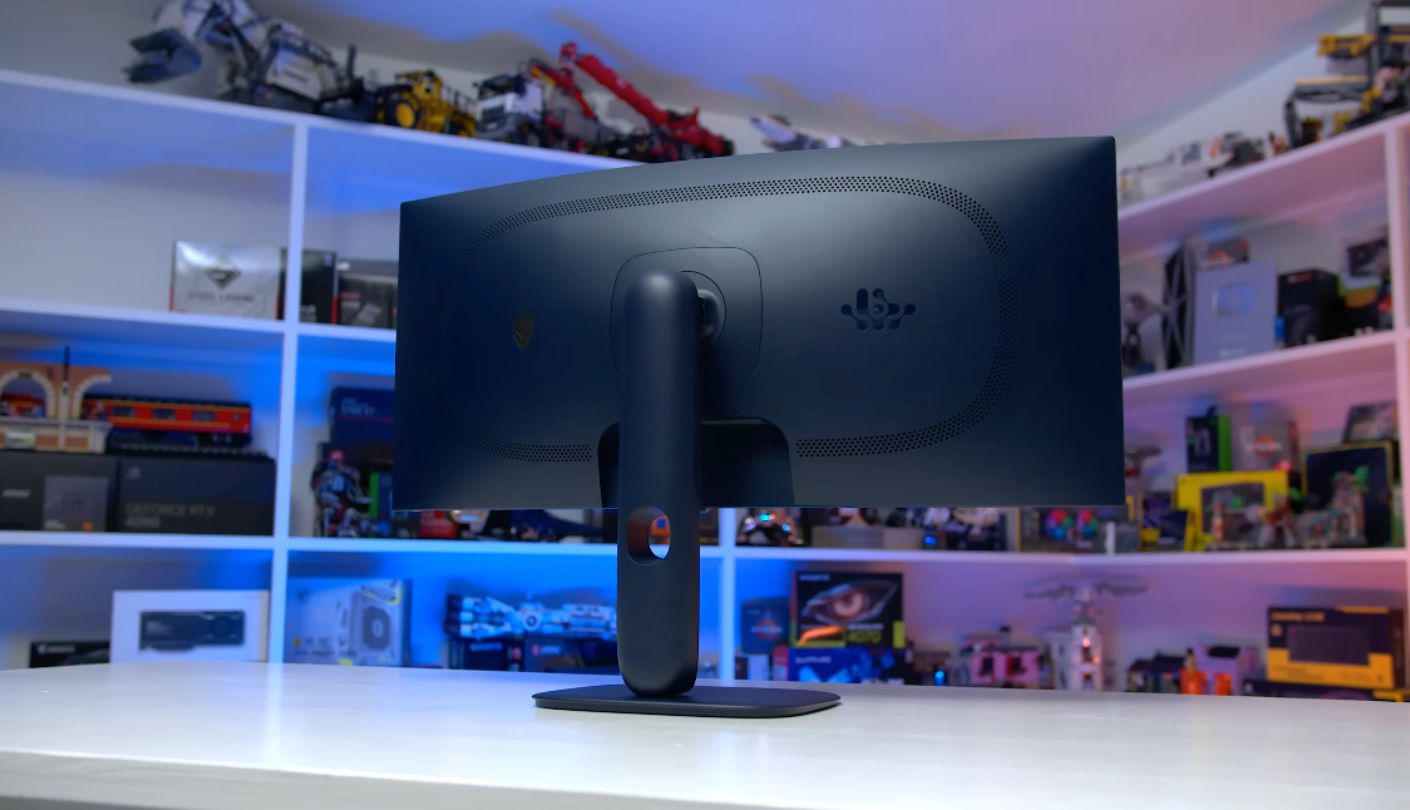
I should say upfront that Alienware makes a much more famous 34-inch monitor, and this is not it. The Alienware AW3425DWM shares a name and a design language with the AW3425DW, which is a 240Hz QD-OLED screen costing several times as much. The letter on the end is the whole difference. This one is a 180Hz VA panel, and if you arrived expecting OLED blacks you should know that before reading further.
Judged as what it is, it is very good. The 34-inch VA panel runs 3440 by 1440 at 180Hz with a 1500R curve, 95% DCI-P3 colour coverage, a rated 3,000 to 1 contrast and VESA DisplayHDR 400 certification, which is the entry rung of HDR but still a step above the plain HDR10 badge most rivals carry. Response time drops to a claimed 1ms in the fastest overdrive mode.
Its actual party trick is the ports, and it is the only screen here that has one. Two HDMI 2.1 inputs and a DisplayPort 1.4 handle video, and then there are two USB-A ports running at 5Gbps fed by a USB-B upstream cable to your PC, one of which supports charging. That turns the monitor into a small hub, so your keyboard, mouse or headset dongle plugs into the screen instead of crawling behind the tower. Once you have lived with that you notice its absence everywhere else.
The stand covers height across 110mm, tilt from five degrees down to twenty-one up, and five degrees of pivot, on a compact base that does not eat the whole desk. Dell backs it with a three-year Premium Panel Warranty and Advanced Exchange, which means a replacement ships before you send the faulty one back, and no other brand on this list offers anything that good. The trade-off is that adaptive sync here is AMD FreeSync Premium and VESA AdaptiveSync with no official Nvidia G-Sync compatibility listed, so Nvidia owners should check their own setup before committing.
The reason to pick this one is the whole package and never any single number. Good panel, useful hub, proper warranty, tidy stand, sensible design. It rarely wins a spec comparison outright and it also never leaves you wanting. Think of it as the option you buy when you would rather not spend an evening researching, because Dell has already made the sensible choice at every point where a cheaper brand would have shaved something off.
Pros:
- Built-In USB Hub
- DisplayHDR 400 Certified
- HDMI 2.1 Inputs
- Advanced Exchange Warranty
- Compact Stand Base
Cons:
- Not The OLED Model
- No Listed G-Sync
Summary: Support is the quiet reason to pay a little more here, because a panel that gets replaced before you post the old one back is worth something real. Bargain hunters comparing raw numbers will find better value one entry up.
Sceptre C345B-QUT168 Review
Dual DisplayPort
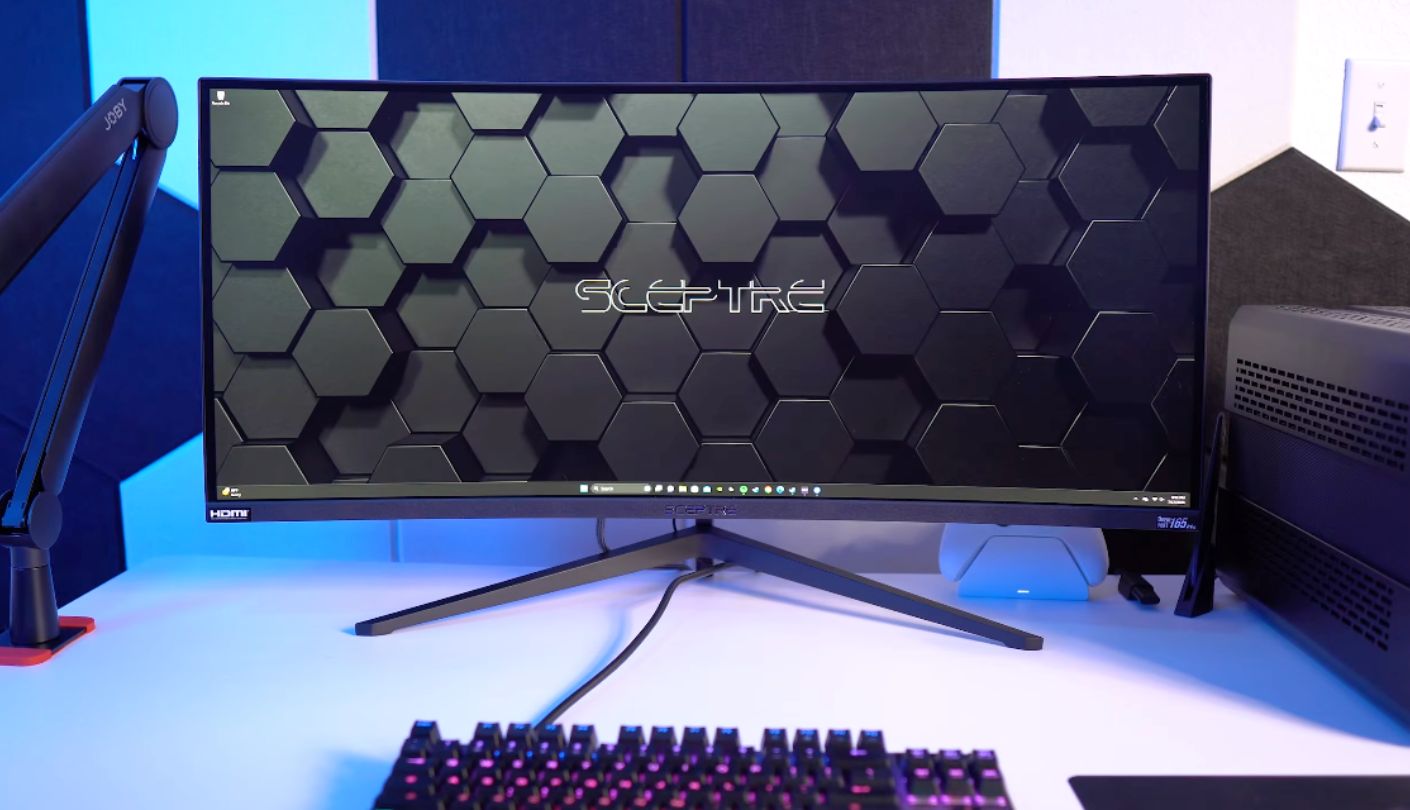
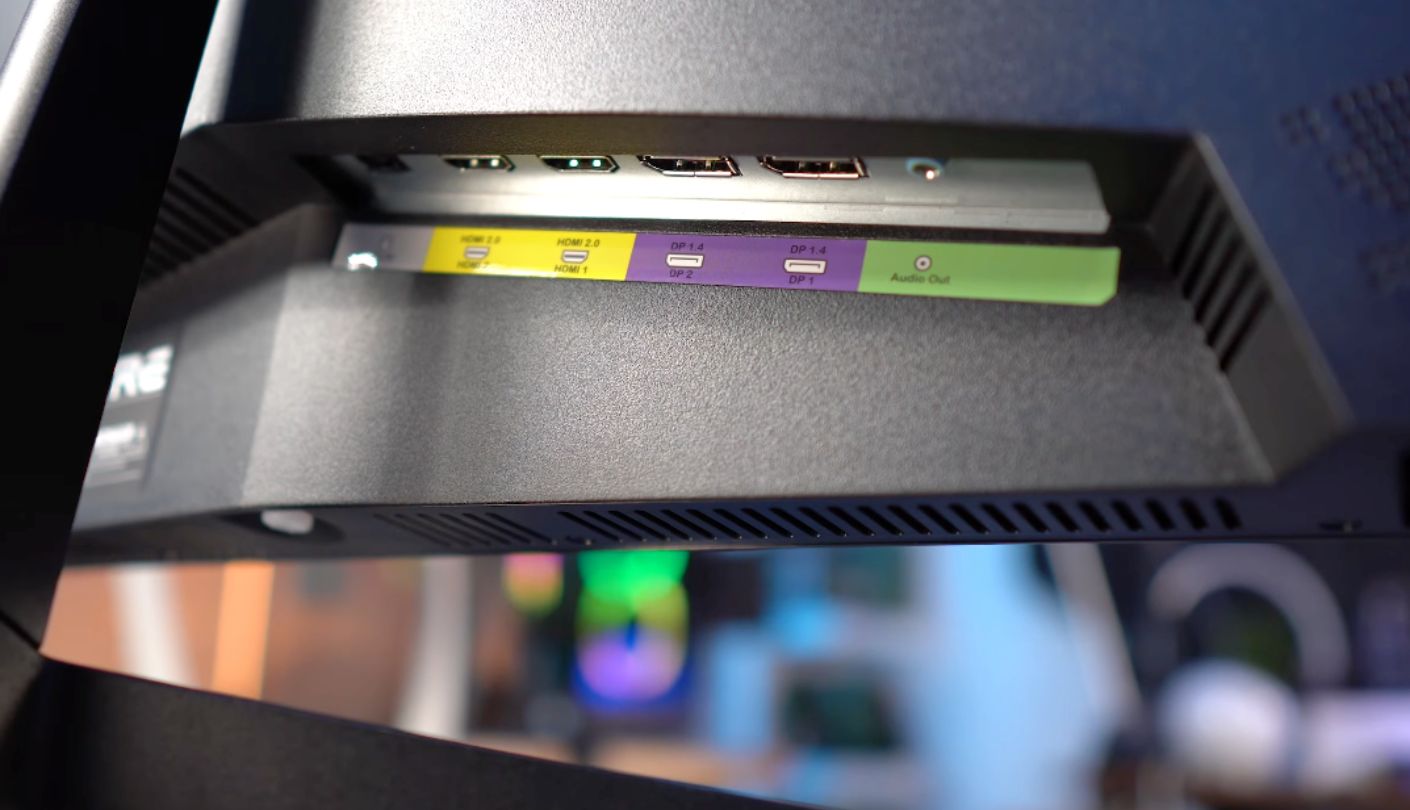
Two DisplayPorts, two HDMI ports, built-in speakers, a 1500R curve, 180Hz and 99% sRGB coverage, at the lowest price in this group. That list is why the Sceptre C345B-QUT168 keeps turning up in budget build threads. Sceptre is a brand that competes almost entirely on what it can fit into a price, and here it has fitted quite a lot. There is no marketing story attached, no ecosystem, no software suite, just a list of parts and a number at the bottom.
The refresh rate needs reading carefully, and to Sceptre's credit the answer is right there in the product name. It is listed as up to 180Hz slash 165Hz, which means 180Hz over DisplayPort and 165Hz over HDMI. That is the same bandwidth limit affecting the LG, handled with more honesty. Two DisplayPorts is the useful consequence: if you have two machines that both need full speed, this is the only screen here that can serve them both without a cable swap.
Owner reports are consistently warm about the picture. One buyer described good out-of-box colour with no ghosting or smearing across a stack of games including Diablo 4 and World of Warcraft, which lines up with what a well-tuned modern VA panel should do. The speakers exist and are adequate for system sounds and video calls, which is more than the Samsung, KTC or Alienware offer at all. Nobody is throwing away a soundbar over them, but they cover the gap between unboxing a monitor and getting round to buying proper speakers.
Where Sceptre saves money is in the things you cannot see in a photograph. Contrast is not published, so there is no figure to compare against the other four. There is no USB hub and no software suite, and mounting uses the smaller 75 by 75mm pattern, with an adapter supplied in the box. Build quality sits below the LG and the Alienware, which is the honest cost of the price difference.
I would recommend this without hesitation to someone buying their first ultrawide, or building a second machine, or kitting out a room where the screen needs to be good without needing to be perfect. It does the important things right, the port selection is unusually generous for the money, and nothing about it feels like a compromise until you put it directly beside a monitor costing considerably more. Even then, the gap is smaller than the price difference suggests.
Pros:
- Two DisplayPort Inputs
- Built-In Speakers
- Honest Refresh Labelling
- 99% sRGB Coverage
- Lowest Price Here
Cons:
- Contrast Figure Unpublished
- Plainer Build Quality
Summary: First-time ultrawide buyers are the natural fit, because this removes the money question from a decision that is already unfamiliar. Anyone upgrading from a good monitor will spot where the savings came from within an hour.
Ultrawide Monitor under $400: FAQ
Is one ultrawide better than two normal monitors?
It depends on what you do with them. An ultrawide gives you one uninterrupted image with no bezel through the middle, which is lovely for games, video editing and anything wide. Two monitors give you more total pixels and let you fullscreen something on one screen while working on the other, which suits people who keep a video call or a chat window permanently open. Snapping tools in Windows and macOS close most of the gap on an ultrawide.
What graphics card do I need for 3440 by 1440?
More than you would for 1080p and less than you would for 4K. The resolution is about 5 million pixels, roughly two and a half times a 1080p screen and about 60% of a 4K one. A modern midrange card handles it comfortably at high settings in most games, and older or lighter titles will happily push past 100 frames per second. For desktop work and video, almost any current card or integrated graphics chip is fine. If you are unsure, look up how your card performs at 1440p and expect roughly a fifth fewer frames at ultrawide.
What do 1000R, 1500R and 1800R actually mean?
They describe how tightly the screen curves. Picture the curve continuing all the way round into a circle, then measure that circle's radius in millimetres. 1000R makes a circle a metre across, so it is the steepest, and 1800R is much gentler. Steeper curves feel more wrapping when you sit close and can look strange from further away, which is why 1500R has become the popular middle setting.
Why is my new monitor not running at its advertised speed?
Nine times out of ten it is the cable or the port. Older HDMI versions cannot carry 3440 by 1440 at high refresh rates, so the LG drops to 85Hz over HDMI and the Sceptre to 165Hz. Use DisplayPort where possible. After that, check your operating system display settings, because both Windows and macOS often default to a lower refresh rate until you change it manually.
Do these work well with a PlayStation or Xbox?
They work, with an asterisk. Consoles output 16:9, so most games will show black bars down both sides instead of filling the ultrawide panel, and only a handful of titles support 21:9 natively. If a console is your main device, a 16:9 screen makes more sense. If it is a secondary device on a PC monitor, the bars are a minor annoyance and everything else works normally. Check the HDMI limits too, since a console plugged into the LG will be capped well below the panel's rated speed.
What is black smearing, and will it bother me?
It is a faint trail that VA panels can leave behind fast-moving objects in very dark scenes, caused by the pixels changing colour more slowly at the dark end of the range. Every monitor in this article uses a VA panel, so all five can show it to some degree. Most people never notice it outside horror games and dark corridors, and modern overdrive tuning has reduced it a lot compared with VA screens from a few years ago.
Is HDR worth anything on monitors at this price?
Mostly it is a checkbox. Convincing HDR needs high peak brightness and local dimming, and none of these screens has either, so switching HDR on typically makes the picture slightly flatter instead of more dramatic. The Alienware's DisplayHDR 400 certification is the strongest badge here and still an entry-level one. The good news is that the high VA contrast does a lot of what people actually want from HDR anyway.
Will a 34-inch ultrawide fit on my desk?
These are around 31 inches wide, so measure that first and leave room for the stand base, which sticks out further than the panel does. Depth matters as much as width: sitting closer than about two feet means turning your head to read the far edges. If your desk is shallow or crowded, a monitor arm frees up the space the stand would take and lets you push the screen back against the wall.
Two Things Worth Checking Before You Order
Look at the back of your PC and count the DisplayPort outputs. That single check saves more disappointment than any other piece of advice in this article, because refresh rate over HDMI is where the specification sheets and reality part company on several of these screens. Then get a tape measure out and check your desk depth, since a curved 34-inch panel needs more room in front of it than most people expect and there is no fixing that once the box has arrived.
Beyond those two things, this is a friendly category to shop in. Every screen here shares the same resolution and the same panel technology, so nobody ends up with something bad, and the differences come down to what you personally want more of. Speakers and a comfortable stand, or a curve that wraps around you, or the most ports for the money, or a warranty that ships the replacement first. Pick the one whose compromises you will not think about, plug it in with the right cable, and then go and enjoy the moment where you open a second window and it just fits.

Meet James, our go-to tech guru and seasoned reviewer. His sharp attention to detail and love for gadgets drive his deep dives into the newest tech waves. James's insightful analysis and real zest for breakthroughs have earned him a solid reputation in the tech world.


