Best Monitor for Stock Trading
Most traders focus on their platform, their data feed, and their strategy - and treat the monitor as an afterthought. That's a mistake I've made myself. Running the same TradingView and Thinkorswim setups on five different displays side by side, the gap between a mismatched screen and the right one shows up in missed decimal places, eye strain by noon, and candlestick colors that shift at the panel edges where the most recent candles sit. A monitor that handles casual browsing is not the same tool as one built to sustain six hours of live tick data under fluctuating room light.
The five monitors in this roundup represent two distinct approaches for trading desks: a 34-inch ultrawide that consolidates multiple chart windows into one unbroken field of view, and four 4K displays that prioritize pixel density, contrast, and hub connectivity in a compact format. I've evaluated each against the criteria that determine daily trading performance - text sharpness at data-dense zoom levels, candlestick color fidelity across the full screen, ergonomic adjustability for long sessions, and the port mix that anchors a clean multi-device desk. Here are the best monitors for stock trading available right now.
If you're in a hurry, here are my top two picks for stock trading monitors:
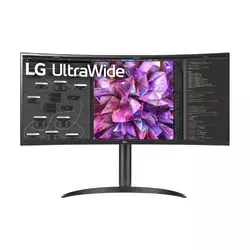
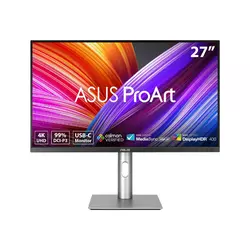
Table of Contents:
- Best Monitors for Stock Trading: Buying Guide
- Top 5 Monitors for Stock Trading in 2026
- Stock Trading Monitor Comparison
- LG 34WQ73A-B
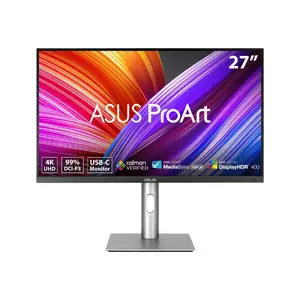
- ASUS PA279CRV
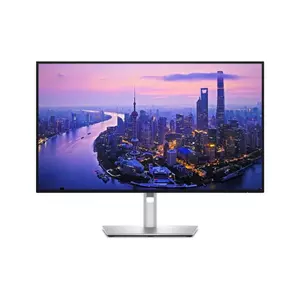
- Dell U2725QE
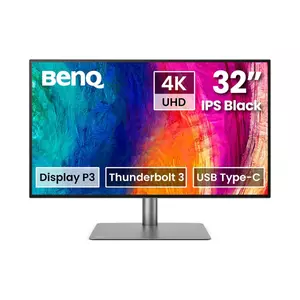
- BenQ PD3225U
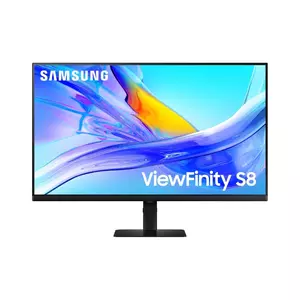
- Samsung ViewFinity S8 S80UD
- Stock Trading Monitor FAQ
Best Monitors for Stock Trading: Buying Guide
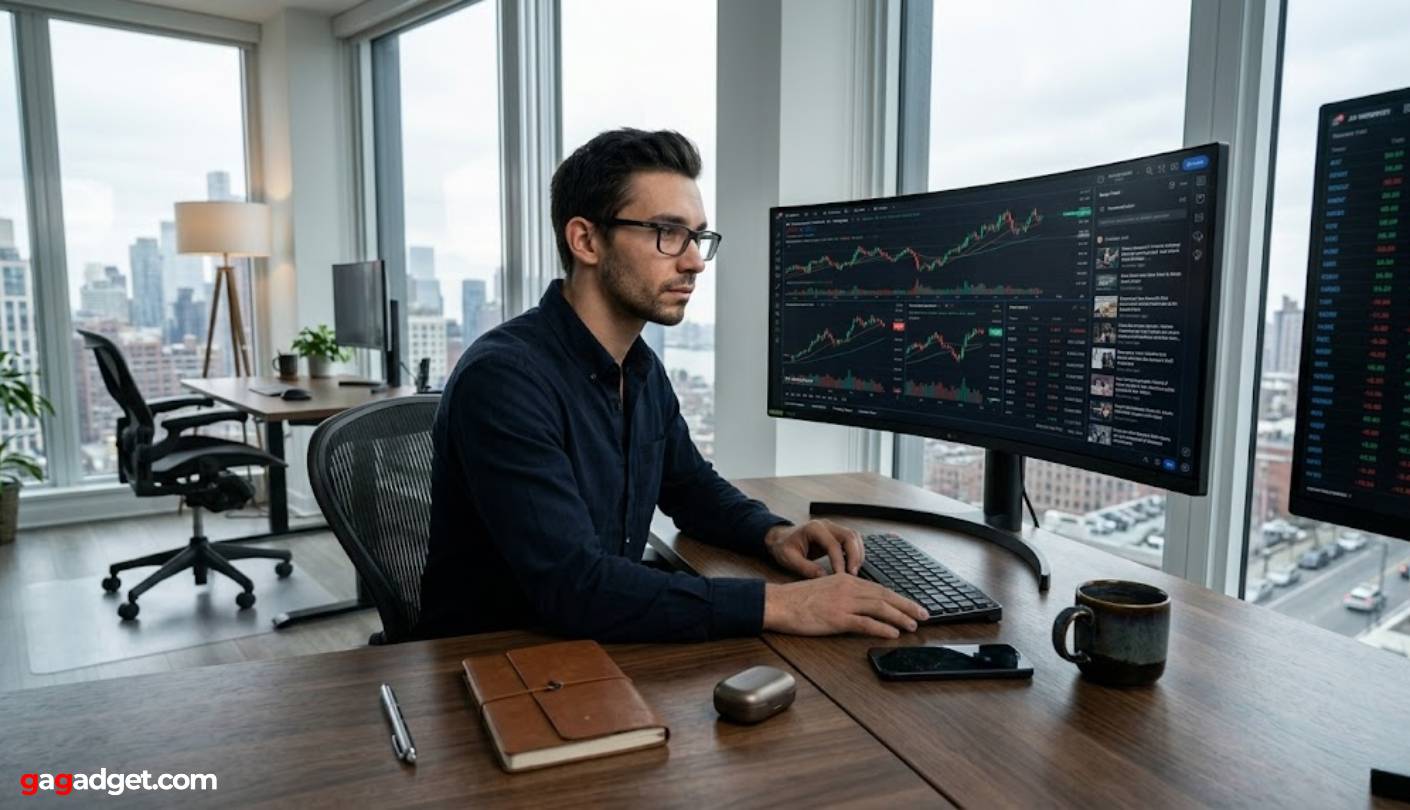
Resolution and Pixel Density: How Much Detail Do You Actually Need?
Resolution is the single most consequential spec for a trading monitor, and the reason is simple: more pixels mean more data on screen before you need to scroll. A 27-inch 4K display packs 163 pixels per inch, which produces text sharp enough to read a full options chain or a multi-column watchlist without zooming. A 34-inch ultrawide at 3440x1440 lands around 109 PPI - meaningfully lower density, but the wider canvas compensates by fitting charts side by side that would otherwise require window-switching. The right choice depends on whether you prioritize data density or horizontal spread.
For traders running three or more data sources simultaneously - a live order book, a charting platform, and a news terminal - an ultrawide at 21:9 can replace a dual-monitor arrangement without the bezel gap that interrupts the middle of a screen. For traders working primarily within one or two applications and prioritizing readable fine print, a 27-inch 4K panel gives more text clarity per square inch of desk space than any other format.
I've found that traders who move frequently between positions in different instruments tend to favor the ultrawide layout. Those who sit on fewer positions and analyze more deeply tend to reach for 4K. Both approaches work for active trading - the question is which workflow they're supporting. At 4K, the OS scaling behavior also matters: running at 150% scaling on Windows retains sharp rendering while keeping UI elements at a comfortable size, effectively giving you the equivalent of a 2560x1440 workspace with noticeably cleaner text than a native 1440p panel.
Panel Type and Color Accuracy for Chart Reading
IPS panels dominate the professional monitor category for good reason: wide viewing angles and color consistency across the full screen make it easier to read the far edges of a wide chart or a multi-column spreadsheet without colors shifting. Standard IPS contrast ratios hover around 1000:1, which means dark backgrounds against bright candles can look slightly washed out. The newer IPS Black variant - found in the Dell U2725QE and BenQ PD3225U - raises that ceiling to 2000:1 or 3000:1, producing noticeably deeper blacks on dark-themed trading platforms like those used on most professional terminal software.
Color accuracy ratings like Delta E and DCI-P3 coverage matter more to video editors than traders, but one area where factory calibration pays off at a trading desk is green-red chart fidelity. Candlestick charts rely entirely on distinguishing precise shades of green and red across hundreds of candles simultaneously, and a monitor with poor color uniformity can make that harder, especially toward screen edges. Factory-calibrated panels with Delta E below 2 reproduce those hues accurately from corner to corner, and I've noticed on lower-end panels that edge candlestick colors read differently from center ones after extended use.
Screen Size and Multi-Monitor Compatibility
The 27-inch form factor has earned its place as the practical sweet spot for a single trading monitor: it fits on most desks without requiring a monitor arm, sits comfortably at arm's length without requiring head movement to scan edge-to-edge, and at 4K resolution keeps text legible at standard scaling. Going beyond 32 inches introduces the need for a larger desk clearance and a further sitting distance, which affects how clearly you can read fine-print tick data without leaning in.
Traders who run multi-monitor arrays should verify that each candidate monitor supports daisy-chaining or has enough downstream ports for the full rig. Thunderbolt connectivity on monitors like the Dell U2725QE enables daisy-chaining a second 4K display without a dedicated graphics output on the connected laptop - a practical advantage for traders who work from a single ultrabook and need a clean, high-resolution dual-display setup without a dedicated dock.
For traders using a laptop alongside a desktop - or switching between a home machine and a work machine - KVM switch functionality is worth prioritizing. I use a KVM-enabled monitor daily and the ability to flip between two keyboards and mice without moving cables cuts real friction from the trading day. The Samsung S80UD, Dell U2725QE, BenQ PD3225U, and LG 34WQ73A-B all include built-in KVM, making any of them a practical hub for a two-machine trading setup.
Refresh Rate, Response Time, and Eye Comfort
Most trading monitors target 60Hz, which is adequate for watching live tick data, streaming quotes, and chart updates at normal trading pace. The Dell U2725QE stands out with a 120Hz panel, which produces smoother scrolling through order history and more fluid cursor tracking during rapid window management - benefits that compound over a six-hour session without being strictly necessary for the trading function itself. Response time matters less for trading than for gaming, but the 5ms GTG specification common across this group keeps motion clean when scrolling through fast-moving charts.
Eye comfort certifications carry real weight for traders who spend five or more hours at a monitor daily. TÜV Rheinland Low Blue Light certification, flicker-free backlighting, and hardware-level blue light reduction - rather than software filters that introduce color shifting - all reduce the fatigue that accumulates by market close. Most monitors in this group carry these certifications, but I'd specifically verify that the blue light mode is hardware-based rather than a yellow color shift, since the latter undermines the color accuracy that makes chart colors reliable.
Connectivity: Ports That Actually Matter at a Trading Desk
A trading monitor typically sits at the center of a three- to five-device arrangement: a desktop or workstation, a laptop for backup access or secondary feeds, a keyboard, a mouse, and possibly an external drive for data recording. USB-C with Power Delivery handles the laptop connection without a separate charger occupying another outlet. Thunderbolt connectivity adds bandwidth for high-speed peripherals and daisy-chaining. A LAN port built into the monitor, available on the Dell U2725QE and Samsung S80UD, keeps a wired network connection on the trading desk without requiring a separate adapter - a detail I consider essential for latency-sensitive trading environments where Wi-Fi variation is unacceptable.
The difference between 65W and 140W of USB-C power delivery is the difference between adequately charging a thin laptop and fully powering a MacBook Pro or a high-performance trading workstation laptop under load. Traders running resource-heavy charting software on a laptop while it's connected to the monitor should verify that the monitor's power delivery matches the laptop's maximum charging rate - otherwise the battery drains slowly even while plugged in, which creates an unexpected point of failure mid-session.
USB hub port count at the monitor itself reduces the peripheral juggling that comes with limited laptop ports. The LG 34WQ73A-B's built-in KVM and USB hub mean that a mouse, keyboard, USB drive, and headset can all stay permanently connected to the monitor, with the signal source switching rather than the physical cables. For trading desks that run clean and cable-managed, this connectivity architecture - one cable to the laptop, all peripherals at the monitor - is worth weighing as heavily as panel specs when selecting between otherwise comparable options.
Top 5 Monitors for Stock Trading in 2026
These monitors went through extended daily-use sessions on a live trading setup running TradingView, Thinkorswim, and Bloomberg to identify which ones hold up across long market hours and which ones compromise legibility, connectivity, or posture in ways that compound over time.
- 34" ultrawide canvas
- Built-in KVM switch
- 90W USB-C power delivery
- Screen Split zones
- 99% sRGB accuracy
- Calman Verified accuracy
- 99% DCI-P3 gamut
- 96W USB-C delivery
- DisplayPort daisy chain
- Full ergonomic stand
- Thunderbolt 4 hub
- 3000:1 IPS Black contrast
- 140W power delivery
- 120Hz smooth refresh
- Built-in 2.5G Ethernet
- M-Book Mac color sync
- 2000:1 IPS Black contrast
- Hotkey Puck physical controller
- Thunderbolt daisy chain
- Calman + Pantone certified
- Built-in LAN port
- KVM dual-machine switching
- 90W USB-C delivery
- Clean matte coating
- Full ergonomic stand
Stock Trading Monitor Comparison
Here's a detailed comparison of the specifications that matter most when choosing a monitor for stock trading:
| Specification | LG 34WQ73A-B | ASUS PA279CRV | Dell U2725QE | BenQ PD3225U | Samsung S80UD |
| Screen Size | 34" | 27" | 27" | 32" | 32" |
| Panel Type | IPS | IPS | IPS Black | IPS Black | IPS |
| Resolution | 3440 x 1440 (QHD) | 3840 x 2160 (4K) | 3840 x 2160 (4K) | 3840 x 2160 (4K) | 3840 x 2160 (4K) |
| Aspect Ratio | 21:9 | 16:9 | 16:9 | 16:9 | 16:9 |
| Refresh Rate | 60Hz | 60Hz | 120Hz | 60Hz | 60Hz |
| Contrast Ratio | 1000:1 | 1000:1 | 3000:1 | 2000:1 | 1000:1 |
| Color Gamut | 99% sRGB | 99% DCI-P3, 99% Adobe RGB | 99% sRGB, 99% DCI-P3 | 98% Display P3, 100% sRGB | 99% sRGB |
| Brightness | 300 nits | 350 nits | 450 nits (600 peak HDR) | 400 nits | 350 nits |
| Color Accuracy | Typical IPS | Delta E < 2, Calman Verified | Delta E < 1.5 | Delta E ≤ 2, Calman Verified | HDR10, 1.07B colors |
| USB-C Power Delivery | 90W | 96W | 140W (Thunderbolt 4) | 85W (Thunderbolt 3) | 90W |
| KVM Switch | Yes (built-in) | No (PIP/PBP only) | Yes | Yes (Hotkey Puck G2) | Yes |
| LAN Port | No | No | Yes (2.5G Ethernet) | No | Yes |
| Daisy Chain | No | Yes (DP 1.4) | Yes (TB4 + DP) | Yes (TB3) | No |
| Built-in Speakers | No | No | No | 2x 2.5W | Yes |
| Full Ergonomics | Tilt + Height | Tilt, Swivel, Pivot, Height | Tilt, Swivel, Pivot, Height | Tilt, Swivel, Pivot, Height | Tilt, Swivel, Pivot, Height |
From my testing, the specs that translate most directly into real trading performance are panel type (IPS vs. IPS Black for contrast on dark-themed platforms), USB-C power delivery wattage relative to the connected laptop, and whether the monitor includes a built-in KVM and LAN port for a low-cable professional workstation.
LG 34WQ73A-B Review
Editor's Choice
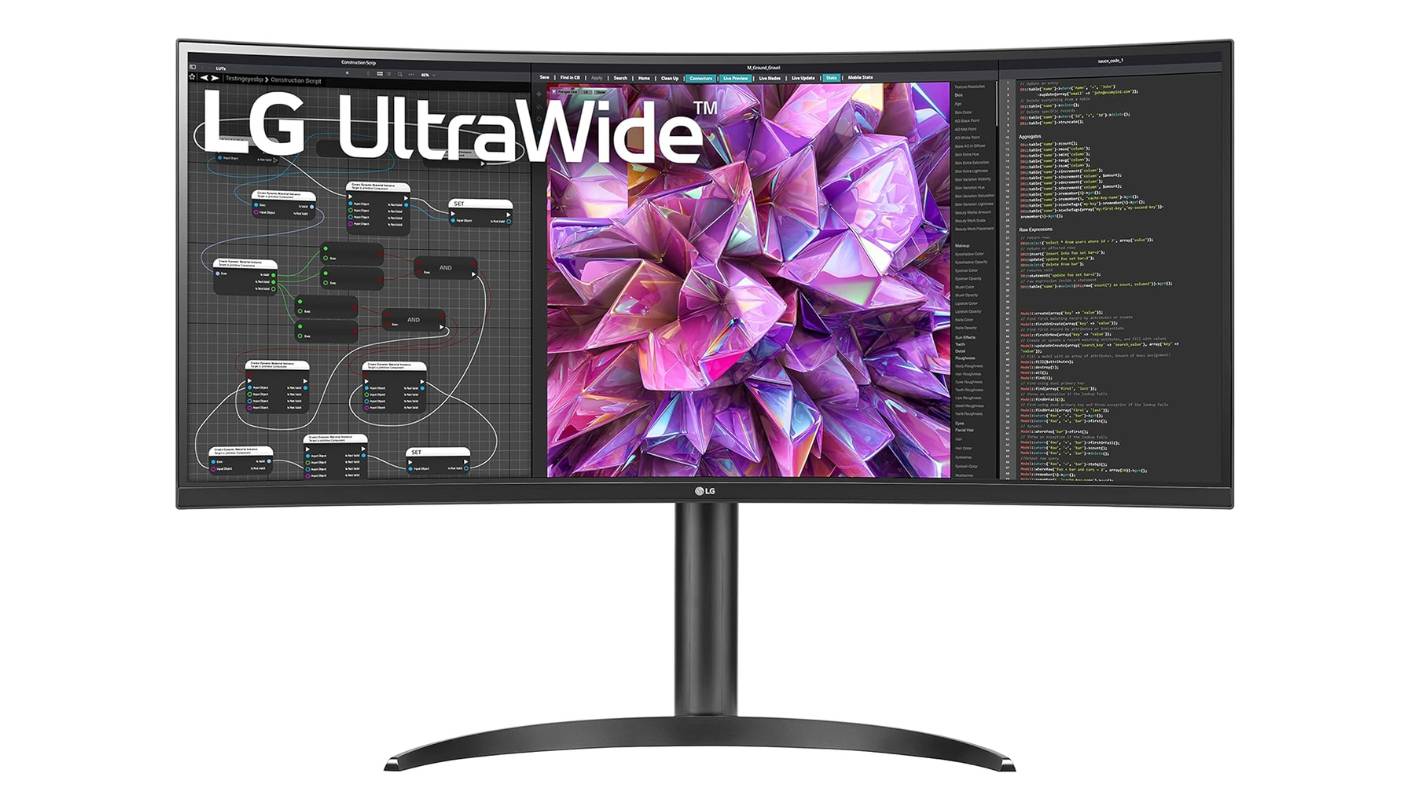
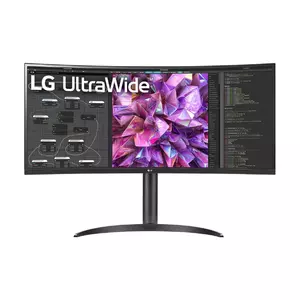
The LG 34WQ73A-B is my first recommendation when a trader tells me they're tired of splitting attention between two separate monitors and want everything in one field of view. The 34-inch 21:9 panel at 3440x1440 gives enough horizontal canvas to run a full charting platform on the left, a live order book in the center, and a news or position tracker on the right - all without window-switching. I've had Thinkorswim, a watchlist manager, and an earnings calendar open simultaneously with no overlap, which on a 16:9 monitor requires either a second screen or constant window juggling. The 1800R curve brings the screen edges closer than they measure, reducing the head movement that accumulates over a full trading day.
The IPS panel's 99% sRGB coverage means candlestick colors render true: greens and reds read as intended rather than as shifted or faded shades on a miscalibrated display. The 300-nit brightness is modest by premium standards but adequate for a controlled office or home trading environment with overhead lighting. Where LG makes up ground against brighter competitors is with its HDR10 support and wide viewing angle consistency - moving in the chair during an active session doesn't cause color fringing on the far chart columns, which happens noticeably on cheaper VA panels.
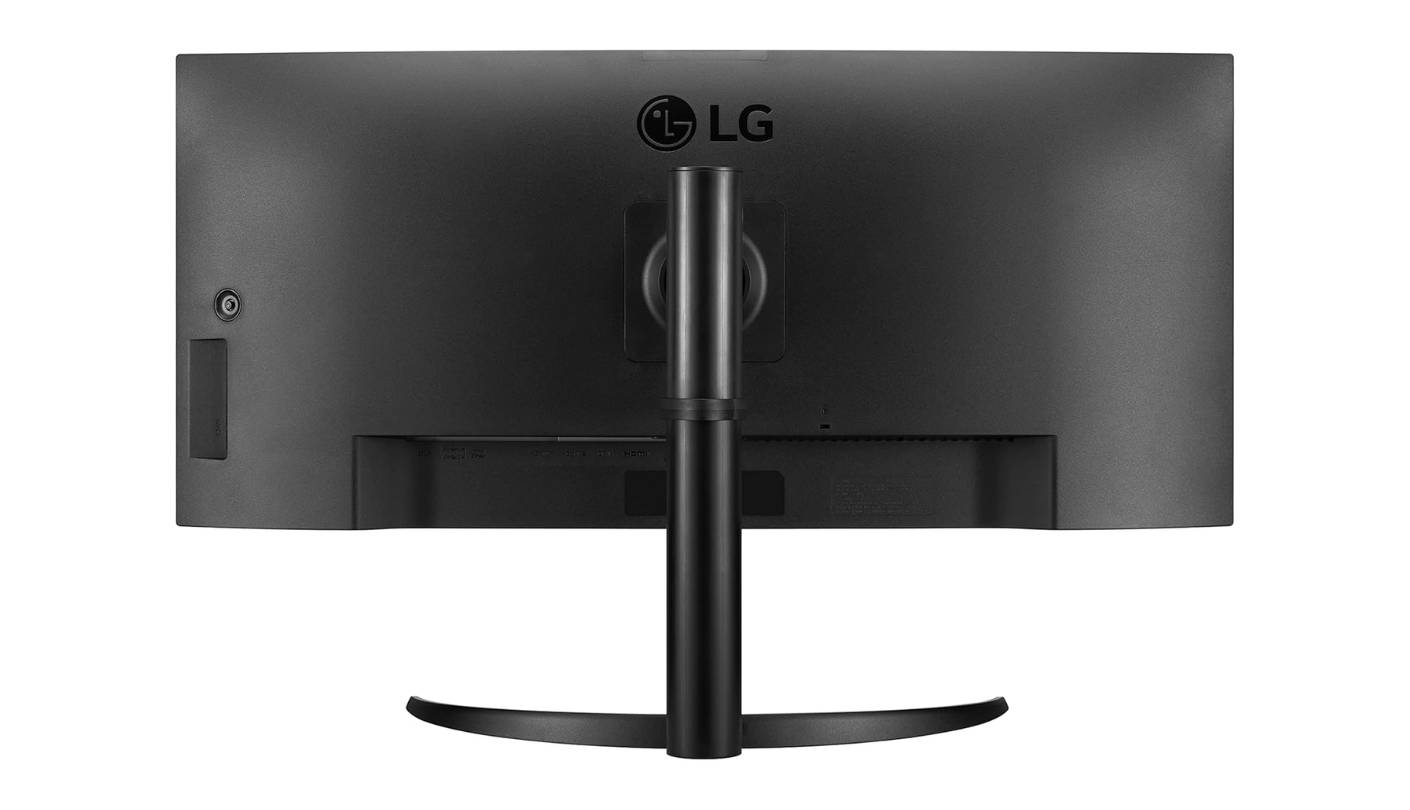
The built-in KVM switch handles the two-machine trading setup directly. I plug a desktop into the DisplayPort input and a trading laptop into the USB-C port - which puts 90W through the cable to keep the laptop fully charged through the session - and flip sources from the monitor's on-screen menu or a mapped keyboard shortcut. The USB-C port handles both video and power over one cable, which cleans up the desk significantly compared to needing a separate dock or charging adapter. Two downstream USB-A 3.1 ports sit alongside the input cluster for peripherals.
LG's Screen Split feature divides the ultrawide into two or three virtual zones that behave like independent monitor inputs from the OS perspective. For traders who use Windows Snap or tiling window managers, the Screen Split zones make layout management fast - drag a chart window to the left third and it snaps to the defined zone without manual resizing. The on-screen control software gives access to brightness, contrast, and input switching without navigating the monitor's physical joystick menu, which I use to dial brightness down during pre-market hours when room lighting is lower.
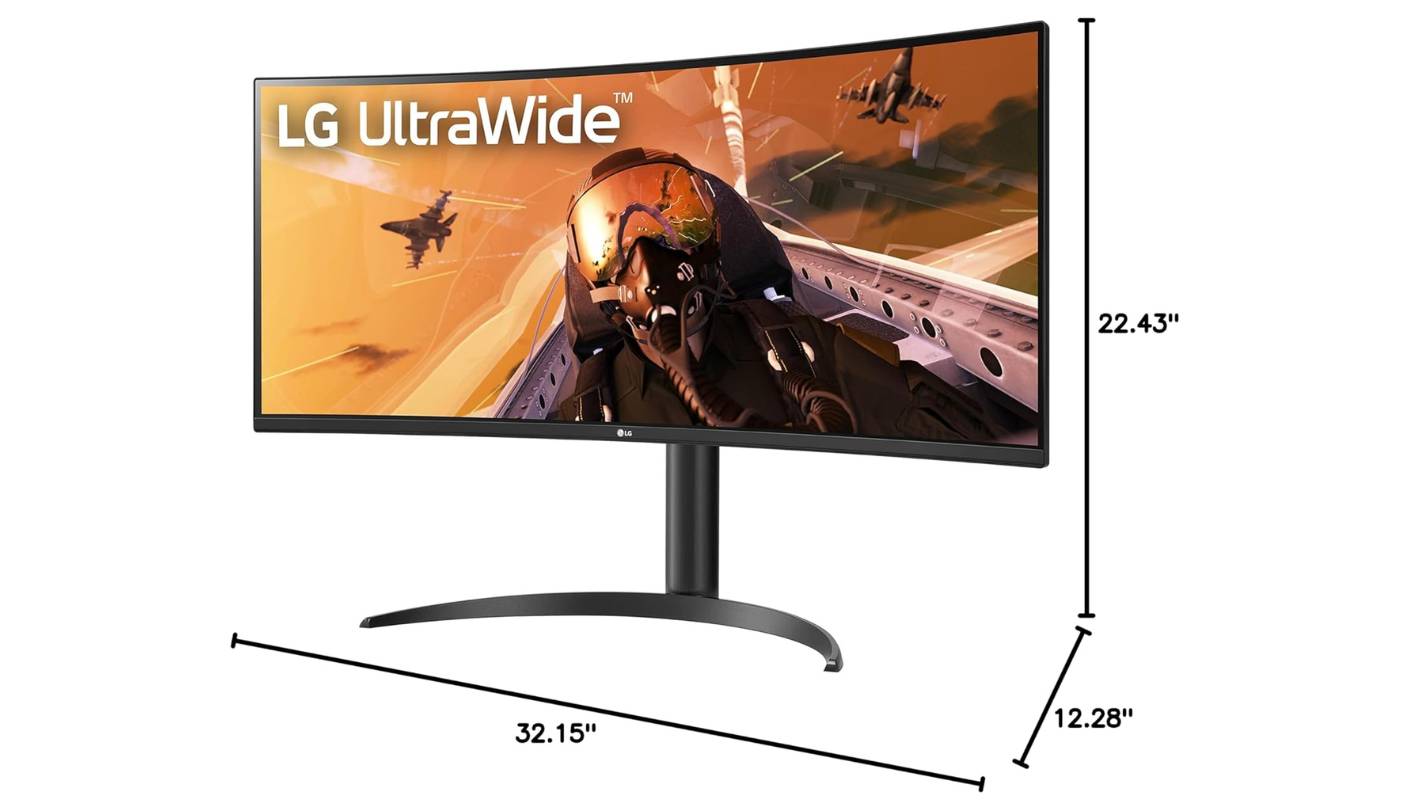
The stand provides height adjustment and tilt but lacks swivel, which means the viewing angle is fixed once the monitor is positioned. For a desk where the chair stays in one place, this isn't a problem - but traders who like to shift their seating position laterally throughout the day may find VESA-mounting on an arm a better fit. At 6.71 kg, the LG 34WQ73A-B is stable and doesn't flex under heavy peripheral cables. This is a desk fixture for traders who want the ultrawide layout without the premium price tag of top-tier professional displays.
Pros:
- 34" ultrawide canvas
- Built-in KVM switch
- 90W USB-C power delivery
- Screen Split zones
- 99% sRGB accuracy
Cons:
- No swivel stand
- 300-nit brightness ceiling
Summary: LG 34WQ73A-B leads with a 34-inch 21:9 ultrawide panel, built-in KVM, and 90W USB-C in a clean two-cable desk setup. The right monitor for traders who want a single-screen multi-chart layout without dual-monitor complexity.
ASUS PA279CRV Review
Best Overall
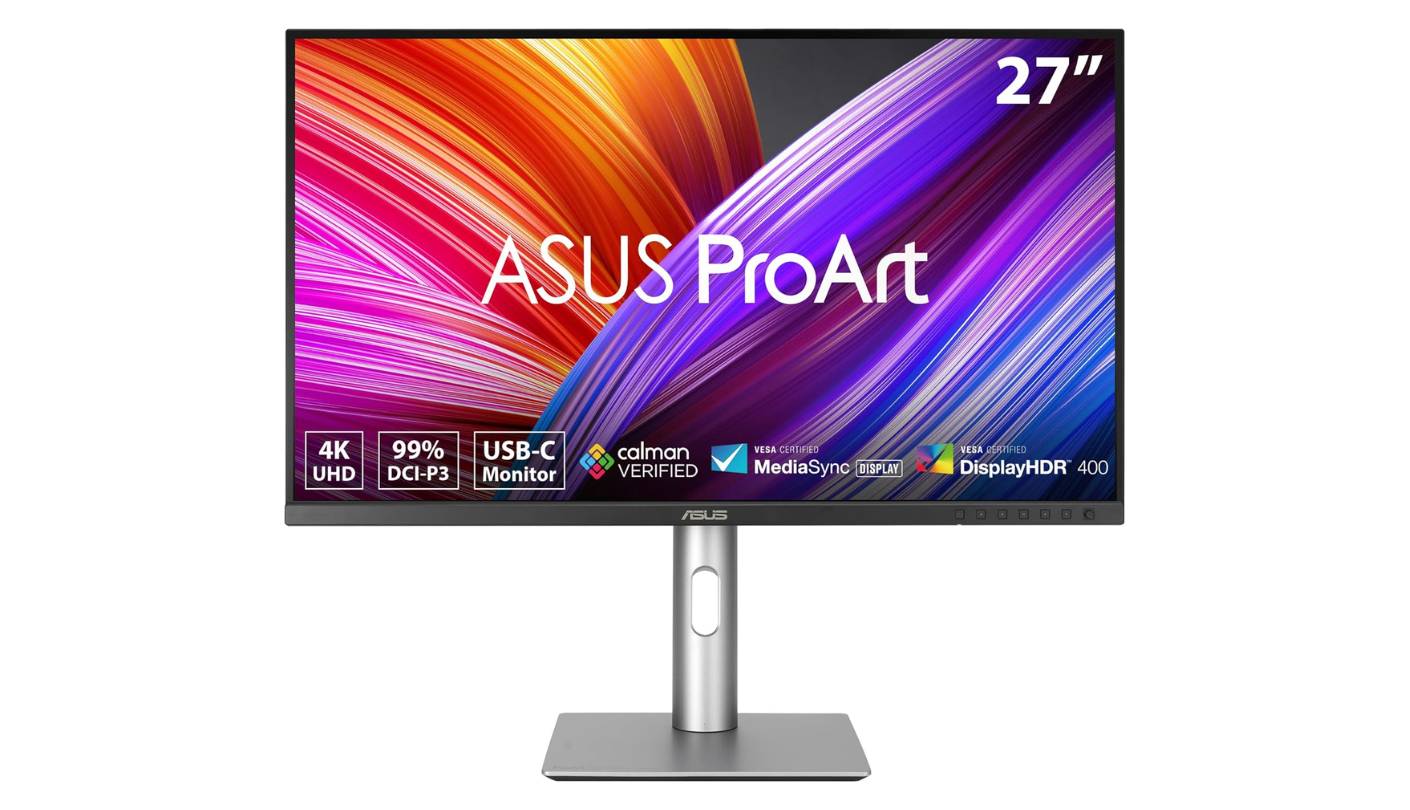
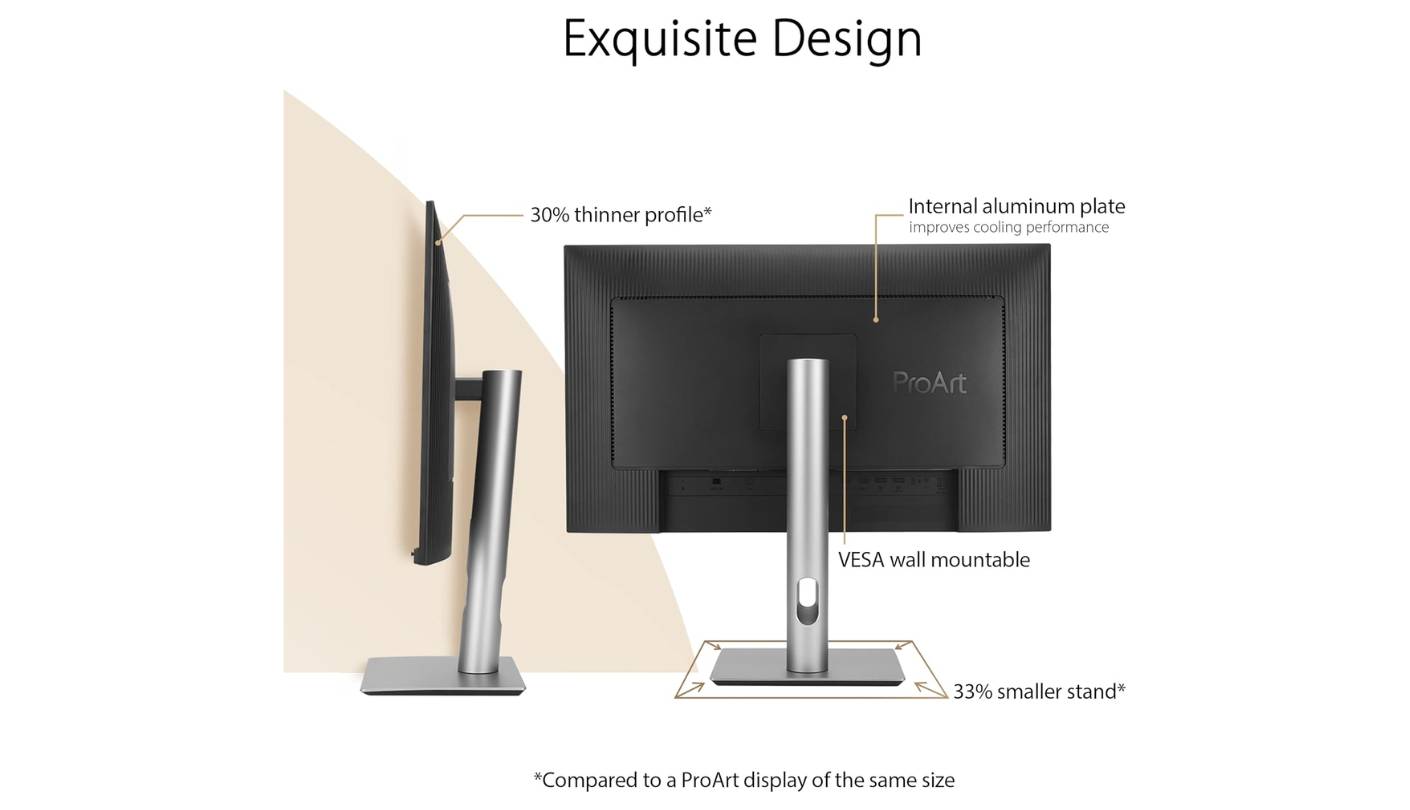
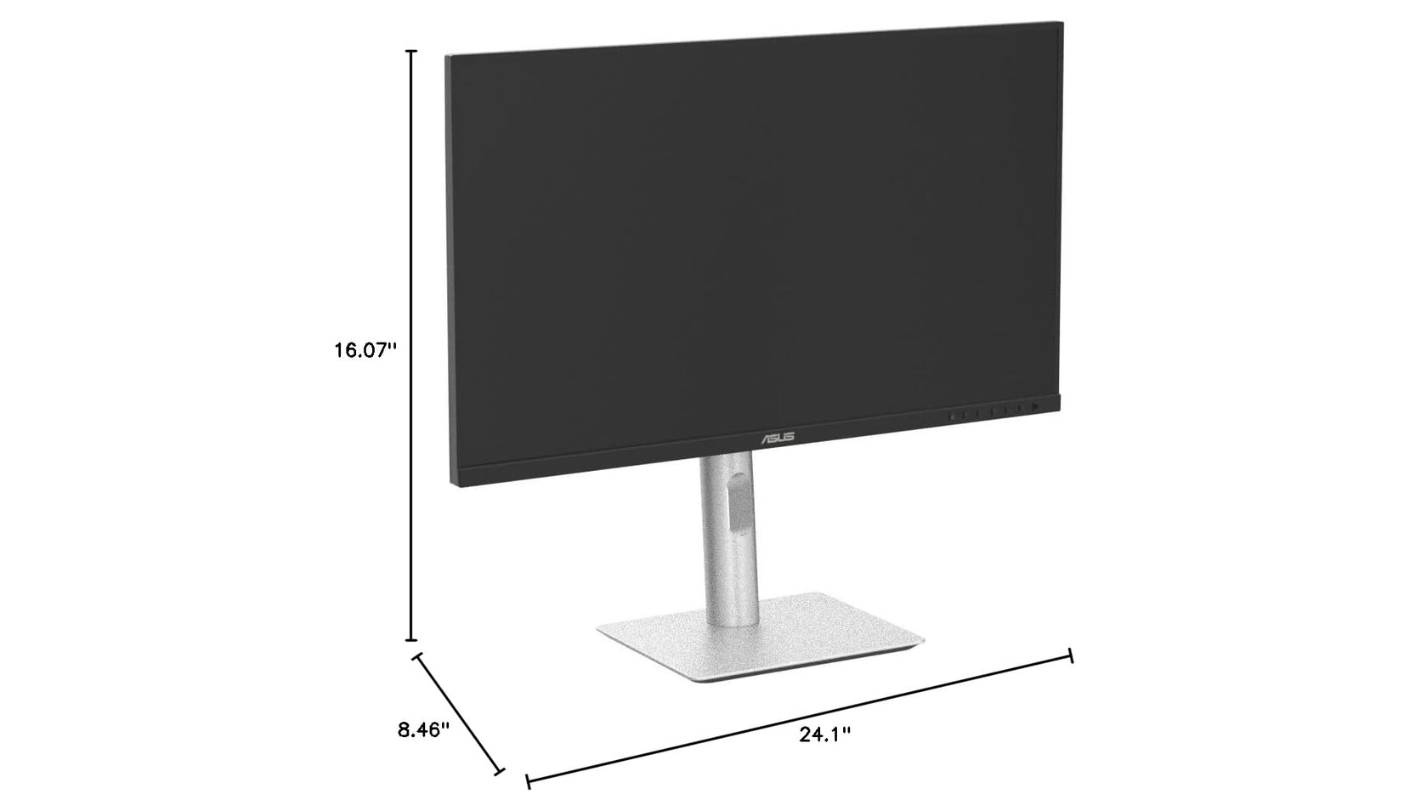
Of all the monitors I've tested for trading desk use, the ASUS PA279CRV makes the strongest case for why color accuracy matters outside of creative work. Running TradingView's dark-mode layout at full resolution on the PA279CRV, every color-coded indicator layer - volume profile, moving averages, Bollinger bands - reads as a distinct shade rather than blurring into visual noise. ASUS ships every unit with a factory calibration report documenting measured Delta E scores below 2, verified by Calman. On a platform where chart overlays layer multiple indicators simultaneously, a display that reproduces each hue without bleeding into adjacent shades reads those overlaps clearly rather than muddying them. At 99% DCI-P3 and 99% Adobe RGB, the PA279CRV covers the widest color gamut in this roundup.
The 27-inch 4K panel resolves 163 pixels per inch, which is the density at which small numbers in order tables and bid-ask spreads become genuinely sharp rather than readable but slightly soft. At 150% Windows scaling, the effective workspace resembles a crisp 2560x1440 display, while the text quality noticeably outpaces a native 1440p monitor. The ASUS ProArt Preset modes include sRGB, DCI-P3, Rec.709, Adobe RGB, and DICOM profiles, giving traders the option to lock in a fixed color environment for consistency between sessions rather than trusting ambient mode changes to stay calibrated.
Connectivity is a genuine strong point on the PA279CRV: one USB-C with 96W power delivery, two DisplayPort 1.4 inputs with daisy-chain support, two HDMI 2.0, and a built-in hub with three USB-A 3.2 Gen 1 ports plus one USB-C downstream. The daisy-chain capability means a trader running a single powerful desktop can extend to a second 4K display through this monitor's DP output without needing a second video card output. I connect a laptop via USB-C and a desktop via DisplayPort, and the PIP/PBP mode lets both sources share screen space when reviewing end-of-day positions while keeping the desktop feed live.
The stand covers the full ergonomic range: tilt, swivel up to 30 degrees in either direction, pivot to portrait orientation, and 130mm of height adjustment. Portrait mode is occasionally useful for reviewing long watchlists or scanning vertically-dense order histories. The base footprint is 33% smaller than ASUS's previous generation, which matters at a trading desk where a secondary keyboard, a numpad, or a paper blotter needs space in front of the screen. Build quality is predominantly plastic but assembled tightly with no flex in the stand at full height extension.
The PA279CRV lacks a KVM switch, which is the one practical gap relative to the other monitors in this group. Traders running two machines need to switch USB peripherals manually between inputs or use an external KVM box, which adds cost and a box to the desk. For single-machine trading setups or traders who keep their laptop as a secondary feed without needing to type on it, the absence of KVM is not a daily obstacle. Within its niche - color-critical trading with high-resolution text clarity at a competitive price - the PA279CRV holds its position as the best factory-calibrated 27-inch 4K display in this group.
Pros:
- Calman Verified accuracy
- 99% DCI-P3 gamut
- 96W USB-C delivery
- DisplayPort daisy chain
- Full ergonomic stand
Cons:
- No KVM switch
- 60Hz refresh only
Summary: ASUS PA279CRV pairs Calman-verified 4K color accuracy with 96W USB-C and daisy-chain support in a compact 27-inch form factor. The best overall pick for traders who prioritize chart color fidelity and sharp text at a calibrated professional standard.
Dell U2725QE Review
Thunderbolt Hub
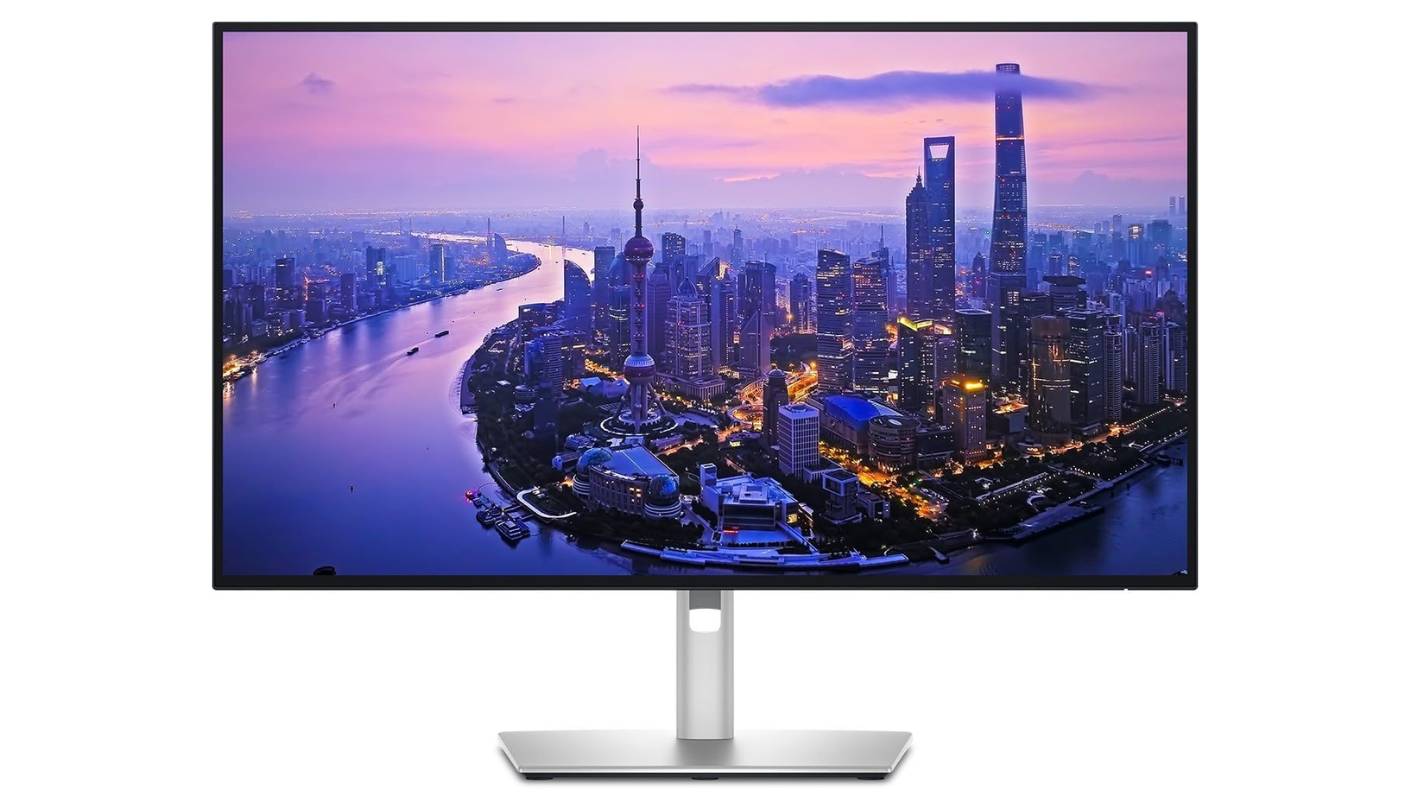
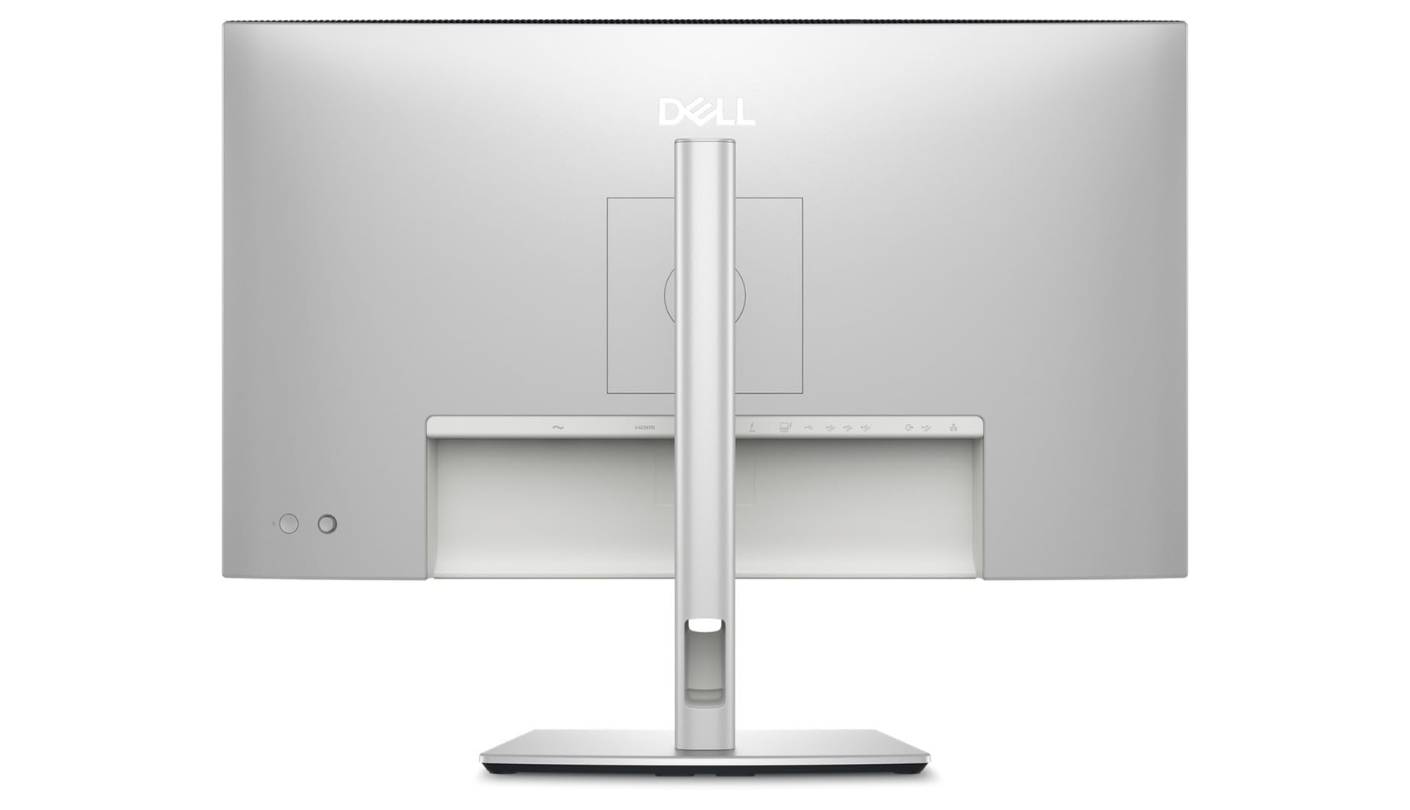
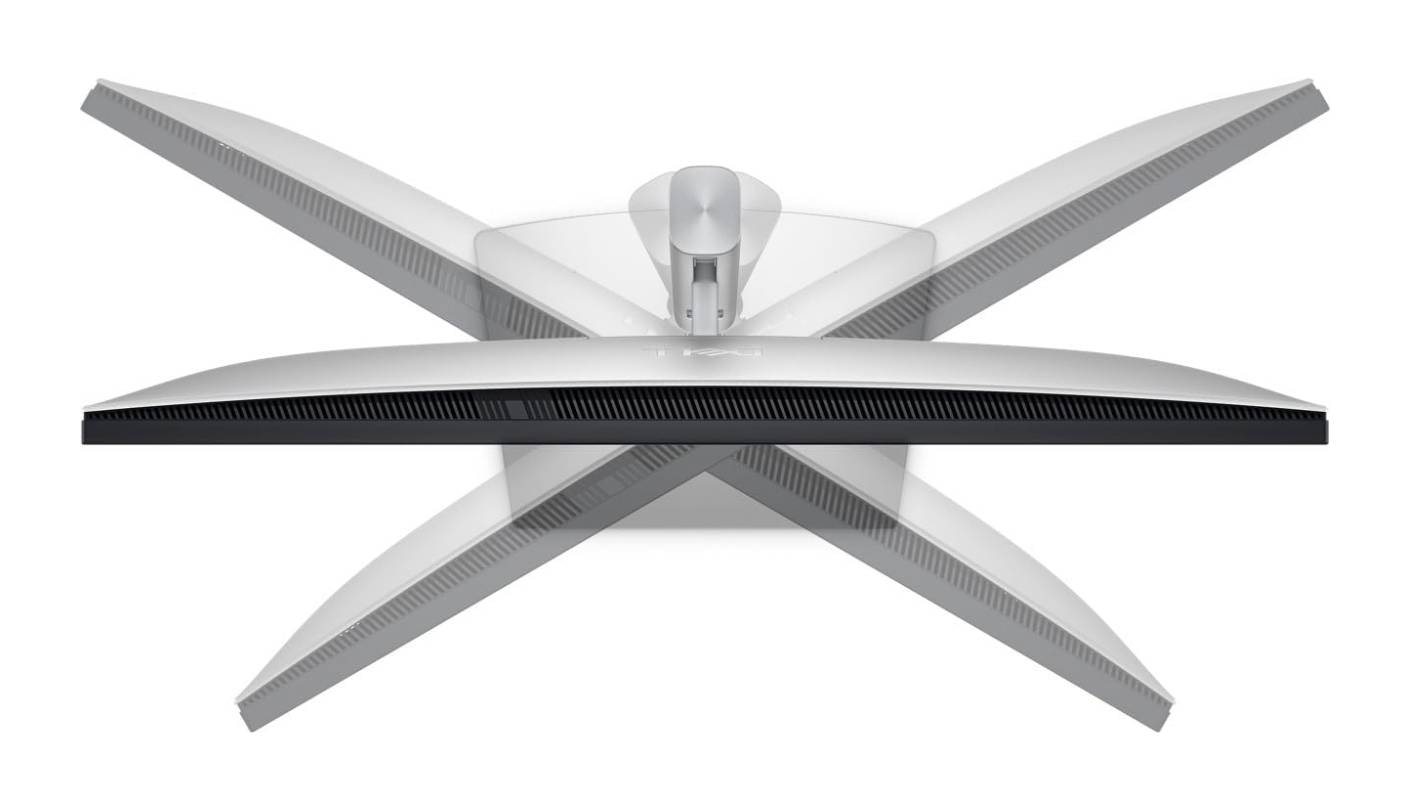
The Dell U2725QE is what happens when a monitor manufacturer takes the hub dock concept seriously. Every trading desk produces cable sprawl over time - a Thunderbolt 4 port delivering 140W of power, 2.5G Ethernet, five downstream USB-A ports, four USB-C ports, HDMI 2.1, and DisplayPort 1.4 daisy-chain output means the U2725QE absorbs what would otherwise be a separate dock, switch, and Ethernet adapter. For traders working from a laptop who want a single-cable connection to a fully equipped desk, this is the most complete port arrangement in the group, and I consider it the U2725QE's most practical differentiator.
The IPS Black panel technology deserves direct attention for dark-themed trading platforms. Standard IPS contrast at 1000:1 makes dark background chart themes look slightly gray where they should look black. The U2725QE's 3000:1 native contrast ratio changes that materially - dark chart canvases reproduce with the kind of depth that VA panels have historically owned, while maintaining the wide viewing angles and color uniformity that VA panels sacrifice. Combined with DisplayHDR 600 certification and a 450-nit sustained brightness ceiling, the U2725QE handles both a bright north-facing window behind the desk and a fully dimmed pre-market environment without requiring manual brightness adjustments between them.
The 120Hz refresh rate is a quiet productivity advantage that I noticed after switching from 60Hz monitors. Scrolling through a long position history, dragging chart windows across the display, and tracking a cursor during rapid order entry all feel fractionally more responsive. The improvement isn't dramatic - trading doesn't require 144Hz gaming precision - but the cumulative effect across a six-hour session reduces the low-grade visual friction that accumulates on a 60Hz panel. The 5ms GTG response time keeps fast quote feeds from showing motion artifacts during rapid tick updates.
Dell's Display Manager software remains among the best in the monitor category for layout management. Virtual desktop partitioning assigns application windows to defined screen zones automatically, so the charting platform, the order management system, and a browser window for market news each return to their designated position when reopened. A built-in KVM switch handles two-machine desk arrangements, and the pop-out USB access panel on the monitor's front edge puts quick-connect ports at the user's natural hand position rather than requiring reaching behind the display to attach a USB drive mid-session.
The U2725QE has no integrated speakers and ships with cables that run short for a deep desk. Those are the practical limitations reviewers note consistently, and both are easy to solve. What's harder to replicate elsewhere at this screen size is the combination of IPS Black contrast, Thunderbolt 4 hub depth, 120Hz, and factory-calibrated Delta E below 1.5 in a single display. For traders who want their monitor to anchor the entire workstation - network, peripherals, laptop power, and display quality - the U2725QE is the most complete single-piece solution in this roundup.
Pros:
- Thunderbolt 4 hub
- 3000:1 IPS Black contrast
- 140W power delivery
- 120Hz smooth refresh
- Built-in 2.5G Ethernet
Cons:
- No integrated speakers
- Short included cables
Summary: Dell U2725QE brings IPS Black contrast, 120Hz, Thunderbolt 4 hub, and 2.5G Ethernet into one 27-inch display. The pick for traders who want their monitor to replace a dock and build the cleanest possible single-cable desk.
BenQ PD3225U Review
Mac Powerhouse
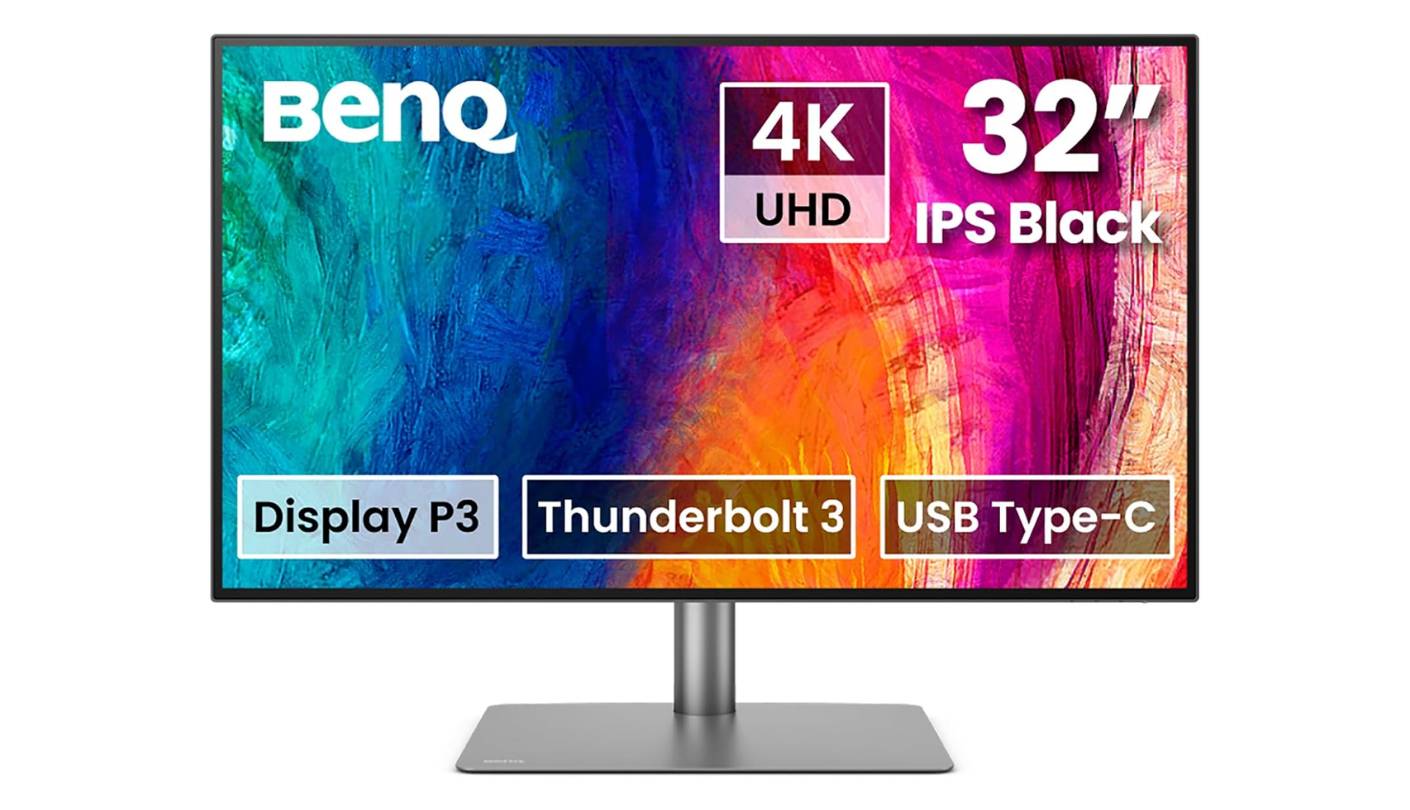
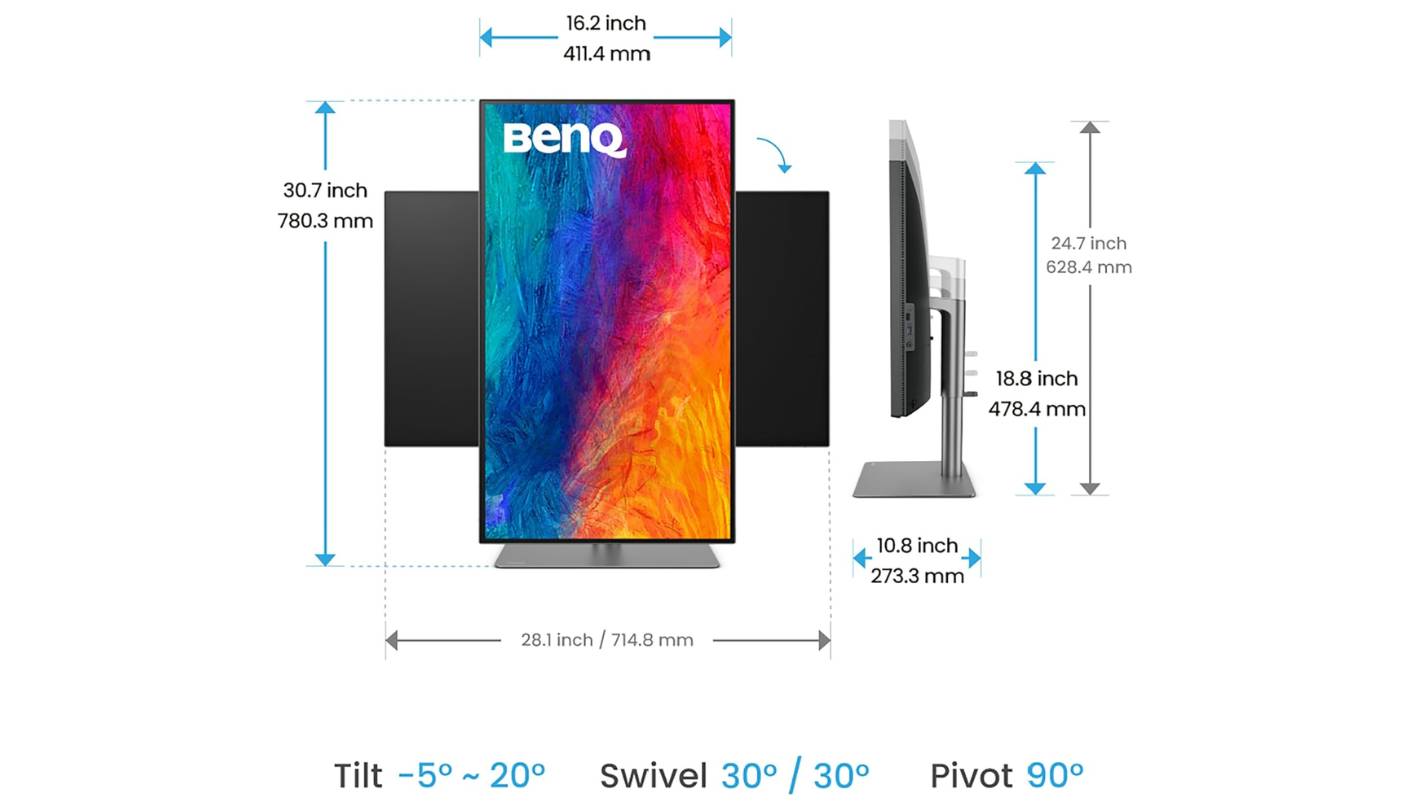
BenQ built the PD3225U explicitly for Mac-based workflows, and traders running their charting and execution software on a MacBook Pro or Mac mini will find the integration unusually tight. The M-book color mode matches the PD3225U's output profile to macOS device color rendering, eliminating the color temperature and gamma mismatch that makes most third-party monitors look subtly different from a MacBook's built-in display. For traders who toggle between the laptop display and the external monitor while reviewing positions, that consistency removes the subtle visual adjustment that most third-party monitors force - a friction point that compounds quietly over a long session.
The IPS Black panel produces a 2000:1 contrast ratio that positions the PD3225U between standard IPS and the Dell U2725QE's 3000:1 ceiling. In practice, that 2000:1 figure produces visibly deeper blacks than a standard IPS monitor on a dark-themed trading platform - chart backgrounds that read as gray on a 1000:1 panel shift to a dark neutral that doesn't fight the colored price candles for visual prominence. BenQ's Uniformity Technology applies brightness compensation across the full 32-inch surface, so the center and edges of a wide chart reproduce at the same luminance level rather than fading at the corners as some monitors do without local dimming.
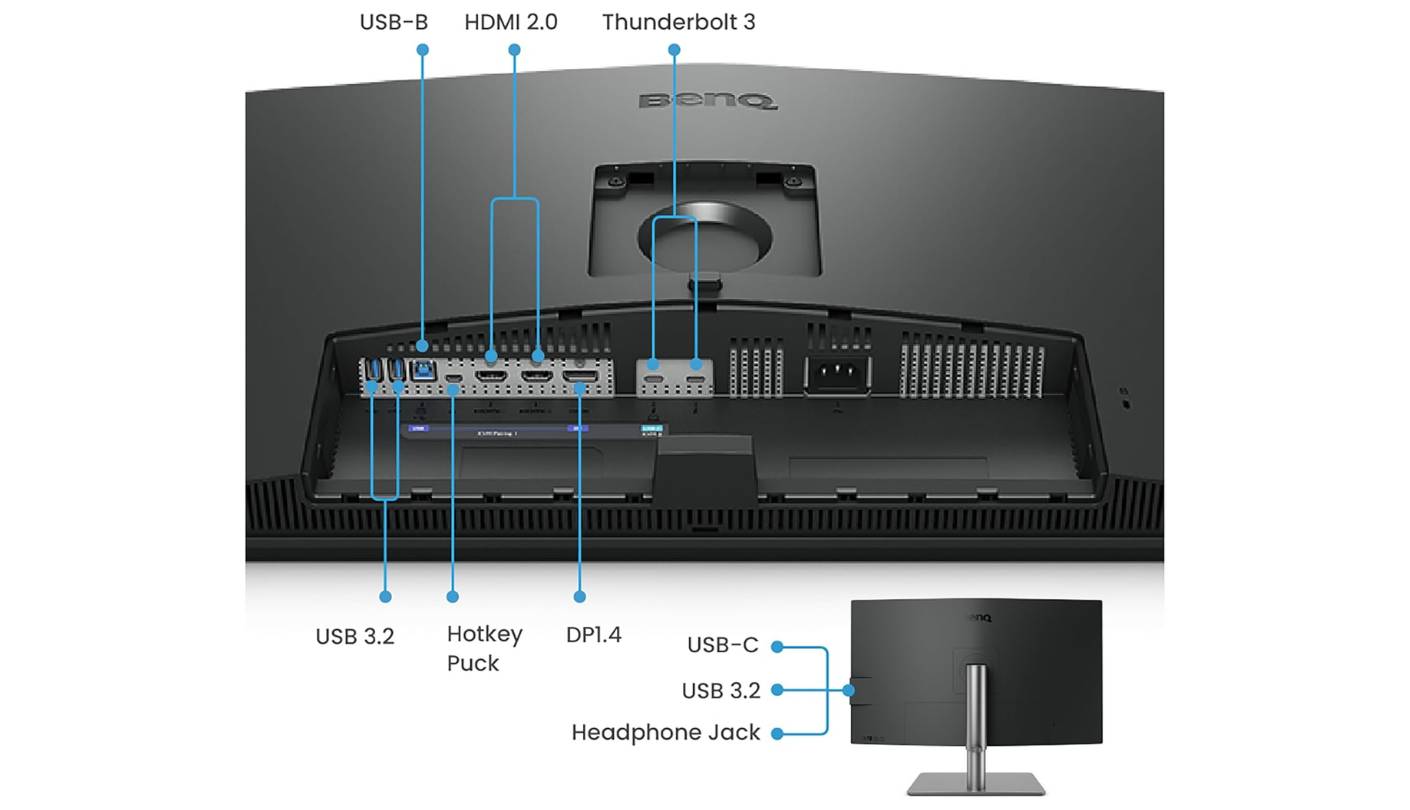
The Hotkey Puck G2 is a physical dial and button controller that ships with the PD3225U and handles brightness adjustment, input switching, and preset changes without navigating the on-screen display menu. I place it at the left edge of my desk and hit the input-switch key to toggle from the desktop to the laptop feed without interrupting what's on screen. For a trading session where attention should stay on the market rather than the monitor interface, having physical shortcut controls positioned within casual reach speeds up the routine adjustments that add up across a full day.
Thunderbolt 3 handles both display signal and 85W power delivery from a single cable on compatible Macs. A second Thunderbolt 3 downstream port enables daisy-chaining to a second 4K display - a two-screen Mac trading setup from a single laptop Thunderbolt port. Built-in 2.5W speakers handle voice alerts and audio without a separate speaker taking up desk space. The Pantone Validation and Calman Verification cover the color accuracy requirements that professional traders share with designers: a chart that reproduces its coded colors accurately, every time, without visual drift between sessions.
The PD3225U uses Thunderbolt 3 rather than the newer Thunderbolt 4, which means it caps at 85W power delivery versus the 96W or 140W available from other options in this group. For a MacBook Air or 13-inch MacBook Pro this is fully adequate. For a 14-inch or 16-inch MacBook Pro under heavier computational load, the gap between 85W and the laptop's peak charging rate may result in slow battery depletion during sustained processing. The PD3225U is the right choice for Mac traders who want their external monitor to feel like a native extension of their system rather than a compromise.
Pros:
- M-Book Mac color sync
- 2000:1 IPS Black contrast
- Hotkey Puck physical controller
- Thunderbolt daisy chain
- Calman + Pantone certified
Cons:
- Thunderbolt 3 only (85W)
- No LAN port
Summary: BenQ PD3225U pairs IPS Black contrast with Mac color matching, Calman Verification, and a physical Hotkey Puck controller in a 32-inch Thunderbolt display. The strongest choice for Mac-based traders who want reliable color consistency between laptop and external screen.
Samsung ViewFinity S8 S80UD Review
Value Pick
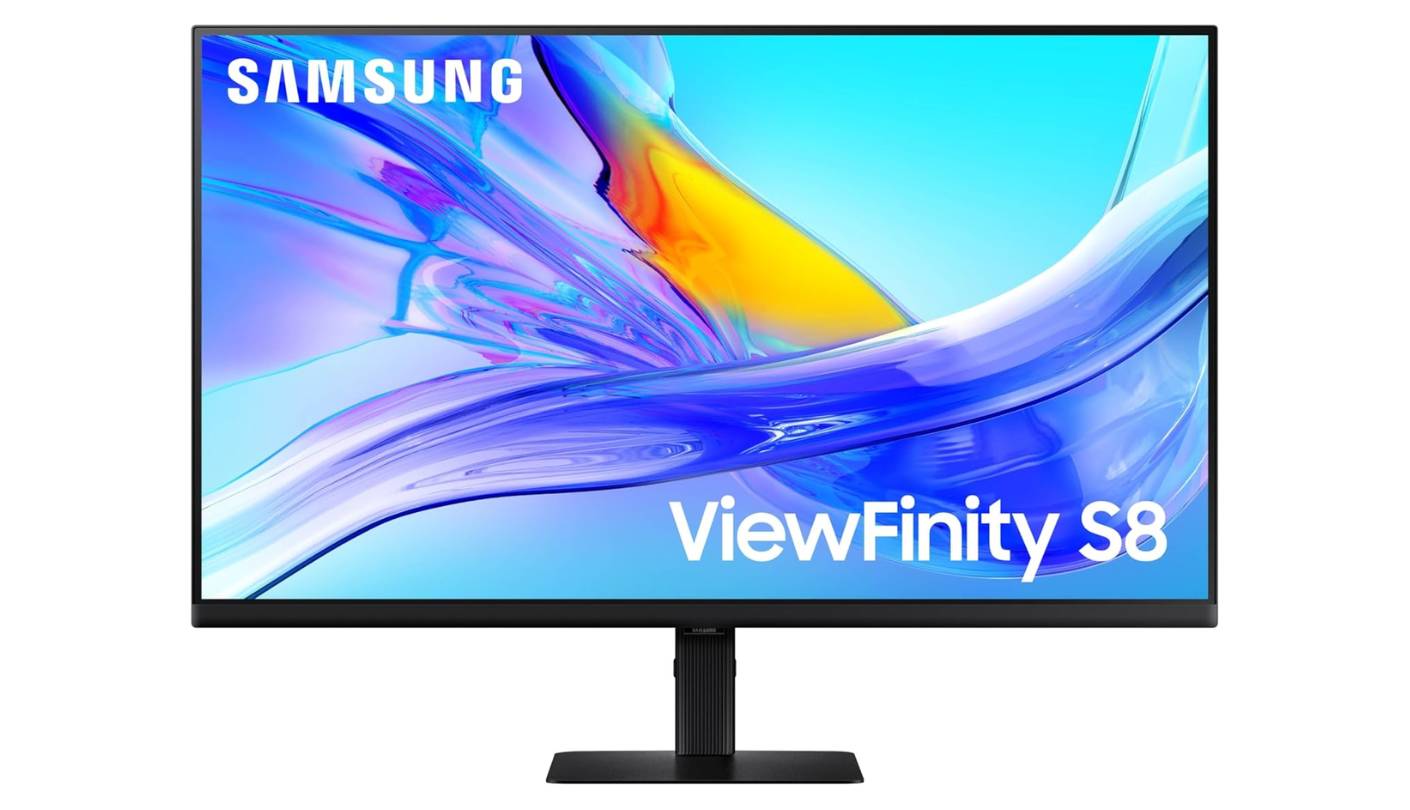
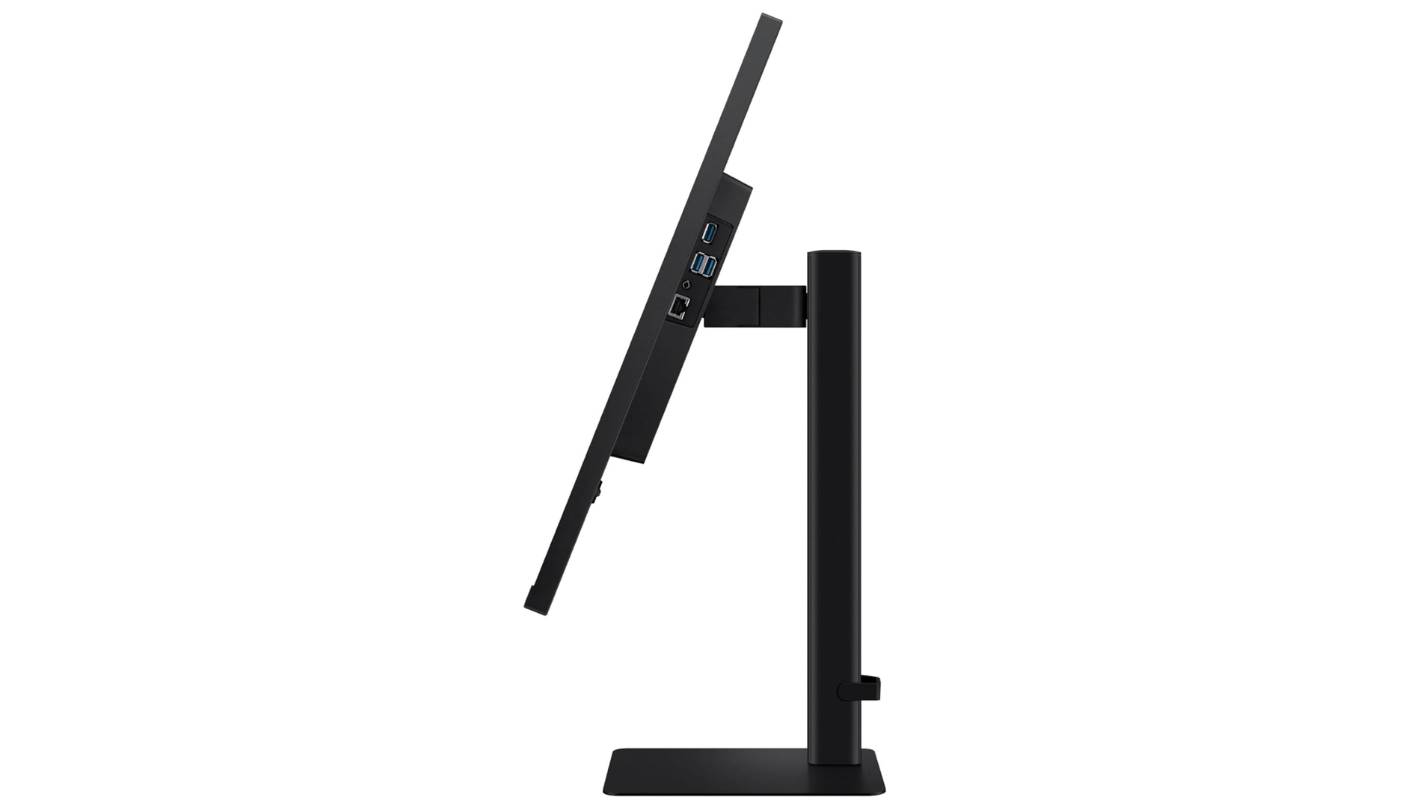
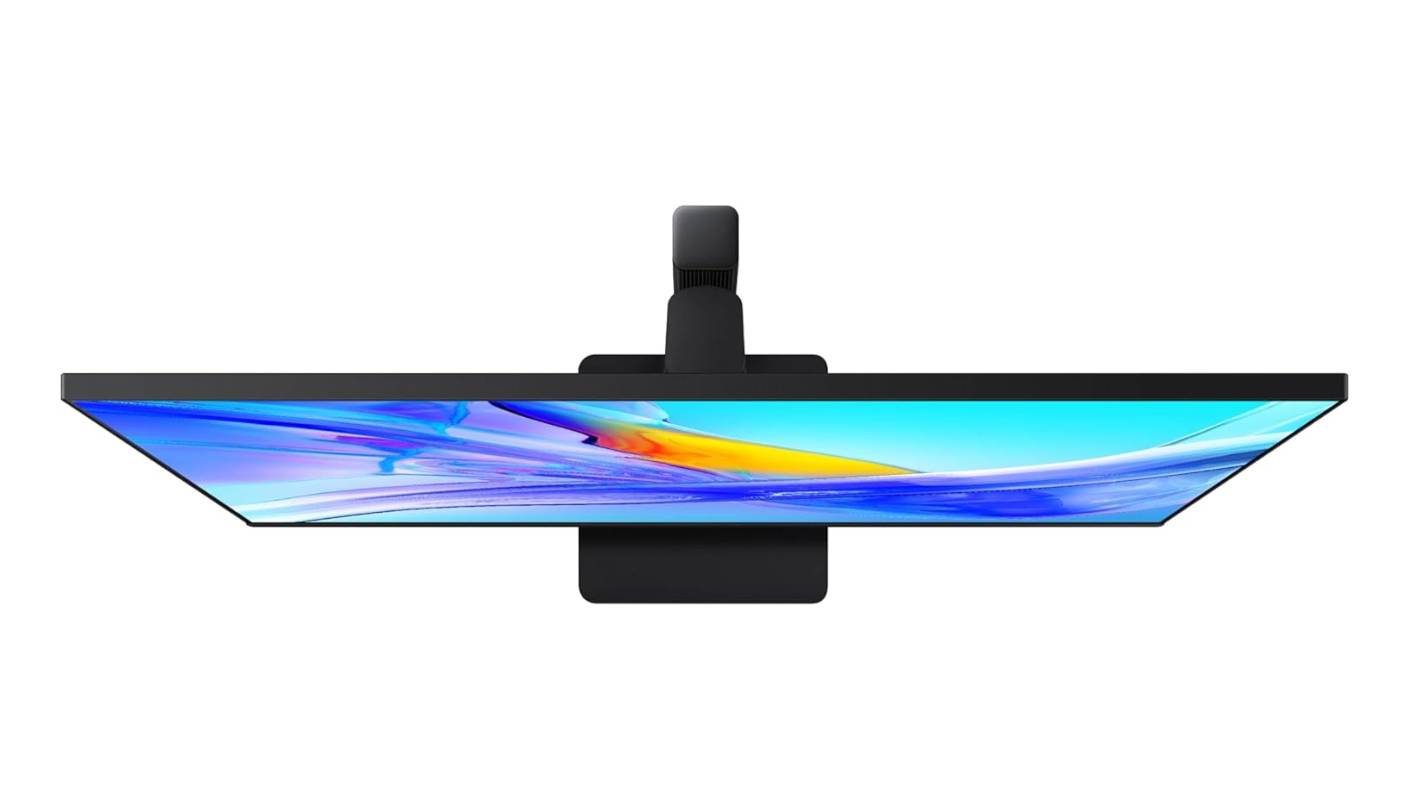
The Samsung ViewFinity S8 S80UD is the answer when the question is "what's the most capable monitor I can put on a trading desk without overspending?" At 32 inches with a 4K IPS panel, HDR10 support, and 90W USB-C, the S80UD covers the core trading monitor requirements without the premium that comes with IPS Black technology or Thunderbolt 4 connectivity.
Samsung's 1.07 billion color representation via HDR10 makes color-coded chart overlays and multi-indicator displays read with genuine depth. The standard IPS contrast ratio places it below the Dell and BenQ in absolute black depth, but on a bright-themed or gray-background trading platform, the difference becomes less meaningful. The anti-glare matte coating does a particularly strong job - user feedback consistently calls it one of the cleanest matte finishes in the price range, reducing reflection visibility without introducing the graininess or diffusion that some matte coatings create on fine text.
The built-in KVM switch and LAN port combination is what distinguishes the S80UD from lower-tier competitors and puts it in direct practical competition with the Dell U2725QE for traders who need wired network access at the desk. A single USB-C cable handles laptop video, data, and 90W charging while the LAN port keeps a hard-wired connection to the network without a separate adapter. TÜV Rheinland certification covers both flicker-free operation and low blue light, and Samsung's Eye Saver Mode adjusts color temperature at the hardware level rather than applying a software overlay that compromises color rendering for chart analysis.
The Easy Setup Stand clicks the monitor into the base without tools and supports tilt, swivel, pivot to portrait orientation, and height adjustment - the full ergonomic set that daily trading sessions require. In portrait mode, the S80UD is wide enough to display a full options chain with readable column spacing, which some traders use as a secondary orientation during pre-market analysis before rotating back to landscape for the session. Built-in speakers handle audio alerts without occupying desk space, which the BenQ includes but the Dell U2725QE and ASUS PA279CRV both omit.
Where the S80UD trails the group leaders is in color accuracy credentials - it doesn't carry a factory calibration report, Delta E rating, or Calman verification. For traders who need verified color fidelity for quantitative color-coded systems, the ASUS or BenQ are more appropriate. For traders running standard charting platforms where accurate green-red rendering at 99% sRGB is sufficient, the S80UD's IPS panel meets that bar at the most accessible price in this roundup. I'd recommend it to traders building their first dedicated multi-screen setup or upgrading from a lower-resolution monitor who want 4K and a clean desk without a premium outlay.
Pros:
- Built-in LAN port
- KVM dual-machine switching
- 90W USB-C delivery
- Clean matte coating
- Full ergonomic stand
Cons:
- No factory calibration report
- Standard 1000:1 contrast
Summary: Samsung ViewFinity S8 S80UD pairs 4K IPS with a built-in LAN port, 90W USB-C, KVM switching, and clean matte anti-glare in a 32-inch format. The best value trading monitor in this group for clean desk wired setups without a premium calibration requirement.
Stock Trading Monitor FAQ
What monitor size is best for stock trading?
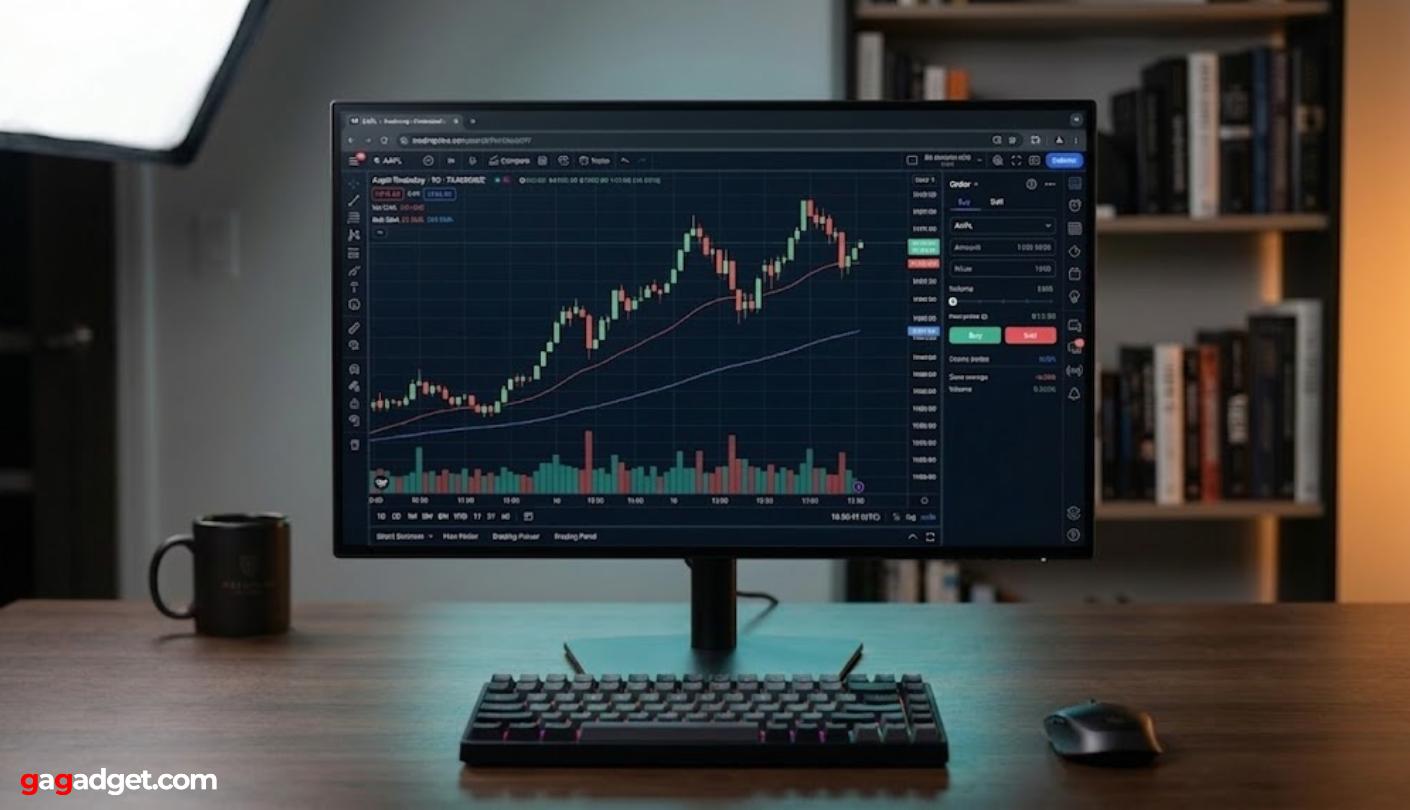
The most common choices are 27 inches and 32 inches for single-monitor setups, and 34 inches ultrawide for traders who want to consolidate multiple data sources into one screen. At 27 inches with 4K resolution, pixel density is high enough to display data-dense order tables with sharp text at comfortable viewing distance. At 32 inches, a 4K panel gives more physical screen real estate while maintaining sufficient pixel density. The 34-inch ultrawide at 3440x1440 trades pixel density for horizontal canvas, which suits traders who run three simultaneous chart views or combine a charting platform with a position manager side by side.
Is 4K necessary for stock trading?
Not strictly necessary, but the advantages are real and compound over a full trading day. 4K on a 27-inch panel resolves 163 pixels per inch, making small numbers in order books, bid-ask spreads, and multi-column watchlists genuinely sharp rather than readable but slightly soft. The practical benefit is fewer misreadings of decimal-place figures under time pressure. For traders who are building a setup that will last five or more years, 4K also future-proofs the display against software interfaces that increasingly assume higher-resolution rendering for their default layouts.
Does panel type matter for trading monitors?
Yes, for two specific reasons. IPS panels offer wide viewing angles and consistent color accuracy across the full screen, which matters when reading chart edges on a large display or sharing a screen with a colleague. VA panels offer deeper black levels but introduce color shifting at off-angles and slower pixel response on rapidly updating price feeds. IPS Black, available in the Dell U2725QE and BenQ PD3225U, bridges the gap by raising IPS contrast ratios to 2000:1 or 3000:1 while retaining the wide-angle color stability that standard IPS provides. For dark-themed trading platforms, IPS Black represents a meaningful upgrade over standard IPS.
How many monitors do stock traders need?
Two is the practical standard for active trading - one for a charting platform like TradingView or Thinkorswim, one for the order management or position tracking interface. Many professional desk setups run three or four. A well-chosen ultrawide or large 4K display can cover the function of two standard monitors through split-screen modes or virtual desktop zones, keeping cable count and desk footprint lower. Starting with a single high-quality 34-inch ultrawide or 32-inch 4K often produces a cleaner and faster workflow than two mid-range monitors arranged side by side - the organizational discipline of one display eliminates window overlap that costs time during a fast-moving session.
Does refresh rate matter for a trading monitor?
For most trading use cases, 60Hz is sufficient. Live quote updates, chart redraws, and order management interfaces don't require the sub-frame timing that competitive gaming demands. The Dell U2725QE's 120Hz panel produces noticeably smoother scrolling and cursor tracking during rapid window management, which is a quality-of-life improvement across a full day rather than a functional trading advantage. The practical floor is 60Hz - below that, rapid chart scrolling introduces visible motion blur on fast-moving data that's worth avoiding at any price point.
Is a built-in KVM switch important for traders?
Yes, for anyone running more than one machine at a trading desk. A built-in KVM lets a trader switch keyboard and mouse control between a desktop and a laptop - or between two trading systems on separate accounts - without unplugging cables or reaching for a separate switch box. The LG 34WQ73A-B, Dell U2725QE, BenQ PD3225U, and Samsung S80UD all include this feature. The ASUS PA279CRV omits it, which is a real limitation for multi-machine setups but not a factor for single-machine traders.
Should a trading monitor have a LAN port?
For any trading that's sensitive to execution latency - scalping, short-term momentum strategies, or options trading around catalyst events - yes. A wired Ethernet connection through the monitor eliminates the inconsistency of Wi-Fi timing, which can introduce small but variable delays in order confirmation and price feed updates. The Dell U2725QE and Samsung S80UD are the two monitors in this group with built-in Ethernet ports. The others require a USB-to-Ethernet adapter if the connected computer doesn't have a dedicated LAN port, which works but adds a cable and a small adapter to the desk arrangement.
Can a gaming monitor work for stock trading?
Gaming monitors work for casual trading but introduce specific tradeoffs at a professional desk. High-refresh VA panels common in gaming deliver deep blacks but inconsistent color accuracy across the screen, which produces unreliable color-coded chart rendering at the panel edges. Many gaming monitors use RGB lighting, curved extreme panels, and aggressive bezel designs that look out of place in a professional environment. More practically, gaming monitors rarely include the USB-C power delivery, KVM switches, and LAN ports that a trading workstation relies on daily. For serious trading use, a professional or productivity-class monitor is a better investment than a gaming panel at the same price.
Choosing the Right Monitor for Your Trading Setup
The clearest split in this group is between the ultrawide format for multi-chart horizontal layouts and the 4K single-screen format for dense data in a compact footprint. For traders who want to consolidate multiple feeds into one view without dual monitors, the LG 34WQ73A-B is my first recommendation - the 34-inch 21:9 canvas with built-in KVM and 90W USB-C handles the layout and the two-machine desk in one clean setup.
For traders who prioritize absolute color fidelity and crisp 4K text in a 27-inch form factor, the ASUS PA279CRV sets the standard with Calman Verified accuracy and the widest color gamut in this group. When the trading desk needs to function as a full workstation hub with wired network access and maximum Thunderbolt connectivity, the Dell U2725QE is the answer - its IPS Black panel, 120Hz, and 2.5G Ethernet make it the most complete 27-inch solution in the category.
Mac traders have a clear recommendation in the BenQ PD3225U, where M-Book color matching and IPS Black contrast work together to produce a monitor that feels native to macOS rather than an external accessory. And for traders building their first dedicated setup or upgrading from a lower-resolution screen without a premium outlay, the Samsung ViewFinity S8 S80UD covers the essentials - 4K IPS, LAN port, KVM, and 90W USB-C - at the most accessible price in the group.

Meet James, our go-to tech guru and seasoned reviewer. His sharp attention to detail and love for gadgets drive his deep dives into the newest tech waves. James's insightful analysis and real zest for breakthroughs have earned him a solid reputation in the tech world.


