Best Mechanical Keyboards for Typing
Mechanical keyboards built for typing follow different priorities than ones built for gaming. A board that wins a Counter-Strike match might leave your fingers sore after a six-hour writing session, and one that nails thocky typing nirvana can cost you a millisecond when frame counts matter. I've tested enough boards over the past few years to see the difference shows up fast - a stiff, harsh keystroke that feels acceptable for thirty minutes turns into wrist fatigue by lunch, and the wrong sound profile makes a keyboard the office's least popular peripheral within a week.
The five keyboards in this roundup cover the major design splits across today's market: low-profile boards for laptop-style typists, gasket-mounted enthusiast builds that arrive sounding like custom kits, and 96% layouts that keep a full numpad without going full-size. Each one earned its place here through long writing sessions, multi-device pairing checks, and the kind of side-by-side sound profiling that only happens when you have five wireless boards stacked on the desk at once. Here are my picks for the best mechanical keyboards for typing right now.
If you're in a hurry, here are my top two picks for mechanical keyboards for typing:
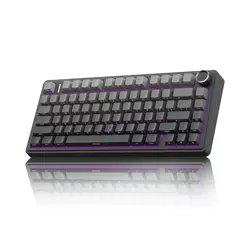
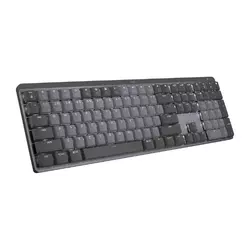
Table of Contents:
- Best Mechanical Keyboards for Typing: Buying Guide
- Top 5 Mechanical Keyboards for Typing in 2026
- Mechanical Keyboard Comparison
- AULA F75 Pro
- Logitech MX Mechanical
- ASUS ROG Strix Scope II 96
- Cooler Master MK770 Macaron
- NuPhy Node75
- Mechanical Keyboards for Typing: FAQ
Best Mechanical Keyboards for Typing: Buying Guide

Layout and Form Factor
Mechanical keyboard layouts have multiplied well past the era when the standard office board was a 104-key full size. The current spread runs from 60% (no function row, no nav cluster, no numpad) up to full size, with 65%, 75%, TKL, and 96% as the most popular intermediates. For typing, what matters most is how often your hands need to leave home row during a typical work session. A 75% layout like the AULA F75 Pro or NuPhy Node75 keeps F-keys and arrows but compresses everything else, freeing about 20% of desk space compared to a full-size board. For writers and coders who rarely touch the numpad, that compactness is a net win. For accountants, data analysts, and anyone who lives in spreadsheets, dropping the numpad is a daily friction.
A 96% layout like the ASUS ROG Strix Scope II 96 or Cooler Master MK770 keeps every essential key from a full-size board but tightens the spacing between key clusters - the numpad sits flush against the nav keys instead of separated by an inch of plastic. The result is a footprint about 15% smaller than full size with no functional loss for most workflows.
My own preference shifted to 75% after a year on a full-size board where I rarely used the numpad. The difference in mouse reach alone was worth the change - my right hand traveled less, and the home-row position recentered to a more shoulder-natural width. The right layout depends on what you do daily, not on what looks current online. If you need the numpad regularly, go with a 96% or full size. If you don't, a 75% gives back desk space and shortens your right-hand travel without giving up the function row.
Switch Types and Travel
Mechanical switches fall into three broad categories: linear (smooth from top to bottom, no bump), tactile (a noticeable bump partway through the keystroke), and clicky (a tactile bump plus an audible click). For typing, the choice is more personal than technical. Tactile switches with a soft bump - like the Logitech MX Mechanical's Tactile Quiet variant or the ROG NX Storm - give your finger feedback that the keystroke registered without requiring a full bottom-out, which over hours of typing reduces finger fatigue. Linear switches like the ROG NX Snow or Kailh Box V2 Red trade that feedback for a smoother, quieter glide. Clicky switches sound great in a video but tend to fatigue the ear in shared spaces.
Travel distance is the other variable that doesn't get enough attention. Standard mechanical switches travel 3.5-4mm from rest to bottom-out, while low-profile switches like the Kailh Choc V2 units in the Logitech MX Mechanical travel about 3.2mm. For typists transitioning from laptop keyboards, low-profile switches feel immediately familiar and cut the adjustment period to almost nothing. Full-profile switches give a more deliberate, weighted feel that many enthusiasts prefer for long-form writing. I've found that anyone coming from membrane keyboards adapts to low-profile mechanical in a day, while full-profile takes about a week of finger retraining. Neither is objectively better - the right travel depends on which feels more comfortable to your own hands.
Build Quality and Mounting
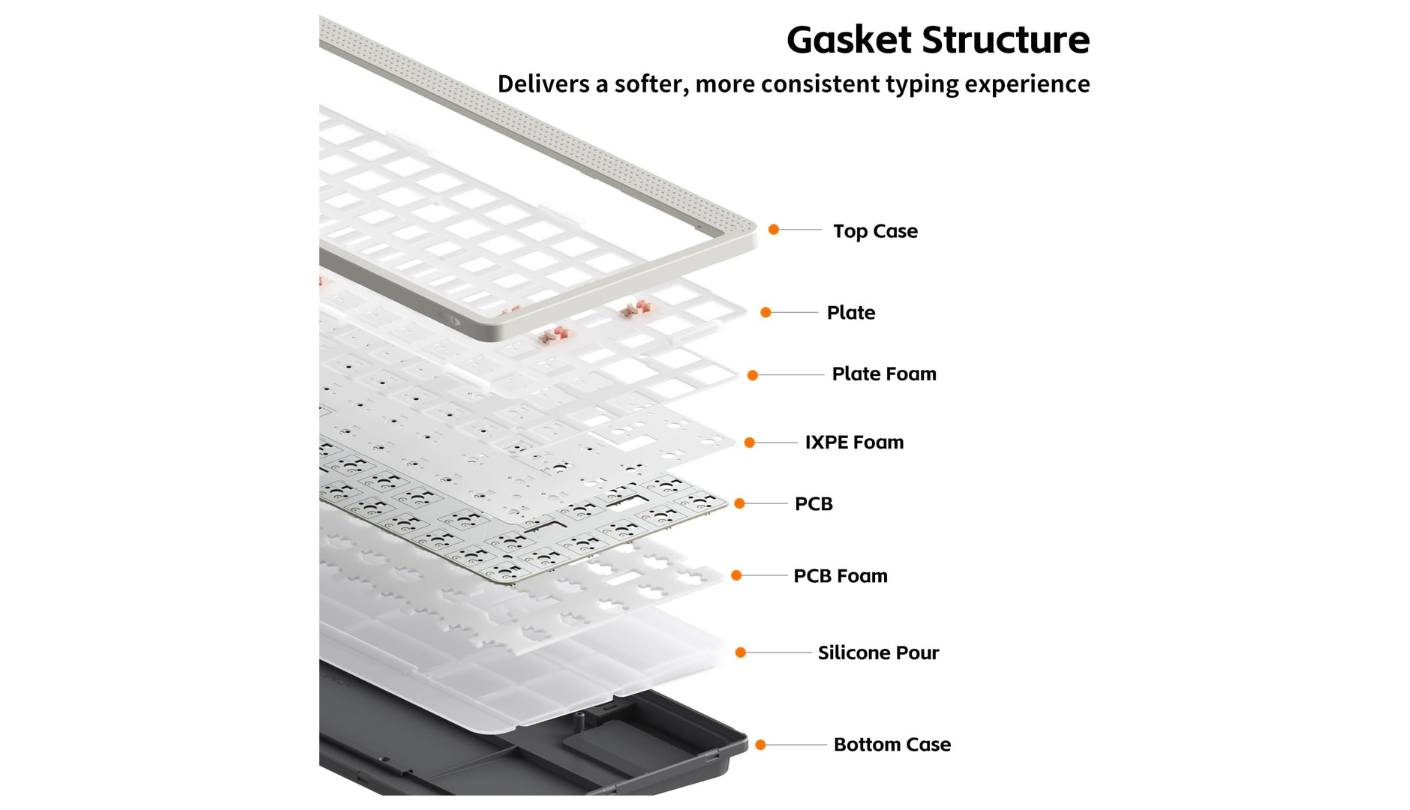
How a keyboard's plate is mounted to its case affects both feel and sound more than any other internal design decision. The dominant approaches today are tray mount (plate screwed directly to the case bottom, firm and a bit harsh), top mount (plate screwed to the case top, balanced), and gasket mount (plate suspended between rubber or silicone gaskets, soft and absorbent). Gasket-mounted boards have moved from custom-only enthusiast builds to mainstream products in the past two years - the AULA F75 Pro, Cooler Master MK770, and NuPhy Node75 all use gasket mounting, and the difference shows up in the typing feel within the first ten keystrokes.
Gasket-mounted boards give a slight downward flex on each keystroke that absorbs impact energy, reduces the hollow ping that haunts cheaper plastic boards, and softens the bottom-out. The tradeoff is a less precise feel that some typists find too forgiving - tray-mounted boards offer a stiffer, more direct response that suits typists who prefer to feel exactly where each key bottoms.
Material choice matters less than mount style for typing feel, but it's where build quality differences show up visually and in long-term durability. The ASUS ROG Strix Scope II 96 uses an aluminum top plate over a plastic case - a common configuration that gives the board rigidity where it matters while keeping weight reasonable. The Logitech MX Mechanical takes the same approach with a more polished finish. Full aluminum cases sound denser and feel more premium, but they add weight and cost. For most typists, a quality plastic case with an aluminum or steel plate covers the structural ground without the price premium of full metal construction. In my testing, I've found gasket-mounted plastic-case boards consistently sound better than aluminum tray-mounted ones at similar price tiers.
Connectivity and Battery Life
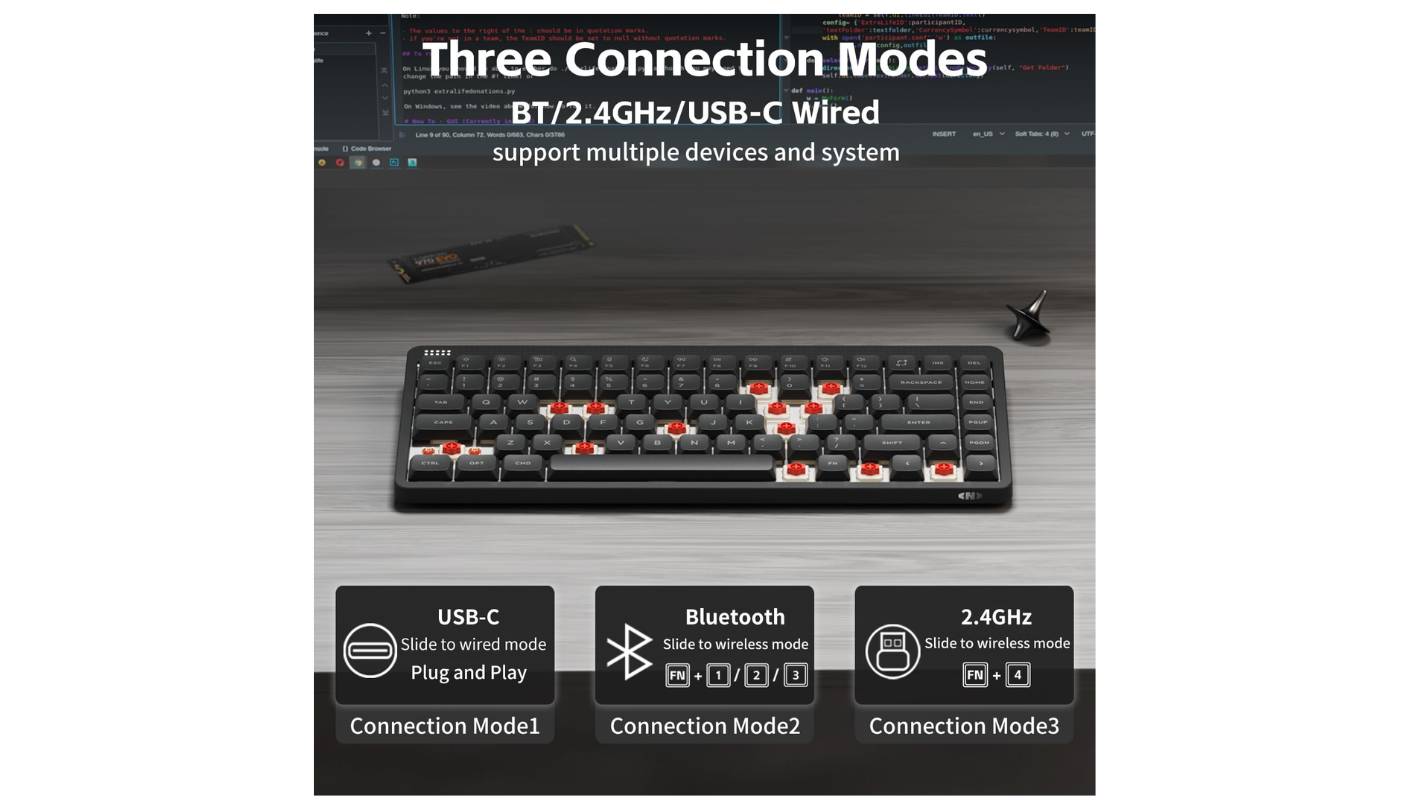
Wireless connectivity options have converged on a tri-mode standard: 2.4GHz wireless via a USB receiver, Bluetooth for low-latency-tolerant use, and USB-C for wired connection or charging. All five boards here support some version of this setup, though the details matter. The ASUS ROG Strix Scope II 96, Cooler Master MK770, and NuPhy Node75 all hit 1000Hz polling rates over their 2.4GHz connections - the same rate as most wired gaming mice - which keeps wireless latency below human perception for typing and gaming alike. Bluetooth modes typically cap at 125Hz, which is fine for typing but introduces noticeable lag in competitive gaming.
Battery life varies more by design philosophy than by raw capacity. The ASUS ROG Strix Scope II 96 claims 1,500 hours of 2.4GHz wireless use with the RGB off - real-world testing puts it at 80-90 hours with RGB on. The NuPhy Node75 hits up to 1,000 hours RGB-off and 60-100 hours RGB-on, with a 4000mAh battery doing the heavy lifting. The Logitech MX Mechanical's smart illumination, which fades the backlight when your hands move away, extends its claimed 15-day life with backlighting on to 10 months with it off. In my own daily use, I've gone three weeks between charges on the MX Mechanical with the backlight on through most workdays - the manufacturer's claim aligns with reality more than most.
Keycaps and Sound Profile
PBT keycaps have become the de facto standard above the entry price tier, and the reason is durability. ABS keycaps, the cheaper option, develop a shine on the most-pressed keys within months of heavy typing - the natural oils from fingers wear away the textured surface and leave a smooth, slick finish that looks worn. PBT plastic resists that wear almost entirely. All five boards in this roundup ship with PBT keycaps either doubleshot or dye-sublimated, which keeps legends from fading even after years of typing. The keycap profile - OEM, Cherry, SA, MDA - changes how the home row aligns under your fingers and how much travel each finger needs to reach the next row.
Sound dampening inside the case has moved from custom-mod territory to a standard inclusion at all but the lowest price tiers. Silicone foam between the PCB and case bottom, plus an additional layer between the plate and PCB, kills the hollow ping that defined cheap mechanical boards a few years ago. The Cooler Master MK770's double-insulation design and the AULA F75 Pro's five-layer pad show how that approach has filtered down even into mid-market boards.
The sound profile a keyboard produces is largely a function of switch, keycap, and dampening combined. I've heard the same switch sound completely different on two boards with different dampening setups - the Gateron Brown that pings in a stock prebuilt sounds creamy and muted in a gasket-mounted, foam-loaded enthusiast build. For shared workspaces, sound profile matters as much as switch feel. Linear switches in a well-dampened gasket-mount setup like the AULA F75 Pro or NuPhy Node75 sit at office-acceptable noise levels even at full typing speed. Clicky switches on a tray-mounted board are unmistakable across a room. Match the sound to the environment you'll be typing in, not just the feel you prefer in isolation.
Top 5 Mechanical Keyboards for Typing in 2026
Here's the shortlist from weeks of side-by-side testing - sound profiling on the same desk, daily typing rotated across multiple machines, and gaming sessions where wireless polling actually mattered. Each board below earned its position by holding up across long writing days rather than just feeling great in the first five minutes.
- Gasket-mount typing feel
- 5-layer sound dampening
- Tri-mode 5-device pairing
- Hot-swappable (3/5-pin) PCB
- Side-printed PBT keycaps
- Three-device Easy-Switch button
- Smart proximity backlighting
- Low-profile tactile typing
- 10-month battery life
- Multi-OS compatibility
- Hot-swappable 96% layout
- Pre-lubed ROG NX switches
- SpeedNova 1000Hz wireless
- Magnetic leatherette wrist rest
- Sound-dampening foam stack
- Double-insulated gasket mount
- Hot-swappable Kailh Box V2
- 5-slot multi-device pairing
- Tactile 3-way roller
- PBT doubleshot keycaps
- Touch strip gestures
- Blush silent switch option
- Browser-based NuPhyIO software
- 700 g portable weight
- Native Mac/Windows support
Mechanical Keyboard Comparison
The specs below are the ones that shape the typing experience day to day. Connection options, polling rate, mount type, keycap material, and battery life cover most of what separates a keyboard you'll love from one you'll only tolerate:
| Specification | AULA F75 Pro | Logitech MX Mechanical | ASUS ROG Strix Scope II 96 | Cooler Master MK770 | NuPhy Node75 |
| Layout | 75% (81 keys) | Full-size (110 keys) | 96% | 96% (98 keys) | 75% (84 LP / 82 HP) |
| Switch Type | LEOBOG Reaper (linear) | Kailh Choc V2 low-profile (3 types) | ROG NX Snow / NX Storm | Kailh Box V2 (red linear / white click) | Max (high) / nano (low) - 3 variants |
| Mount Type | Gasket + 5-layer pad | Tray + aluminum plate | Top mount + dampening foam | Gasket + double insulation | Gasket |
| Hot-Swappable | Yes (3/5-pin) | No | Yes (3/5-pin) | Yes (3/5-pin) | Yes (HP: 3/5-pin, LP: 3-pin north) |
| Keycaps | Side-printed PBT | ABS doubleshot | PBT doubleshot or UV ABS | PBT doubleshot | nSA/mSA PBT doubleshot |
| Connectivity | BT 5.0 / 2.4GHz / USB-C | BT / Logi Bolt / USB-C (charge only) | BT 5.1 / 2.4GHz SpeedNova / USB-C | BT 5.1 (x3) / 2.4GHz / USB-C | BT 5.1 / 2.4GHz / USB-C |
| Polling Rate | 1000Hz (2.4GHz) | 125Hz | 1000Hz (2.4GHz) | 1000Hz (2.4GHz) | 1000Hz (2.4GHz) |
| Battery | 4000mAh | 1500mAh (15 days RGB / 10 mo off) | 1500 hrs RGB-off / 80-90 hrs on | USB-rechargeable | 4000mAh (1000 hrs RGB-off) |
| Multi-Device | 5 devices | 3 devices | 3 BT devices | 5 channels | 5 devices |
| Backlighting | RGB (16 modes) | White smart illumination | Per-key RGB Aura Sync | Per-key north-facing RGB | Per-key north-facing RGB |
| Controls | Volume knob | Dedicated media keys | Multiwheel + button | 3-way roller | Capacitive touch strip |
| Software | F75 driver | Logi Options+ | Armoury Crate | MasterPlus+ | NuPhyIO (browser-based) |
| Weight | ~1.0 kg | 828 g | ~1.0 kg | 1052 g | ~700 g (LP) / ~900 g (HP) |
| Extras | Tri-mode shortcut, two-stage kickstand | Smart illumination, multi-OS, Flow support | Wrist rest, three tilt angles, Omni Receiver | 3-way dial, hybrid 5-mode pairing | Touch gestures, 3D-print accessory files |
Across weeks of side-by-side use, the variables that change the typing feel most noticeably are mount type (gasket vs tray), keycap material (PBT over ABS), and the quality of internal sound dampening. Polling rate, RGB customization, and software polish matter at the edges but rarely change how a board actually feels under your fingers.
AULA F75 Pro Review
Editor's Choice
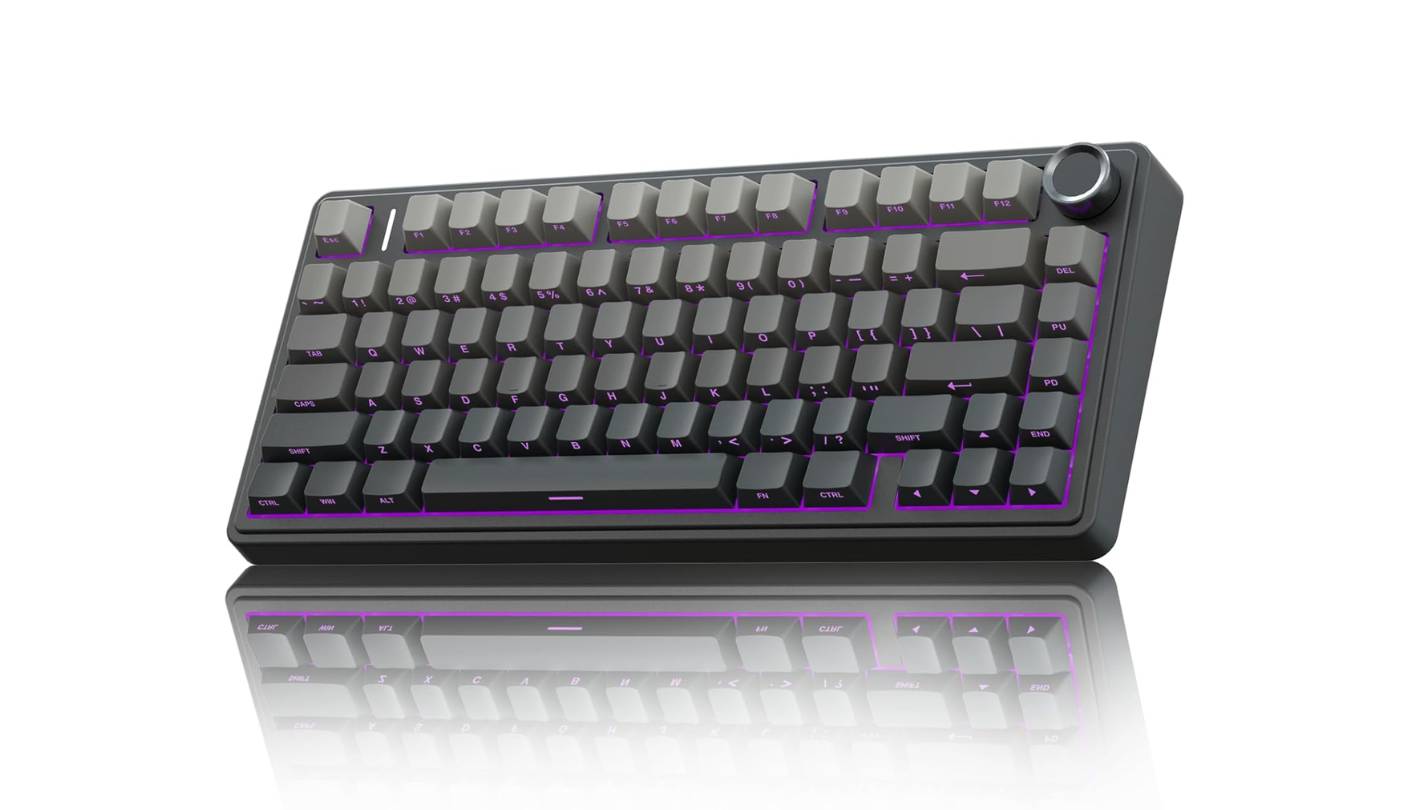
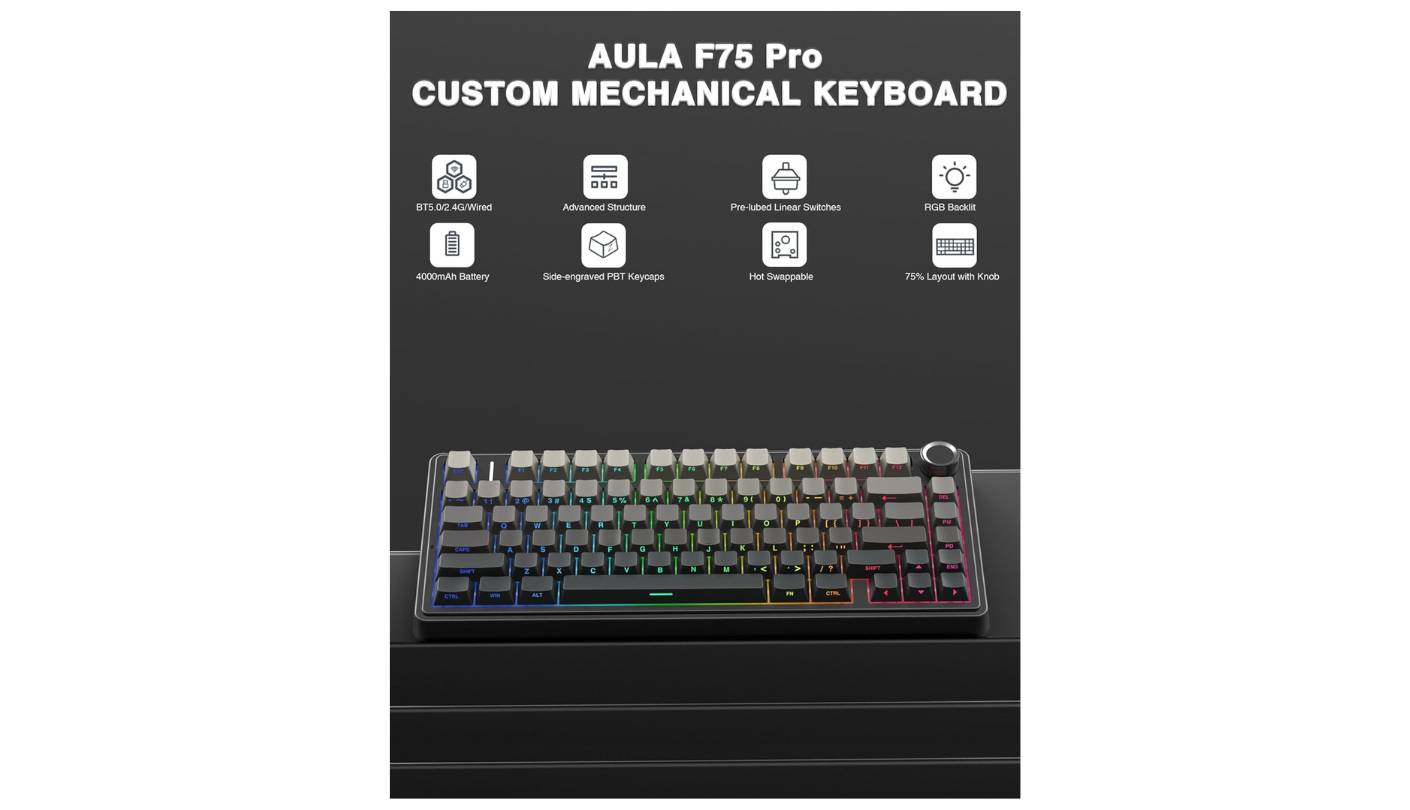
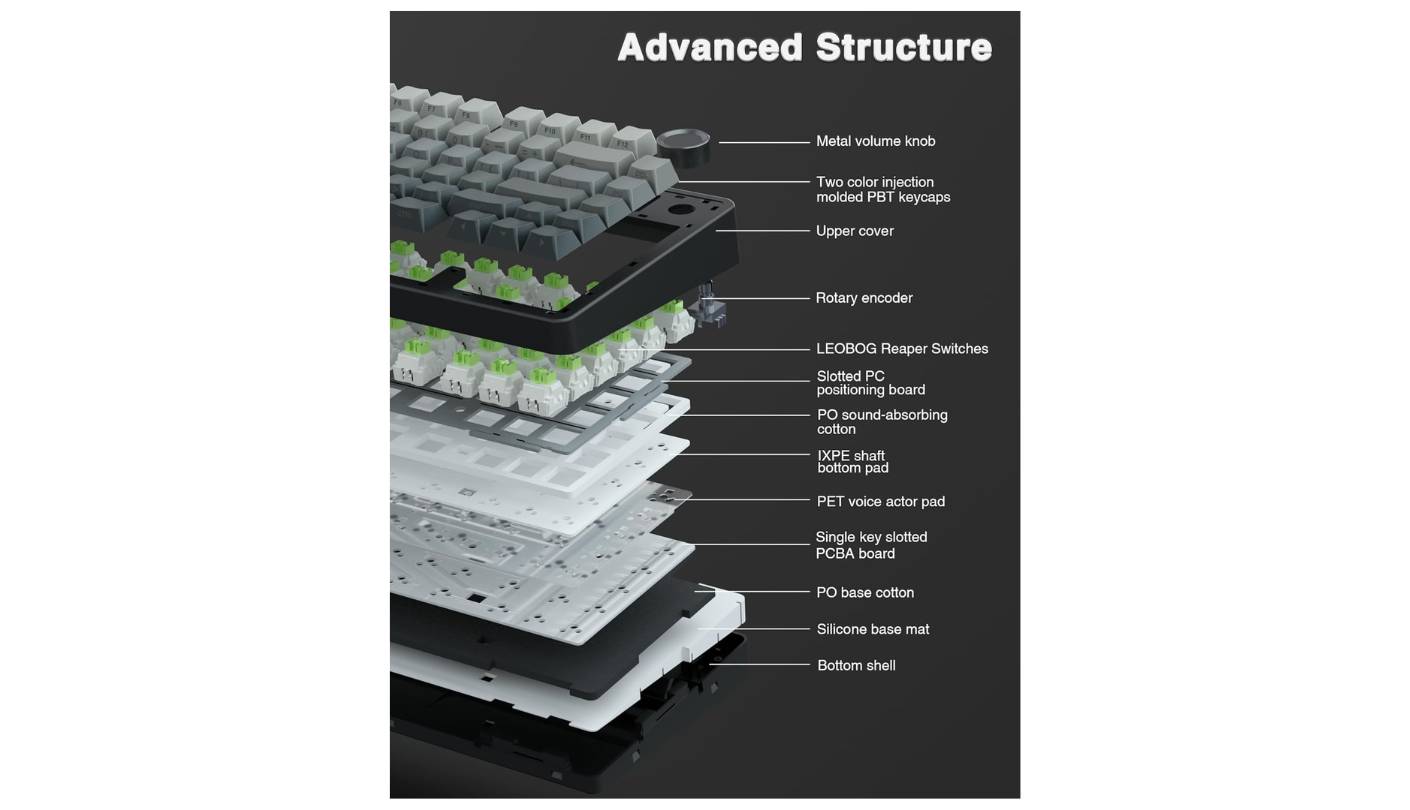
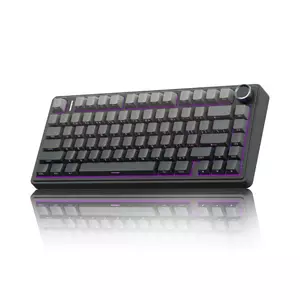
The AULA F75 Pro is the keyboard I hand to anyone asking how to get an enthusiast-grade typing experience without spending three figures plus tax. Gasket-mounted construction paired with five layers of internal silicone dampening puts this board in a sound category that used to require either a custom build or a flagship pre-built. My first ten minutes typing on it answered the obvious question: yes, you can buy that creamy, muted thocky sound profile factory-fresh for less than a dinner-for-two budget. The 4.7-star average across over 1,400 ratings tells me other buyers landed in the same place.
The 75% layout drops the numpad but keeps the function row and arrow cluster - 81 keys arranged compactly with a flush column of nav keys on the right edge and a multi-function knob in the top-right corner. LEOBOG Reaper switches arrive pre-lubed from the factory in a linear configuration that feels smooth from top to bottom with no scratchiness. The 1.2mm single-key slotted PCB stabilizes each switch individually rather than relying on plate-only support, which translates into a stable, even keystroke across all 81 keys.
Tri-mode connectivity covers Bluetooth 5.0, 2.4GHz wireless, and USB-C, with the ability to pair up to five devices and switch between them with shortcut keys. The 4000mAh battery is large enough to push past a week of heavy daily use with RGB on, longer with the lighting off. I pair mine to a desktop, a laptop, and a tablet and rotate through all three during a typical work day without reconnection delays. The hot-swappable PCB accepts both 3-pin and 5-pin switches, which means the keyboard doubles as a sandbox for trying different switch types over time.
Side-printed PBT keycaps are the cosmetic signature - the legends sit on the front edge of each cap rather than the top, leaving the top surface clean and letting RGB shine through the side cutouts. The gradient black-and-pink color scheme on the version I tested is bolder than most office environments would accept, but AULA offers more conservative colorways including white-and-blue and pure black. The two-stage kickstand gives a steep typing angle that suited my preference for an aggressive tilt.
The driver software is the one consistent weak point I've encountered. The F75 companion app handles macro programming and RGB customization, but reports of inconsistent behavior on Windows are common enough to take seriously. For users who don't need to program macros, the out-of-box experience is complete - keystroke feel, sound profile, multi-device pairing, and battery life all work without any software at all. At this price point, the F75 Pro is the most fully-featured gasket-mount entry I've encountered.
Pros:
- Gasket-mount typing feel
- 5-layer sound dampening
- Tri-mode 5-device pairing
- Hot-swappable (3/5-pin) PCB
- Side-printed PBT keycaps
Cons:
- Inconsistent driver software
- Loose volume knob
Summary: AULA F75 Pro packs gasket mounting, five-layer dampening, pre-lubed switches, and tri-mode wireless into a price most enthusiast features cost twice. The first board I'd hand to anyone wanting a thocky typing experience without a flagship budget.
Logitech MX Mechanical Review
Best Overall
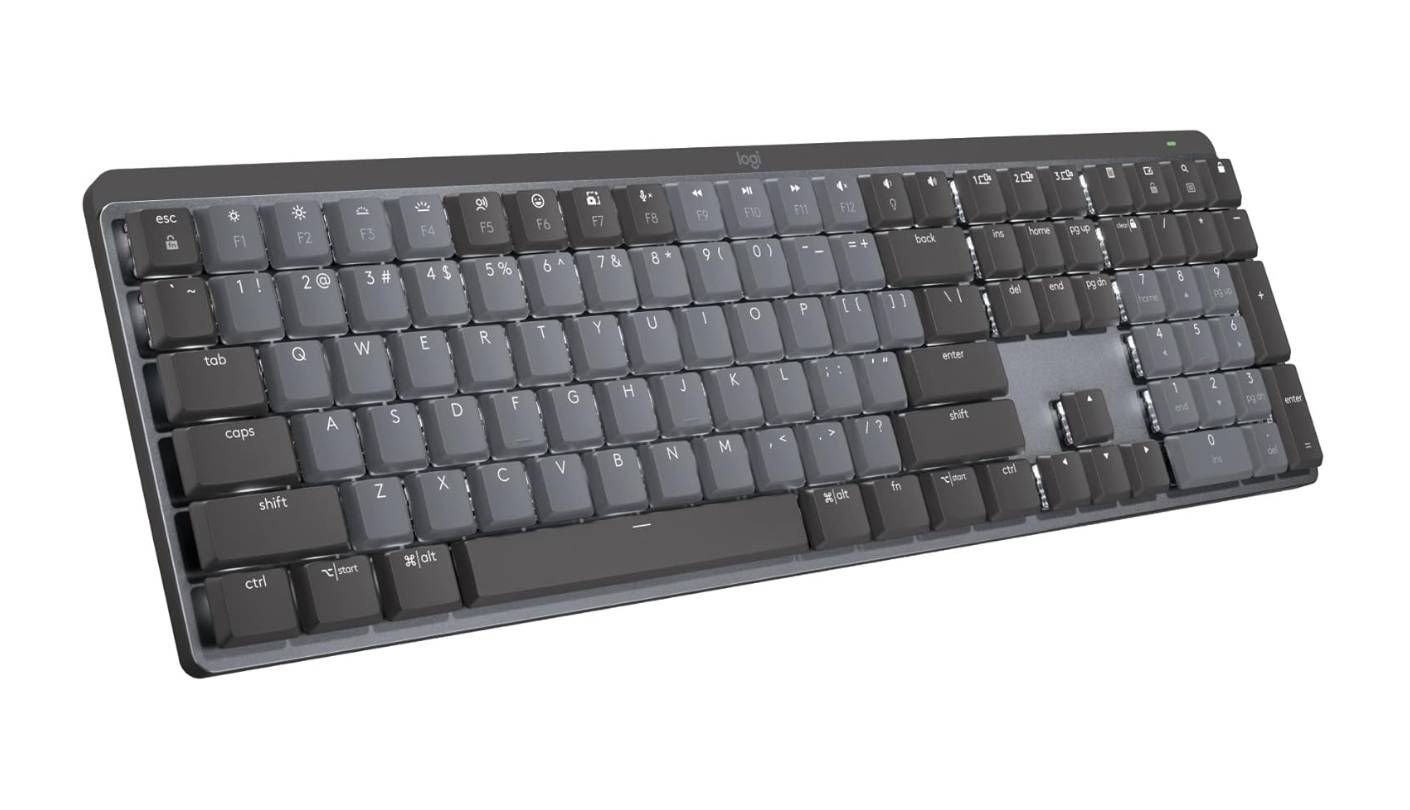
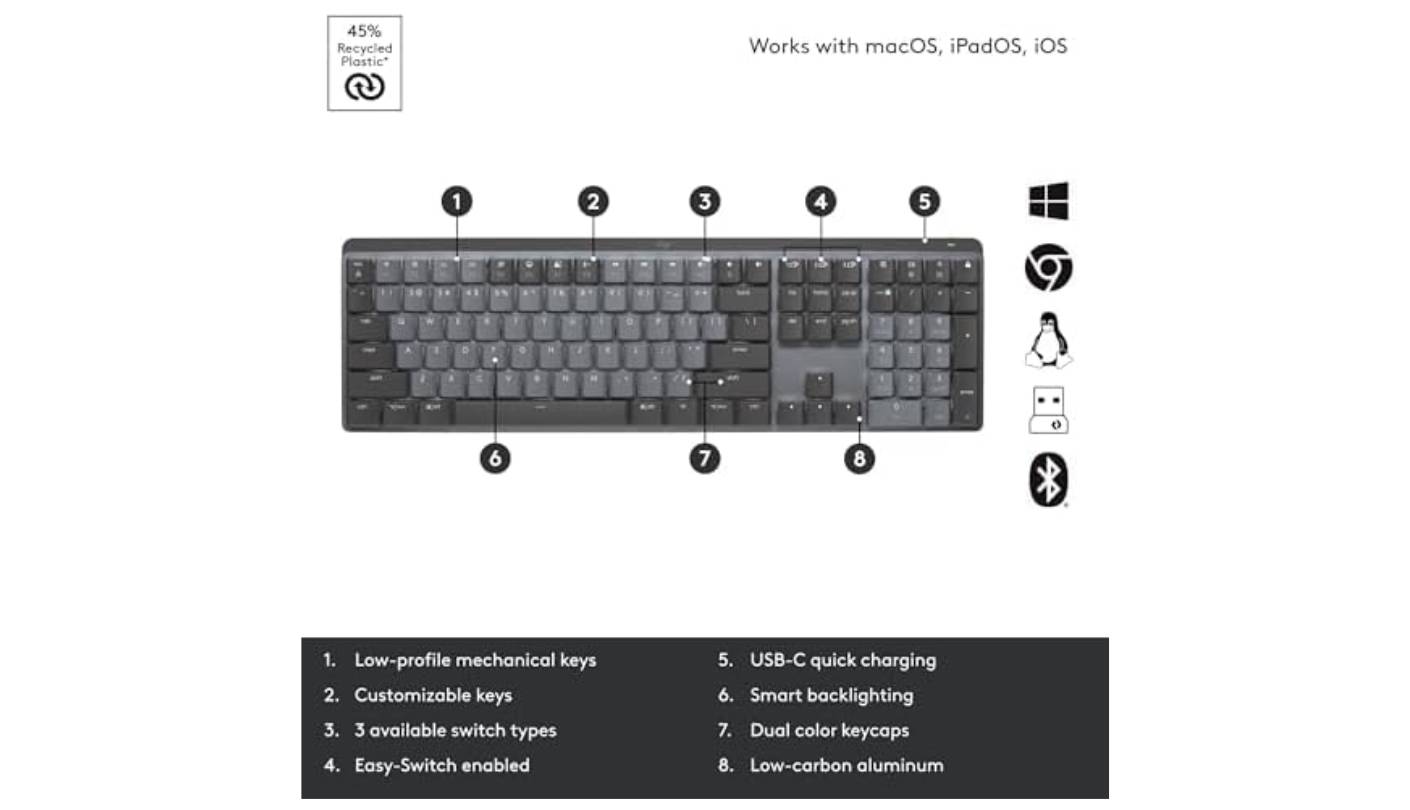
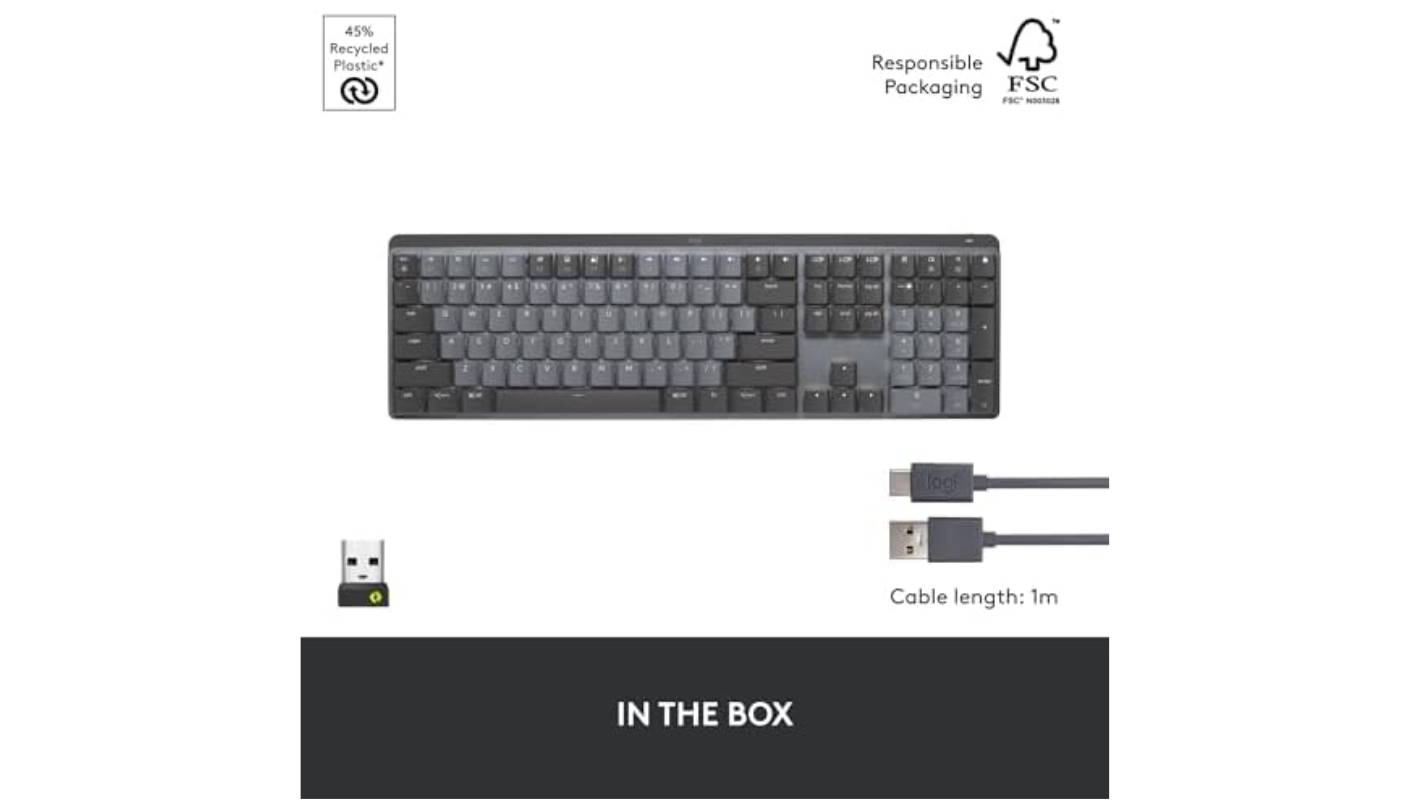
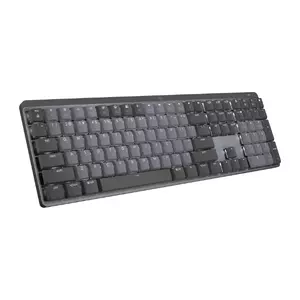
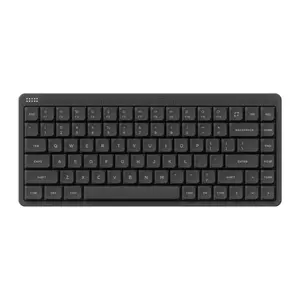
The Logitech MX Mechanical is the keyboard built for the workflow rather than the hobby. Anyone who's worked across multiple machines - say, a personal laptop, a work desktop, and an iPad for note-taking - has felt the cost of constantly relearning a different keyboard's layout, switch feel, and shortcut behavior. Logitech's Easy-Switch on this board solves that with three dedicated buttons in the top-right corner that swap between paired devices instantly. I've used the MX Mechanical as my daily driver for a year across a Mac, a Windows desktop, and a Linux box, and the switching is smooth enough that I've largely stopped thinking about it.
Low-profile Kailh Choc V2 mechanical switches give the MX Mechanical its distinct typing character. The keys travel about 3.2mm rather than the 3.5-4mm of standard mechanical switches, which means typists transitioning from laptop or Apple keyboards adapt to it in a day rather than a week. Three switch types are available: Tactile Quiet (a soft bump, low noise), Clicky (audible feedback), and Linear (smooth travel). The Tactile Quiet version is the one I'd recommend for office use - it gives clear typing feedback without raising the noise floor enough to bother coworkers.
The aluminum top plate over a plastic case feels rigid for a wireless full-size board at 828 grams, and the two-tone graphite key color stays understated enough to fit any office. Smart illumination is the headline backlight feature - proximity sensors dim the backlight automatically when your hands move away and brighten it when they return, which extends battery life noticeably during normal use. The white-only backlight matches the professional aesthetic and won't fade legends as RGB systems can over time. Logitech claims 15 days of use with backlighting on, extending to 10 months with it off, and my own experience with backlight on during work hours and off overnight has tracked the upper end of that claim.
Connectivity runs through Bluetooth Low Energy or a Logi Bolt USB receiver, with up to three devices pairable. The Bolt receiver works alongside other Logitech peripherals - my MX Master 3S mouse pairs to the same receiver, which means a single USB port handles both keyboard and mouse without sacrificing a port for each. Logi Options+ software offers per-key remapping, custom Fn-row assignments, and the Flow feature that lets a paired Logitech mouse drag content between two computers as if they were one extended desktop. The USB-C port charges only - it can't carry data, so the keyboard won't work as a wired-only device.
The MX Mechanical is the right pick for typists who prioritize multi-device fluidity, low-fatigue typing across long work hours, and a professional aesthetic over enthusiast features like hot-swappable switches or per-key RGB. It's the inverse use case from a gasket-mounted enthusiast board - less customizable, more deeply integrated into a productivity workflow. For anyone whose job involves typing across multiple machines daily, the instant device handoff alone justifies the price difference from a single-device keyboard.
Pros:
- Three-device Easy-Switch button
- Smart proximity backlighting
- Low-profile tactile typing
- 10-month battery life
- Multi-OS compatibility
Cons:
- USB-C charge only
- No hot-swap switches
Summary: Logitech MX Mechanical sits at the intersection of professional aesthetics and multi-device productivity. The right choice for typists working across multiple machines daily who want low-fatigue mechanical typing without enthusiast complexity.
ASUS ROG Strix Scope II 96 Review
Power Typist
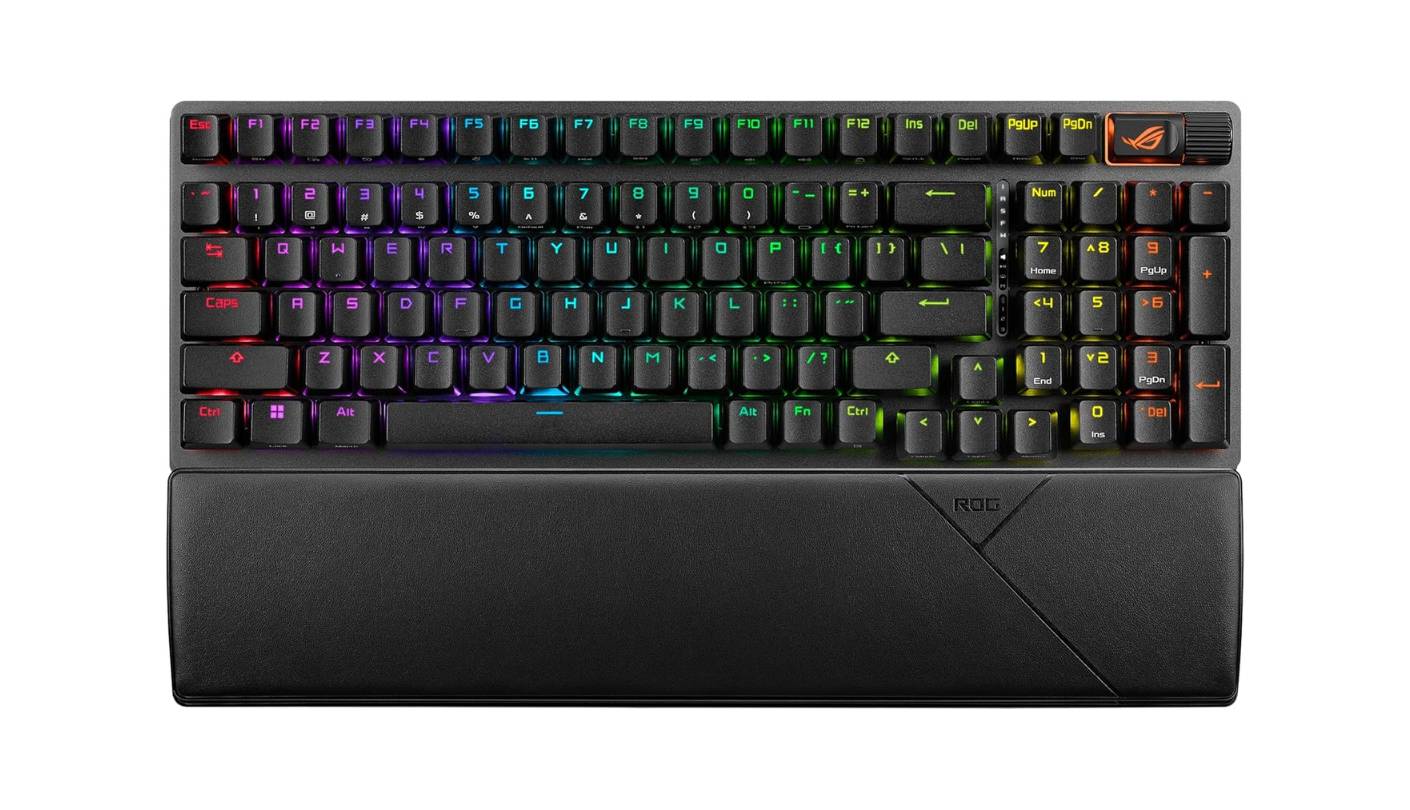
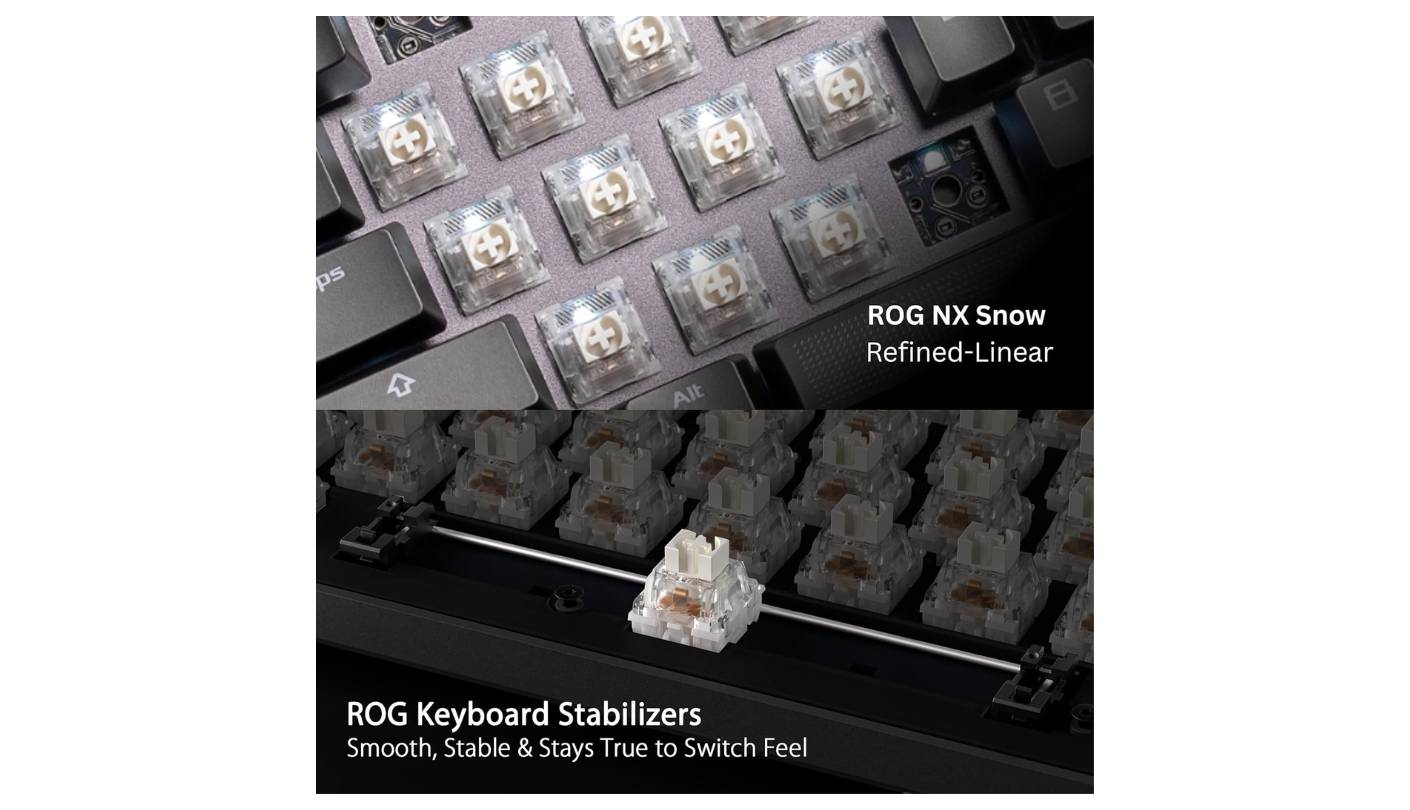
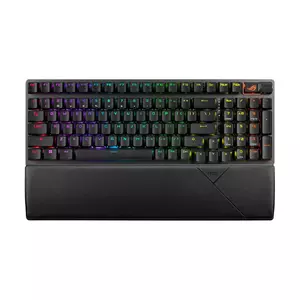
The ASUS ROG Strix Scope II 96 Wireless sits between two camps that rarely overlap well: enthusiast typing boards and high-performance gaming keyboards. Most attempts at this hybrid end up compromising one side, usually the typing, to keep the gaming numbers competitive. The Scope II 96 keeps both intact. Pre-lubed ROG NX Snow linear switches feel smooth and quiet enough for office use, and ROG SpeedNova wireless at 1000Hz polling on the 2.4GHz connection handles competitive gaming at a level that rivals wired boards. I split my testing between long writing sessions and Apex Legends matches, and neither role exposed weakness in the other.
The NX Snow switches actuate at 45g with a 1.8mm actuation point - a relatively light, snappy switch that registers without bottom-out pressure. The NX Storm tactile variant is also available for typists who prefer a bump. Pre-lubrication smooths out the linear travel and cuts switch noise compared to factory-dry alternatives. Internal silicone dampening foam plus integrated switch-dampening pads soak up the ping and rattle that lower-quality boards produce, which puts the Scope II 96 in the category of pre-built boards that need no aftermarket modding to sound right.
The 96% layout was the design decision that won me over. Every key from a full-size board stays present - F-row, numpad, nav cluster - but the spacing between clusters compresses, freeing about an inch of desk width. The hot-swappable PCB accepts 3-pin or 5-pin aftermarket switches, which most gaming-positioned keyboards still skip. A magnetic, leatherette-covered wrist rest comes in the box and clips onto the front edge cleanly. Three tilt positions and the wrist rest combination give enough ergonomic adjustment that I haven't felt finger or wrist fatigue across full work days.
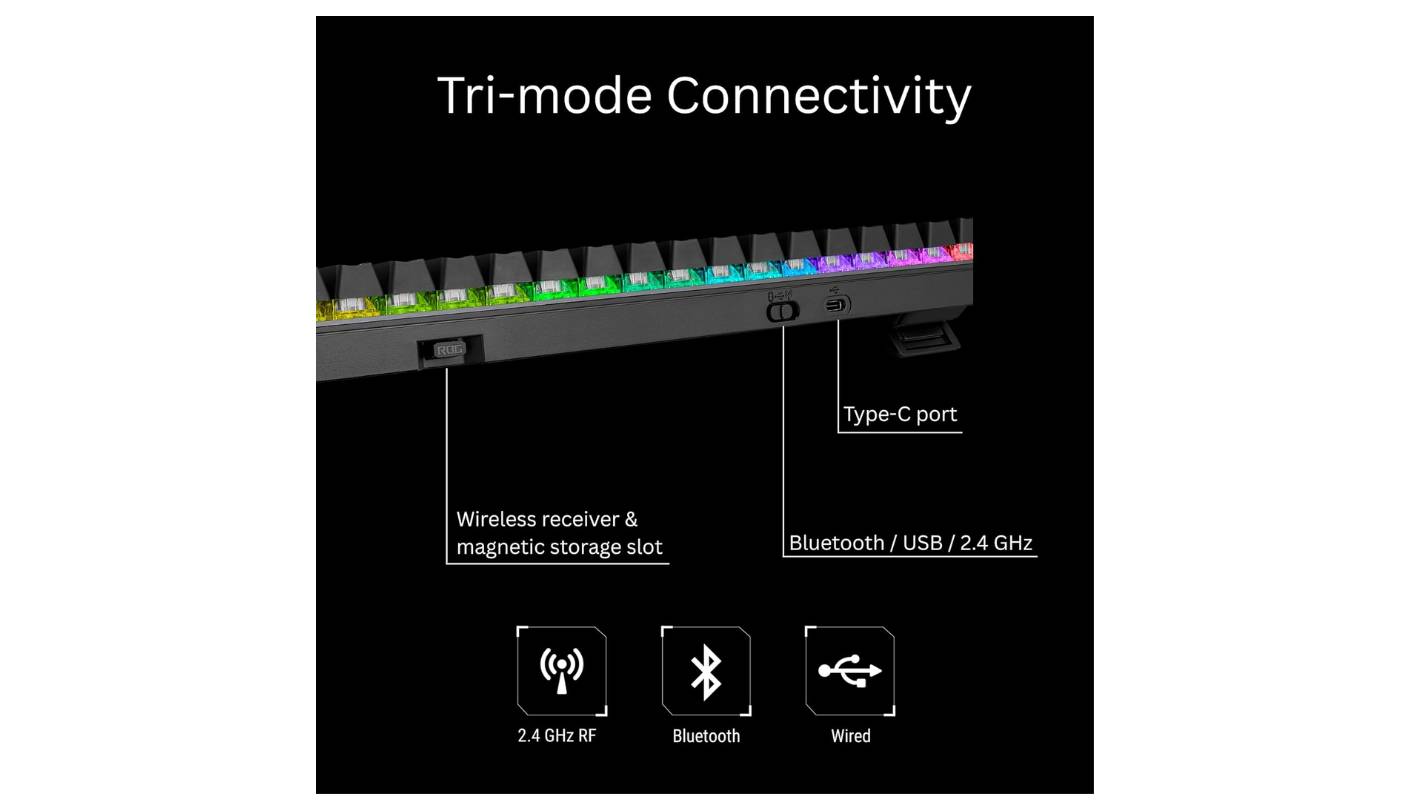
Tri-mode connectivity covers Bluetooth 5.1 (up to three devices), 2.4GHz SpeedNova wireless, and USB-C wired. The ROG Omni Receiver pairs with the keyboard plus a compatible ROG mouse, recovering the second USB port a separate mouse receiver would consume. Battery life claims of 1,500 hours at 2.4GHz with RGB off are aggressive - real-world testing with RGB on lands at 80-90 hours, which is still strong for a wireless keyboard of this size. The keyboard also charges via USB-C and runs fine while plugged in.
Armoury Crate is the software platform - the slimmer Armoury Crate Gear variant handles just the keyboard without installing the full ROG suite, which I appreciated. Per-key RGB customization and macro recording all work as expected. The Scope II 96 offers only one programmable layer via the Fn key, which is a real limitation for users who want extensive macro setups. For typists who want a gaming-grade wireless board with enthusiast-tier feel, the Scope II 96 is the rare board that handles both well.
Pros:
- Hot-swappable 96% layout
- Pre-lubed ROG NX switches
- SpeedNova 1000Hz wireless
- Magnetic leatherette wrist rest
- Sound-dampening foam stack
Cons:
- Single programmable layer
- Armoury Crate bloat
Summary: ASUS ROG Strix Scope II 96 covers the rare crossover between high-performance gaming wireless and gasket-quality typing acoustics. The standout choice here for users who type all day and game at night without wanting two separate boards on the desk.
Cooler Master MK770 Macaron Review
Gasket Pick
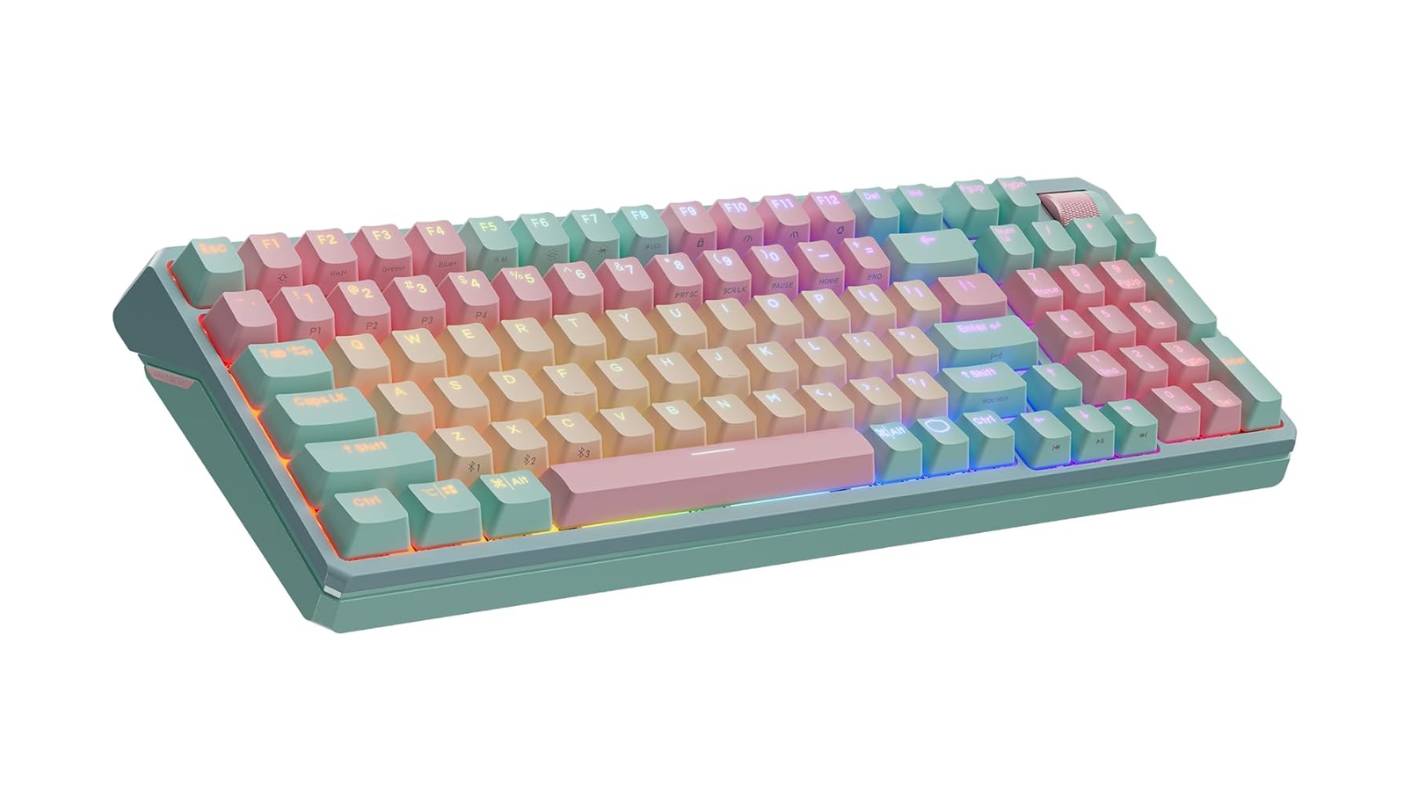
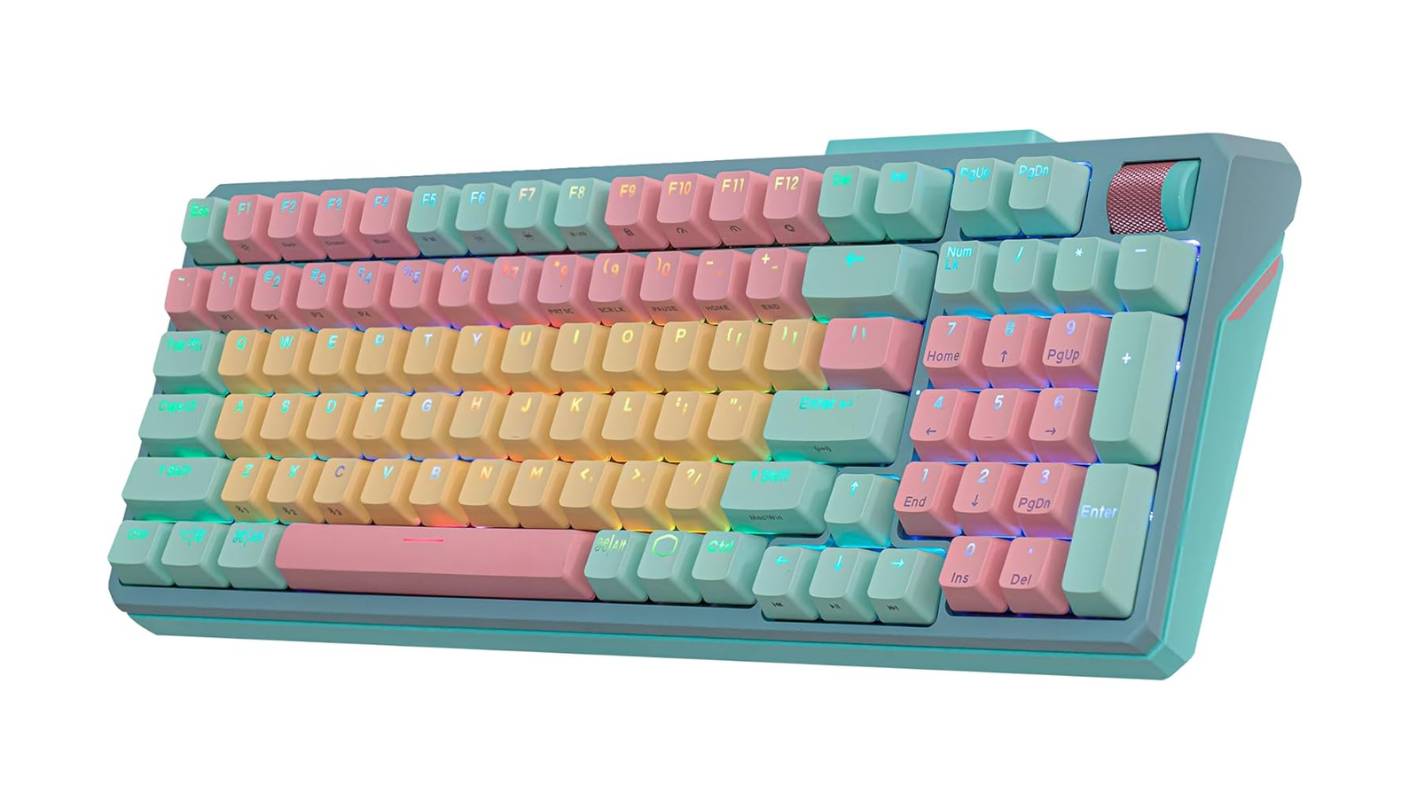
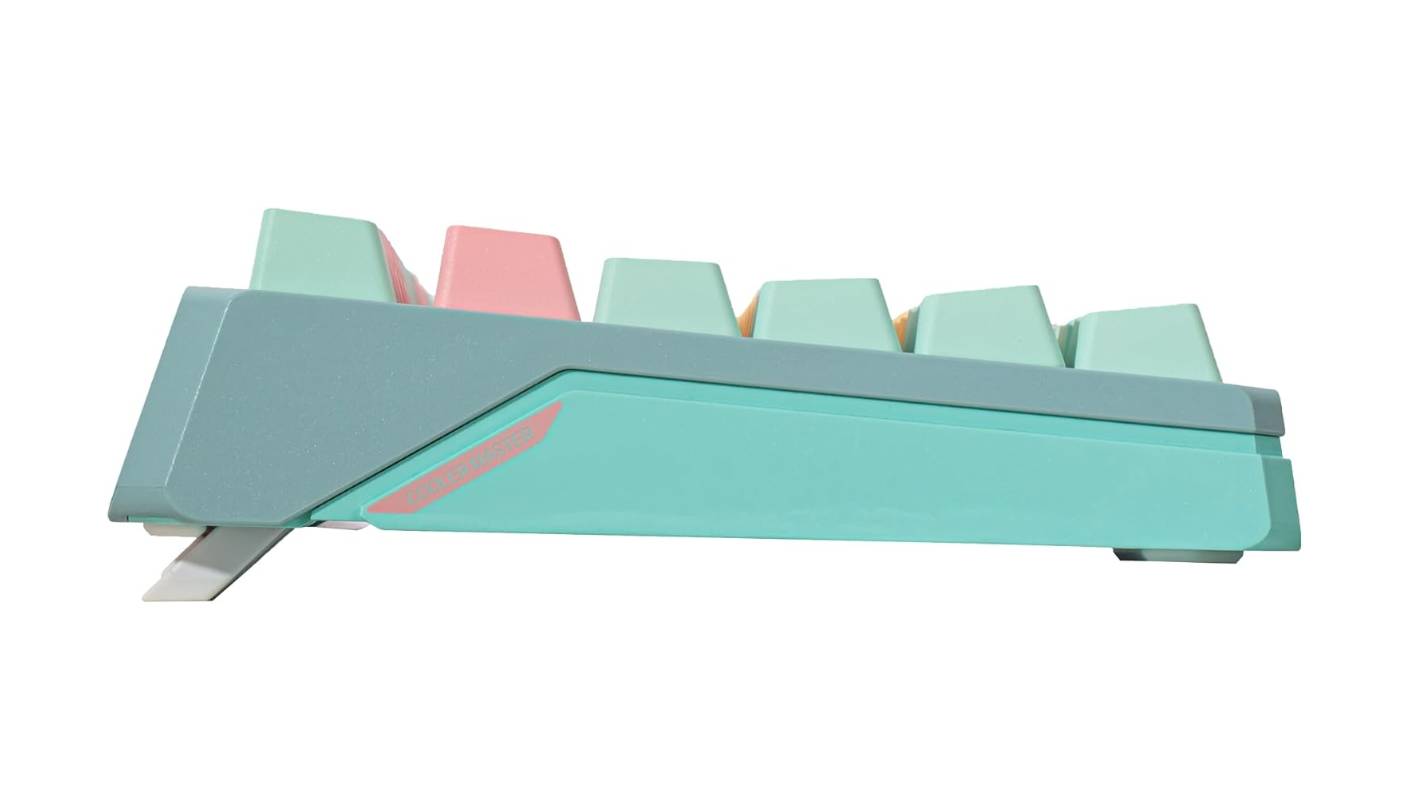
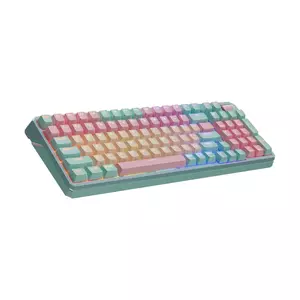
The first thing about the Cooler Master MK770 Macaron that hits is the color. Mint green case, pastel yellow, pink, and green keycaps - it's a board that won't blend into a corporate-issue desk. I'm typically a gray-and-black peripheral person, and I expected to find the Macaron palette grating after a day. The opposite happened. It grew on me, and within a week I noticed I missed it whenever I moved to a different keyboard. The Space Gray variant is available for buyers who'd rather not commit to the pastels.
Kailh Box V2 switches paired with a gasket-mount design carry the typing experience. The Box V2 housing has a square stem that resists wobble more than a standard MX-style cross-stem, which translates into less keycap rattle and a more stable feel under each press. Factory pre-lubrication smooths the linear travel of the Red switches or the audible bump of the White clicky variant. Double-layer sound insulation combines silicone dampers between the plate and PCB with EVA foam below the PCB, killing the hollow ping that plagues cheaper plastic boards. The result is a soft, dampened typing sound that lands in the same range as enthusiast custom builds.
The 96% layout keeps a full numpad, function row, and nav cluster while compressing the dead space between them. Hot-swap sockets accept 3-pin and 5-pin switches, with north-facing RGB LEDs that align with most keycap legend positions. Connectivity covers three Bluetooth 5.1 channels, one 2.4GHz wireless connection, and USB-C wired - five total connection slots that make this the most multi-paired keyboard in this roundup. The 2.4GHz mode runs at 1000Hz polling, and Bluetooth drops to 125Hz - meaningful for gaming, irrelevant for typing.
A three-way roller in the top-right corner handles volume control, lighting mode cycling, or any custom function assigned through MasterPlus+ software. The roller has a tactile detent on each click position that I find more useful than a smooth-rolling knob for media work. MasterPlus+ runs slower than the competitors here and feels less refined than Logi Options+ or NuPhyIO, but it covers macro recording and RGB customization without crashing in my experience.
The case has noticeable flex when pressed in the middle - the ABS plastic frame isn't as rigid as an aluminum body, and aggressive typists might feel it. No wrist rest comes in the box, which for a 96% layout that you'll spend hours typing on is a real omission. For typists who want gasket-mount feel, broad multi-device connectivity, and aren't put off by a bold color palette, the MK770 covers the bases without asking for flagship money.
Pros:
- Double-insulated gasket mount
- Hot-swappable Kailh Box V2
- 5-slot multi-device pairing
- Tactile 3-way roller
- PBT doubleshot keycaps
Cons:
- Sluggish MasterPlus+ software
- Plastic case flex
Summary: Cooler Master MK770 Macaron pairs a bold pastel aesthetic with real gasket-mount acoustics and Kailh Box V2 switches. Worth a serious look for typists who want enthusiast-grade feel and don't mind a keyboard that draws comments at the desk.
NuPhy Node75 Review
Slim Pick
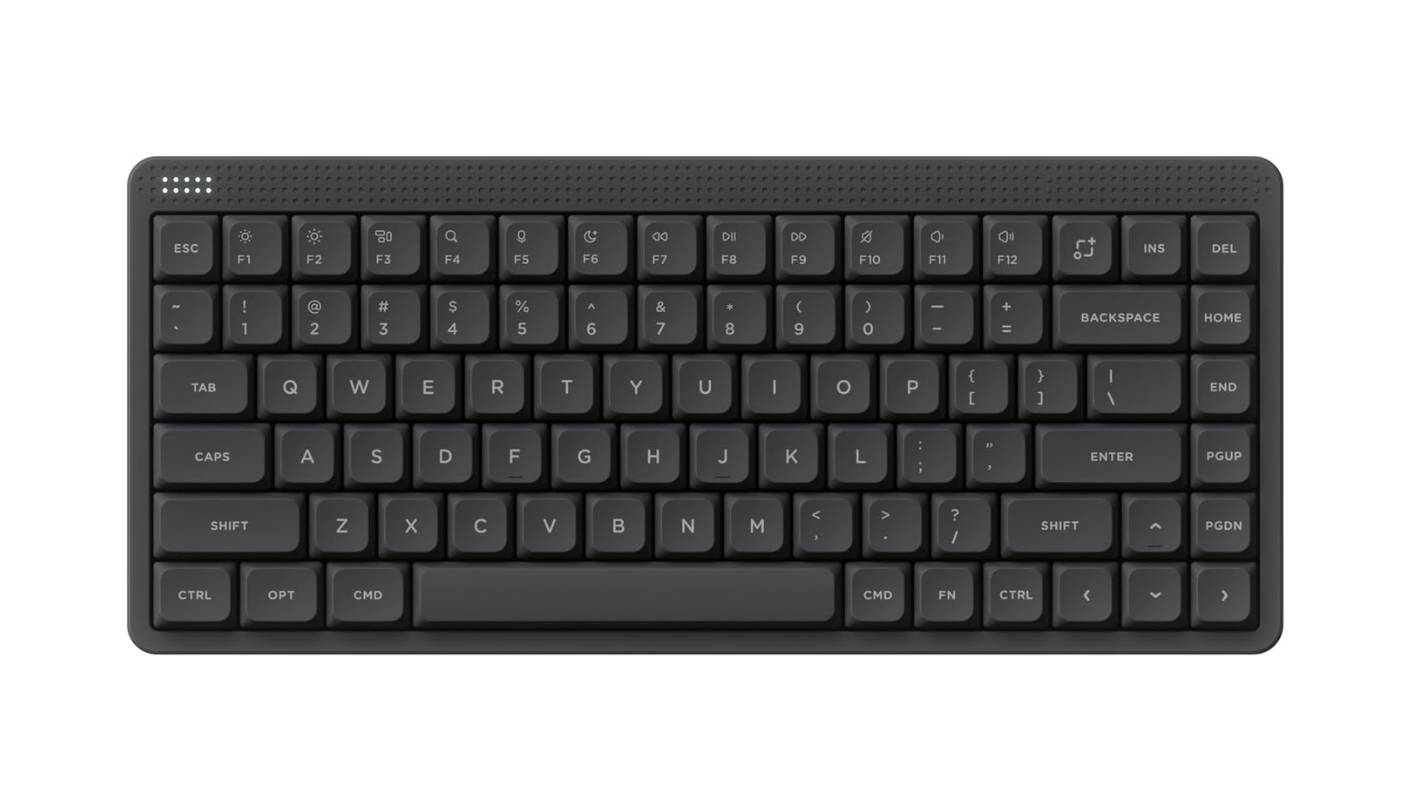
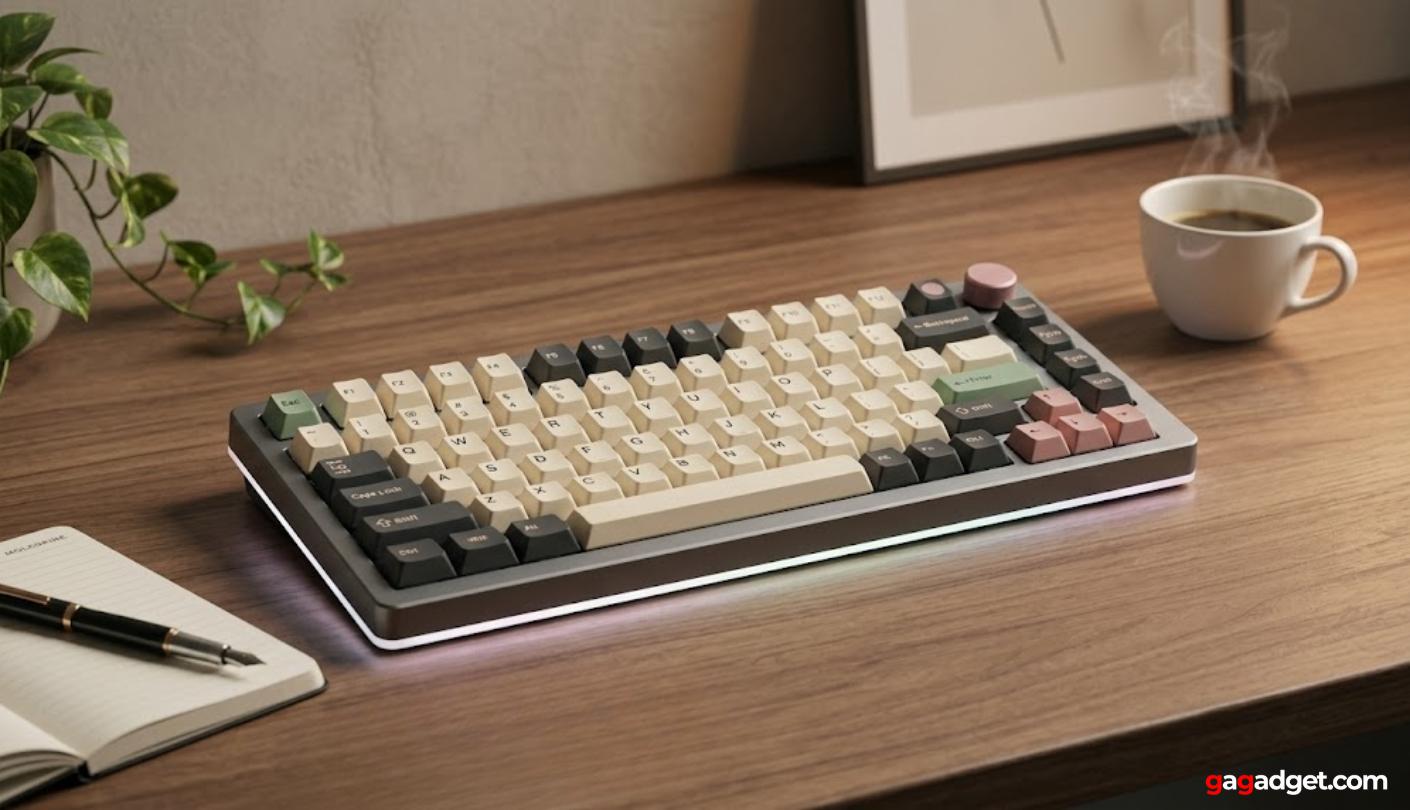
The NuPhy Node75 is the only board in this roundup that drops the rotary knob in favor of a capacitive touch strip, and the implementation is the best I've used. A dot-matrix surface in the top-right corner reads sliding gestures for volume, brightness, or backlight control, with ten LEDs on the left side pulsing in response to typing rhythm. My initial skepticism about replacing a tactile knob with a touchpad faded after a day of use. The gesture-based control is faster than rotating a knob for large volume changes and works fine for fine adjustments too.
NuPhy offers the Node75 in two profile variants: a low-profile version (84 keys, low-profile switches) and a high-profile version (82 keys, full 3.5mm travel). Both use the same gasket-mount construction and damping setup. Max switches (high-profile) and nano switches (low-profile) come in three feels including the well-regarded Blush silent variant. The Blush switches are unusual - they're quiet enough that the loudest sound from typing on them is the keycap touching the case at bottom-out, with the switch itself contributing almost nothing. I tested the low-profile version with Blush nano switches and found it the quietest mechanical board I've used.
ABS housing keeps weight down to around 700 grams in the low-profile variant - the lightest full-feature board in this roundup. Double-shot PBT keycaps in nSA or mSA profile (custom-style sculpted profiles NuPhy designed) feel dry and grippy with no shine after extended use. Hot-swap sockets accept 3-pin and 5-pin north-facing switches in the high-profile version, or 3-pin north-facing LP switches in the low-profile variant. NuPhy publishes 3D printer files for matching desk accessories - phone docks, pen holders, keycap displays - that match the board's color scheme, which is a touch I haven't seen elsewhere in this category.
Tri-mode connectivity covers Bluetooth 5.1, 2.4GHz wireless, and USB-C, with up to five paired devices via dedicated shortcut keys. The 1000Hz polling rate on 2.4GHz keeps gaming latency low when needed. Battery capacity sits at 4000mAh in the high-profile and 3000mAh in the low-profile, with up to 1000 hours of runtime with RGB off and 60-100 hours with it on. NuPhyIO is the configuration platform - a browser-based tool that runs in Chrome-based browsers without installing any software. Mac and Windows compatibility is native, with platform-specific layouts and keycaps included in the box.
The Node75 is the keyboard I'd hand to someone wanting a quiet, customizable, multi-device board with a less aggressive footprint than a 96%. Touch controls, browser-based software, and 3D-printable accessories make it the most modern-feeling option in this group. The one concession is that the gray colorway runs bland - the pink and white versions look distinctly more interesting on a desk. For typists who want a slim, quiet 75% with proper enthusiast feel, the Node75 hits a price point that most boards with this feature set don't.
Pros:
- Touch strip gestures
- Blush silent switch option
- Browser-based NuPhyIO software
- 700 g portable weight
- Native Mac/Windows support
Cons:
- Bland gray colorway
- Limited LP switch ecosystem
Summary: NuPhy Node75 brings touch control, gasket-mount construction, and tri-mode wireless to a 75% layout in two profile options. The best 75% option here for typists who want a slim, quiet board with the most current feature set.
Mechanical Keyboards for Typing: FAQ
What makes a mechanical keyboard good for typing specifically?
For typing, the priorities are consistent keystroke feel across all keys, a sound profile that doesn't fatigue the ears, low finger fatigue over long sessions, and a layout that keeps your hands close to home row. Switch type matters - tactile and linear switches at moderate actuation force suit typing better than heavy clicky switches that wear out fingers and ears over hours. Gasket-mounted construction with internal dampening produces the softer, quieter sound profile that most office users prefer. I'd prioritize switch feel and sound dampening over RGB and software features for a typing-first board.
Are gasket-mounted keyboards better for typing than tray-mounted ones?
For most typists, yes. The gasket mount design suspends the plate between rubber or silicone gaskets, allowing a slight downward flex on each keystroke. That flex absorbs energy from the impact, reduces the hollow ping common in cheap tray-mount boards, and softens the bottom-out. Tray-mounted boards feel firmer and more direct, which suits typists who prefer to feel exactly where each key bottoms - but most users find gasket-mount more comfortable for long sessions. Three of the boards here use gasket mounting (AULA F75 Pro, Cooler Master MK770, NuPhy Node75), and all three sit at or near the top of the typing experience rankings I've kept across testing.
Do hot-swappable switches matter for typing?
Hot-swap matters more over time than at first purchase. The factory switches in any quality keyboard are competent, and most users won't feel the need to change them within the first few months. The value of hot-swap appears once you've decided your factory switches don't quite match your preference - maybe linear feels too smooth or tactile too bumpy - and you want to try alternatives without buying a new board. All four hot-swap boards here (everything but the Logitech MX Mechanical) accept 3-pin switches, with most also supporting 5-pin variants, which covers nearly the entire aftermarket switch ecosystem I've tested.
How important is wireless polling rate for typing?
For typing alone, polling rate doesn't matter - even the slowest 125Hz Bluetooth connection is fast enough to register the most aggressive typing without any perceptible delay. Polling rate becomes critical only when gaming, where 1000Hz over 2.4GHz translates into about 1ms of input lag rather than the 8ms of 125Hz Bluetooth. If your keyboard pulls double duty for typing and gaming, I'd prioritize the 2.4GHz connection. If you only type, Bluetooth is fine and lets you skip the USB receiver entirely.
Are low-profile or full-profile mechanical switches better for typing?
Neither is objectively better - the choice depends on what your fingers are used to and how heavy you like each keystroke to feel. Low-profile switches travel about 3.2mm and feel similar to laptop or Apple Magic keyboards, which makes the transition easier for typists coming from those formats. Full-profile switches travel 3.5-4mm and give a more deliberate, weighted feel that many enthusiasts prefer for long-form writing. I'd say low-profile for typists coming from laptops, and full-profile for those upgrading from older membrane keyboards.
Do PBT keycaps really matter compared to ABS?
Yes, and over months of daily typing the difference becomes obvious. ABS keycaps develop a shine on the most-pressed keys (E, A, S, spacebar) within a few months as natural oils from your fingers wear away the textured surface. PBT plastic resists that wear much better and keeps its texture for years. PBT also feels slightly drier and grippier under the fingertips, which most typists I know prefer to the slick, slightly polished feel of ABS. All five boards in this roundup ship with PBT keycaps - the move to PBT as standard at this price tier has been one of the better changes in the category over the past few years.
What's the best layout for typing - 75%, 96%, or full size?
It depends entirely on whether you use a numpad daily. If your work involves spreadsheets, data entry, or accounting, drop the 75% from your shortlist and go with 96% or full size to keep the numpad. If your work is writing, coding, or general office tasks where the numpad sits unused, a 75% layout reclaims desk space without losing functionality and shortens your right-hand mouse reach. I switched from full size to 75% three years ago and haven't gone back - the desk-space and mouse-reach benefits compound over a typical workday.
How long should a wireless mechanical keyboard's battery last?
Real-world battery life for daily 8-hour use should run at least a week with RGB on and ideally a month or more with RGB off. The boards in this roundup all hit that mark - the AULA F75 Pro's 4000mAh battery and the NuPhy Node75's 4000mAh battery both push past a week with backlighting on, and the Logitech MX Mechanical's smart illumination feature extends its claimed 10-month no-backlight life into territory most other boards don't reach. In my own experience, anything above 3000mAh capacity combined with proximity-based backlight dimming will go weeks between charges in normal daily use.
Choosing the Right Mechanical Keyboard for Typing
Mechanical keyboards have come a long way from the days when getting a thocky, soft-bottomed typing experience meant building your own board from a kit. Today the typing-first market spans price tiers, switch profiles, and feature philosophies, with each of the five boards here serving a distinct use case. The AULA F75 Pro takes my top spot for typists wanting a gasket-mounted, factory-lubricated experience without the brand-tax of an enthusiast pre-built. The Logitech MX Mechanical earns its position with anyone juggling multiple machines daily, where Easy-Switch handoff and proximity backlighting matter more than per-key RGB.
For users who type all day and game at night, the ASUS ROG Strix Scope II 96 straddles both worlds without compromising either. The Cooler Master MK770 Macaron brings character and proper gasket-mount acoustics to a board that's impossible to mistake for anyone else's. And for the most modern feature set in this group - capacitive touch controls, browser-based firmware tweaks, and the slimmest profile - the NuPhy Node75 shows where the typing-focused mechanical category is heading.

Meet James, our go-to tech guru and seasoned reviewer. His sharp attention to detail and love for gadgets drive his deep dives into the newest tech waves. James's insightful analysis and real zest for breakthroughs have earned him a solid reputation in the tech world.


