Best Tablets for Reading PDFs
A scanned textbook chapter looks nothing like a text message. It's a tall, dense rectangle packed with footnotes, tables, and margin notes that either fit on screen or force constant pinching and scrolling. Most tablet reviews test PDFs as an afterthought, a quick swipe through a sample document between benchmark runs, and that's exactly why so many buyers end up with a tablet that handles video and games beautifully but turns a 40-page contract into an exercise in frustration.
Reading long-form documents asks for a different mix of strengths than the specs pages usually highlight. Screen glare during a three-hour study session counts for more than gaming frame rates ever will. A pen that can underline a clause without lag beats a faster processor that nobody notices while reading. I spent time with five tablets that all get pitched, in one way or another, as capable document readers, and the gap between them turned out sharper than expected, with one landing in a category none of the others even compete in.
Here are my two top picks for the best tablets for reading PDFs:
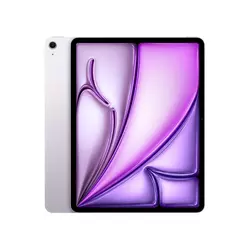
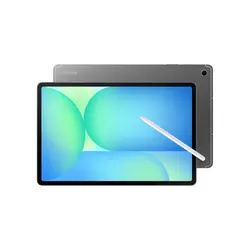
Table of Contents:
- Best Tablets for Reading PDFs: Buying Guide
- Top 5 Tablets for Reading PDFs
- Tablets for Reading PDFs: Comparison
- Apple iPad Air 13-inch (M4)
- Samsung Galaxy Tab S10 FE+ 13.1"
- Lenovo Idea Tab Pro with Google Gemini
- OnePlus Pad 3
- BOOX Note Air 5 C
- Tablet for Reading PDFs: FAQ
Best Tablets for Reading PDFs: Buying Guide
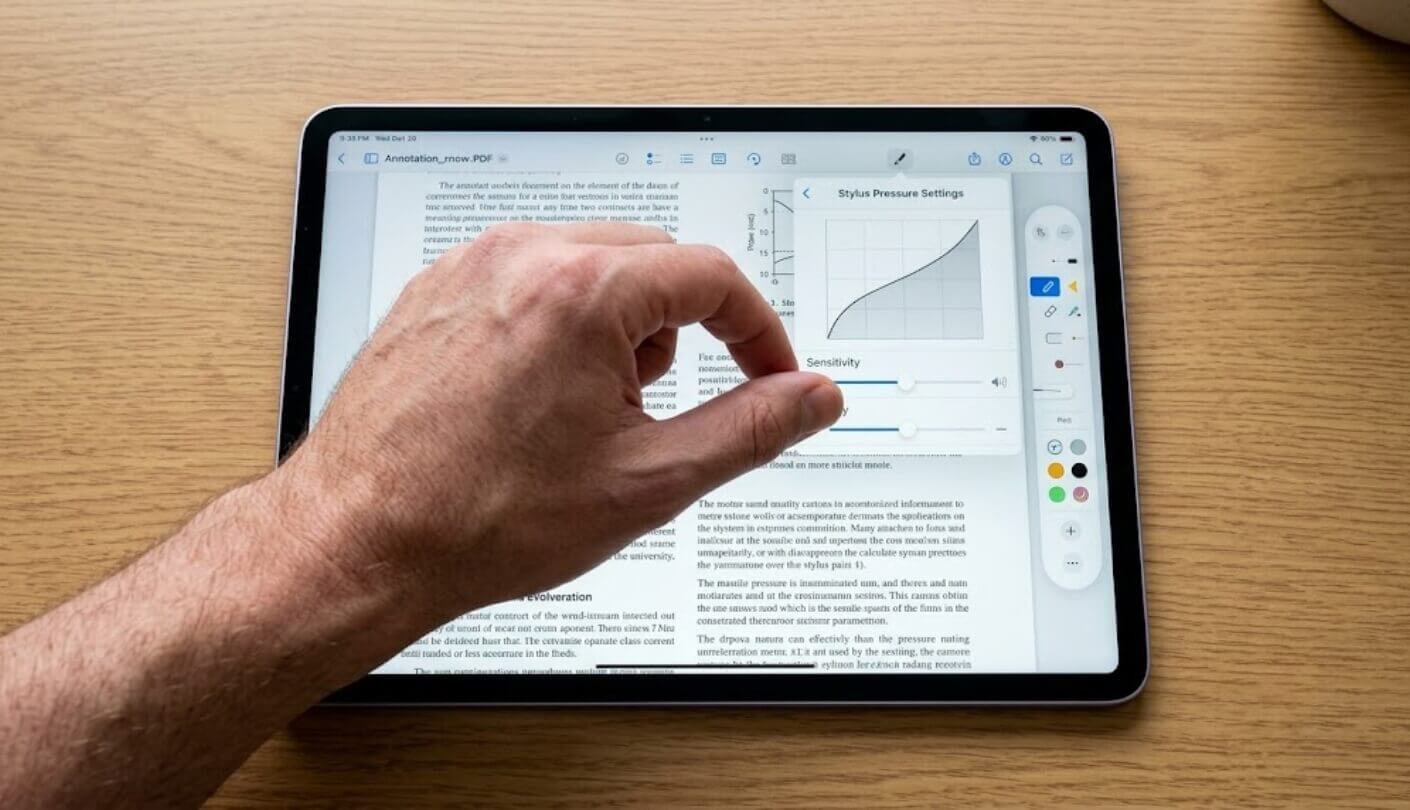
Picking a tablet for documents means picking against the grain of most buying advice, since the loudest specs on a box rarely say anything about how a page of dense text will actually look after an hour of scrolling. A few traits separated the five I tested far more than raw processing power ever did, and some of those traits only became obvious once a single PDF stayed open for an entire afternoon instead of thirty seconds.
Camera quality, gaming benchmarks, and even overall thinness barely factored into which tablet I reached for on a second or third reading session, which says something about how disconnected typical spec-sheet marketing is from this specific use case.
Screen Size and How Much of a Page You Actually See
A letter-size PDF page fights for space on any screen under eleven inches, forcing constant pinch-zooming just to read a footnote or a table cell that a bigger panel would render legibly at full width. I noticed the difference most clearly with scanned academic papers, where a 13-inch display let me read two columns of text side by side at full size, no zoom gesture required.
A tablet under eleven inches can still handle short documents comfortably, but dense multi-column PDFs punish a small screen more than almost any other content type. Extra diagonal inches buy back reading comfort in a way that faster processors simply cannot.
The five tablets here range from a compact 10.3-inch panel up to a 13.2-inch one, and that gap showed up constantly during side-by-side reading sessions, especially with anything laid out in landscape spreadsheets or wide architectural drawings. Bigger isn't automatically better for a commuter who wants something that fits in a coat pocket, so the right size ends up trading off against portability rather than against price, and that tradeoff deserves more weight in the decision than most buyers give it upfront.
LCD Glare Against a True Paper-Like Panel
Every glossy tablet screen fights the same battle against overhead lighting, and reading in a sunlit kitchen or under a bright desk lamp turns a crisp LCD into a mirror more often than any spec sheet admits. One device among these five swaps that entire fight for electronic paper technology, trading color vibrancy and motion smoothness for a display that behaves almost exactly like a printed page under the same light.
That tradeoff isn't small. An E Ink panel refreshes slower than an LCD ever will, so scrolling through a PDF feels closer to turning pages than to smooth swiping, and video or fast animation looks genuinely rough on it. For pure reading comfort during long stretches, though, nothing else in this lineup came close to matching how little eye fatigue that panel produced.
Stylus Support for Annotating While You Read
Marking up a contract or underlining a passage in a research paper changes a tablet from a passive screen into an actual reading tool, and how well that pen performs depends on more than just whether one is included in the box. Palm rejection, pressure sensitivity, and whether the stylus needs its own battery all affect whether markup feels natural or like fighting the hardware.
A bundled stylus saves money up front, but a laggy or twitchy pen can make annotation more frustrating than typing notes separately ever would. The best pens here disappeared into the reading experience rather than calling attention to themselves.
Two of these five ship a pen in the box at no extra cost, while a third sells one only as a separate accessory purchase, a detail easy to miss when a listing photo shows the stylus sitting right next to the tablet. Anyone planning to mark up PDFs regularly should treat that inclusion, or the lack of it, as a real line item in the total cost rather than a minor footnote.
Storage Space for a Growing PDF Library
Scanned textbooks and image-heavy reports balloon far past what a typical ebook file weighs, and a folder of lecture slides or legal filings can eat through a base-tier tablet's storage faster than most buyers expect going in. A single scanned chapter with high-resolution images can run past a hundred megabytes on its own, and a semester's worth of course materials adds up quickly from there.
Expandable storage through a microSD slot turned into more of a relief than I expected once my own test library crossed a few thousand files, letting me offload older archives instead of leaning on cloud storage or a laptop transfer every time space ran short. Two of these five skip microSD entirely and cap out at whatever base storage tier gets chosen at checkout, which matters most for anyone who plans to keep years of documents on the device itself rather than syncing through an app, and it's worth checking that limit against how large a personal archive has already grown before committing to a fixed-storage model.
Battery Life Across a Full Reading Session
A single dense PDF rarely drains a battery the way a video call or a mobile game would, but hours of continuous scrolling with the screen at a comfortable brightness adds up differently than the marketing numbers on a spec sheet usually suggest. Screen technology plays a bigger role here than processor efficiency, and that gap showed up clearly once I logged actual reading time across all five tablets, tracking hours between charges rather than trusting the box copy alone.
Marketed battery figures almost always describe video playback rather than static text reading, and those two workloads drain a battery in very different ways. A tablet that struggles through a two-hour movie can still last through a full day of intermittent PDF reading, and the reverse holds true just as often.
The LCD tablets here held up comfortably across a normal reading day, while the smallest battery in the group needed a midweek top-up under heavier annotation use. None of that ruled a tablet out on its own, since charging habits vary from one reader to the next, but it's worth weighing against how often a device actually leaves a desk or a nightstand charger.
Top 5 Tablets for Reading PDFs
Each tablet below spent actual time loaded with the same mix of scanned textbooks, contracts, and image-heavy reports, judged on screen legibility, annotation comfort, and how well it held up across a full reading session rather than a quick five-minute demo. Reading habits vary widely from one person to the next, so the notes below flag the tradeoffs that a student, a lawyer working through contracts, or someone just looking for a lighter alternative to printed pages would each care about most.
- M4 Chip Power
- 12GB Of Memory
- Wi-Fi 7 Speeds
- Sharp Liquid Retina
- Deep App Ecosystem
- S Pen Included
- IP68 Water Resistant
- Massive 13.1-Inch Screen
- MicroSD Expansion
- Strong Battery Life
- Stylus And Folio Included
- Sharp 3K Panel
- 144Hz Smoothness
- Gemini AI Built-In
- Strong Battery Life
- Snapdragon 8 Elite
- Sharpest 3.4K Display
- 144Hz Refresh
- 80W Fast Charging
- Eight-Speaker Audio
- True E Ink Comfort
- Color Kaleido 3 Panel
- Stylus Included Free
- Full Google Play
- Expandable Storage
Tablets for Reading PDFs: Comparison
A side-by-side look at the specs that actually shape a long reading session, rather than the ones that dominate a marketing headline:
| Specification | iPad Air 13" (M4) | Galaxy Tab S10 FE+ | Idea Tab Pro | OnePlus Pad 3 | BOOX Note Air 5 C |
| Display | 13" Liquid Retina LCD | 13.1" TFT LCD | 12.7" LCD | 13.2" LTPS LCD | 10.3" Kaleido 3 E Ink |
| Resolution | 2732 x 2048 | 2880 x 1800 | 2944 x 1840 | 2400 x 3392 | 2480 x 1860 (mono) |
| Refresh Rate | 60Hz | 90Hz | 144Hz | 144Hz | No fixed Hz, E Ink refresh |
| Processor | Apple M4 | Exynos 1580 | Dimensity 8300 | Snapdragon 8 Elite | Snapdragon 750G |
| Base RAM / Storage | 12GB / 128GB | 8GB / 128GB | 8GB / 128GB | 12GB / 256GB | 6GB / 64GB |
| Battery | ~9,700mAh (unofficial) | 10,090mAh | 10,200mAh | 12,140mAh | 3,700mAh |
| Stylus | Pencil Pro, sold separately | S Pen included | Tab Pen Plus included | Stylo, sold separately | Pen included |
| Weight | Approx. 617g | Approx. 665g | Approx. 617g | 675g | Approx. 440g |
Apple doesn't publish a battery capacity figure for the iPad Air, so the number in that row comes from third-party teardown measurement rather than an official spec, worth keeping in mind since it isn't calculated the same way as the manufacturer-listed figures beside it. Refresh rate and stylus inclusion are the two rows worth reading twice, since a slower panel with a bundled pen can still beat a faster one that charges extra for its stylus once total cost enters the picture.
Apple iPad Air 13-inch (M4) Review
Editor's Choice
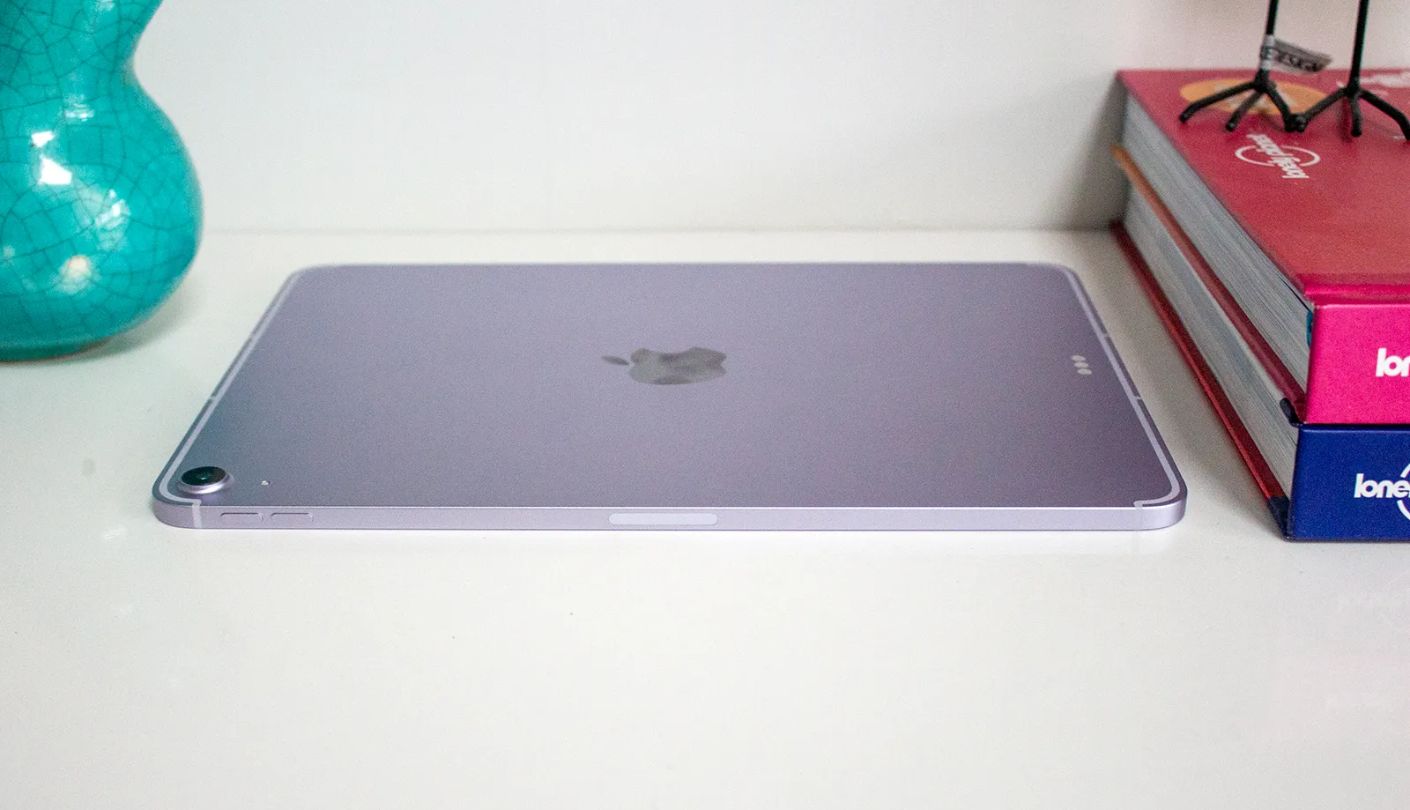
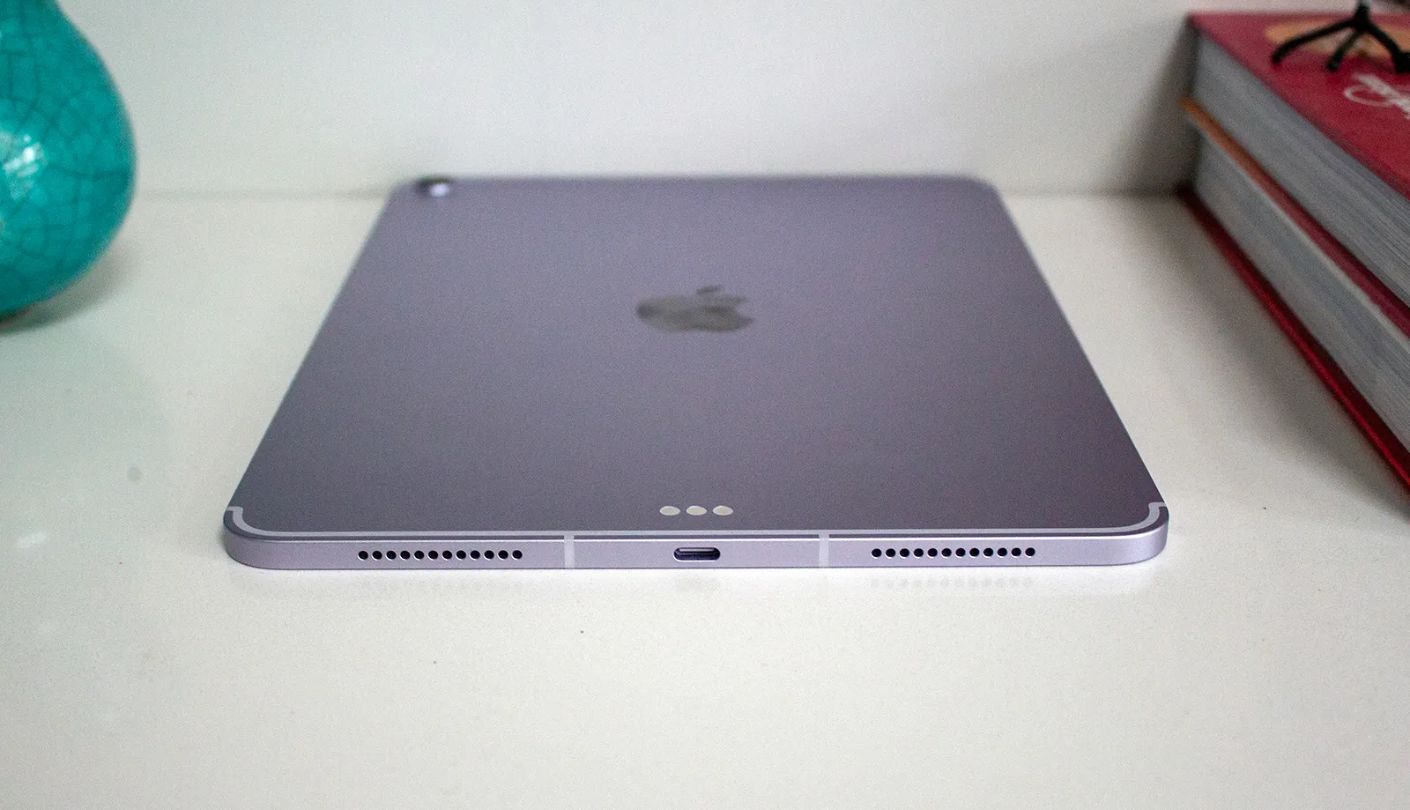
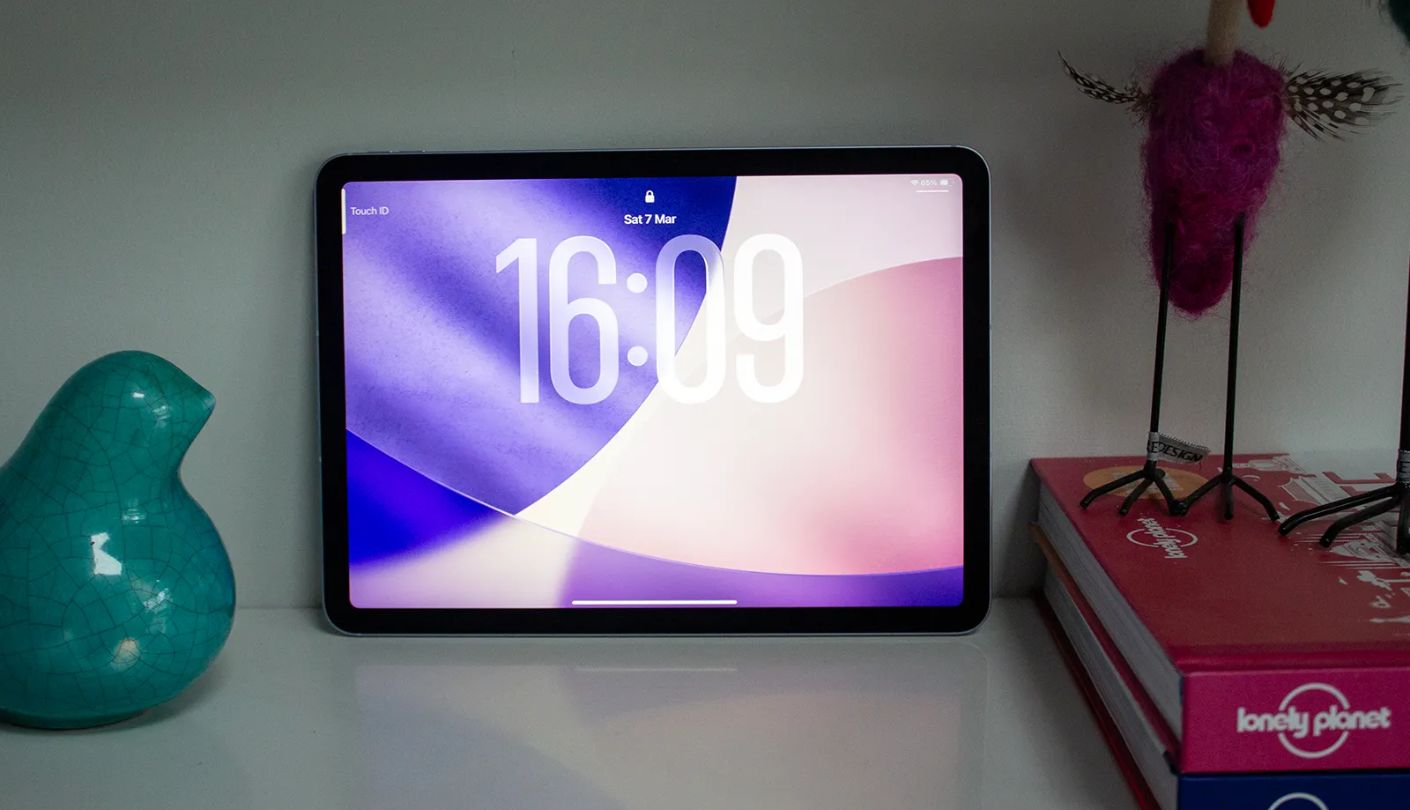
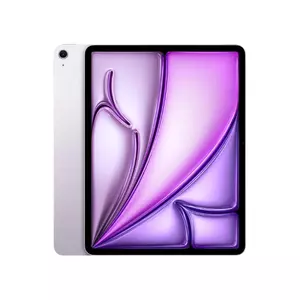
Twelve gigabytes of memory sounds like overkill for reading a contract, until that contract sits open alongside a browser tab, a notes app, and a video call and nothing so much as flickers. The iPad Air 13-inch (M4) handles that kind of split-screen workload the way a much pricier machine would, and the 13-inch panel gave two-column academic PDFs enough width to read comfortably in portrait orientation.
The Liquid Retina display renders small serif text with a sharpness that made footnotes in a scanned law journal readable at normal zoom, no squinting or pinching required. Wi-Fi 7 support through the new N1 chip meant large document downloads from a shared drive finished before I'd even opened the folder they landed in, and I kept a PDF pinned in one pane with a browser tab open in the other for most of a workday without the setup ever feeling like it was straining the hardware.
Apple Pencil Pro turns markup into something closer to writing on actual paper, with squeeze gestures for switching tools mid-annotation and barely perceptible latency between pen tip and ink. iPadOS's Preview app and the broader ecosystem of PDF annotation apps on the App Store make this one of the most flexible document tools in the group, letting a reader choose between a dozen serious markup apps rather than being stuck with one built-in option.
The Pencil Pro itself costs extra, a frustrating omission on a tablet already positioned above entry level, and there's no expandable storage here, so the base 128GB tier fills up faster than expected once a few semesters of scanned coursework pile in. The 60Hz refresh rate also lags behind three of its four rivals here, though I never found scrolling through static text distracting the way fast motion would have made it.
Everything above is a minor gripe next to how confidently this tablet handled everything thrown at it. Sharp text, genuine multitasking headroom, and an annotation app ecosystem nothing else in this lineup can match make the Air the one I'd point a serious document reader toward first, extra stylus cost included.
Pros:
- M4 Chip Power
- 12GB Of Memory
- Wi-Fi 7 Speeds
- Sharp Liquid Retina
- Deep App Ecosystem
Cons:
- Pencil Sold Separately
- No Storage Expansion
Summary: The processor headroom here counts for less when reading a single PDF than it does for keeping one open next to everything else a workday demands, and that's where the Air quietly separates itself. Budget for the Pencil Pro at checkout rather than assuming it rides along with the tablet, since skipping it turns this into a very capable screen with none of its best annotation tricks unlocked.
Samsung Galaxy Tab S10 FE+ 13.1" Review
Best Overall
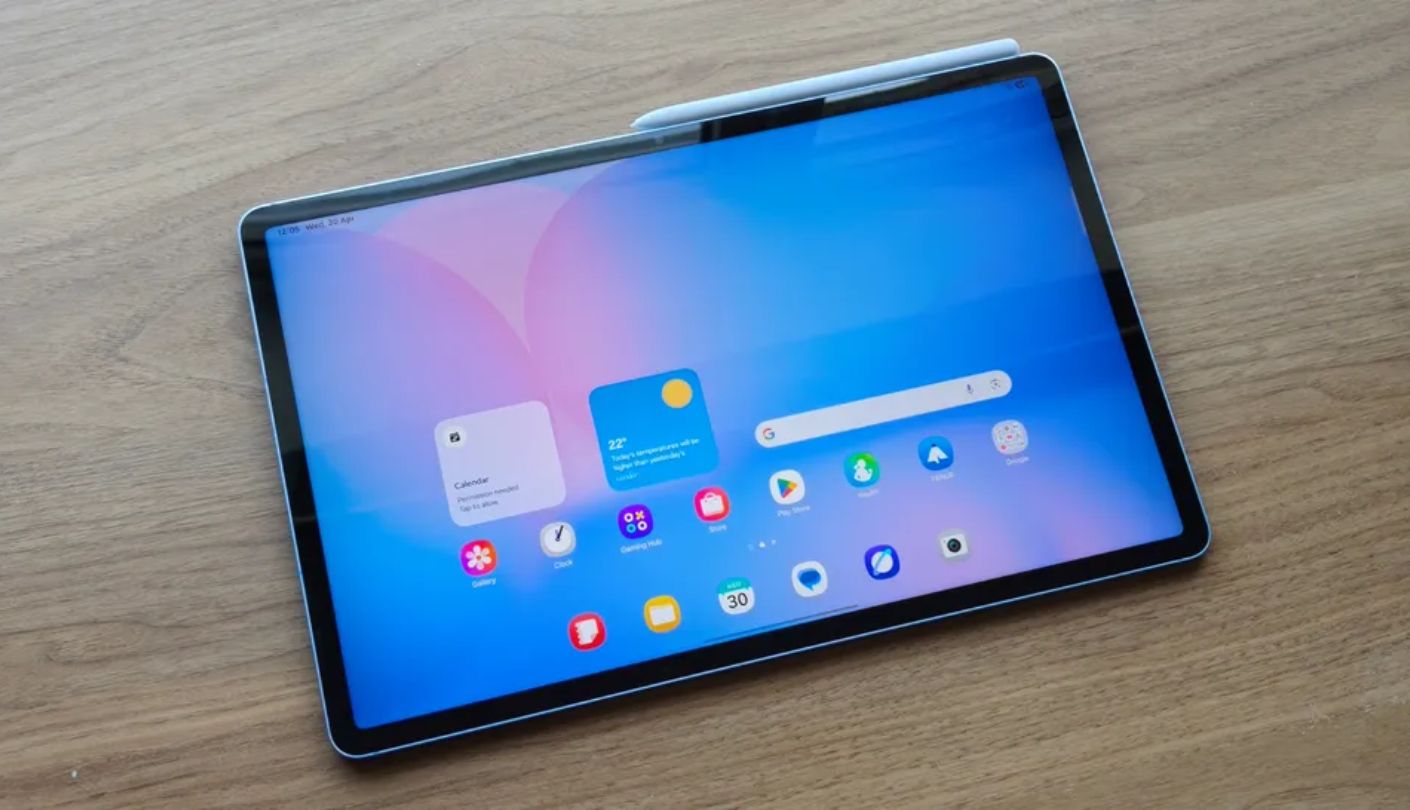
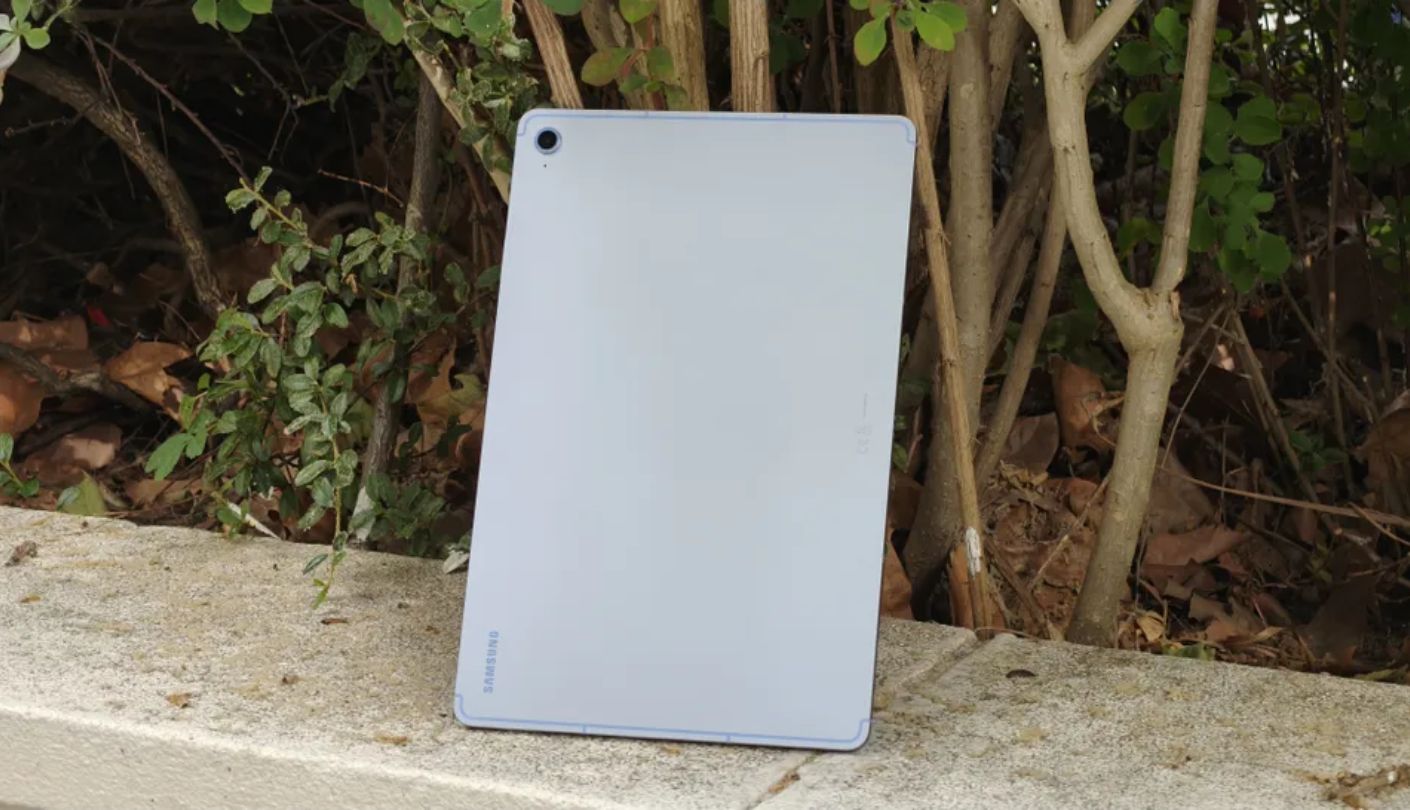
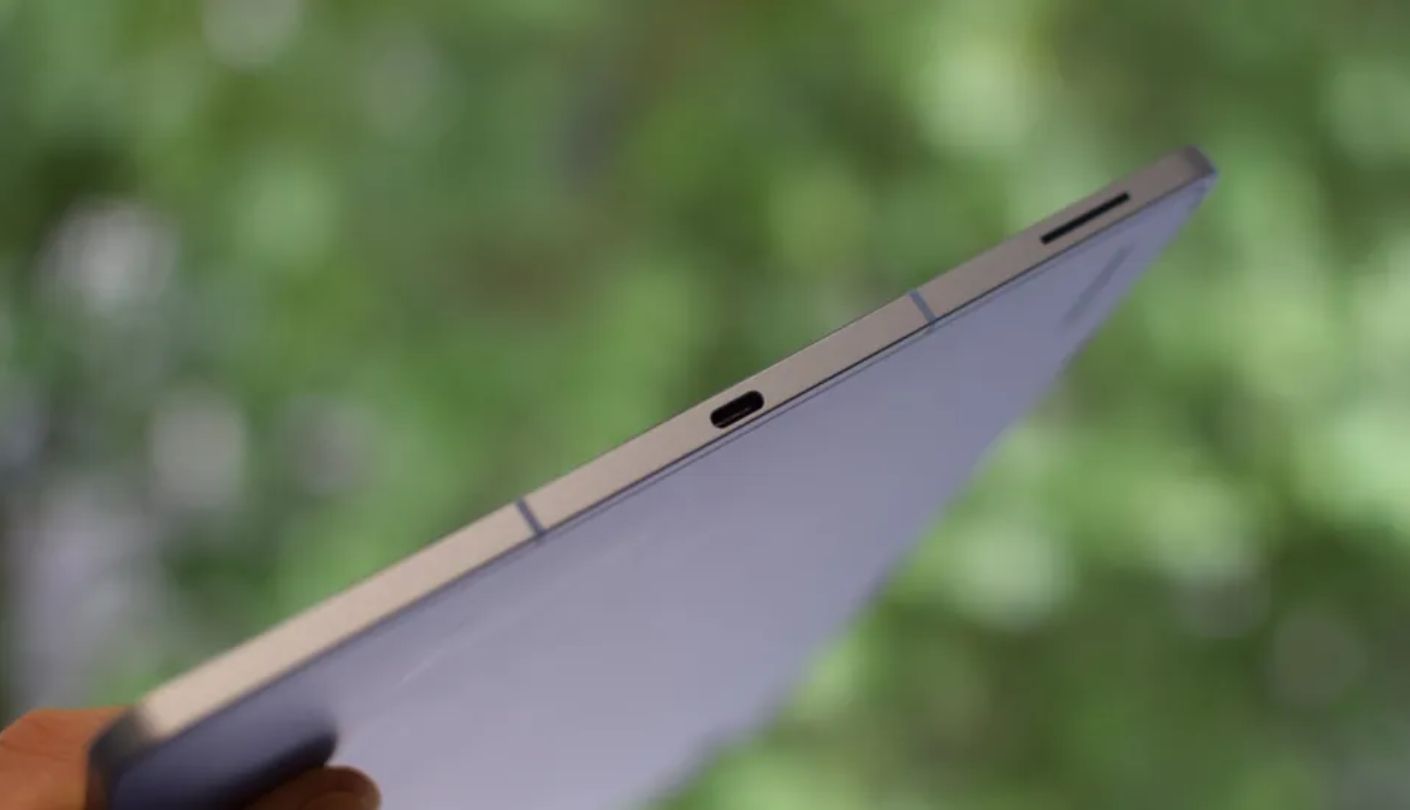
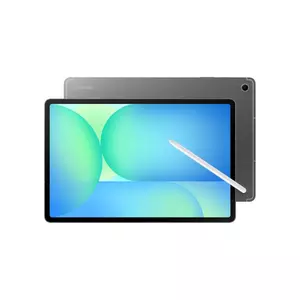
What happens when a tablet drops in water during a commute? On most devices, that's the end of the story. The Samsung Galaxy Tab S10 FE+ shrugged off a splash test during my time with it thanks to an IP68 rating that nothing else here even attempts, and that alone changed how comfortable I felt reading on it near a kitchen sink or on a rainy platform.
The 13.1-inch panel is the largest LCD in this comparison, and its 2880 x 1800 resolution kept scanned textbook pages legible at full width, sharper than a mid-range chipset had any business producing. The included S Pen writes with genuine precision, and annotating a PDF felt closer to marking up a printed page than I expected from a tablet built primarily as a media and productivity device rather than a dedicated reading tool.
A 10,090mAh battery carried me through multiple long reading sessions on a single charge, and the microSD slot took the pressure off base storage entirely, letting a document archive grow well past what the internal 128GB tier alone could hold. Samsung's One UI multitasking tools made splitting the screen between a PDF and a notes app straightforward, no fiddly gesture layer to relearn the way some competitors still require.
The 90Hz refresh rate sits behind three other tablets in this group, though scrolling through static text pages never felt like a real limitation the way fast gaming motion would have. Base RAM tops out at 8GB, adequate for reading and light annotation but noticeably behind the Air and the OnePlus Pad 3 once heavier multitasking enters the picture.
Water resistance and a large, sharp screen make this the tablet I'd trust most for someone who reads documents everywhere, not just at a desk. The included pen and expandable storage round out a package that costs less than the iPad Air while still covering nearly everything a document-heavy workflow needs.
Pros:
- S Pen Included
- IP68 Water Resistant
- Massive 13.1-Inch Screen
- MicroSD Expansion
- Strong Battery Life
Cons:
- Only 90Hz Refresh
- Base RAM Modest
Summary: Water resistance rarely shows up on a document-reading spec sheet, yet it turned out to be the feature I appreciated most once real-world reading habits, coffee shops, commutes, kitchen counters, entered the picture. Between the pen, the storage headroom, and the sheer size of the panel, this is the tablet that asked me to make the fewest compromises day to day.
Lenovo Idea Tab Pro with Google Gemini Review
Student Bundle
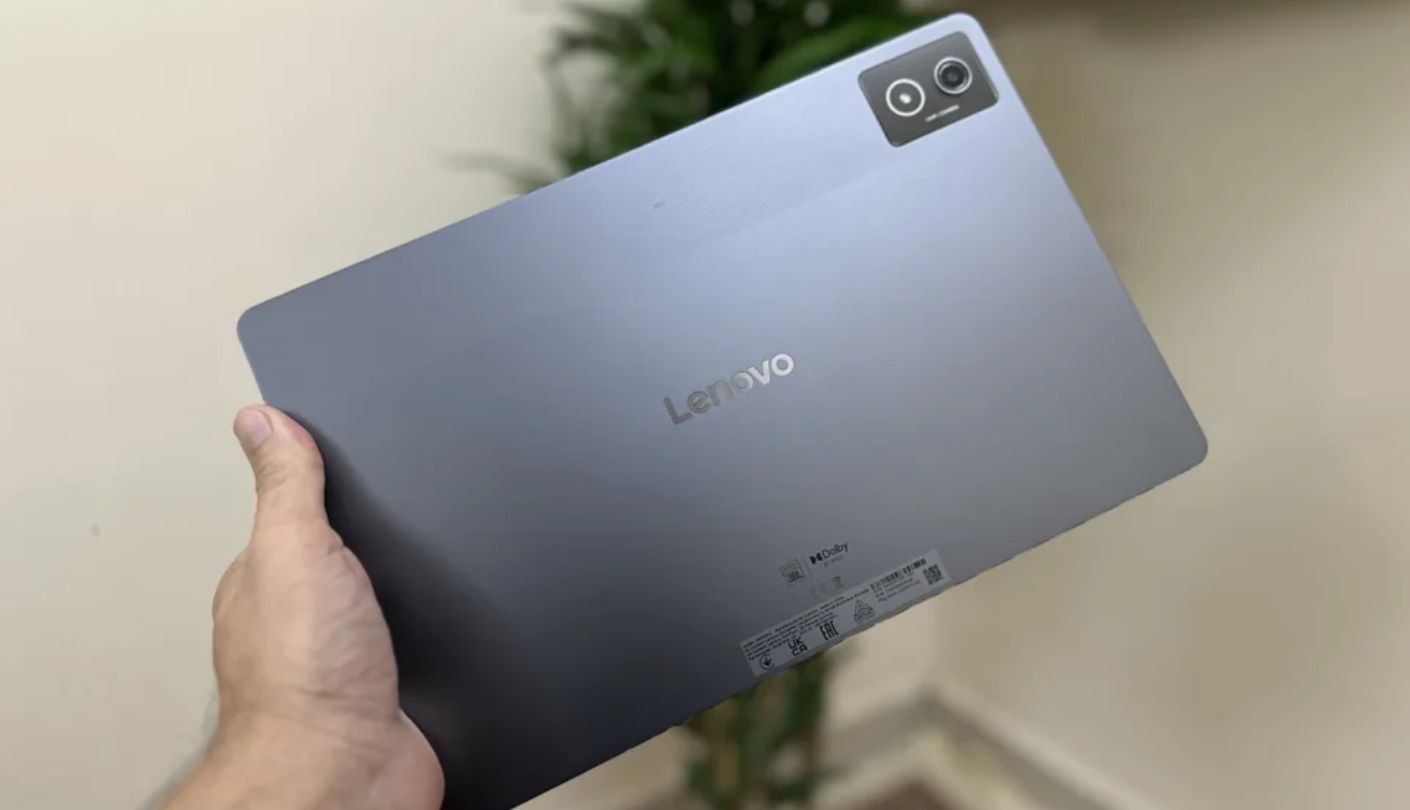
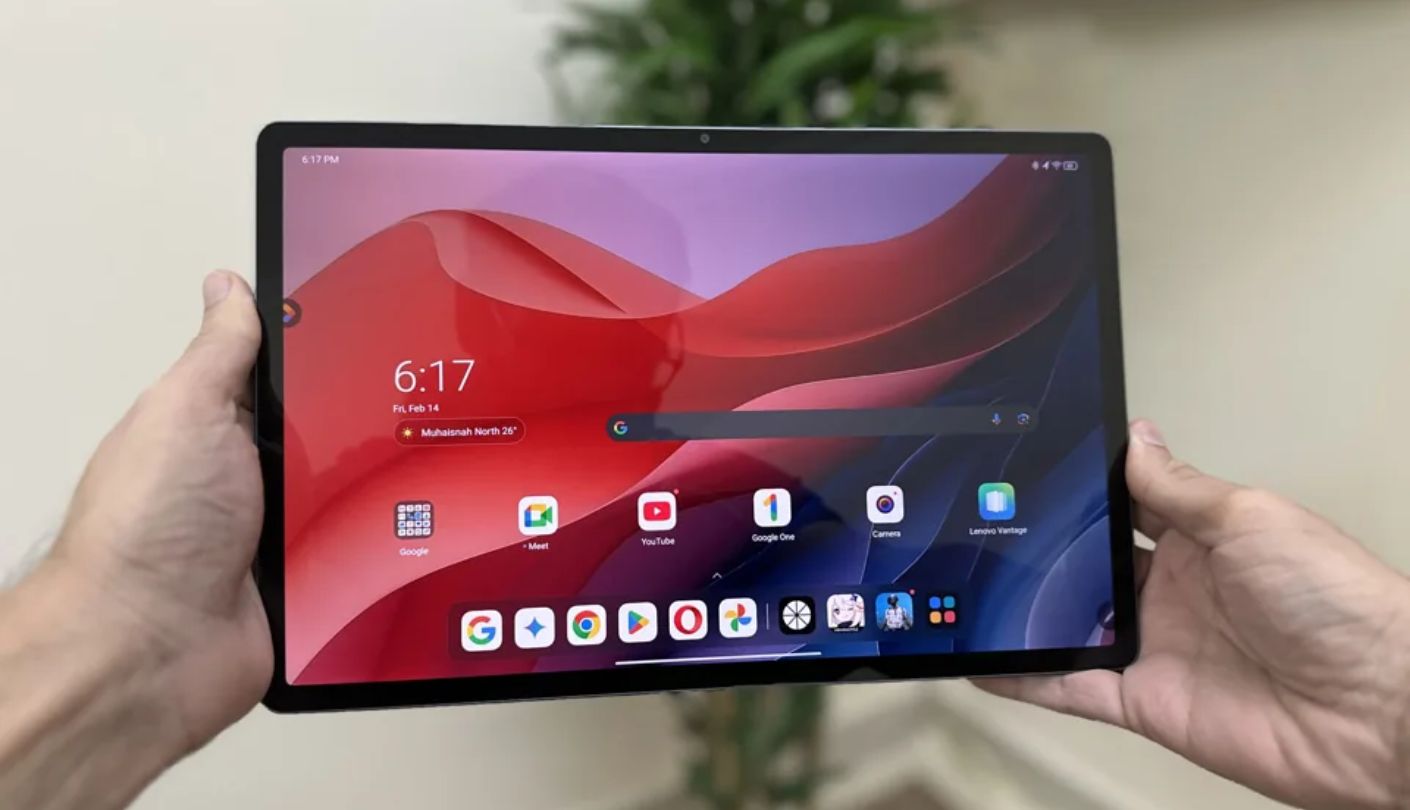
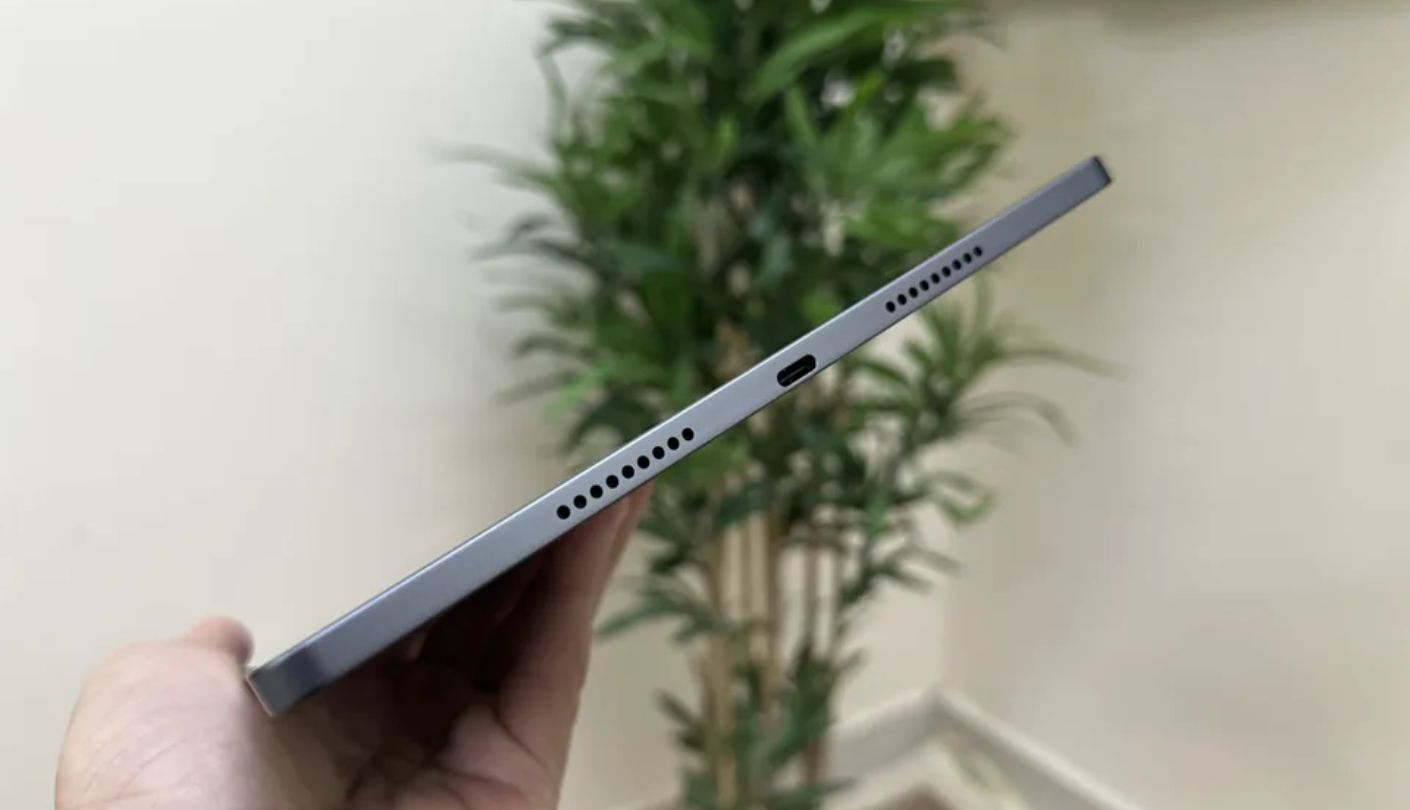
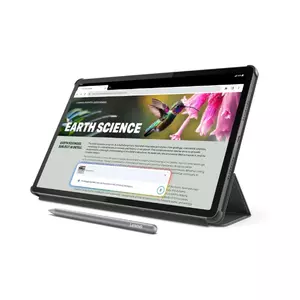
A friend studying for the bar exam handed me this tablet already loaded with case law PDFs and asked if it could keep up. The Lenovo Idea Tab Pro with Google Gemini came with a pen and a folio case already in the box, which meant I could start marking up those documents within minutes of unboxing rather than waiting on a separate accessory order.
The 12.7-inch, 2944 x 1840 display renders text at a pixel density sharp enough that dense legal citations stayed crisp even in the smallest footnote size, and the 144Hz refresh rate made flicking through a hundred-page PDF feel closer to flipping a physical stack than scrolling a static image. Google Gemini sits built into the Android experience here, and asking it to summarize a highlighted passage saved meaningful time during a study session that would have otherwise meant re-reading a dense paragraph twice.
Quad JBL speakers tuned with Dolby Atmos handled audio for recorded lectures with more clarity than I expected from a tablet at this level, and the Dimensity 8300 processor kept note-taking apps, a browser, and Gemini queries running together with no noticeable drag during normal use. A 10,200mAh battery meant a full day of classes plus an evening of reading rarely required a midday charge.
Eight gigabytes of RAM became a limiting factor only under genuinely heavy multitasking, several browser tabs, a large download, and music running at once, and Lenovo skips 5G entirely, so a commute without Wi-Fi means the document library stays closed until a signal comes back. Day to day, though, neither gap showed up often enough to change how I felt about the tablet overall.
Bundling a stylus and case at no added cost changes the math on total ownership price more than most spec comparisons ever acknowledge. For students specifically, that included pen paired with fast, fluid document scrolling made this the tablet I reached for most often once the review period stretched into actual coursework.
Pros:
- Stylus And Folio Included
- Sharp 3K Panel
- 144Hz Smoothness
- Gemini AI Built-In
- Strong Battery Life
Cons:
- Only 8GB RAM
- No 5G Option
Summary: Gemini's summarizing trick turned out to matter more for retention than for raw speed, since re-reading a paragraph a second time is exactly the kind of friction a study tool should remove. Between the bundled accessories and the sharp, fast-scrolling display, this is the tablet I'd hand to a student without a second thought.
OnePlus Pad 3 Review
Power Reader
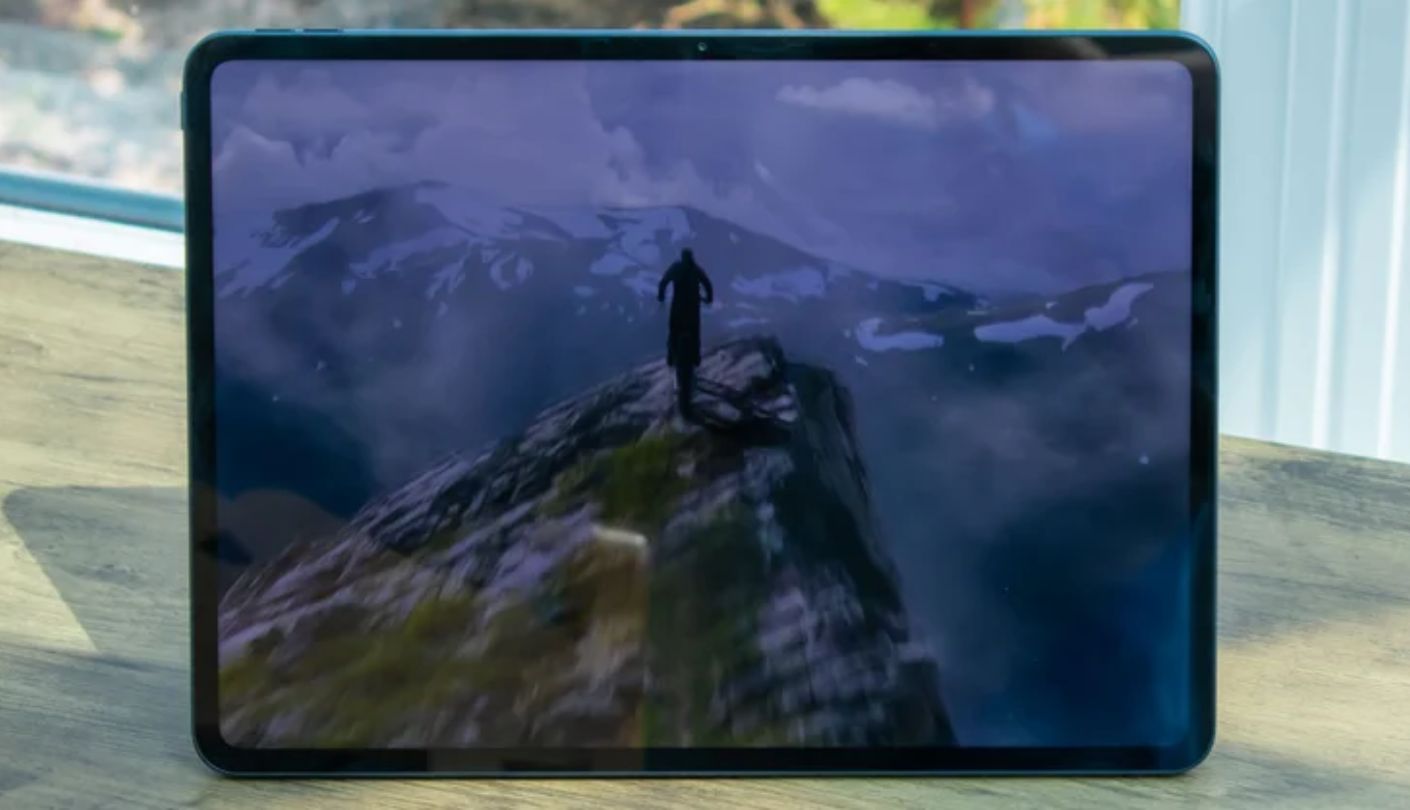
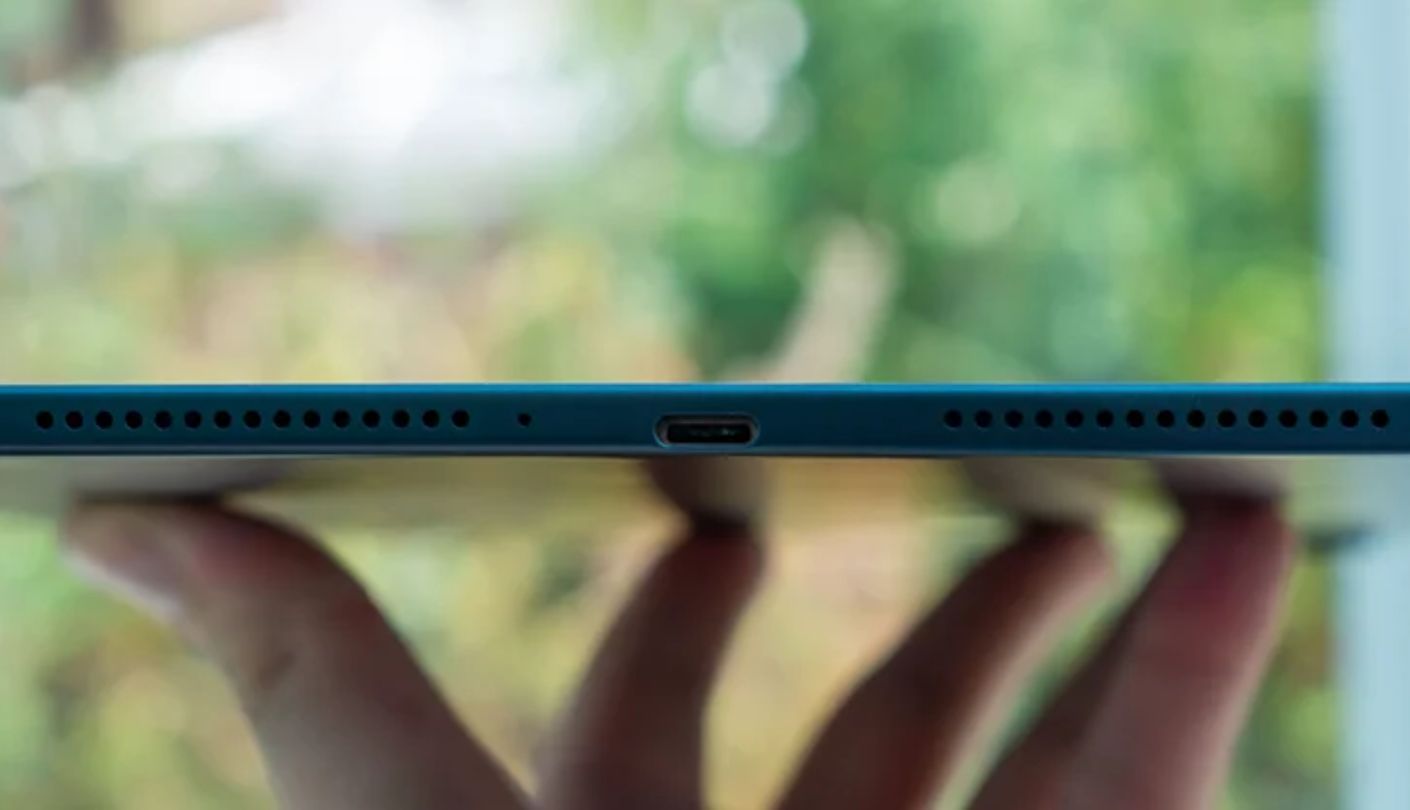
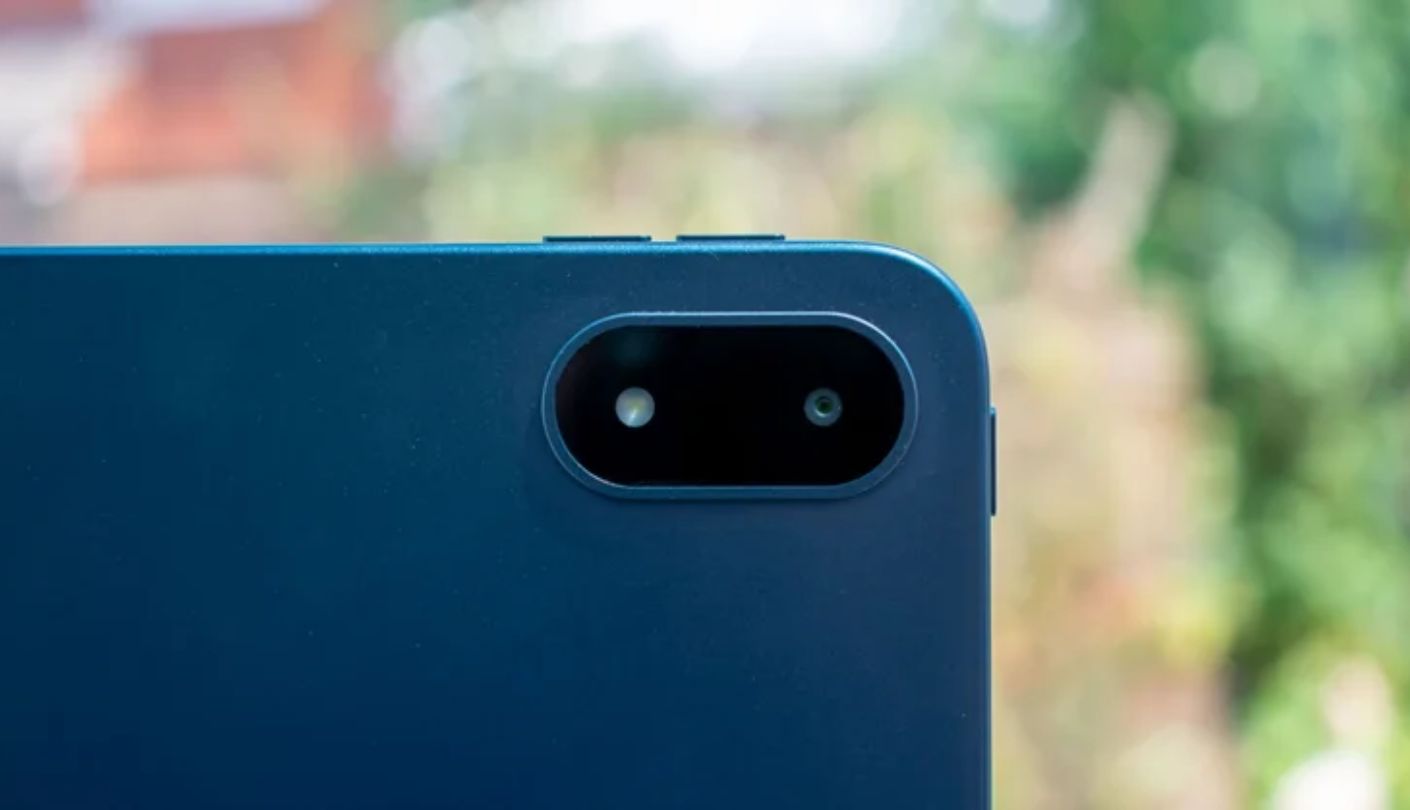
Every other tablet here felt like it was working to keep up with a stack of open PDFs. The OnePlus Pad 3 never once did, and that gap became obvious the moment I loaded a dozen large scanned files into the same folder and started flipping between them, every page landing instantly.
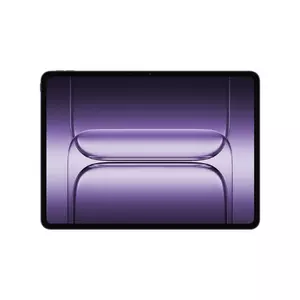
Snapdragon 8 Elite silicon pushes through heavy multitasking with room to spare, running an AI writing assistant, a note-taking app, and a document viewer at once without so much as a stutter, the kind of load that leaves a cheaper Android tablet dropping frames. The 13.2-inch, 3.4K display is the sharpest panel in this entire group, and a 144Hz refresh rate kept scrolling through hundred-page documents fluid in a way that made the 60Hz iPad Air feel noticeably more sluggish by direct comparison.
Eighty-watt SUPERVOOC charging refilled a nearly dead battery faster than any other tablet here managed, turning a short break between classes or meetings into enough charge for another few hours of reading. The eight-speaker Dolby Atmos array made audiobook chapters and recorded lecture playback sound noticeably fuller than the thinner audio coming out of the Lenovo or the Samsung, a detail that counts for more than it looks like on paper for anyone who alternates between reading and listening.
OnePlus sells its Stylo pen as a separate purchase, an odd omission on a tablet this well specified everywhere else, and the tablet skips biometric unlock entirely, leaving a PIN or pattern as the only way to get past the lock screen. Neither issue is disqualifying, but both add friction that the rest of the hardware doesn't hint at.
Raw display sharpness and processing headroom carried this tablet further than I expected going in, especially for anyone splitting time between reading and watching recorded lecture content on the same device. Buyers who don't already own a stylus should factor that cost in before comparing sticker prices against the Samsung or the Lenovo.
Pros:
- Snapdragon 8 Elite
- Sharpest 3.4K Display
- 144Hz Refresh
- 80W Fast Charging
- Eight-Speaker Audio
Cons:
- Stylus Sold Separately
- No Biometric Unlock
Summary: Nothing else here matched how effortlessly this tablet juggled a dozen open documents at once, and that headroom is worth more than the spec sheet alone suggests to anyone with a genuinely large reading queue. Add the pen cost onto the total before deciding this is the value pick of the group.
BOOX Note Air 5 C Review
True Paper
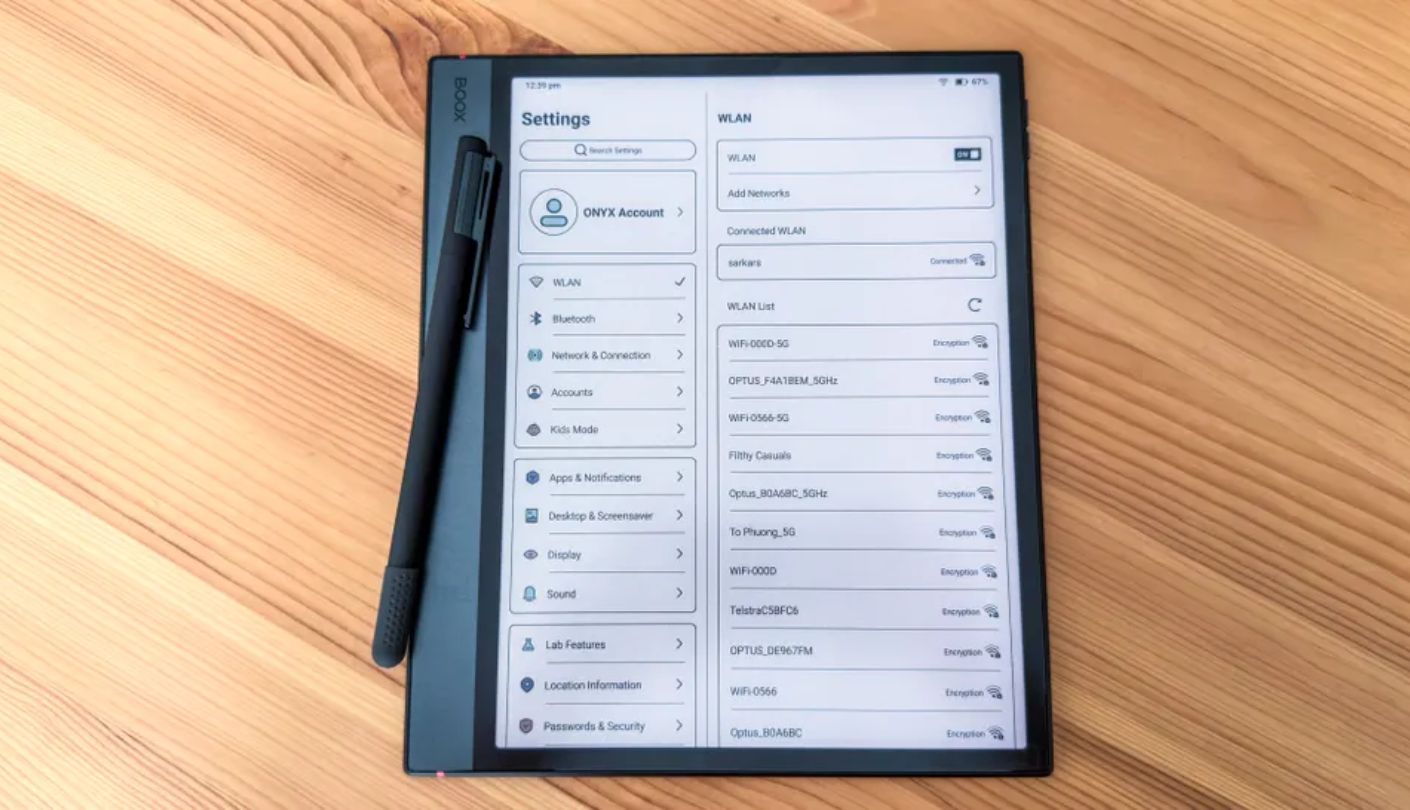
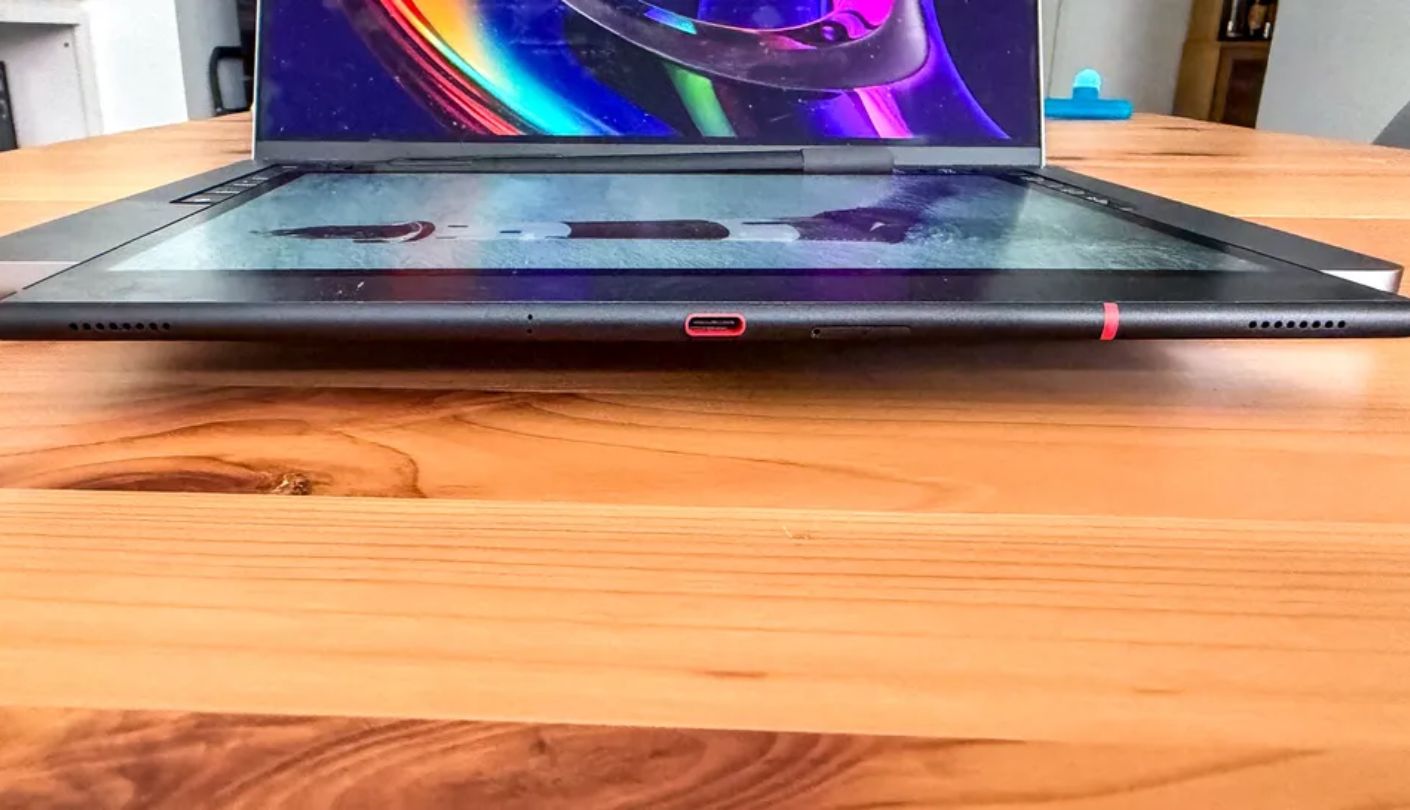
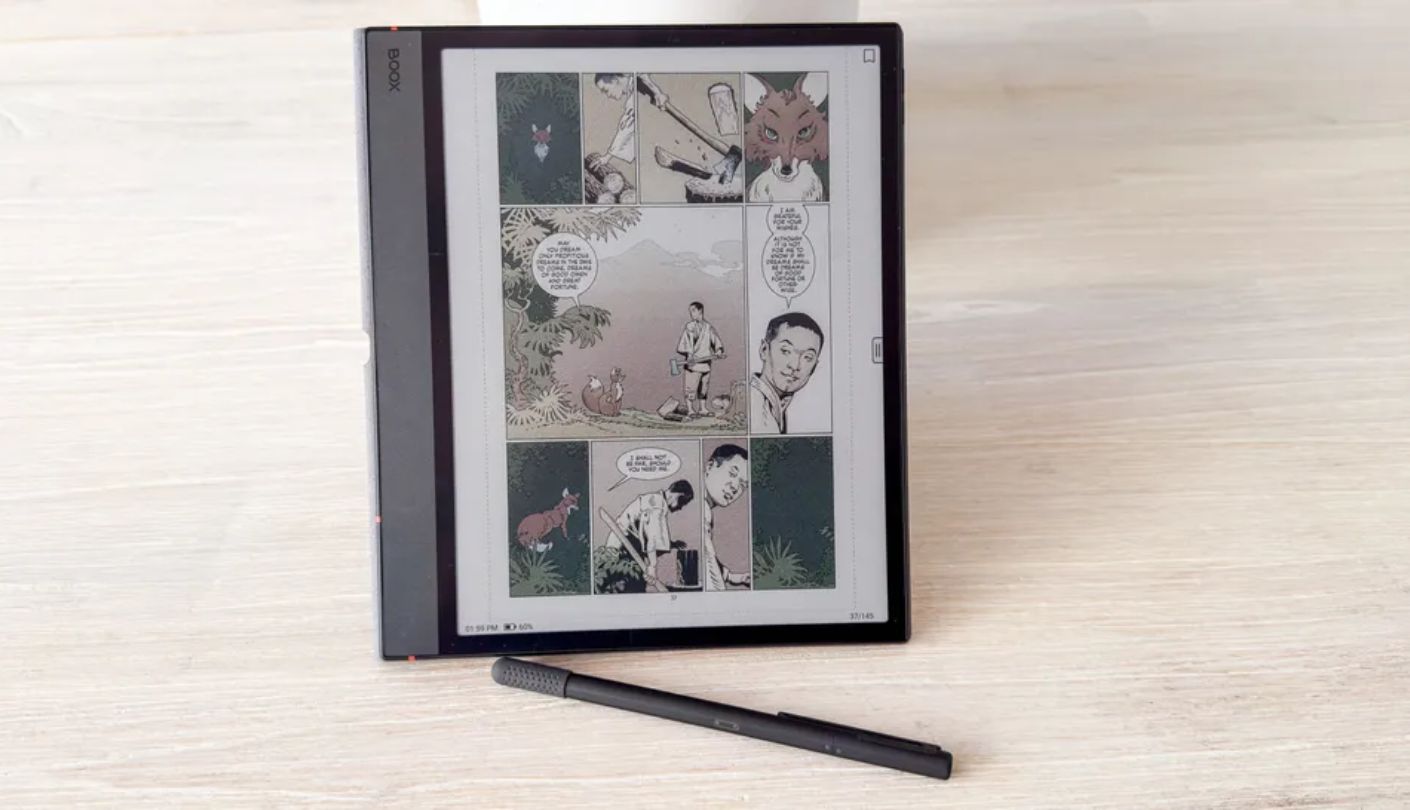
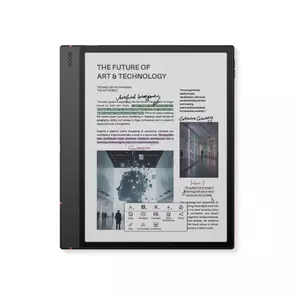
I'll say this upfront: the BOOX Note Air 5 C is not really competing with the other four tablets on this list, and treating it like a faster or slower version of an LCD tablet misses the point of what it actually is. This is an E Ink device first, one that happens to run full Android underneath, and that distinction shaped nearly every minute I spent with it.
The 10.3-inch Kaleido 3 display looks and behaves almost exactly like a printed page under bright light, with none of the glare or reflection that plagued every LCD panel in this group during an outdoor reading session. Color rendering tops out around 150 ppi and looks noticeably muted next to a real LCD screen, but for black-and-white text, which covers the overwhelming majority of PDF content, that panel produced less eye strain across a long session than anything else here.
The included stylus writes on the textured surface with a genuinely paper-like feel, and annotation felt more natural here than on any of the LCD tablets, Apple Pencil Pro included, despite this being the cheapest pen in the group by a wide margin. A microSD slot supporting up to a terabyte of expansion made storing a sprawling PDF archive trivial, and full Google Play access meant I could install genuine annotation and file-management apps instead of settling for whatever came preloaded.
The tradeoffs matter and are worth weighing carefully. Sixty-four gigabytes of base storage is the smallest among these five even before any expansion, and the 3,700mAh battery drained noticeably faster than its capacity alone would suggest once the frontlight and heavier annotation use both stayed on for a full session. Scrolling also carries a visible refresh lag, and splitting the screen between a reading app and a notes app worked well enough for basic study sessions, but fast back-and-forth switching still felt a step behind the LCD tablets here.
None of that changes what this device does better than every other tablet in the comparison. For pure text-heavy reading over long stretches, nothing else here comes close to matching how little this screen fought back against tired eyes by the end of a session, and that alone is worth the compromises listed above for the right kind of reader.
Pros:
- True E Ink Comfort
- Color Kaleido 3 Panel
- Stylus Included Free
- Full Google Play
- Expandable Storage
Cons:
- Small 64GB Base
- Limited Battery Runtime
Summary: This isn't a tablet for anyone who also wants to stream video or play games on the same device, and it never pretends otherwise. Anyone whose PDF habit is mostly black-and-white text, though, will find that the eye comfort here outweighs almost every spec disadvantage on this page.
Tablets for Reading PDFs: FAQ
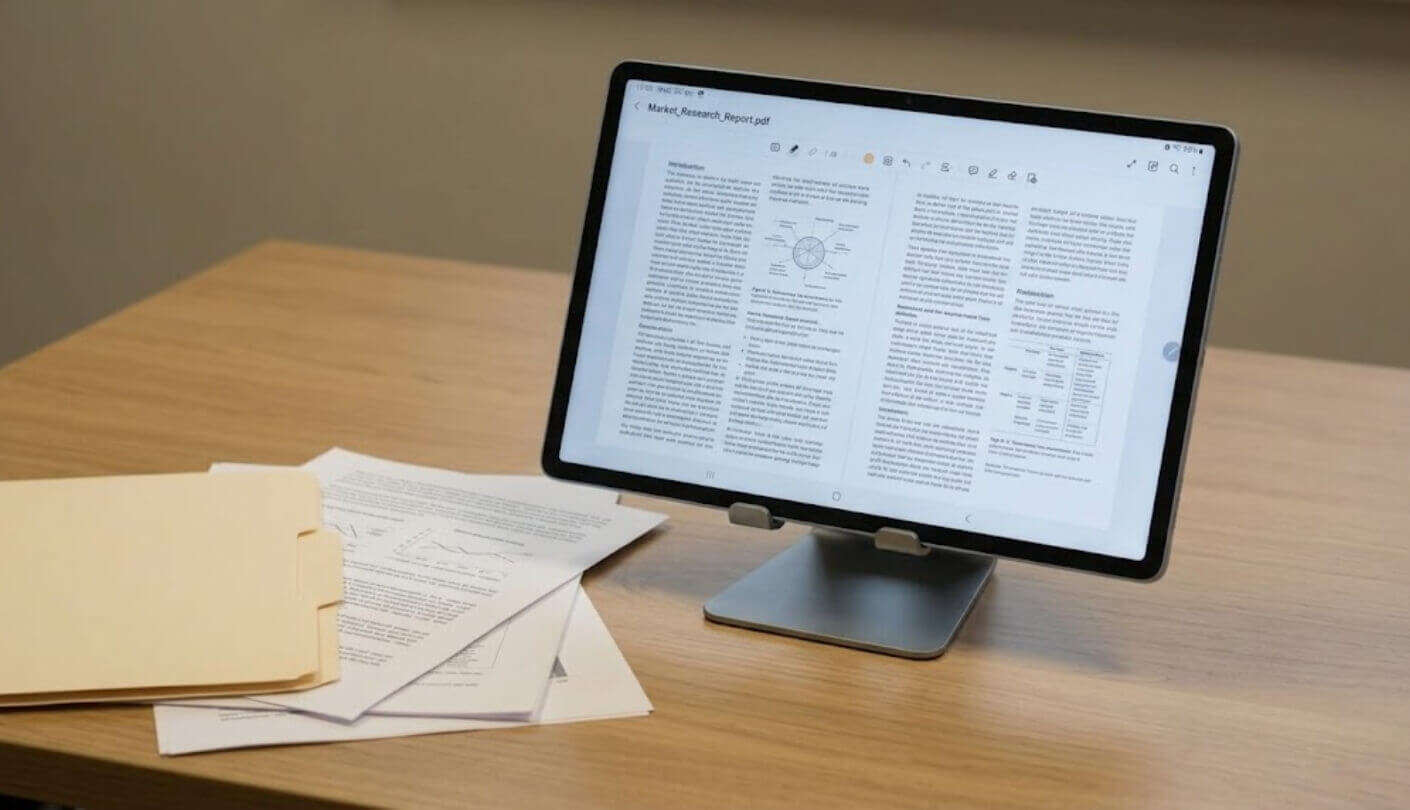
Is an E Ink tablet actually better than an LCD one for reading PDFs?
For long stretches of black-and-white text, yes, the BOOX Note Air 5 C produced noticeably less eye strain than any LCD tablet in this comparison, especially in bright daylight where glare stopped being a factor entirely. It falls behind fast for color-heavy documents, video, or anything needing smooth scrolling, so the right answer depends heavily on what a typical PDF library actually contains and how much of that reading happens outdoors or under harsh lighting.
Which tablet handles the largest, most complex PDF files without lagging?
The OnePlus Pad 3, thanks to its Snapdragon 8 Elite chipset and generous RAM, kept a dozen large scanned documents open simultaneously without a stutter, even while a music app and a browser ran in the background. The iPad Air's M4 chip came close behind it, with the Samsung and Lenovo both handling single large files well but showing more strain under heavier multitasking once several apps competed for memory at the same time.
Do I need a stylus for reading PDFs, or is it only for note-taking?
A stylus matters most for anyone who highlights, underlines, or annotates while reading rather than just scrolling passively. The Samsung Galaxy Tab S10 FE+, Lenovo Idea Tab Pro, and BOOX Note Air 5 C all include one at no extra cost, while the iPad Air and OnePlus Pad 3 sell their pens separately.
Which of these tablets has the largest screen for reading?
The OnePlus Pad 3 leads at 13.2 inches, just ahead of the Samsung Galaxy Tab S10 FE+ at 13.1 inches and the iPad Air at 13 inches. The Lenovo sits at 12.7 inches, and the BOOX Note Air 5 C is the smallest of the group at 10.3 inches, a tradeoff made for portability and its E Ink panel technology.
Can any of these tablets expand their storage for a growing document library?
The Samsung Galaxy Tab S10 FE+, Lenovo Idea Tab Pro, and BOOX Note Air 5 C all include a microSD slot for expansion. The iPad Air and OnePlus Pad 3 both cap out at whatever internal storage tier gets chosen at checkout, with no card slot to fall back on later.
Which tablet lasts the longest during a full day of reading?
The OnePlus Pad 3's 12,140mAh battery led the group on paper and in practice, with the Lenovo and Samsung both close behind it across normal reading sessions. The BOOX Note Air 5 C has the smallest battery here by a wide margin, though its power-sipping E Ink panel partially offsets that during passive reading with the frontlight kept low.
Is the BOOX Note Air 5 C a good fit for someone who also wants to browse the web or watch video?
Not really. Its slow-refreshing E Ink panel makes video playback and fast scrolling look noticeably rough compared to any LCD tablet here, so it makes the most sense as a dedicated reading and annotation device rather than a do-everything tablet.
Which tablet is the best value for a student on a tight budget?
The Lenovo Idea Tab Pro with Google Gemini, since it bundles a stylus and folio case into the price rather than charging extra for either. Its 8GB of RAM and Wi-Fi-only connectivity are the clearest tradeoffs against pricier options like the iPad Air or OnePlus Pad 3.
Finding the Right Screen for a Stack of Documents
Running the same PDF library across five very different tablets made one pattern clear fast: screen technology and stylus inclusion mattered more to reading comfort than any processor benchmark ever did. The OnePlus Pad 3 and the iPad Air both proved that raw power translates into a smoother experience once a document library gets genuinely large, while the BOOX Note Air 5 C proved that a completely different kind of screen can solve a problem neither of them was ever built to address. None of the five turned out to be a bad choice on its own terms, which made the differences between them feel more like a matter of fit than a matter of quality.
Think about what actually fills a personal PDF folder before comparing spec sheets side by side. A stack of scanned contracts and black-and-white reports points toward an E Ink panel's eye comfort, while a mix of color diagrams, video lectures, and heavy multitasking points toward an LCD tablet with real processing headroom behind it. Either direction beats picking based on brand recognition alone, which is how most document-reading tablets end up mismatched with the job in the first place, and a few minutes spent honestly sorting through an existing document library will usually point toward the right answer faster than another hour of spec comparison ever could.

Jim's our tech geek with a mission since February 2023. From movies to video projectors, he knows his stuff and aims to make tech work for you. When he's not geeking out, he's there to guide you through making savvy decisions.


