Best Wireless Keyboards for Small Desks (Picks That Slap)
A full-size keyboard runs about 44 centimetres across. On a 100-centimetre desk already carrying a monitor foot and a laptop stand, that leaves your mouse a corner rather than a working area, and a mouse wants roughly a hand's width of free sweep to track properly at normal sensitivity. The tell is behavioural: people on cramped desks lift and reposition the mouse every few seconds and stop noticing they do it. Going compact is the fix, and the difference between the compact boards on sale is larger than their similar marketing suggests.
Depth is where that difference hides, and almost nobody checks it. Length is the figure manufacturers print, because a shorter board reads as tidier, and length is also the dimension with somewhere to go: the mouse simply shifts right. Front-to-back depth pushes your monitor stand backwards, splays your elbows and eats the strip where a notebook or a mug would sit. I gathered published dimensions for five current wireless boards and worked out the desk area each one claims, which produced one properly counterintuitive result: the 65 percent gaming keyboard is shallower than every office board here and covers less desk than two of them.
Here are my two top picks for the best wireless keyboard for a small desk:
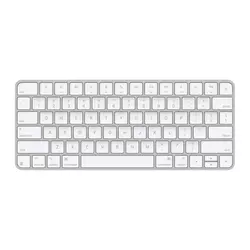
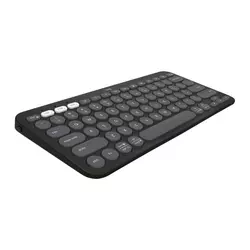
Table of Contents:
- Best Wireless Keyboard for Small Desks: Buying Guide
- Top 5 Wireless Keyboards for Small Desks in 2026
- Best Wireless Keyboards for Small Desks: Comparison
- Apple Magic Keyboard
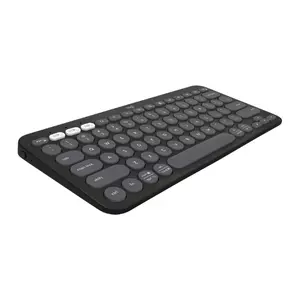
- Logitech Pebble Keys 2 K380s
- Satechi Slim X1
- Keychron B1 Pro
- ASUS ROG Falchion RX Low Profile
- Wireless Keyboards for Small Desks: FAQ
Best Wireless Keyboard for Small Desks: Buying Guide
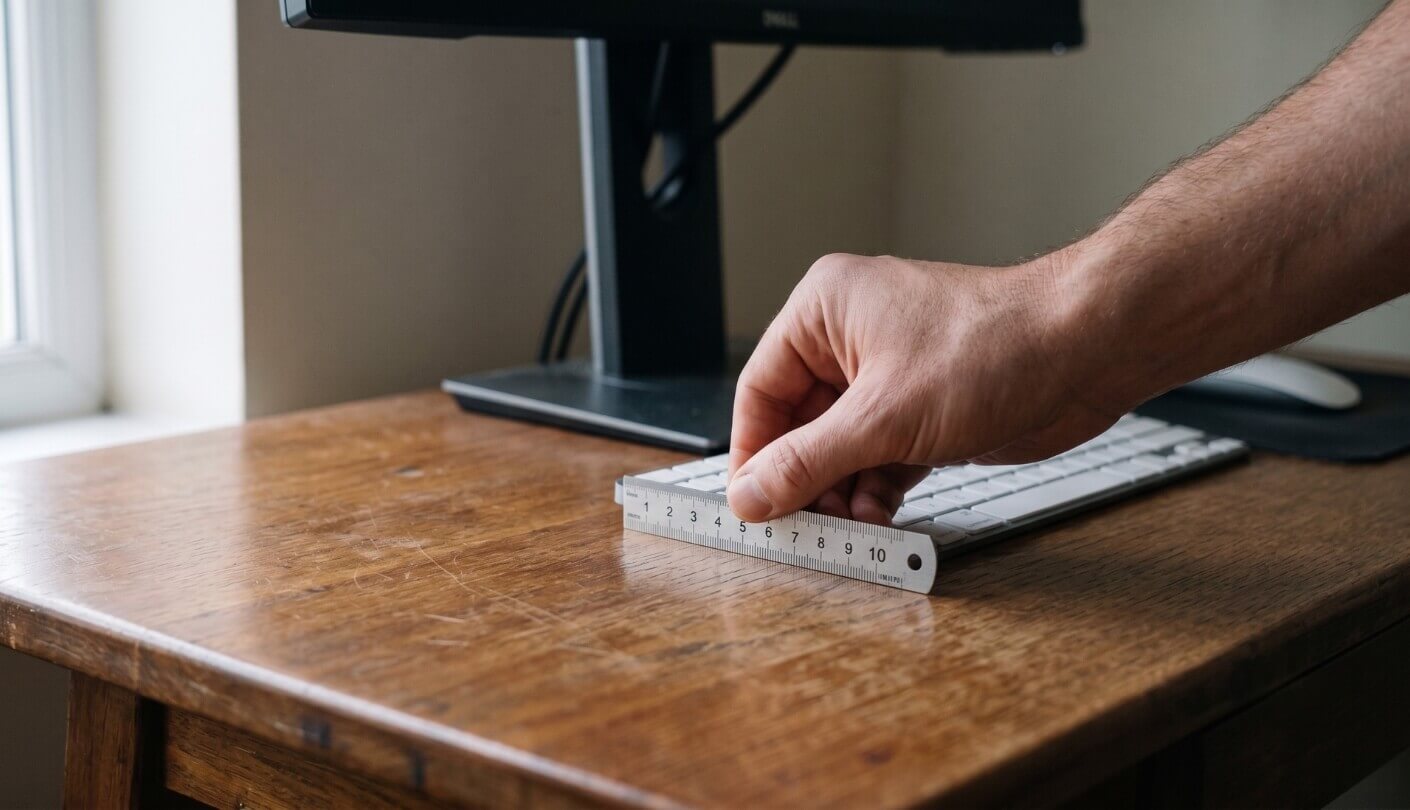
Small-desk shopping runs on different priorities from compact-keyboard shopping, and the two get conflated constantly. A board can be short and still swallow your desk, or long and leave more room than its rivals. The five factors below are what I checked before ranking anything, in the order that they actually constrain a cramped setup.
Depth Matters More Than Width
Front-to-back depth is the dimension that fights your monitor, your elbows and every other object on the desk. These five boards span 110 to 130 millimetres of depth, a spread of two centimetres that sounds trivial written down and is immediately obvious once a laptop stand has to sit behind the keyboard. Width varies too, from 279 to 306 millimetres, but width only competes with the mouse, and a mouse can always shuffle right. Depth has nowhere to go.
Check the front-to-back measurement before the length, because depth is the dimension your monitor stand and your forearms are already fighting over. Two centimetres of it changes a cramped desk more than three centimetres of width does.
Multiplying width by depth gives occupied desk area, the one number that answers the question this category is really about and the one nobody publishes. Run it on these five and the spread is about 65 square centimetres, from roughly 321 for the flattest option to 385 for the largest, with the gaming board landing at 337 in third place ahead of two office keyboards. Those figures assume a rectangle, which is generous to boards with rounded corners, but the ordering holds regardless of how the corners are counted.
What Disappears When the Numpad Goes
Every board here drops the numeric keypad, and that is the easy sacrifice. The harder question is what else went with it. Dropping to a compact layout usually costs the dedicated navigation cluster, so page up, page down, home and end move onto a function layer, which means learning a chord for something you previously hit blind. Some layouts also shrink or bury the arrow keys, and arrows are the keys people miss most in daily editing.
Only the ASUS moves F1 through F12 onto a modifier layer, so the other four keep a full row of function keys. Going the other way, only the Keychron adds a separate navigation column alongside its arrows, so on the rest page up and page down live behind a chord. I would not order a compact board without studying a photograph of its bottom right corner, since that corner is where every manufacturer files its compromises. And if spreadsheets are your working life, treat a separate numeric pad as a second purchase rather than assuming you will adapt.
Height, Wrist Angle, and Whether You Need a Rest
Keyboard height is the specification that quietly determines whether a small desk gives you wrist pain. These five range from about four millimetres at the front edge to 26.5 millimetres tall, and above roughly 15 millimetres most people benefit from a wrist rest, which then adds another 50 to 80 millimetres of depth and undoes any space you saved. A genuinely low scissor-switch keyboard lets your wrists rest flat on the desk surface itself, no accessory required.
A tall keyboard on a shallow desk usually needs a wrist rest, and that rest costs more depth than the keyboard saved by being short. Measure the total occupied strip rather than the keyboard alone.
Typing angle interacts with this. Three degrees is close to flat and suits a low board, while steeper angles make sense once switch travel gets deeper. I type for a living on a board with a three-degree tilt and no rest at all, and the arrangement only works because the front edge sits barely above the desk. Anyone moving from a laptop keyboard should look hard at the flattest options here, since laptop typing has already trained your hands for minimal travel.
Switching Devices Without Adding a Second Keyboard
Multi-device pairing is the feature that turns one keyboard into the only keyboard a small desk needs. Four of these five hold three connections at once and swap with a keypress, which lets a work laptop, a personal machine and a tablet share the same surface. The fifth pairs to one device at a time and expects you to unpair and re-pair, which on a desk that also hosts a tablet is a daily irritation rather than an occasional one.
Radio type matters alongside device count. Bluetooth is the universal option and adds a few milliseconds of latency nobody notices while typing prose. A 2.4 GHz dongle cuts that latency and polls faster, at the cost of occupying a USB port, and two boards here include one. I keep the dongle plugged into a hub rather than the machine itself so the keyboard follows the hub between computers, which is a small trick that makes a single board serve two desks.
Batteries, Cables, and Charging Etiquette
Power arrangements split into two philosophies and the difference plays out over years rather than days. Disposable AAA cells sound dated until you see the runtime they buy, and one board here quotes three years on a pair, meaning you will likely change them twice in the keyboard's life. Rechargeable packs need a cable every few weeks or months depending on capacity, backlighting and how the board sleeps, and the cable has to reach the desk.
A rechargeable keyboard needs a spare USB-C cable within reach of the desk, which is one more object on a surface that has none to spare. AAA cells remove that requirement entirely for years at a stretch.
Backlighting is what breaks the arithmetic. Illuminated keys drain a pack in tens of hours rather than hundreds, so any published battery figure for a lit board assumes the lighting is off or dimmed. I run backlighting on the lowest usable level and treat the headline number as fiction, which has been closer to reality than any manufacturer estimate. Check whether the board keeps working while plugged in too, because a few do not.
Top 5 Wireless Keyboards for Small Desks in 2026
Occupied desk area set the running order first, and what each board hands back in exchange for that space settled the ties.
- Flattest Front Edge
- Smallest Desk Footprint
- Rigid Aluminium Chassis
- Automatic Mac Pairing
- Month Between Charges
- Three Year Cells
- One-Press Device Switching
- Seven Platform Support
- Remappable Function Keys
- Recycled Plastic Build
- Ten Brightness Levels
- Aluminium Unibody Chassis
- USB-C Wired Mode
- Rubber Risers Included
- Two Year Warranty
- Full Function Row
- Separated Arrow Cluster
- Triple Connection Modes
- Browser-Based Remapping
- Works While Charging
- Shallowest Desk Depth
- Pre-Lubed Optical Switches
- Dual Silicone Damping
- Magnetic Dongle Storage
- Touch Panel Controls
Best Wireless Keyboards for Small Desks: Comparison
Published dimensions converted to millimetres so the footprint rows read across without arithmetic:
| Specification | Apple Magic Keyboard | Logitech K380s | Satechi Slim X1 | Keychron B1 Pro | ASUS Falchion RX LP |
| Layout | Compact, no numpad | Compact, no numpad | Compact, no numpad | 75 percent | 65 percent in a 60 percent frame |
| Width x Depth | 279 x 115 mm | 279 x 124 mm | 283 x 115 mm | 296 x 130 mm | 306 x 110 mm |
| Height | 4.1 to 10.9 mm | 16 mm | 12 mm | 5.2 to 14.5 mm | 26.5 mm |
| Backlighting | None | None | Ten brightness levels | None | Per-key RGB |
| Wireless Modes | Bluetooth | Bluetooth 5.1, optional Logi Bolt | Bluetooth 5.0 | Bluetooth 5.2 and 2.4 GHz dongle | Bluetooth and 2.4 GHz SpeedNova |
| Devices Paired at Once | One | Three | Three | Three plus dongle | Three plus dongle |
| Power | Built-in rechargeable | Two AAA cells | Built-in rechargeable | 800 mAh rechargeable | Built-in rechargeable |
| In the Box | Woven USB-C cable | Two AAA cells fitted | Two rubber risers, USB-C cable | Silicone key skin | Protective cover, Omni Receiver |
Read the second row against the third. The ASUS is the longest board here and also the shallowest, which is why it occupies less desk than the Keychron despite standing more than twice as tall.
Apple Magic Keyboard Review
Editor's Choice
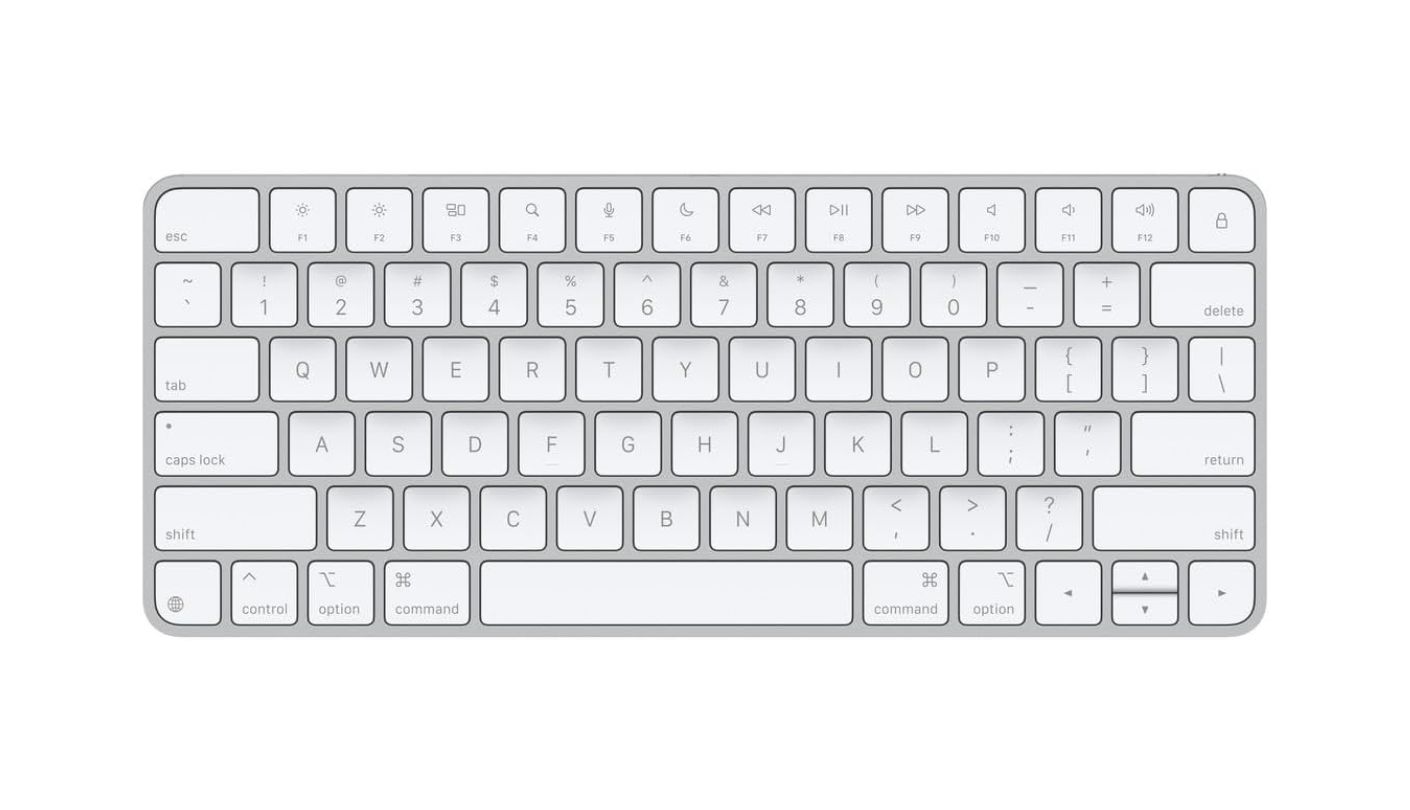
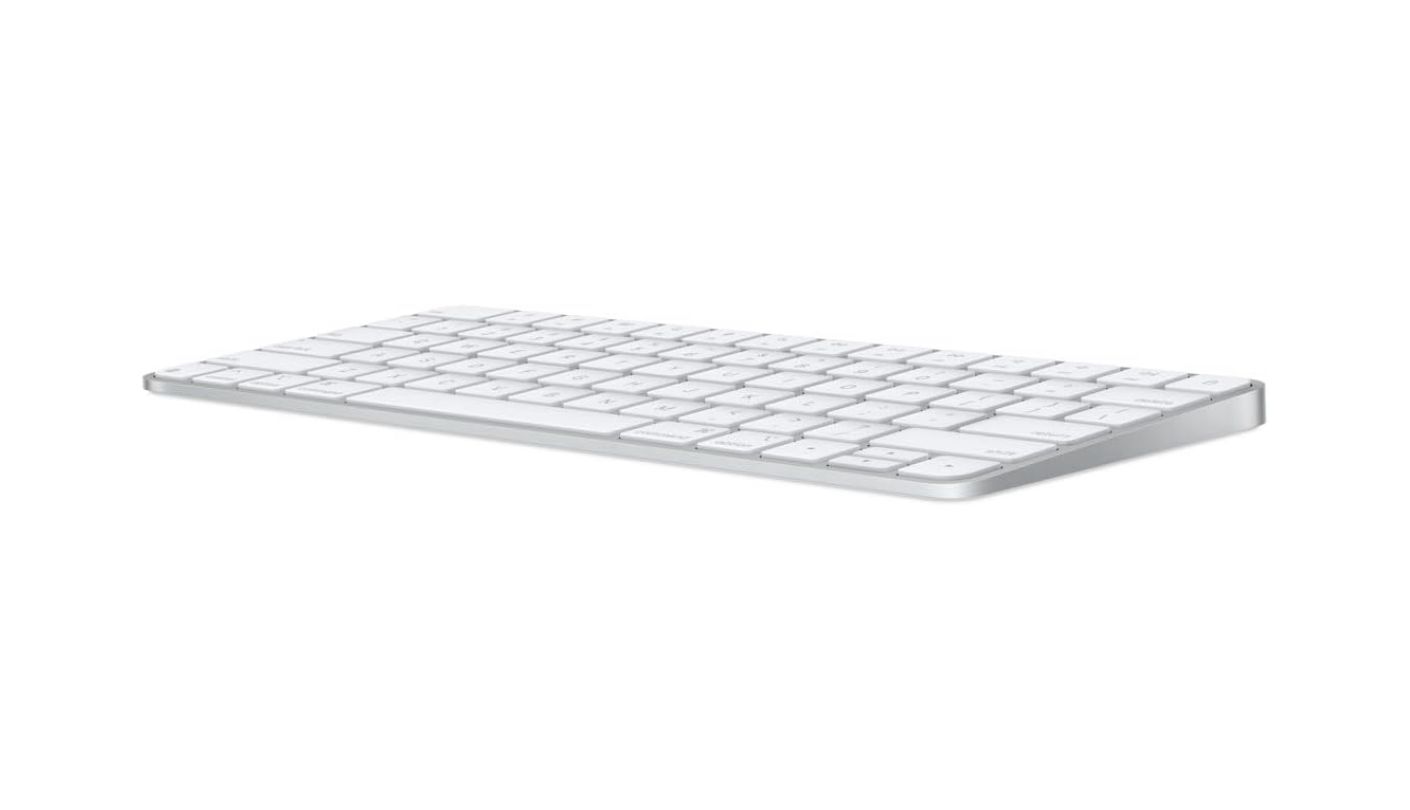
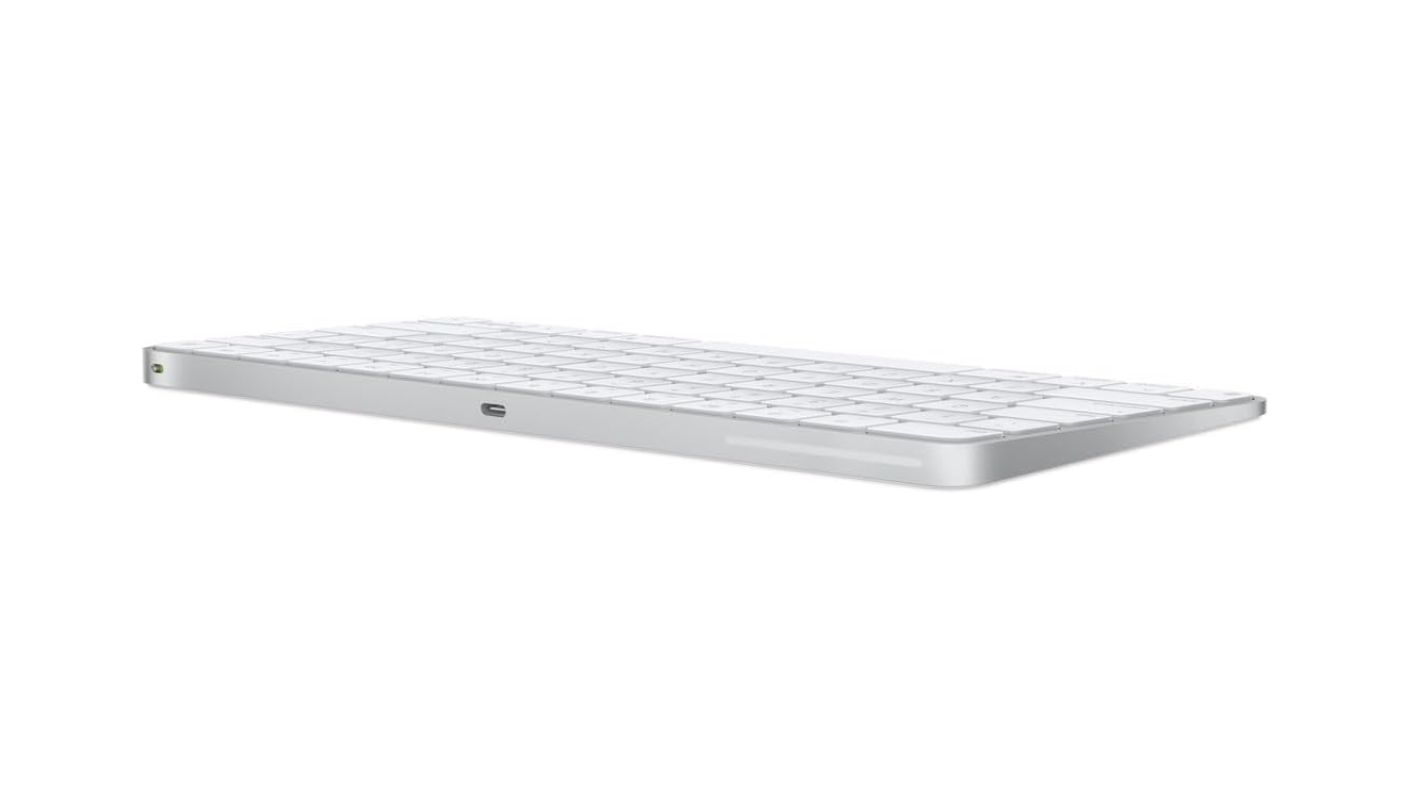
My top pick has the shortest feature list of the five and pairs to exactly one device at a time, which on paper should disqualify it. The Apple Magic Keyboard earns the position on geometry instead: 279 by 115 millimetres of desk, a front edge just 4.1 millimetres off the surface, and a rear edge at 10.9 millimetres. Nothing else in this group is that flat, and flatness is what removes the wrist rest from the equation entirely on a shallow desk.
One caution before anything else. Apple sells three closely related boards under near-identical names, and the numeric keypad version is wide enough to defeat the entire purpose of reading an article like this. Confirm the variant showing in the listing before ordering, and note that the Touch ID versions authenticate only on Macs with Apple silicon, so the fingerprint reader is inert on a Windows machine or an iPad.
The scissor mechanism under each key is the reason this design has survived a decade of iteration with only a port change. Travel is short and consistent, the keys do not rattle when struck off-centre, and the aluminium chassis has no flex anywhere along its length. Typing noise sits low without the mushiness that usually accompanies quiet keys, and the function row carries media controls directly rather than filing them behind a modifier.
Charging happens over the woven USB-C cable in the box, and Apple quotes about a month or more between charges. The keyboard pairs to a Mac automatically when connected by that cable, which is the fastest setup of any board here and requires no software at all. There is no companion app to install and no remapping utility, because Apple assumes macOS system settings will handle modifier swaps and shortcuts, which they do adequately.
One pairing at a time is what you pay for that profile, and the bill lands daily rather than occasionally. Moving this keyboard between a laptop and a tablet means going into Bluetooth settings on both, every time, since there are no Easy-Switch keys and no dongle option. It also has no backlighting whatsoever. On a desk serving one computer, neither gap registers, and the flattest profile of the five is exactly what a shallow desk wants.
Pros:
- Flattest Front Edge
- Smallest Desk Footprint
- Rigid Aluminium Chassis
- Automatic Mac Pairing
- Month Between Charges
Cons:
- One Device Only
- Zero Key Illumination
Summary: Apple solved the small-desk problem by making the keyboard almost disappear into the surface rather than by shrinking its layout, and that is the more useful trade. The variant confusion in Apple's own product names is the only thing standing between a buyer and the right box.
Logitech Pebble Keys 2 K380s Review
Best Overall
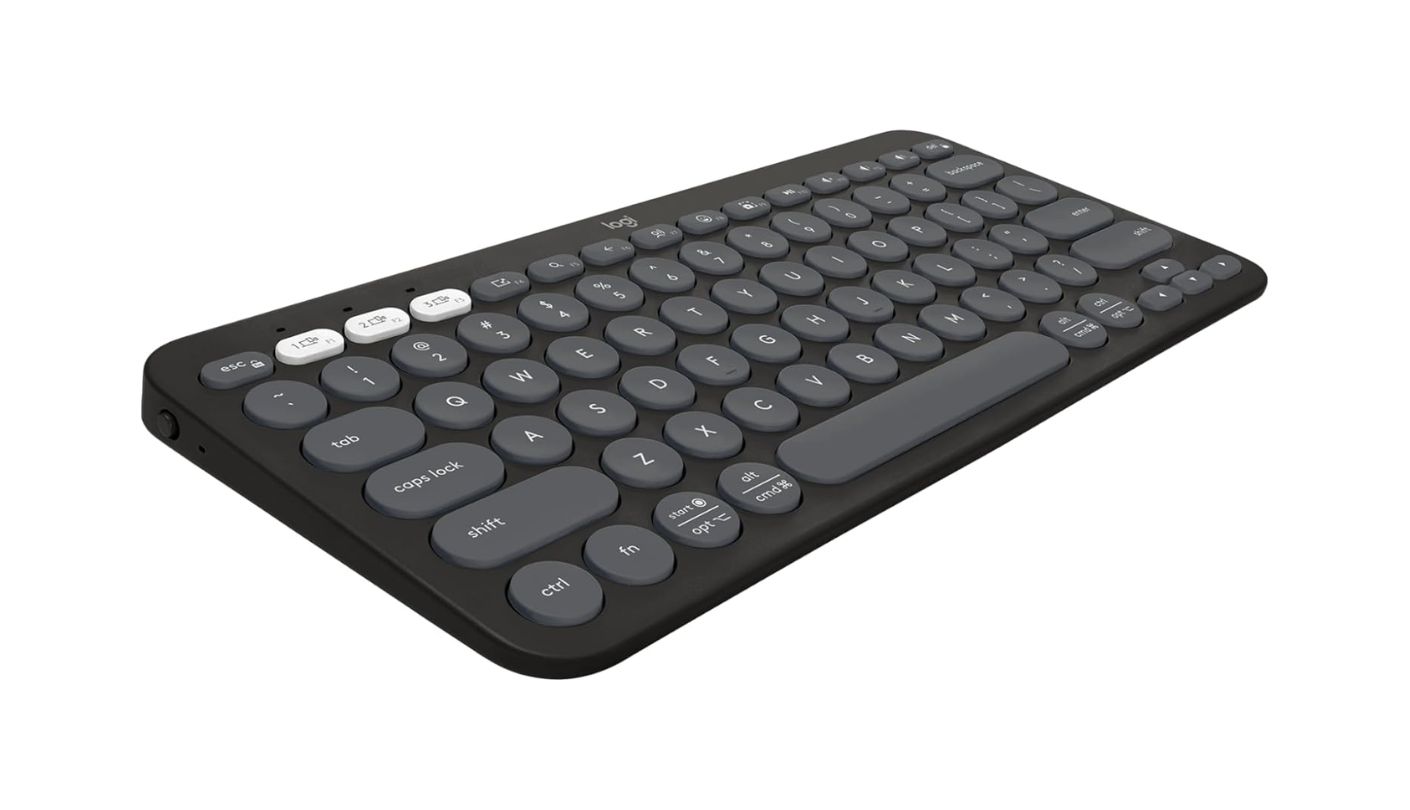
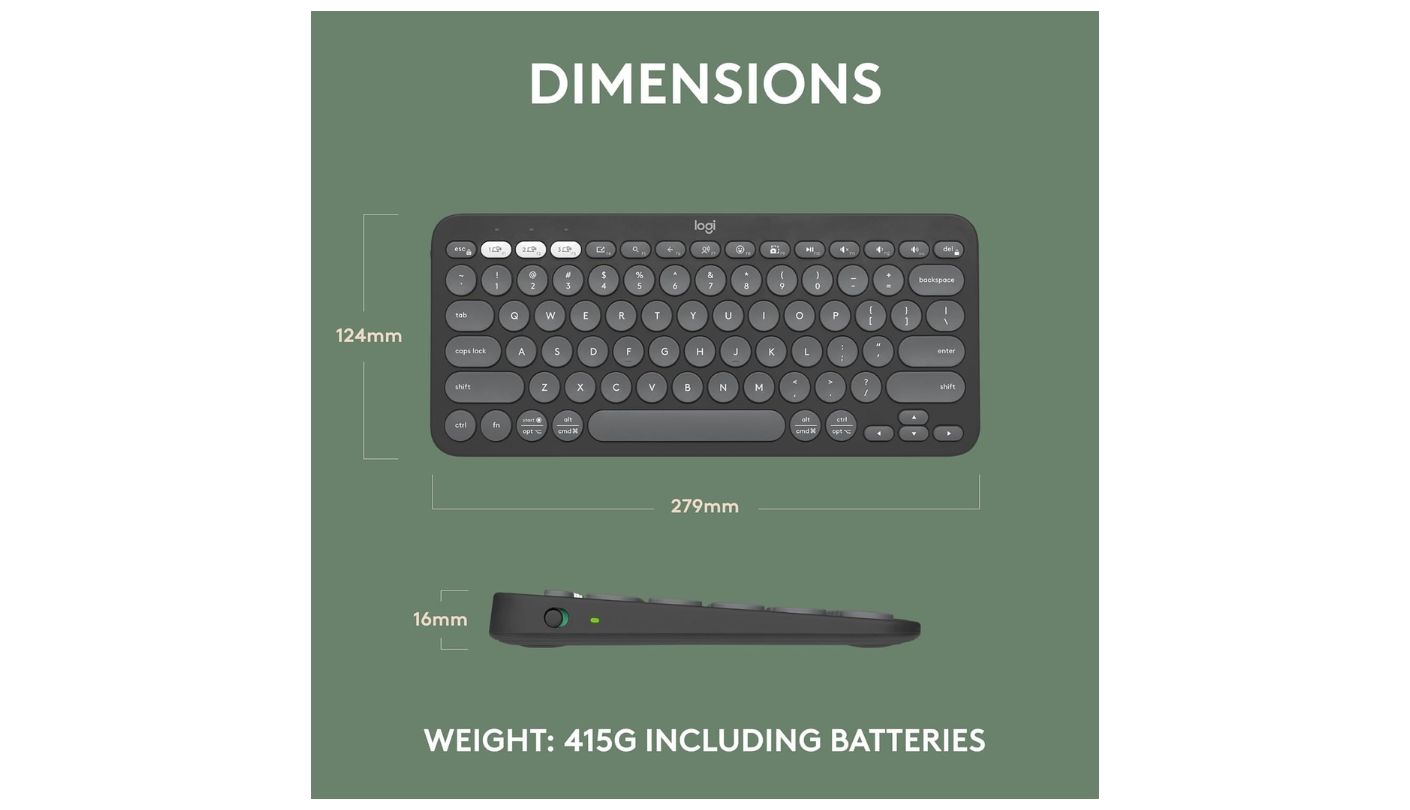
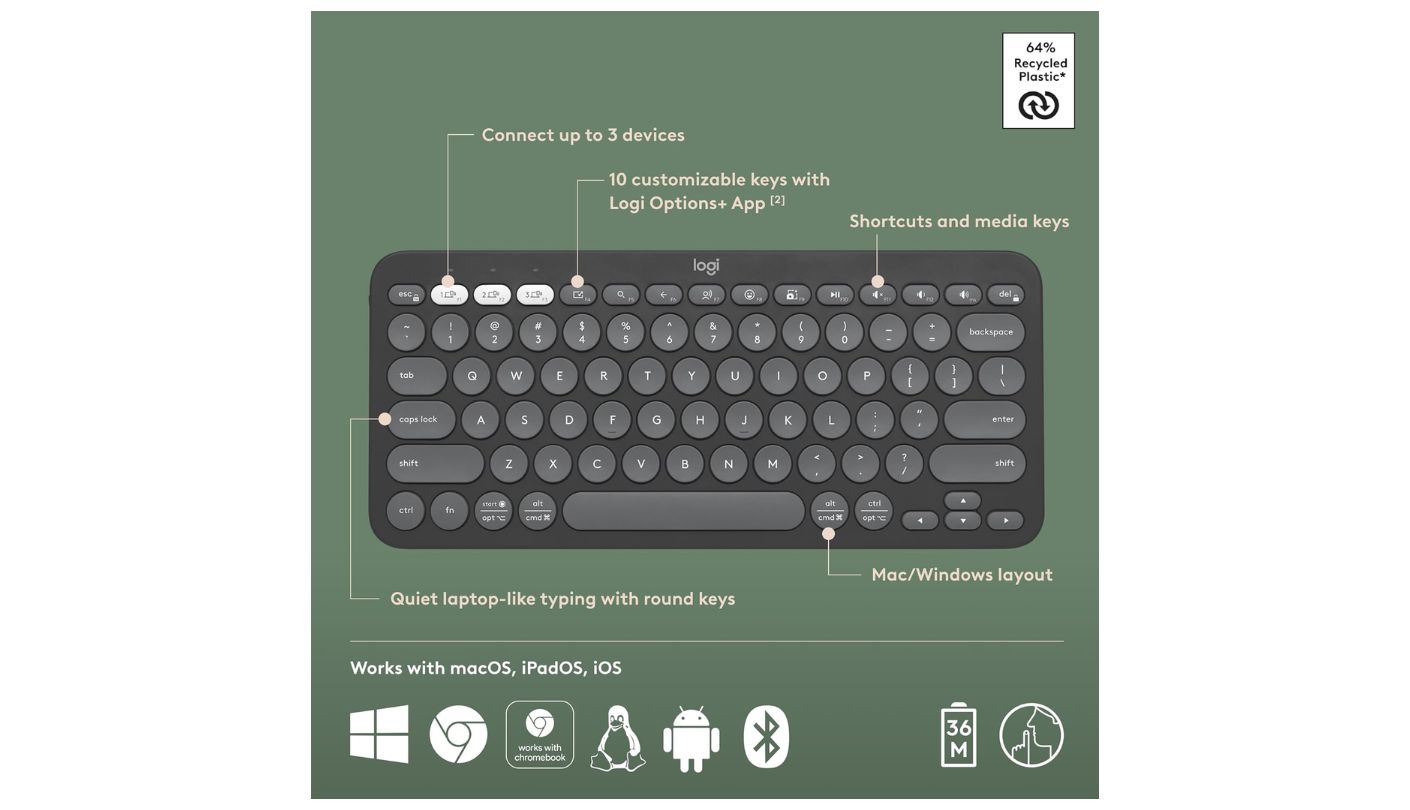
Thirty-six months. That is what Logitech claims from the two AAA cells fitted in the Logitech Pebble Keys 2 K380s, half a decade of typing on batteries you could buy at a petrol station, and it removes the charging cable from a desk that has nowhere to put one. Logitech puts the improvement at fifty percent over the previous K380, and the tradeoff is a 16-millimetre-tall chassis, the second tallest here despite the slim marketing.
Three Easy-Switch keys sit at the top left and hold three simultaneous pairings across Windows, macOS, iPadOS, iOS, Android, ChromeOS and Linux. Switching is a single keypress with no menu diving, and in practice this is the feature that justifies the whole purchase on a shared desk. Bluetooth 5.1 handles the radio, and the board also accepts Logitech's Bolt receiver if a corporate IT policy demands one, which is unusual on a keyboard at this level.
The round scooped keycaps are the K380s signature and they divide people. Each cap is a circle rather than a square, which shrinks the striking surface slightly and takes a day or two of adaptation before touch typing speed returns. Once it does, the low-profile action is quiet and laptop-familiar, and the scooping does help centre a fingertip. Ten of the function keys are remappable through Logi Options+ on Windows and macOS, covering screenshots, dictation and an emoji menu out of the box.
Footprint is 279 by 124 millimetres and weight is 415 grams with cells installed, which is the heaviest of the three office boards here and feels reassuringly planted rather than skittish. Logitech builds the plastic parts from at least 49 percent post-consumer recycled material, rising to 64 percent on some colours, and the packaging is FSC-certified card. Auto-sleep handles the power saving that makes the three-year claim plausible.
Lined up beside the Apple board it concedes nine millimetres of depth and five of height, and collects device switching, cross-platform support and a battery nobody has to think about. There is no backlighting and no wired mode at all, so a flat cell means a trip to a drawer rather than a cable. For a desk that hosts more than one machine, this is the one I would fit first.
Pros:
- Three Year Cells
- One-Press Device Switching
- Seven Platform Support
- Remappable Function Keys
- Recycled Plastic Build
Cons:
- Round Keycaps Divide
- No Wired Fallback
Summary: Batteries measured in years rather than weeks is the quiet luxury on a desk with no spare surface for a charging cable, and the Easy-Switch row turns one board into three. The circular keycaps are the acquired taste you have to be willing to acquire.
Satechi Slim X1 Review
Backlit Pick
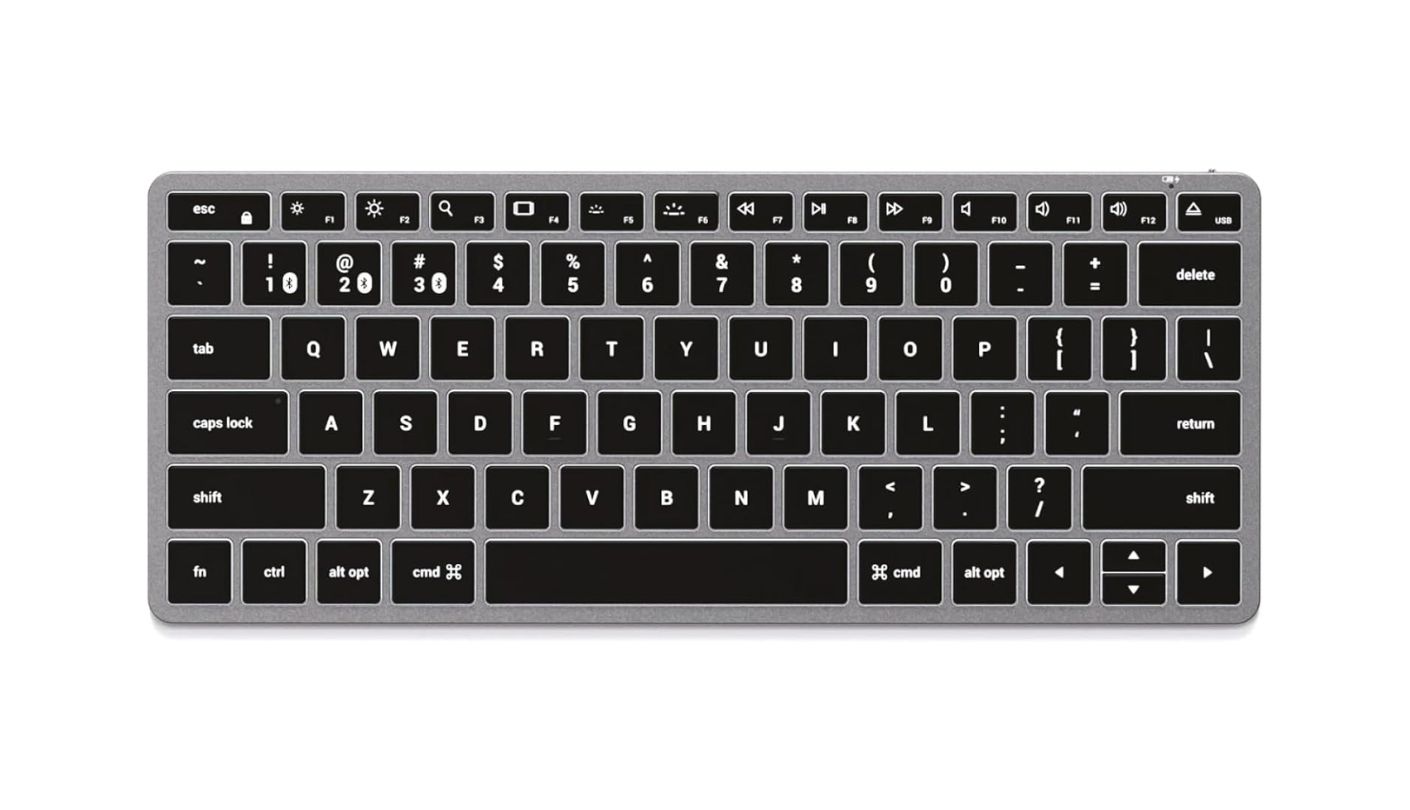
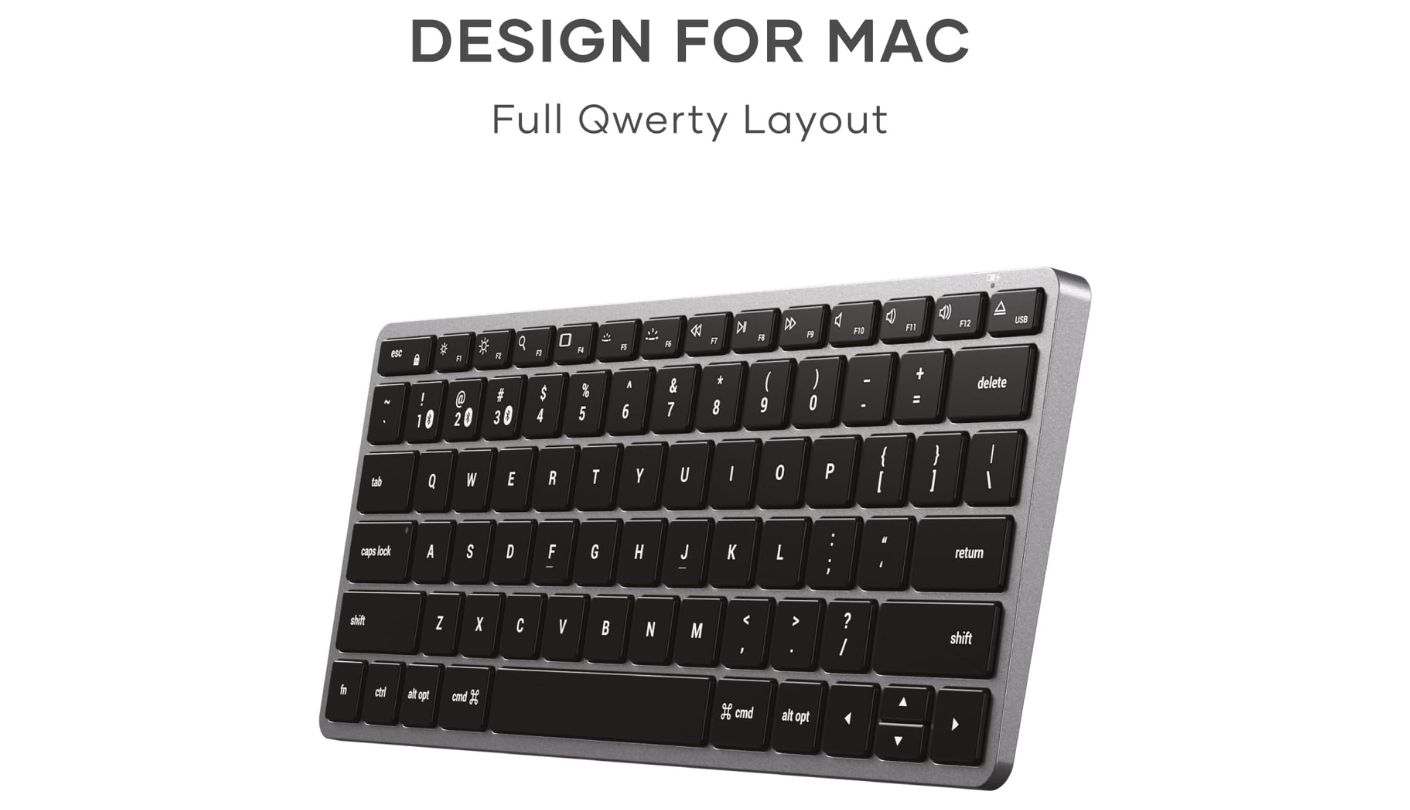
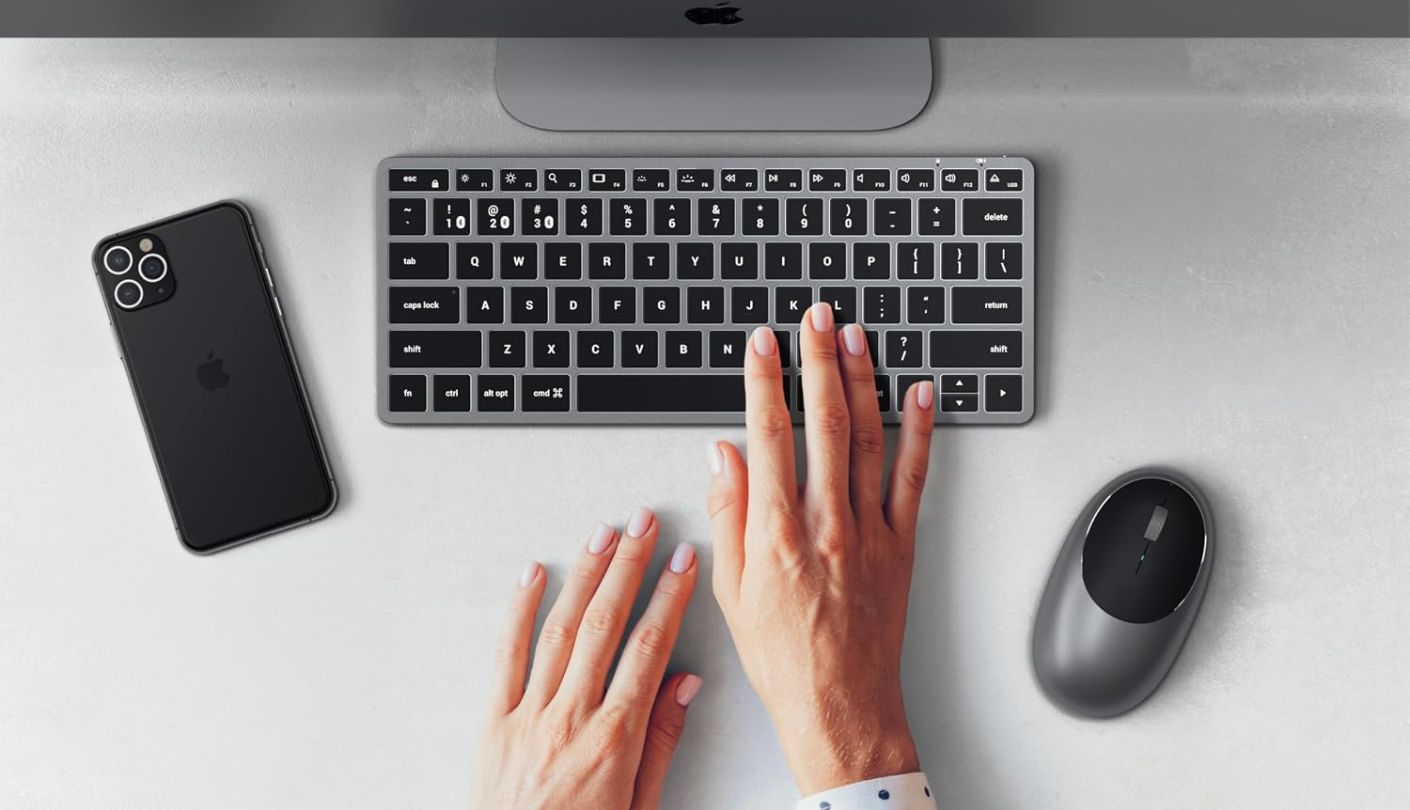
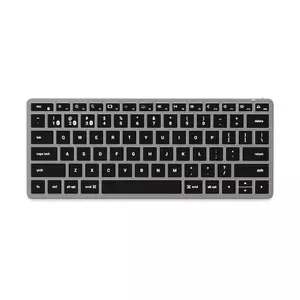
Why does almost nobody light up a slim wireless office keyboard? Illumination costs battery, adds thickness and complicates the internals, so the feature migrated to gaming boards and stayed there. The Satechi Slim X1 is the exception among the non-gaming options here, with ten selectable brightness levels inside a 12-millimetre aluminium body measuring 283 by 115 millimetres.
That combination is the whole pitch and it is a narrow one that happens to matter. Anyone typing in a dim room, on an evening desk lit only by a monitor, or in a bedroom corner where a bright lamp would be antisocial is choosing between this board and a gaming keyboard, because nothing else slim and unlit solves the problem. Brightness steps down finely enough to find a level that reads without glowing, which matters more than peak output.
Construction is aluminium in space grey or silver, weight is 294 grams, and the layout is Mac-oriented with macOS function keys across the top. Bluetooth 5.0 holds three pairings that swap with Fn plus 1, 2 or 3, matching the Logitech on device count if not on switching convenience. The USB-C port charges the board and also runs it in wired mode, which is a genuine advantage over the Logitech and Apple options if a Bluetooth stack misbehaves during a call.
Two rubber risers ship in the box, which is a small and welcome acknowledgement that a flat board suits some wrists and an angled one suits others. Satechi covers the keyboard with a two-year limited warranty. Satechi's own documentation is inconsistent about the height, listing 0.39 inches in one place and 0.47 inches in the technical specification sheet, and I have used the latter figure throughout because that is the page maintained as a spec reference.
The reservations are about ecosystem rather than hardware. The layout, key legends and function row are built around macOS, and Satechi states plainly that Windows 7 and 8 are unsupported with pairing on Windows 10 requiring the Control Panel route rather than the modern settings pane. Battery life goes unpublished, which given the backlight is a conspicuous silence. On a Mac-centred desk that needs lit keys, none of that outweighs being the only slim option offering them.
Pros:
- Ten Brightness Levels
- Aluminium Unibody Chassis
- USB-C Wired Mode
- Rubber Risers Included
- Two Year Warranty
Cons:
- Mac-Centric Layout
- Runtime Never Stated
Summary: Backlighting on a twelve-millimetre aluminium board is a combination the market has largely abandoned, and this is where to find it if a dim room is the problem you are solving. The unpublished battery figure is the price of asking.
Keychron B1 Pro Review
Most Customizable
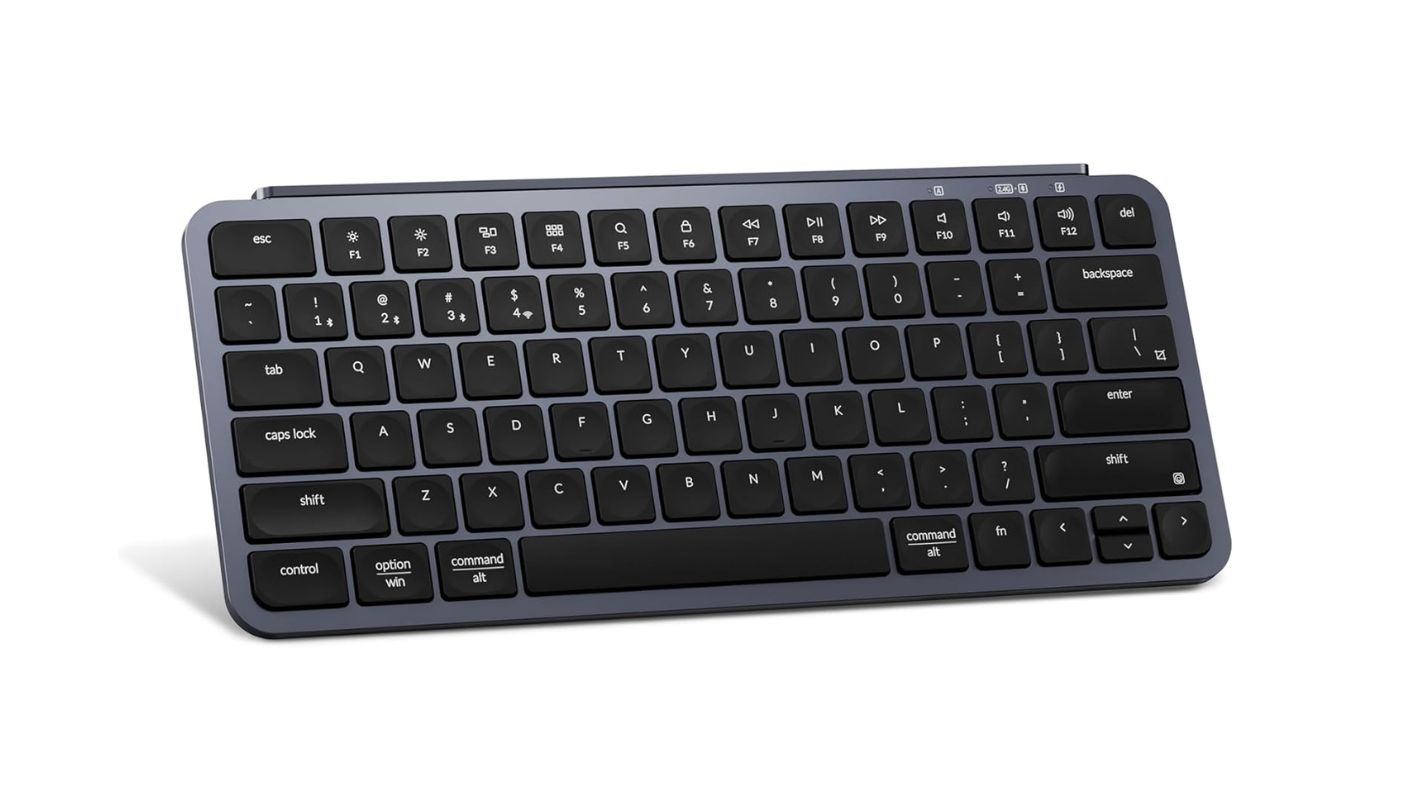
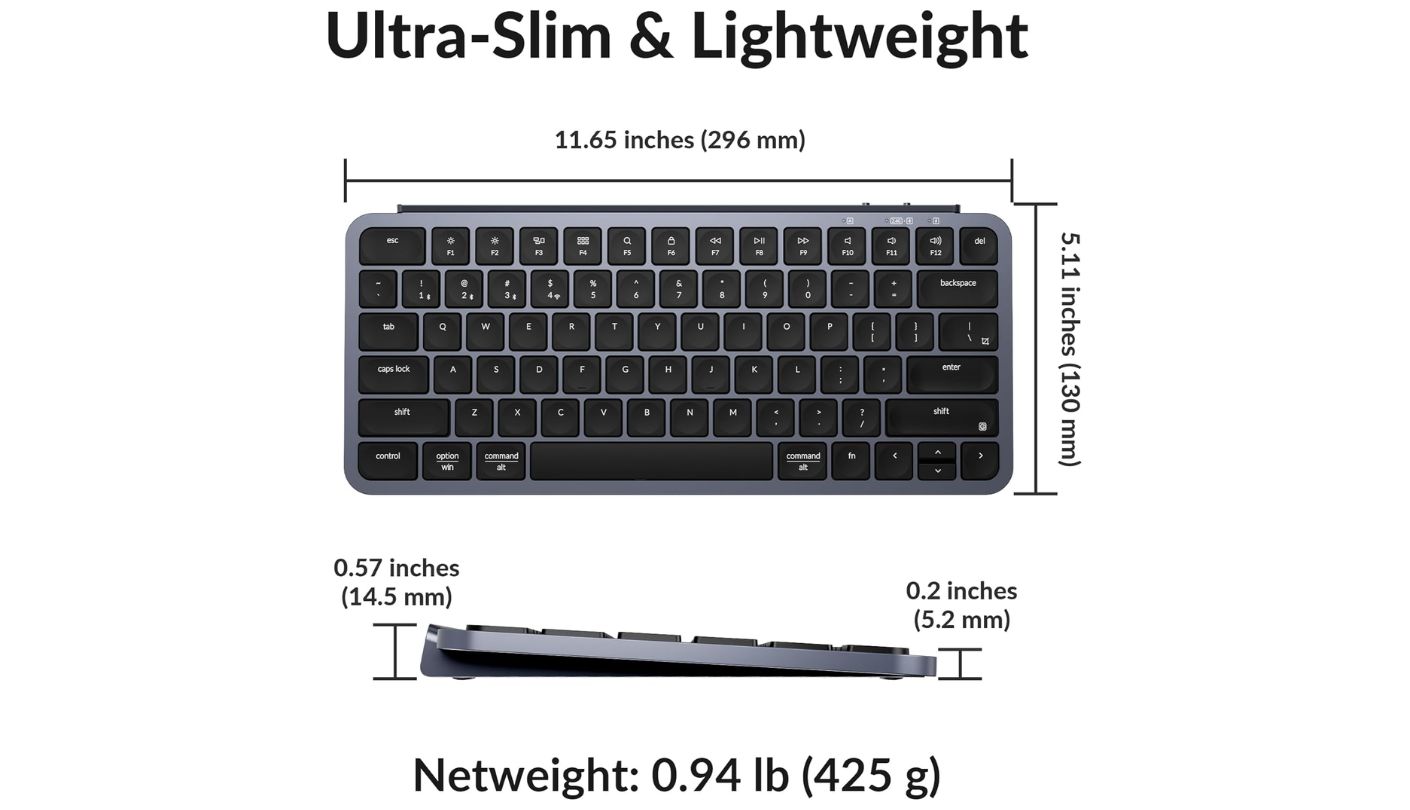
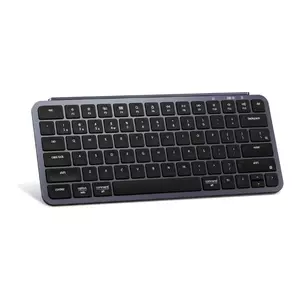
Most boards in this class ask you to surrender keys in exchange for desk space. The Keychron B1 Pro asks you to give up desk space to keep keys, and it is worth understanding that trade before dismissing it. A 75 percent layout keeps the full function row, a properly separated arrow cluster and a navigation column, all inside 296 by 130 millimetres, which is the largest footprint here by a clear margin.
What that buys is a board where nothing requires a chord. Page up and page down have their own keys, arrows sit where your right hand expects them, and the function row is not shared with media controls through a modifier. On a small desk this is the honest counterargument to minimalism: fewer millimetres saved, fewer learned finger contortions. Height stays low regardless, at 5.2 millimetres front and 14.5 rear with a 3.2 degree tilt.
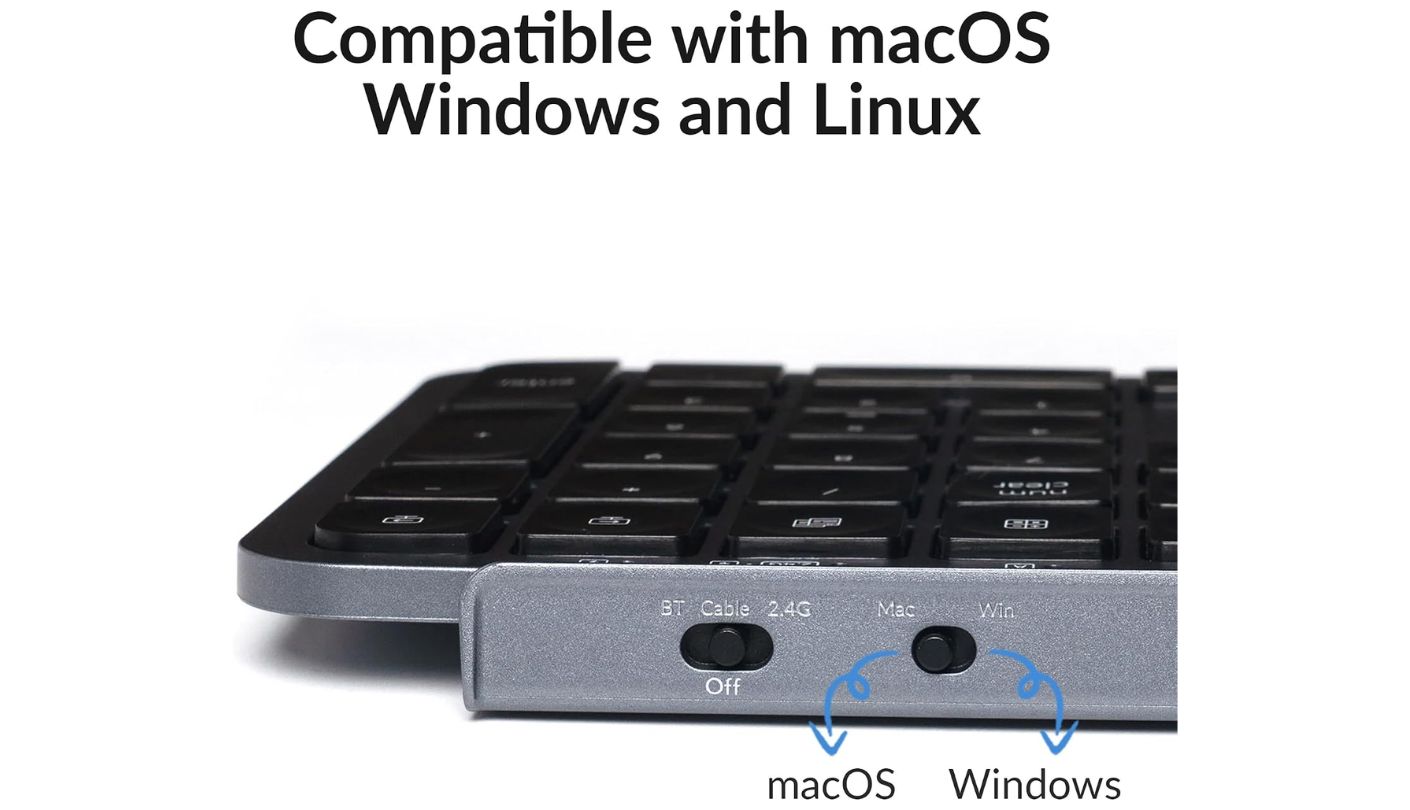
Connectivity is the most flexible of the five. Three Bluetooth 5.2 pairings plus a dedicated 2.4 GHz dongle running at a 1000 Hz polling rate plus USB-C wired, and the board keeps working while charging. The 800 mAh cell is rated at up to 1200 hours, which Keychron frames as roughly eight months at five hours of daily use, and a full charge takes about two and a half hours. Scissor switches with concave ABS caps keep the sound down for shared rooms.
Remapping is where this pulls away from every office board here. The Keychron Launcher web app reassigns any key and builds macros with no download, running in Chrome, Edge or Opera on macOS, Windows and Linux, and the underlying firmware is ZMK. Worth noting that some retail copy for this board advertises QMK instead, which is the wrong firmware family for a wireless Keychron, so ignore that line and use Launcher or ZMK.
The compromises are specific rather than general. There is no backlighting at all, the body is ABS plastic rather than metal and a silicone key skin ships in the box partly to protect it, and Keychron confirms the board supports neither N-key nor 6-key rollover, which rules out simultaneous-input gaming. At 425 grams it stays put. If you edit text all day and resent function layers, the extra 15 millimetres of depth is the cheapest thing you will trade.
Pros:
- Full Function Row
- Separated Arrow Cluster
- Triple Connection Modes
- Browser-Based Remapping
- Works While Charging
Cons:
- Deepest Board Here
- No Key Rollover
Summary: Choose this when muscle memory is the tighter constraint than the desk, because a heavy typist loses more to hunting for page down than to a centimetre and a half of extra depth. Browser-based remapping with nothing to install remains a feature the office brands have not answered.
ASUS ROG Falchion RX Low Profile Review
Shallowest Footprint
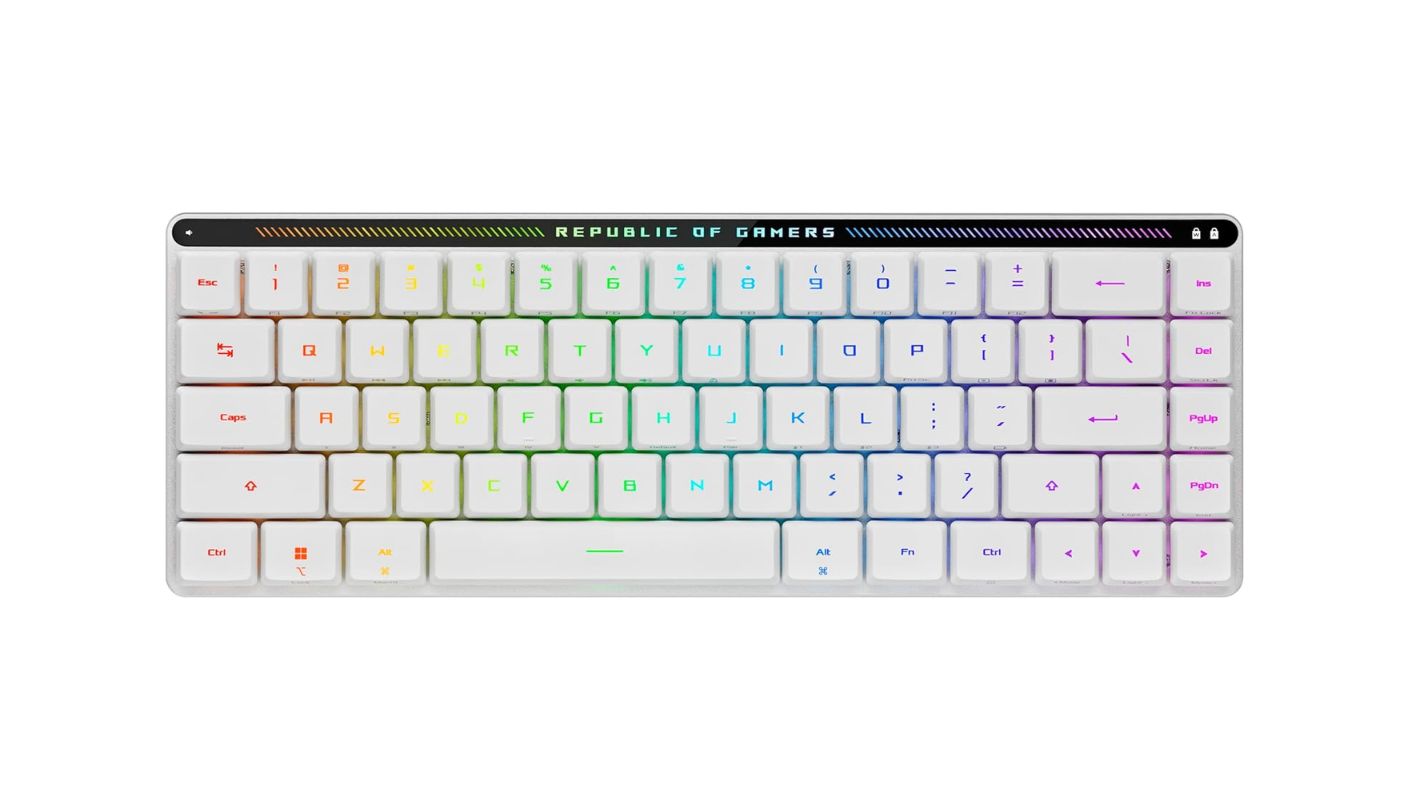
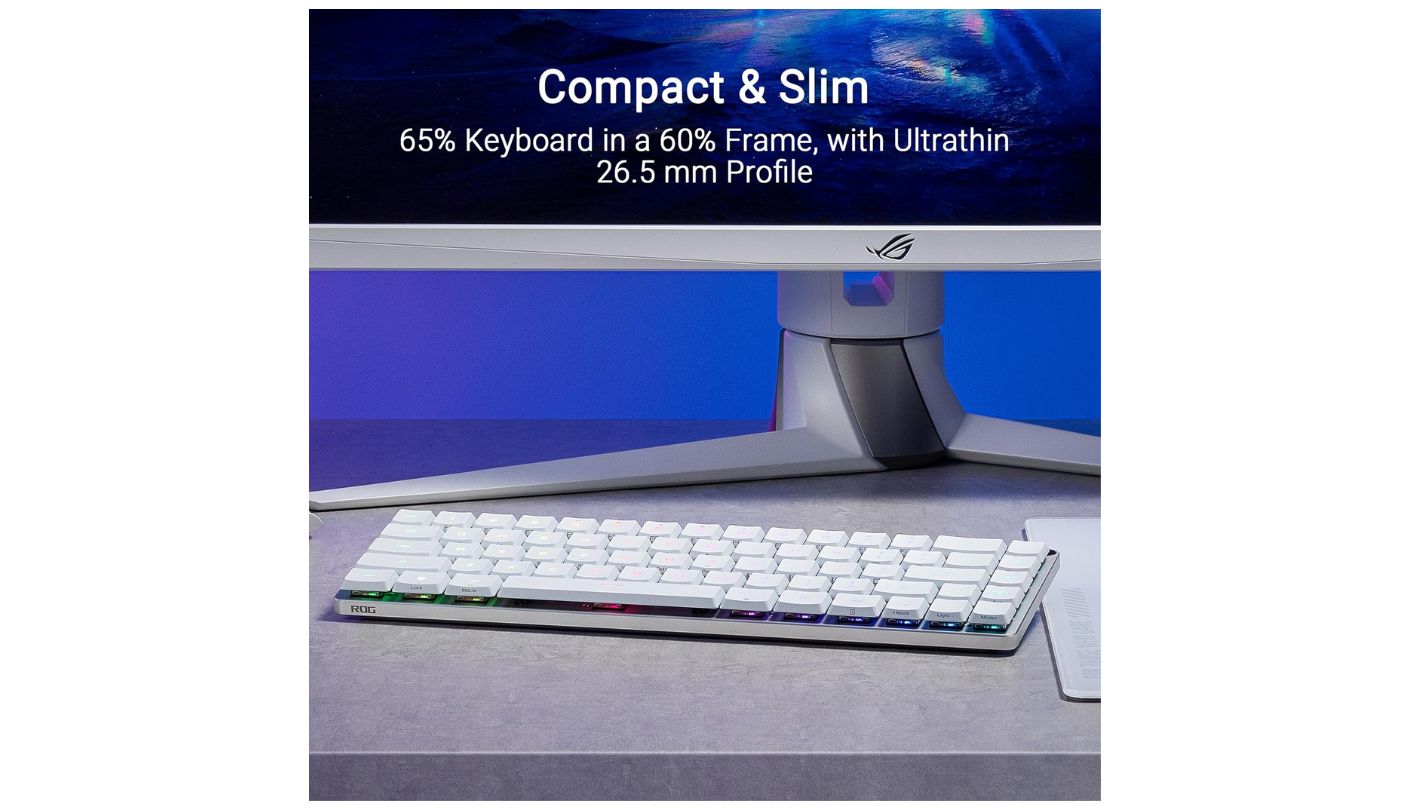
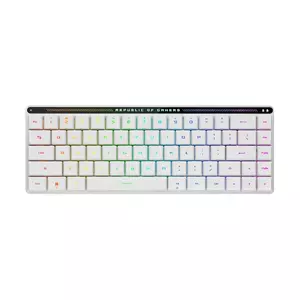
The gaming board was supposed to be the obvious casualty of this comparison. It turned out to be the one that left the most clearance behind it. The ASUS ROG Falchion RX Low Profile measures 110 millimetres front to back, twenty less than the Keychron and five less than the Apple board, because ASUS fitted a 65 percent layout into a 60 percent frame and pushed the arrow and navigation keys into the right-hand column instead of adding depth.
Length is 306 millimetres and height is 26.5 millimetres, so this is the tall option and the one where a wrist rest becomes a real consideration. Three tilt angles help. The ROG RX Low-Profile optical switches are pre-lubed and come in Red and Blue variants, the Red actuating at 1.0 millimetres with an initial force around 40 grams, and two layers of integrated silicone foam do audible work: the acoustics are closer to a dampened office board than to a gaming keyboard, which is not what the RGB suggests.
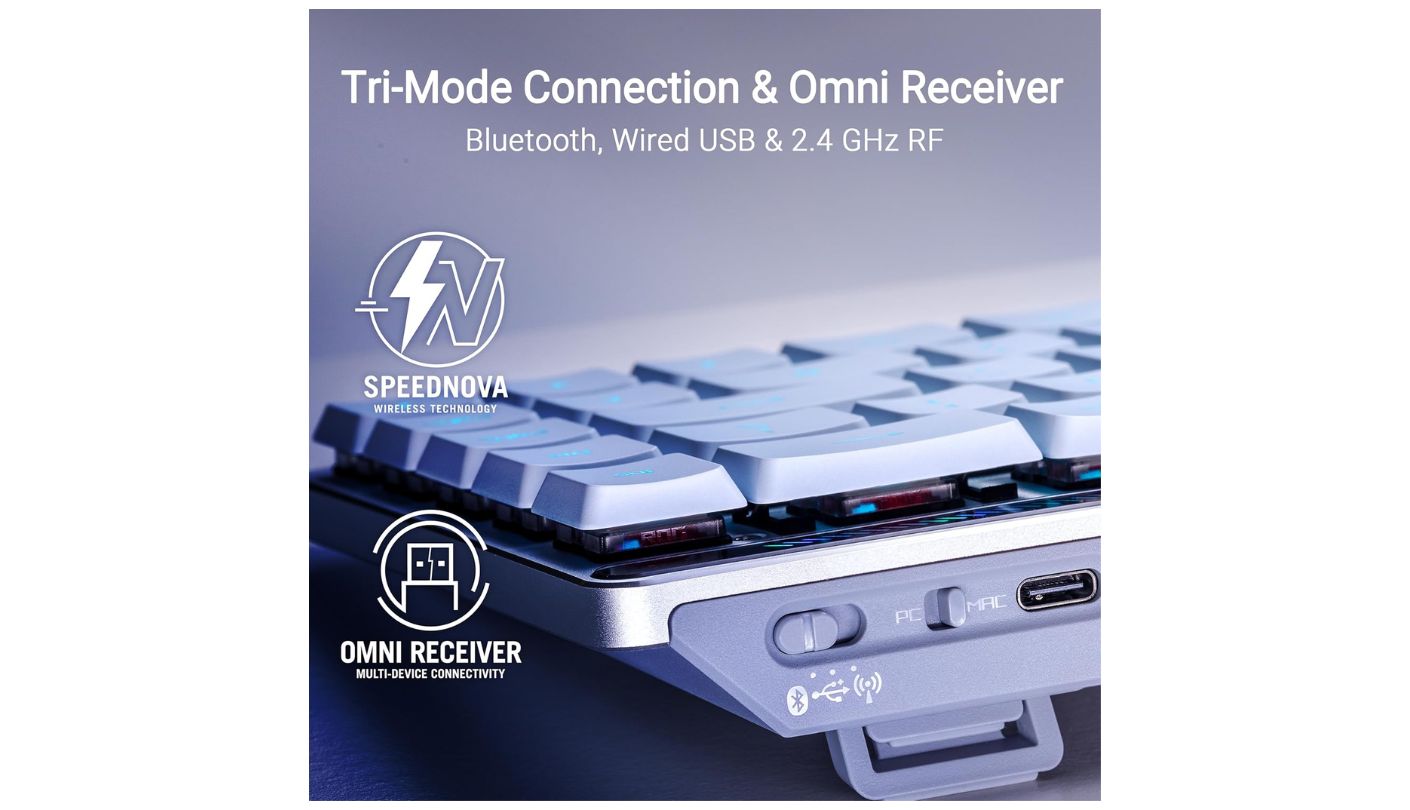
Tri-mode connectivity covers Bluetooth with up to three simultaneous devices, 2.4 GHz through ROG SpeedNova, and USB-C wired. The Omni Receiver serves multiple supported ROG peripherals from a single dongle, which frees a port on a machine short of them, and the dongle stores magnetically in the chassis. An interactive touch panel and a multi-function button handle media playback, volume and lighting without stealing keys, and a macOS toggle switches the modifier behaviour.
Battery figures deserve care here. ASUS quotes up to 430 hours, and that number assumes RGB switched off on the 2.4 GHz connection, which is the standard way this category is measured and worth internalising before expecting anything like it with per-key lighting running. Weight lands around 595 grams, the heaviest board here by a comfortable margin, and a protective cover ships in the box for transport and dust.
Where this stops being sensible is on the desk of someone who does not game. Per-key RGB on a work surface is a taste, the 26.5-millimetre height is the least wrist-friendly figure in this comparison, and the 65 percent layout still routes function keys through a modifier. Anyone who does game on a cramped desk should look here first, because nothing else in this lineup gives back this much room in front of the monitor.
Pros:
- Shallowest Desk Depth
- Pre-Lubed Optical Switches
- Dual Silicone Damping
- Magnetic Dongle Storage
- Touch Panel Controls
Cons:
- Tallest Chassis Profile
- Function Layer Required
Summary: Squeezing a 65 percent layout into a 60 percent frame is a packaging trick that pays off precisely on the desks this article is about, and the silicone damping means it does not sound like a gaming board while doing it. Height is the bill that arrives with it.
Wireless Keyboards for Small Desks: FAQ
Which of these takes up the least desk space?
The Apple Magic Keyboard, at 279 by 115 millimetres. The ASUS Falchion RX Low Profile is the shallowest at 110 millimetres front to back but the longest at 306, so total area lands slightly higher. The Keychron B1 Pro occupies the most at 296 by 130 millimetres. If depth alone is your constraint, because a monitor stand or a wall is behind the keyboard, the ASUS wins that specific measurement.
Do I need a wrist rest with a compact keyboard?
It depends entirely on height rather than layout. The Apple and Keychron boards sit around four to five millimetres at the front edge and let your wrists rest on the desk itself, so a rest adds nothing. At 16 millimetres the Logitech is borderline, and at 26.5 millimetres the ASUS is the one most people would want a rest for. Remember that a rest adds five to eight centimetres of depth, which usually cancels the space a compact board saved.
Can one keyboard serve a laptop and a tablet?
All but one can, holding three pairings and switching with a keypress. The Logitech K380s and Satechi Slim X1 use Bluetooth for all three, while the Keychron and ASUS add a 2.4 GHz dongle alongside their Bluetooth slots. The Apple Magic Keyboard is the exception, connecting to one device at a time and requiring you to re-pair manually when you move it.
Are any of these backlit?
Two of them. The Satechi Slim X1 has white backlighting with ten brightness levels, and the ASUS Falchion RX Low Profile has per-key RGB. The Apple, Logitech and Keychron boards have no illumination at all. Bear in mind that published battery figures for lit keyboards generally assume the lighting is off, so expect a fraction of the quoted runtime with the keys glowing.
What is the difference between a 65 percent and a 75 percent layout?
A 75 percent layout keeps a full top row of function keys plus a navigation column, and the Keychron B1 Pro uses it. A 65 percent layout drops the function row, so F1 through F12 move onto a modifier layer, while arrows and a few navigation keys stay physical, which is what the ASUS does. Compact boards without either designation typically keep a function row and drop navigation keys instead.
Will a rechargeable keyboard work while it is charging?
On most, yes, and Keychron states it explicitly for the B1 Pro. The practical question on a small desk is whether you have anywhere to route the cable, since a charging lead crossing the surface competes with the mouse. That is the argument for the Logitech, whose two AAA cells are quoted at up to 36 months and remove the cable from the desk entirely.
Do these work with Windows if they are designed for Mac?
Partly, and the details matter. The Keychron ships with Mac legends but remaps for Windows through the Launcher app, and the ASUS has a macOS toggle in both directions. Satechi builds the Slim X1 around macOS and states that Windows 7 and 8 are unsupported, with Windows 10 pairing routed through Control Panel. Apple's Touch ID variants authenticate only on Macs with Apple silicon, so that feature is dead weight on a PC.
Is a quiet keyboard automatically a better choice for a small room?
Usually, and switch type predicts it better than price. Scissor mechanisms, used by the Apple and Keychron boards, and the low-profile keys on the Logitech are all quiet by construction. The ASUS is a mechanical board, though two layers of silicone foam bring it much closer to office volume than an undamped one. If someone sleeps within earshot, the scissor-switch options are the safe answer.
Fitting the Board to the Desk You Have
Two questions settle this once the tape measure has done its work, and they are worth asking in order. How many machines share the surface, and can you live without lit keys. A single-computer desk with decent lighting has no reason to look past the Apple Magic Keyboard, whose four-millimetre front edge does something none of its rivals manage, which is to make a wrist rest unnecessary and give that depth back to the desk. Add a second device and the Logitech Pebble Keys 2 K380s takes over, trading nine millimetres of depth for switching keys and three years of batteries.
Narrower briefs get better answers elsewhere. Dim rooms and Mac layouts belong to the Satechi Slim X1, still the only slim board around with proper backlighting. All-day text editing and a refusal to learn function chords justify the extra depth of the Keychron B1 Pro. Gaming on a shallow desk goes to the ASUS ROG Falchion RX Low Profile, which clears more space in front of the monitor than anything else running switches this good. Whichever it is, mark the footprint out in tape before the box arrives.

Jim's our tech geek with a mission since February 2023. From movies to video projectors, he knows his stuff and aims to make tech work for you. When he's not geeking out, he's there to guide you through making savvy decisions.


