How to Choose the Best 144Hz Monitors under $250
Not one screen in this article runs at 144Hz. Every single one goes faster, and that says everything about where this category has landed. The number that used to be the headline is now the entry requirement. Search for a 144Hz monitor in 2026 and you get a list of panels doing 180Hz and 200Hz for the same outlay.
Which raises a better question. If speed is a given, what is your money actually buying? At this level it buys two of three things: pixels, inches or contrast. Never all three. The five screens below each pick a different pair, and working out which pair you need takes about five minutes. It also saves you from the standard mistake in this price band, which is buying the biggest screen available and then wondering why the text looks fuzzy.
Here are my two top picks for the best 144Hz monitors under $250:
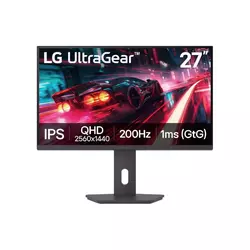
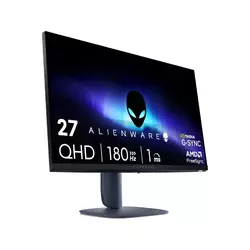
Table of Contents:
- 144Hz Monitors under $250: Buying Guide
- Top 5 144Hz Monitors under $250
- Budget High-Refresh Monitors: Comparison
- LG UltraGear 27G610A-B
- Alienware AW2725DM
- ASUS TUF Gaming VG32WQ3B
- Samsung 27" Odyssey G3 G30D
- AOC 27G4H
- 144Hz Gaming Monitors: FAQ
144Hz Monitors under $250: Buying Guide
These five range from 82 to 109 pixels per inch and from 27 to 31.5 inches diagonal, and every one of them clears 144Hz without breaking a sweat. That spread is the whole story of the category. Five things explain how to read that spread, and only one of them is the number the marketing wants you to look at.
144Hz Is the Floor, Not the Feature
Jumping from 60Hz to 144Hz is one of the most obvious upgrades in computing. Everything gets smoother, cursor movement included, and nobody who makes the switch goes back. Then the curve flattens hard. The gap between 144Hz and 180Hz is small. The gap between 180Hz and 200Hz is smaller still. Neither comes close to the leap you already made, and no amount of marketing changes that.
Above 144Hz, refresh rate is a tiebreaker rather than a reason to buy. Two screens at 180Hz and 200Hz are effectively the same screen as far as your eyes are concerned.
Which is liberating, because it frees the budget for everything else. I run a 165Hz panel next to a 240Hz one and cannot tell them apart in play, though I can tell you instantly which has the sharper text. One caveat: high refresh only pays off if your frame rate gets near it. A card producing 70 frames gains nothing from 200Hz that 144Hz would not have given it.
Pixels, Inches or Motion: Pick Two
In this price band the panel budget is fixed, so manufacturers trade one quality against another. Three screens here choose 1440p resolution and stay at 27 inches. One chooses a 31.5-inch diagonal. One chooses the highest frame rate at the lowest resolution. No screen manages all three at once, and any brand implying otherwise is rounding a number somewhere on the box.
The measurement that settles it is pixel density, expressed as pixels per inch. A 27-inch 1440p panel gives you 109 PPI, where text edges look clean at desk distance. The same 1440p stretched to 31.5 inches drops to 93 PPI. Put 1080p on a 27-inch panel and you land at 82 PPI, fine in games and visibly soft on a spreadsheet. My rule: if the screen also does your work, do not go below 93 PPI.
Two Different Rulers Measure Response Time
Look at the response figures across this group and you will see 1ms, 0.5ms and 0.3ms, none of which are comparable. GtG measures how long a pixel takes to shift from one grey to another. MPRT measures how long a frame stays visible, which is a different physical quantity entirely and produces flattering numbers that depend on backlight strobing being switched on.
A 0.3ms MPRT claim and a 1ms GtG claim describe two unrelated things, and the MPRT figure usually requires a mode that dims the screen. Compare GtG with GtG or compare nothing at all.
What matters instead is whether the overdrive tuning is any good, and no box has ever printed that. VA panels historically smear in dark scenes and IPS panels historically overshoot into visible haloes, and both have improved a lot. I always drop overdrive one notch below maximum on any new monitor, because the top setting almost always adds inverse ghosting that looks worse than the blur it removes.
The Cable Decides the Refresh Rate
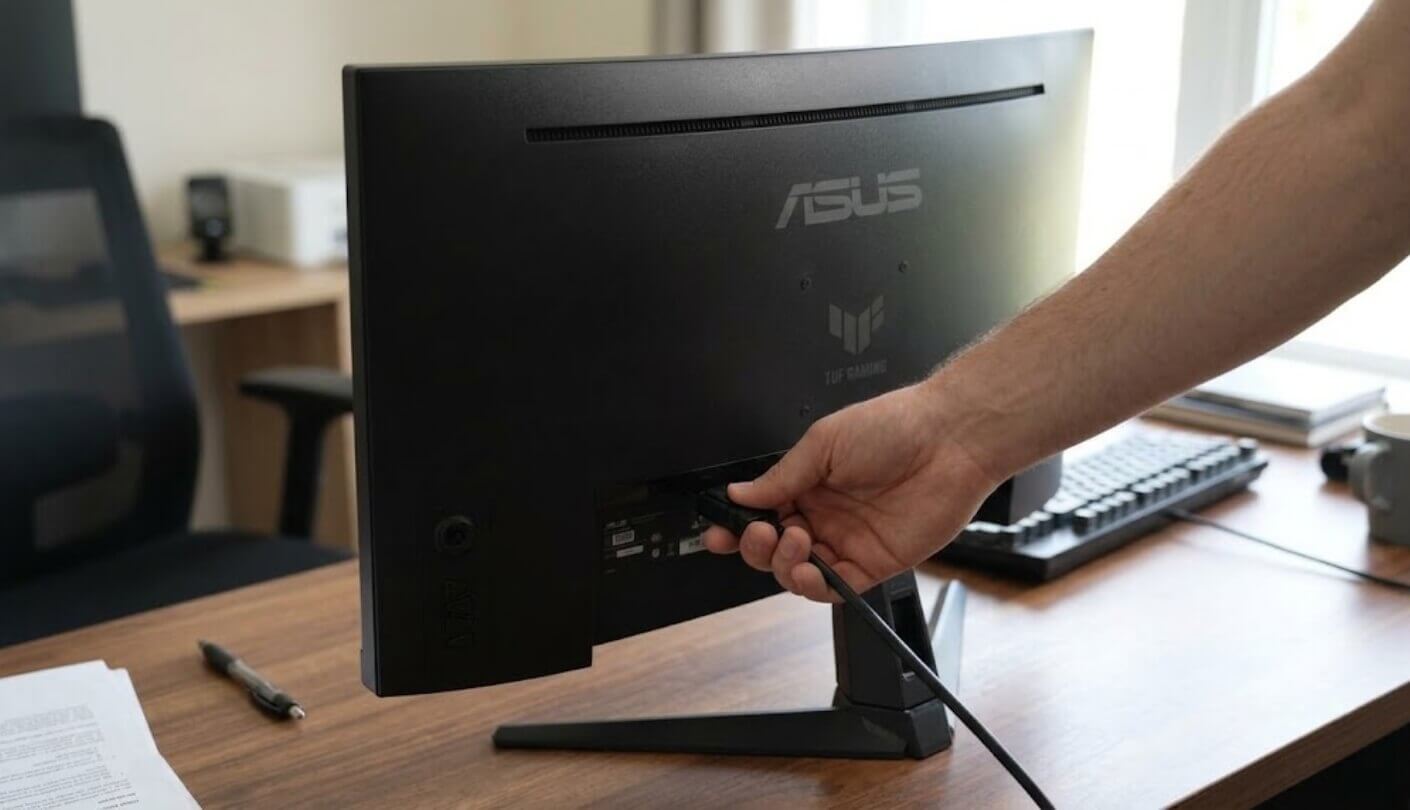
Here is the trap that catches people every time. HDMI 2.0 lacks the bandwidth to carry 1440p at 180Hz or 200Hz, so on several screens the advertised speed is a DisplayPort figure and nothing else. Nobody prints that on the front of the box. The Alienware is explicit about it: 180Hz over DisplayPort 1.4, 144Hz over its HDMI ports. The ASUS carries the same split.
Two consequences follow. Plug a console into HDMI and you are running a lower refresh rate than the box promised, which for current consoles capped at 120Hz turns out not to matter much. Feed a PC through HDMI and it very much does. The second consequence is cheaper to fix. Check the box for a DisplayPort cable, since a missing one leaves the panel running below its rating on day one. I keep a spare in a drawer for exactly this reason.
Contrast Beats HDR Badges Here
DisplayHDR 400 appears on two of these monitors and means the panel hits 400 nits and accepts an HDR signal. It does not mean local dimming, wide-gamut brightness or anything a person would call proper HDR. Switching it on usually flattens the picture, because the panel cannot brighten highlights without lifting the dark areas too. Ignore the badge and read the contrast line instead.
Static contrast is the number that changes how a dark game looks. IPS panels here sit at 1000 to 1, while the two VA panels are rated at 3000 to 1 and 3500 to 1.
That difference is enormous in a dim room, and it is the strongest argument for choosing VA over IPS on a budget. What VA costs you is viewing angles, which wash out when you sit off to one side, and some speed in dark transitions, seen as faint smearing behind moving objects at night. I keep IPS on my main desk because I sit off-centre and edit photos. For an evening gaming machine I would take VA every time.
Top 5 144Hz Monitors under $250
Every screen below clears 144Hz, so that spec did no sorting at all. What separated them was resolution against panel size, contrast class, how each manufacturer counts its response time, and what happens when you connect over HDMI rather than DisplayPort. Read the pixel density column first and the refresh column last, which is the reverse of how most people shop for a gaming monitor and the reason so many end up disappointed.
- 109 PPI Sharpness
- 200Hz On 1440p
- Height And Pivot
- FreeSync And G-Sync
- 400 Nit Panel
- 95% DCI-P3
- Two USB Ports
- Honest HDMI Labelling
- Dedicated Console Mode
- Full Stand Movement
- 3500 To 1 Contrast
- 31.5-Inch Diagonal
- 1500R Curvature
- ELMB Strobing Mode
- 90% DCI-P3
- 3000 To 1 Contrast
- 120mm Height Travel
- Easy GPU Demands
- Eye Saver Mode
- Flicker-Free Backlight
- 200Hz At 1080p
- Three-Year Dot Cover
- 120% sRGB Gamut
- G-Sync Compatible
- Four-Way Stand
Budget High-Refresh Monitors: Comparison
Manufacturer figures, arranged so the trade-offs sit next to each other:
| Specification | LG UltraGear 27G610A-B | Alienware AW2725DM | ASUS TUF VG32WQ3B | Samsung Odyssey G3 G30D | AOC 27G4H |
| Panel And Size | 27-inch IPS, flat | 27-inch Fast IPS, flat | 31.5-inch Fast VA, 1500R curve | 27-inch VA, flat | 27-inch Fast IPS, flat |
| Resolution | 2560 by 1440 | 2560 by 1440 | 2560 by 1440 | 1920 by 1080 | 1920 by 1080 |
| Pixel Density | 109 PPI | 109 PPI | 93 PPI | 82 PPI | 82 PPI |
| Maximum Refresh Rate | 200Hz | 180Hz | 180Hz | 180Hz | 200Hz |
| Rated Static Contrast | 1000 to 1 | 1000 to 1 | 3500 to 1 | 3000 to 1 | 1000 to 1 |
| Rated Brightness | 400 cd/m² | 400 cd/m² | 300 cd/m² | 250 cd/m² | 300 cd/m² |
| HDR Badge | VESA DisplayHDR 400 | VESA DisplayHDR 400 | HDR10 | HDR10 | HDR10 |
| USB Hub | None | Two downstream ports | None | None | None |
| Standout Extra | Only 1440p panel here running 200Hz | Dedicated console mode | 1500R curvature | 120mm of height travel | Three-year zero-bright-dot cover |
Two rows do the real work. Pixel density splits the group into three tiers and predicts how the screen handles text, while rated contrast splits it differently and predicts how a dark game looks. No screen scores well on both, and that is the trade the whole category is built on. Refresh rate, the spec in the headline, separates nothing at all, since all five sit above the number this article is named after.
LG UltraGear 27G610A-B Review
Editor's Choice
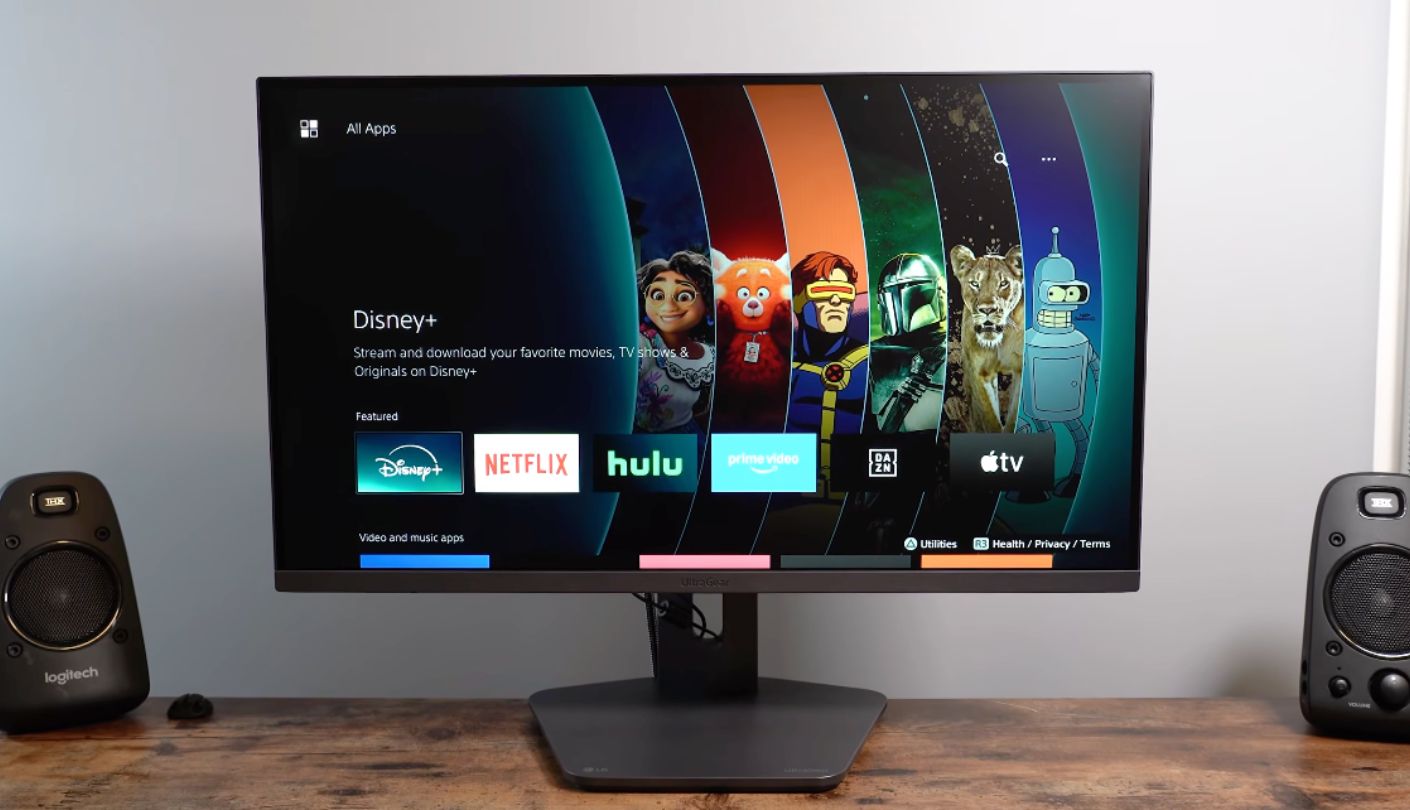
One screen here declines to make the trade. The LG UltraGear 27G610A-B carries 1440p resolution, a 200Hz refresh rate and a stand that moves in every direction, and that combination is why it takes the top spot. On paper it beats or matches every rival on the two specifications that matter most, without asking you to accept an obvious compromise in exchange.
Start with density, because that is what you notice on day one. 2560 by 1440 across 27 inches works out to 109 PPI, the joint highest of the five, and the point where letterforms stop looking approximate. The panel is IPS with 99% sRGB coverage, 400 nits and DisplayHDR 400 certification. Contrast is the IPS standard 1000 to 1, so this is not the screen for dark-room horror games. That is the one place the two VA entries below beat it outright.
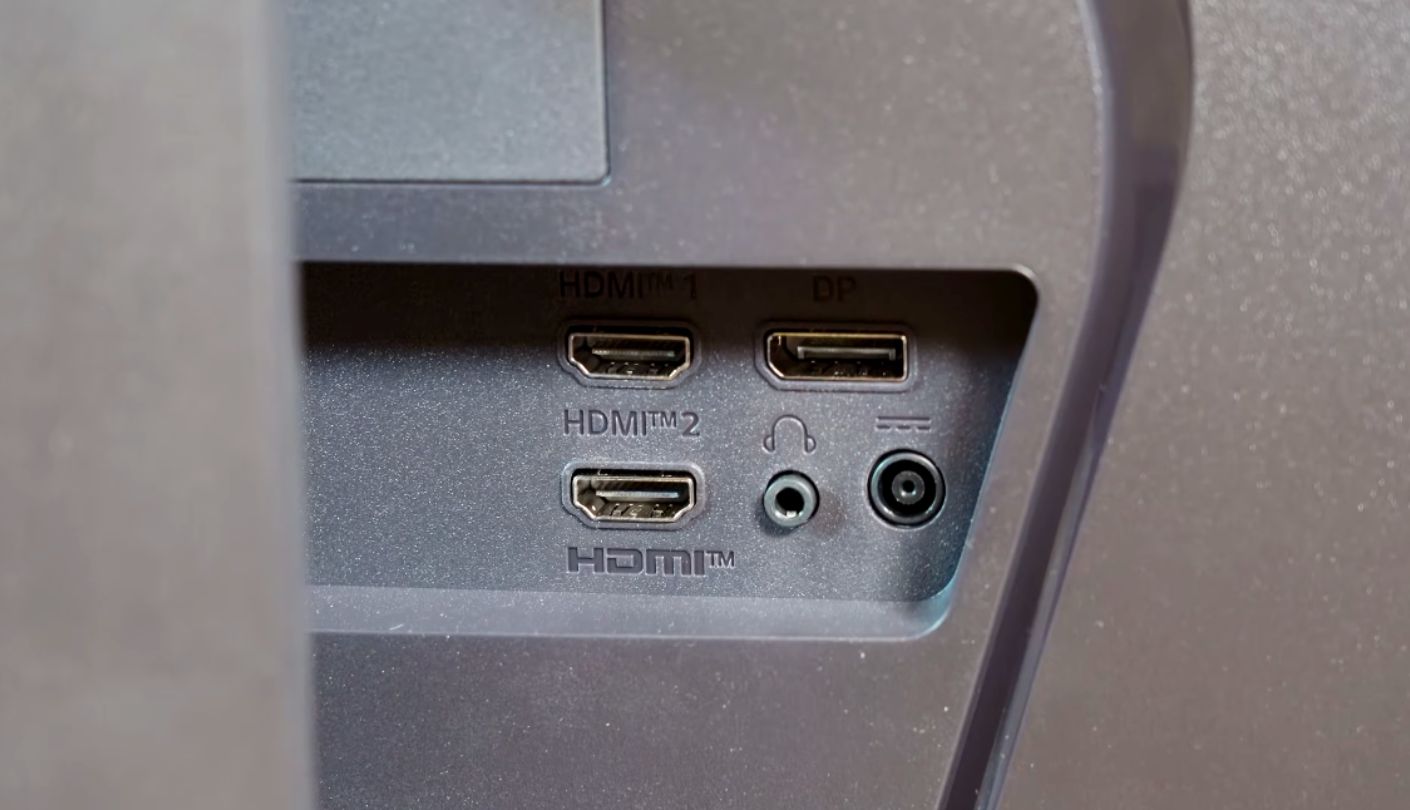
The 200Hz refresh rate makes it the fastest 1440p panel in this comparison, and it comes with FreeSync Premium and NVIDIA G-Sync compatibility rather than one or the other. Connections cover two HDMI 2.0 ports and one DisplayPort 1.4, so two consoles and a PC stay plugged in at once. The full 200Hz needs DisplayPort. Sync support covering both AMD and NVIDIA means the screen survives your next graphics card.
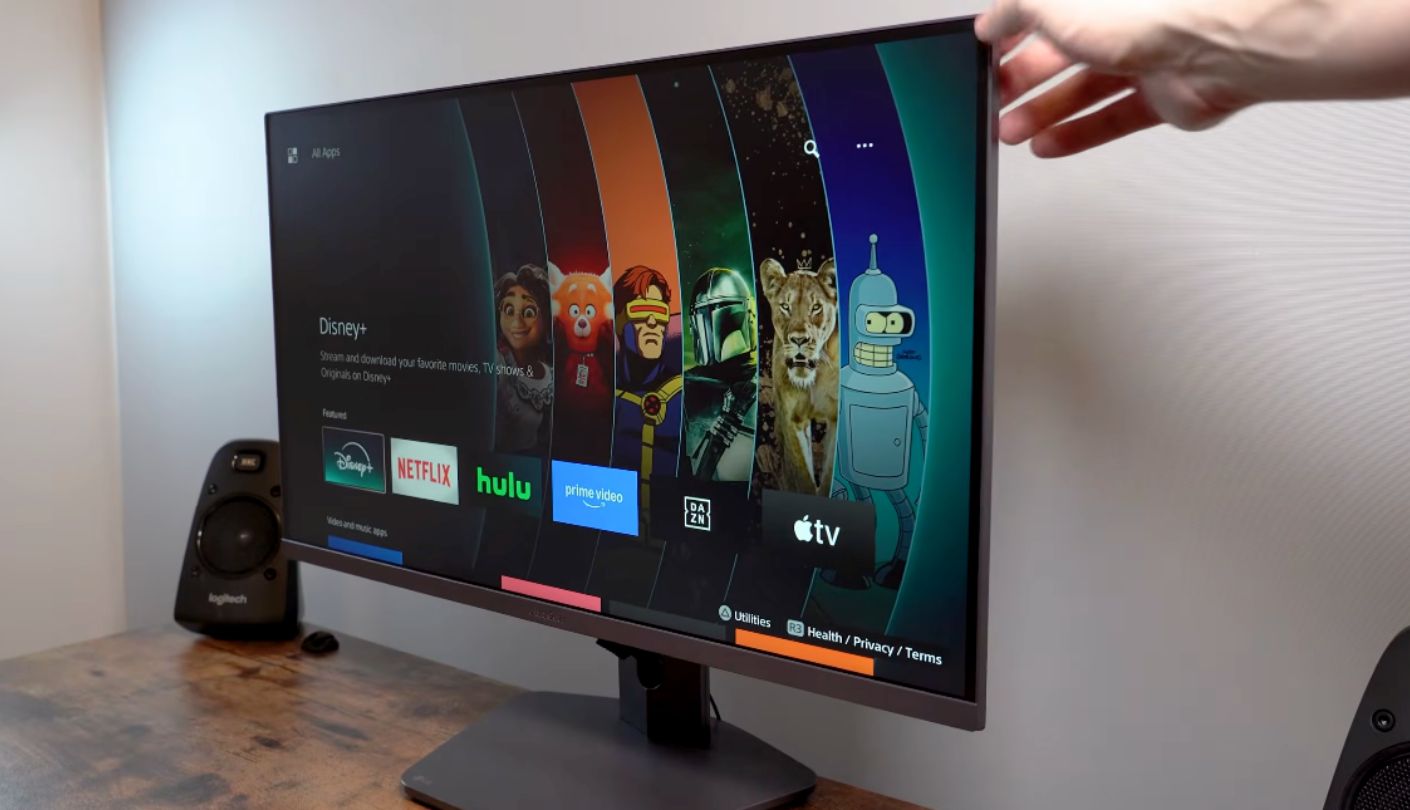
Ergonomics are where budget monitors usually get gutted, and this one survives intact. Height, tilt, swivel and a full 90-degree pivot into portrait, plus a 100 by 100mm VESA pattern for an arm. The competitive extras are here too, meaning Black Stabilizer, an on-screen crosshair and a live frame counter. The stand is the part worth paying for, because eye-level positioning decides whether a long evening ends with a sore neck rather than a good score.
What tips this to first place is that nothing about it needs a workaround. The Alienware below matches the panel class and adds a USB hub, the ASUS goes bigger, the VA screens go darker, and each of those choices asks you to give something up. This one asks for a DisplayPort cable and a graphics card that can feed 1440p, and that is the whole list.
Pros:
- 109 PPI Sharpness
- 200Hz On 1440p
- Height And Pivot
- FreeSync And G-Sync
- 400 Nit Panel
Cons:
- IPS Contrast Only
- No USB Ports
Summary: Buy this one if you want the fewest compromises and can feed it a proper graphics card. Dark-room players should weigh the contrast figure before anything else.
Alienware AW2725DM Review
Best Overall
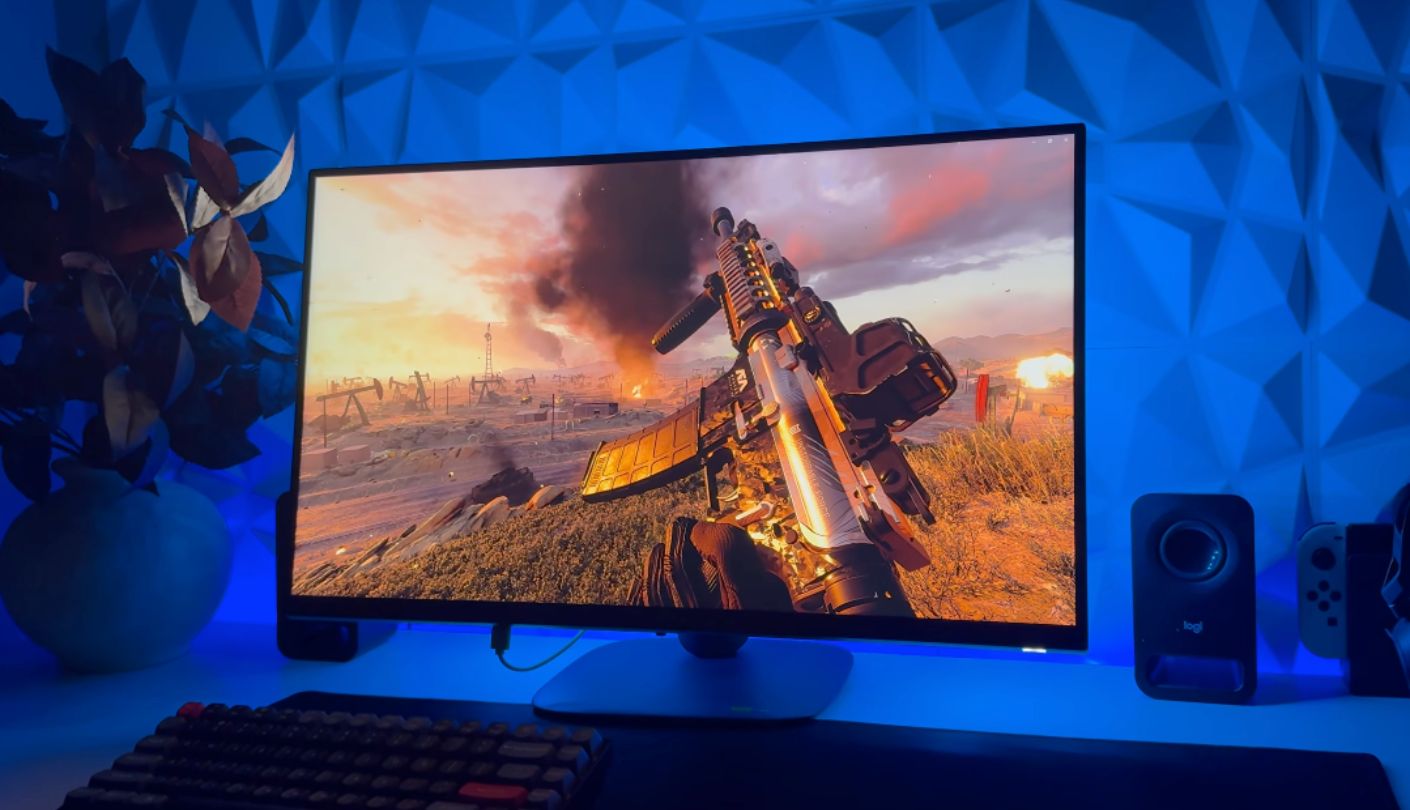
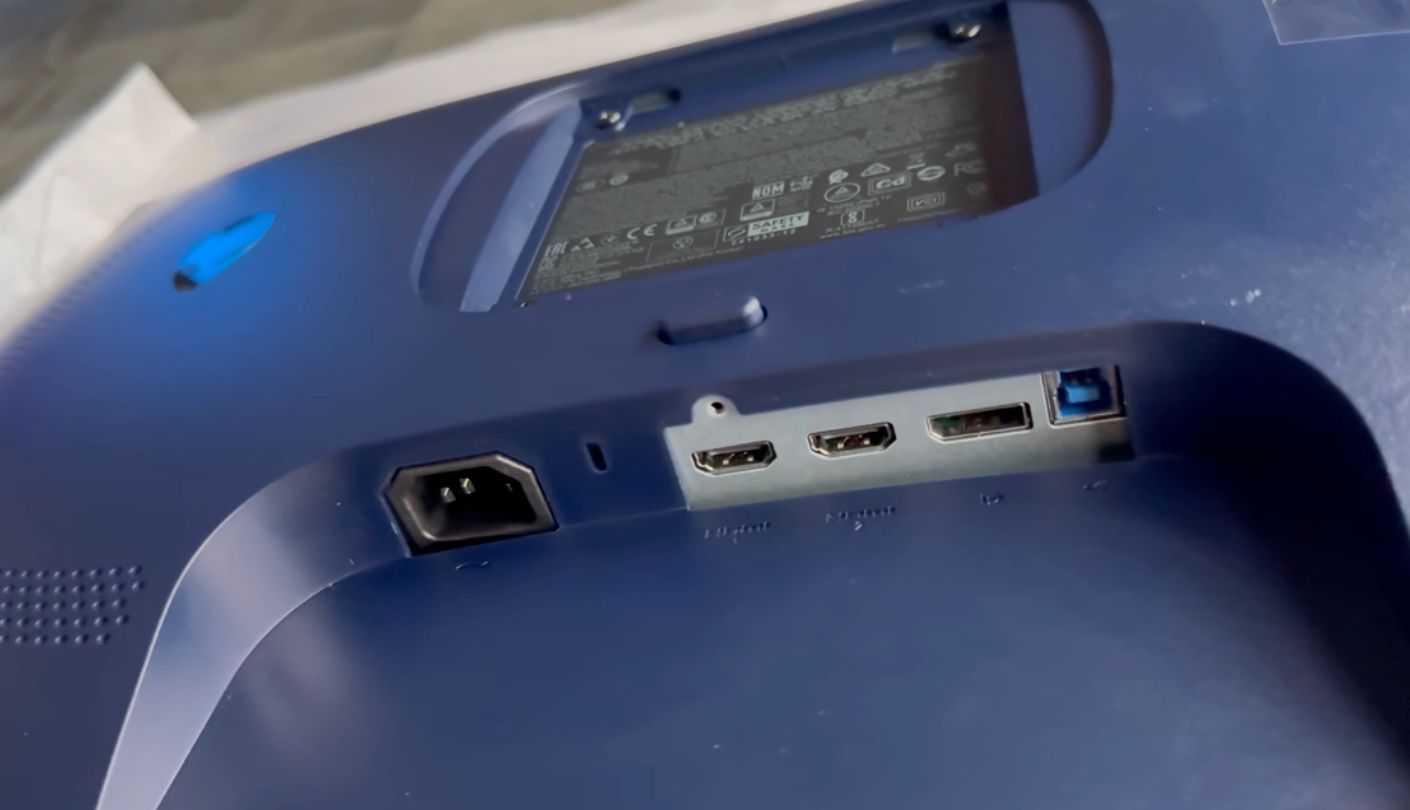
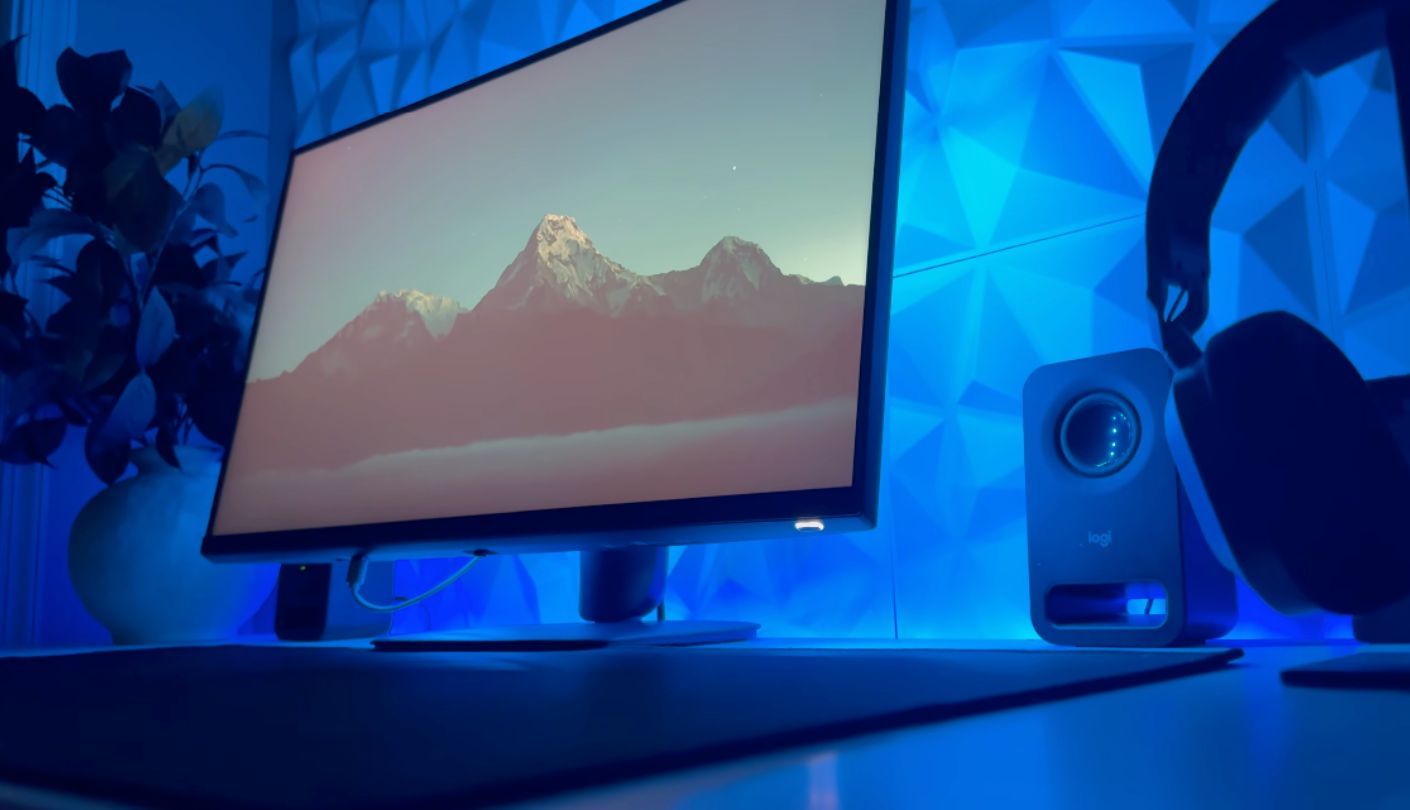
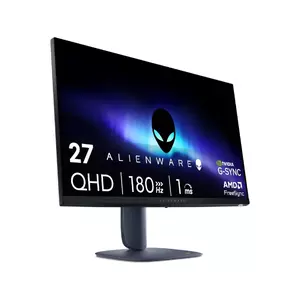
Put this next to the LG and the spec sheets nearly overlap. The Alienware AW2725DM is a 27-inch Fast IPS panel at 2560 by 1440, 109 PPI, 400 nits, DisplayHDR 400 and 1000 to 1 contrast. In other words, the same panel class, the same sharpness, the same brightness. The interesting part is where the two separate, because they separate in ways that decide who should buy which.
Alienware wins on colour and on connectivity. Coverage reaches 95% of DCI-P3 against LG's 99% sRGB figure, which is the wider gamut of the two, and there is a genuine USB hub on board with two downstream 5Gbps ports fed by an upstream cable. A keyboard and a headset dongle live on the monitor instead of behind the tower. There is also a console mode and hardware low blue light, meaning the reduction happens in the panel rather than through a yellow software filter.
Alienware loses on refresh rate and on HDMI behaviour. Peak is 180Hz against the LG's 200Hz, a gap you will never see. More usefully, Dell publishes the split clearly: DisplayPort 1.4 carries the full 180Hz, while the two HDMI ports top out at 1440p 144Hz. That is honest labelling of something most brands bury. For a console capped at 120Hz the point is academic, and for a second PC it is not.
The stand handles height, tilt, swivel and pivot, the coating is 3H anti-glare, and the build quality carries the design language of monitors costing several times as much. One omission worth flagging before you order: there is no headphone jack and no speakers, so console audio has to be solved elsewhere. The USB ports also sit awkwardly under the bezel, which is fine for a dongle you plug in once and irritating for anything you swap regularly.
Best overall goes here because the package is the most complete rather than the fastest on paper. The hub, the wider gamut, the console mode and the port labelling add up to a screen that behaves well with a PC and a console at the same time, which is how most people shopping at this level really live. Take the LG instead if the last 20Hz and the sharper sRGB tuning matter to you more than USB ports do.
Pros:
- 95% DCI-P3
- Two USB Ports
- Honest HDMI Labelling
- Dedicated Console Mode
- Full Stand Movement
Cons:
- 144Hz Over HDMI
- No Audio Output
Summary: A PC and a console sharing one desk is the situation this handles better than anything else in the group, and the USB hub tidies up what is left.
ASUS TUF Gaming VG32WQ3B Review
Biggest Screen
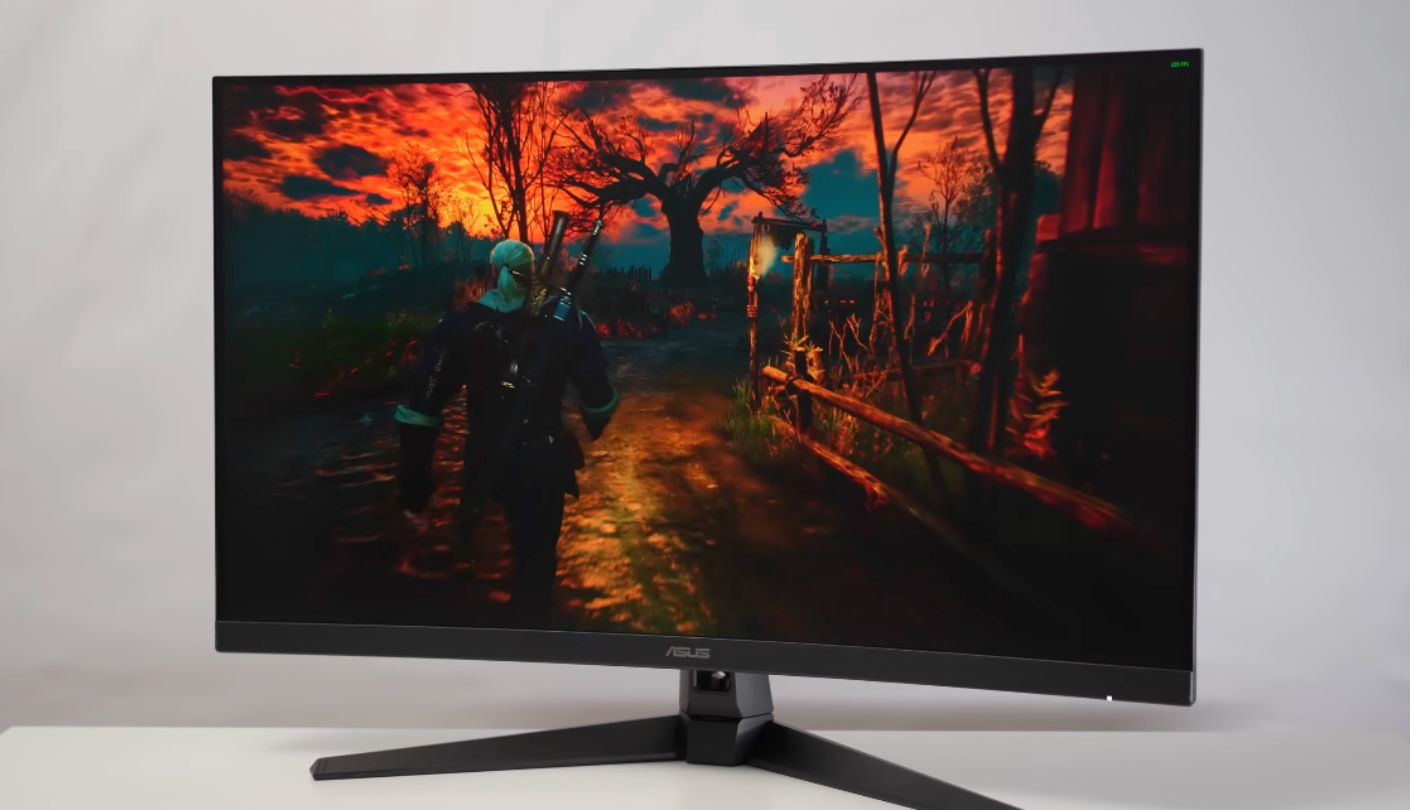
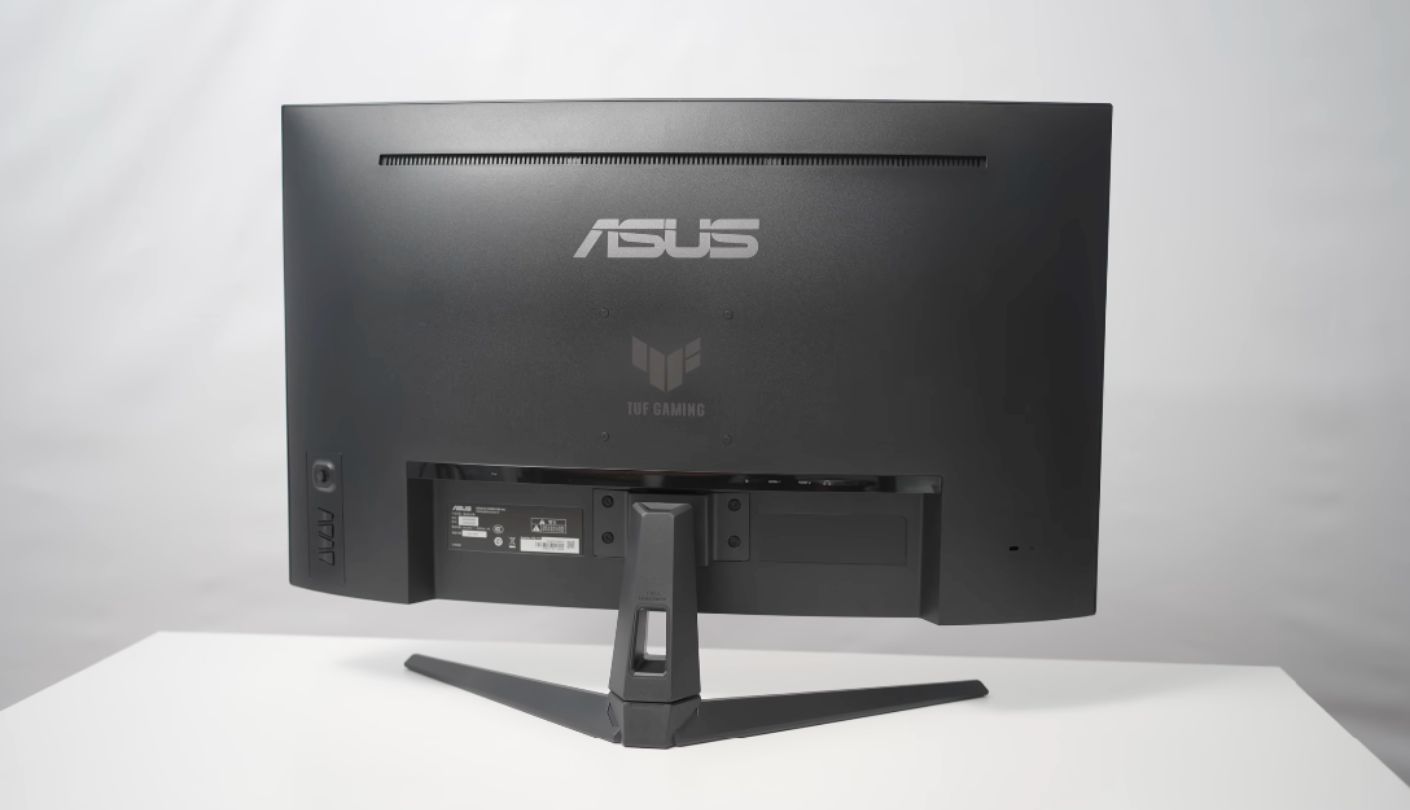
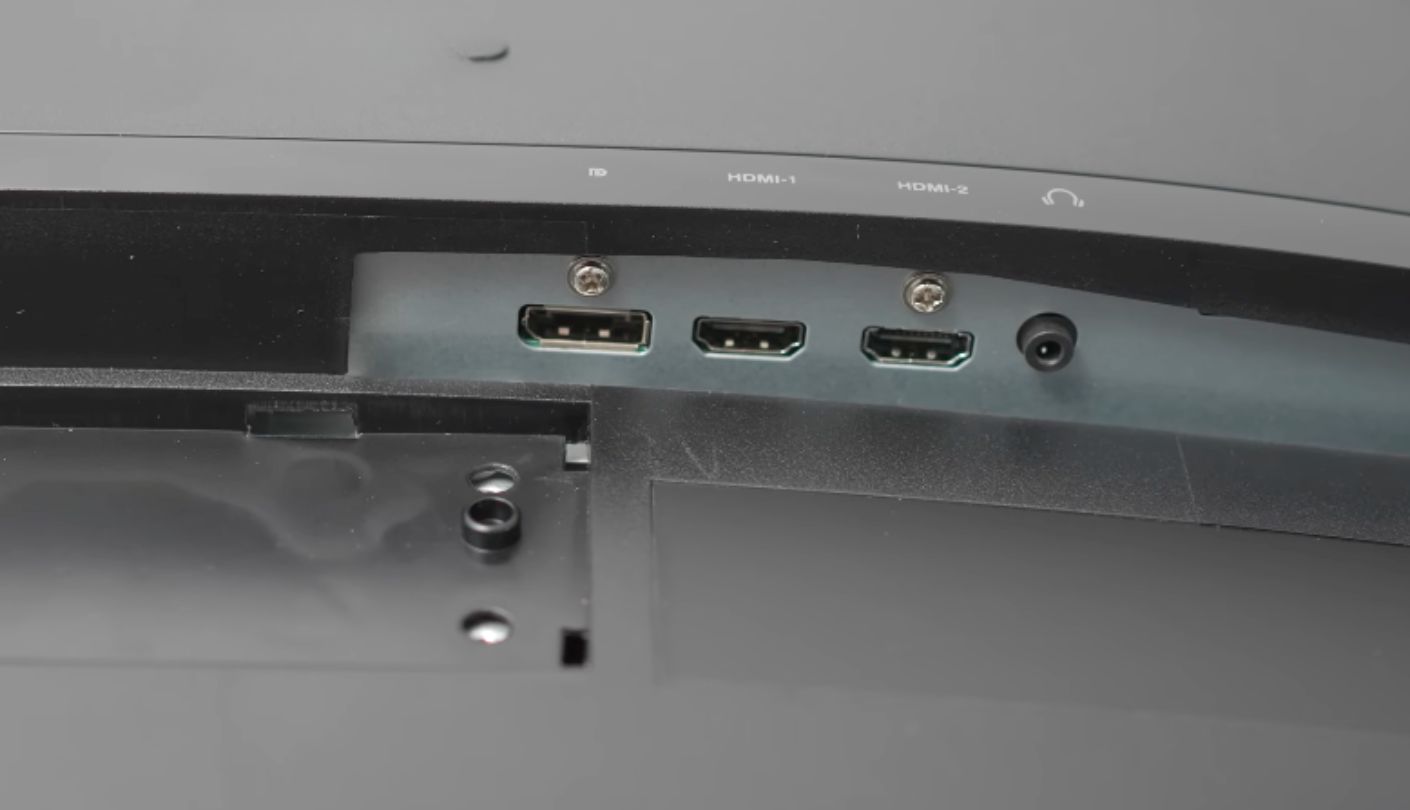
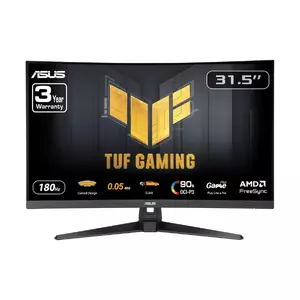
Sit two feet from a 31.5-inch screen and the edges stop being in your central vision. That is the sensation the ASUS TUF Gaming VG32WQ3B is selling, and the 1500R curve exists to pull those edges back toward your eyes so the whole panel sits at a similar distance. In a driving game or an open-world RPG the effect arrives immediately, and it makes a 27-inch panel feel small the moment you go back to one. Desk depth is the limiting factor rather than money.
The cost is written in one number. Spreading 2560 by 1440 across 31.5 inches gives 93 PPI instead of the 109 you get at 27 inches, so text is measurably softer and you will notice it in a browser before you notice it in a game. This is the central trade of the article made visible. A monitor that plays games in the evening and shows nothing else is exactly the case where 93 PPI costs you nothing.
Contrast is the compensation, and it is a serious one. The Fast VA panel is rated at 3500 to 1, the highest figure in the table above, so night scenes and dark corridors look properly black instead of washed grey. Colour runs to 90% DCI-P3, brightness sits at 300 nits, and the surface is anti-glare with a flicker-free backlight. Put this next to either IPS screen on a night level and the black depth is not a subtle difference.
Motion handling gets the usual ASUS attention, and the toolkit runs deeper than the outlay suggests. The panel runs 180Hz with a 1ms GtG rating and a 0.5ms minimum figure, Extreme Low Motion Blur strobes the backlight for sharper movement, and Shadow Boost lifts dark areas without blowing out the bright ones. FreeSync and VESA Adaptive-Sync are both supported through DisplayPort and HDMI, so tearing is handled whichever input you use.
Two practical notes. The HDMI 2.0 ports run 1440p at 144Hz while DisplayPort 1.4 carries the full 180Hz, the same split as the Alienware. There are no USB ports of any kind on the back, so peripherals go straight to the tower. Also worth knowing: the Amazon link for this entry carries another model's name in the web address, though the listing itself is the 31.5-inch curved VG32WQ3B.
Pros:
- 3500 To 1 Contrast
- 31.5-Inch Diagonal
- 1500R Curvature
- ELMB Strobing Mode
- 90% DCI-P3
Cons:
- 93 PPI Softness
- Zero USB Connectivity
Summary: Worth it for a pure gaming machine, and a poor choice for a screen that spends its day showing documents. Desk depth matters too, since 31.5 inches at close range means turning your head.
Samsung 27" Odyssey G3 G30D Review
Comfort Features
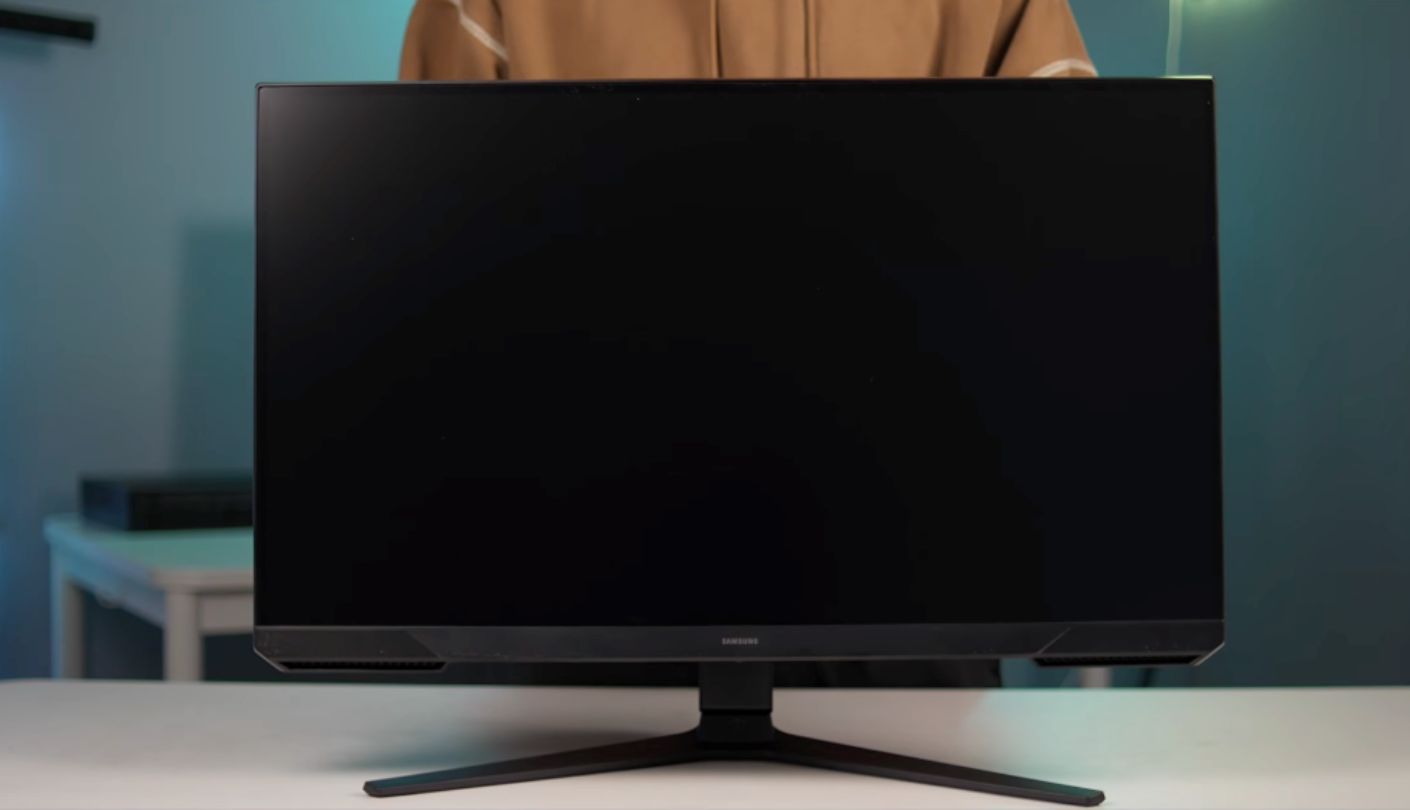
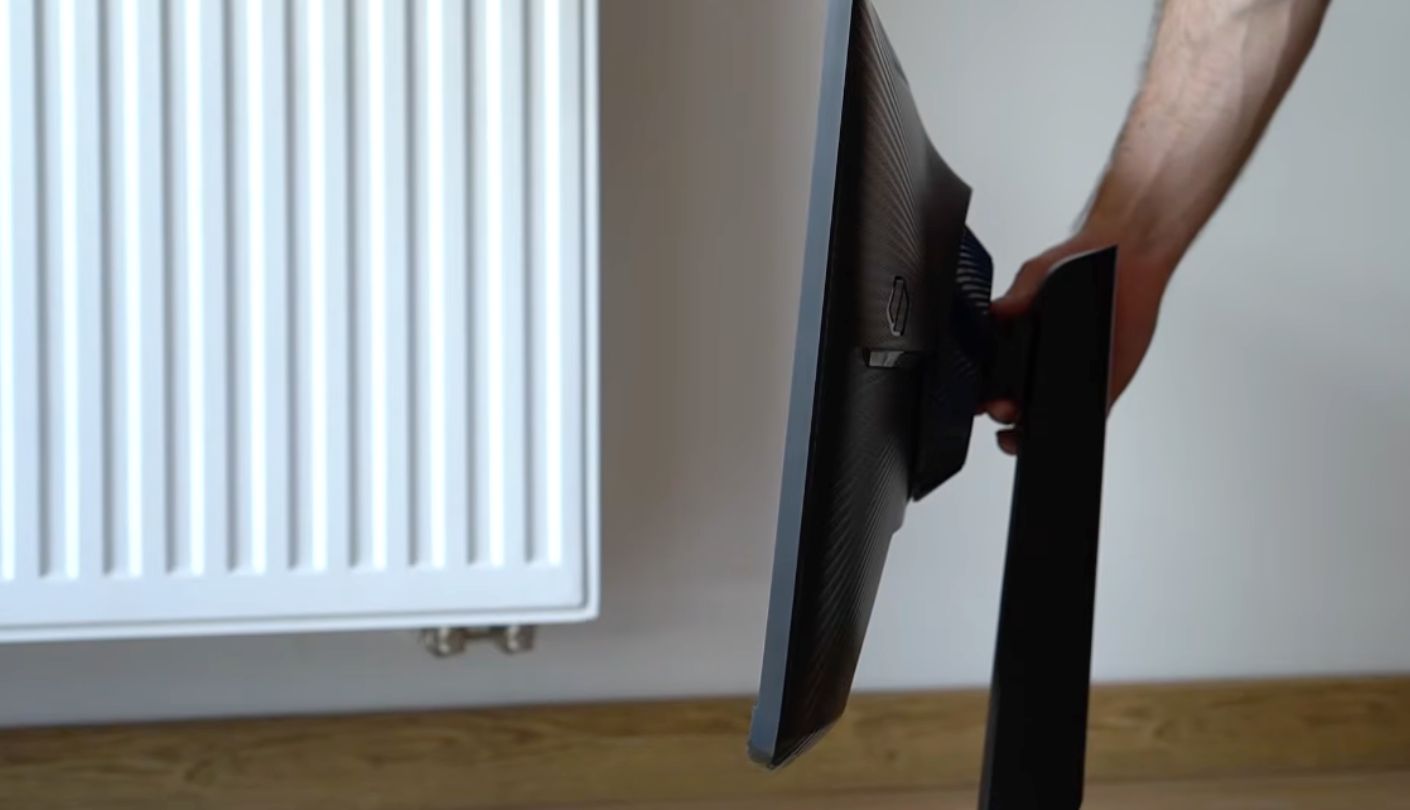
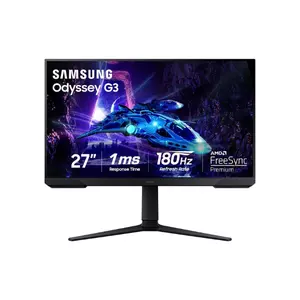
The cheapest screen here spends its budget somewhere unexpected. Instead of pixels, the Samsung Odyssey G3 G30D puts money into a VA panel with 3000 to 1 contrast and a stand with 120mm of height travel, swivel, tilt and full pivot. Those are the first two things budget monitors normally cut, and cutting them is exactly what makes a cheap screen feel cheap after a month.
Resolution is where it economises. 1920 by 1080 on a 27-inch panel means 82 PPI, and at normal desk distance you can see the pixel structure in text if you look for it. In games it matters far less, and there is a real upside: a modest graphics card can drive 1080p at 180Hz all day, which is not true of the 1440p screens above.
The picture itself is decent for what it is. That 3000 to 1 contrast gives dark scenes weight that no IPS panel here can match, colour coverage reaches 95% sRGB, and true 8-bit depth means 16.7 million colours without frame rate control tricks. Brightness is the weak point at 250 nits, the lowest figure of the five, so a sunlit room is not its natural habitat. In a curtained evening room it is perfectly adequate.
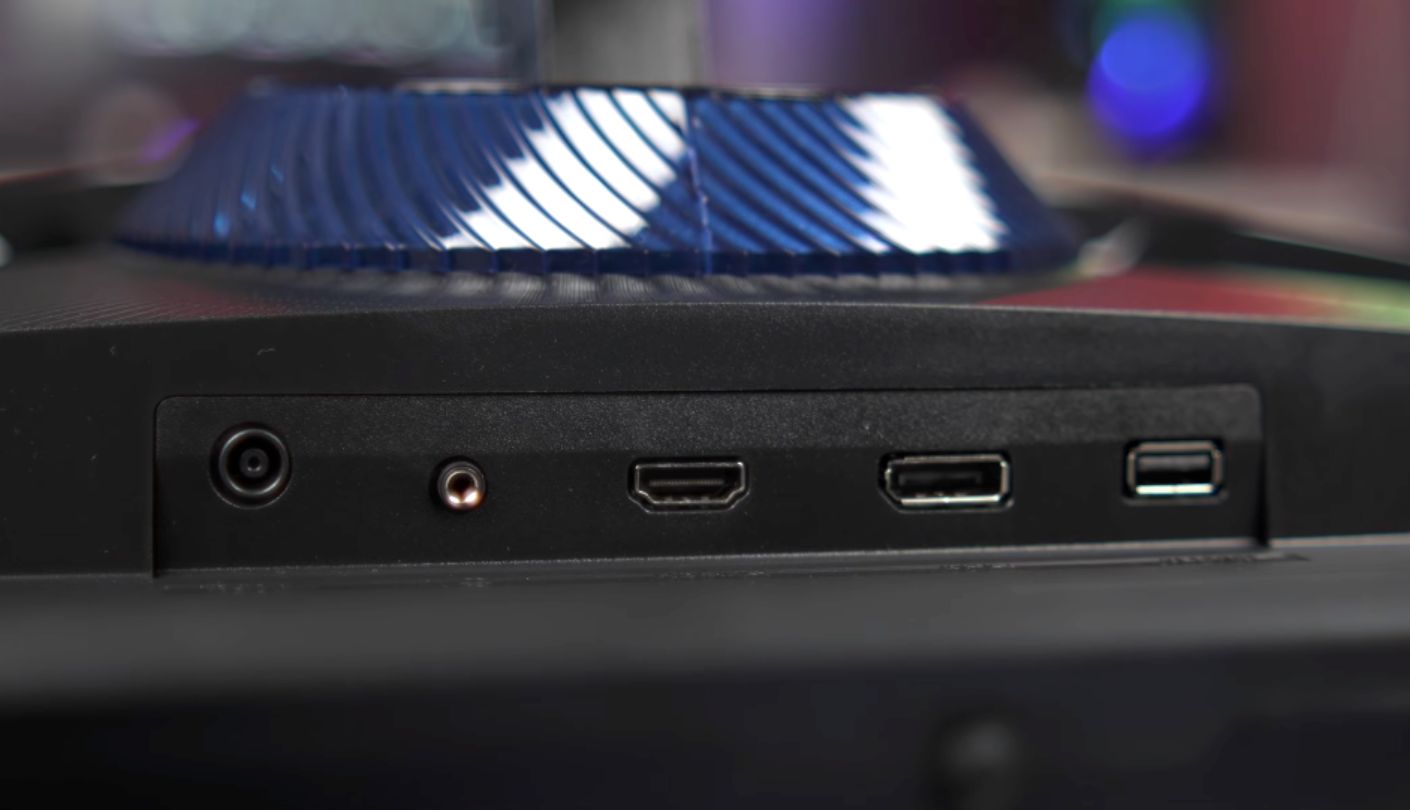
The comfort feature set explains the badge above, and it runs broader than most rivals bother with. Eye Saver Mode cuts blue light output, the backlight is flicker-free, Black Equalizer lifts shadow detail without washing the picture out, and Virtual Aim Point adds a crosshair. Connections cover one HDMI 2.0, one DisplayPort 1.4 and a headphone jack, with standard 100 by 100mm VESA mounting. Two inputs is tight for a console and a PC together, and there is no USB hub to make up for it.
Live with one for a month and the stand turns out to matter more than the pixel count. Height adjustment is the feature you use daily and never think about. Getting the top edge to eye level takes seconds rather than a stack of books, and that changes how a long session feels far more than 82 PPI ruins it. The warranty runs one year, the shortest in the group, and there are no speakers on board.
Pros:
- 3000 To 1 Contrast
- 120mm Height Travel
- Easy GPU Demands
- Eye Saver Mode
- Flicker-Free Backlight
Cons:
- 82 PPI Resolution
- 250 Nit Ceiling
Summary: The right call for an older graphics card, since 1080p at 180Hz is achievable where 1440p at the same rate is not. The stand is the bonus nobody expects at this level.
AOC 27G4H Review
Pixel Warranty
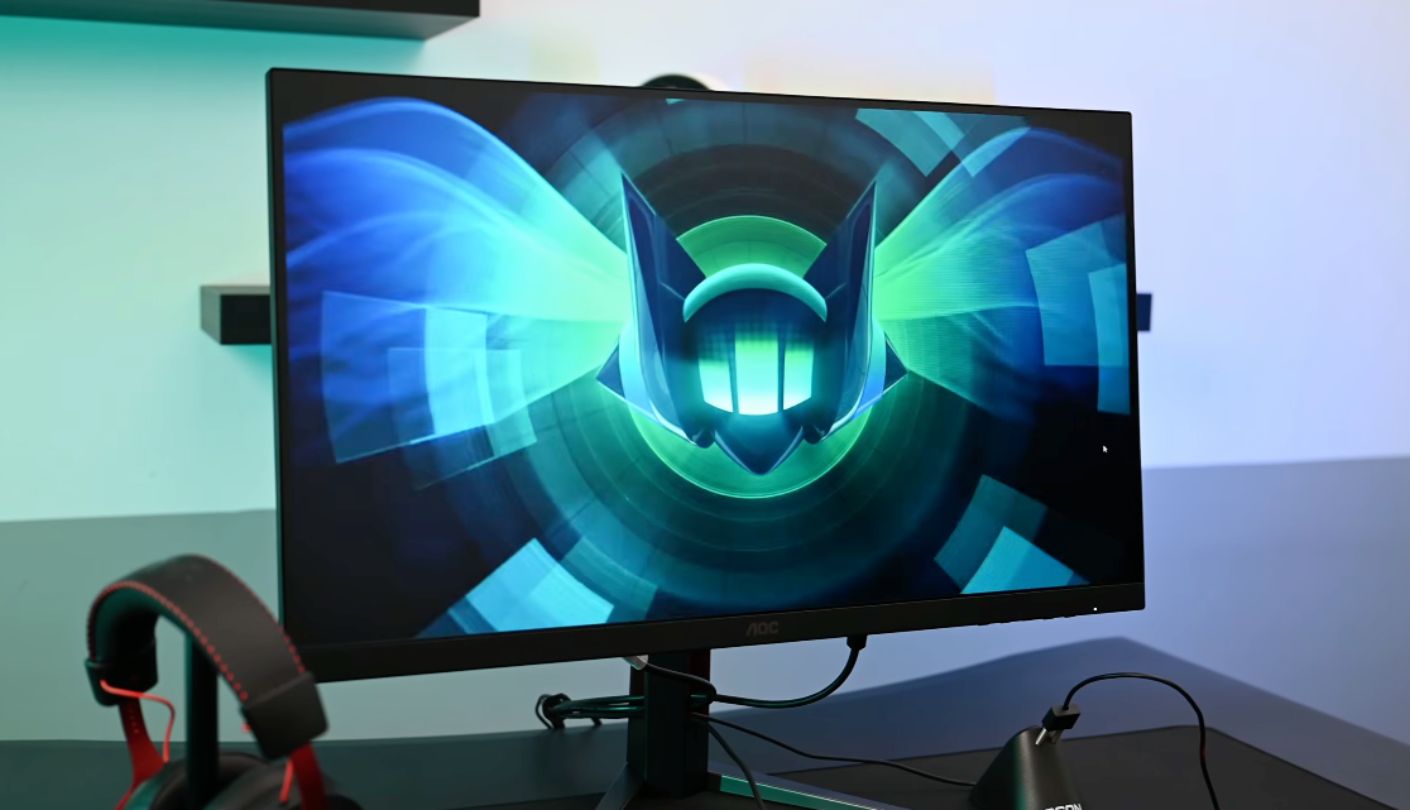
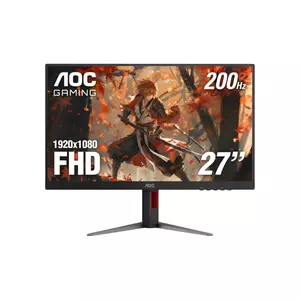
What happens if your new monitor arrives with a stuck pixel? On most screens at this price you argue with a returns department about how many dead subpixels count as a defect. The AOC 27G4H ships with a three-year zero-bright-dot guarantee, meaning a single bright stuck pixel entitles you to a replacement rather than a debate. No rival in this roundup offers the same, and the panel lottery is a genuine risk at any price.
The panel underneath is the speed specialist of the group, and it gets there by spending nothing on resolution. A Fast IPS running 1920 by 1080 at 200Hz, matching the LG for refresh rate while asking a fraction of the graphics power, because 1080p at 200 frames is achievable on hardware that would struggle at 1440p. AOC quotes 0.3ms MPRT, which as the guide above explains measures something different from the GtG figures quoted elsewhere and should not be read as three times faster than a 1ms rating.
Colour and brightness land where you would expect. 300 nits, 1000 to 1 static contrast, HDR10 support and roughly 120% sRGB coverage, generous at this level and tuned for punchy game colour rather than accuracy. Anyone editing photos will want to calibrate it or buy something else. Pixel density is 82 PPI, identical to the Samsung, with the same consequence for text sharpness and the same benefit for frame rates.
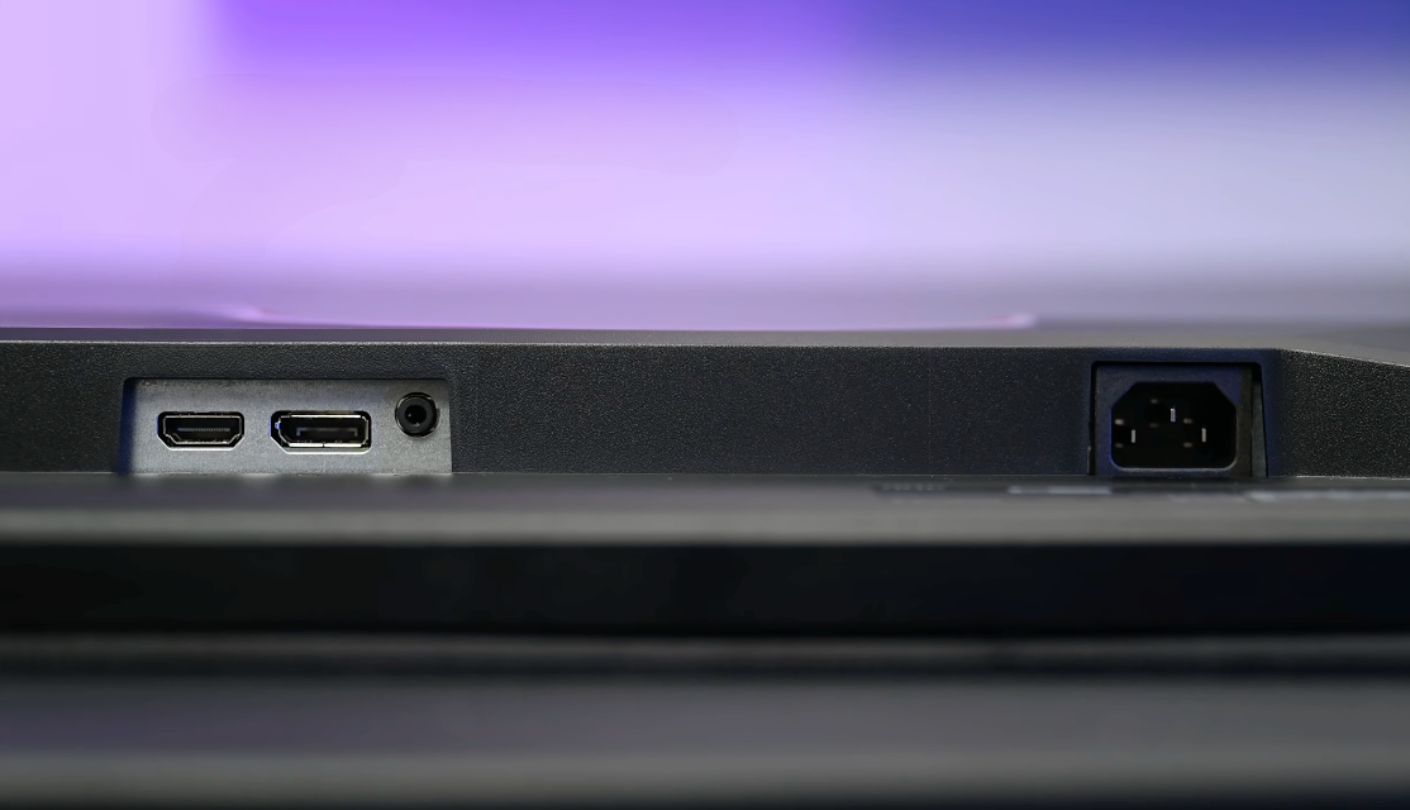
Connectivity is the one place it gets tight. There is a single HDMI 2.0 port, one DisplayPort 1.4 and a headphone jack, and one HDMI input means a PC on DisplayPort plus one console fills the monitor completely. Add a second console and you are swapping cables behind the desk, which gets old within a week. The stand covers height, swivel, tilt and pivot, so nothing was cut there to fund the panel.
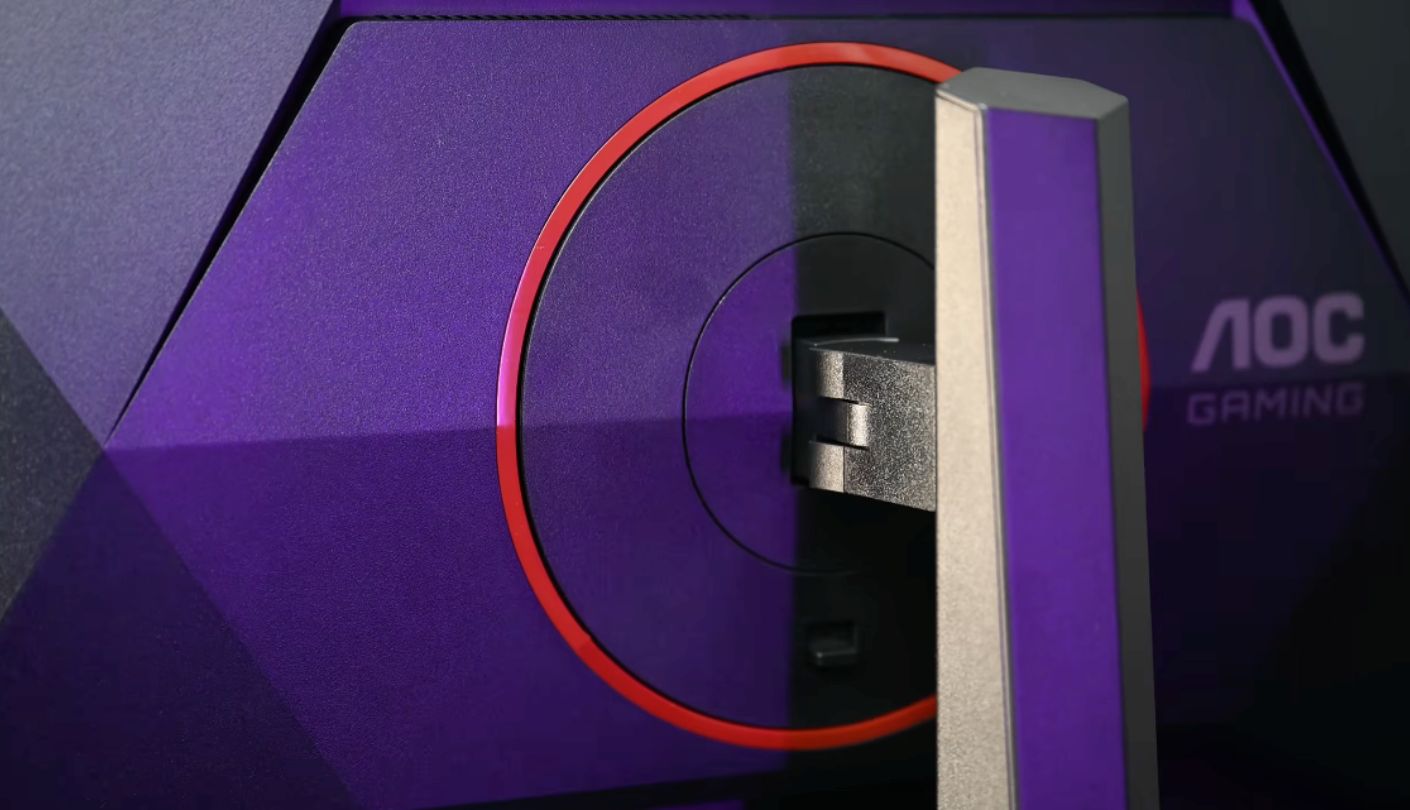
NVIDIA G-Sync Compatible certification is included, console output runs up to 120Hz, and the gaming extras cover a selectable crosshair and a low input lag mode. The stand takes height, swivel, tilt and pivot, which is more than several pricier screens manage, and the panel mounts on a standard VESA pattern if you prefer an arm. This is the screen for someone whose priority is frames per second and whose graphics card is a few years old, wrapped in the best panel guarantee of the five.
Pros:
- 200Hz At 1080p
- Three-Year Dot Cover
- 120% sRGB Gamut
- G-Sync Compatible
- Four-Way Stand
Cons:
- Single HDMI Input
- Softest Text Here
Summary: Competitive shooters on modest hardware, and the only screen in the group that guarantees you against a bright stuck pixel. One HDMI port is the detail that will decide it for console owners.
144Hz Gaming Monitors: FAQ
Do I really need more than 144Hz?
Almost nobody does, and the honest answer annoys marketing departments. The jump from 60Hz to 144Hz is huge, and everything above returns less and less, to the point where only ranked competitive players tend to notice. Take the higher number when it arrives free, as it now usually does. Never pay for it at the expense of resolution or contrast, because those two you notice every day.
Can my graphics card handle 1440p at 180Hz?
Sustaining 180 frames at 1440p in demanding titles needs a fairly current mid-range card or better. Esports titles hit those numbers on hardware several generations old, which is exactly why the 1080p entries suit that audience so well. Variable refresh rate covers the gap in either case, so a card producing 90 frames still looks smooth. Match the resolution to the card you own rather than the one you plan to buy.
Is 27 inches too big for 1080p?
For gaming it is fine. For text it is noticeably soft, and that split is the whole answer. At 82 PPI the pixel grid shows in small fonts at normal viewing distance, which bothers some people enormously and others not at all. Sitting further back helps more than any setting does. If the screen also handles work or study, the 1440p options are the better long-term buy, since monitors routinely outlive two graphics cards.
IPS or VA on this budget?
VA for dark rooms and single-player games, IPS for shared desks and daylight. The contrast gap is large, three times better on the VA panels, and it announces itself the moment a game goes underground or the lights come down. IPS gives you better viewing angles, generally faster dark-scene transitions and more consistent colour off-centre. Neither choice is wrong. The room you play in decides this more than the brand on the bezel does, so think about your lighting before your logo preference.
Will these run at full speed on a PS5 or Xbox?
Not quite. Current consoles cap at 120Hz, so the extra headroom goes unused, and the 1440p screens limit HDMI to 144Hz anyway. Everything still works, it just means the headline number belongs to your PC rather than your console. Look for a console or auto-source switching mode if you move between devices often, since hunting through an input menu with a rear joystick gets old fast.
Do I need to buy a DisplayPort cable separately?
Check the box contents, because it varies and it matters. DisplayPort is the only connection carrying the advertised refresh rate on several of these screens, so an HDMI-only setup leaves performance on the table before you have played anything. Any DisplayPort 1.4 lead does the job, and a certified one avoids the flickering that cheap unbranded cables sometimes cause at high refresh rates. Confirm your graphics card has a spare DisplayPort output before ordering, as compact builds and nearly all laptops come up short here.
Is HDR worth enabling on these?
Rarely, and the reason is structural rather than a matter of taste. DisplayHDR 400 sets a low bar, none of these panels has local dimming, and without dimming zones an HDR signal looks flat or oddly bright rather than dramatic. Try it in one game, then switch it off if you are unconvinced, which most people are. The VA panels get closer to the HDR look on raw contrast alone, with no badge involved.
How do I stop ghosting and smearing?
Overdrive settings, usually labelled Response Time or Trace Free in the menu. The middle setting suits most monitors, because maximum overdrive adds inverse ghosting, which shows as bright trails behind moving objects and looks worse than the blur it removes. Test with a fast panning scene and step down a level the moment you see haloing around moving edges. Dark-scene smearing on VA panels is a trait of the technology rather than a setting, so no menu will fix it.
What Your Money Is Really Buying
Speed stopped being the differentiator in this price band, and that is good news for anyone shopping now. Every screen in this article clears the number in the headline, several by a wide margin, and none charges a premium for doing so. The decision moved somewhere more interesting: whether you want sharper pixels, a bigger canvas or deeper blacks, because at this budget you get to pick two of the three at most.
Answer that honestly and the shortlist writes itself in about a minute. A screen that shows spreadsheets by day wants 109 PPI, a dark-room single-player machine wants VA contrast, and an older graphics card wants 1080p so it can actually reach the frame rates you paid for. The refresh number on the box is the last thing worth looking at, which would have sounded absurd five years ago and is simply how this category works now.

Meet James, our go-to tech guru and seasoned reviewer. His sharp attention to detail and love for gadgets drive his deep dives into the newest tech waves. James's insightful analysis and real zest for breakthroughs have earned him a solid reputation in the tech world.


