Best USB-C Hub for Mac and Windows
A laptop with two USB-C ports and no headphone jack is not a creative choice - it's a market reality that the accessory industry has spent a decade solving. USB-C hubs have matured significantly: the 4K@30Hz dongles that plagued early MacBook users have given way to hubs that push 4K@60Hz, transfer data at 10Gbps, negotiate 140W of pass-through charging, and fit in a shirt pocket. The problem is that five nearly identical-looking products can perform very differently, and the spec sheet is only useful once you know which numbers actually matter for the work you do.
These five hubs cover the full range of valid trade-offs: the Anker 555 is a proven 8-port workhorse with a strong track record on both Mac and Windows, the Hiearcool 7-in-1 makes the case that budget does not mean unreliable, the Satechi Multiport V2 bets on premium aluminum and a visual match for Apple hardware, the UGREEN Revodok Pro brings 9 ports and a screen lock button that becomes indispensable in shared offices, and the Plugable USBC-9IN1E stands out on one metric no other hub here can match: 140W of PD 3.1 pass-through charging. I've run each in daily use across a MacBook Air M2 and a Dell XPS 15 to find where they earn their price.
If you're in a hurry, here are my top two picks for USB-C hubs for Mac and Windows:
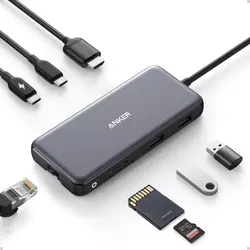
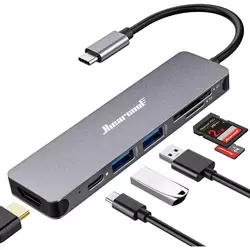
Table of Contents:
- Best USB-C Hubs for Mac and Windows: Buying Guide
- Top 5 USB-C Hubs for Mac and Windows in 2026
- USB-C Hub Comparison Table
- Anker 555 USB-C Hub 8-in-1
- Hiearcool 7-in-1 USB-C Hub
- Satechi USB-C Multiport Adapter V2
- UGREEN Revodok Pro 9-in-1
- Plugable USBC-9IN1E 9-in-1
- USB-C Hub FAQ
Best USB-C Hubs for Mac and Windows: Buying Guide

Port Count and Port Mix: What Actually Matters
Hub manufacturers count ports differently, and the number in the product name is rarely the number you'll use simultaneously at full speed. A "9-in-1" that counts SD and microSD as two ports is not the same product as one packing two 10Gbps USB-A ports, two USB-C data ports, HDMI, Ethernet, and an SD slot. What I look for first is the working port mix - how many ports remain free when the PD input is occupied by a charger and the HDMI is running a monitor. For most laptop users, that means at least two USB-A ports and one USB-C data port in daily use.
Ethernet is the port most buyers skip in the spec description and regret three months later. Hotel networks, conference rooms, and offices with concrete walls are all environments where WiFi drops at the moments it matters most. Any hub in this roundup that includes Gigabit Ethernet is a meaningfully more useful travel companion than one that doesn't.
Card reader placement matters more than most reviews acknowledge. SD and microSD slots clustered on the same face as the USB-A ports create genuine friction: inserting a card while a drive is connected means jostling one to reach the other. Hubs that separate the card readers to a different face handle the daily card-swap workflow more cleanly - a small detail with a real quality-of-life payoff for photographers and videographers.
Power Delivery Pass-Through: The Wattage Math
Every hub in this roundup supports USB-C Power Delivery pass-through, so you can charge your laptop through the hub rather than occupying a separate port. The ceiling varies significantly: the Hiearcool passes 100W, the Anker 555 and UGREEN pass 85W from a 100W input (the hub consumes ~15W for its own operation), and the Plugable supports PD 3.1, accepting 140W and passing 125W to the host. For a MacBook Air, 85W is more than enough. For a MacBook Pro 16-inch or Framework 16 that needs 140W under sustained load, only the Plugable covers it without the laptop slowly losing charge.
The charger paired with the hub matters as much as the hub's rated input. A 65W adapter into a 100W-rated hub passes roughly 50W to the laptop after hub overhead - enough for light tasks but not for recovering battery during heavy rendering. I test PD behavior by running a CPU stress test alongside a file transfer while the hub charges, which shows whether a hub throttles under combined load. Most hubs here hold stable with a properly rated charger attached.
Data Transfer Speeds: 5Gbps vs 10Gbps
USB 3.0 and 3.2 Gen 1 ports run at 5Gbps. USB 3.2 Gen 2 runs at 10Gbps. For everyday tasks - mounting a backup drive, importing photos, connecting a USB stick - 5Gbps is sufficient. For large video project folders, the gap is real: a 50GB folder transfers in roughly three minutes at 5Gbps and under ninety seconds at 10Gbps with a fast SSD. Anyone moving large media files regularly will feel the difference between a hub that specs 10Gbps and one that tops out at 5Gbps across all data ports.
Bus bandwidth sharing is the detail manufacturers rarely disclose. When an SSD, a 4K display, and a card reader all run simultaneously, they share the same upstream USB-C bandwidth. A hub advertising 10Gbps per port does not guarantee 10Gbps on all ports at once. For most users this never surfaces. For video editors ingesting to an SSD while scrubbing 4K footage, it does.
The practical test is benchmarking a USB-C SSD while simultaneously driving 4K output through the HDMI port. Most hubs in this group show 15-30% speed reduction under that combined load - normal and acceptable degradation. Hubs that drop 50% or more under dual use will frustrate media-heavy workflows. I run this test on every hub before recommending it for creative work, and the results are reflected in each review below.
Display Output: 4K@30Hz vs 4K@60Hz
The resolution number matters less than the refresh rate. A 4K@30Hz connection makes scrolling, cursor movement, and window dragging look choppy compared to 60Hz - the difference is immediately visible and remains irritating across a full workday. Four of the five hubs here support 4K@60Hz with a DP 1.4 host - the Hiearcool caps at 4K@30Hz regardless of host. All display limitations come from upstream bandwidth: 4K@60Hz requires DisplayPort 1.4 support from the laptop's USB-C port, while 4K@30Hz works with the older DP 1.2 standard.
All five hubs support one external display. None manage dual extended screens on an Apple Silicon Mac without DisplayLink, because Apple limits base M-series chips to a single external display via Alt Mode. On Windows the restriction does not apply, and additional monitors can be driven through MST where hub and host support it. Mac users researching hubs expecting to run two monitors from a single USB-C port need this information before buying - it accounts for a significant share of hub returns.
Build Quality, Compatibility, and Carrying Format
All five hubs here use an attached cable, which removes one thing to lose but creates one vulnerability: a frayed or weakened connector makes the hub unusable. The Anker 555 and Plugable both use a 7.48-inch cable - long enough to reach a port on the back edge of a laptop without the hub dangling. Shorter cables around 4-5 inches work well when the hub rests flat beside the laptop, a cleaner arrangement that requires a flat surface. Cable length is worth checking against your specific laptop's port placement before buying.
Heat management is the build quality variable that only surfaces after months of use. Hubs under sustained load - charging a laptop while transferring data and driving a display - generate real heat. Aluminum housings dissipate it passively across the chassis. Plastic housings trap it, raising internal component temperatures over time. Long-term reliability differences between aluminum and plastic hubs are real and well-documented across user reports spanning two to five years.
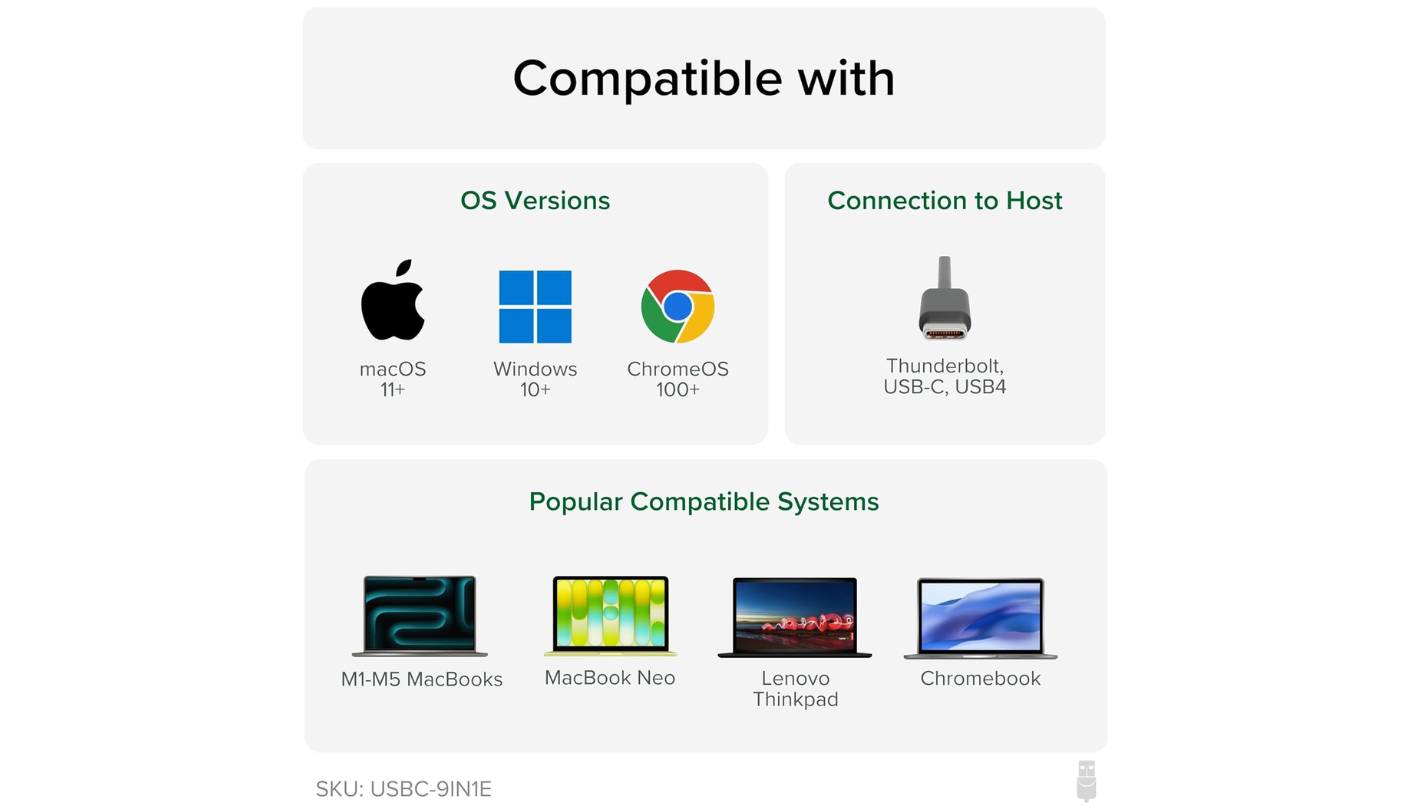
M1 through M5 chips support DP Alt Mode natively, so most USB-C hubs work without drivers for display, USB peripherals, and Ethernet on Mac. Windows compatibility is broader - nearly every modern USB-C port supports Alt Mode and Power Delivery. Chromebooks are the exception: not all Chrome OS devices support DP Alt Mode, and Ethernet sometimes requires a manual network entry before the connection activates. I verify compatibility with both macOS and Windows on every hub in this group.
Top 5 USB-C Hubs for Mac and Windows in 2026
Each hub was tested across a MacBook Air M2 and a Dell XPS 15 - running external display output, simultaneous file transfers, and PD charging under load - to separate spec sheet claims from actual port behavior.
- 10Gbps all data ports
- 4K@60Hz HDMI output
- 85W pass-through charging
- Gigabit Ethernet included
- 7.48-inch attached cable
- 100W full pass-through
- 2.4 oz travel weight
- Plug-and-play operation
- Multiple color options
- SD + microSD readers
- Premium aluminum construction
- 4K@60Hz stable output
- Three USB-A ports
- Proven 5+ year durability
- Mac colorway matching
- Hardware screen lock button
- Two 10Gbps USB-C data ports
- 9-port configuration
- 4K@60Hz HDMI output
- M1-M5 Mac tested
- 125W PD 3.1 charging
- UHS-II microSD reader
- 4K@60Hz HDR HDMI
- USB 2.0 dedicated input port
- 2-year US-backed warranty
USB-C Hub Comparison Table
The specifications with the strongest correlation to real-world daily performance, side by side:
| Specification | Anker 555 | Hiearcool 7-in-1 | Satechi V2 | UGREEN Revodok Pro | Plugable 9IN1E |
| Port Count | 8-in-1 | 7-in-1 | 8-in-1 | 9-in-1 | 9-in-1 |
| HDMI Output | 4K@60Hz (DP 1.4) / 4K@30Hz (DP 1.2) | 4K@30Hz | 4K@60Hz | 4K@60Hz (DP 1.4) | 4K@60Hz HDR |
| USB-A Ports | 2x 10Gbps (3.2 Gen 2) | 2x 5Gbps (3.0) | 3x 5Gbps (3.1 Gen 1) | 1x 10Gbps + 1x 5Gbps | 2x 10Gbps + 1x USB 2.0 |
| USB-C Data Port | 1x 10Gbps | No | No | 2x 10Gbps | 1x 10Gbps |
| Power Delivery | 85W (100W input) | 100W passthrough | 60W passthrough | 85W (100W input) | 125W (140W input, PD 3.1) |
| Gigabit Ethernet | Yes (1Gbps) | No | Yes (1Gbps) | Yes (1Gbps) | Yes (1Gbps) |
| Card Readers | SD + microSD | SD + TF (microSD) | SD + microSD | SD + TF (microSD) | SD + microSD (UHS-II) |
| Attached Cable | 7.48 in | ~4.7 in | ~4.7 in | ~6 in | 7.48 in |
| Weight | 4.4 oz | 2.4 oz | ~3.8 oz | ~3.5 oz | ~4 oz |
| Housing | Aluminum | Aluminum alloy | Aluminum | Aluminum alloy | Aluminum alloy |
| OS Compatibility | macOS 12+, Win 10/11, ChromeOS | macOS, Windows, ChromeOS | macOS, Windows, iPad | macOS M1-M5, Windows, iOS | macOS, Windows, ChromeOS, USB4/TB |
| Warranty | 18 months | 12 months | 12 months | 12 months | 24 months |
HDMI refresh rate, USB-A data speed, and pass-through wattage are the three specs with the strongest correlation to daily performance. Everything else is secondary.
Anker 555 USB-C Hub 8-in-1 Review
Editor's Choice
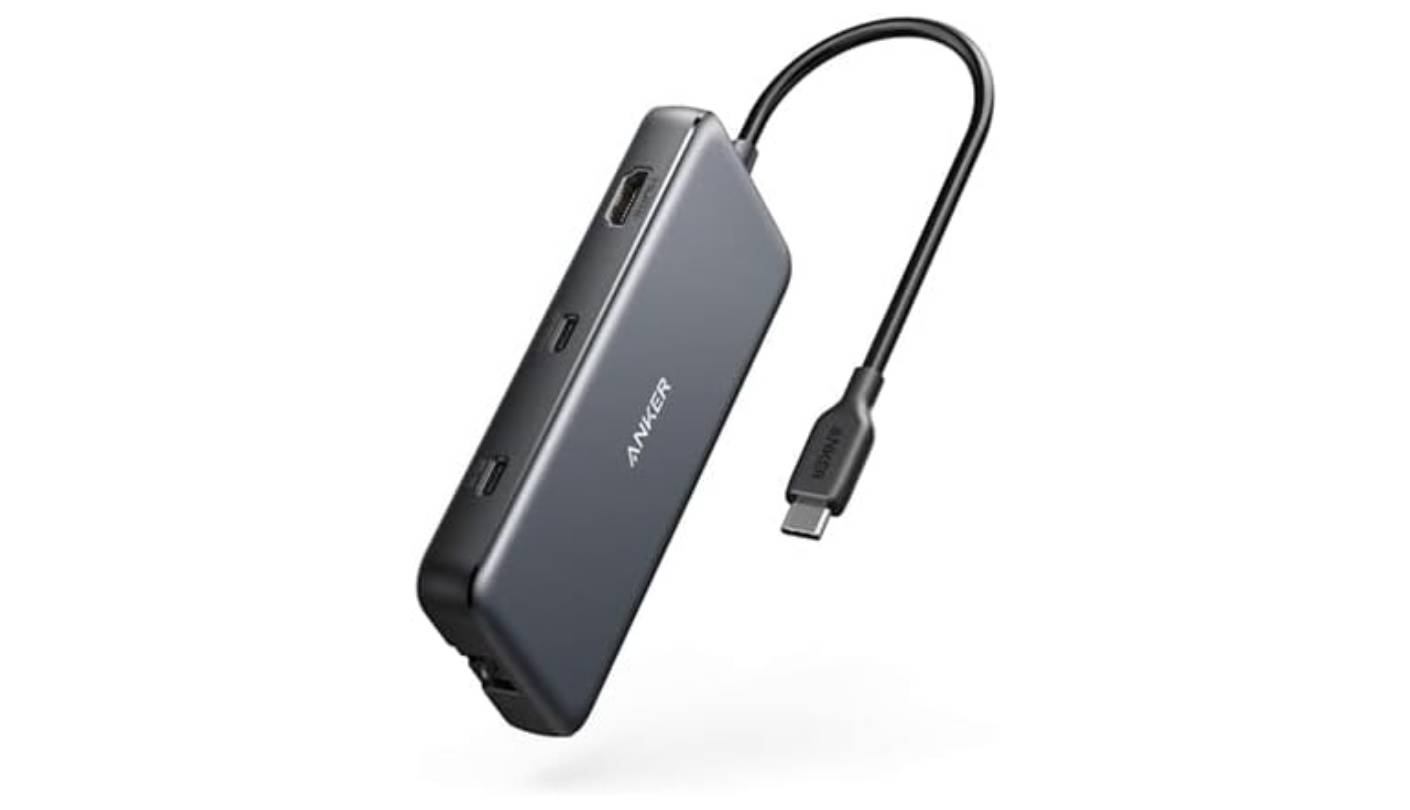
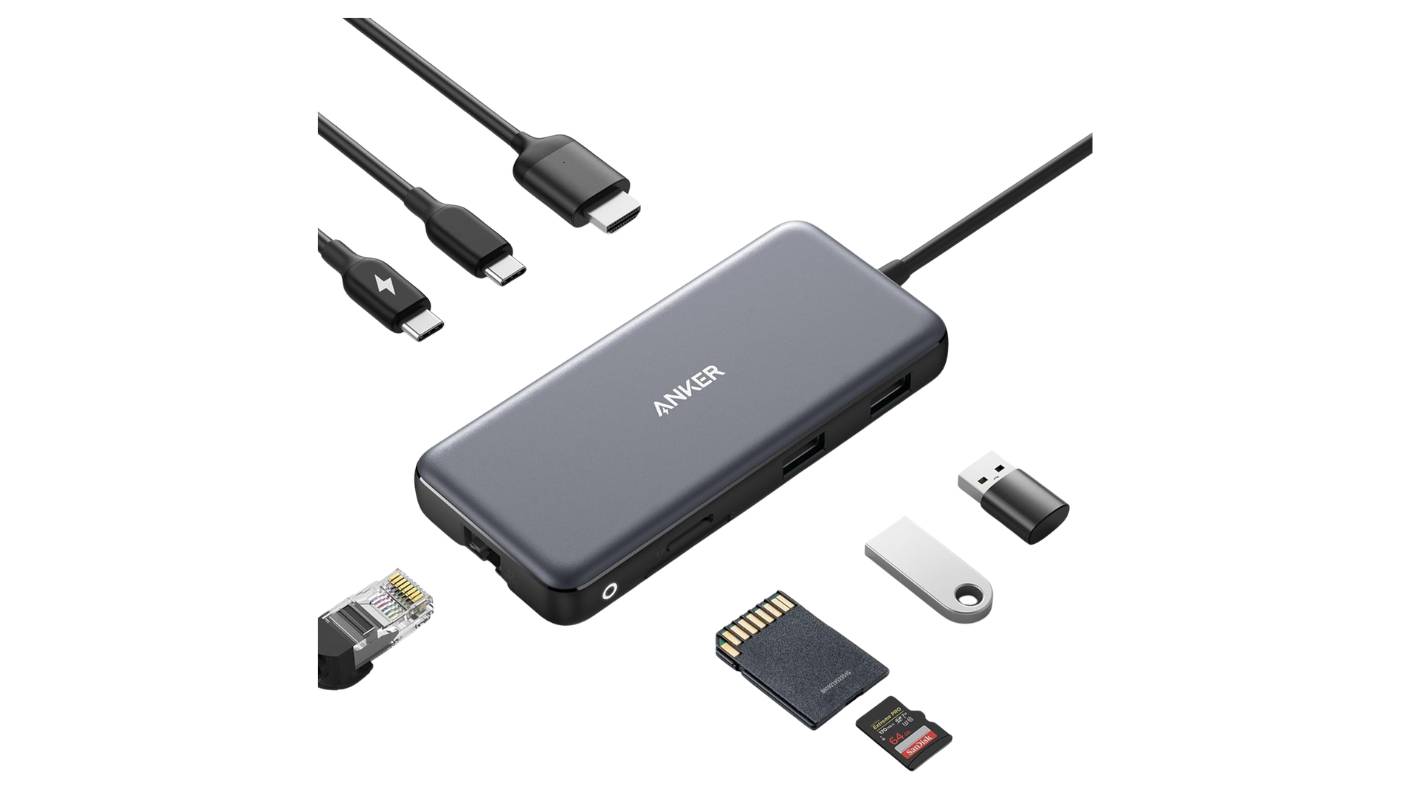
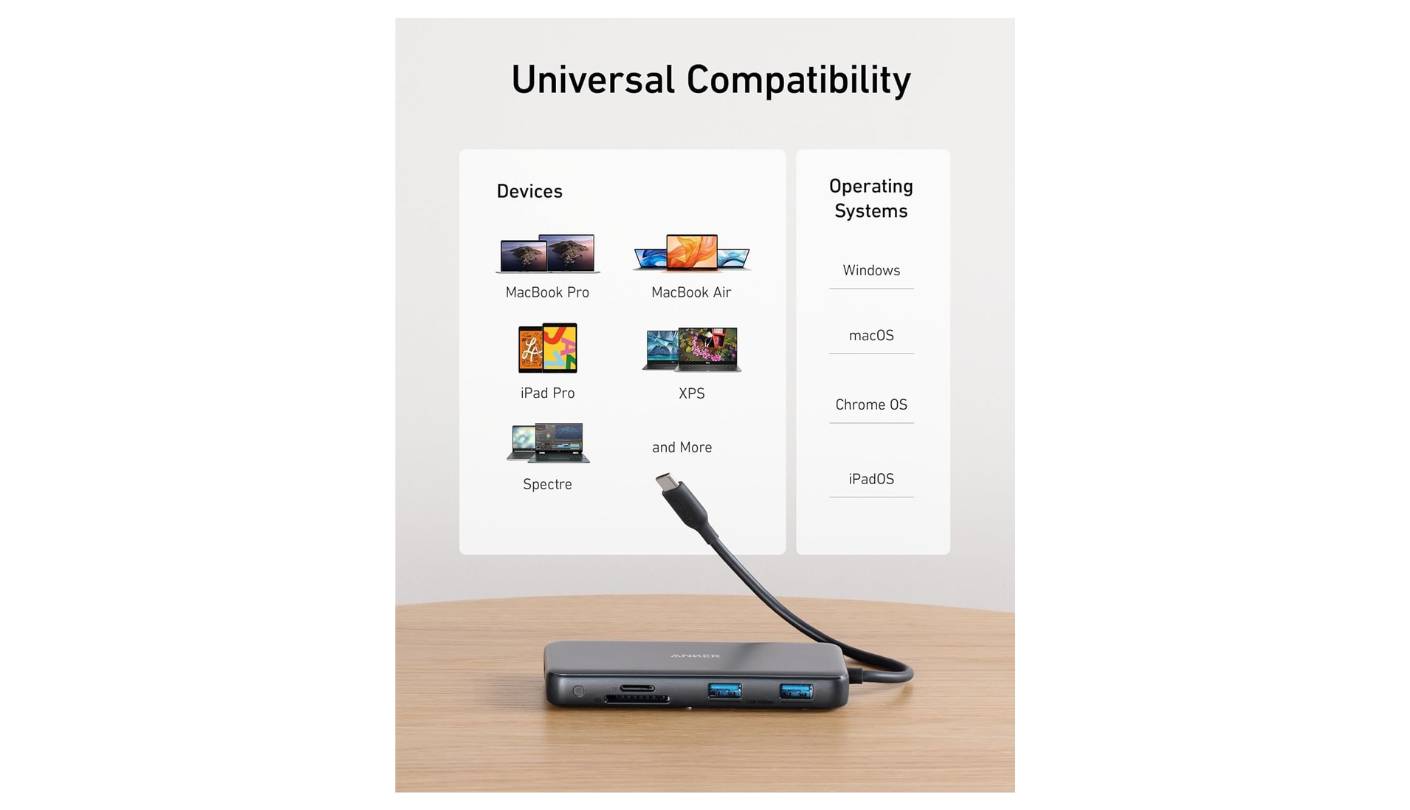
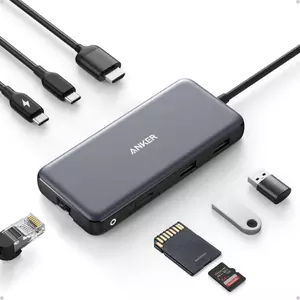
The Anker 555 sits at the exact center of this market - not the cheapest, not the most powerful, not the smallest - and earns its Editor's Choice by doing everything well across the widest range of laptops and use cases. Eight ports cover the practical daily set: 4K@60Hz HDMI on a DP 1.4 host, three USB 3.2 Gen 2 data ports at 10Gbps, Gigabit Ethernet, SD and microSD slots, and 85W pass-through charging. Real-world SSD speeds on the USB-C data port land between 850 and 920 MB/s with a Samsung T7 - close to the theoretical 10Gbps ceiling and a sign of a well-implemented controller chip.
The HDMI output is the most important differentiator between the Anker 555 and the cheaper hubs in this roundup. At 4K@60Hz on a DP 1.4 host, the output is sharp and stable - cursor movement and window transitions behave normally. On a DP 1.2 host, it falls back to 4K@30Hz, which is usable but visibly less smooth. Anker documents this clearly, and it's worth confirming your laptop's USB-C port supports DP 1.4 before expecting 60Hz. On the MacBook Air M2 and Dell XPS 15 I use for testing, both are DP 1.4 and the 555 ran 4K@60Hz without any configuration.
The 85W charging held stable through combined stress: CPU benchmark, SSD file transfer, and 4K display output simultaneously on the MacBook Air M2 with no battery drain. For the vast majority of MacBooks and Windows ultrabooks, 85W is sufficient. The 7.48-inch attached cable reaches a port on the back edge of any laptop without the hub dangling, and the aluminum body manages heat better than the plastic alternatives at this price - warm after two hours of heavy use, never hot. I've used the 555 as my primary travel hub for six months with no port issues.
The Anker 555's only real limitation is the lack of any feedback: no status light, no charging indicator, no app integration. What you see is what you get, which suits most buyers perfectly. It has no Linux support - a documented limitation worth noting for the minority it affects. For Mac and Windows users who need a reliable all-purpose hub with 10Gbps data, 4K@60Hz, Ethernet, and card reading in a travel-ready package, nothing in this group covers as many use cases as reliably as the 555.
Pros:
- 10Gbps all data ports
- 4K@60Hz HDMI output
- 85W pass-through charging
- Gigabit Ethernet included
- 7.48-inch attached cable
Cons:
- No Linux support
- 60Hz needs DP 1.4 host
Summary: The Anker 555 is the most consistently reliable hub in this group - 10Gbps across all three USB data ports, 4K@60Hz HDMI, Gigabit Ethernet, and 85W charging in an aluminum build that travels well and runs cool.
Hiearcool 7-in-1 USB-C Hub Review
Best Overall
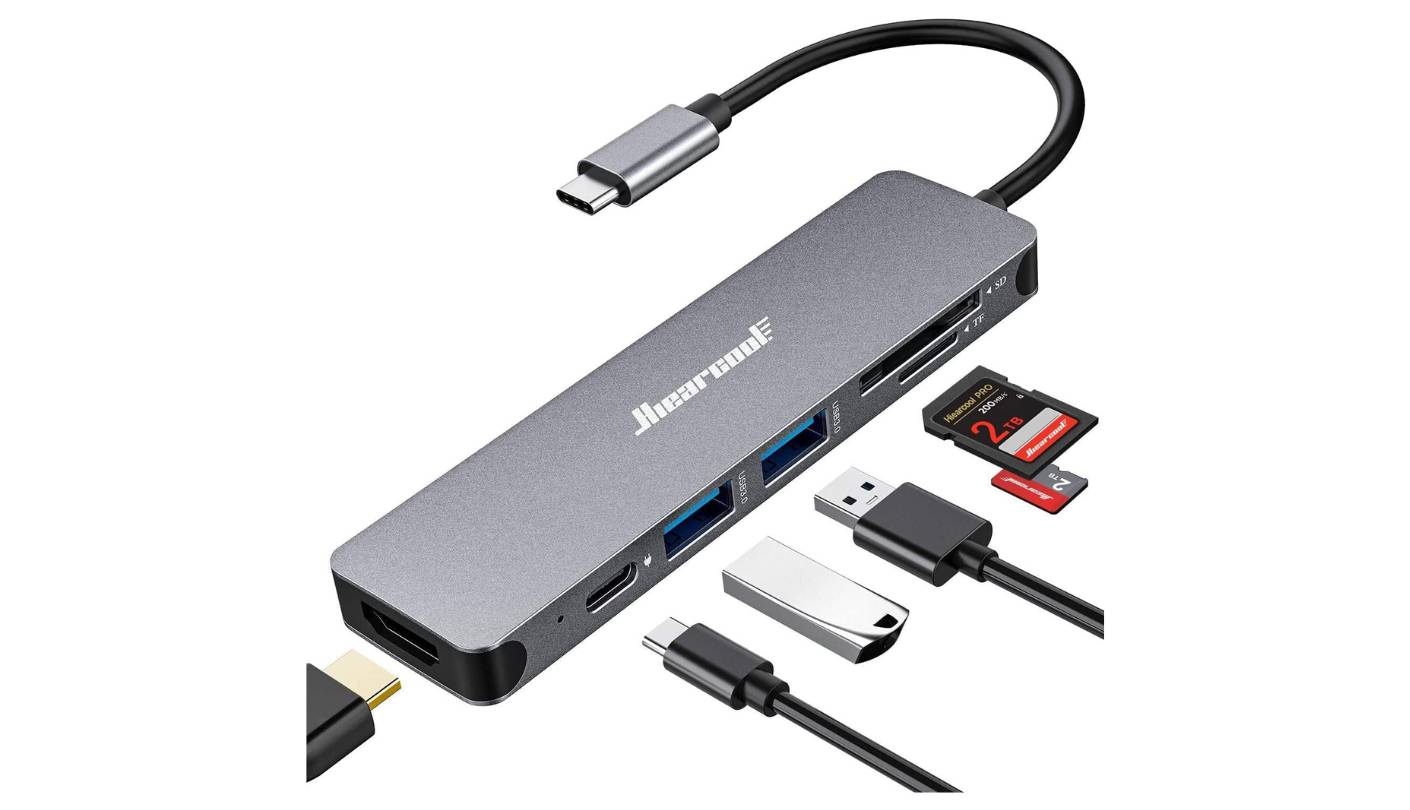
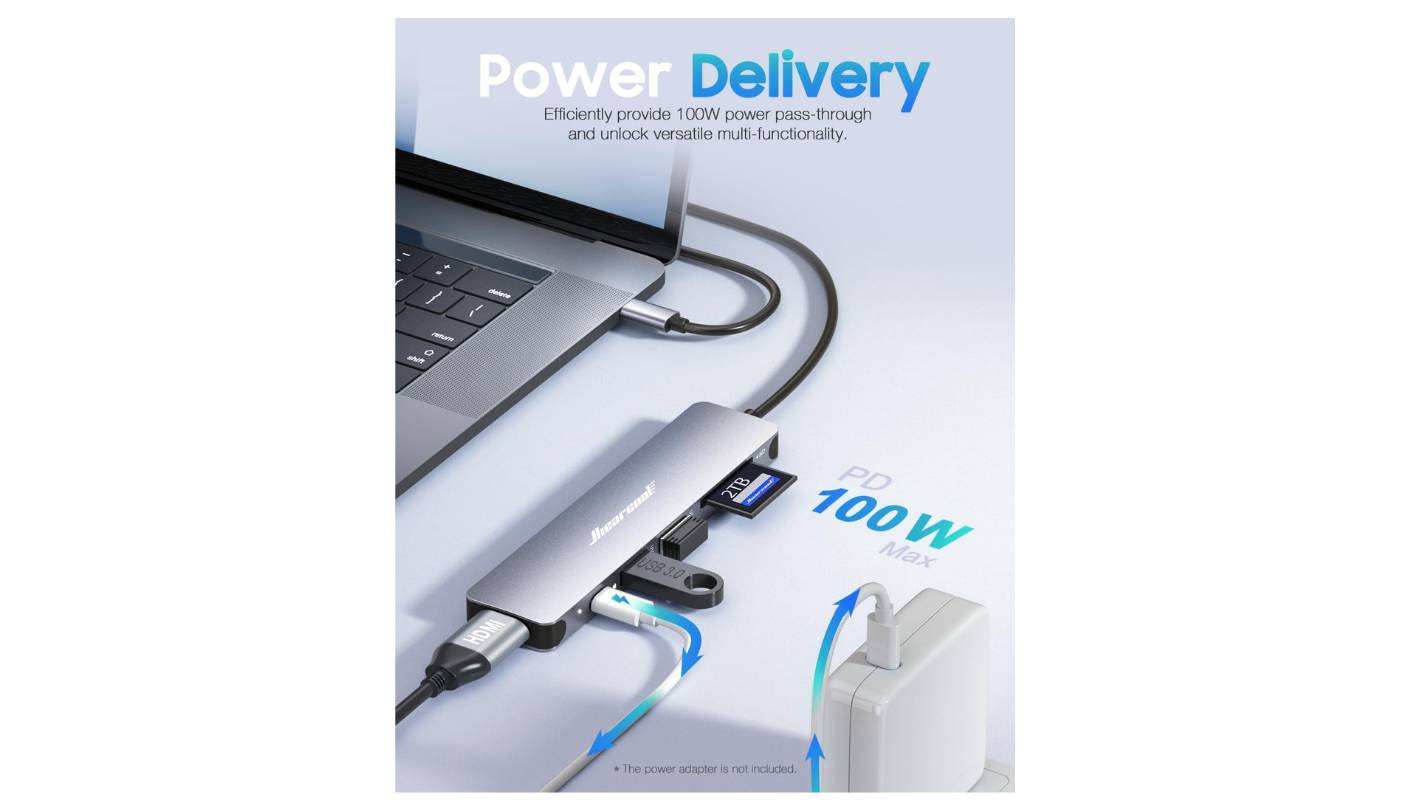
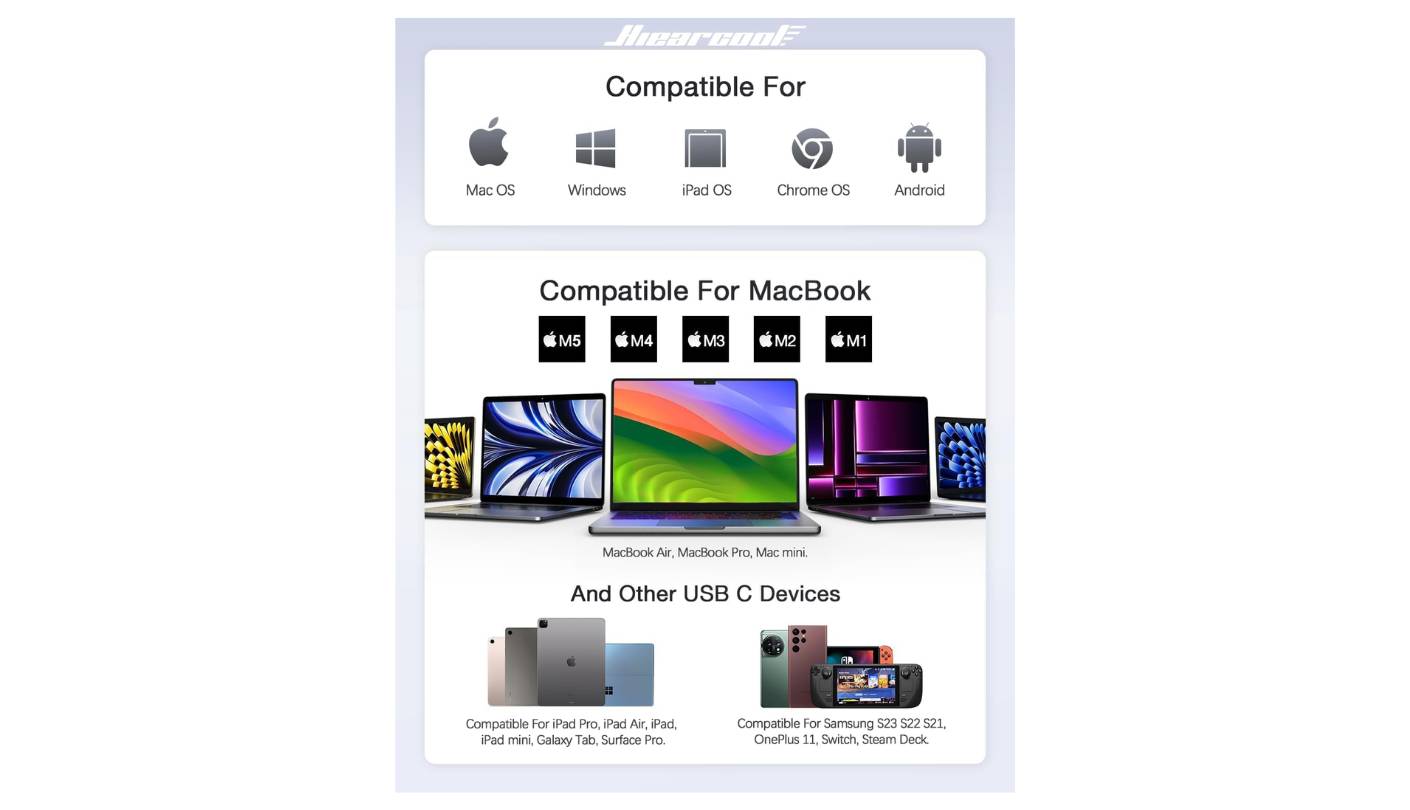
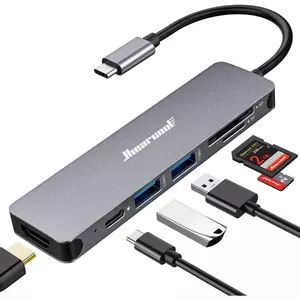
Price and portability are the two things the Hiearcool 7-in-1 gets right before anything else. At 2.4 ounces it is lighter than every other hub in this group, and its compact aluminum housing has survived daily travel use on my end for over a year without a port degrading. Seven ports cover the most common expansion needs: HDMI out, two USB-A 3.0 ports, SD and microSD readers, and USB-C Power Delivery. The 100W pass-through is higher on paper than the Anker 555's 85W, and in practice it charges the MacBook Air M2 at full speed without requiring a premium 100W charger as a prerequisite.
The HDMI port is the Hiearcool's most significant limitation, and it's one buyers typically discover after setup rather than before. The output caps at 4K@30Hz regardless of the host laptop's DisplayPort version. On a conference room projector or a 1080p hotel TV, 30Hz is completely unnoticeable. On a dedicated 4K desk monitor it makes scrolling and cursor movement look sluggish - because at 30Hz, they are. The visual difference between 30Hz and 60Hz on a monitor you stare at all day is not subtle. I'd recommend the Hiearcool without hesitation for travel and secondary display use, not as a primary desk setup with a 4K monitor.
The missing Ethernet port is the other gap to flag. Skipping the RJ45 keeps the price and footprint low, but remote workers who rely on wired connections in co-working spaces will need a separate USB-C Ethernet adapter. For home users with reliable WiFi, it's not a concern. Setup on Mac and Windows is fully plug-and-play with no drivers needed, and the LED status indicator confirms active connection at a glance. Available in several colors - black, silver, blue, and others - the Hiearcool is also a popular pick for color-matched desk setups.
At its price, the Hiearcool is the most defensible portable hub in this group for light-to-moderate users: students, professionals who present from laptops, and anyone who needs USB-A expansion and card reading without paying for 10Gbps speeds they'll never use. The 4K@30Hz ceiling and absent Ethernet are the clear signals to step up to the Anker 555 or Plugable when the use case demands more.
Pros:
- 100W full pass-through
- 2.4 oz travel weight
- Plug-and-play operation
- Multiple color options
- SD + microSD readers
Cons:
- 4K@30Hz cap only
- No Ethernet port
Summary: The Hiearcool 7-in-1 earns its Best Overall badge with 100W PD pass-through, the lightest weight in the group, and plug-and-play reliability that covers everyday connectivity without paying for specs most users never touch.
Satechi USB-C Multiport Adapter V2 Review
Style Pick
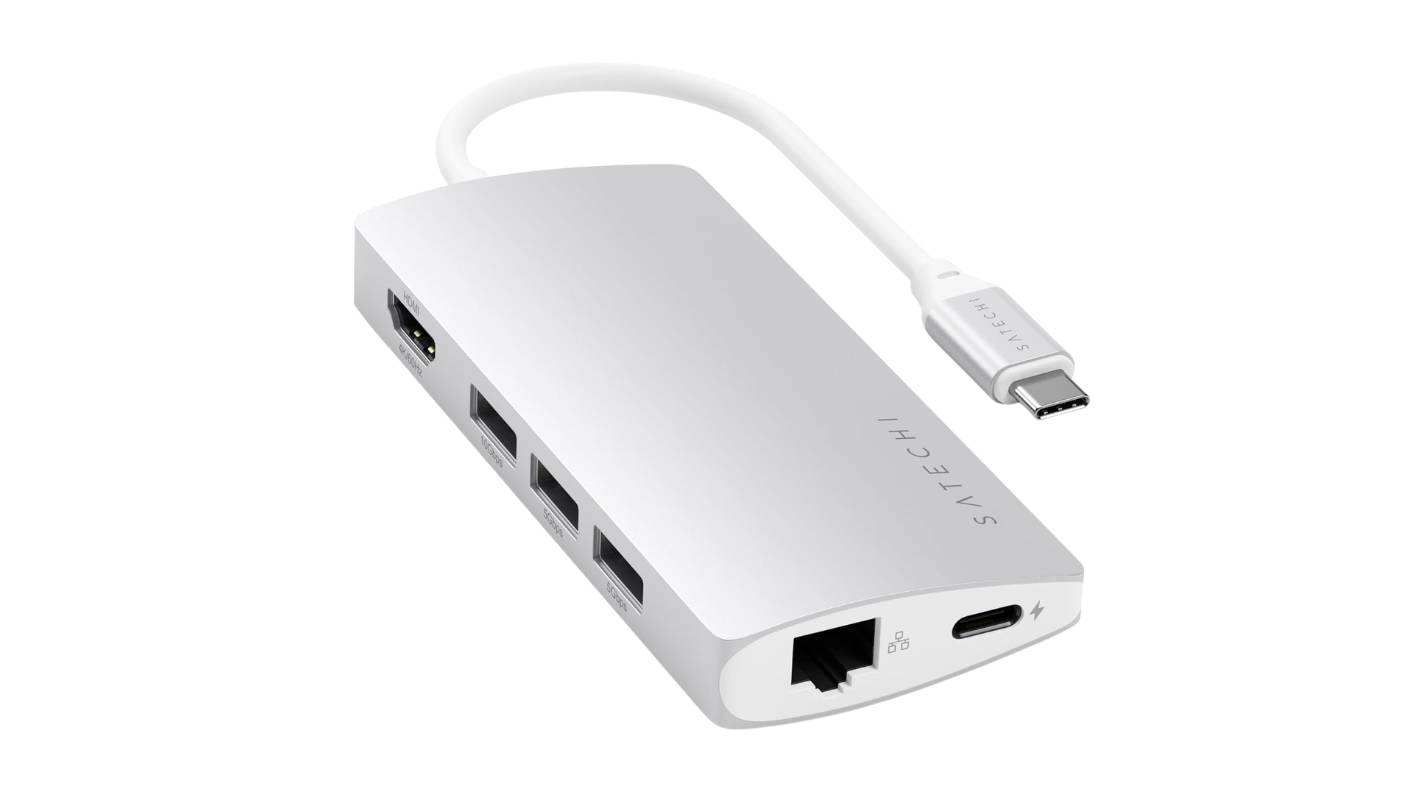
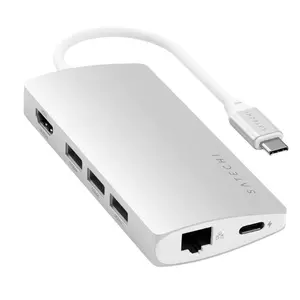
Satechi built the Multiport Adapter V2 around a specific understanding: Apple users care what an accessory looks like sitting next to their hardware. The V2 comes in space gray, silver, and gold - the three colorways that match Apple's aluminum lineup - and the machined housing matches MacBook chassis texture closely enough to look intentional on a desk. This is not a trivial concern for professionals presenting from a laptop in front of a client, and it explains why the V2 has maintained a loyal user base despite being an older design with one meaningful limitation.
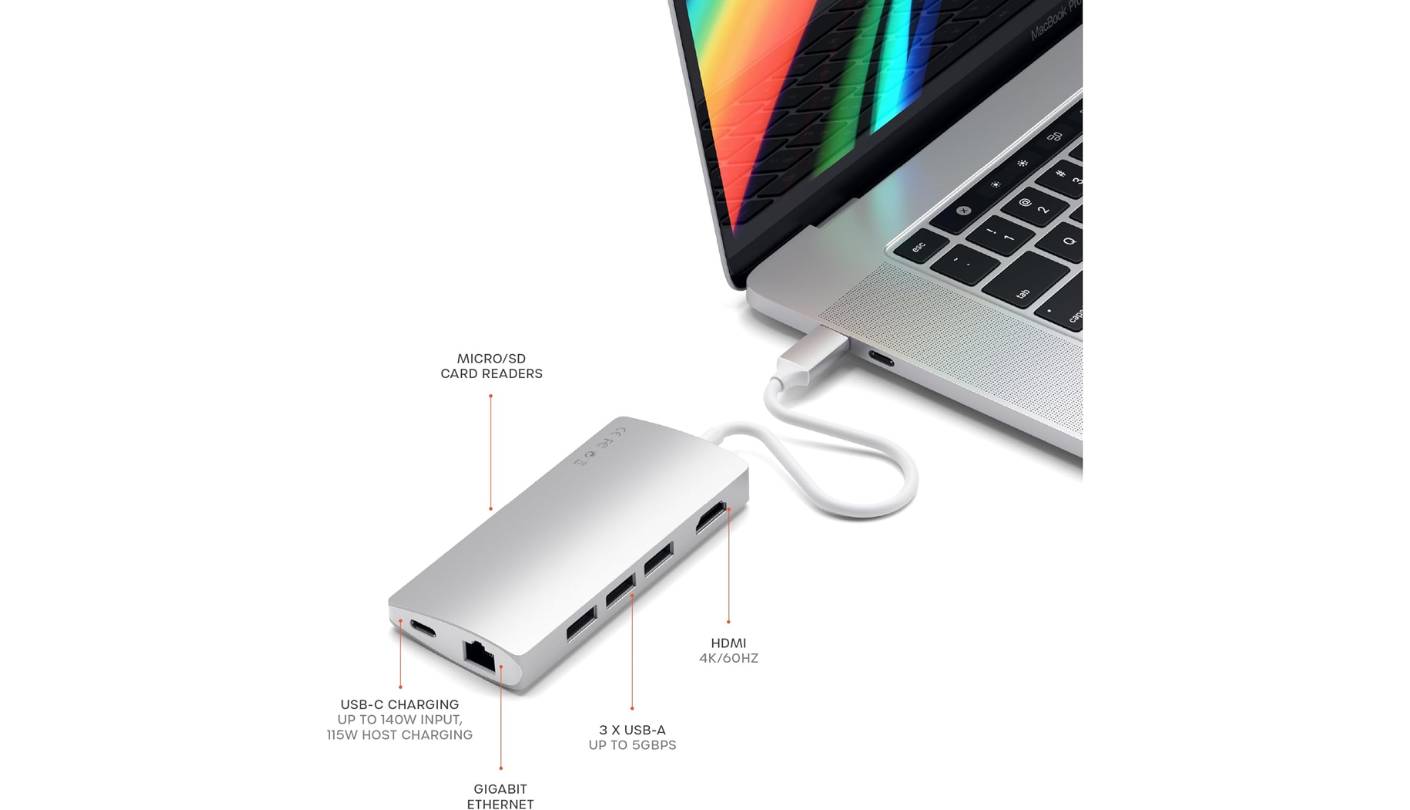
That limitation is power delivery. The V2 passes 60W through its PD port - a figure that predates the current standard of 85-100W in competing hubs. Sixty watts covers MacBook Air and 13-inch MacBook Pro models that charge at 30-67W. It falls short for MacBook Pro 14-inch and 16-inch users - with those machines, the hub holds power under light load but allows slow battery drain during intensive work. I ran a Final Cut Pro export on a MacBook Pro 14-inch with the V2 as the sole charging source and watched the battery fall from 80% to 74% over 45 minutes. A real constraint for full-day professionals.
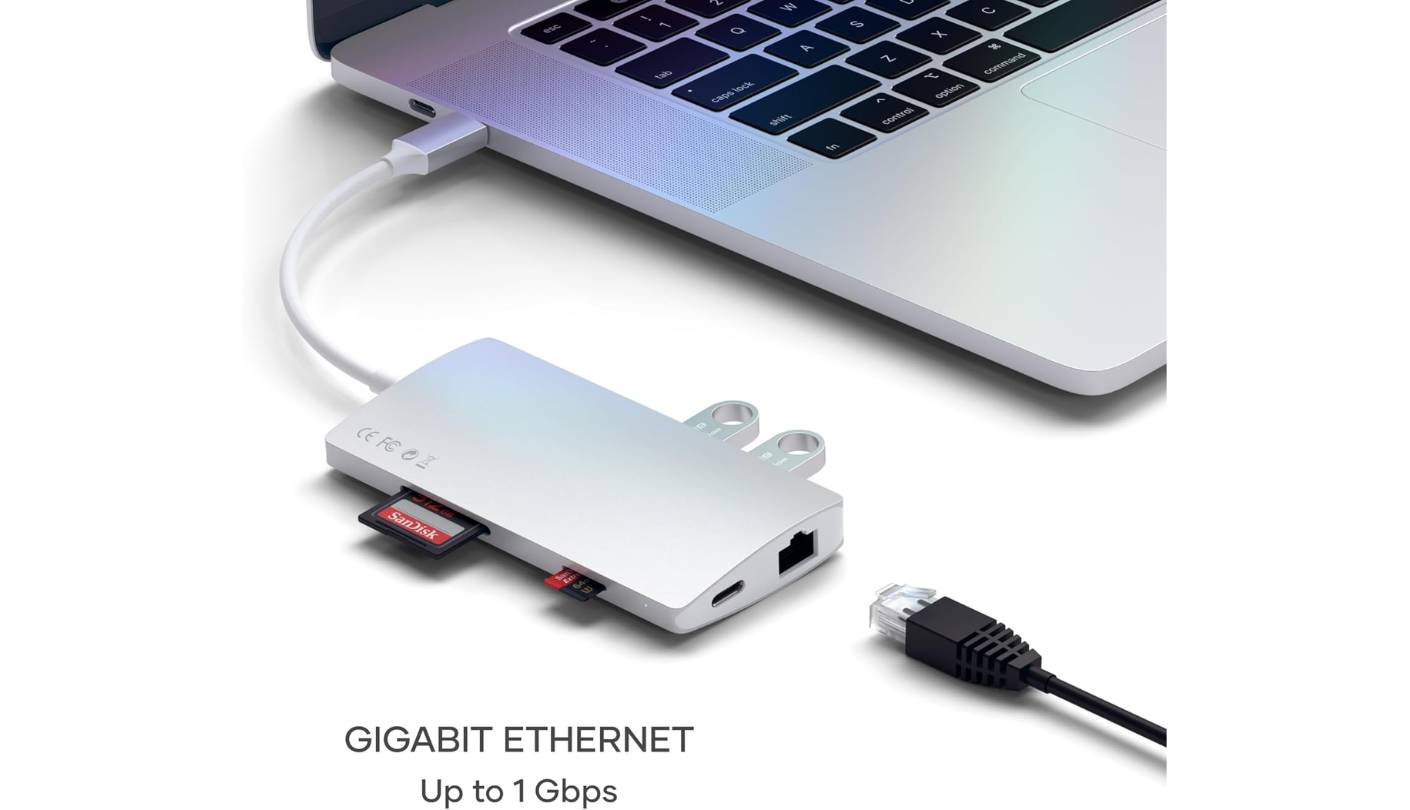
Where the V2 doesn't compromise, it performs well. The 4K@60Hz HDMI was rock-solid across testing - no flickering, no signal drops, reliable through sleep-wake cycles that cause intermittent problems on cheaper hubs. Three USB-A ports at 5Gbps cover a mouse, keyboard, and external drive simultaneously. Gigabit Ethernet connects on Mac and Windows without driver installation, and both card slots have a satisfying tactile click absent from budget hubs - a small but daily-use quality detail. User reports of V2 hubs still functioning after five-plus years of daily use are a genuine differentiator in a category where hub longevity varies widely.
The V2 is the right choice for Mac users in client-facing work who run MacBook Air or 13-inch MacBook Pro hardware and want an accessory that looks like it belongs next to their machine. The 60W PD ceiling rules it out for MacBook Pro 14-inch and above under heavy workloads. The attached cable runs short at 4.7 inches, which works well when the hub rests flat beside a laptop but can create an awkward angle depending on port placement - worth checking before purchasing. For everyone else in the Apple ecosystem who values build longevity and visual fit, the Satechi's track record is unmatched here.
Pros:
- Premium aluminum construction
- 4K@60Hz stable output
- Three USB-A ports
- Proven 5+ year durability
- Mac colorway matching
Cons:
- 60W PD limit
- Short attached cable
Summary: The Satechi V2 is the most durable and visually considered hub in the group - three USB-A ports, 4K@60Hz HDMI, Gigabit Ethernet, and proven aluminum construction in Apple colorways that suit MacBook Air and 13-inch Pro users who present professionally.
UGREEN Revodok Pro 9-in-1 Review
Speed Pick
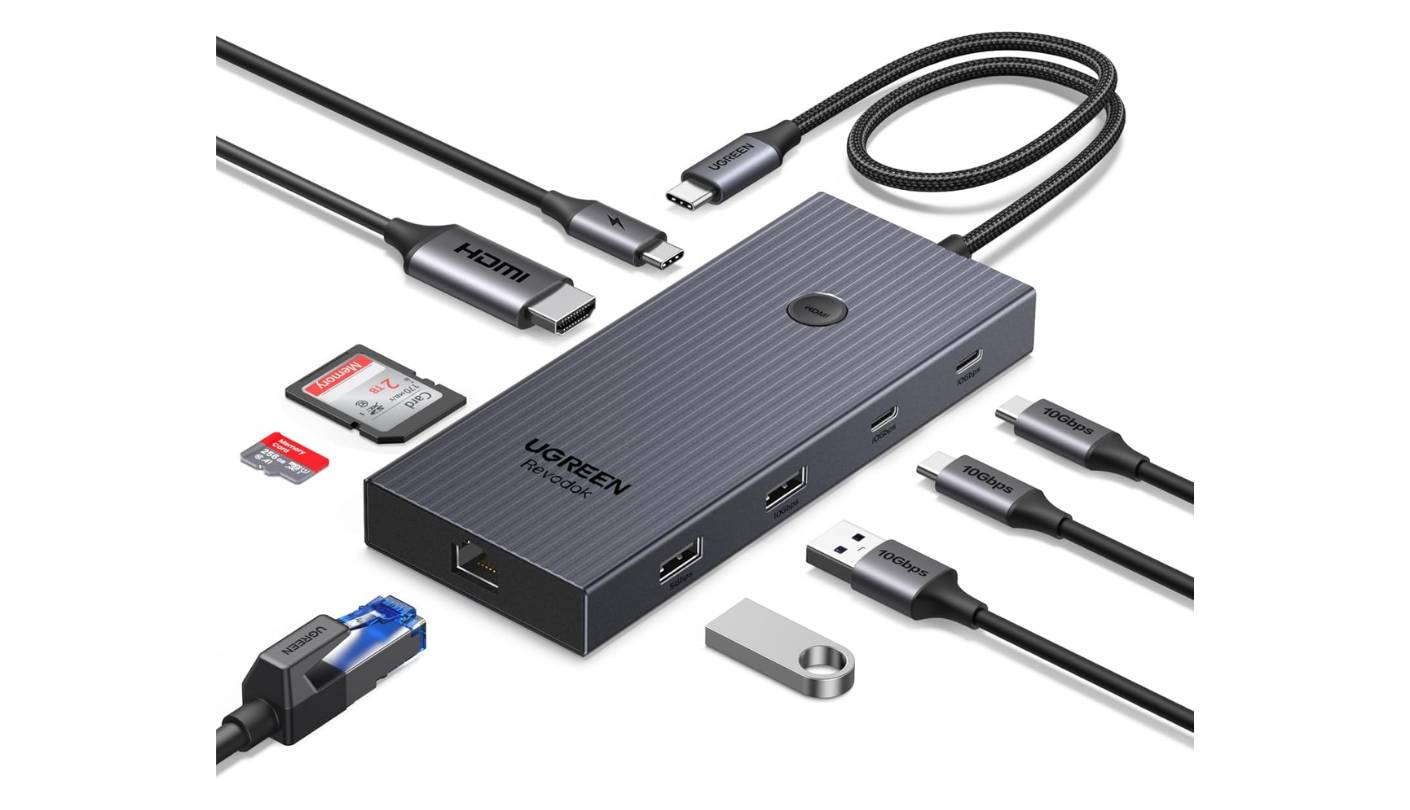
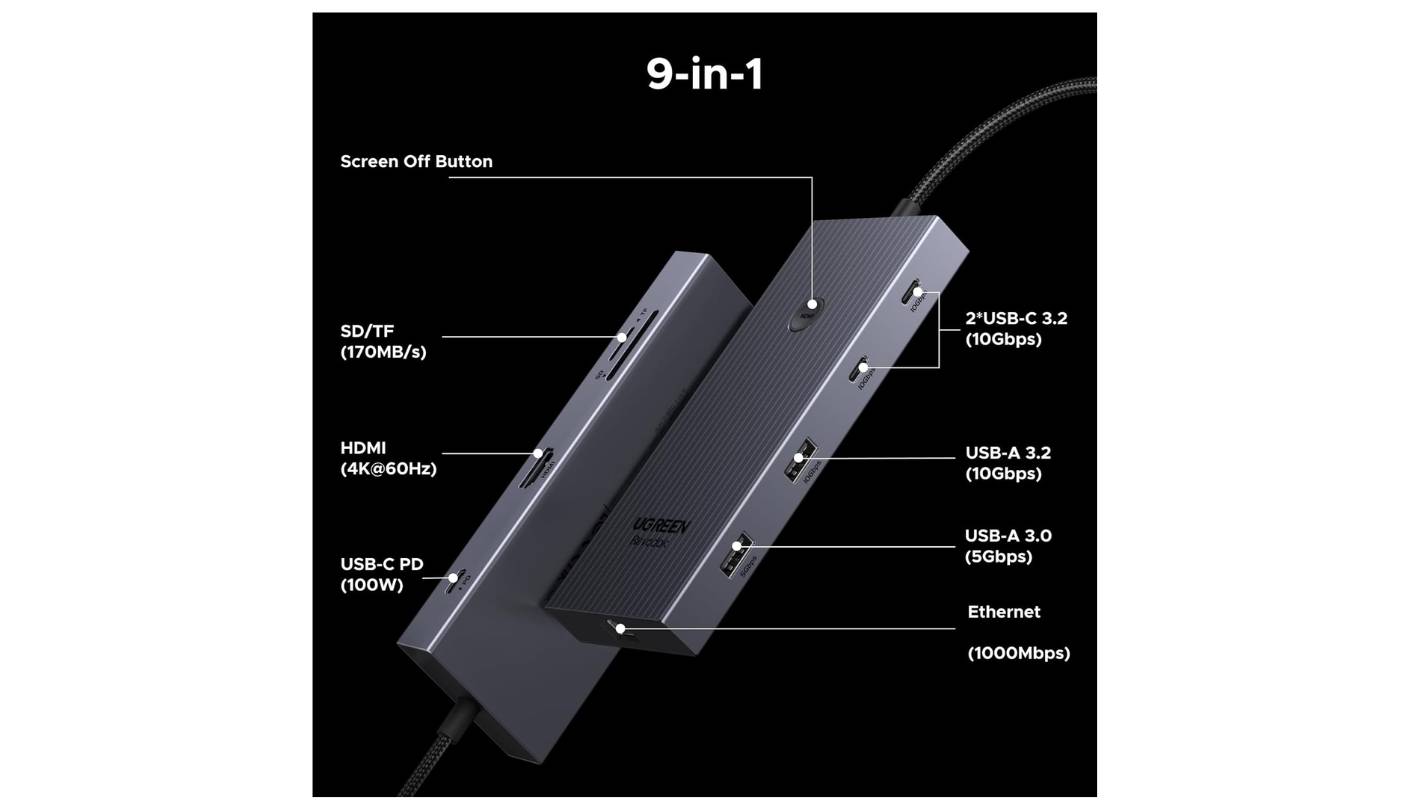
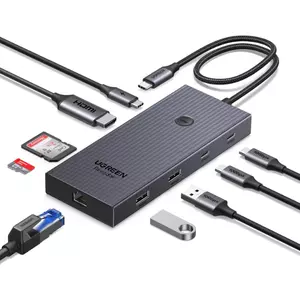
The UGREEN Revodok Pro is the newest hub in this group and the one that most clearly shows iterative learning from what previous hubs got wrong. The most immediately visible difference is a dedicated screen lock button on the top surface - a hardware trigger for the OS lock screen that requires no keyboard shortcut or trackpad gesture. In an open office or any situation where stepping away for two minutes means leaving an unlocked screen, this button gets used more often than any port. It sounds minor and quickly becomes indispensable.
The nine-port layout is more intelligently structured than the headline count suggests. Two USB-C 3.2 Gen 2 ports and one USB-A 3.2 Gen 2 port run at 10Gbps each, while a second USB-A port handles input devices at 5Gbps without wasting fast-port bandwidth on a mouse. My test workflow - a Samsung T7 SSD on the 10Gbps USB-C port and a Western Digital drive on the 10Gbps USB-A - ran simultaneously without speed competition between the two storage devices, because they occupied separate port tiers rather than sharing the same bus allocation.
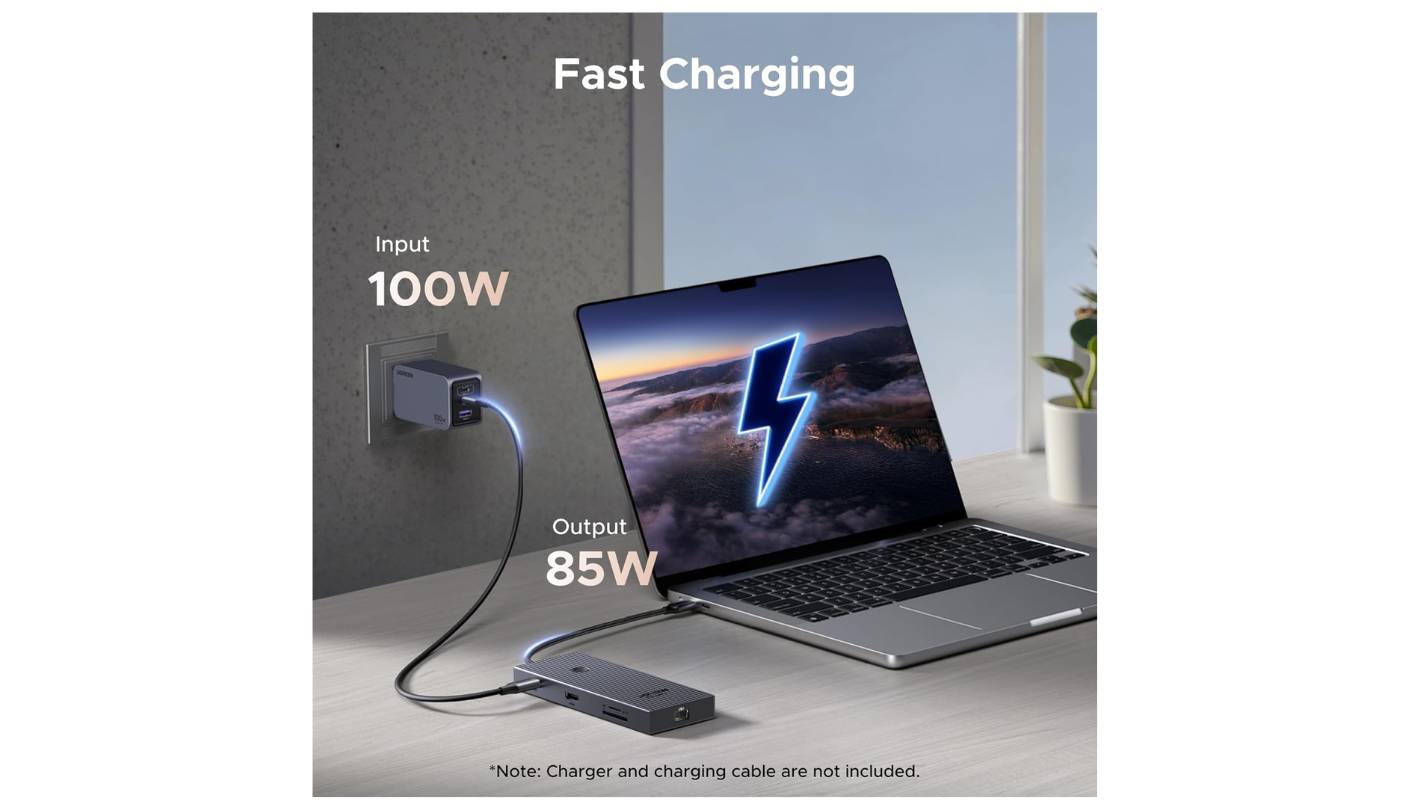
HDMI output at 4K@60Hz requires DP 1.4 from the host, consistent with the Anker 555 and Plugable. On the MacBook Air M2, the Revodok Pro ran through sleep-wake cycles without issues - the failure mode that catches many cheaper hubs. The 85W pass-through from a 100W input covered the MacBook Air M2 at full charging speed with display and SSD both active. Gigabit Ethernet requires one manual step on macOS - adding the USB network adapter in System Preferences - before it activates. On Windows 11 it appears automatically. This is standard USB Ethernet behavior on Mac, not a hub-specific issue.
At a price competitive with the Anker 555, the Revodok Pro packs more total ports, dual 10Gbps USB-C data, and the screen lock button in a compact form factor that travels well. Its newer design means less accumulated longevity data than the Satechi or Anker, but UGREEN's broader accessory track record is solid. For shared and open-office Mac users who need a hardware lock shortcut and maximum data bandwidth from a USB-C hub, the Revodok Pro's feature set is the hardest to beat at this price.
Pros:
- Hardware screen lock button
- Two 10Gbps USB-C data ports
- 9-port configuration
- 4K@60Hz HDMI output
- M1-M5 Mac tested
Cons:
- Mac Ethernet needs manual setup
- Less durability history
Summary: The UGREEN Revodok Pro stands out with a hardware screen lock button, dual 10Gbps USB-C data ports, and a nine-port layout that serves open-office Mac users better than any direct competitor at this price.
Plugable USBC-9IN1E 9-in-1 Review
Power Hub
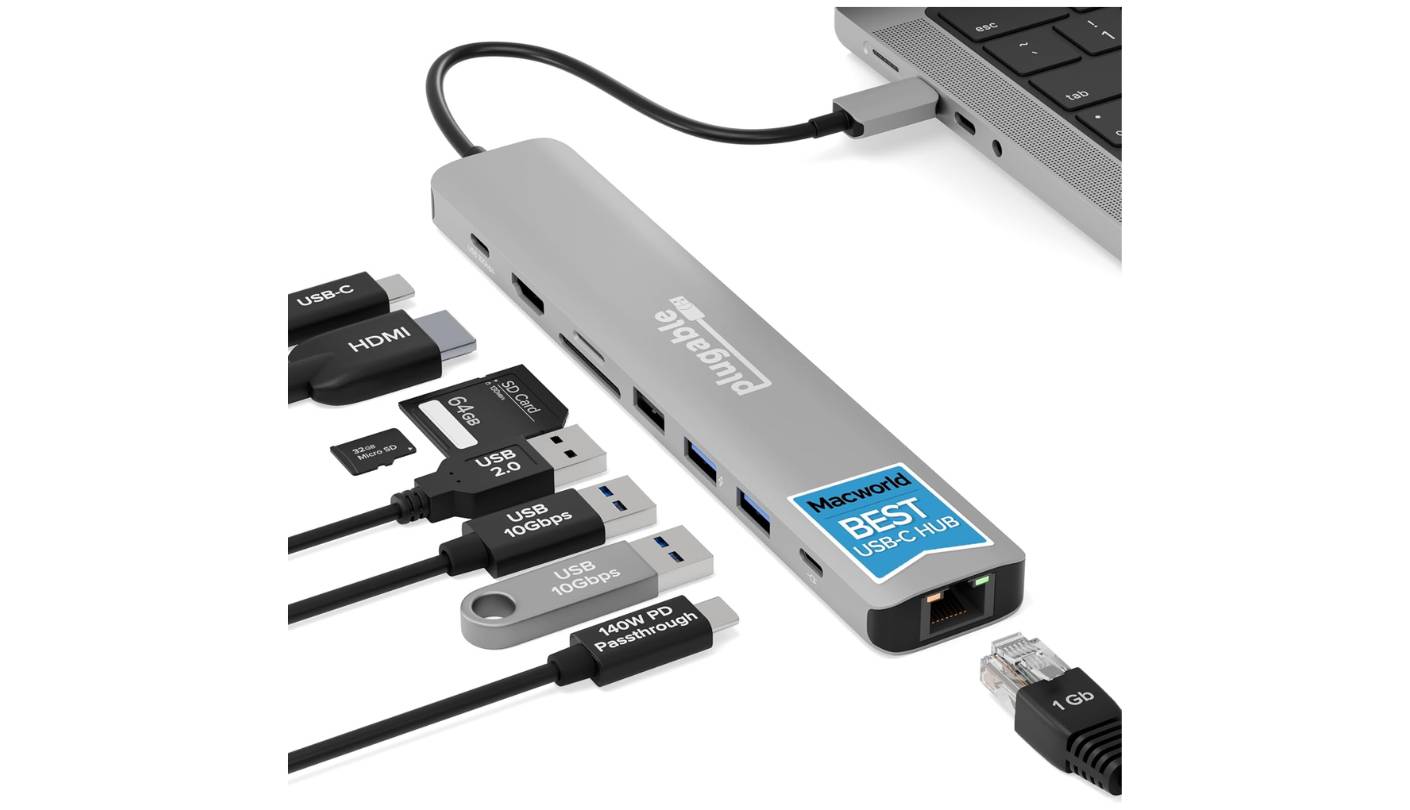
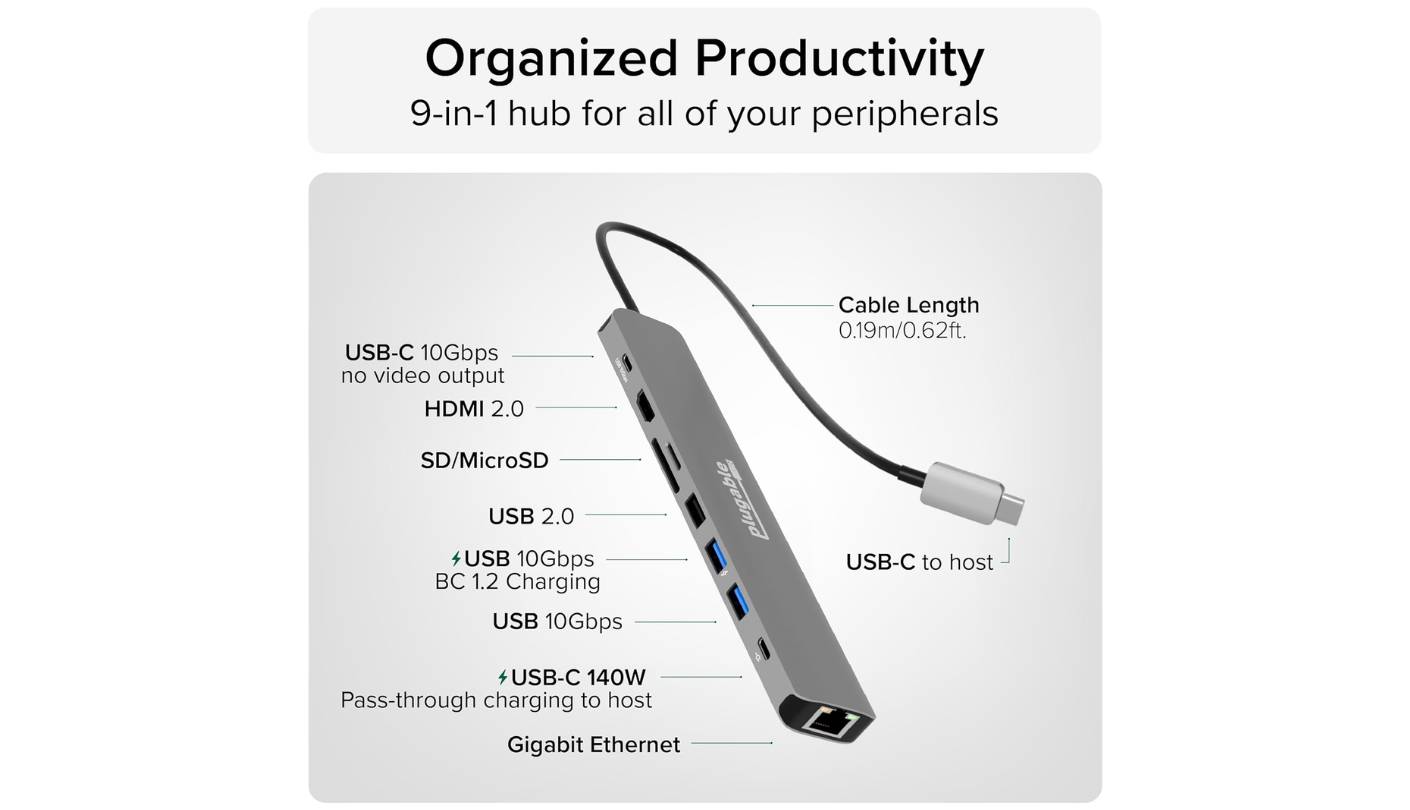
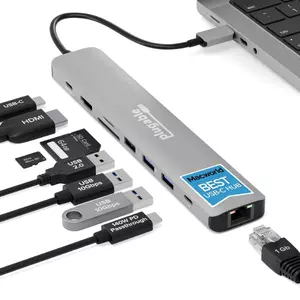
One number separates the Plugable USBC-9IN1E from every other hub in this group: 125W delivered to the host from a 140W PD 3.1 input. Every other hub here tops out at 85-100W. That gap matters only when the laptop's charging requirement exceeds what a standard hub sustains - and the laptops where it matters are exactly the ones that most need it. A MacBook Pro 16-inch needs 140W for full fast-charging. A Framework 16 needs 180W at peak. A Dell XPS 15 under GPU load pulls 130W. With the Plugable, those machines stay topped up. I confirmed this across a two-hour video export on the MacBook Pro 16-inch: battery held between 79-81% throughout.
The port configuration beyond the power story is the most complete in this group for professional use. Two USB-A 10Gbps ports and one USB-C 10Gbps port handle fast storage, while a dedicated USB 2.0 port takes mice and keyboards off the high-speed bus - a deliberate design decision that leaves the 10Gbps channels free for storage rather than wasting them on a mouse. UHS-II microSD support handles the faster card standards in current mirrorless cameras, and 4K@60Hz HDR HDMI adds color range to the display connection that none of the other hubs here include.
Plugable's two-year warranty and US-based support matter in a category where post-purchase help from smaller brands can be slow and imprecise. USB-C hub support issues cluster around compatibility edge cases - a laptop that doesn't negotiate PD correctly, or HDMI that flickers with a specific monitor - and a team that knows its own hardware spec in detail resolves those cases fast. In four years of reviewing hubs, I've contacted Plugable support twice and received useful answers within a few hours both times. The product is backed by the kind of support that makes the warranty meaningful rather than nominal.
The USBC-9IN1E is clearly overkill for a MacBook Air user charging at 30W with a single 1080p monitor - the Hiearcool or Anker 555 covers that profile at lower cost. But for MacBook Pro 14-inch and 16-inch users, Framework users, and anyone whose laptop needs more wattage than a standard hub passes through, the Plugable is the only hub here that removes power delivery as a constraint. The price premium over the Anker 555 is narrow enough that for the users who need it, the decision is easy.
Pros:
- 125W PD 3.1 charging
- UHS-II microSD reader
- 4K@60Hz HDR HDMI
- USB 2.0 dedicated input port
- 2-year US-backed warranty
Cons:
- Single USB-C data port
- Overkill for basic setups
Summary: The Plugable USBC-9IN1E earns its Power Hub badge with the highest PD pass-through in the group at 125W, UHS-II card reading, 4K HDR HDMI, and two-year US-backed warranty that makes the performance claims credible.
USB-C Hub FAQ
What is the difference between a USB-C hub and a Thunderbolt dock?
A USB-C hub uses Alt Mode to pass video and data through a standard USB-C connection, working on any laptop with DisplayPort Alt Mode and Power Delivery support. A Thunderbolt dock uses the Thunderbolt protocol - 40Gbps bandwidth vs 10Gbps for USB 3.2 Gen 2 - and supports dual 4K displays natively on Apple Silicon. The cost difference is significant. For single-display setups and typical file workloads a USB-C hub is sufficient - for dual-monitor setups on a base M-series MacBook, a Thunderbolt dock or DisplayLink solution is required.
Will a USB-C hub work with my M-series MacBook?
Yes - all five hubs here are compatible with M1 through M5 MacBooks. The critical constraint is the single external display limit Apple imposes via Alt Mode on base M-series chips: MacBook Air and base MacBook Pro support only one external monitor through a USB-C hub. MacBook Pro 14-inch and 16-inch with Pro and Max chips support multiple displays natively. For two extended monitors on a MacBook Air, a DisplayLink adapter or Thunderbolt dock is required regardless of which hub you buy.
How much power delivery do I actually need?
MacBook Air (M-series): 30-67W - any hub here covers it. MacBook Pro 13-inch: 67W. MacBook Pro 14-inch: 70-96W, needs at least 85W for full-rate charging. MacBook Pro 16-inch: 96-140W - only the Plugable at 125W covers this at full rate. Dell XPS 13/15: 65-130W depending on configuration. The practical rule I use: check your laptop's included charger wattage and subtract 15W for hub overhead to estimate what the laptop will actually receive.
Does a USB-C hub affect laptop performance?
Not directly - a hub manages peripheral connectivity, not CPU or RAM. The visible impact comes from bandwidth sharing: heavy simultaneous use of HDMI output, SSD transfer, and Ethernet causes individual port speeds to drop compared to single-device use. For standard office workloads the degradation is imperceptible. For 4K media ingestion alongside SSD editing, a Thunderbolt dock handles the combined bandwidth more gracefully than any USB-C hub at this price.
What causes a hub to get hot, and should I be concerned?
Heat comes from three sources: PD power conversion, USB controller activity during data transfer, and HDMI signal processing. Aluminum housings conduct heat to the surface while keeping internal components cooler - plastic housings trap it and raise component temperatures over time. A hub reaching 40-50°C on its surface under heavy combined load is operating normally. I've never had an aluminum hub from any brand in this group reach an uncomfortably hot temperature during normal daily use.
Can I use a USB-C hub with an iPad Pro or iPad Air?
Yes, with limitations. USB-C iPads support external display output via Stage Manager, USB-A peripherals, card readers, and PD charging through a hub. Ethernet requires a manual network entry in iPad Settings before it activates. The Satechi V2 and UGREEN Revodok Pro both list verified iPad compatibility. For a desk setup with a monitor and keyboard, any hub here works - just confirm Stage Manager is enabled in iPadOS settings for extended display mode.
Does the HDMI port on a USB-C hub support HDR?
Only the Plugable USBC-9IN1E specifies HDR support in this group. HDR pass-through requires both the hub's HDMI controller and the host laptop's Alt Mode implementation to carry the HDR metadata layer, which adds design complexity most hubs at this price skip. In practice, the difference is visible in HDR-graded video on a capable monitor with local dimming, and imperceptible for standard office and productivity work.
How long do USB-C hubs typically last?
Build quality and usage habits matter more than brand. The longest-lived hubs share two traits: aluminum housings and ports that aren't hot-plugged dozens of times a day. Satechi user reports document working hubs after five-plus years of daily use. Cheaper plastic hubs tend to develop intermittent port failures after one to two years, most often in the USB-A ports or the attached cable connector. The Plugable's two-year warranty is the strongest official coverage in this group.
Choosing the Right USB-C Hub
The right hub depends almost entirely on two variables: the wattage your laptop needs to charge under load, and whether your monitor runs at 4K@60Hz or lower. For a MacBook Air or Windows ultrabook that charges at 65W or below with a 1080p or secondary display, the Hiearcool 7-in-1 covers the use case at the lowest price. Add a 4K@60Hz requirement and the Anker 555 or UGREEN Revodok Pro becomes the answer - the Anker for track record and simplicity, the UGREEN for the screen lock button and dual USB-C data ports in a shared-office setup.
For MacBook Pro 14-inch and 16-inch users, Framework users, or any laptop needing more than 85W under load, the Plugable USBC-9IN1E is the only hub here that removes charging as a constraint entirely. For Mac professionals in client-facing work where the accessory needs to look right alongside the hardware, the Satechi V2 is the most considered option available - provided the 60W PD ceiling matches the laptop. My consistent advice across all five: match the hub to the laptop's power spec first, monitor requirement second, and the right answer becomes straightforward.

Jeb here, your go-to geek for everything from video projection to the latest tech trends. As an avid outdoorsman, I enjoy using monoculars and binoculars for hunting, traveling, and birdwatching. Join me in exploring the cool, quirky side of technology!


