Best Webcams for Zoom Meetings (Better Than Your Laptop Camera)
Hyh! The webcam built into your laptop was never designed for the way meetings look in 2026... The fixed wide angle puts you tiny in the frame, the 720p sensor turns your face into mush under any backlit window, and the single pinhole microphone picks up your keyboard louder than your voice. I've spent the last fourteen months running daily Zoom and Google Meet calls through a rotation of external webcams - close to 600 video calls between client work, podcast recordings, and team standups - and the gap between a laptop camera and a proper external one is wider than it looks on paper.
The five webcams in this roundup span what's available without crossing into broadcast territory. From a tiny AI-powered 4K camera to a motorized dual-lens PTZ rig that physically follows you around the room, each one earned its place through real meetings rather than a controlled lighting test. Here are the best webcams for Zoom meetings right now, with the specific quirks I noticed during daily use.
If you're in a hurry, here are my top two picks for webcams for Zoom meetings:
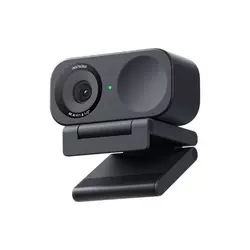
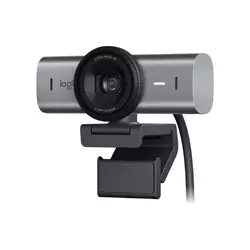
Table of Contents:
- Best Webcams for Zoom Meetings: Buying Guide
- Top 5 Webcams for Zoom Meetings in 2026
- Webcam Comparison Table
- Insta360 Link 2C
- Logitech MX Brio 4K
- Anker PowerConf C200
- OBSBOT Meet SE
- EMEET PIXY Dual-Camera AI PTZ 4K
- Webcams for Zoom Meetings: FAQ
Best Webcams for Zoom Meetings: Buying Guide

Sensor Size and Resolution
Sensor size matters more than the resolution number on the box, and that's the first thing most webcam shoppers get wrong. A 1/2-inch sensor like the one in the Insta360 Link 2C captures roughly twice the light of the 1/4-inch sensor in a typical laptop camera, which is why a 1080p stream from a good external webcam looks sharper than a 4K stream from a budget one. Pixel size also matters - the OBSBOT Meet SE uses a stacked CMOS with 2.9μm pixels, large for the class, and the difference shows up in dim conference rooms where the sensor has to amplify whatever light is available.
4K is overkill for most Zoom calls because the platform itself caps your outgoing stream below 1080p in nearly all cases. The case for 4K rests on cropping headroom rather than what gets sent to the platform, so what you're really buying is sensor quality and digital zoom that holds detail.
Most current webcams cap 4K at 30fps and 1080p at 60fps. For meeting use, I find 30fps perfectly fluid - higher frame rates are useful for content creators who need smooth motion in recorded video, but they don't translate to better Zoom calls. The OBSBOT Meet SE's 100fps mode sounds impressive, but it only kicks in for recording, not live streaming. Pay attention to the sensor and aperture combination first, then treat resolution as a secondary spec.
Field of View and Framing
Webcam field of view ranges roughly from 65° to 95° diagonally, and the right number depends on what's behind you and how you sit. A narrow 65° to 73° FOV like the EMEET PIXY's keeps the frame focused tight on your face and shoulders, which works well for a clean head-and-shoulders meeting look. A wider 90° to 95° angle like the MX Brio's widest setting captures more of the room - useful for pointing at a whiteboard, or for two people sharing a single camera in a small office.
Adjustable FOV is the better answer for most users because optimal framing changes by call. The Anker PowerConf C200 lets me switch between 65°, 78°, and 95° in software, and I use the narrow setting for client work where the background should disappear, then widen out when a colleague joins the desk. AI auto-framing pushes this further by digitally zooming as you move - the OBSBOT Meet SE's framing feature crops a 4x window from the full sensor and follows your head without any physical movement.
Microphones and Audio Processing
The built-in mic on a webcam will never beat a dedicated USB or XLR mic, and that's an honest baseline rather than a knock against the category. What changes between webcams is how the mic handles background noise. Beamforming dual-mic arrays like the ones on the Logitech MX Brio and Anker PowerConf C200 use the gap between two capsules to triangulate where your voice is coming from. The result is cleaner audio in noisy rooms, with the trade-off that aggressive noise cancellation can raise the noise floor or introduce slight digital artifacts on consonants.
If audio matters more than convenience, plan for a separate mic from day one. Even the best webcam mic at 30 cm from your face is fighting physics that a closer mic doesn't have to deal with. The webcam mic earns its place as a backup or in setups where a dedicated mic isn't practical.
The EMEET PIXY's three-mic array goes further than most, with three modes - Live, Noise Cancelling, and Original Sound - that let me match the audio profile to the call type. For a noisy office, Noise Cancelling cuts keyboard clicks and HVAC hum without making my voice sound underwater. The Insta360 Link 2C's Voice Focus, Voice Suppression, and Music Balance modes do similar work in a smaller package. None of these match a Shure MV7, but they're a clear step above what most laptop arrays produce.
AI Auto-Framing and Tracking
AI features split into two categories worth understanding separately. The first is digital auto-framing, which crops a window from the full sensor and follows your face as you move within the camera's fixed view. This is what the OBSBOT Meet SE and Insta360 Link 2C do - no physical movement, just intelligent cropping with up to 4x zoom. The second is true PTZ with motorized hardware, where the camera physically rotates to track you across a wide arc. The EMEET PIXY's gimbal pans 310° and tilts 180°, which means I can stand up, walk to a whiteboard, and stay framed without thinking about it.
For desk-based meeting work, I find digital framing more useful than full PTZ - motorized cameras cost more and rarely justify themselves on a static call. PTZ becomes worthwhile for presentations, classrooms with a moving instructor, or hybrid meeting rooms where one camera covers multiple seats. Gesture control is the other AI feature worth checking - both OBSBOT and EMEET let me toggle tracking with an open palm, and across calls those gestures feel natural enough that I don't reach for the keyboard.
Mounting, Build, and Software
Mounting is one of those small details that becomes obvious after the first time a webcam tips off a thin monitor edge. Magnetic mounts on the Insta360 Link 2C, Logitech MX Brio, and OBSBOT Meet SE let me detach and reposition the camera in a single motion. The clip-style mount on the Anker PowerConf C200 is more secure but slower to swap. Most cameras include a 1/4-inch tripod thread on the bottom, which means a cheap desktop tripod can replace the monitor mount entirely.
Build quality shows up in places you don't expect - the hinge tension on the mounting clamp, the texture of the privacy shutter, whether the USB-C cable is detachable for replacement. Logitech and Insta360 use aluminum bodies with metal mounts that feel like a tool you'll keep.
Software is where the differences widen. Logi Options+ for the MX Brio, Insta360 Link Controller, OBSBOT Center, and EMEET Studio all expose manual controls for exposure, white balance, ISO, and framing modes. My experience over months of use is that Insta360 and Logitech apps have the most polished interfaces, while EMEET Studio has crashed on me a few times under heavy multitasking. The Anker PowerConf C200 ships with the simplest software because it has the fewest features to control.
Top 5 Webcams for Zoom Meetings in 2026
These five webcams went through real meetings and recorded calls in my daily workflow rather than synthetic image-quality lab tests, and the differences I describe come from how they performed under normal use rather than from spec sheets alone.
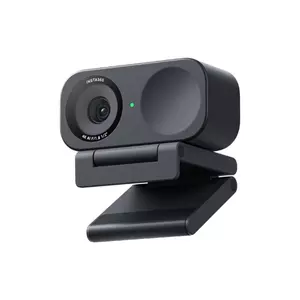
- Sharp 4K imaging
- Strong low-light sensor
- Magnetic L-mount
- Three audio modes
- Polished companion software
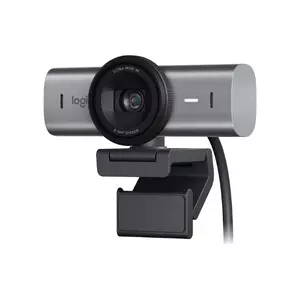
- Aluminum premium build
- Show Mode flip
- Strong low-light performance
- Adjustable field of view
- Dual beamforming mics
- Solid 2K image
- Adjustable field of view
- Compact travel form
- Visible privacy shutter
- Effective noise cancellation
- Ultra-lightweight 33g body
- Smart AI framing
- Three color options
- Dual Native ISO sensor
- Reliable gesture controls
- Motorized PTZ gimbal
- Dual-camera tracking system
- Fast 0.2s autofocus
- Three-mic audio array
- Whiteboard correction mode
Webcam Comparison Table
Here's how the five webcams compare across the specifications that affect Zoom meeting quality most directly:
| Specification | Insta360 Link 2C | Logitech MX Brio | Anker PowerConf C200 | OBSBOT Meet SE | EMEET PIXY |
| Sensor | 1/2" Sony Starlight | 8.5MP Sony Starvis | 5MP CMOS | 1/2.8" Stacked CMOS | 1/2.55" Sony (dual) |
| Max Resolution | 4K @ 30fps | 4K @ 30fps | 2K @ 30fps | 1080p @ 100fps | 4K @ 30fps |
| Field of View | 79.5° diagonal | 65/78/90° adjustable | 65/78/95° adjustable | ~85° diagonal | 73° diagonal |
| Aperture | f/1.8 | Auto | Wide aperture | f/1.8 | f/1.8 |
| Microphones | Built-in, 3 modes | Dual beamforming | Dual stereo | Single, noise-reducing | 3-mic array, 3 modes |
| AI Features | Auto-framing, gestures | RightLight 5 | AI noise cancellation | Auto-framing, gestures | PTZ tracking, gestures |
| Physical Movement | None | None | None | None | 310° pan / 180° tilt |
| Privacy Shutter | Slider | Twist ring | Slider | Magnetic cover | Tilt-to-base |
| Connection | USB-C | USB-C detachable | USB-C to USB-A | USB-C | USB-C with adapter |
| Weight | 111.5 g | 137 g | ~83 g | 33.2 g | ~120 g |
From real meeting use, the specs that translate most directly into Zoom call quality are sensor size, aperture, and microphone configuration. Resolution and AI features matter, but a webcam with a small sensor and a tight aperture will look worse on a 1080p Zoom stream than one with a larger sensor regardless of marketed resolution.
Insta360 Link 2C Review
Editor's Choice
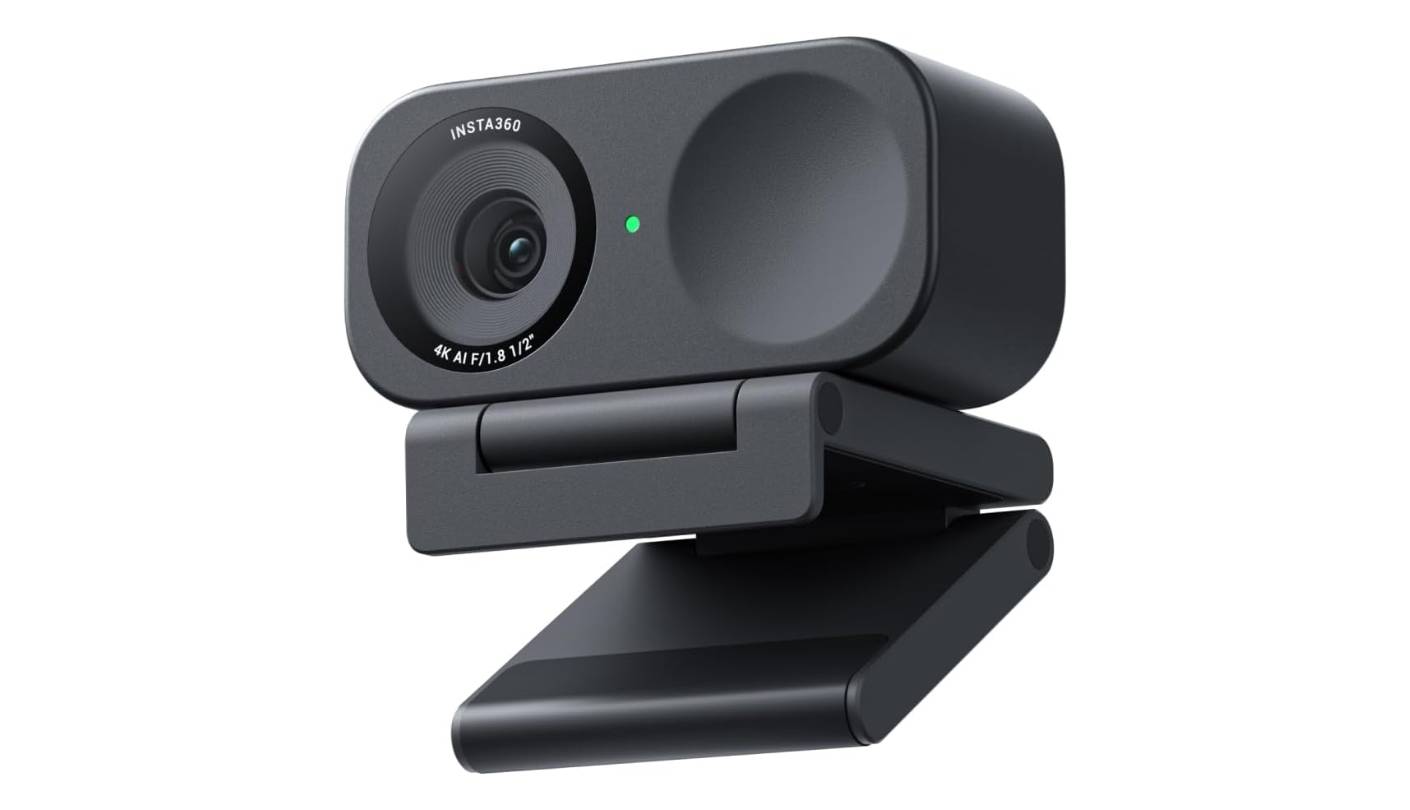
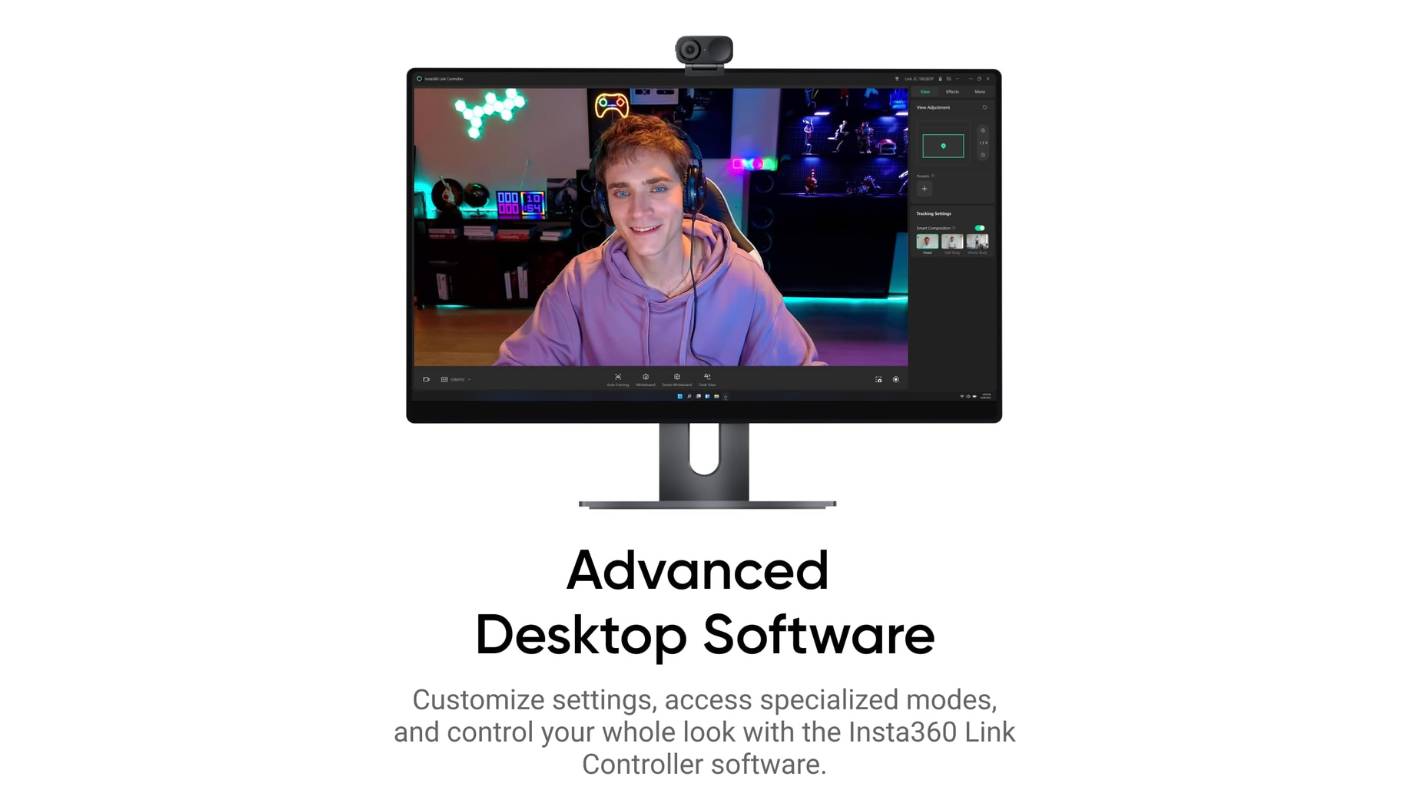
The Insta360 Link 2C earned my Editor's Choice spot because it does the hardest part of webcam design well - the camera looks good in the kind of mixed lighting that defeats most competitors. The 1/2-inch Sony Starlight sensor handles backlit windows and dim conference room lighting with the kind of grace I'd expect from a much larger camera. After three months of running it as my primary work webcam, I haven't reached for any of the others in this group for daily Zoom calls.
4K at 30fps and 1080p at 60fps cover the full range of what video calling platforms can actually use, and the f/1.8 aperture pulls in enough light that low-light scenes look usable rather than noisy. The 79.5° diagonal field of view is on the narrow side compared to the Anker C200's 95° widest setting, but for solo desk meetings I prefer the tighter framing - my background stays cleaner without me having to think about it. AI auto-framing tracks my head with a digital crop and feels smooth rather than jumpy.
The build is one of my favorite things about the Link 2C. The body is mostly plastic but feels solid, and the magnetic L-shaped mount uses a metal armature that grips my monitor edge firmly. Detaching the camera from the mount takes a deliberate pull because the magnet is strong - a feature, not a flaw, since accidental knocks don't dislodge it. The privacy shutter is a small physical slider next to the lens that closes the camera with a satisfying click. A 1/4-inch tripod thread on the bottom lets me move the camera off the monitor when I need a different angle.
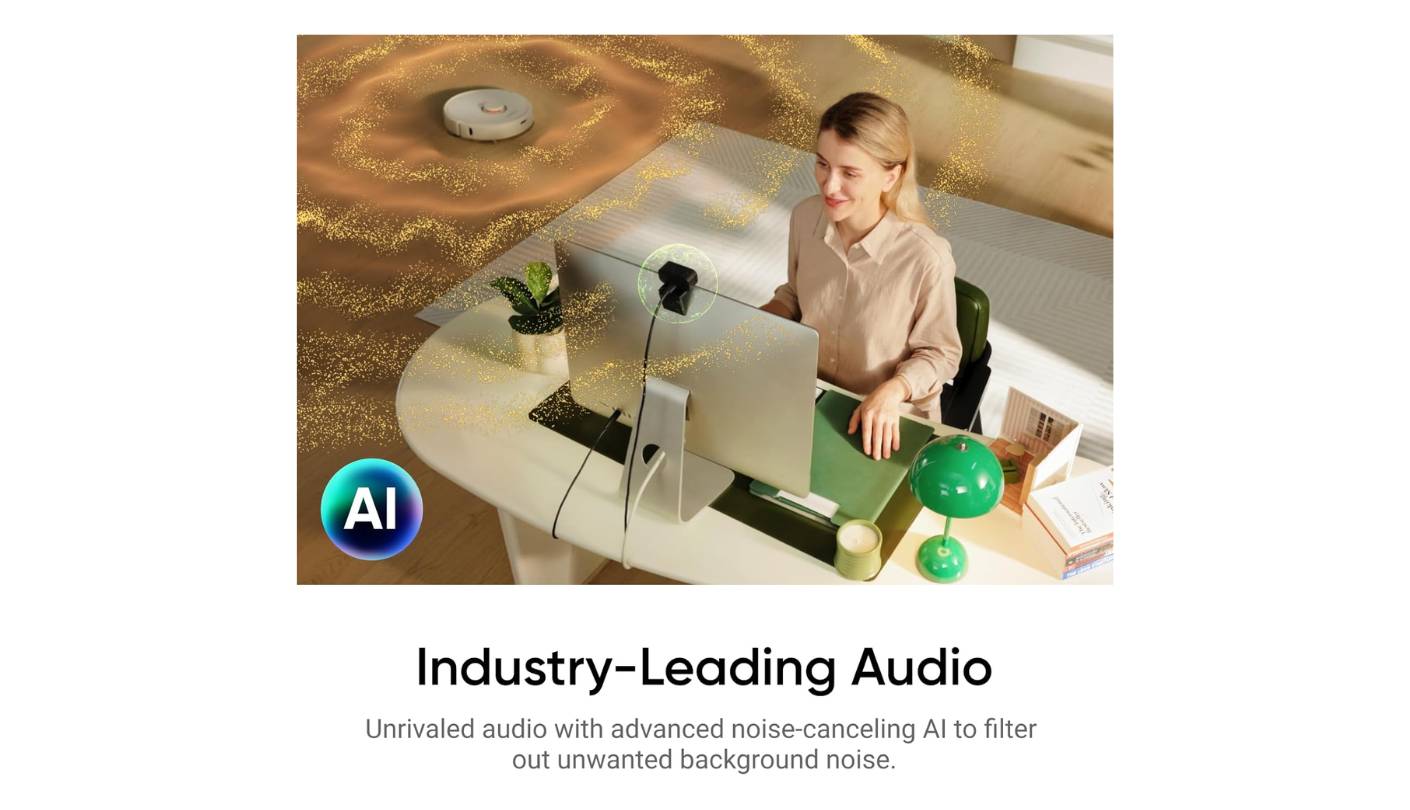
Audio is the area where I'd temper expectations. The built-in mic offers three pickup modes - Voice Focus, Voice Suppression, and Music Balance - and Voice Suppression handles steady background noise like fan hum well. Sudden sounds like keyboard clicks still come through, and overall vocal quality sits around average for the webcam category. For Zoom calls where audio quality matters, I'd pair the Link 2C with a separate USB mic. The Insta360 Link Controller software exposes manual controls for HDR, 60fps mode, and gesture sensitivity, with one of the cleaner interfaces in the group.
The trade-offs are real but minor. There's no gimbal, so motion tracking is digital only - if you walk around your office during calls, the EMEET PIXY's motorized PTZ does that better. Gesture controls work most of the time but occasionally misread a phone in frame as a wave. None of these stopped me from running the Link 2C as my daily driver, and for users who want refined image quality in a still-portable webcam without paying for a motorized mount, this is the cleanest pick in the category.
Pros:
- Sharp 4K imaging
- Strong low-light sensor
- Magnetic L-mount
- Three audio modes
- Polished companion software
Cons:
- No physical gimbal
- Inconsistent gesture detection
Summary: Insta360 Link 2C is the most balanced webcam in this roundup, pairing a large 1/2-inch sensor with smart digital framing and clean software. The right pick for users who want refined image quality and AI features in a compact form.
Logitech MX Brio 4K Review
Best Overall
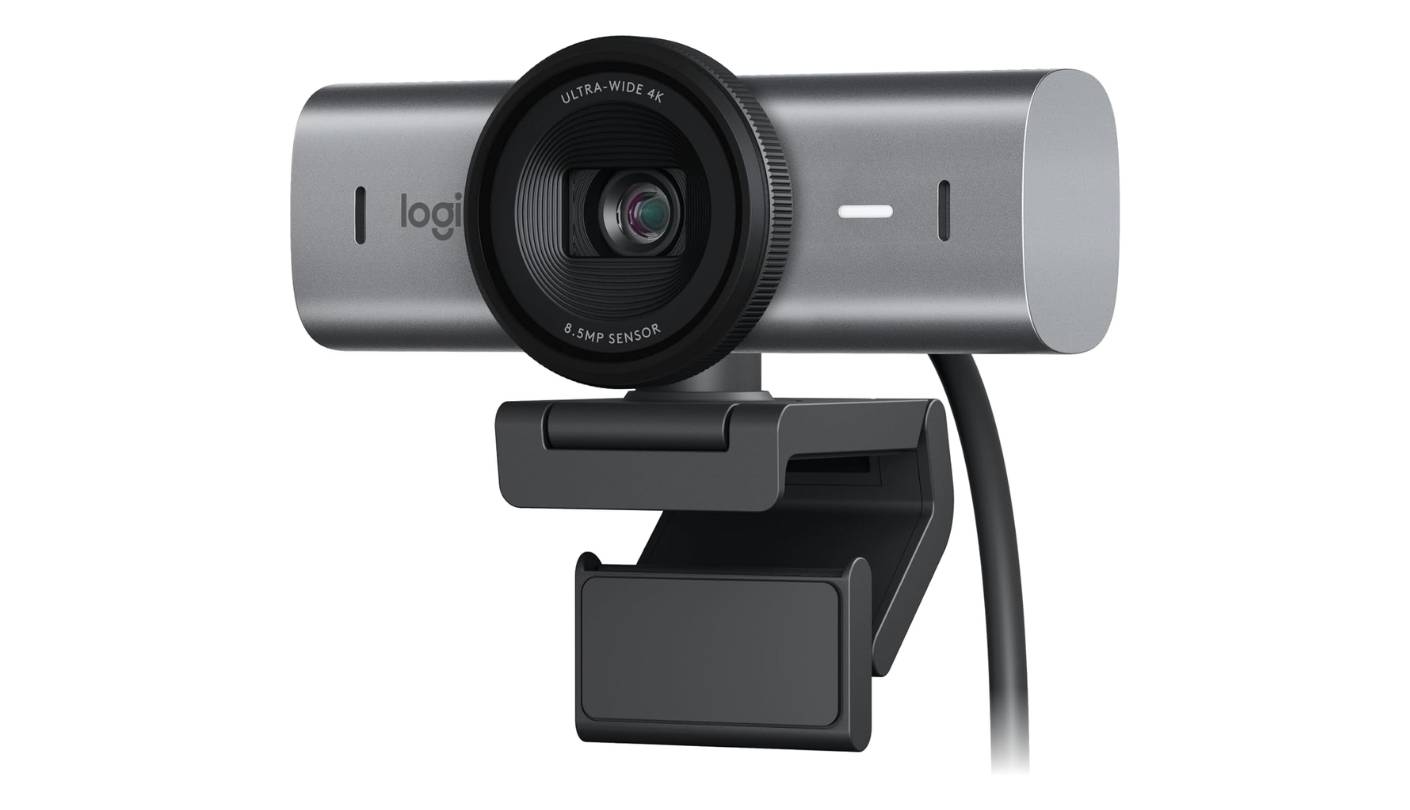
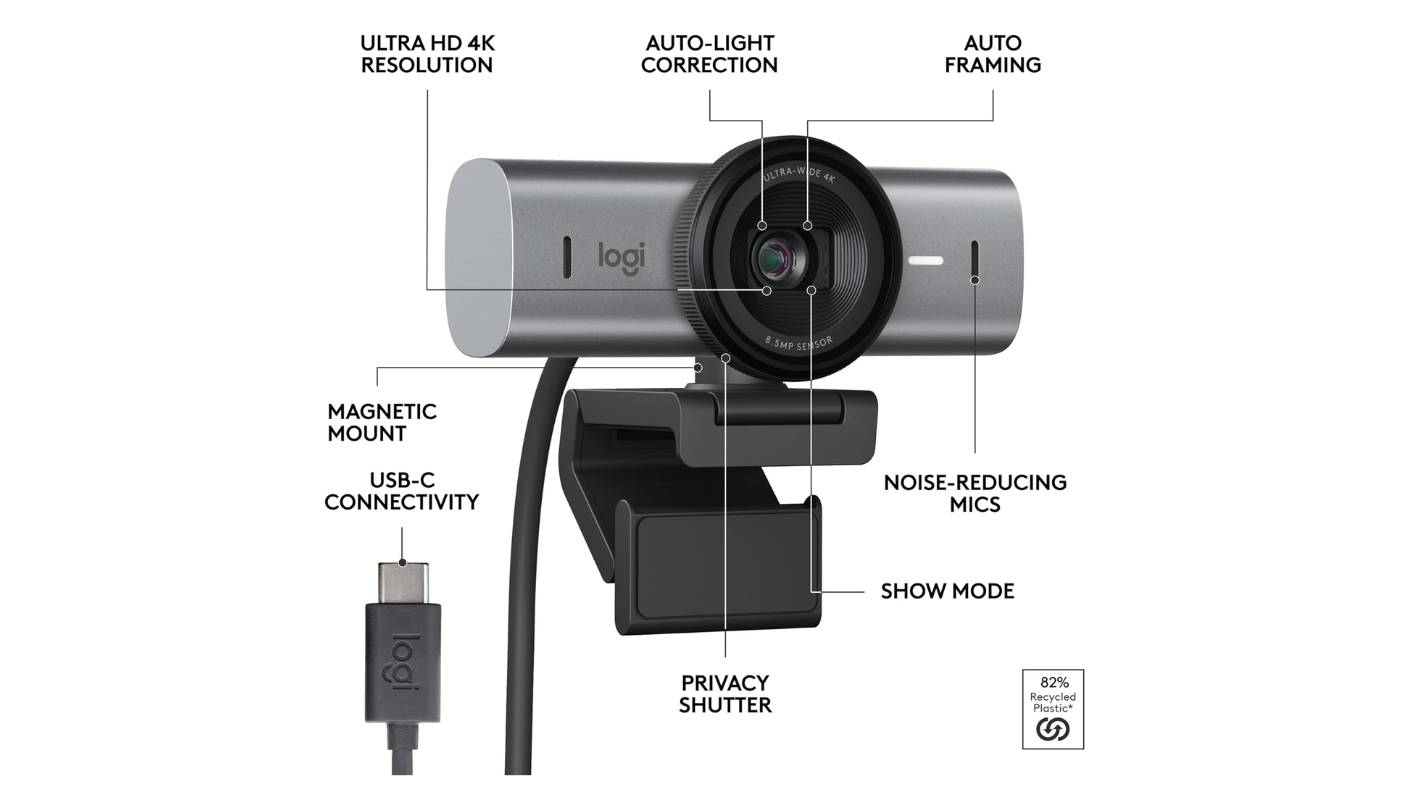
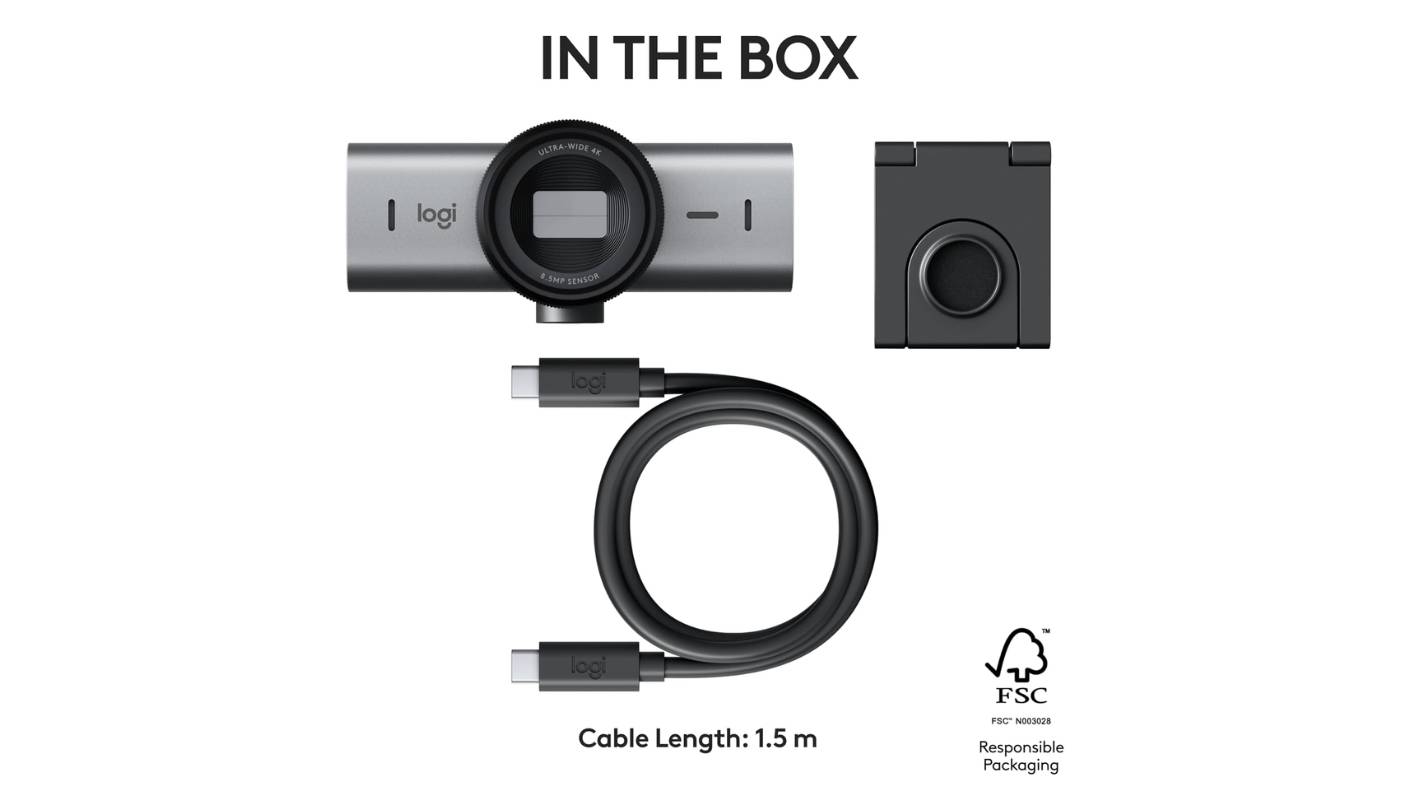
The Logitech MX Brio 4K is the most professional-feeling webcam in the group, and for users who care about how a piece of desk gear looks as much as how it performs, this matters. The aluminum chassis, glass lens, and twist-ring privacy shutter give the MX Brio a premium presence that makes my older Logitech C920 look like a toy. I've used it for six weeks of executive coaching calls where the visual presentation is part of the work, and the camera consistently produced an evenly lit, color-accurate image without me fiddling with settings before each session.
The 8.5MP Sony Starvis sensor is the technical heart of the MX Brio, and Logitech claims a 70% larger pixel size than its older Brio 4K predecessor. In practical terms, low-light performance surprised me - even in a darkened room with only my monitor as a light source, my face stayed visible and detailed. RightLight 5 image enhancement and AI face-based exposure help here, automatically adjusting brightness and color balance frame by frame. The 4K capture maxes out at 30fps, with 1080p at 60fps and 720p at 90fps for users who want smoother motion at lower resolutions.
Show Mode is the feature that distinguishes the MX Brio from most webcam competitors. Tilting the camera down to point at the desk automatically flips the image and turns the webcam into a top-down document camera - useful for sharing handwritten sketches, product samples, or printed reference materials during calls. I use it occasionally for sketch reviews with design clients, and the auto-flip means I don't have to fumble with software settings. Combined with 4x digital zoom and adjustable field of view (65, 78, or 90 degrees), the MX Brio handles more meeting workflow scenarios than most fixed-frame webcams.
Audio runs through dual beamforming microphones with noise reduction, and Logitech's audio processing is mature in a way newer brands haven't fully matched yet. The mics pick up my voice clearly across a desk, and the noise reduction handles steady office sounds without raising the noise floor. Logi Options+ and G Hub both expose manual controls for ISO, shutter speed, white balance, and image enhancement toggles. The integrated privacy shutter twists open and closed with a tactile detent that I prefer to slider designs.
The downsides are weight and the missing IR sensor. At 137g, the MX Brio is heavier than the Insta360 Link 2C, which means it can pull a thin laptop lid backward if mounted directly to the screen. The original Logitech Brio supported Windows Hello via IR, but Logitech removed that capability from the MX Brio, which feels like a step backward on a more expensive product. For desk-mounted use on a sturdy monitor, neither limit matters - my recommendation for office workers who run video calls all day, and want one premium webcam that handles every scenario, lands here.
Pros:
- Aluminum premium build
- Show Mode flip
- Strong low-light performance
- Adjustable field of view
- Dual beamforming mics
Cons:
- Heavier camera body
- No Windows Hello
Summary: Logitech MX Brio 4K combines aluminum build quality with mature image processing and useful features like Show Mode and adjustable FOV. The right pick for office workers who want a premium webcam that handles every meeting scenario.
Anker PowerConf C200 Review
Budget Pick
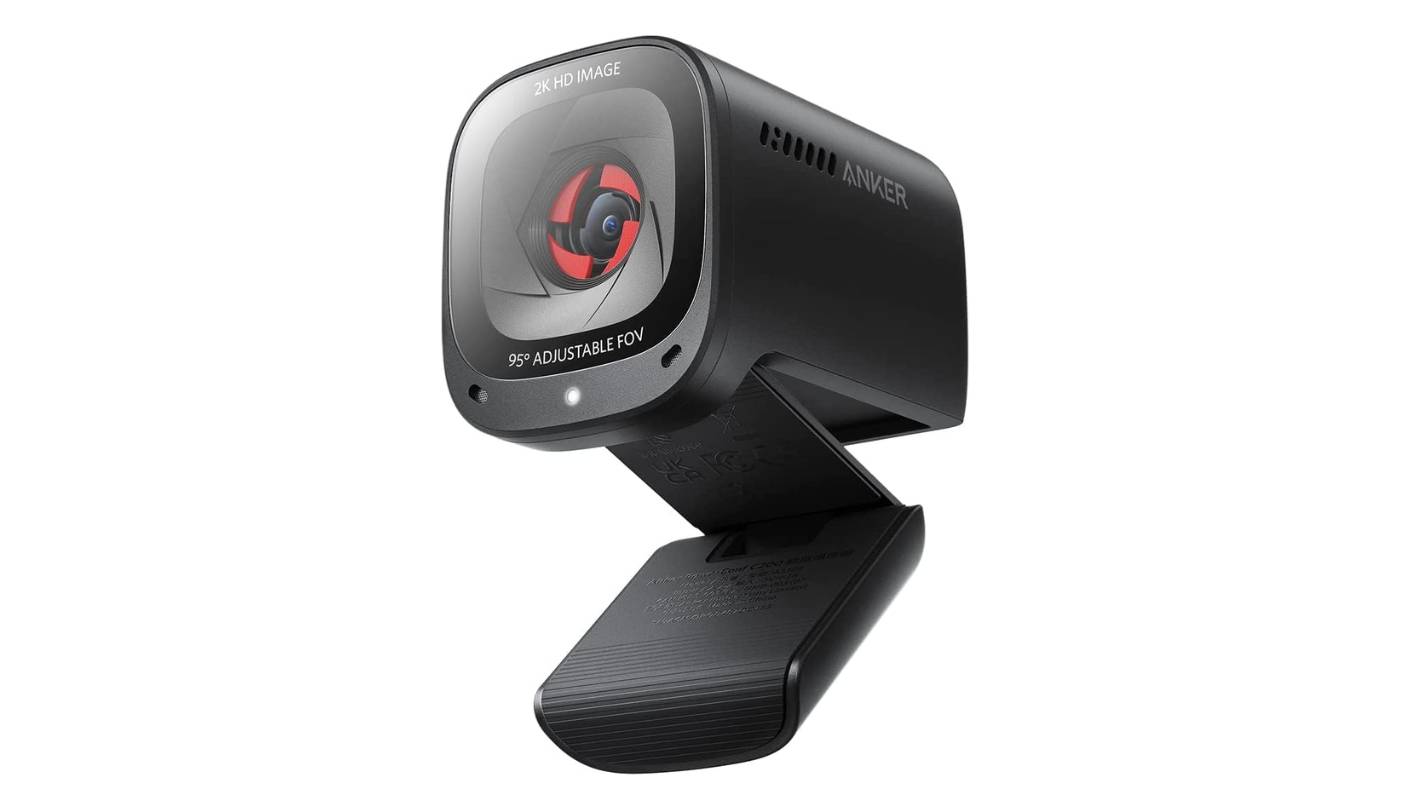
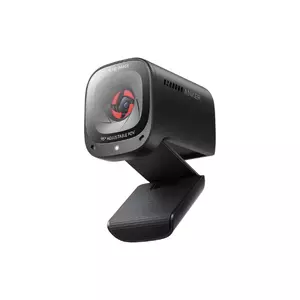
The Anker PowerConf C200 is the webcam I recommend to friends who want a meaningful upgrade from their laptop camera without spending more than a casual dinner out. The 2K resolution and adjustable field of view cover the basics that matter most for Zoom calls, and the build quality holds up better than I expected. I keep one in my travel bag because it's small enough to disappear into a laptop sleeve, and it's the camera I plug in at hotel desks and coworking spaces when my Insta360 stays at home.
The 5MP sensor captures 2K at 30fps, 1080p at 30fps, and 720p at 30fps, with the adjustable FOV switching between 65°, 78°, and 95° in Anker's AnkerWork software. For Zoom and Microsoft Teams, the 2K capture downsamples to 1080p output cleanly, and the resulting image looks sharper than most native 1080p webcams in the same price tier. Color reproduction is accurate, autofocus locks fast on faces, and the wide aperture pulls in enough light that dim home office conditions still produce a usable image.
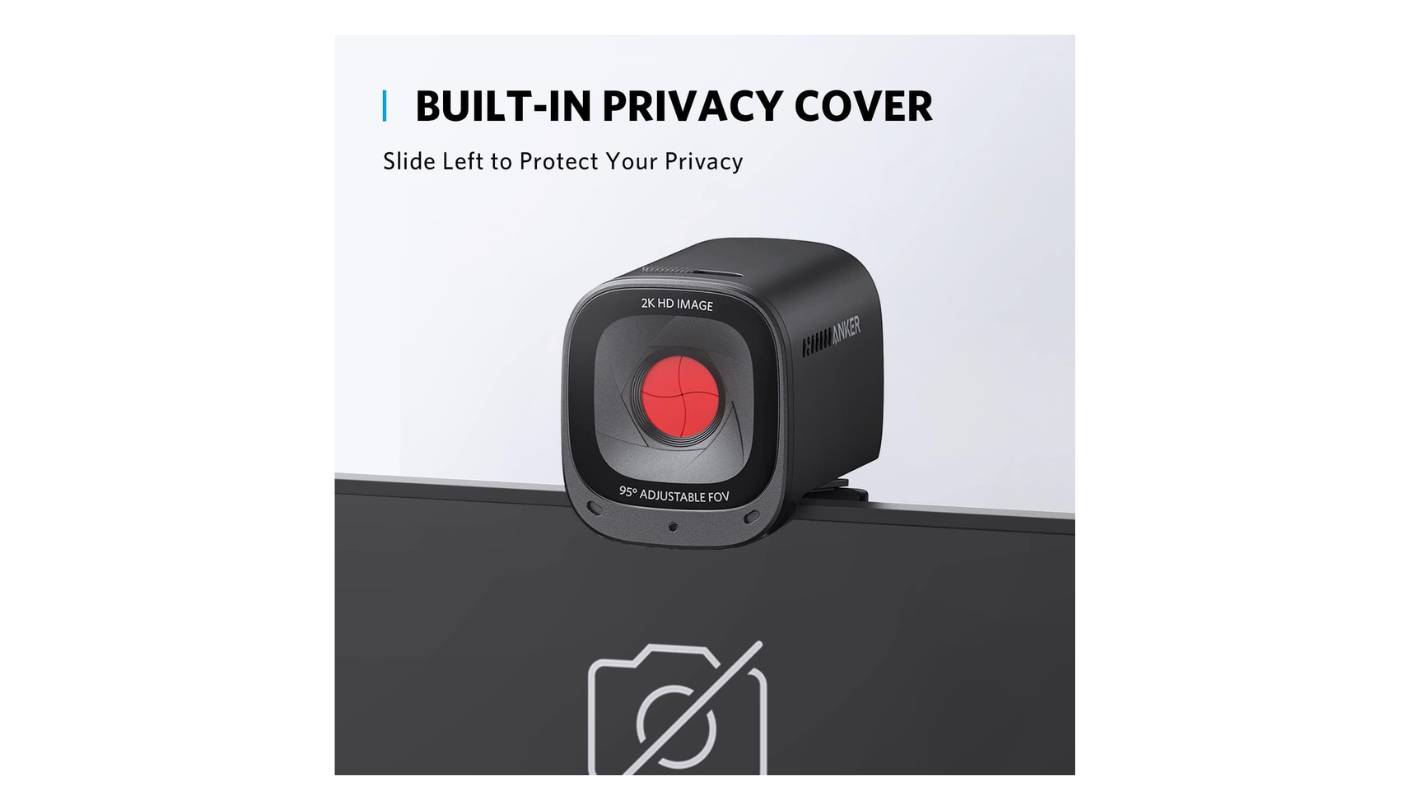
Build is where Anker punches above its weight class. The all-black plastic body is small (2.4 x 2 x 1.6 inches) and weighs just under 3 ounces, sitting cleanly on a thin laptop lid without pulling. The clip mount has a flexible hinge that adjusts to most monitor and laptop edges, and a 1/4-inch tripod thread on the bottom lets me swap to a desktop tripod when I want a different angle. The orange privacy shutter slider is a small detail I appreciate - the bright color makes it obvious at a glance whether the camera is open.
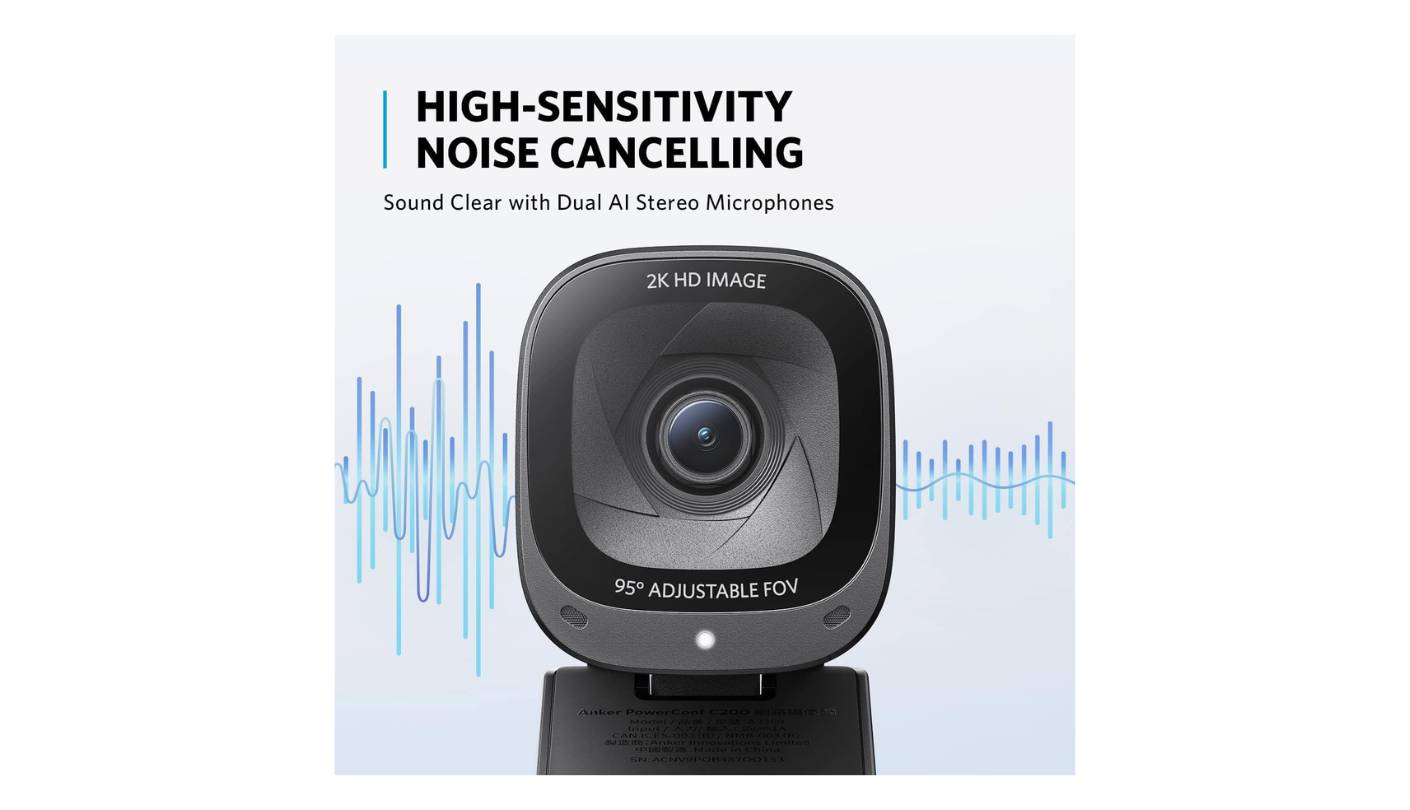
Audio runs through dual omnidirectional mics with AI noise cancellation, and this is where my opinion gets nuanced. With noise cancellation on, the mics filter background hum and keyboard clicks effectively, but I've noticed occasional choppy sounds on consonants when the noise floor is high. With cancellation set to a lighter mode in software, vocal quality improves at the cost of more background sound bleeding through. For most home office Zoom calls, the default settings work well enough that I haven't reached for an external mic when traveling.
The trade-offs are honest ones for the budget category. There's no AI tracking, no 4K capture, and the camera can't swivel on its mount the way some pricier models can. Compared to the OBSBOT Meet SE at a similar weight class, the PowerConf C200 lacks the framing and gesture features but compensates with better mic processing and a more secure clip mount. For users who want a clean, no-frills webcam upgrade that prioritizes reliability over feature lists, the Anker PowerConf C200 is the easiest recommendation in this roundup.
Pros:
- Solid 2K image
- Adjustable field of view
- Compact travel form
- Visible privacy shutter
- Effective noise cancellation
Cons:
- No AI framing
- Occasional audio artifacts
Summary: Anker PowerConf C200 covers the essentials of a Zoom upgrade with a 2K sensor, adjustable FOV, and clean noise cancellation in a budget-friendly package. The right pick for users who want a focused webcam upgrade without paying for AI features they won't use.
OBSBOT Meet SE Review
Compact Pick
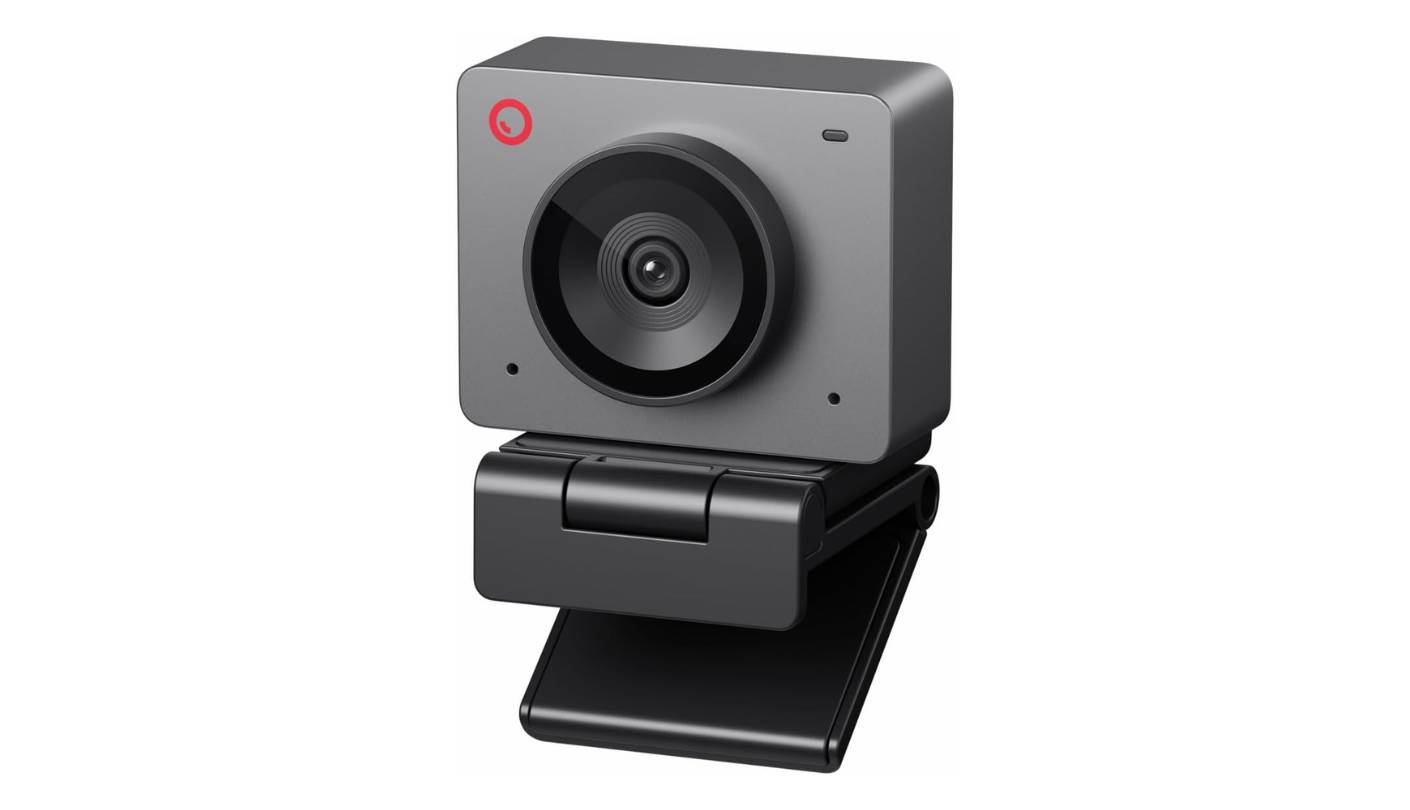
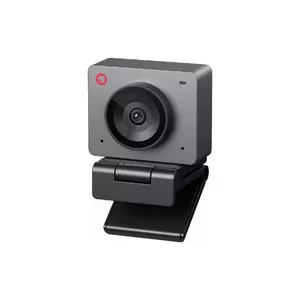
The OBSBOT Meet SE is the smallest and lightest webcam in this roundup at just 33.2 grams, and the size shapes everything about how the camera fits into a workflow. I've been using mine clipped to a 14-inch laptop for the last two months, and the Meet SE doesn't pull the lid backward the way the heavier Logitech MX Brio sometimes does. Three color options - Cloud White, Space Grey, and Aurora Green - break the all-black aesthetic that webcams have settled into.
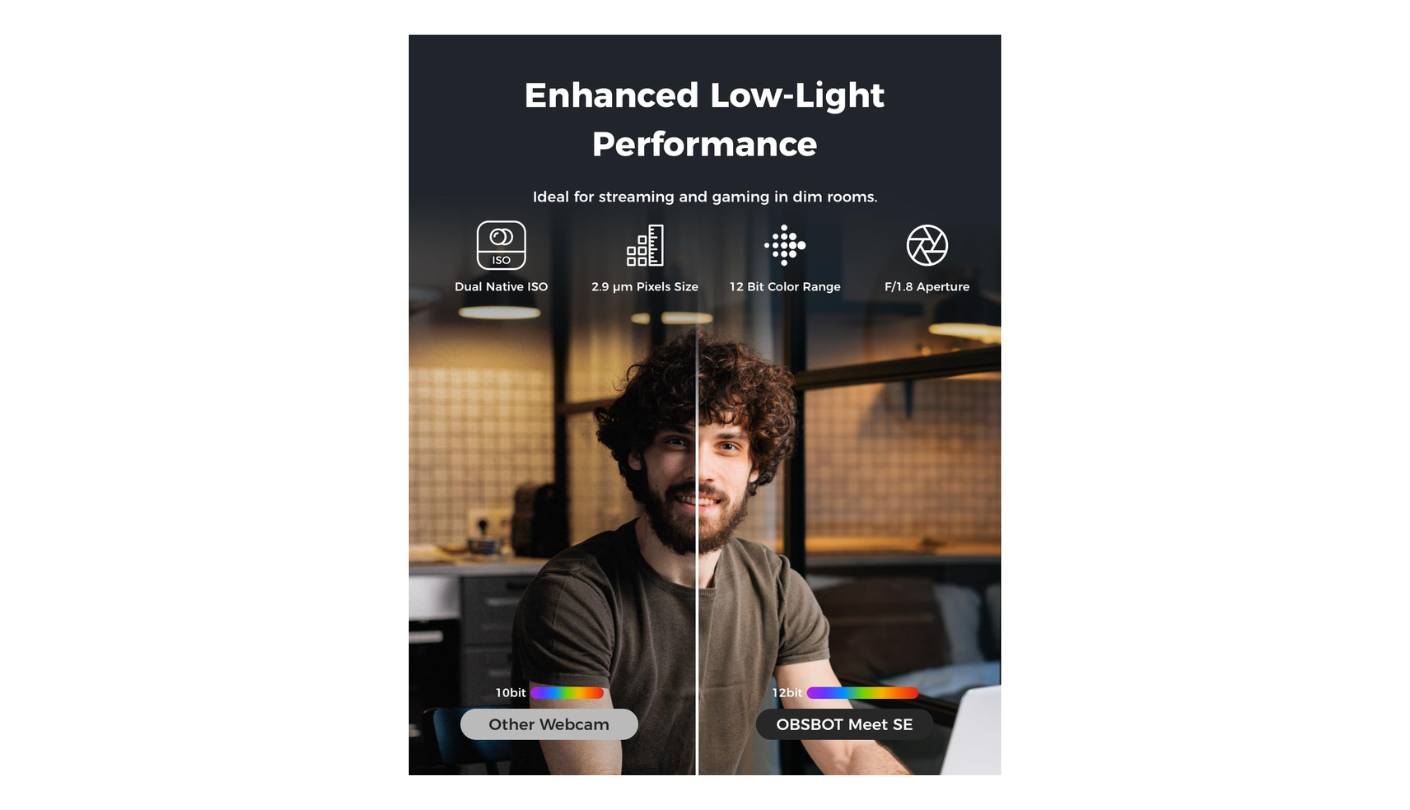
OBSBOT chose 1080p over 4K for the Meet SE, and I think this is the right call at the price point. The 1/2.8-inch Stacked CMOS sensor with 2.9μm pixels captures 1080p at 100fps, 1080p at 60fps, or 720p at 150fps, with Dual Native ISO and Staggered HDR helping in mixed lighting. Important caveat: the 100fps mode only works for local recording, not for live streaming. For live calls, 1080p at 60fps is the practical maximum, fluid enough for any meeting use I've thrown at it. Image quality holds up well against backlit windows thanks to HDR.
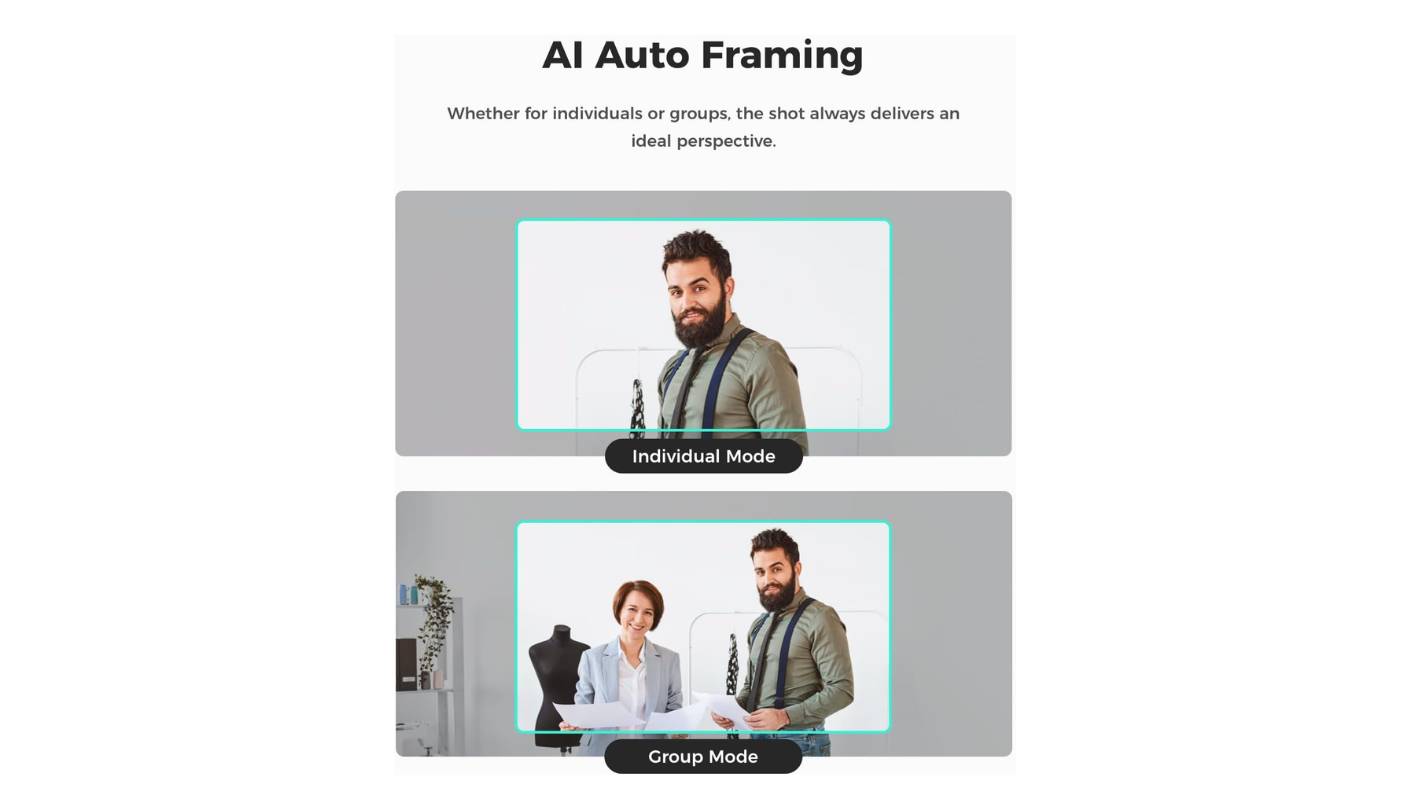
AI Auto Framing is one of the standout features for the size class. The Meet SE crops a 4x digital zoom window from the full sensor and follows my face as I shift in my chair, with smooth transitions rather than choppy jumps. Group Mode, Close-Up, Single Body, and Upper Body settings let me match the framing to the call type. Gesture control activates with an open palm or a pointed finger, and across daily use the gesture detection has been more consistent for me than on the Insta360 Link 2C. The privacy cover is a small magnetic disc that snaps to the lens.
The mounting system is the area I'd flag most carefully. The included magnetic mount works well for thin monitor edges and laptop lids but struggles with thick or curved monitor backs. On my own 27-inch panel the grip is good but not great. A 1/4-inch tripod thread on the bottom of the mount helps - I switched to a small desktop tripod for my main display and kept the magnetic mount for travel. The single built-in microphone is the weakest in this group, and for any call where audio quality matters, I'd pair the Meet SE with an external mic.
Software runs through OBSBOT Center, which exposes the AI framing modes, gesture toggles, beauty filters, and image parameter controls. The interface is clean but not as polished as Logi Options+ or Insta360 Link Controller. The Meet SE is the camera I'd recommend to anyone who values a small, light, attractive webcam over the absolute best image quality. My personal use case skews toward client coaching calls where the camera should disappear into the background, and the Meet SE does that better than any of the heavier alternatives.
Pros:
- Ultra-lightweight 33g body
- Smart AI framing
- Three color options
- Dual Native ISO sensor
- Reliable gesture controls
Cons:
- Weak built-in mic
- Loose magnetic mount
Summary: OBSBOT Meet SE packs flagship-grade AI framing and a quality 1080p sensor into a 33-gram body in three colors. The right pick for users who want a light, friendly webcam upgrade with smart features that punch above the price.
EMEET PIXY Dual-Camera AI PTZ 4K Review
Tracking Pick
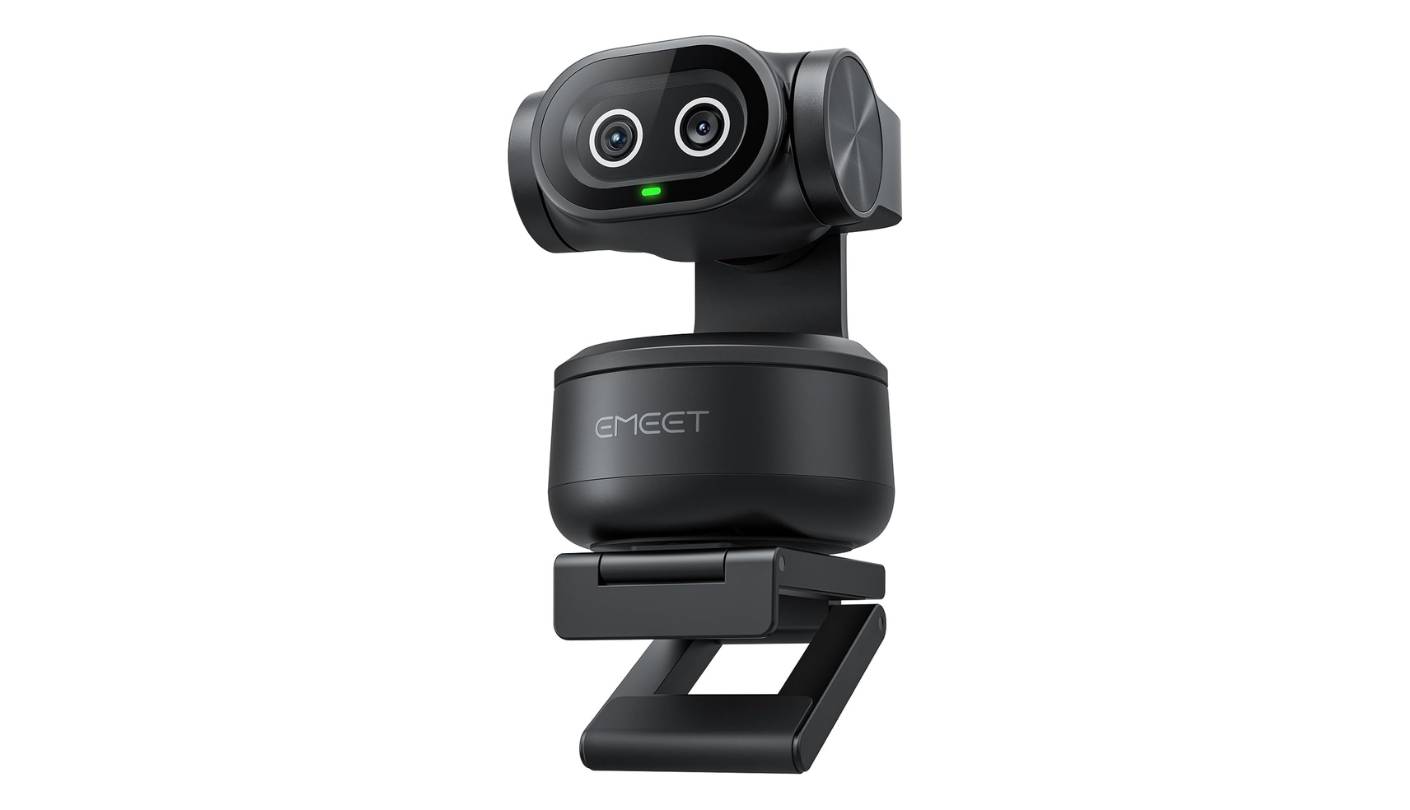
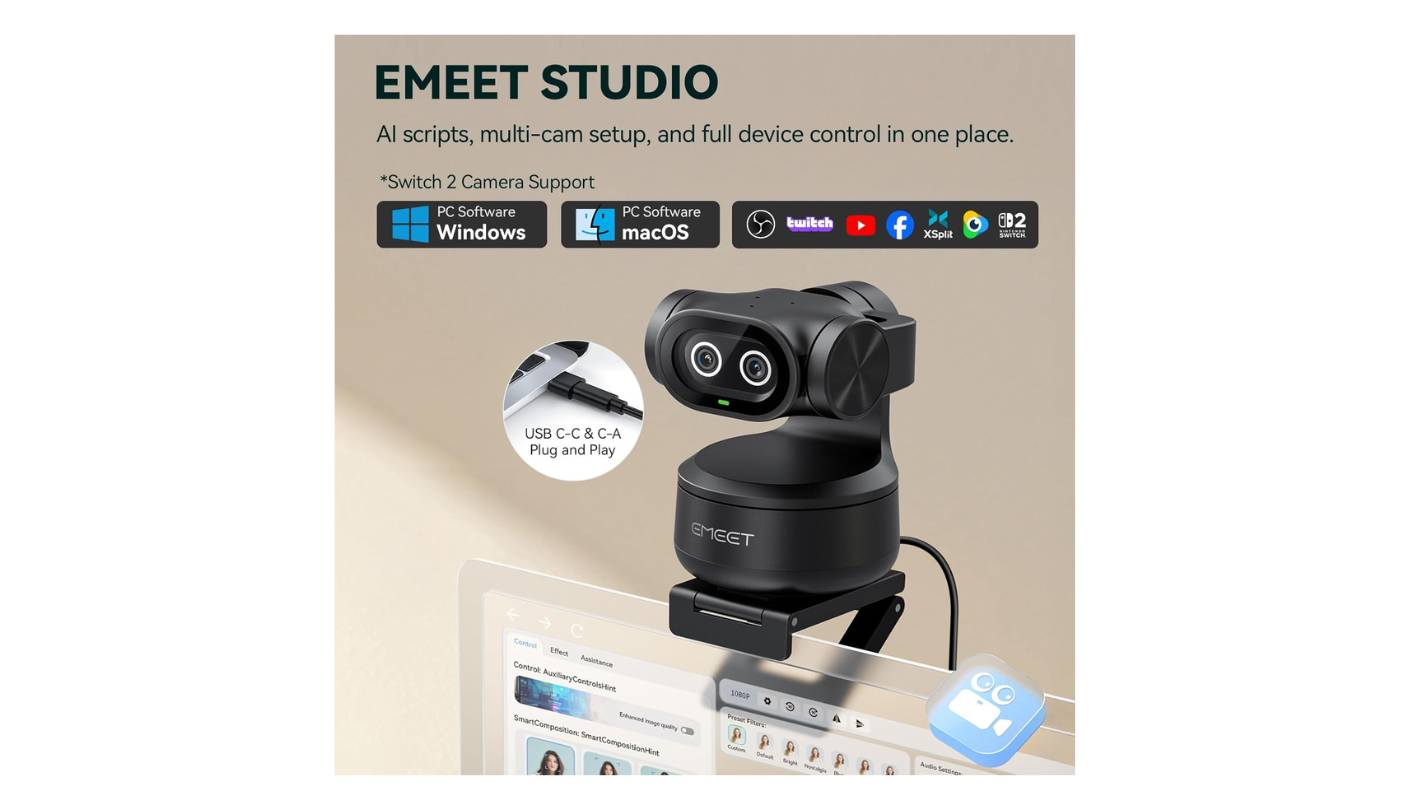
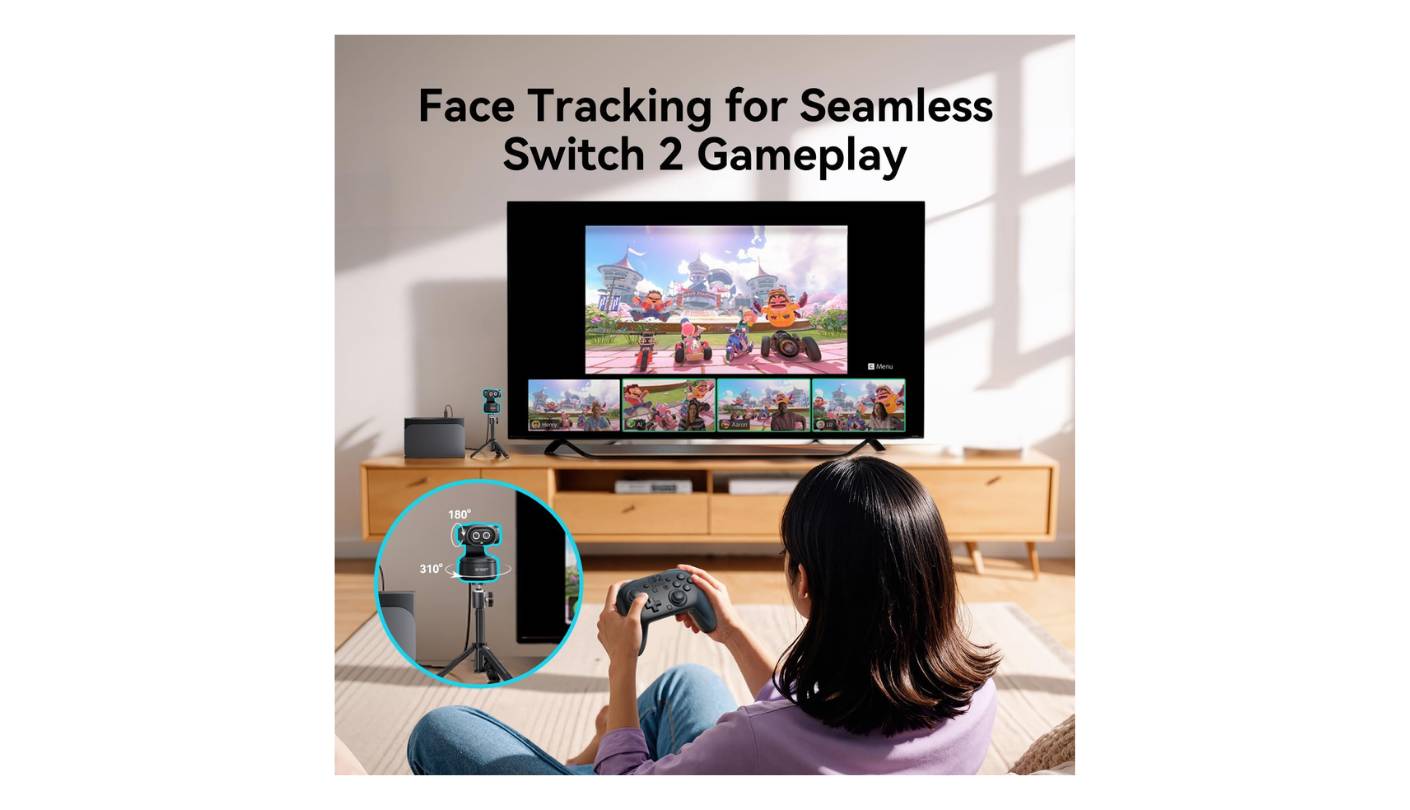
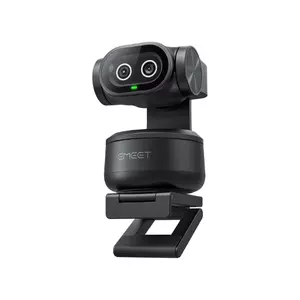
The EMEET PIXY is the most distinctive webcam in this roundup, both visually and functionally. The dual-lens design - one 4K imaging camera and one AI-assist camera - sits on a motorized gimbal that pans 310 degrees and tilts 180 degrees, giving the device the look of a friendly little robot bird perched on top of my monitor. I've been using it for the last six weeks for client demos where I move between my desk and a small whiteboard, and the PIXY is the only webcam in this group that physically follows me without complaint.
The dual-camera system is what separates the PIXY from auto-framing competitors. The 1/2.55-inch Sony main sensor handles 4K capture at 30fps and 1080p at 60fps, while the AI-assist camera continuously detects face position and feeds tracking data back to the gimbal motors. The result is autofocus that locks in 0.2 seconds - faster than any other webcam I've tested - and tracking that anticipates motion rather than reacting to it. PDAF plus the AI assist means the camera holds focus on me even as I lean in, lean back, or hand something to the side.
The motorized PTZ gimbal is the headline feature, and its usefulness depends entirely on whether you actually move during calls. For static desk meetings, the gimbal is overkill - the OBSBOT Meet SE's digital framing covers the same territory more elegantly. For presentations, classroom teaching, or fitness streaming where I move between positions, the PIXY is in a different category. Three preset PTZ positions in EMEET Studio let me jump between angles with a click, and gesture control with an open palm toggles tracking on and off.
Audio is handled by a three-microphone array with three modes - Live, Noise Cancelling, and Original Sound. Live Mode filters steady background sounds during streams. Noise Cancelling Mode handles sudden noises like keyboard clicks and door slams, my pick for podcast-style recordings. Original Sound captures more of the ambient room sound for music or singing. The mic array is the most capable in this roundup, and for hybrid use cases that mix meetings with content recording, the PIXY's audio reduces the need for a separate USB mic in many situations.
The trade-offs cluster around software stability and digital zoom limits. EMEET Studio has crashed on me a couple of times during long sessions, and the latest version is more stable than earlier ones but still rougher than Logi Options+ or Insta360 Link Controller. Digital zoom is locked at 1.5x and only works at 1080p or 2K capture - 4K mode disables digital zoom for stability reasons. For users who genuinely benefit from physical PTZ - online teachers, fitness streamers, presenters who walk around - the EMEET PIXY is the most capable webcam in this roundup, and worth the higher price for the right workflow.
Pros:
- Motorized PTZ gimbal
- Dual-camera tracking system
- Fast 0.2s autofocus
- Three-mic audio array
- Whiteboard correction mode
Cons:
- Software stability issues
- Limited digital zoom
Summary: EMEET PIXY pairs a 4K Sony sensor with a motorized PTZ gimbal and a strong three-mic array, giving you tracking that physically follows you across the room. The right pick for presenters, teachers, and streamers who move during calls.
Webcams for Zoom Meetings: FAQ
Are external webcams really better than laptop cameras?
Yes, and the gap is wider than most users realize. Laptop cameras typically use small 1/4-inch sensors with limited apertures, which means they need bright lighting to produce a clean image. External webcams in this roundup all use larger sensors with wider apertures, plus dedicated image processing that handles backlit scenes and color balance better. From my own experience switching to an external webcam years ago, the improvement is the kind colleagues notice on the first call.
Do I need 4K or is 1080p enough for Zoom?
For Zoom specifically, 1080p is more than enough because the platform caps outgoing video at 1080p only on Pro accounts and lower on free tiers. The case for 4K is the larger sensor that typically comes with it - 4K cameras tend to use bigger sensors and better optics, which improves the 1080p stream the platform actually uses. I run my OBSBOT Meet SE in 1080p for daily calls, and the resulting video looks excellent.
How important is AI auto-framing for meetings?
AI auto-framing is more useful than I expected before testing these cameras, but it's not essential for static desk work. If you sit still in a chair during calls, fixed framing on the Anker PowerConf C200 works fine. If you shift around, lean in to read documents, or share the desk with a colleague, AI framing on the OBSBOT Meet SE or Insta360 Link 2C keeps you well-composed without any thought. For motion across a whole room, only physical PTZ like the EMEET PIXY can keep up.
Should I use the webcam's built-in mic or a separate one?
The honest answer depends on how much your audio matters. For internal team standups and casual calls, every webcam in this roundup has acceptable built-in audio that beats most laptop mics. For client work, podcast recording, or any call where audio quality is part of the impression, a separate USB mic positioned closer to your mouth will outperform any webcam mic. I run a separate USB mic for podcast recordings and rely on webcam audio for daily standups.
What field of view works best for solo home office calls?
For a clean head-and-shoulders meeting framing, 65 to 78 degrees is the sweet spot in my own setup. The narrower angle keeps the background tight to the edges of the frame, which means less of your room shows during the call. Wider angles around 90 to 95 degrees become useful when two people share a single camera, when you want to capture more of a workspace, or when pointing at a whiteboard behind you.
Can these webcams replace a professional streaming camera?
For most meeting and casual streaming use, yes. The Insta360 Link 2C and Logitech MX Brio both produce 4K video that holds up against entry-level mirrorless cameras for video calls and basic content creation. For professional streaming where you need shallow depth of field and full manual control, a mirrorless camera with a capture card is still the better tool. I use my Insta360 Link 2C for podcast video and haven't felt the need to upgrade.
How do I improve webcam image quality without buying new gear?
Lighting is by far the highest-leverage change you can make. Adding a single key light, or repositioning your desk so a window faces you (rather than behind you) will improve image quality more than upgrading from a 1080p webcam to a 4K model. In my own testing, raising the webcam to eye level rather than shooting up from a low laptop angle also makes a noticeable difference, and a quick lens wipe with a microfiber cloth never hurts.
Do webcams work the same on Mac, Windows, and Linux?
For basic plug-and-play video and audio, yes - all webcams in this roundup use UVC standards that work across operating systems. The differences show up in companion software. I've tested all five on both Mac and Windows and the experience is consistent on those two platforms. Linux users get basic webcam functionality but typically lose access to AI features, manual exposure controls, and gesture inputs that depend on the proprietary software.
Choosing the Right Webcam for Zoom Meetings
The five webcams in this roundup cover the realistic range of meeting use cases, and the right one depends on which trade-offs match your actual calls. For the most refined image quality in a still-portable form, the Insta360 Link 2C is my first recommendation - the Sony Starlight sensor, smart digital framing, and clean Insta360 Link Controller software make it the cleanest daily-driver pick. The Logitech MX Brio 4K covers the same ground for users who want a more premium aluminum build and unique features like Show Mode.
For a meaningful upgrade from a laptop camera without the premium price, the Anker PowerConf C200 is the value play of the group. The OBSBOT Meet SE brings AI auto-framing and three color options to a 33-gram body that disappears on a thin laptop. And for anyone who actually moves during calls - online teachers, fitness streamers, hybrid presenters - the EMEET PIXY is the only webcam here with a motorized gimbal that physically follows you across the room. My own pick for daily Zoom work lands on the Insta360 Link 2C, but the right webcam is the one that matches the calls you actually take.

Jim's our tech geek with a mission since February 2023. From movies to video projectors, he knows his stuff and aims to make tech work for you. When he's not geeking out, he's there to guide you through making savvy decisions.


