What Are the Best Tablets for Seniors?
Most tablets are designed with a 25-year-old in mind and then handed to someone in their seventies. The font sizes are tiny by default. The home screen reorganizes itself after an accidental long-press. Video calls drop because Wi-Fi permission was accidentally revoked by a menu tap nobody intended to make. Over several weeks of testing, I kept these specific friction points at the center of every evaluation - not clock speeds or color gamut, but whether a 72-year-old who has never held a tablet before can use this thing to call her daughter on a Sunday morning without asking anyone for help.
Five tablets made the cut: the Apple iPad 11-inch A16, Samsung Galaxy Tab A9+, Amazon Fire HD 10, Lenovo Tab M11, and Google Pixel Tablet. What separates them from each other has less to do with hardware differences and more to do with which family they belong to - Apple, Google, Amazon, or none of the above. That question deserves an honest answer before any spec is read.
Here are my two top picks for the best tablet for seniors:
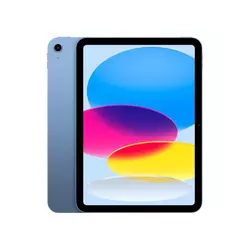
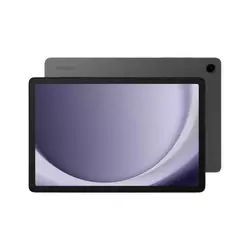
Table of Contents:
- Best Tablet for Seniors: Buying Guide
- Top 5 Tablets for Seniors in 2026
- Best Tablets for Seniors: Comparison
- Apple iPad 11-inch A16
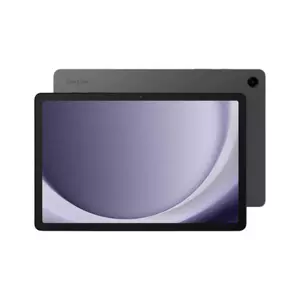
- Samsung Galaxy Tab A9+
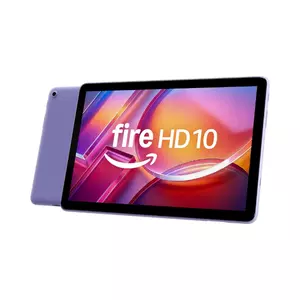
- Amazon Fire HD 10
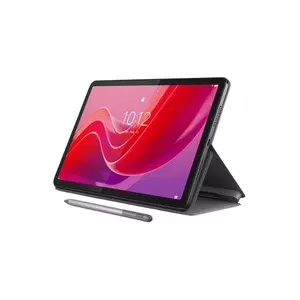
- Lenovo Tab M11
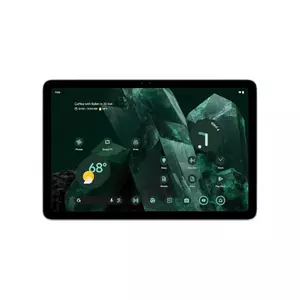
- Google Pixel Tablet
- Best Tablets for Seniors: FAQ
Best Tablet for Seniors: Buying Guide
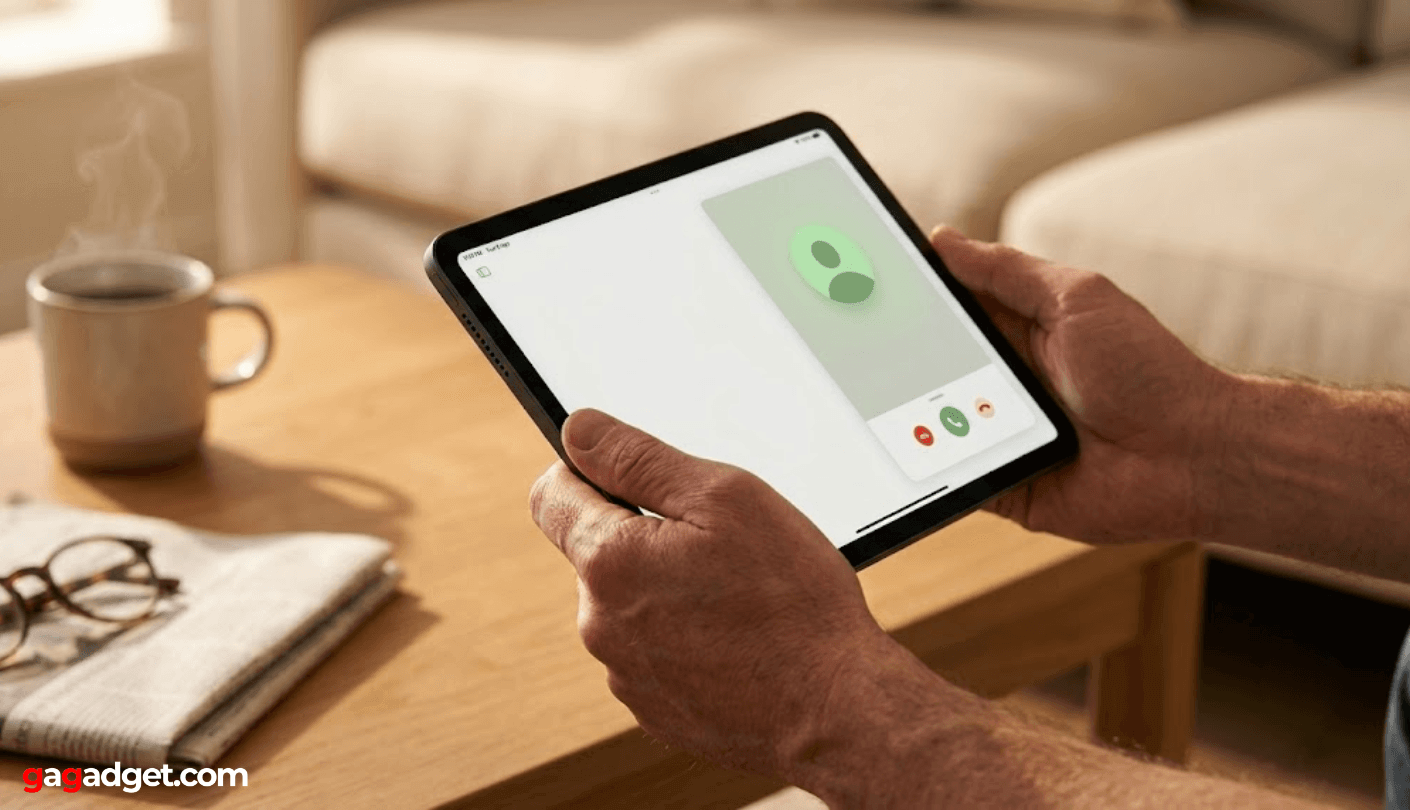
Spec sheets for tablets are written for people who already know what they want. The five criteria below are what actually predict whether a device works for an older adult in daily life - none of them appear prominently on a product page.
Screen Size and Text Clarity
The conversation about screen size for older users always comes back to one biological fact: presbyopia, the gradual loss of near-focus flexibility that starts around age 45 and affects nearly everyone past 60, means that small text is not just inconvenient but genuinely unreadable without accommodation. An 11-inch display at or above 200 pixels per inch gives enough room to enlarge text significantly without the interface becoming unusable - tap targets stay large enough, menus stay legible, and video calls show real faces rather than postage-stamp thumbnails. Anything under nine inches becomes a daily negotiation between readable text and visible context.
Pixel density and brightness matter as much as diagonal inches - a dim or low-resolution panel loses legibility in a sunlit room no matter how large the text is set. Among the five tablets reviewed here, the gap in peak brightness and sharpness translates directly into which ones seniors actually use versus which ones migrate to a drawer.
Anti-glare behavior is also worth checking before buying. Most older adults use tablets in kitchens and living rooms rather than dark bedrooms, and a glossy screen with no anti-reflective coating reflects ceiling lights and windows into the display continuously. The tablets in this field vary enough on this dimension that it changes real daily comfort, not just benchmark scores.
Interface Simplicity and Accessibility Settings
Every tablet on this list ships with accessibility features - larger text, reduced motion, high-contrast modes, voice navigation. What varies is how quickly those settings surface. Some require four sub-menus to reach and must be discovered by the user independently. Others prompt for configuration during the first-time setup before any app is opened. That gap in onboarding friction matters when the person doing the setup is a family member configuring the device over a video call and has a fifteen-minute window before something else demands attention.
Stability after setup is the second thing I look for. A home screen that reorganizes when a folder is accidentally held too long turns every family visit into a reset session. I tested this specifically - holding icons, switching between orientation modes, invoking settings shortcuts accidentally - and noted which tablets hold their configured state and which drift. iPadOS Guided Access locks the display to a single app when needed. Fire OS handles the same need through profile-based restrictions. Android's accessibility menu offers app pinning. The method matters less than whether it actually works for the person using it.
Battery Life and Physical Weight
A tablet with a dead battery is not a communication device. It is a flat piece of glass sitting on a table. Senior users are less likely than younger ones to carry a charging cable around the house or remember to plug in the device before bed, which means the battery life listed on the spec sheet needs to cover a full day of realistic use with a comfortable margin. All five tablets reviewed here reach ten hours or more under typical conditions - streaming, browsing, and video calls mixed together - but the difference between ten hours and twelve becomes real when the device is forgotten on the kitchen table all morning.
Weight is the physical specification that reviewers underweight for this audience. Held in bed or on a sofa arm for an extended reading session, even a 490-gram tablet creates meaningful strain for someone with reduced grip strength or wrist sensitivity. A charging dock that keeps the tablet propped and visible solves weight and battery simultaneously - and one of the five tablets in this roundup includes the dock in the box.
Charging habits differ with age. A device that goes from empty to usable quickly after a short top-up is more forgiving than one that requires hours of plugged-in time to regain enough charge for a video call. All five tablets here use USB-C charging, with speeds ranging from 15 to 45 watts, and that range adds up to a meaningful difference in how long the device is unavailable after a forgotten overnight charge.
Voice Control and Video Call Quality
For an older adult with arthritic fingers, limited dexterity, or early-stage motor difficulties, voice control is not a convenience feature - it is an access route. Saying "call my son" to a device sitting on the counter is a fundamentally different experience from unlocking the screen, navigating to contacts, and tapping through to a call with fingers that may not respond precisely. Alexa on the Fire HD 10 handles this without requiring the display to be on or touched. Google Assistant on the Android devices here is equally capable in connected Google households. Siri on the iPad handles most voice requests well but requires the screen to be active for anything involving personal data.
Front camera placement shapes every video call. A camera on the long edge of the tablet sits at the natural top when the device is held in landscape - the position most seniors default to on a table or stand. Center Stage on the iPad and Continuous Framing on the Pixel Tablet both track the user automatically if they shift position mid-call, a feature that matters considerably more for this audience than the camera's megapixel count. I ran video calls on all five tablets at the same kitchen table, and the framing quality difference between auto-tracking and fixed cameras was immediately visible.
Software Longevity and Family Management
A tablet bought as a gift today may still be the primary device five years from now, especially if the recipient has no interest in upgrades. Security patches and OS version updates keep the device safe and functional during that time - a tablet receiving no updates by year three is accumulating vulnerabilities the owner will never notice or address. Samsung's commitment on the Tab A9+ runs to four Android version updates and five years of security patches. Google keeps the Pixel Tablet on its update track through the mid-2020s. Lenovo covers four years of security patches and two Android version increments on the M11. Amazon updates Fire OS on its own schedule, typically covering three to four years of device support.
Remote family management - the ability for an adult child to install an app, push a photo album, or fix a broken setting without a home visit - is what turns a tablet from a one-time gift into a continuous connection. Apple Family Sharing and Google Family Link both enable this, and the ecosystem a family already uses is usually the better framework than the one that sounds most capable in a review.
The ecosystem question deserves direct attention before purchase. A household where everyone uses iPhones, shares an iCloud photo library, and calls through FaceTime will have a qualitatively different setup experience with the iPad than with any Android tablet. Conversely, a Google Photos family with Android phones will find the Pixel Tablet or Galaxy Tab already configured for the way they share. My strongest advice after testing all five: map the family's current apps against each platform before the device is ordered, because switching ecosystems for a senior user creates a support burden that rarely goes away.
Top 5 Tablets for Seniors in 2026
Every tablet below was tested specifically for video calling, streaming, reading, voice assistant use, and real-world accessibility - the daily scenarios that determine whether a senior actually uses it.
- Apple ecosystem integration
- Center Stage auto-framing
- A16 chip responsiveness
- iPadOS accessibility tools
- Aluminum build quality
- 90Hz smooth display
- Four stereo speakers
- 3.5mm headphone jack
- Long battery life
- 4-year update commitment
- Hands-free Alexa always-on
- Show Mode on charging stand
- Lightest in the field
- Budget-accessible price
- Prime Video integration
- Folio case in box
- IP52 splash resistance
- 8MP front camera
- 3.5mm headphone jack
- 90Hz display
- Charging speaker dock included
- Hub Mode always-on display
- Sharpest panel (276ppi)
- Continuous Framing camera
- Clean Pixel Android UI
Best Tablets for Seniors: Comparison
A side-by-side look at the specifications that matter most for senior use:
| Specification | Apple iPad A16 | Samsung Tab A9+ | Amazon Fire HD 10 | Lenovo Tab M11 | Google Pixel Tablet |
| Screen Size | 11-inch IPS LCD | 11-inch TFT LCD | 10.1-inch IPS LCD | 11-inch IPS LCD | 11-inch IPS LCD |
| Resolution / PPI | 2360x1640 / 264ppi | 1920x1200 / 206ppi | 1920x1200 / 224ppi | 1920x1200 / 206ppi | 2560x1600 / 276ppi |
| Refresh Rate | 60Hz | 90Hz | 60Hz | 90Hz | 60Hz |
| Chip / RAM | Apple A16 / 6GB | Snapdragon 695 / 4-8GB | MediaTek MT8186 / 3GB | Helio G88 / 4-8GB | Tensor G2 / 8GB |
| Storage | 128-512GB | 64-128GB + microSD | 32-64GB + microSD | 128GB + microSD | 128-256GB (no microSD) |
| Operating System | iPadOS 18 | Android / One UI | Fire OS / Alexa | Android 13-15 | Android / Pixel UI |
| Voice Assistant | Siri | Google Assistant | Alexa (hands-free) | Google Assistant | Google Assistant |
| Front Camera | 12MP, Center Stage | 5MP | 5MP, 1080p | 8MP | 8MP, Continuous Framing |
| Battery / Weight | ~10hr / 477g | ~10-12hr / 480g | ~10hr / 434g | ~10-12hr / 465g | ~12hr / 490g |
| Dock Included | No | No | No (sold separately) | No | Yes |
| Headphone Jack | No | Yes | No | Yes | No |
Auto-framing camera support, hands-free voice assistant access, and confirmed software update timeline are the three points worth marking on this table before any purchase decision. Everything else follows from those three.
Apple iPad 11-inch A16 Review
Editor's Choice
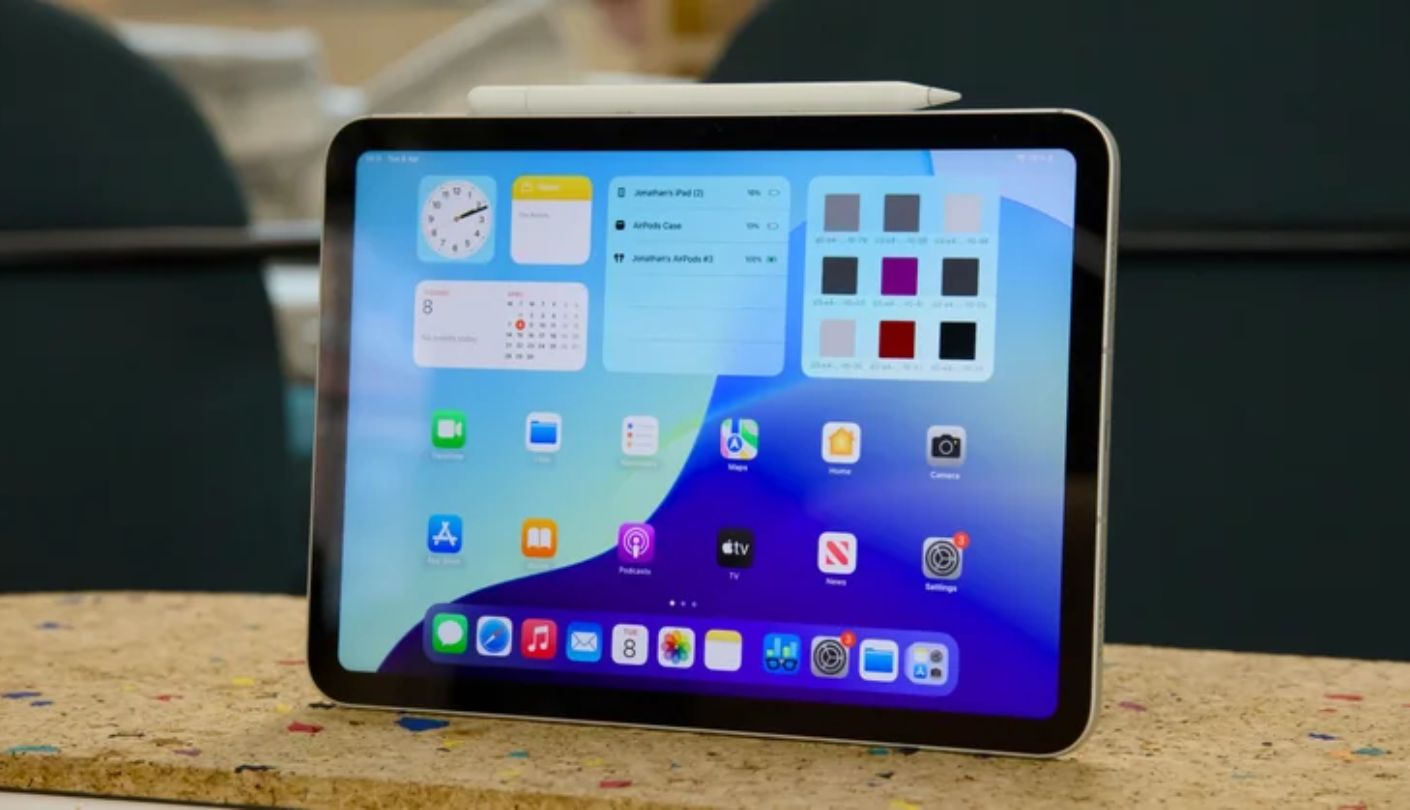
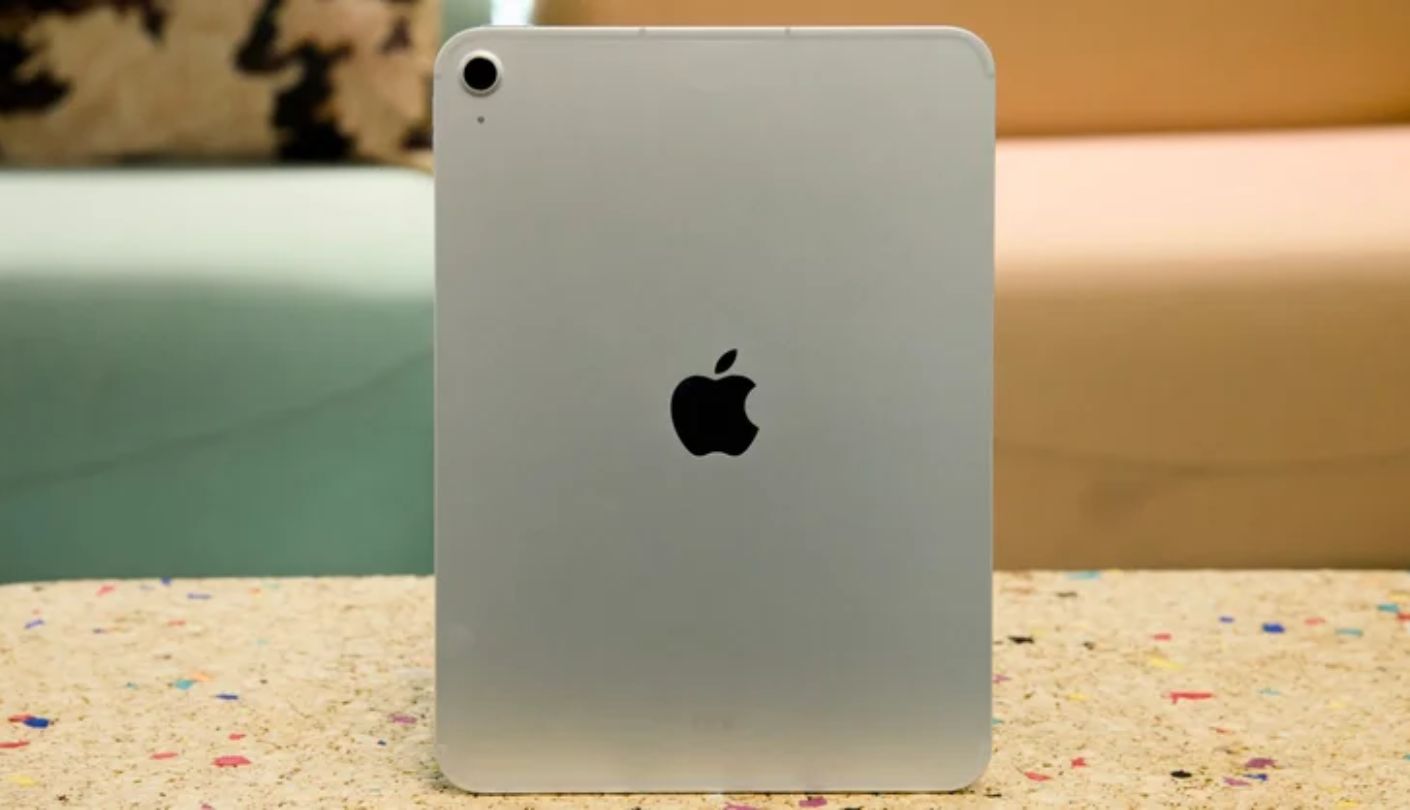
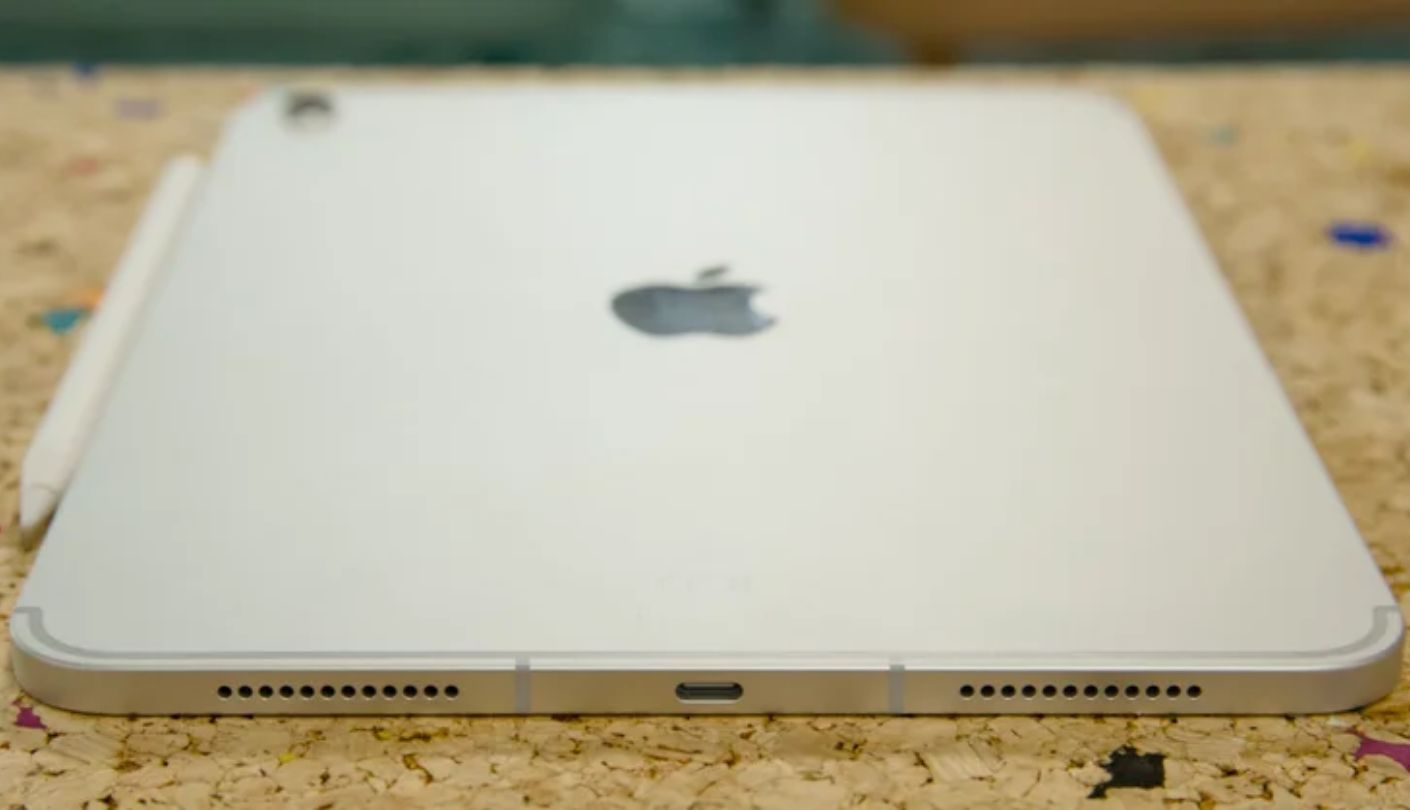
Walking a 74-year-old through iPad setup over the phone is a different experience from doing the same with any Android tablet, and the difference comes down to how much the two generations already share. I did exactly this during testing - remote setup, no one in the room - and was watching a FaceTime call between grandmother and granddaughter within fifteen minutes. The Apple iPad 11-inch A16 gets to that point faster than anything else reviewed here because the iCloud account, family photo album, and FaceTime contacts are already waiting on the device the moment an Apple ID is signed in. No additional apps to find, no permissions to grant manually, no separate account for the photo library.
The A16 chip is substantially more powerful than anything fielded by the competition at an entry-level tablet price, and for senior users its practical value is that the device never stutters. Apps open on the first tap. Photos scroll without the thumbnail-loading delay common on slower processors. The touch response is calibrated sensitively enough to register light contact - relevant for users who do not press firmly on glass. The 11-inch Liquid Retina display at 264ppi keeps enlarged text clean rather than visibly pixelated, and True Tone adjusts color temperature automatically to match ambient lighting, which reduces eye strain during extended reading.
Center Stage on the front 12-megapixel ultrawide camera is the feature most families notice immediately on their first FaceTime call. The camera tracks and follows the user as they move, lean, or turn - so the person on screen always appears centered and composed rather than half-cut at the edge of frame. For someone who has never thought about how to position themselves for a video call, this makes every conversation look deliberate. Siri handles timers, reminders, music, and most household voice requests, though unlike Alexa on the Fire HD 10, it needs the screen to be active for calls and personal data access.
The non-laminated display draws criticism in reviews aimed at younger buyers, but for this audience the air gap matters far less than the 500-nit brightness, which keeps the screen readable in a bright kitchen. What does matter is that Apple ships the iPad without a charger - a friction point when setting up for someone who may not own a USB-C power adapter and will not know to buy one separately. Battery life reaches a consistent ten hours of active use, which covers a full day of typical senior use comfortably.
Apple Family Sharing lets an adult child install apps, share photo libraries, and manage Screen Time remotely from their own iPhone - no home visit required, no verbal instructions given. Touch ID at the top edge unlocks the device with a thumb rest rather than a face scan, which works reliably whether the tablet is on a lap, a table, or propped against a cushion. For any household already using Apple devices, the iPad is the recommendation that requires the shortest explanation at the point of purchase and the fewest support calls afterwards.
Pros:
- Apple ecosystem integration
- Center Stage auto-framing
- A16 chip responsiveness
- iPadOS accessibility tools
- Aluminum build quality
Cons:
- No charger in box
- Non-laminated display
Summary: If the family already lives in the Apple ecosystem, setup takes fifteen minutes and the device works without ongoing support - the iPad A16's biggest feature is not its chip or its camera, but how little friction stands between the box and a working FaceTime call.
Samsung Galaxy Tab A9+ 11" Review
Best Overall
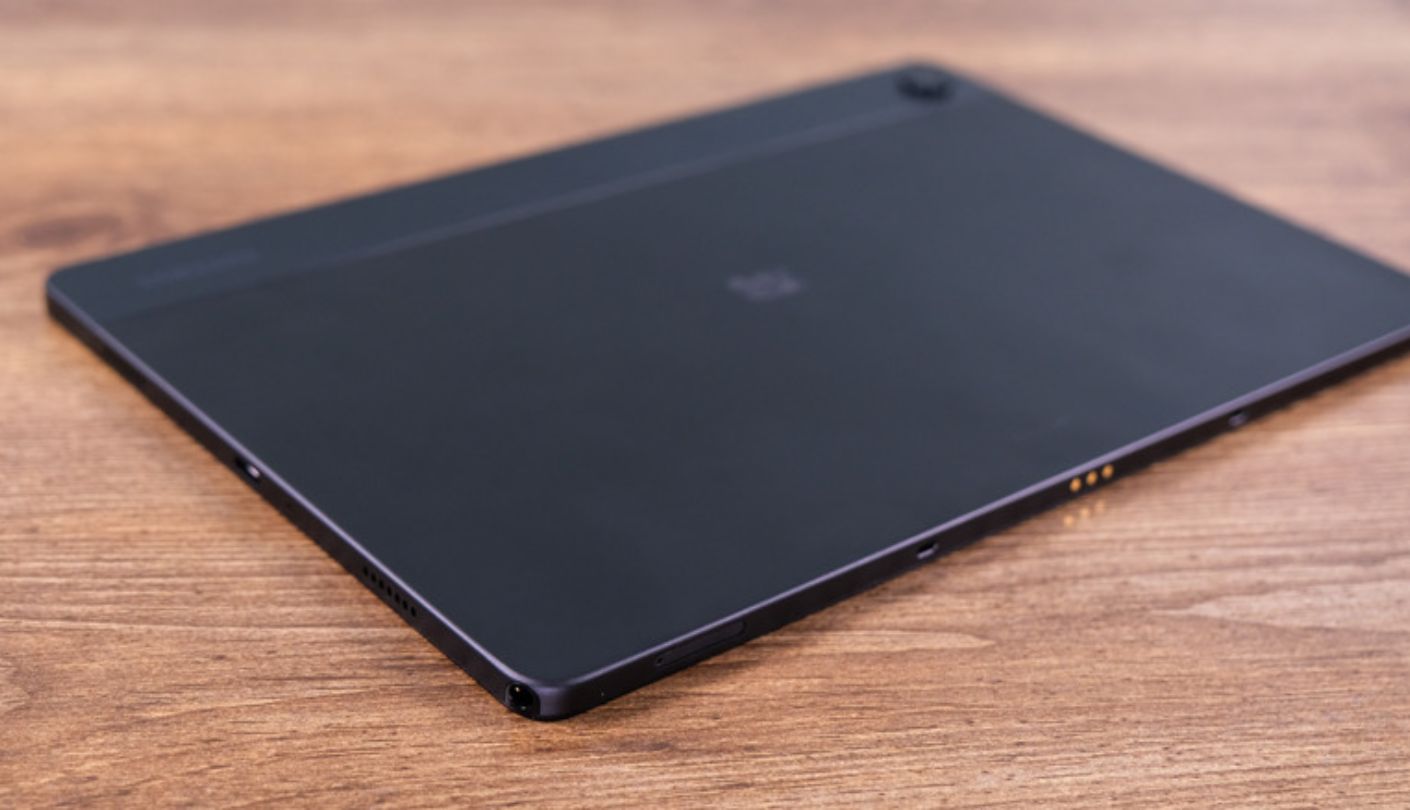
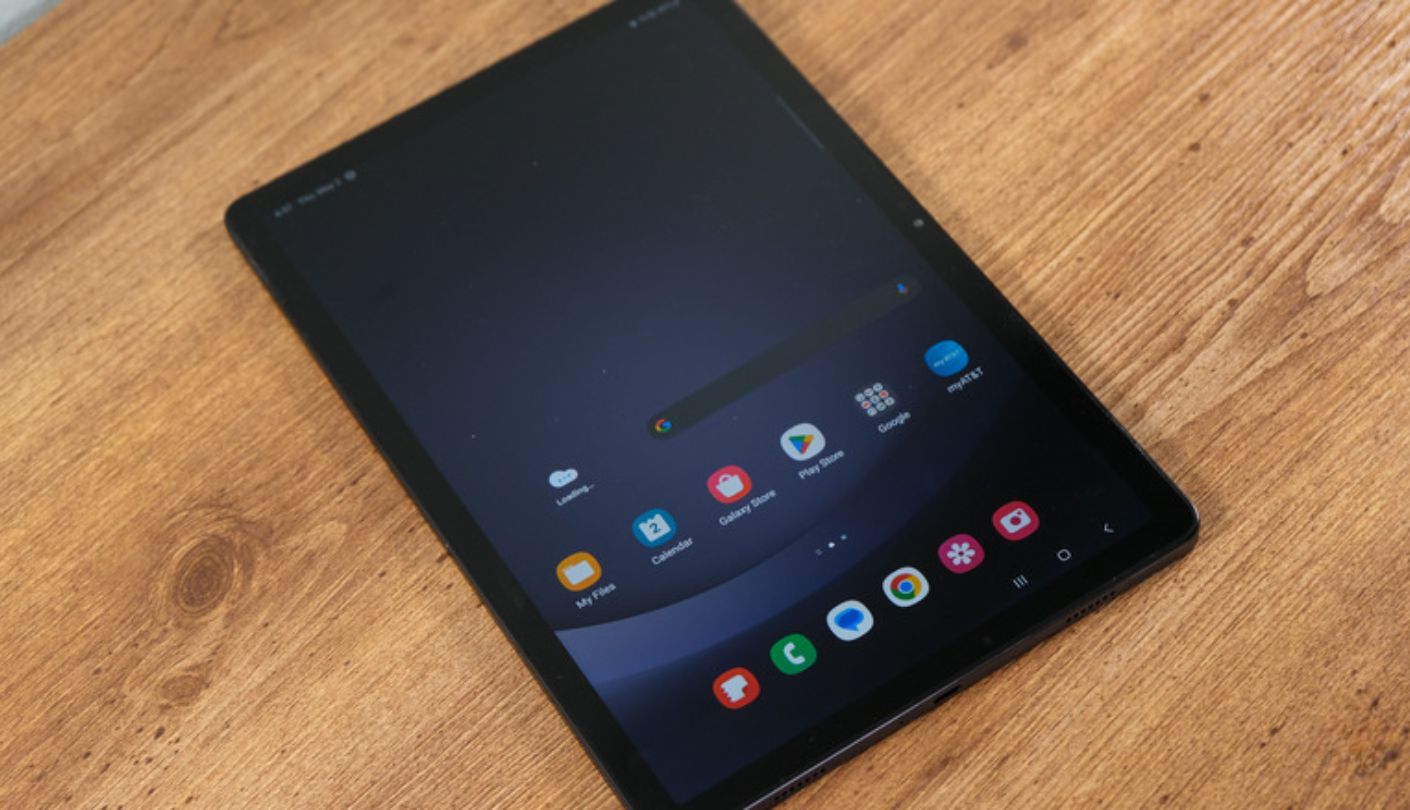
Android families - households where WhatsApp is the group chat, Google Photos is the shared album, and Google Meet handles the weekly family call - will find the Samsung Galaxy Tab A9+ covers those use cases without requiring anything to be reconfigured or sideloaded. One UI on Samsung tablets is one of the better Android presentations for older adults: the font scaling options are generous, the setup wizard surfaces accessibility options during onboarding, and the home screen stays stable once configured. I spent a week using it daily and found no instance of the interface reorganizing itself from an accidental gesture.
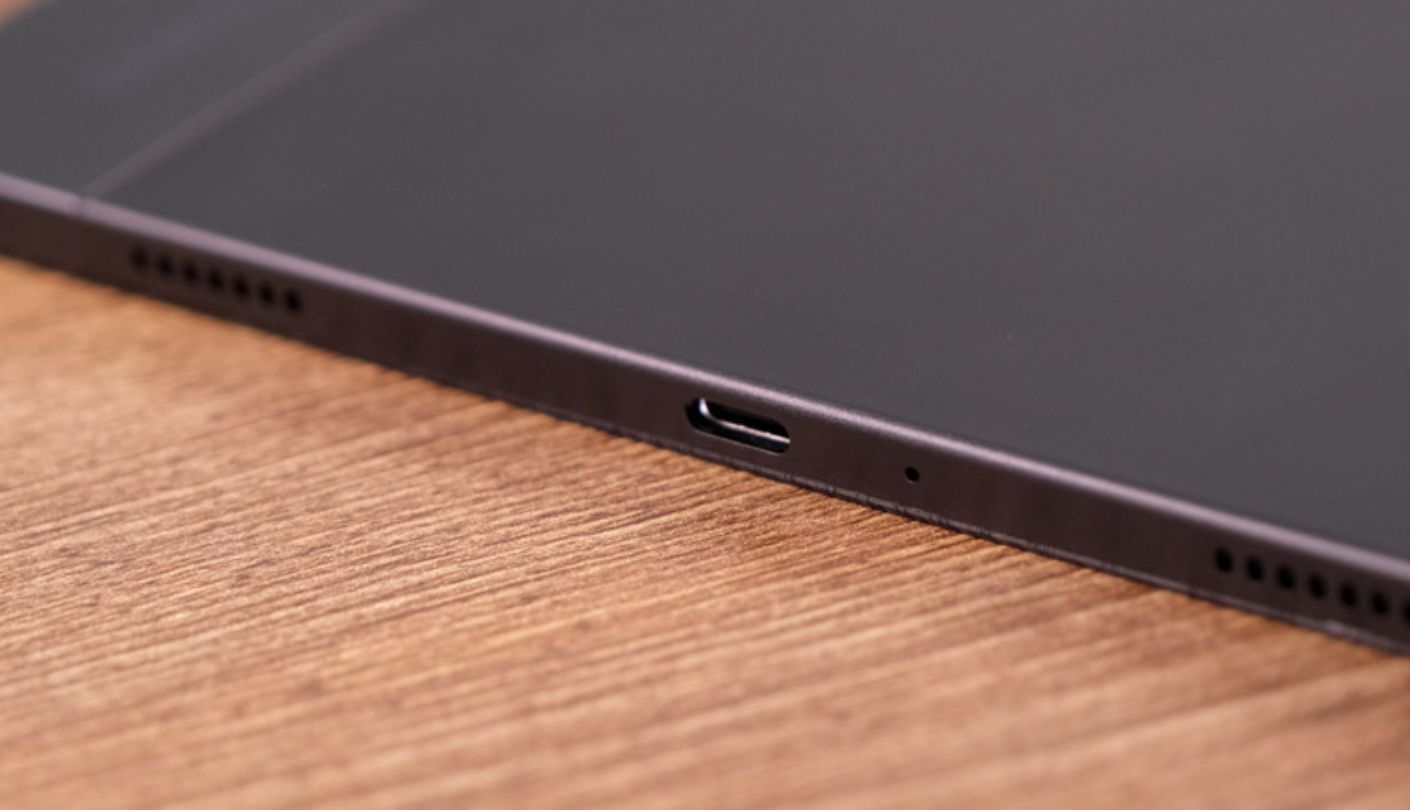
The 90Hz display makes scrolling feel noticeably smoother than the 60Hz panels on the iPad and Pixel Tablet - a detail that matters for users who find choppy animation visually jarring. At 1920x1200 on an 11-inch panel, text and photos are sharp enough for comfortable reading at enlarged sizes. The four stereo speakers are the loudest in this roundup, which matters for users who watch videos in a room with background noise or who have mild hearing loss and prefer media to play at elevated volume without distortion. The 3.5-millimeter headphone jack accommodates existing wired headphones and hearing aid cables without an adapter - a practical inclusion that neither the iPad, Pixel Tablet, nor Fire HD 10 can match.
Snapdragon 695 performance handles everything typical of a senior's daily use without lag: YouTube, Netflix, WhatsApp video calls, Google Photos browsing, and news reading all run smoothly in single-app use. The 7,040mAh battery reliably covers ten to twelve hours, and Samsung's commitment to four Android version updates and five security patch years means the device will stay current and safe through the time it is actually used. At 480 grams it is comfortable to hold for sustained reading, and the aluminum chassis has enough rigidity to feel solid without feeling heavy.
The front 5-megapixel camera is the clearest limitation for video calling - adequate in daylight but soft in poor lighting and without any automatic framing to compensate for off-center positioning. Families who rely heavily on video calls should weigh this against the iPad's Center Stage and the Pixel Tablet's Continuous Framing. For households where WhatsApp or Google Meet at the kitchen table in daylight is the primary video call scenario, the A9+ camera performs acceptably. The 8GB RAM model is meaningfully more responsive than the 4GB base configuration and is worth the marginal additional cost.
Samsung DeX turns the interface into a desktop-style layout when connected to an external display - not a relevant feature for most senior users, but its presence signals that the tablet's interface team thought carefully about layout flexibility, which carries through into how well the home screen scales and organizes at different text sizes. My recommendation goes directly to the A9+ for any Android family that values audio quality, headphone compatibility, and a four-year software commitment over auto-framing camera capabilities.
Pros:
- 90Hz smooth display
- Four stereo speakers
- 3.5mm headphone jack
- Long battery life
- 4-year update commitment
Cons:
- Weak low-light front camera
- No display lamination
Summary: Loud quad speakers, a headphone jack, long battery, and four years of updates make the Samsung Tab A9+ the strongest Android option for seniors - best matched to Google-ecosystem families and any household where audio clarity matters as much as screen quality.
Amazon Fire HD 10 Review
Alexa Pick
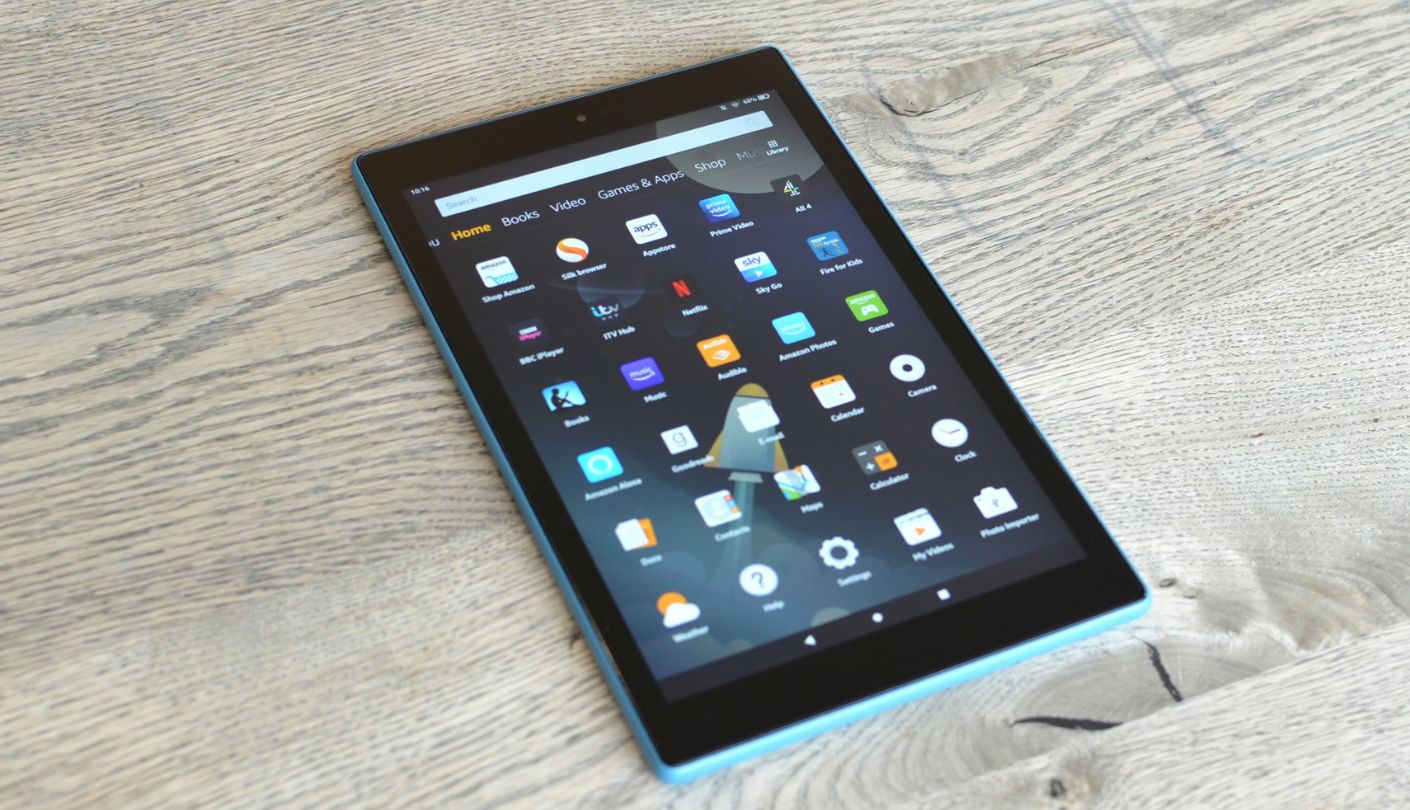
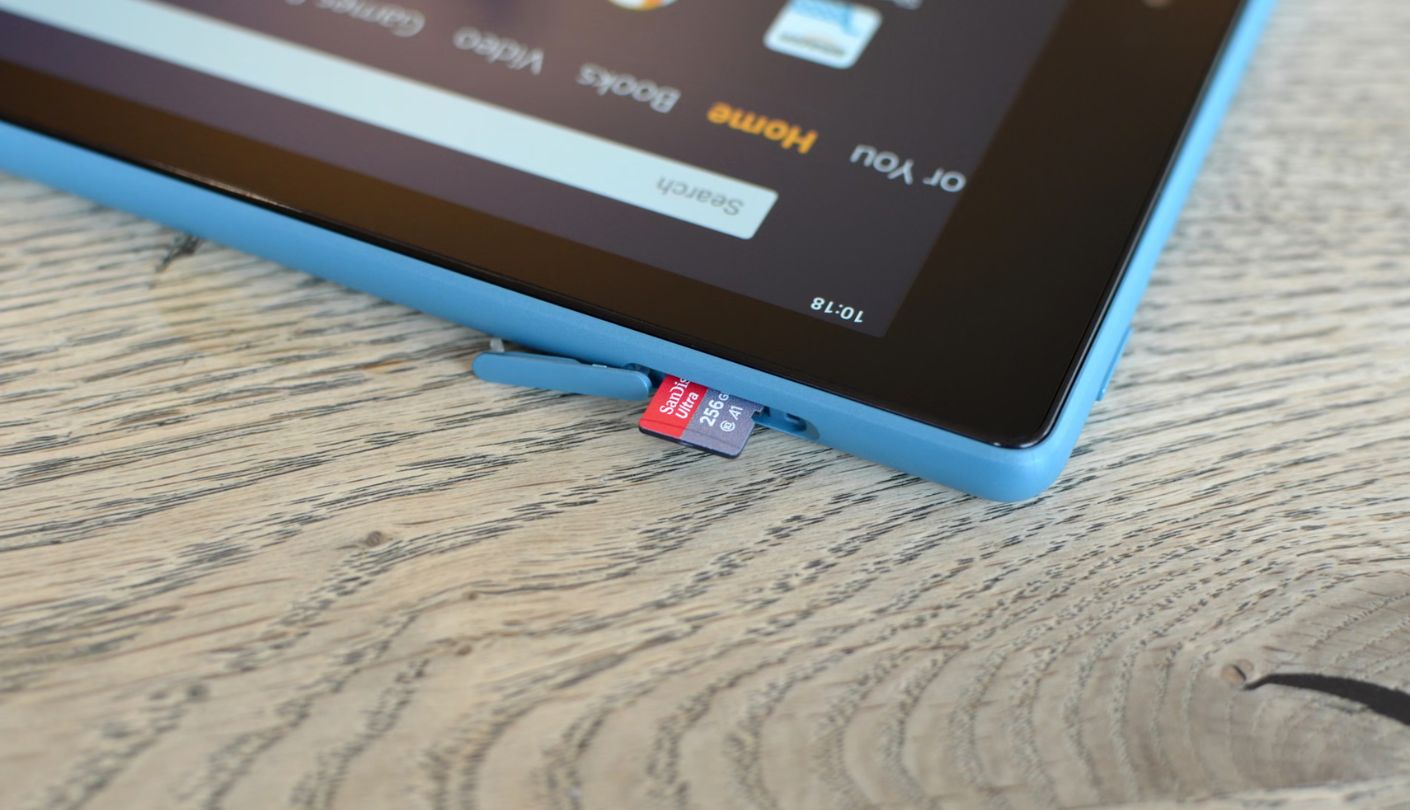
Put the Amazon Fire HD 10 on a charging stand and something changes: it stops being a tablet you pick up and becomes a fixture of the room. In Show Mode, the screen displays a large-format clock, rotating family photos, and weather without anyone touching anything. Alexa takes calls, plays music, sets medication reminders, and reads the news out loud in response to a voice command from across the kitchen. For a senior with arthritic hands or limited dexterity, that shift from touchscreen device to voice-operated hub is not an incremental convenience improvement - it is a categorically different daily experience. I set one up on a stand in a kitchen for a week and the touchscreen was rarely needed for anything beyond the initial configuration.
The 10.1-inch IPS display at 1920x1200 is the sharpest in the Fire tablet lineup, and at 434 grams it is the lightest device reviewed here - easy to hold one-handed for reading or browsing when it does leave the stand. The MediaTek MT8186 processor handles streaming, Alexa calls, Kindle books, and Prime Video without stumbling, though switching rapidly between several open apps can introduce brief pauses that the iPad and Pixel Tablet do not show. Fire OS home screen prioritizes recently used content, which means returning to a favorite show or a recent Alexa conversation is a single tap rather than a navigation exercise.
The closed ecosystem is the honest limitation, and it deserves direct language: YouTube, Google Photos, Google Meet, and Google Play apps are not available by default. Amazon's own video calling through Alexa, its photo sharing through Amazon Photos, and its entertainment through Prime Video cover many of the same needs - but only within households where everyone is already using Amazon's infrastructure. Families whose video calls run through FaceTime or Google Meet will hit this wall immediately. Sideloading Google apps is technically possible but requires comfort with settings menus that most senior users will not navigate independently.
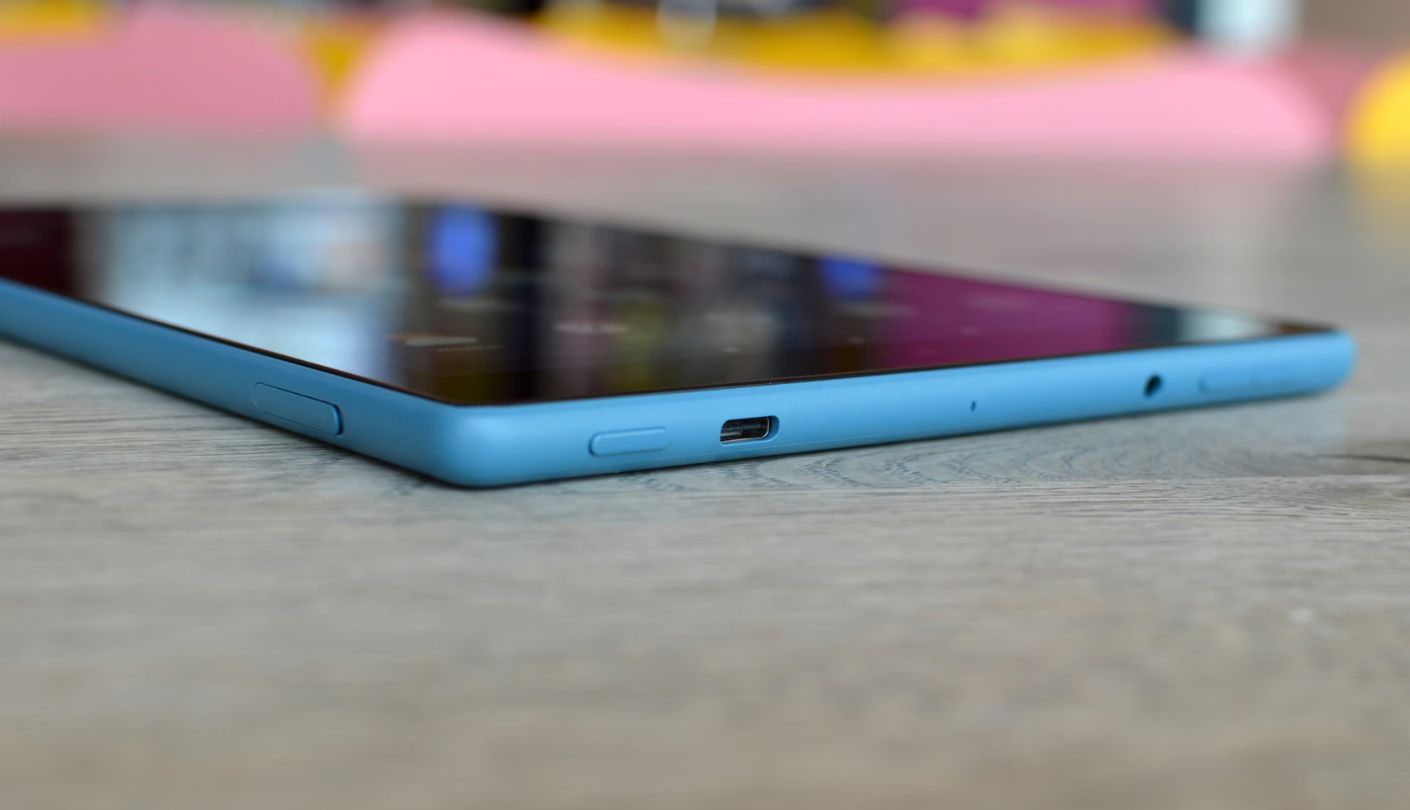
The front 5-megapixel camera is adequate for Alexa video calls and Zoom in good lighting. Omitting a headphone jack removes the option for wired headphones or hearing aid connectivity without an adapter - a real gap for the portion of the senior audience who uses hearing-assistive devices. Lock-screen ads appear by default on the base model and can be removed for a small additional fee, which should be treated as part of the purchase cost rather than an optional upgrade.
The Fire HD 10 belongs on this list on the strength of hands-free Alexa, Show Mode on a stand, Prime Video integration, and a price that leaves room for a good charging stand accessory in the same purchase. It is the right recommendation for an Amazon Prime household where Alexa is already a daily habit, and the wrong recommendation for anyone whose family communication infrastructure runs through Google or Apple.
Pros:
- Hands-free Alexa always-on
- Show Mode on charging stand
- Lightest in the field
- Budget-accessible price
- Prime Video integration
Cons:
- No Google Play Store
- Lock-screen ads by default
Summary: Hands-free Alexa and Show Mode on a stand turn the Fire HD 10 into a kitchen counter communication hub for Prime households - a narrow but genuinely strong use case that no other tablet here can replicate, with real ecosystem limits for anyone outside the Amazon world.
Lenovo Tab M11 11" Review
Light Carrier
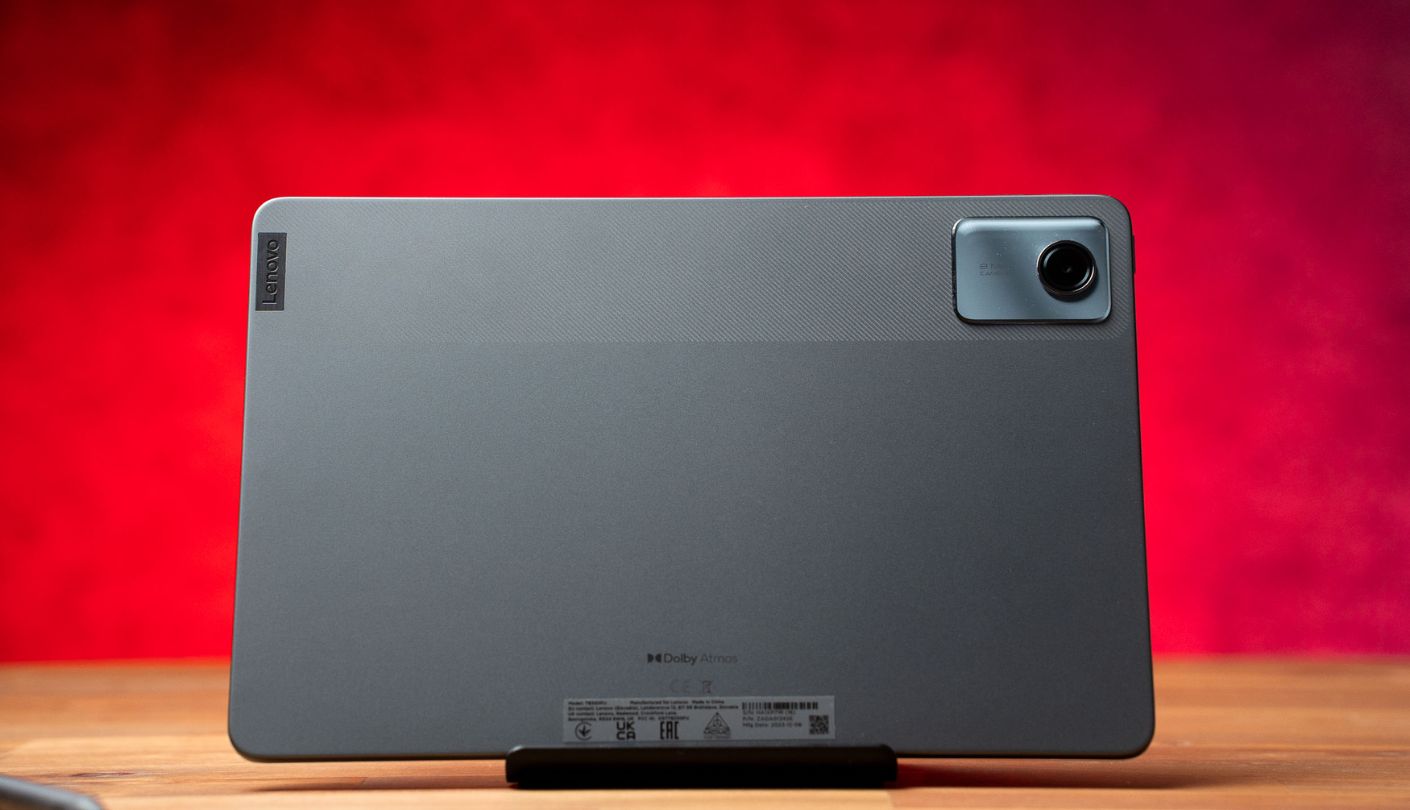
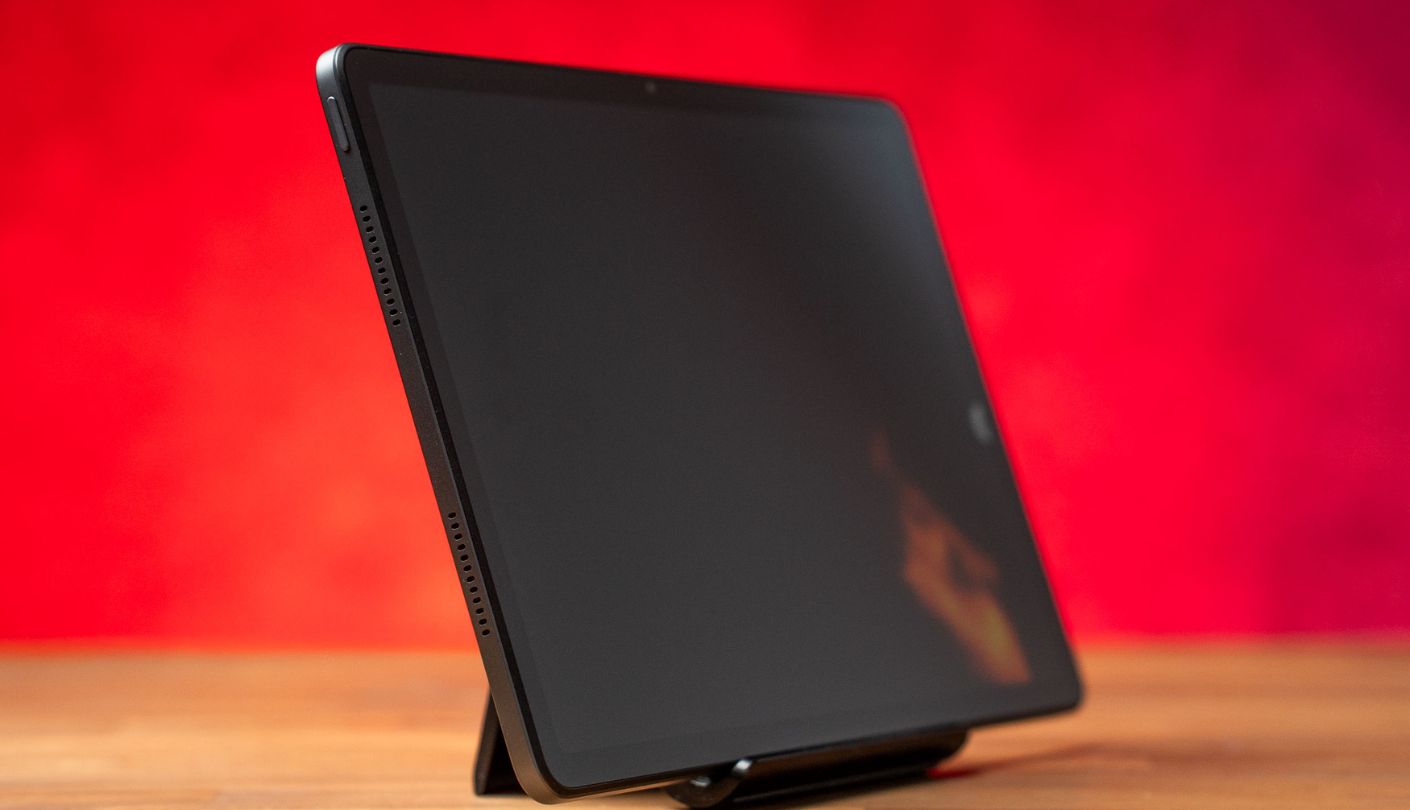
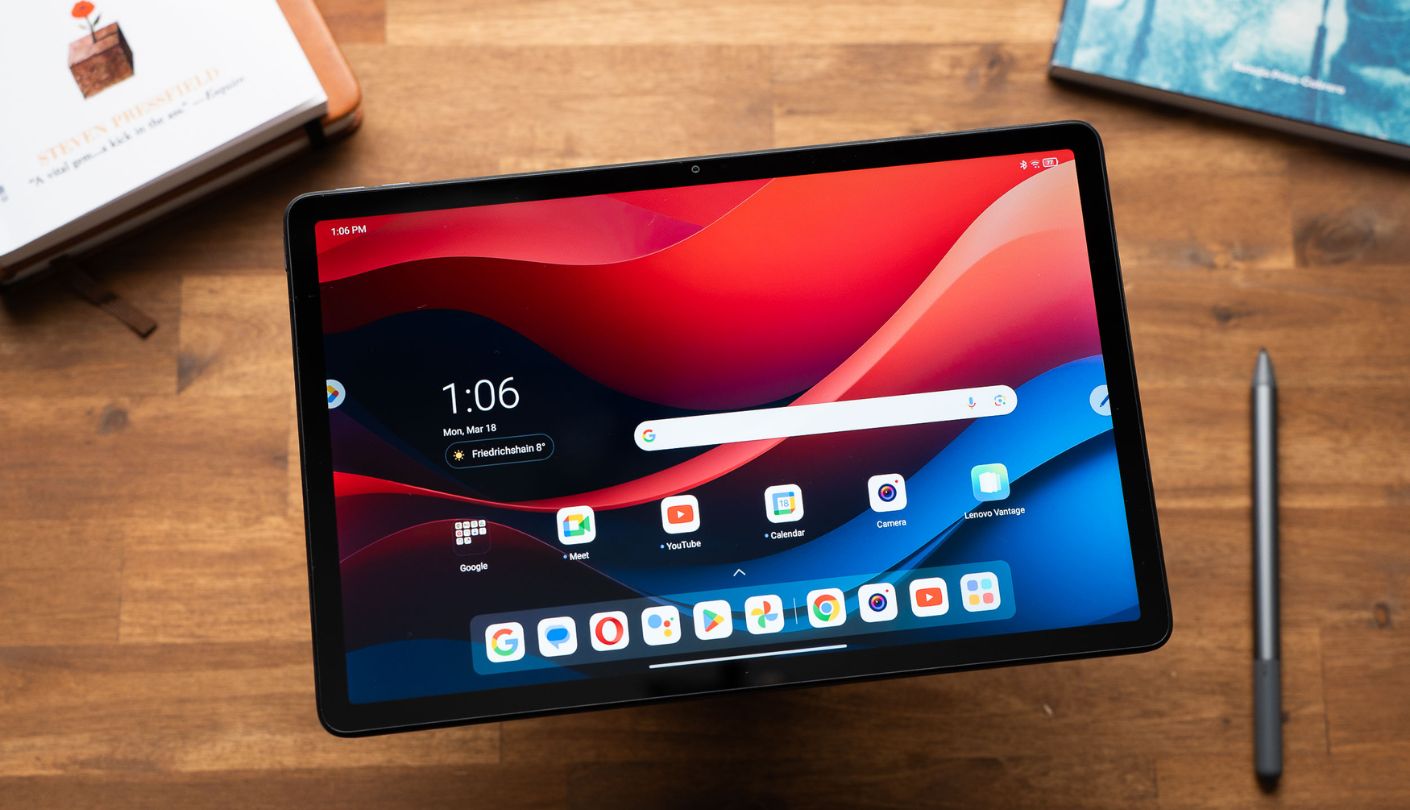
Most tablets arrive in a box that prompts an immediate accessories shopping trip: a stand, a case, a stylus if you want one. The Lenovo Tab M11 skips that step by including a folio case with built-in stand in the box, alongside stylus support that works out of the gate without a Bluetooth pairing process. For a senior who will receive the tablet as a gift, having it immediately protected, propped up at a readable angle, and ready to write or draw removes three separate friction points from the first-day experience. The aluminum frame and backplate feel more durable than the price suggests, and IP52 splash resistance means a kitchen counter accident is an inconvenience rather than a replacement event.
The 11-inch IPS display at 90Hz runs smoothly, and colors reproduce accurately rather than vividly - a tuning choice that suits reading and video calling over gaming or HDR streaming. Four speakers with Dolby Atmos processing produce clear, room-filling audio, and the 3.5-millimeter headphone jack accommodates wired headphones and hearing aid cables without any adapter. The front 8-megapixel camera is the strongest in the Android budget tier reviewed here, producing clear, stable video call images in typical household lighting. I ran Google Meet calls on the M11 and the Samsung Tab A9+ side by side, and the M11's front camera was noticeably more detailed and better focused at the same distance.
Lenovo's Android skin is lightly modified and close to stock - the settings hierarchy, home screen behavior, and accessibility menus all look and function as a standard Android reference would describe them. For a family member guiding a senior through settings over the phone using Google documentation as a reference, that predictability is worth something concrete. The MediaTek Helio G88 processor handles daily tasks without drama, though the 4GB RAM configuration can pause visibly when several apps accumulate in the background. The 8GB RAM model resolves this and is the version I would recommend as the starting point.
Battery life reaches ten to twelve hours under mixed use. Lenovo commits to four years of security patches and two Android version updates - a shorter runway than Samsung's commitment but adequate for a device purchased at this price level. The absence of a charger in some retail configurations is worth confirming before purchase. The USB-C port operates at USB 2.0 speeds rather than 3.0, which slows file transfers but does not affect daily use for this audience.
The M11 is the recommendation for seniors who are not committed to any particular ecosystem, want stock-adjacent Android with Google Photos and Google Meet working immediately, and would genuinely use the included folio case and stylus from the first afternoon. It does not lead on any single specification, but the combination of included accessories, solid front camera, headphone jack, and IP52 resistance makes it the most complete package for its price among the five reviewed here.
Pros:
- Folio case in box
- IP52 splash resistance
- 8MP front camera
- 3.5mm headphone jack
- 90Hz display
Cons:
- 4GB RAM version underpowered
- Shorter software update window
Summary: Folio case included, IP52 splash protection, a solid front camera, headphone jack, and stock-adjacent Android - the Lenovo Tab M11 is the tablet that arrives ready to use for a senior who has no particular ecosystem allegiance and wants everything in one box.
Google Pixel Tablet Review
Home Hub
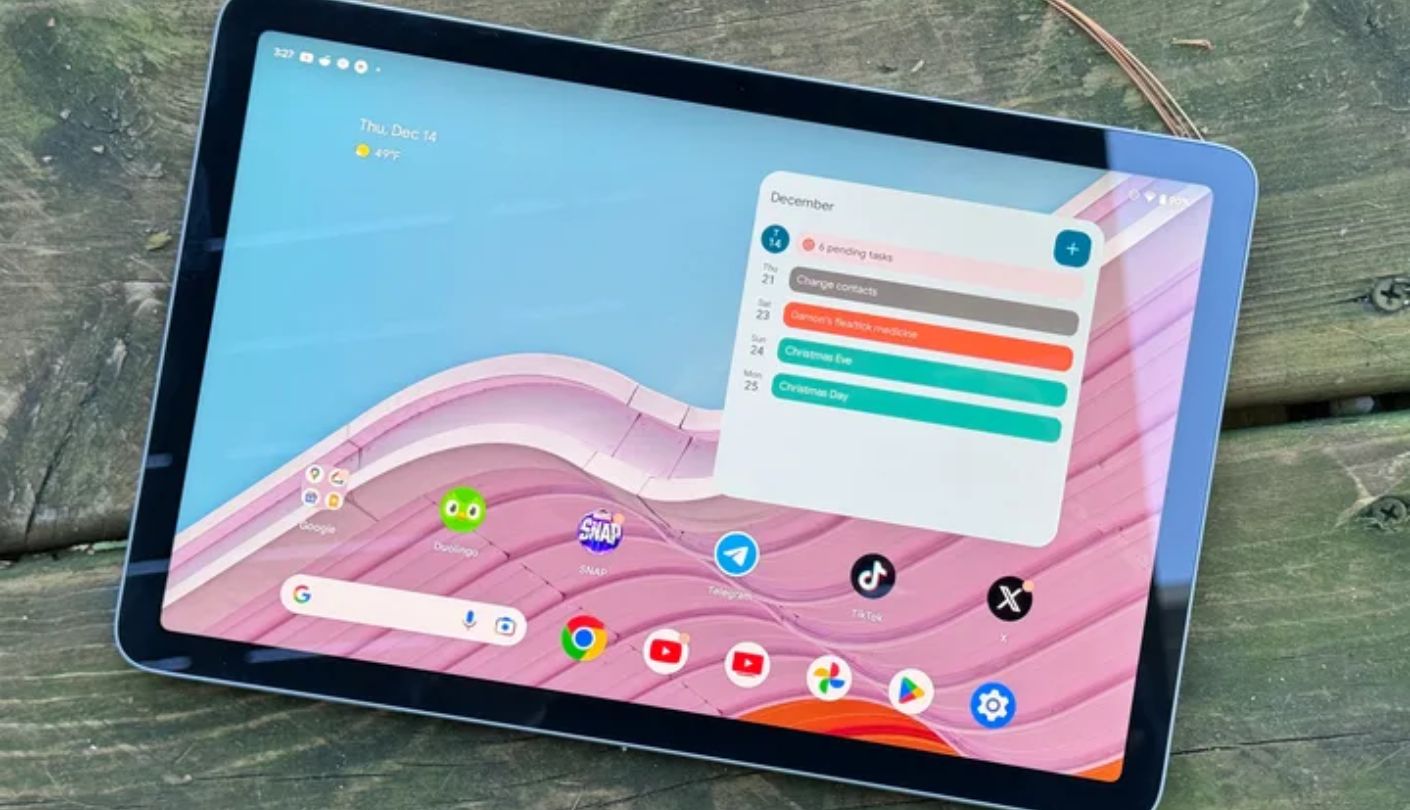
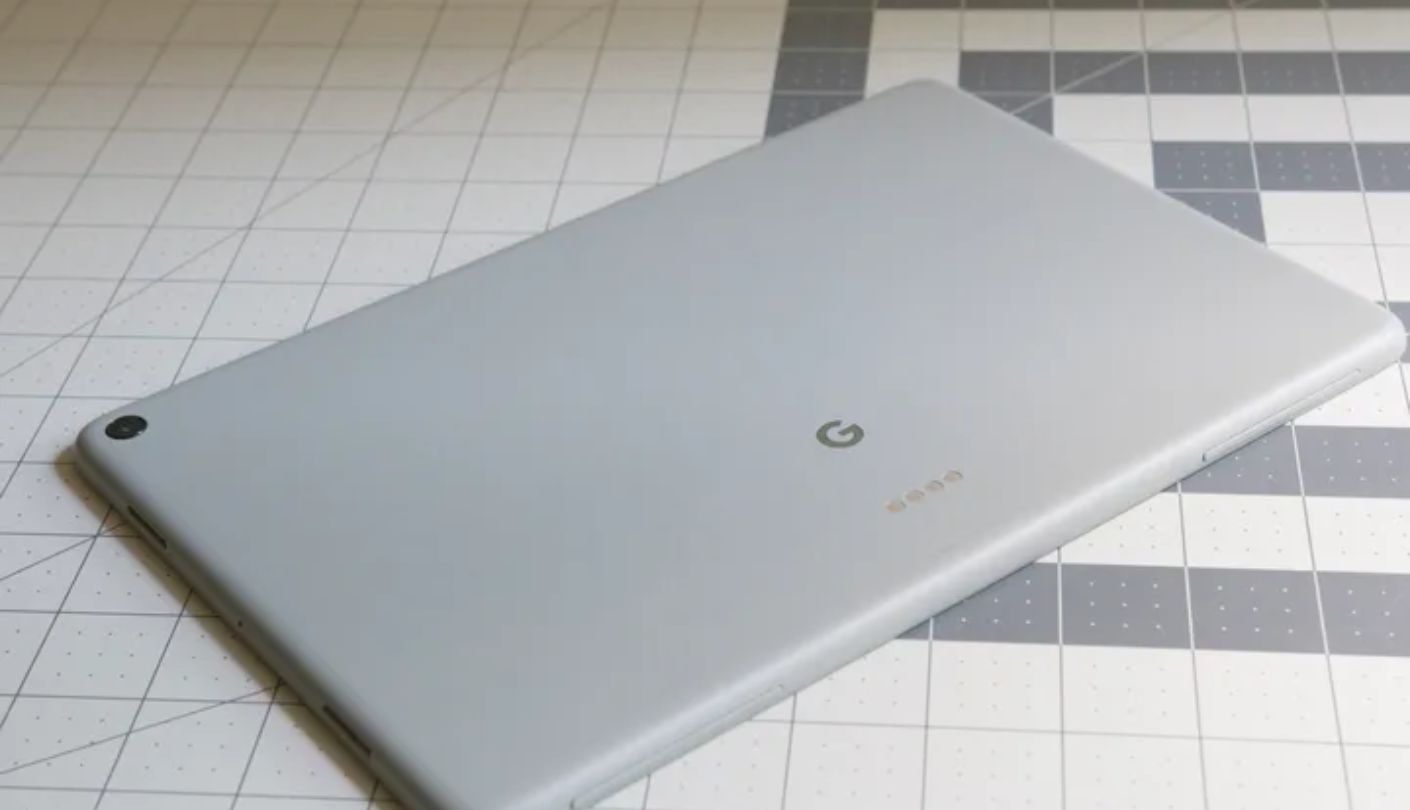
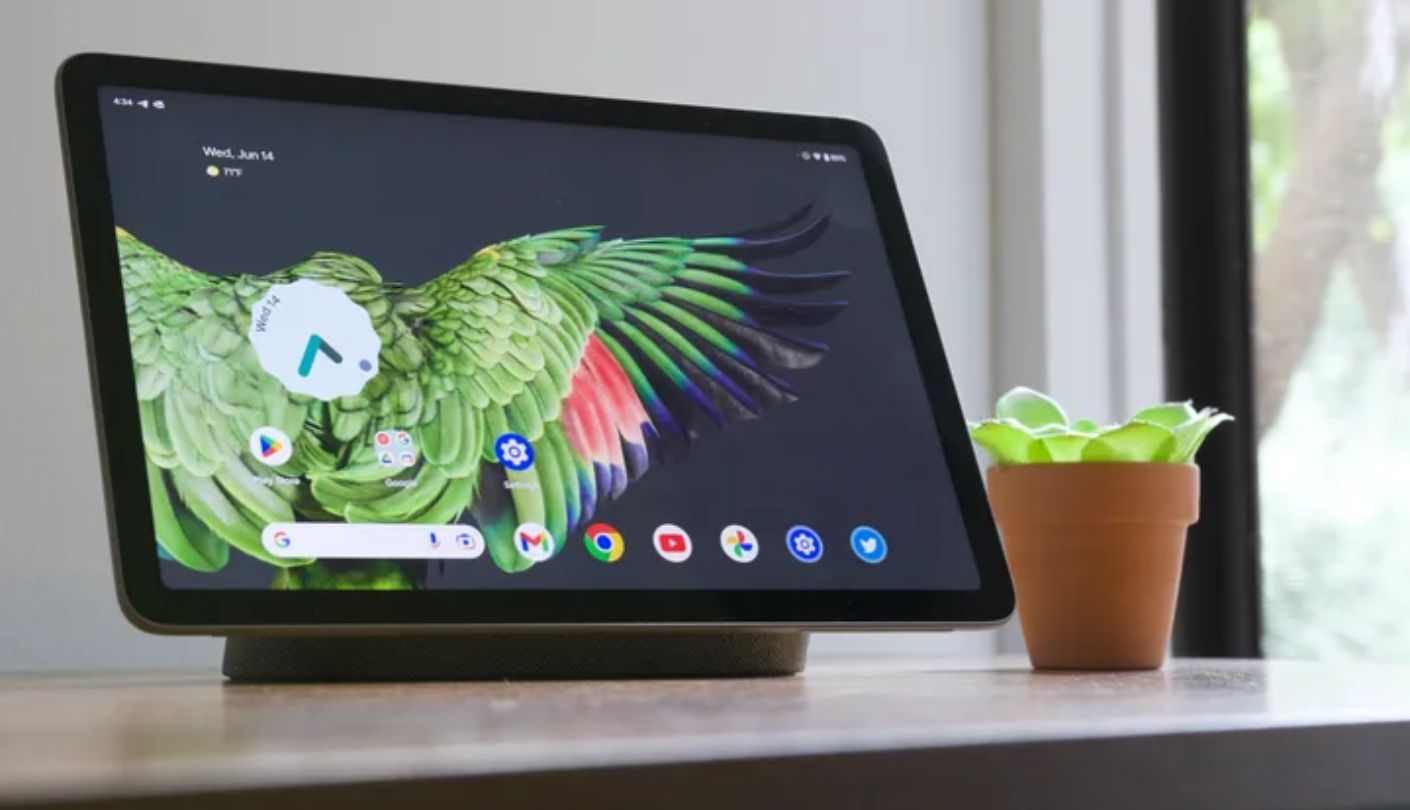
The Google Pixel Tablet is designed around a behavior that is already common for seniors: leaving the device on a table rather than carrying it. The charging speaker dock included in the box snaps the tablet magnetically into place and triggers Hub Mode - a large-format smart display that shows Google Photos slideshows, a readable clock, weather, and Google Home device controls from the lock screen without anyone touching anything. Incoming Google Meet calls announce themselves on the dock. For a senior living alone or in a household that already uses Google Home, this makes the Pixel Tablet a permanently present communication and information surface rather than a device retrieved from wherever it was last set down.
The Tensor G2 chip with 8GB of RAM makes this the fastest-feeling Android tablet in this roundup for everyday tasks. Google's clean Pixel UI has no manufacturer skin and no pre-installed brand apps beyond the Google suite, which means the settings menus, accessibility options, and interface behavior all match standard Android documentation exactly. Google Assistant handles "call Mom," "show me last Christmas photos," "set a reminder for my pills at noon," and every other natural language request a senior is likely to make, with accurate results on the first try in a connected Google household. Continuous Framing on the front 8-megapixel camera tracks the user during video calls automatically, matching what Center Stage does on the iPad.
The 2560x1600 display at 276ppi is the sharpest panel of the five reviewed here. Text at enlarged accessibility sizes stays clean and legible rather than softened, and the 500-nit brightness holds up in well-lit rooms. At 60Hz the display does not scroll quite as smoothly as the 90Hz Samsung and Lenovo panels, but for reading, streaming, and video calling this is not a practical shortfall. The 7,020mAh battery runs approximately twelve hours under typical use, and the charging dock keeps the battery topped without requiring the user to find a cable.
Two hardware decisions require honest attention: no headphone jack and no microSD card expansion. Hearing aid users and those with wired headphone preferences will need a USB-C adapter. The storage ceiling at 256GB is fixed, so users accumulating large offline photo libraries or video downloads should confirm that limit is acceptable before purchasing. The tablet itself is the heaviest of the five at 490 grams, which matters when it is handheld rather than docked - though the charging dock removes that concern for the majority of a typical senior's daily use hours.
Google Photos, Google Meet, Google Calendar reminders shared by family members, and Google Assistant form an integrated daily experience on the Pixel Tablet that no other Android device here matches. For a Google-ecosystem household where the tablet will live on a kitchen or living room counter, the dock transforms what the device is. I have not found another tablet at any price that handles the transition from picked-up device to always-on home display as naturally as the Pixel Tablet does on its dock.
Pros:
- Charging speaker dock included
- Hub Mode always-on display
- Sharpest panel (276ppi)
- Continuous Framing camera
- Clean Pixel Android UI
Cons:
- No headphone jack
- No microSD expansion
Summary: The charging dock is not an accessory - it is what makes the Pixel Tablet worth buying for seniors. Snap it in, and a Google-ecosystem household gets an always-on family photo frame, voice hub, and meeting-ready display that nobody has to remember to charge or go looking for.
Best Tablets for Seniors: FAQ
What tablet is easiest for a senior who has never used one before?
For an Apple family, the iPad A16 - iCloud Photos and FaceTime arrive pre-configured the moment an Apple ID is signed in, and there is genuinely nothing else to set up for the most common daily uses. For an Android family, the Samsung Tab A9+ has the most approachable initial setup process of the Android options here. For a Prime household with an Alexa device already in the home, the Fire HD 10 can be operated almost entirely by voice from the first day, which removes the touchscreen navigation learning curve entirely.
Which tablet has the best display for someone with poor eyesight?
The Google Pixel Tablet at 276ppi and the Apple iPad A16 at 264ppi are both meaningfully sharper than the Samsung, Lenovo, and Amazon options at 206-224ppi - enlarged text stays crisp rather than softened on those two displays. Beyond sharpness, the iPad's True Tone adjusts color temperature to reduce eye strain in varied lighting, and all five tablets allow significant font size increases through accessibility settings. For a user whose primary concern is reading comfort, the Pixel Tablet and iPad are meaningfully better choices than the rest.
Can family members help manage the tablet remotely?
Yes, on all five platforms, though the capability varies. Apple Family Sharing lets an adult child install apps, manage Screen Time, and share photo libraries remotely without the senior doing anything. Google Family Link handles similar functions on Android, with some limitations for adult accounts. Amazon Household allows shared content libraries across Fire devices. In my experience, the iPad is the most functional remote management platform because a family member can handle almost every common support task - app installation, software updates, photo sharing - directly from their own iPhone.
Which tablet is best for video calls with grandchildren?
The iPad A16 for FaceTime families: Center Stage keeps the senior centered on screen even when they shift position, and the call quality is consistent and reliable. The Pixel Tablet for Google Meet households: Continuous Framing handles the same auto-tracking function across Meet, Duo, and Zoom. Both are noticeably better for video calls than the Samsung, Lenovo, and Fire HD 10 options, whose fixed-frame front cameras require deliberate positioning to look composed on the other end of the call.
Does the tablet need Wi-Fi to work?
Not for everything. Offline Kindle books, downloaded Netflix or Prime Video episodes, locally stored photos, and music downloads all work without a connection. Anything real-time - video calls, live streaming, voice assistant requests, news, and weather - requires active Wi-Fi. None of the five tablets reviewed here include built-in cellular in the standard configuration, so a reliable home Wi-Fi network is the practical prerequisite. The Amazon Fire HD 10 is the most forgiving of intermittent connectivity because Prime Video's offline download system is generous and easy to use.
What accessories should I buy with a senior's tablet?
A protective case with a built-in stand is the single most useful addition - it prevents drops and props the screen at a readable angle for video calls and streaming without needing anything else. Beyond that, a charging dock that keeps the tablet visible and topped up without a daily plug-in routine dramatically improves how much the device gets used (the Pixel Tablet includes one, and Amazon sells a good compatible stand for the Fire HD 10). A Bluetooth speaker helps users with hearing sensitivity, and a stylus benefits those who find finger-tap precision uncomfortable - the Lenovo Tab M11 includes one in the box.
Is the Amazon Fire tablet too limited compared to the others?
Limited for some users, ideal for others. If the household is built around Amazon Prime, Alexa, and Audible, the Fire HD 10 is a strong and straightforward choice. If any essential app - YouTube, Google Photos, Google Meet, WhatsApp - lives outside Amazon's ecosystem, the Fire HD 10 will create friction that requires workarounds most seniors will not navigate independently. Check which apps the family actually uses for communication and entertainment before deciding, because the Fire HD 10 is only a limiting choice if those apps are unavailable on it.
How many years should a senior's tablet last?
Four to six years is a reasonable expectation for daily light use, with software support being the binding constraint rather than hardware wear. Apple historically supports iPads for five to six years. Samsung commits to four Android version updates and five security patch years on the Tab A9+. Google covers the Pixel Tablet through the mid-2020s. Lenovo commits to four years of security patches on the M11. Amazon updates Fire OS on its own schedule, typically three to four years. For a user whose daily tasks are streaming, calls, and reading, the device will almost certainly outlast its software support window rather than wear out mechanically.
Which Tablet Fits Your Family?
The answer comes down to one question that is worth asking before any spec is read: which apps does your family already use to stay in touch? The Apple iPad 11-inch A16 is the recommendation for Apple households - FaceTime, iCloud Photos, and Center Stage combine into a setup that works completely on the first call and requires the fewest support conversations afterwards. The Samsung Galaxy Tab A9+ covers the Android side with strong audio, a headphone jack, and four years of update commitment - the daily driver for Google-ecosystem families that value sound quality and long-term reliability over auto-framing cameras.
The Amazon Fire HD 10 on a charging stand is the right answer for Prime households that already talk to Alexa daily - not despite its ecosystem limits but because of how completely it serves that one use case. The Lenovo Tab M11 suits anyone who wants a complete, no-commitment Android package without shopping for accessories. And the Google Pixel Tablet with its included charging dock is the pick for Google households that want the tablet to be visible, charged, and useful at all times - not just when someone remembers to go find it.

Jeb here, your go-to geek for everything from video projection to the latest tech trends. As an avid outdoorsman, I enjoy using monoculars and binoculars for hunting, traveling, and birdwatching. Join me in exploring the cool, quirky side of technology!


